Do 4K Monitors Cause Lag
Do 4K monitors cause lag? It's one of those questions that seems like it should have a simple yes-or-no answer, but the reality is more nuanced than marketing specs suggest. The monitor panel itself isn't the villain here.
What actually creates that sluggish, unresponsive feeling is usually a chain of mismatched hardware, wrong cables, or settings that haven't been configured properly.
A 4K display renders 8.3 million pixels per frame. That's four times the workload of 1080p. Your GPU, your cable, your monitor's internal processor, and your refresh rate all play a role in whether things feel snappy or sluggish.
Let's break down exactly what's happening and how to fix it.
Quick Answer
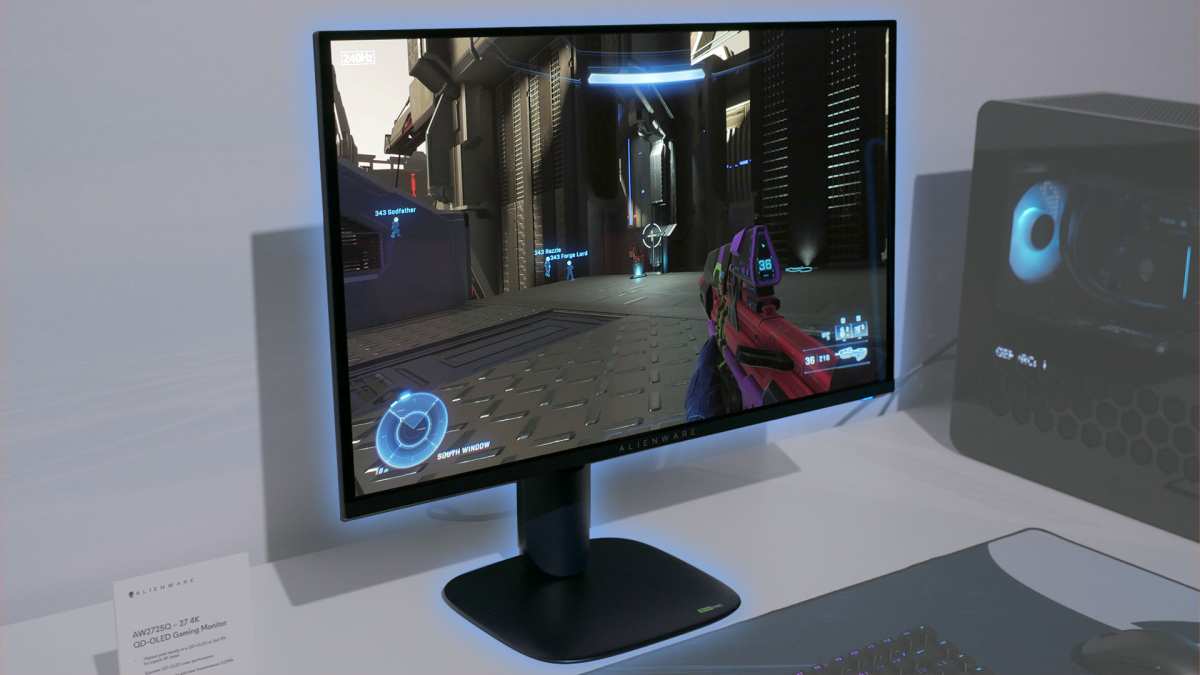
4K monitors do not inherently cause lag. The panel resolution itself is not the problem. Lag comes from GPU overload, slow cables, or incorrect settings.
A properly configured 4K setup can feel just as responsive as 1080p. The key is matching your hardware to the resolution's demands.
What People Actually Mean When They Say "4K Lag"
When someone says their 4K monitor "feels laggy," they're usually describing one of three very different problems. Maybe the cursor feels sluggish moving across the desktop. Maybe games stutter and frame rates tank.
Or maybe there's a noticeable delay between pressing a button and seeing the result on screen.
These are all different issues with different causes. Lumping them together under "4K lag" makes troubleshooting harder than it needs to once you know what you're actually dealing with.
The Three Types of Lag People Confuse Constantly
Input Lag vs. Response Time vs. Render Lag
Here's where most of the confusion starts. These three terms get thrown around interchangeably, but they measure completely different things.
Input lag is the time between you clicking your mouse or pressing a key and the monitor showing the result. This includes signal travel time, the monitor's internal processing, and pixel transition time. It's measured in milliseconds.
Good gaming monitors achieve under 10ms. Office monitors often sit around 15 to 30ms, which is fine for spreadsheets but noticeable in fast-paced games.
Response time (specifically gray-to-gray, or GtG) measures how quickly a pixel can shift from one shade of gray to another. This affects motion clarity and ghosting, not responsiveness. A monitor can have a 1ms GtG response time but still have terrible input lag if its internal scaler is slow.
Render lag happens before the signal even reaches your monitor. This is your GPU struggling to draw frames at 4K resolution. If your graphics card can only manage 30 FPS at 4K in a demanding game, everything will feel sluggish regardless of how good your monitor is.
| Lag Type | What It Measures | Typical Good Value | Main Cause |
|---|---|---|---|
| Input lag | Signal arrival to pixel change | Under 10ms | Monitor processor, cable quality |
| Response time (GtG) | Pixel color transition speed | Under 5ms | Panel technology (IPS, VA, OLED) |
| Render lag | Time to draw each frame | Under 16ms (60+ FPS) | GPU performance at chosen resolution |
Why 4K Pushes Your GPU Four Times Harder Than 1080p
This is the single biggest factor most people underestimate. At 3840×2160, you're asking your GPU to calculate and draw 8,294,400 pixels every single frame. Compare that to 1080p at 1920×1080, which is just 2,073,600 pixels.
That's a 4x increase in raw pixel workload.
What this means in practice: a graphics card that pushes 120 FPS in a game at 1080p might only manage 50 to 60 FPS at 4K with the same settings. The exact hit varies by game and GPU, but a 50 to 60% frame rate drop is common based on aggregate benchmarks.
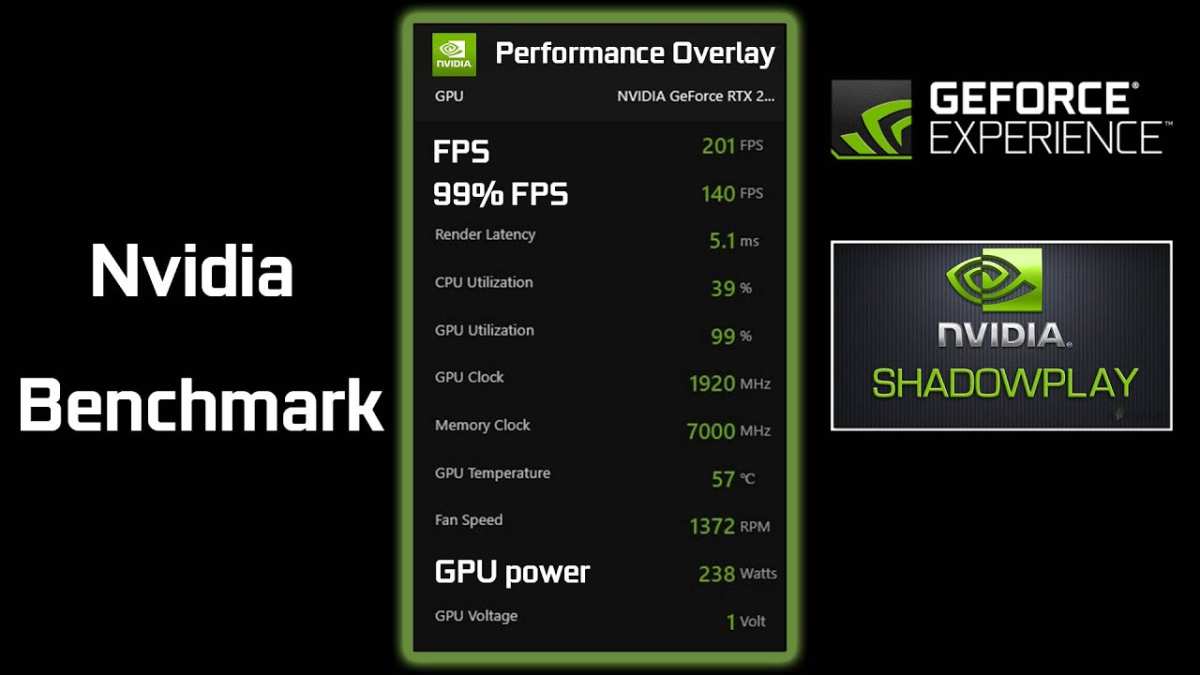
Lower frame rates don't just look less smooth. They also increase render lag because each frame takes longer to produce. At 120 FPS, each frame takes about 8.3ms to render.
At 50 FPS, that jumps to 20ms per frame. You're adding roughly 12ms of delay before the frame even leaves your GPU.
This is why a 4K monitor can "feel laggy" even when the monitor itself is perfectly fine. The bottleneck is upstream.
How Your Cable Choice Can Create Lag That Isn't the Monitor's Fault
This catches people off guard constantly. You buy a great 4K monitor, plug it in with whatever cable was in the box, and wonder why you're stuck at 30Hz or why the image looks soft. The cable matters more than most people realize.
The issue isn't that a bad cable adds processing delay. It's that an under-spec cable forces compromises. Maybe your refresh rate drops to 30Hz, making everything feel choppy.
Maybe chroma subsampling gets forced to 4:2:0, making text look fuzzy. Or maybe the connection falls back to a lower bandwidth mode that introduces stuttering.
Here's what you actually need for common 4K scenarios:
| Cable Standard | Max 4K Refresh Rate | Chroma | Notes |
|---|---|---|---|
| HDMI 2.0 | 60Hz | 4:4:4 | Fine for office work, limiting for gaming |
| HDMI 2.1 | 120Hz (4K) | 4:4:4 | Required for PS5/Xbox Series X at 4K 120Hz |
| DisplayPort 1.2 | 60Hz | 4:4:4 | Older standard, still adequate for 60Hz |
| DisplayPort 1.4 | 120Hz (with DSC) | 4:4:4 | Most common for PC gaming monitors |
| USB-C (DP Alt Mode) | Varies | Varies | Depends on DP version supported |
If you're trying to run 4K at 120Hz through an HDMI 2.0 cable, it simply won't work. The cable doesn't have enough bandwidth. You'll either get a lower refresh rate or chroma subsampling, both of which degrade the experience.
Always check that your cable is certified for the bandwidth you need. For HDMI 2.1, look for "Ultra High Speed HDMI" certification. For DisplayPort, match the version to your monitor's requirements.
When a 4K Monitor Will Feel Laggy (And When It Won't)
This is where your specific use case determines everything. Not all 4K usage creates the same problems.
Gaming at 4K — The GPU Bottleneck Problem
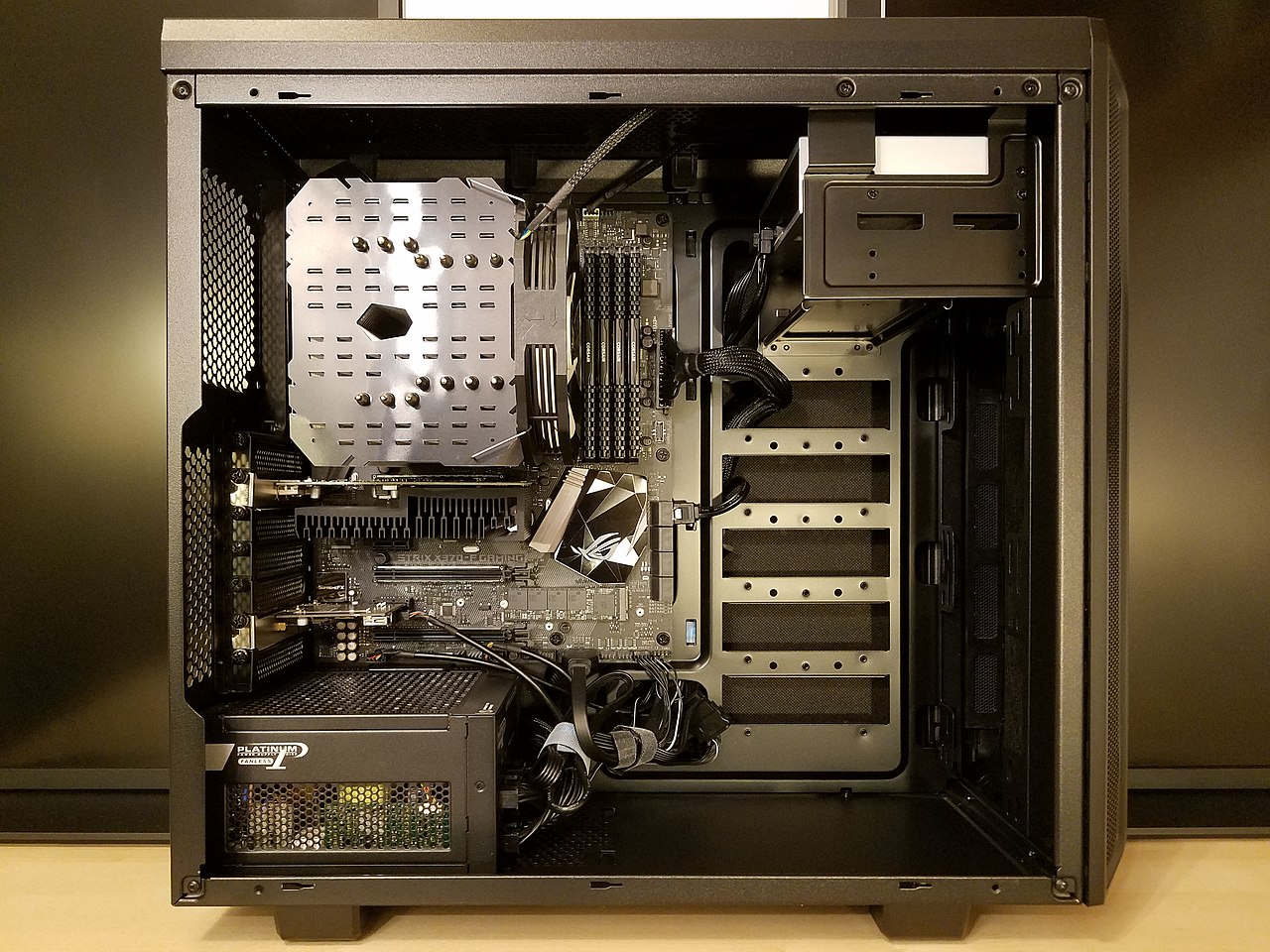
This is the scenario where 4K lag complaints are most valid. If your GPU can't push enough frames at 4K, you'll feel it. A mid-range card like an RTX 4060 or RX 7600 will struggle to hit 60 FPS in modern AAA titles at native 4K without upscaling or lowered settings.
Competitive gamers should be especially careful. If you're used to 240 FPS at 1080p in games like Valorant or CS2, dropping to 60 or 80 FPS at 4K will feel dramatically less responsive. The monitor isn't the problem.
The render lag from GPU limitation is.
What helps: Use DLSS, FSR, or XeSS to render at a lower internal resolution and upscale to 4K. This dramatically reduces GPU load while keeping most of the sharpness. NVIDIA's DLSS 3 and AMD's FSR 3 are particularly effective at 4K as of 2026.
Console Gaming — PS5 and Xbox Series X at 4K
Both the PS5 and Xbox Series X support 4K output, but they often use dynamic resolution or upscaling to maintain performance. If you're connecting to a 4K monitor and experiencing lag, check whether the console is outputting at 4K 60Hz or 4K 120Hz, and whether your monitor's HDMI port supports the required bandwidth.
Many 4K monitors have one HDMI 2.1 port and one HDMI 2.0 port. Plug into the wrong one and you'll be limited to 60Hz or forced into chroma subsampling. Check your manual for which port supports the full spec.
Office Work and Productivity — Usually Fine, But Check This
For browsing, document editing, coding, and general desktop use, 4K at 60Hz feels perfectly responsive on any reasonably modern hardware. Even integrated graphics from recent Intel and AMD processors can drive a 4K desktop without perceptible input lag.
The exception is if you're using a very old machine or a low-power laptop with a USB-C dock that doesn't support full DisplayPort bandwidth. In those cases, you might be limited to 30Hz at 4K, which makes cursor movement and window dragging feel noticeably sluggish. Always verify you're running at 60Hz minimum for desktop work.
Creative Work — Video Editing and Color Grading
Video editors working with 4K timelines need both GPU power and sufficient VRAM. Scrubbing through 4K footage in Premiere Pro or DaVinci Resolve can feel laggy if your hardware is underpowered, but this is again a render issue, not a monitor issue. Proxy workflows and GPU-accelerated playback help significantly here.
The Monitor's Own Processor: The Hidden Lag Source
Here's something most people don't think to check. Every monitor has an internal processor (a scaler chip) that handles signal decoding, image processing, and features like HDR tone mapping. Some scalers are fast.
Others add significant delay.
This is why monitors have a "Game Mode" or "Low Input Lag Mode" in their on-screen display settings. Enabling it typically bypasses unnecessary processing like frame interpolation, dynamic contrast, and noise reduction. The tradeoff is slightly less "polished" image processing, but the responsiveness improvement is immediately noticeable.
HDR mode on some monitors is particularly problematic. Enabling HDR can add 1 to 3 frames of processing delay on mid-range and budget models. If you're gaming and responsiveness matters, try toggling HDR off and see if the feeling of lag disappears.
Quick tip: If your monitor has a Game Mode option, turn it on. It's the single easiest fix for perceived input lag that doesn't cost anything.
How to Test Whether Your 4K Setup Is Actually Adding Lag
You can't fix what you can't measure. If you suspect your 4K setup is introducing lag, there's a straightforward way to check.
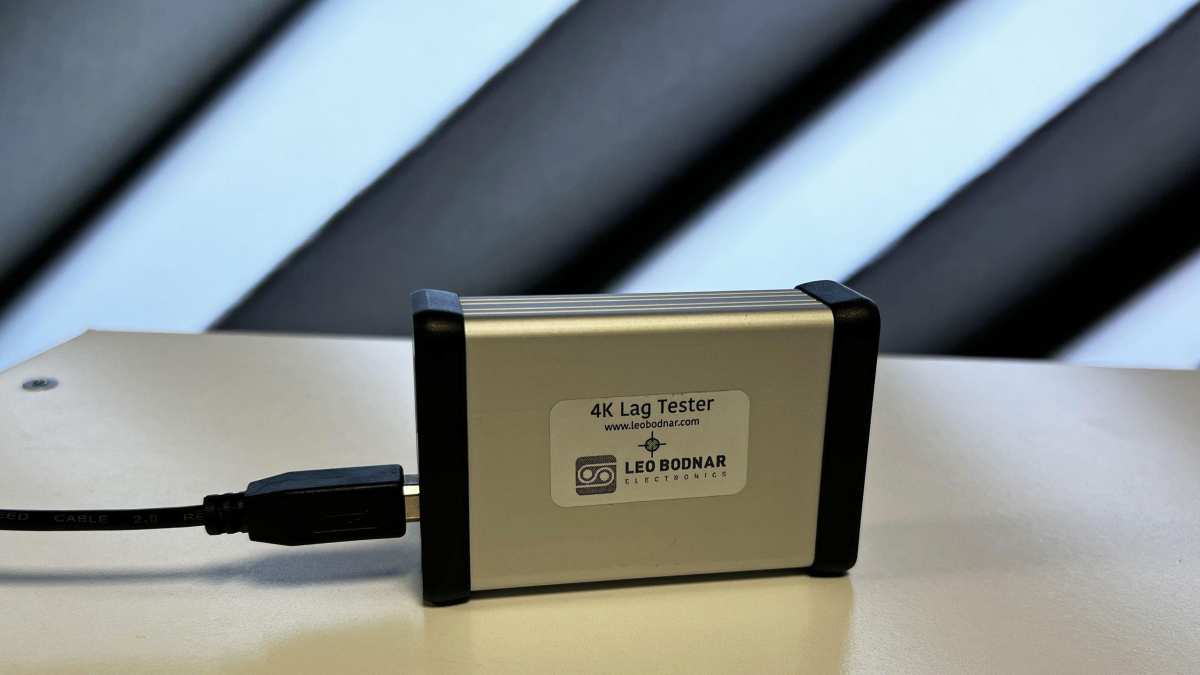
The Leo Bodnar input lag tester is the standard tool for this. It's a small device that plugs between your computer and monitor, measures the time from signal output to pixel display, and gives you a precise reading in milliseconds. It's what professional reviewers use for input lag testing.
For a simpler approach, you can use the UFO Test (testufo.com) in your browser. It won't give you a precise millisecond number, but it lets you visually compare motion clarity and can reveal if your refresh rate is lower than expected.
What to check:
- Confirm your refresh rate matches the monitor's spec (check display settings, not just the cable)
- Verify G-Sync or FreeSync is actually engaged in your GPU driver
- Test with Game Mode on versus off
- Compare input lag at 60Hz versus 120Hz if your monitor supports both
Quick Fixes That Solve Most 4K Lag Complaints
Before you blame the monitor or consider returning it, work through this checklist. These fixes resolve the vast majority of "4K lag" complaints.
- Enable Game Mode in your monitor's OSD. This alone can cut input lag by 10 to 20ms on many models.
- Verify your refresh rate in your operating system's display settings. Sometimes Windows or macOS defaults to 30Hz or 60Hz even when the monitor supports more.
- Use the correct cable. HDMI 2.1 for 4K 120Hz on consoles. DisplayPort 1.4 for PC gaming at high refresh rates.
- Update your GPU drivers. Driver updates frequently include performance improvements for 4K rendering.
- Enable DLSS or FSR in supported games to reduce GPU load without a major visual hit.
- Disable HDR if you're gaming and notice added sluggishness. Re-enable it for media consumption where it matters more.
- Check which port you're using on the monitor. Many monitors have mixed port specs (one HDMI 2.1, one HDMI 2.0).
4K Monitor vs. 1440p: The Real Performance-to-Quality Tradeoff
If gaming performance is your priority and your GPU is mid-range, 1440p (2560×1440) is often the smarter choice. You get noticeably sharper visuals than 1080p while keeping GPU load manageable.
At 1440p, you're rendering about 3.7 million pixels per frame. That's roughly 57% fewer pixels than 4K. Most mid-range GPUs can push 80 to 120+ FPS at 1440p in modern titles, which feels significantly smoother than 50 to 60 FPS at 4K.
| Resolution | Pixel Count | GPU Load | Best For |
|---|---|---|---|
| 1080p (Full HD) | 2.1 million | Low | Competitive gaming, budget builds |
| 1440p (QHD) | 3.7 million | Medium | Best balance for most gamers |
| 4K (UHD) | 8.3 million | High | Visual quality, productivity, high-end GPUs |
For productivity and content creation, 4K wins hands down. The extra screen real estate and text clarity are genuinely transformative. But if you're primarily gaming and your GPU isn't an RTX 4080/4090 or RX 7900 XTX class card, 1440p will almost always feel more responsive.
Common Mistakes That Make a 4K Monitor Feel Slower Than It Is
These are the errors we see repeatedly. Most are easy to fix once you know to look for them.
- Using the wrong cable version. An old HDMI cable silently limiting you to 30Hz or forcing chroma subsampling.
- Forgetting to change the refresh rate in OS settings. The monitor might support 144Hz, but if your OS is set to 60Hz, you're leaving performance on the table.
- Running 4K on integrated graphics not designed for it. Some older or low-power CPUs struggle with 4K desktop rendering, causing micro-stutter.
- Ignoring Game Mode. The monitor's default "standard" picture mode often adds significant processing delay.
- Confusing low frame rate with display lag. If your game runs at 35 FPS, that's a GPU problem, not a monitor problem.
- Not updating monitor firmware. Some monitors receive firmware updates that improve input lag and fix compatibility issues.
Final Decision Guide: Should You Run 4K or Stick With Lower Resolution?
Here's a straightforward way to think about it based on your situation.
Go 4K if:
- You primarily do productivity, creative work, or media consumption
- You have a high-end GPU (RTX 4080/4090, RX 7900 XTX or equivalent)
- You game at 60 FPS and prioritize visual quality over competitive performance
- You use a PS5 or Xbox Series X and want the full 4K experience
Consider 1440p if:
- Gaming performance and high frame rates are your priority
- Your GPU is mid-range (RTX 4060/4070, RX 7600/7700 class)
- You play competitive titles where responsiveness matters more than resolution
- You want a smoother experience without investing in top-tier hardware
Stick with 1080p if:
- You're on a tight budget
- You play esports titles at the highest competitive level
- Your hardware is older and struggles with higher resolutions
The bottom line: 4K monitors don't cause lag by themselves. The lag people experience almost always traces back to GPU limitations, wrong cables, or settings that need adjustment. Get those three things right, and a 4K display feels every bit as responsive as lower resolutions while looking dramatically better.
Frequently Asked Questions
Does 4K resolution cause input lag by itself?
No. The panel resolution doesn't directly create input lag. What causes lag is the increased GPU workload at 4K, which lowers frame rates and increases render time.
The monitor's internal processor and your cable connection also affect total input lag.
Is 4K 60Hz good enough for gaming?
For casual and single-player gaming, 60Hz at 4K is perfectly fine. For competitive or fast-paced games, you'll want 120Hz or higher. The higher refresh rate reduces both input lag and motion blur, which matters a lot in competitive scenarios.
Can a bad HDMI cable cause lag on a 4K monitor?
An under-spec cable won't add processing delay directly, but it will force compromises like lower refresh rates or chroma subsampling. These make the experience feel worse. Always use a cable rated for your target resolution and refresh rate.
Why does my 4K monitor feel laggy in Windows but not in games?
This usually means your desktop refresh rate is set too low, possibly 30Hz. Check your display settings and make sure you're running at 60Hz minimum. Also check that your GPU drivers are up to date.
Do I need HDMI 2.1 for 4K gaming?
You need HDMI 2.1 for 4K at 120Hz on consoles like PS5 and Xbox Series X. On PC, DisplayPort 1.4 with DSC can handle 4K at 120Hz and is more common on gaming monitors. Match the cable to what your specific monitor and GPU support.
Frequently Asked Questions
Does 4K resolution cause input lag by itself?
No. The panel resolution doesn't directly create input lag. What causes lag is the increased GPU workload at 4K, which lowers frame rates and increases render time.
The monitor's internal processor and your cable connection also affect total input lag.
Is 4K 60Hz good enough for gaming?
For casual and single-player gaming, 60Hz at 4K is perfectly fine. For competitive or fast-paced games, you'll want 120Hz or higher. The higher refresh rate reduces both input lag and motion blur, which matters a lot in competitive scenarios.
Can a bad HDMI cable cause lag on a 4K monitor?
An under-spec cable won't add processing delay directly, but it will force compromises like lower refresh rates or chroma subsampling. These make the experience feel worse. Always use a cable rated for your target resolution and refresh rate.
Why does my 4K monitor feel laggy in Windows but not in games?
This usually means your desktop refresh rate is set too low, possibly 30Hz. Check your display settings and make sure you're running at 60Hz minimum. Also check that your GPU drivers are up to date.
Do I need HDMI 2.1 for 4K gaming?
You need HDMI 2.1 for 4K at 120Hz on consoles like PS5 and Xbox Series X. On PC, DisplayPort 1.4 with DSC can handle 4K at 120Hz and is more common on gaming monitors. Match the cable to what your specific monitor and GPU support.
Frequently Asked Questions
Does 4K resolution cause input lag by itself?
No. The panel resolution doesn't directly create input lag. What causes lag is the increased GPU workload at 4K, which lowers frame rates and increases render time.
The monitor's internal processor and your cable connection also affect total input lag.
Is 4K 60Hz good enough for gaming?
For casual and single-player gaming, 60Hz at 4K is perfectly fine. For competitive or fast-paced games, you'll want 120Hz or higher. The higher refresh rate reduces both input lag and motion blur, which matters a lot in competitive scenarios.
Can a bad HDMI cable cause lag on a 4K monitor?
An under-spec cable won't add processing delay directly, but it will force compromises like lower refresh rates or chroma subsampling. These make the experience feel worse. Always use a cable rated for your target resolution and refresh rate.
Why does my 4K monitor feel laggy in Windows but not in games?
This usually means your desktop refresh rate is set too low, possibly 30Hz. Check your display settings and make sure you're running at 60Hz minimum. Also check that your GPU drivers are up to date.
Do I need HDMI 2.1 for 4K gaming?
You need HDMI 2.1 for 4K at 120Hz on consoles like PS5 and Xbox Series X. On PC, DisplayPort 1.4 with DSC can handle 4K at 120Hz and is more common on gaming monitors. Match the cable to what your specific monitor and GPU support.

Similar Posts





















