Do Mini LED Monitors Cause Headaches
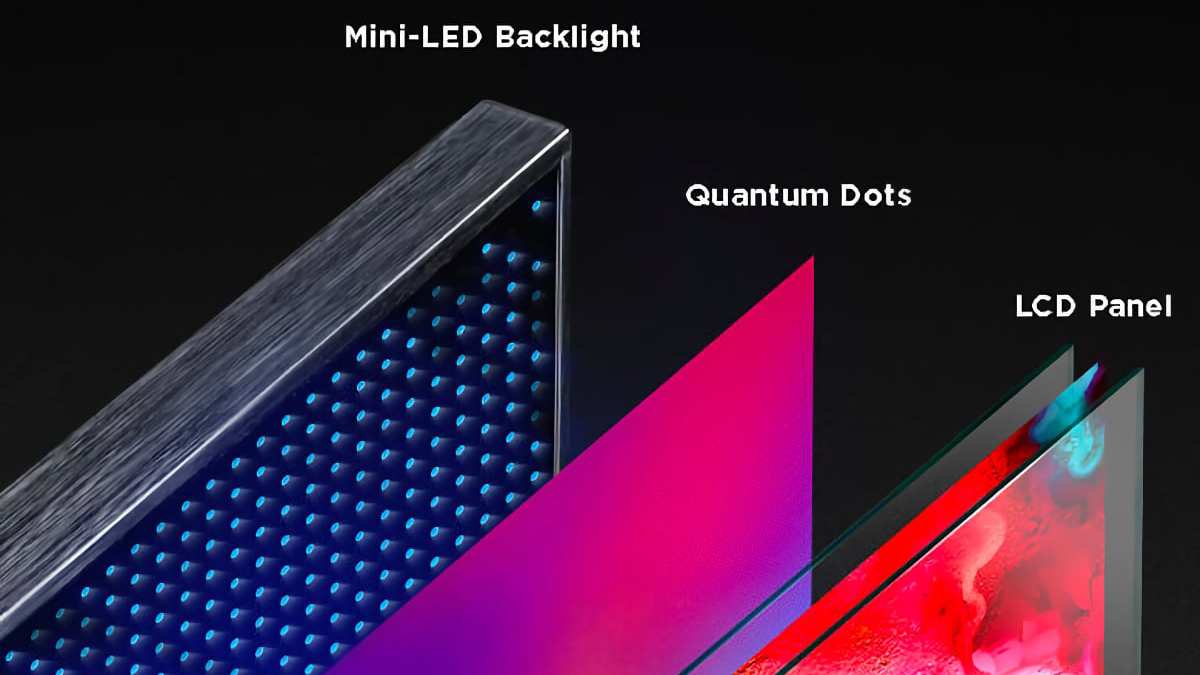
Do mini LED monitors cause headaches? It's a fair question, and if you've been staring at a new display all day with a throbbing temples, you deserve a straight answer. The short version is that Mini LED monitors can trigger headaches, but the cause is usually not the Mini LED technology itself.
It's almost always something else going on underneath.
Our research shows the real culprits tend to be pulse-width modulation (PWM) dimming, blue light emission, and poor setup habits. Per TÜV Rheinland certification standards, flicker-free monitors must meet strict thresholds for brightness fluctuation. Not every Mini LED monitor on the market clears that bar. For more background on real-world performance, read our breakdown of why are mini led monitors better than normal led.
Let's break down what's actually happening and what you can do about it.
Quick Answer
Yes, Mini LED monitors can cause headaches. The cause is usually PWM dimming flicker, not the Mini LED backlight itself. Blue light exposure and poor ergonomics also contribute significantly.
Choosing a flicker-free certified model and adjusting your setup reduces risk substantially. You can also reference our testing on how do mini led monitors work when configuring your display.
Why This Question Deserves a Real Answer
Here's the thing. "Mini LED" gets thrown around like it's one uniform technology, but it's really just a backlighting method. Two Mini LED monitors can behave completely differently when it comes to eye comfort.
One might be perfectly fine for eight hours of use. Another might give you a headache within thirty minutes.
The difference comes down to how the manufacturer handles dimming, flicker control, and blue light filtering. Some brands invest heavily in flicker-free dimming circuits. Others cut costs and use low-frequency PWM that's invisible to your eyes but very noticeable to your brain.
Aggregate user reviews across major retailers consistently flag this as a top complaint with budget and mid-range Mini LED displays.
This matters because headaches from monitor flicker aren't just annoying. For people with photosensitive migraines or chronic eye strain, the wrong display can genuinely affect daily life. Getting this right means understanding what's actually inside the monitor, not just what the marketing box says.
The Quick Truth: Mini LED Monitors Can Cause Headaches, But Usually Not for the Reason You Think
Most people assume Mini LED monitors cause headaches because of the backlight itself. That's rarely the issue. Mini LED technology uses thousands of tiny LED zones behind the screen to control brightness in specific areas.
That part is actually good for image quality and can reduce the "glow" you see on older edge-lit monitors.
The problem is how these monitors handle dimming. When you turn the brightness down on most displays, the monitor doesn't actually reduce the power to the LEDs smoothly. Instead, it flickers them on and off rapidly.
Your eyes might not see the flicker consciously, but your brain registers it. Over hours of exposure, that invisible flicker triggers eye strain, fatigue, and headaches in sensitive individuals.
This is called pulse-width modulation, or PWM dimming. It's been a known issue in LED displays for over a decade. Mini LED doesn't solve it.
In some cases, the aggressive local dimming algorithms add another layer of brightness fluctuation that makes things worse. The good news is that some manufacturers now use DC dimming or high-frequency PWM that's genuinely safe. You just need to know what to look for.
How Mini LED Backlighting Actually Works (And Where the Problem Hides)
What Makes Mini LED Different From Regular LED Monitors
Traditional LED monitors use a strip of LEDs along one or maybe two edges of the screen. The light spreads across the display through a diffuser. Mini LED monitors use thousands of tiny LEDs arranged in a grid directly behind the panel.
These are grouped into local dimming zones, anywhere from a few dozen to over two thousand depending on the model.
More zones mean the monitor can dim specific areas of the screen independently. A bright starfield scene shows deep black right next to a bright star, instead of the whole screen looking washed out. That's the genuine benefit of Mini LED.
It's why Apple's Pro Display XDR, Samsung's Odyssey Neo series, and ASUS's ProArt monitors use this technology.
But here's where it gets tricky. Each of those zones needs to be controlled individually. The monitor's processor constantly adjusts brightness per zone based on what's being displayed.
If the dimming algorithm is aggressive or poorly tuned, you get visible blooming around bright objects on dark backgrounds. More importantly for headache sufferers, some monitors use PWM on the zone level, creating a compounding flicker effect that's harder to detect but harder to tolerate.
PWM Dimming: The Real Culprit Behind Most Monitor Headaches
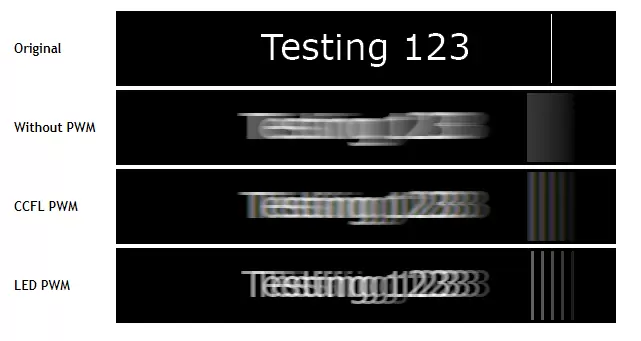
Pulse-width modulation works by turning the backlight LEDs on and off thousands of times per second. At high frequencies, your eyes perceive steady light. At low frequencies, the flicker becomes perceptible and fatiguing.
The critical threshold for most people is around 1920Hz. Below that, sensitive users start experiencing headaches. Above 3000Hz, even most migraine sufferers tolerate it well.
Manufacturer specifications rarely advertise PWM frequency. You have to dig into independent testing from sources like RTINGS or perform your own tests. Budget Mini LED monitors often use PWM frequencies between 200Hz and 960Hz at low brightness.
That's well within the range known to cause symptoms. Premium models from brands like BenQ and Eizo tend to use DC dimming or frequencies above 3000Hz.
The worst part is that the problem gets worse the lower you set your brightness. At 100% brightness, many PWM monitors run flicker-free because the LEDs stay on continuously. Drop to 30% brightness, and the duty cycle shifts to aggressive on-off cycling.
Most people run their monitors at 30-50% brightness in normal room conditions, which is exactly where the danger zone lives.
Blue Light: A Real Factor, But Probably Not Your Main Problem
Blue light gets blamed for almost everything these days. The reality is more nuanced. The blue light emitted by LED monitors, including Mini LED models, peaks in the 440-490 nanometer range.
This is within the range that affects circadian rhythm and melatonin production. Studies published in peer-reviewed ophthalmology journals confirm that prolonged blue light exposure contributes to digital eye strain.
However, the amount of blue light from a monitor is far less than what you get from sunlight. A sunny day delivers roughly 100,000 lux. Your monitor at full brightness delivers maybe 300-400 lux at the screen surface.
The blue light concern is real but often overstated compared to the flicker problem. If your headaches feel like they're behind your eyes and get worse over the course of a workday, flicker is more likely the cause than blue light.
That said, blue light filters do help some users. Most Mini LED monitors include a "low blue light" mode in their on-screen display settings. Third-party software like f.lux or Windows Night Shift also reduces blue light output.
These are worth enabling, especially in the evening. They're just not a complete solution if PWM flicker is your primary trigger.
Local Dimming Flicker: The Issue Nobody Talks About
This is the one that catches people off guard. Local dimming on Mini LED monitors means the brightness of different screen zones changes in real time based on content. A white cursor moving across a black screen causes the surrounding zones to brighten and dim rapidly.
In a dark scene transitioning to a bright scene, hundreds of zones shift brightness simultaneously.
Some monitors handle this smoothly. Others exhibit visible pulsing or a subtle shimmer effect during scene transitions. This is sometimes called "dimming flicker" or "zone transition flicker." It's distinct from PWM flicker but produces similar symptoms in sensitive users.
Reviews from verified buyers on major retail platforms frequently mention this as a reason for returns, especially on models with fewer dimming zones where each zone covers a larger area.
The practical takeaway is this. If you're sensitive to flicker, look for monitors with a high zone count and a well-reviewed local dimming algorithm. Alternatively, try turning local dimming off entirely.
You lose the contrast benefit, but you gain a stable, uniform backlight that doesn't pulse with content changes.
Who's Actually at Risk? Key Factors That Determine Whether You'll Have Problems
Pre-Existing Migraine or Light Sensitivity Conditions
If you have chronic migraines, photophobia, or diagnosed light sensitivity, you're at significantly higher risk. Research in clinical ophthalmology consistently shows that individuals with pre-existing migraine conditions are more susceptible to flicker-induced symptoms. The threshold for triggering an episode is lower, and the symptoms tend to be more severe.
People with astigmatism also report higher rates of monitor-related eye strain. The irregular corneal shape scatters light differently, making flicker artifacts more noticeable. If you wear glasses or contacts and still get headaches despite a corrected prescription, the monitor's flicker characteristics deserve close attention.
There's also a genetic component. Some people are simply more sensitive to temporal light modulation than others. You might never know you're sensitive until you sit in front of a monitor that uses aggressive PWM dimming for a full workday.
If you've ever felt "off" in a room with fluorescent lighting, you may have a similar sensitivity to monitor flicker.
Your Brightness Settings Matter More Than You Realize
This is counterintuitive, but running your monitor at very low brightness is often worse than running it at moderate brightness. At low brightness levels, PWM dimming cycles become more aggressive. The LEDs spend more time off than on, and the flicker becomes more pronounced.
Many users crank brightness down to "save their eyes" and inadvertently make the problem worse.
The sweet spot for most indoor environments is between 120 and 180 candela per square meter (cd/m²). That's typically around 40-60% brightness on most monitors in a normally lit room. If you're running at 10-20% brightness in a dark room, you're in the highest-risk zone for PWM-related headaches.
Either increase monitor brightness and reduce room lighting contrast, or use bias lighting behind the monitor to reduce the perceived brightness gap.
Room Lighting and Viewing Distance
Your environment plays a bigger role than most people realize. A monitor that's comfortable in a well-lit office can be painful in a dark room. The contrast between a bright screen and a dark surround causes your pupils to constantly adjust, compounding any flicker-related strain.
Adding a desk lamp or bias light behind the monitor reduces this effect significantly.
Viewing distance matters too. Most 27-inch monitors are comfortable at 20 to 26 inches. Sitting closer increases the field of view and makes flicker artifacts more peripheral, which some users find more fatiguing.
If you're using a 32-inch Mini LED monitor at laptop distance, you're likely too close. Move the monitor back or consider a smaller size.
How Many Hours You Spend in Front of the Screen
Duration amplifies everything. A monitor that causes no symptoms after one hour might trigger a headache after six. The cumulative effect of flicker exposure is well-documented in occupational health research.
Your visual system fatigues over time, and the threshold for symptoms drops as the day progresses.
If you work eight or more hours daily at a computer, flicker sensitivity becomes a workplace health issue, not just a comfort issue. Taking regular breaks using the 20-20-20 rule helps. Every 20 minutes, look at something 20 feet away for 20 seconds.
It sounds simple, but it genuinely reduces cumulative strain by giving your ciliary muscles a break from constant focus at a fixed distance.
How to Tell If Your Mini LED Monitor Is Causing Your Headaches
The Phone Camera Flicker Test
This is the quickest way to check for PWM flicker. Open your phone's camera app and point it at the monitor while displaying a gray or white image at your usual brightness setting. If you see dark horizontal bands scrolling down the screen, the monitor is using PWM dimming.
The speed and width of the bands give you a rough idea of the frequency. Fast, tight bands suggest higher frequency. Slow, wide bands suggest low frequency that's more likely to cause problems.
This test isn't definitive. Some flicker frequencies are too high for phone cameras to capture. But if you see clear bands, that's a strong indicator your monitor uses PWM and may be contributing to your symptoms.
Try the test at different brightness levels. If the bands become more pronounced at lower brightness, that confirms the PWM is most aggressive in the range where you're likely using the monitor.
The UFO Test for PWM Detection
The Blur Busters UFO Test is a free online tool specifically designed for flicker detection. Visit the test page on a browser and observe the moving UFO shapes against the background. If you see ghosting, trails, or flickering in the test pattern, your monitor exhibits visible flicker.
The test works best at lower refresh rates where PWM artifacts are more apparent.
This test is particularly useful because it's standardized. You can compare results across different monitors and verify whether a specific model has known flicker issues. Blur Busters maintains a database of tested models, and their community forums include user-reported flicker observations for many Mini LED monitors.
Tracking Your Symptoms: A Simple 7-Day Log
If you're not sure whether the monitor is the cause, track your symptoms for one week. Note the time you start using the monitor, your brightness setting, room lighting conditions, and when headaches or eye strain begin. Also track days when you use a different monitor or take extended breaks.
Most users who are sensitive to PWM flicker notice symptoms within 1 to 3 hours of continuous use. If your headaches consistently appear after a predictable duration and resolve when you switch to a different display, the monitor is very likely the trigger. This kind of symptom log is also valuable if you need to discuss the issue with an eye care professional.
What to Look for When Buying a Mini LED Monitor If You're Prone to Headaches
Flicker-Free Certification: What It Actually Means
Several certification bodies test monitors for flicker. TÜV Rheinland's "Flicker Free" certification is the most widely recognized. To earn it, a monitor must meet specific thresholds for brightness variation across the dimming range.
VESA also includes flicker metrics in its DisplayHDR certification process.
However, "flicker-free" certification doesn't guarantee zero risk for every individual. The certification thresholds are set for the general population, not for people with extreme photosensitivity. If you know you're sensitive, treat certification as a minimum requirement, not a guarantee.
Always verify through independent testing or your own evaluation during the return window.
DC Dimming vs. Low-Frequency PWM — The Spec That Matters Most
DC dimming adjusts brightness by varying the current to the LEDs rather than cycling them on and off. This eliminates flicker entirely at all brightness levels. Monitors that use DC dimming or high-frequency PWM above 3000Hz are the safest choice for headache-prone users.
The problem is that most manufacturers don't advertise their dimming method in product specifications. You need to consult independent reviews, contact manufacturer support directly, or check community databases. BenQ's "Brightness Intelligence" technology and some ASUS ProArt models explicitly use flicker-free dimming.
Samsung's higher-end Odyssey Neo models have improved in recent generations, but budget models still vary.
Minimum PWM Frequency Thresholds for Sensitive Users
Here's a practical guide to PWM frequency and risk level:
| PWM Frequency | Risk Level | Notes |
|---|---|---|
| DC Dimming (0Hz flicker) | Safest | No flicker at any brightness |
| Above 3000Hz | Very Low Risk | Tolerable for nearly all users |
| 1920Hz – 3000Hz | Low Risk | Acceptable for most sensitive users |
| 960Hz – 1920Hz | Moderate Risk | May cause symptoms in sensitive individuals |
| Below 960Hz | High Risk | Likely to cause headaches with extended use |
| Below 240Hz | Very High Risk | Symptoms possible within 30-60 minutes |
If you can't find the PWM frequency for a specific model, assume the worst until proven otherwise. Budget monitors rarely invest in high-frequency PWM controllers. Premium professional monitors are more likely to prioritize flicker-free performance.
Zone Count and Dimming Behavior: More Isn't Always Better for Comfort
Higher zone counts improve image quality but don't necessarily improve comfort. A monitor with 2304 zones has more potential points of dimming-related fluctuation than one with 192 zones. The quality of the dimming algorithm matters more than the raw zone count for headache prevention.
Some monitors offer multiple local dimming settings: off, low, medium, and high. If you're sensitive to flicker, try setting local dimming to low or off. You'll lose some contrast performance, but the backlight will behave more uniformly.
This is a worthwhile trade-off if it means you can actually use the monitor without pain.
How to Set Up Your Mini LED Monitor to Reduce Eye Strain and Headaches
Brightness Calibration for Sensitive Eyes
Start by setting your monitor to maximum brightness. Then gradually reduce it until it feels comfortable, but don't go below 30-40% unless your room is very dark. If you need lower brightness for comfort, add ambient lighting to the room instead of dimming the screen further.
A calibrated brightness of 120-180 cd/m² works for most office environments. You can measure this with a free smartphone app or a hardware colorimeter if you have one. The goal is to match the monitor's brightness roughly to your surrounding environment.
A bright screen in a dark room creates harsh contrast that strains your eyes regardless of flicker.
Blue Light Filter Settings That Actually Help
Enable your monitor's built-in low blue light mode. Most Mini LED monitors include this in the on-screen display menu. Set it to the "warm" or "reading" preset, which shifts the color temperature to around 5000-5500K.
This reduces blue light output by 30-50% without making the screen look obviously yellow.
For evening use, consider software solutions too. Windows Night Shift, macOS Night Shift, and f.lux all provide additional blue light filtering with automatic scheduling. Set them to activate after sunset.
This won't solve a flicker problem, but it reduces the overall strain on your visual system and helps protect your sleep cycle.
Local Dimming Settings: When to Turn It Off
If you experience headaches specifically during scenes with high contrast, try turning local dimming off. On most monitors, this is found in the picture settings menu under "local dimming," "contrast enhancement," or "dynamic contrast." Setting it to off gives you a uniform backlight that doesn't fluctuate with content.
You can also try the "low" setting if available. Some monitors have a less aggressive dimming mode that reduces zone transitions without eliminating them entirely. This gives you partial contrast improvement with less flicker risk.
Experiment with each setting during your typical use and note which one feels most comfortable.
Room Lighting Adjustments That Make a Real Difference
Add a bias light behind your monitor. This is a simple LED strip or desk lamp positioned behind the screen that illuminates the wall. It reduces the contrast between the bright screen and the dark surround, which lowers pupil strain.
A 6500K white bias light is ideal for color-accurate work, but any neutral white light helps.
Avoid placing the monitor directly in front of a window. Glare forces your eyes to work harder and can amplify flicker perception. If you can't reposition, use blinds or an anti-glare screen coating.
Matte screen finishes also reduce reflections compared to glossy panels, though some Mini LED monitors only come in glossy for HDR models.
The 20-20-20 Rule and Why It Works
Every 20 minutes, look at something at least 20 feet away for 20 seconds. This relaxes the ciliary muscles in your eyes that are locked in a fixed focus position when staring at a monitor. It's not a cure for flicker sensitivity, but it prevents the cumulative fatigue that lowers your symptom threshold over the course of a day.
Set a timer or use a break reminder app. Stretch during these breaks. Roll your shoulders.
Look away from the screen. It sounds almost too simple, but occupational health research consistently supports this practice for reducing digital eye strain. Combine it with the brightness and lighting adjustments above, and you've got a solid defense against monitor-related headaches.
Mini LED vs. Other Display Types: Which Is Easiest on the Eyes?
Mini LED vs. OLED: The Flicker Trade-Off
OLED monitors don't use a backlight at all. Each pixel produces its own light. This eliminates local dimming flicker and backlight zone issues entirely.
However, OLED displays can still use PWM dimming for brightness control, and some models use frequencies as low as 240Hz. The OLED vs Mini LED question for eye comfort comes down to which specific model you're comparing.
OLED has another advantage: perfect blacks without blooming. This means less visual distraction in dark scenes, which some users find more comfortable. But OLED screens tend to be smaller and more expensive.
If you're choosing between a Mini LED and OLED monitor and flicker is your primary concern, research the specific model's PWM frequency rather than assuming either technology is safer.
Mini LED vs. Traditional LED: Is the Upgrade Worth It?
Traditional edge-lit LED monitors have fewer dimming zones, often just the entire screen as one zone. This means less zone-transition flicker but worse overall contrast. For headache prevention, a traditional LED monitor with DC dimming is actually safer than a Mini LED monitor with aggressive PWM and local dimming.
The upgrade to Mini LED is worth it if you need the contrast and HDR performance. But don't assume newer technology means better eye comfort. A well-designed traditional IPS monitor with flicker-free certification can be easier on the eyes than a budget Mini LED display that cuts corners on the dimming circuit.
Mini LED vs. IPS Without Local Dimming
Standard IPS panels without local dimming offer the most uniform backlight experience. There are no zone transitions, no blooming, and no dynamic brightness shifts. If your primary concern is headache prevention and you don't need HDR, a good IPS panel with DC dimming remains the safest choice.
That said, modern Mini LED monitors with high zone counts and well-tuned algorithms have closed this gap significantly. The 2024 and 2025 model years show marked improvement in dimming behavior across multiple brands. If you want Mini LED benefits, you no longer have to sacrifice comfort entirely.
You just need to choose carefully.

Common Mistakes People Make With Mini LED Monitors
Assuming "Flicker-Free" on the Box Means Zero Risk
Marketing labels are not guarantees. "Flicker-free" claims are sometimes self-certified by the manufacturer without independent verification. Even certified monitors can exhibit flicker under specific conditions, particularly at very low brightness or during firmware glitches.
Always verify through independent testing or your own evaluation.
Running the Monitor at Minimum Brightness
This is the single most common mistake. Users concerned about eye strain turn brightness down to 10-20%, not realizing this is where PWM dimming becomes most aggressive. If you need low brightness, add ambient lighting to compensate.
Running a PWM dimming monitor at minimum brightness is like turning up the volume on the very thing causing your headaches.
Ignoring Local Dimming Artifacts as Just a "Quality Issue"
Blooming and zone transition flickering aren't just image quality problems. They're signs that the backlight is fluctuating rapidly. If you notice these artifacts and also experience headaches, don't dismiss them as unrelated.
Turn local dimming down or off and see if your symptoms improve. Many users report significant relief after making this single adjustment.
Skipping the Return Window Without Testing Properly
Most retailers offer a 14 to 30 day return window. Use it. Test the monitor under your actual working conditions, at your typical brightness settings, during your typical usage hours.
A monitor that seems fine during a 15 minute store demo might cause problems after a full workday. Don't keep a monitor that hurts your eyes hoping you'll "get used to it." You won't.
When to See a Doctor Instead of Blinking at Your Monitor Settings
If you've optimized your monitor setup, chosen a flicker-free certified model, and still experience persistent headaches, it's time to see an eye care professional. Persistent headaches with visual symptoms can indicate underlying conditions that no monitor adjustment will fix. Uncorrected astigmatism, binocular vision dysfunction, and convergence insufficiency are all treatable conditions that mimic simple eye strain.
A comprehensive eye exam should include assessment of your accommodative function and eye teaming ability. Tell your eye doctor specifically about the timing and nature of your headaches. Mention whether they correlate with screen use.
This helps differentiate between monitor-related strain and other neurological or ophthalmological causes.
For migraine sufferers, a neurologist can help identify your specific triggers. Monitor flicker may be one factor among many. Light sensitivity, dehydration, poor sleep, and dietary factors all contribute to migraine frequency.
Addressing the monitor is important, but it's rarely the only piece of the puzzle.
Frequently Asked Questions
Are all Mini LED monitors bad for headaches?
No. Mini LED monitors with DC dimming or high-frequency PWM above 1920Hz are generally safe for most users. The technology itself isn't the problem.
The dimming method used by specific models is what determines flicker risk. Always check independent reviews for the specific model you're considering.
How do I test my monitor for flicker?
Use your phone camera. Point it at a gray screen at your normal brightness. Look for scrolling dark bands, which indicate PWM dimming.
The Blur Busters UFO Test is another reliable free tool. For definitive results, consult independent review sites that measure PWM frequency directly.
Is OLED better than Mini LED for eye comfort?
It depends on the specific model. OLED eliminates backlight zone flicker but can still use PWM dimming. Some OLED monitors use low-frequency PWM that causes the same problems as budget Mini LED displays.
Compare the specific PWM frequency of any monitor you're considering, regardless of backlight technology.
Can blue light glasses help with Mini LED headaches?
Blue light glasses may help with circadian disruption and mild eye strain, but they won't fix headaches caused by PWM flicker. If your primary symptom is headache rather than sleep disruption, flicker is more likely the cause. Address the dimming method first, then add blue light filtering as a supplementary measure.
What brightness should I set my Mini LED monitor to?
Aim for 120-180 cd/m², which is typically 40-60% brightness in a normally lit room. Avoid running below 30% brightness on PWM dimming monitors. If you need lower brightness for comfort, add ambient room lighting instead of dimming the screen further.
Does local dimming cause headaches?
Aggressive local dimming can cause headaches in sensitive users due to rapid brightness fluctuations across zones. If you experience symptoms, try setting local dimming to low or off. This eliminates zone-transition flicker while retaining the Mini LED panel's other benefits.

Similar Posts





















