Are Budget Monitors Good for Programming
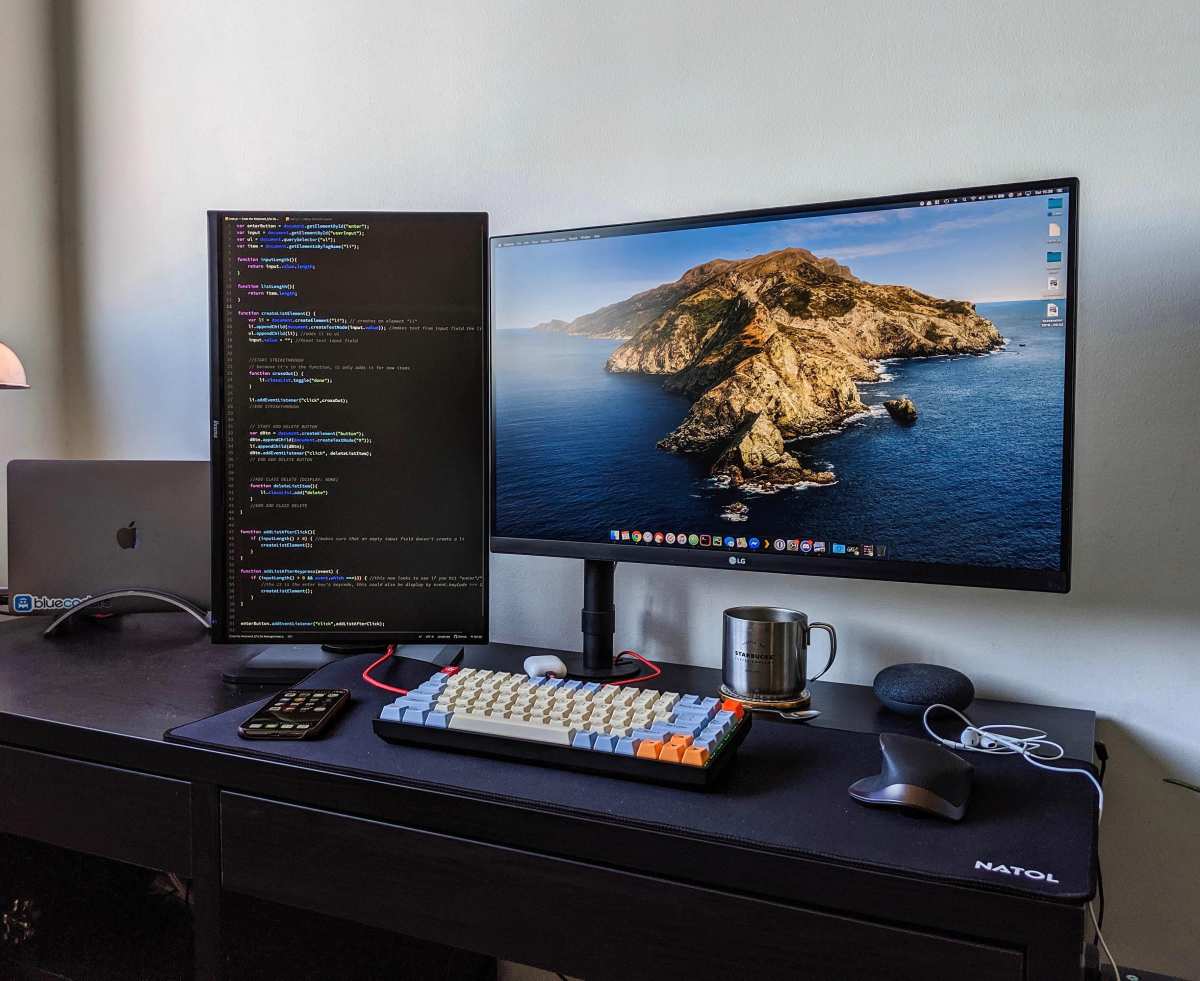
Image source: Bing (Web (fair-use with source credit))
Are budget monitors good for programming? The short answer is yes, with some real caveats you'll want to understand before buying. Most coding work is text-heavy, which means you don't need the fancy features that drive monitor prices through the roof.
But "budget" covers a wide range, and the wrong pick can leave you squinting at blurry text or craning your neck after a long day. Readers comparing various configurations should also examine whether budget monitors good for streaming.
Our research into current monitor lineups and aggregate user reviews shows that the $150 to $250 range hits a genuine sweet spot. You get sharp 1440p resolution, an IPS panel with solid viewing angles, and ergonomic stands that cheap $100 monitors skip. Let's break down what actually matters, what you can safely compromise on, and who should walk away from budget options entirely.
Quick Answer
Yes, budget monitors work well for most programming tasks. A $150 to $250 budget IPS monitor with 1440p resolution handles code editors, terminals, and web browsing comfortably. You'll sacrifice some color accuracy and premium build quality compared to $500+ options.
For pure text-based coding, even a $100 to $150 1080p IPS panel gets the job done. Readers evaluating this setup should also consider whether budget monitors good for ps5 for comparative benchmarks.
What Actually Matters for a Programming Monitor
Not all monitor specs matter equally when you're staring at code all day. Let's separate the specs that genuinely affect your workflow from the ones that just look good on a box.
Resolution and Pixel Density — The Text Clarity Factor
Text clarity is the single most important thing for a programming monitor. You're reading small characters for hours, and anything that makes those characters look fuzzy or pixelated will cause fatigue faster than you'd expect.
Pixel density, measured in pixels per inch (PPI), determines how sharp text appears. Here's how common sizes and resolutions stack up:
| Screen Size | Resolution | PPI | Text Clarity Rating |
|---|---|---|---|
| 24" | 1920×1080 (FHD) | ~92 | Acceptable |
| 27" | 1920×1080 (FHD) | ~82 | Poor for coding |
| 24" | 2560×1440 (QHD) | ~122 | Very good |
| 27" | 2560×1440 (QHD) | ~109 | Good sweet spot |
| 27" | 3840×2160 (4K) | ~163 | Excellent |
| 32" | 3840×2160 (4K) | ~138 | Very good |
That 27" 1080p combo is the trap. It's cheap and popular, but at only 82 PPI, text looks noticeably soft. You'll see it if you compare it side by side with anything above 100 PPI.
For comfortable all-day coding, aim for at least 109 PPI. That means 27" 1440p is the resolution-to-size sweet spot right now.
At 27" 1440p, you get enough screen real estate to have your IDE on one side and a browser or terminal on the other without constant window juggling. Text renders cleanly without needing display scaling, which can cause blurriness in some older applications.
Panel Type — Why IPS Wins for Coding
The panel type affects viewing angles, color accuracy, and how text looks when you're not sitting dead center. There are three main types you'll encounter in budget monitors.
IPS (In-Plane Switching) is the standard recommendation for programming. IPS panels offer wide viewing angles, typically 178 degrees horizontal and vertical. Colors stay consistent even when you lean to the side or adjust your chair.
Most budget IPS panels cover 95 to 99 percent of the sRGB color space, which is plenty for coding and general web work.
TN (Twisted Nematic) panels are the cheapest option and still common in sub-$120 monitors. They have fast response times, which gamers love, but viewing angles are terrible. Colors shift when you look at the screen from any angle that isn't dead center.
For coding, this means the top of your screen looks different from the bottom unless you're positioned perfectly. Text can look washed out or inverted at slight angles.
VA (Vertical Alignment) panels sit in the middle. They offer better contrast ratios than IPS, which means deeper blacks. But they suffer from color shift at viewing angles, though not as severely as TN.
VA panels are fine for coding if you sit directly in front of the monitor, but they're less ideal if you move around or use a multi-monitor setup where side screens are angled toward you.
For programming in 2026, IPS is the clear winner in the budget category. The price gap between IPS and TN has shrunk to almost nothing at the $150+ range. There's very little reason to buy a TN panel for coding unless you're under $100 and only play competitive games on the side.
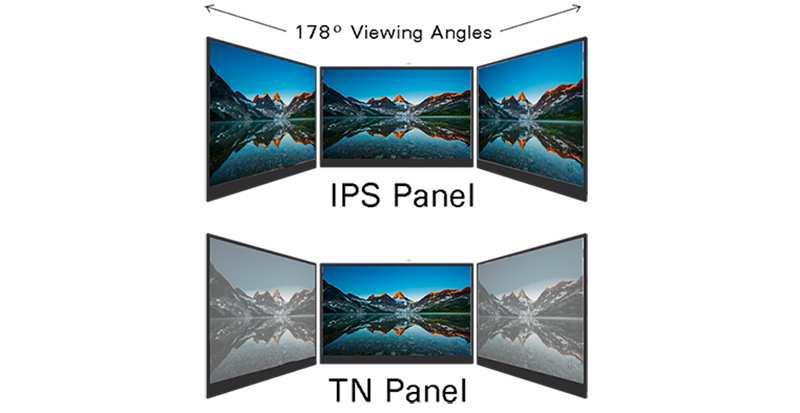
Image source: Bing (Web (fair-use with source credit))
Screen Size and Real Estate — How Much Space Do You Actually Need
Screen size affects how much code you can see at once. More lines of code on screen means less scrolling, less context switching, and fewer mistakes from losing your place.
24 inches is the minimum we'd recommend for a primary coding monitor. It's enough for a single IDE window with a sidebar and a few terminal lines. Dual 24" monitors is a solid setup for the price of one 32" monitor.
27 inches is the current sweet spot for most developers. It pairs perfectly with 1440p resolution and gives you room for two windows side by side without feeling cramped. If you use VS Code with a file explorer, editor, and integrated terminal, 27" handles it comfortably.
32 inches works well at 4K resolution. At 1440p, text gets a bit large without scaling. At 4K, you get a massive workspace.
This size suits developers who keep many windows open simultaneously, like full-stack devs running a frontend, backend, database client, and browser all at once.
Ultrawide monitors (34" at 3440×1440) replace a dual monitor setup with a single screen. They're great for coding if you like having three windows side by side. Budget ultrawides start around $250 to $300, and they eliminate the bezel gap in the middle of your view.
One thing to watch for: going too big at too low a resolution kills text clarity. A 32" 1080p monitor looks terrible for code. Always check the PPI before buying based on size alone.
Budget Monitors: What You Get at Each Price Point
"Budget" means different things to different people. Here's what your money actually buys in the monitor world as of 2026.
The $100 to $150 Range: Basic but Functional
At this price, you're looking at 24" 1080p IPS monitors or 27" 1080p panels if you catch a sale. Text clarity is acceptable on 24" models but soft on 27". These monitors typically include a basic HDMI port, maybe a VGA input, and a simple fixed-tilt stand.
What you'll find in this range:
- 24" 1080p IPS panels with ~92 PPI
- 60Hz refresh rate (perfectly fine for coding)
- Basic IPS panel with 95 to 99 percent sRGB
- Fixed stand with tilt only, no height adjustment
- HDMI and VGA ports, no USB-C
- 250 to 300 nits brightness
- No VESA mount on some models
This range works if you're a student, a hobbyist, or someone who codes a few hours a day. The Dell S2421HS and LG 24MK600M are typical examples. They get the job done for terminal work, basic IDE use, and reading documentation.
The main compromise is ergonomics. Most monitors in this range have stands that only tilt. No height adjustment, no swivel, no pivot.
You'll probably want to budget an extra $25 to $40 for a basic monitor arm or a stack of books to get the screen to eye level.
The $150 to $250 Range: The Sweet Spot
This is where budget monitors get genuinely good for programming. You can find 27" 1440p IPS monitors with USB-C connectivity, ergonomic stands, and decent color accuracy. The jump from $150 to $250 buys you meaningful improvements in daily comfort.
What you'll find in this range:
- 27" 1440p IPS panels with ~109 PPI
- 60 to 75Hz refresh rate
- Full ergonomic stand (height, tilt, swivel, pivot)
- USB-C with 60 to 90W power delivery
- HDMI 2.0 and DisplayPort 1.4
- VESA 100×100 mount compatible
- Flicker-free backlight and low blue light mode
- 300 to 350 nits brightness
The Dell S2722QC, LG 27UL500, and BenQ GW2780 are solid examples in this bracket. These monitors handle everything from VS Code to JetBrains IDEs to browser-based tools without breaking a sweat. The USB-C single-cable connection to a laptop is a genuine quality-of-life upgrade if you plug in and unplug daily.
This range also opens the door to budget 4K options. You'll find 27" 4K monitors around $230 to $280 during sales. At 163 PPI, text looks razor sharp.
The tradeoff is that some older applications don't scale well at 4K on a 27" screen, so you might end up running 150 percent scaling in your OS, which reduces your effective screen real estate.
The $250 to $350 Range: Budget 4K Territory
Once you cross $250, you're entering the lower end of mid-range monitors. But some models in this range are essentially premium monitors from previous years on clearance. You can find 4K IPS panels with good color accuracy, USB-C with higher wattage delivery, and better build quality.
What you'll find in this range:
- 27" or 32" 4K IPS panels
- USB-C with 65 to 90W power delivery
- Factory-calibrated color accuracy
- Higher build quality and thinner bezels
- Built-in KVM switches on some models
- Better OSD controls and preset modes
- 3-year warranties more common
The Dell S2723QS and LG 27UN850-W sit in this category. These monitors suit developers who also do light design work, photo editing, or video calls where color accuracy matters. The KVM switch is a nice bonus if you work between a personal laptop and a work machine.
Side-by-Side Comparison: Budget vs Mid-Range vs Premium for Programming
Let's put three tiers head to head so you can see exactly where your money goes and where it doesn't.
| Feature | Budget ($150-$250) | Mid-Range ($350-$500) | Premium ($600+) |
|---|---|---|---|
| Resolution | 1440p or 4K | 4K | 4K or 5K |
| Panel | IPS | IPS or Nano IPS | OLED or high-end IPS |
| Color Accuracy | 95-99% sRGB | 98-100% sRGB, 90%+ DCI-P3 | 99%+ DCI-P3, HDR |
| USB-C PD | 60-90W | 90-100W | 100W+ |
| Ergonomic Stand | Full adjustment | Full adjustment | Full adjustment |
| Build Quality | Plastic, functional | Metal accents | Premium materials |
| KVM Switch | Rare | Sometimes | Common |
| Factory Calibration | No | Sometimes | Yes |
| Warranty | 1-3 years | 3 years | 3 years |
| Best For | Most programmers | Design-coding hybrid | Color-critical work |
The honest truth is that a $200 budget monitor covers 80 percent of what a $700 monitor does for programming. The gap is in color accuracy, HDR support, and build quality. If your work is purely code, you won't miss those extras.
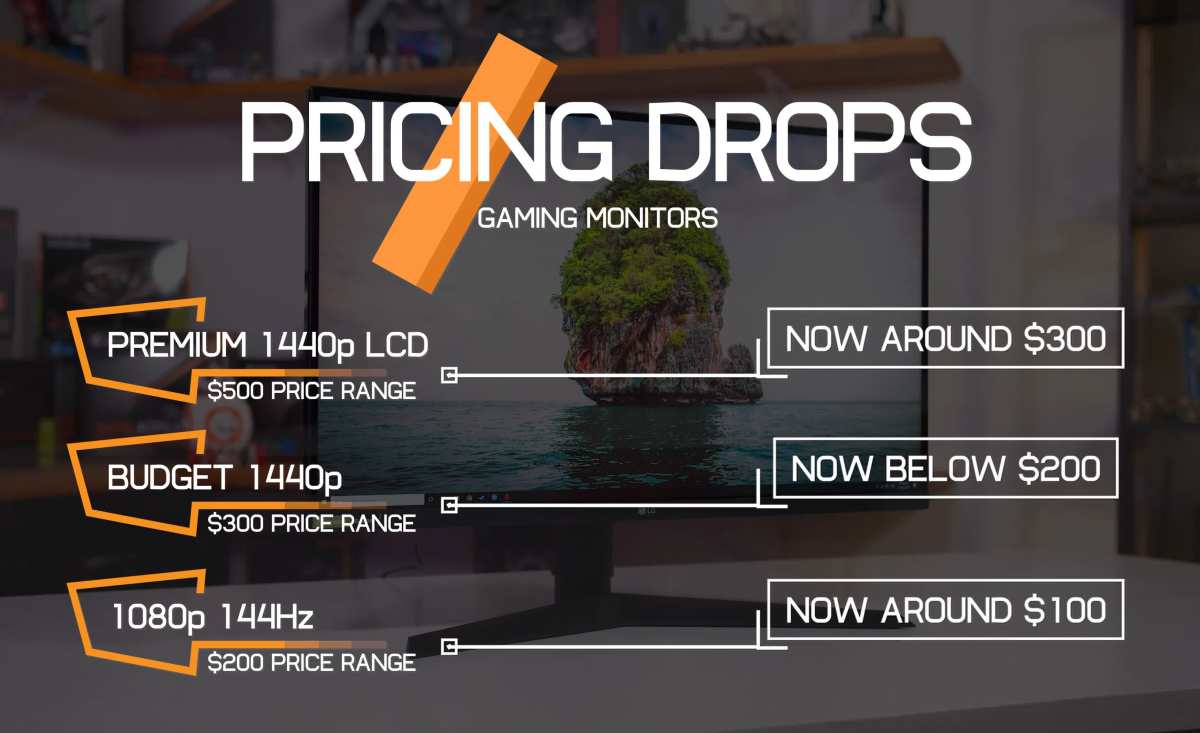
Image source: Bing (Web (fair-use with source credit))
Who Should Buy a Budget Monitor for Programming
Not everyone benefits equally from a budget monitor. Your specific workflow determines whether budget is smart or whether you're setting yourself up for frustration.
Great Fit: Students, Backend Devs, Terminal-Heavy Workers
If you're learning to code, a budget monitor is the right call. You don't need color accuracy for Python scripts or Java assignments. A 24" 1080p IPS panel at $120 leaves money for textbooks, courses, or a better keyboard.
Students who code in libraries or dorms also benefit from the lighter weight and simpler setup.
Backend developers, API engineers, and DevOps folks work mostly in terminals, text editors, and documentation. Text clarity matters more than color reproduction. A 27" 1440p budget monitor gives you plenty of room for a terminal, an IDE, and a browser for reading docs or testing APIs.
Terminal-heavy workflows especially benefit from screen real estate. If you run multiple terminal panes in tmux or screen, a 27" 1440p display lets you see four panes in a grid without squinting. That's a genuine productivity boost that budget monitors deliver well.
Think Twice: Frontend Devs, Design-Coding Hybrids, Multi-Window Power Users
Frontend developers who check their work in browsers need decent color accuracy. Budget IPS panels cover sRGB well enough for general web work, but if you're matching specific brand colors or doing pixel-perfect design implementation, you'll notice the limitations. A mid-range monitor with factory calibration saves you from second-guessing whether that blue looks right.
Developers who also do UI design, photo editing, or video work should stretch their budget. Color accuracy, bit depth, and HDR support matter when your output goes to client deliverables. A budget monitor handles the coding half fine, but you'll struggle with the visual half.
Power users who keep 10 or more windows open simultaneously might find even a 27" 1440p screen limiting. If your workflow involves a database client, a frontend preview, a backend IDE, Slack, email, and a terminal all visible at once, consider a 34" ultrawide or a dual monitor setup instead of a single budget screen.
Skip It: Color-Critical Workers, Those Doing Significant UI Work
If your job involves print design, photography, video grading, or any work where color accuracy is deliverable-critical, a budget monitor will hold you back. You need a display that covers DCI-P3 or Adobe RGB with factory calibration and delta E values under 2. Budget monitors don't offer that.
Similarly, if you're building design systems or doing pixel-level UI work, the color shift on budget panels makes it hard to trust what you're seeing. You'll end up second-guessing yourself on calls with designers or shipping colors that look different on client machines.
The Hidden Costs of Going Too Cheap
The sticker price isn't the whole story. Some budget monitors cost you more in the long run through discomfort, replacements, or accessories you didn't plan on buying.
Eye Strain and Flicker Issues
Cheap monitors often use PWM (Pulse Width Modulation) to control brightness. PWM rapidly flickers the backlight to simulate lower brightness levels. You don't consciously see the flicker, but your eyes feel it after hours of use.
Symptoms include headaches, dry eyes, and general fatigue that you might blame on your code when it's actually your monitor.
Look for monitors labeled "flicker-free" or "DC dimming." These use a constant current to control brightness instead of flickering. Most budget IPS monitors from major brands have adopted flicker-free backlights, but off-brand panels from lesser-known manufacturers sometimes skip this feature. Check reviews specifically for flicker complaints before buying.
Blue light is another factor. Most modern monitors include a low blue light mode in their OSD settings. This shifts the color temperature warmer, which reduces eye strain during long sessions.
It's standard on budget monitors from Dell, LG, and Samsung, but the implementation varies. Some modes just slap on a heavy orange tint, while others make a subtle shift that's comfortable for extended use.
Non-Ergonomic Stands That Hurt Your Neck
The stand matters more than you think. A fixed-tilt stand positions the screen too low for most desks. You end up looking downward for hours, which strains your neck and shoulders.
Over weeks and months, this causes real discomfort that no amount of stretching fully fixes.
Budget monitors in the $150+ range usually include full ergonomic stands with height, tilt, swivel, and pivot adjustment. Below that price, you're often stuck with tilt-only stands. Factor in $25 to $40 for a basic monitor arm if you go cheap.
A VESA-compatible arm gives you better positioning than most included stands anyway.
The ideal position is with the top of the screen at or slightly below eye level. Your gaze should tilt slightly downward, about 10 to 20 degrees. This position minimizes neck strain and keeps your eyes from drying out as much because your eyelids cover more of the eye surface.
Connectivity Limitations That Annoy You Daily
A monitor with only HDMI and VGA ports forces you to use your laptop's HDMI output and a separate charging cable. It's a small annoyance that you deal with every single time you sit down at your desk. USB-C with power delivery solves this with one cable for video and charging.
Most budget monitors at $150+ now include USB-C, but the power delivery wattage varies. 45W is enough for ultrabooks and MacBooks Air. 60W handles most productivity laptops. If you have a power-hungry workstation laptop, you might need 90W or more, which pushes you into the higher end of the budget range.
DisplayPort is another connection to look for. It's less common on laptops but standard on desktop GPUs. If you plan to use a desktop computer, having both HDMI and DisplayPort gives you flexibility for dual monitor setups and higher refresh rates if you ever game on the side.
What to Prioritize When Shopping for a Budget Programming Monitor
With so many specs and features competing for your attention, here's a clear priority list based on what actually affects your coding experience.
The Non-Negotiables
IPS panel. Don't compromise here. The viewing angle and color consistency of IPS matter for long coding sessions. TN panels cause eye strain from color shift, and VA panels have slower response times that cause smearing.
1440p resolution at 27" or 1080p at 24". These combinations give you at least 92 PPI, which is the minimum for comfortable text rendering. Avoid 27" 1080p entirely for coding.
Flicker-free backlight. Check the specs or reviews for this specifically. Your eyes will thank you after hour six of a debugging session.
VESA mount compatibility. Even if you use the included stand now, VESA mounting gives you options later. A monitor arm is one of the best productivity upgrades you can buy.
Nice-to-Haves Worth Paying Extra For
USB-C with power delivery. Single-cable laptop connectivity is a genuine daily convenience. Worth the extra $20 to $30 if you plug in and unplug regularly.
Full ergonomic stand. Height, tilt, swivel, and pivot adjustment let you find a comfortable position. If the monitor you want has a tilt-only stand, budget for a monitor arm.
Factory calibration. Useful if you do any frontend or design work. For pure coding, it's unnecessary.
USB hub built into the monitor. Lets you connect your keyboard, mouse, and other peripherals through the monitor, reducing cable clutter. Handy if your laptop has limited ports.
Features You Can Safely Ignore
High refresh rate. 60Hz is perfectly fine for coding. 75Hz feels slightly smoother when scrolling, but anything above that is gaming territory. Don't pay extra for 144Hz if you're only writing code.
HDR. Budget HDR is usually worse than no HDR. True HDR requires local dimming and high brightness that budget monitors don't have. HDR400 certification is mostly a marketing label.
Built-in speakers. They're universally bad on monitors at every price point. Use headphones or external speakers instead.
Adaptive sync (FreeSync, G-Sync). These technologies reduce screen tearing in games. They do nothing for coding or productivity work.
Real Scenarios: Budget Monitor Setups That Actually Work
Let's look at three common situations where budget monitors make sense and how to get the most out of them.
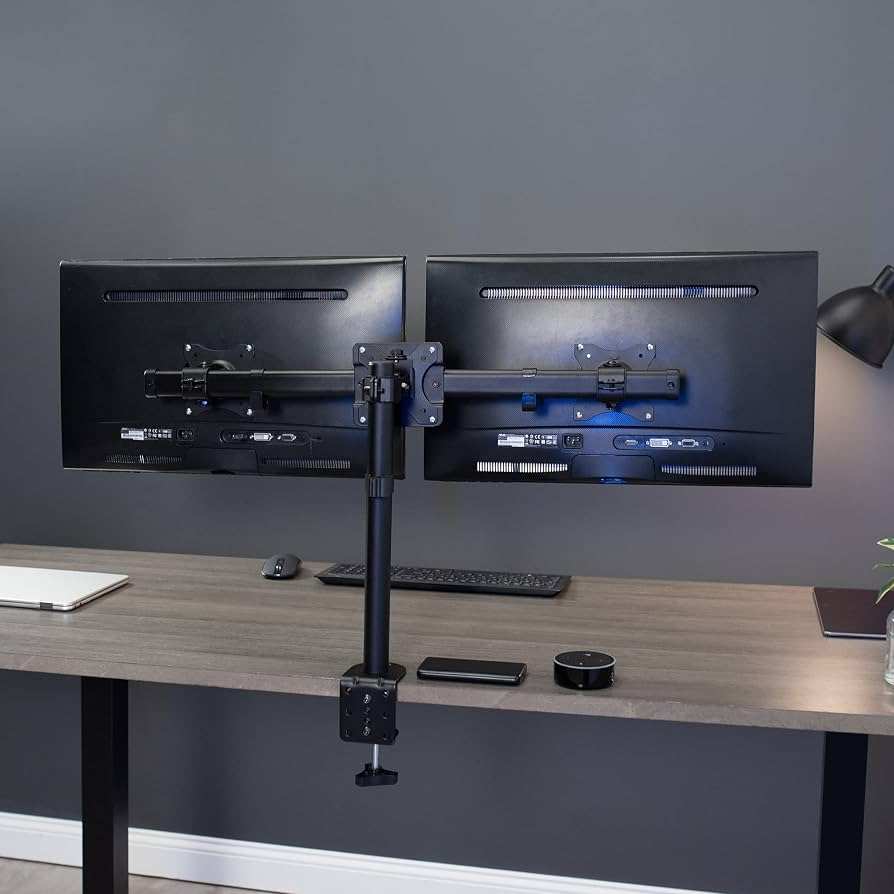
Image source: Bing (Web (fair-use with source credit))
Scenario 1: Computer Science Student, $180 Budget
A student needs a monitor for coding assignments, online courses, and occasional entertainment. A 24" 1080p IPS monitor at around $120 leaves room in the budget for a basic monitor arm at $30 and a decent keyboard. The 24" size keeps text sharp at 92 PPI, and the IPS panel handles late-night coding sessions without excessive eye strain.
A 27" 1440p monitor at $180 is the alternative if they can stretch, giving them more screen space for research papers and code side by side.
Scenario 2: Remote Backend Developer, Dual Monitor Setup
A backend developer working from home benefits from two monitors. Two 24" 1080p IPS panels at $120 each give a dual setup for $240 total. One screen runs the IDE, the other shows terminals, documentation, and Slack.
This setup outperforms a single 27" 1440p monitor for multitasking because each screen can run at native resolution without window management overhead. The tradeoff is desk space and the bezel gap between screens.
Scenario 3: Freelance Full-Stack Dev, Single Screen Workflow
A freelancer who works on both frontend and backend needs a single monitor that handles code and browser previews well. A 27" 1440p IPS monitor with USB-C at around $200 to $230 is the sweet spot. The USB-C connection to their laptop keeps the desk clean, and the 1440p resolution provides enough space for an IDE and a browser dev tools panel side by side.
If they do any color-sensitive frontend work, spending $250 to $280 on a factory-calibrated model like the BenQ PD2700Q is worth it.
Common Mistakes People Make Buying Budget Monitors for Coding
Even with good intentions, people make predictable mistakes when shopping for budget monitors. Here's what to watch for.
Buying a 27" 1080p monitor because it's cheap. This is the single most common mistake. At 82 PPI, text looks soft and pixelated. You'll notice it every time you read code.
Spend the extra $30 to $50 for a 24" 1080p or save up for a 27" 1440p instead.
Ignoring the stand. A bad stand causes neck pain that no ergonomic chair fully fixes. If the monitor you want has a cheap fixed stand, factor a monitor arm into your total budget. Don't skip this.
Overpaying for gaming features. High refresh rates, adaptive sync, and HDR add cost without benefiting coding. A 60Hz IPS monitor with good text clarity beats a 144Hz TN panel with mediocre viewing angles for programming.
Not checking the ports. If your laptop only has USB-C, make sure the monitor has USB-C input. If you need DisplayPort for a desktop, verify it's included. Returning a monitor because of a missing port is a waste of time.
Buying based on specs alone. Two monitors with identical specs can perform very differently. Panel quality control varies, and issues like backlight bleed, dead pixels, and color uniformity are lottery tickets on budget models. Buy from brands with good return policies so you can exchange a bad panel.
Frequently Asked Questions
Is 1080p enough for programming?
Yes, at 24 inches. A 24" 1080p monitor gives you 92 PPI, which is acceptable for coding. At 27 inches, 1080p drops to 82 PPI and text looks noticeably soft.
Stick with 1080p at 24" or step up to 1440p at 27" for the best experience.
Is 27 inch 1440p good for coding?
It's the current sweet spot. At 109 PPI, text is sharp without needing display scaling. You get enough screen space for two windows side by side.
Most developers find 27" 1440p comfortable for full-day coding sessions.
Do I need more than 60Hz for programming?
No. 60Hz is perfectly adequate for all coding tasks. You might notice slightly smoother scrolling at 75Hz, but anything higher is gaming-focused. Don't pay extra for high refresh rates if you only write code.
Is IPS better than TN for coding?
Yes, by a significant margin. IPS panels offer wide viewing angles and consistent colors. TN panels have poor viewing angles that cause color shift, which strains your eyes during long sessions.
Always choose IPS for programming.
Can I use a budget monitor for frontend development?
You can, with caveats. Budget IPS panels cover sRGB well enough for general web work. If you need precise color matching for brand colors or design systems, a mid-range factory-calibrated monitor is a better choice.
How much should I spend on a monitor for coding?
$150 to $250 gets you an excellent programming monitor. A 27" 1440p IPS panel with USB-C and an ergonomic stand handles everything most developers need. Students can go as low as $100 to $120 for a 24" 1080p IPS model.
Final Recommendation: The Decision Guide
If you code for a living or spend significant time programming, a budget monitor in the $150 to $250 range is the smart money. You get 1440p or 4K sharpness, an IPS panel that won't strain your eyes, and the ergonomic adjustments that protect your neck. The $100 to $150 range works fine for students and part-time coders.
Skip 27" 1080p entirely, factor in a monitor arm if the stand is basic, and don't pay for gaming features you won't use. A good budget monitor handles 90 percent of what developers need, and your wallet will notice the difference.

Similar Posts





















