Are Budget Monitors Good for Streaming

Image source: Bing (Web (fair-use with source credit))
So you're wondering whether budget monitors are good for streaming, and honestly, the answer isn't a simple yes or no. It depends on what you're watching, where you're watching it, and how picky you are about picture quality.
Our research shows that budget monitors, generally those priced between $80 and $200, can absolutely handle streaming just fine for most people. But there are real trade-offs in HDR performance, color accuracy, and contrast that you'll want to understand before buying. Let's break down exactly what matters.
Quick Answer
Budget monitors work well for streaming. They handle 1080p and 4K content from Netflix, YouTube, and other platforms without issues. You will sacrifice HDR quality and color accuracy compared to pricier options.
For casual viewing, they offer strong value per dollar spent.
What Actually Matters for Streaming on a Streaming Display
Not all monitor specs matter equally when your primary goal is watching content. Some features that gamers obsess over are irrelevant for streaming. Others that manufacturers skimp on will directly affect your viewing experience.
The key is knowing where to pay attention and where you can safely ignore the marketing hype. Let's walk through the specs that actually change how your shows and movies look on screen.
Resolution: Is 1080p Good Enough or Do You Need 4K?
For most budget monitor sizes, 1080p (1920×1080) is perfectly watchable. At 24 inches, the pixel density sits around 92 PPI, which looks sharp at normal desk viewing distances.
4K at 27 inches gives you about 163 PPI. That's noticeably crisper, especially for text and fine detail in 4K Netflix content. The catch is that true 4K budget monitors with decent panels start around $200 to $250 as of 2026.
Here's a practical breakdown:
| Resolution | Best Screen Size | Pixel Density at That Size | Streaming Verdict |
|---|---|---|---|
| 1080p (Full HD) | 21.5"–24" | 82–92 PPI | Good for most people |
| 1440p (QHD) | 27" | 109 PPI | Nice middle ground |
| 4K (Ultra HD) | 27"–32" | 138–163 PPI | Best for 4K content |
If you're mostly watching 1080p YouTube or standard streaming content, a 1080p monitor won't disappoint you. If you want to watch 4K HDR content from Netflix or Disney+, you'll need a 4K panel and an HDMI 2.0 connection at minimum.
Panel Type: IPS vs. VA vs. TN for Watching Content
Panel type matters more than most people realize for streaming. Each technology has strengths and weaknesses that directly affect how movies and shows look.
IPS (In-Plane Switching) panels offer the best color accuracy and widest viewing angles. Colors stay consistent even when you're watching from an angle. Most budget IPS panels cover 95, 100% of sRGB, which covers the color space used by most streaming content.
VA (Vertical Alignment) panels deliver much higher contrast ratios, typically 3000:1 compared to IPS at 1000:1. This means deeper blacks and a more cinematic look for movies. The trade-off is narrower viewing angles and sometimes slower response times.
TN (Twisted Nematic) panels are the cheapest option and generally worst for streaming. Poor viewing angles and limited color gamut make them better suited for competitive gaming, not movie watching.
For streaming, IPS is the safest bet at budget prices. VA works great if you're watching in a dark room and care about deep blacks. Avoid TN panels for media consumption.

Image source: Bing (Web (fair-use with source credit))
HDR on Budget Monitors: The Uncomfortable Truth
HDR is where budget monitors struggle the most. True HDR requires high peak brightness, wide color gamut, and local dimming. Most budget panels can't deliver any of those properly.
VESA's DisplayHDR certification gives us a useful framework. DisplayHDR 400, the most common "HDR" badge on budget monitors, requires only 400 nits peak brightness and no local dimming. In practice, this means HDR content often looks no better than SDR, sometimes worse.
| Certification | Peak Brightness | Local Dimming | Color Gamut | Real HDR Experience |
|---|---|---|---|---|
| No HDR rating | 250–300 nits | None | sRGB only | No HDR |
| DisplayHDR 400 | 400 nits | None | sRGB | Minimal |
| DisplayHDR 600 | 600 nits | Limited | 90% DCI-P3 | Decent |
| DisplayHDR 1000 | 1000 nits | Full array | 90%+ DCI-P3 | Good |
Most streaming content in HDR uses the DCI-P3 color space. Budget monitors typically only cover sRGB fully. So even if the monitor accepts an HDR signal, it can't properly display all the colors in that content.
Our recommendation: don't buy a budget monitor for HDR. If HDR matters to you, you need to spend at least $350 to $400 for a mid-range display that handles it properly. For SDR streaming content, budget monitors perform just fine.

Image source: Bing (Web (fair-use with source credit))
Color Accuracy and Gamut: Why Your Netflix Might Look Off
Color accuracy determines whether skin tones look natural and whether scenes display the way the director intended. Out of the box, most budget monitors have a Delta E average of 2 to 4, which is acceptable but not reference-grade.
The bigger issue is color gamut. Streaming platforms use different color spaces:
- sRGB: Used by most YouTube content and standard streaming
- DCI-P3: Used by Netflix, Apple TV+, and Disney+ for HDR and some SDR content
- Rec. 2020: Used by some HDR10+ and Dolby Vision content
A budget monitor covering 95, 100% of sRGB will handle most streaming content well. But if you're watching a Dolby Vision show on Netflix, the monitor needs to cover most of DCI-P3 to look right. Most budget IPS panels hit 70, 80% DCI-P3 at best.
This doesn't mean colors look bad. They just won't look as vibrant or accurate as they would on a wider-gamut display. For casual viewing, most people won't notice the difference.
For color-critical work or home theater setups, it matters.
Brightness and Contrast: Where Budget Panels Cut Corners
Brightness affects how well you can see detail in bright scenes and how the monitor handles room lighting. Budget monitors typically offer 250 to 350 nits of brightness. That's fine for a dim room but struggles in bright environments.
Contrast ratio determines the difference between the brightest white and darkest black the panel can display simultaneously. This is crucial for movie watching, especially dark scenes in shows like "Stranger Things" or "The Witcher."
| Panel Type | Typical Contrast | Black Level Quality | Best For |
|---|---|---|---|
| IPS (budget) | 1000:1 | Greyish blacks | Bright rooms, general use |
| VA (budget) | 3000:1 | Deep blacks | Dark rooms, movies |
| TN (budget) | 800:1 | Poor | Not recommended |
If you watch a lot of content in a dark room, a VA panel budget monitor will give you a noticeably better experience for movies. The deeper blacks make scenes feel more cinematic. Just be aware that VA panels sometimes exhibit black smearing in dark scenes, which can look like a brief ghosting effect.
For daytime streaming or well-lit rooms, IPS remains the better all-around choice. The brighter image and better viewing angles outweigh the lower contrast ratio in those conditions.
Budget Monitors vs. Budget TVs vs. Mid-Range Monitors
Choosing between a budget monitor, a budget TV, and a mid-range monitor depends entirely on your setup and priorities. Each option wins in different scenarios.
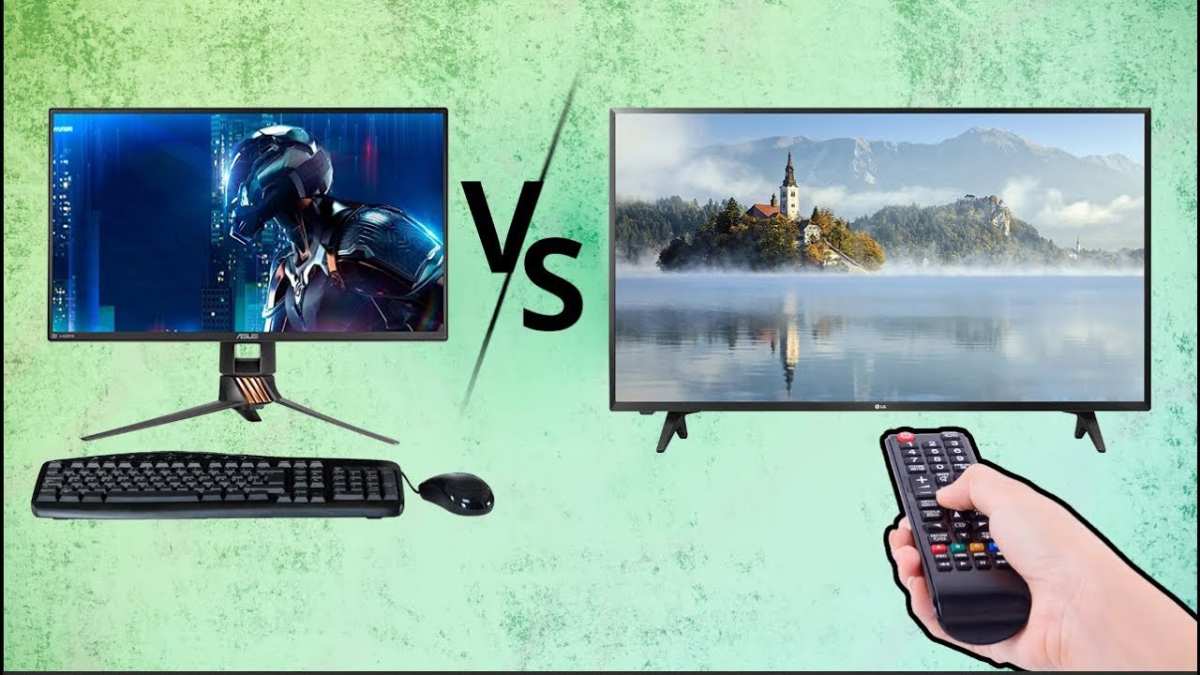
Image source: Bing (Web (fair-use with source credit))
Side-by-Side Comparison Table
| Factor | Budget Monitor ($80–$200) | Budget TV ($150–$350) | Mid-Range Monitor ($250–$500) |
|---|---|---|---|
| Screen Size | 24"–27" | 32"–43" | 27"–32" |
| Resolution | 1080p–4K | 4K | 1440p–4K |
| HDR Quality | Poor to None | Decent (full array models) | Good |
| Smart Features | None (usually) | Built-in (Roku, Google TV, etc.) | None (usually) |
| Built-in Speakers | Weak | Acceptable | Weak to Average |
| Best Viewing Distance | 2–4 feet | 6–10 feet | 2–4 feet |
| Input Lag | Low | Higher | Low |
| Color Accuracy (out of box) | Average | Good (TVs often better calibrated) | Good to Excellent |
When a Budget Monitor Beats a Budget TV
Budget monitors win when you're sitting at a desk or need a dual-purpose display. If you're working on a laptop during the day and watching Netflix at night, a monitor makes far more sense than a TV.
They also win on input lag. If you're streaming interactive content or using the monitor with a console for both gaming and streaming apps, the lower input lag of a monitor is noticeable.
Price per inch of usable screen real estate at desk distances favors monitors too. A 24-inch monitor at $120 gives you a sharper, more detailed image up close than a 32-inch budget TV at $180.
When You'd Be Better Off Spending More
If you're setting up a dedicated streaming station or bedroom TV replacement, a budget TV is usually the better choice. You get a larger screen, better built-in speakers, smart TV features, and often better HDR performance at similar prices.
Mid-range monitors make sense if you want a single display that handles both work and streaming well. The better panel quality, higher brightness, and wider color gamut justify the extra cost for people who notice those differences.
The honest truth is that a $150 budget monitor handles 90% of streaming use cases just fine. The last 10% in HDR, color accuracy, and contrast requires spending significantly more.
Who Should Actually Buy a Budget Monitor for Streaming
Not everyone needs a premium display for watching content. Budget monitors serve specific users really well, while leaving others frustrated. Let's figure out which camp you fall into.
Great Fit: Students, Secondary Screens, and Casual Viewers
If you're a student living in a dorm, a budget monitor is arguably the smartest purchase you can make. You get a display for coursework during the day and streaming at night, all for under $150.
Secondary screen users also benefit. If your main display is already solid, adding a budget monitor for background YouTube, podcasts, or casual viewing makes perfect sense. You don't need reference-grade color for a cooking video playing while you work.
Casual viewers who watch a few episodes per week won't notice the limitations that drive home theater enthusiasts crazy. If you're not pixel-peeping at shadow detail in dark scenes, a budget IPS panel will serve you well for years.
Poor Fit: Home Theater Enthusiasts and Color-Critical Users
If you're building a dedicated viewing setup and care about picture quality, budget monitors will disappoint you. The washed-out HDR, limited contrast, and mediocre color gamut become obvious when you're comparing against a decent TV or mid-range display.
Content creators working in video or photo editing should also skip budget panels. The limited color gamut and inconsistent calibration make them unreliable for any color-critical work. Even basic photo editing benefits from a wider gamut than most budget monitors offer.
Home theater replacements need larger screens and better HDR than budget monitors provide. A 43-inch budget TV at $250 will outperform a 24-inch budget monitor at $150 for pure viewing every single time.
The Console Streaming Niche
Console gamers who also stream media apps face an interesting choice. A budget monitor with HDMI 2.0 works fine for 4K/60Hz streaming from a PS5 or Xbox Series X. You just won't get HDR that looks meaningfully better than SDR.
If your console is primarily for gaming, prioritize refresh rate and response time over streaming features. A 1080p 144Hz budget monitor handles both gaming and streaming well enough. If streaming is the main use, lean toward a 4K 60Hz IPS panel instead.
Common Mistakes People Make When Buying
After reviewing aggregate user feedback and manufacturer specs, certain patterns of buyer frustration keep showing up. Here are the mistakes we see most often.
Ignoring HDR Capability Entirely
Many buyers see "4K" on the box and assume they're getting a great HDR experience. Most budget 4K monitors have no meaningful HDR implementation. The panel accepts the HDR signal but can't display it properly.
If HDR matters to you, check for DisplayHDR 600 certification at minimum. DisplayHDR 400 is barely a step above SDR. If HDR doesn't matter to you, ignore this entirely and save money.
Assuming All 4K Budget Monitors Are Equal
Panel quality varies wildly even within the same resolution and price range. Two 27-inch 4K monitors at $200 can have very different color gamut coverage, brightness levels, and contrast ratios.
Always check the specific panel specs, not just the resolution badge. A 4K TN panel is worse for streaming than a good 1080p IPS panel. Resolution alone doesn't determine picture quality.
Forgetting About Audio (Those Built-in Speakers Though)
Almost every budget monitor has built-in speakers, and almost all of them sound terrible. We're talking 2W to 5W drivers with no bass response. They're fine for notification sounds and basic dialogue, but movies and music deserve better.
Budget $20 to $30 for external speakers or use headphones. A cheap pair of Creative or Logitech desktop speakers transforms the audio experience. Some buyers don't factor this into the total cost and feel cheated by the monitor's audio.
Overlooking Panel Lottery and Backlight Bleed
Budget monitors have looser quality control than premium options. Backlight bleed, where light leaks around the edges of the screen, is common. Some units have more than others, creating what enthusiasts call "panel lottery."
IPS glow, a brightening of corners in dark scenes, is also common on budget IPS panels. It's a characteristic of the technology, not a defect, but it can be distracting during dark movie scenes.
Check return policies before buying. Amazon and most major retailers accept returns for excessive backlight bleed. If your unit has severe issues, don't hesitate to exchange it.
What You Can Realistically Expect at Each Price Point
Price determines which compromises you'll make. Here's what each tier delivers for streaming use cases.
Under 0: The Bare Minimum
At this price, you're looking at 24-inch 1080p IPS panels with basic specs. Expect 250 to 300 nits of brightness, 95% sRGB coverage, and no HDR to speak of. Brands like AOC, Sceptre, and KOORUI dominate this range.
These monitors handle streaming just fine in SDR. The picture is clear, colors are decent, and 60Hz is all you need for video content. You'll want external speakers and you'll be limited to SDR, but the core experience works.
0–0: The Sweet Spot for Most People
This range offers the best value for streaming. You can find 27-inch 1440p IPS panels or 24-inch 4K displays with better color accuracy and slightly improved brightness. HDR400 certification appears here, though it's still not true HDR.
Models from LG, Dell, and ASUS in this range tend to have better quality control and more consistent panel performance. You're also more likely to find monitors with adjustable stands and better connectivity options.
For most people asking whether budget monitors are good for streaming, this is the price range to target. You get a genuinely good SDR experience without overpaying for features you can't fully utilize.
0–0: Where Things Get Interesting
At this tier, you start seeing true 4K IPS panels with wider color gamuts and DisplayHDR 600 certification. HDR becomes actually usable. Color accuracy out of the box improves significantly.
This is also where smart monitors like the Samsung M5 and M7 appear, with built-in streaming apps and TV-like functionality. If you want an all-in-one solution without connecting a PC or streaming device, these are worth considering.
For streaming-focused use, spending above $400 makes sense only if you also need the monitor for professional work or serious gaming. The diminishing returns kick in fast for pure media consumption.
Quick Specs Comparison: Popular Budget Streaming Monitors
Here's how some commonly recommended models stack up for streaming use cases. Prices reflect typical retail as of early 2026.
| Model | Size | Resolution | Panel | HDR | sRGB | Price (approx.) | Best For |
|---|---|---|---|---|---|---|---|
| AOC 24G2SAE | 24" | 1080p | VA | No | 99% | $120 | Budget movies, dark rooms |
| LG 27UL500 | 27" | 4K | IPS | HDR10 | 99% | $230 | 4K streaming, general use |
| Dell S2722QC | 27" | 4K | IPS | HDR10 | 99% | $280 | 4K streaming, USB-C connectivity |
| Samsung M5 (M50B) | 32" | 4K | VA | HDR10 | 99% | $300 | Smart monitor, no PC needed |
| AOC Q27G2S | 27" | 1440p | IPS | HDR400 | 99% | $200 | Mixed use, some gaming + streaming |
Note that "HDR10" on budget monitors doesn't mean the same thing as HDR10 on a mid-range TV. The monitor accepts the signal but can't display the full brightness and color range. It's better than nothing, but manage your expectations.
Frequently Asked Questions
Can a budget monitor play 4K Netflix content?
Yes, if the monitor has 4K resolution and an HDMI 2.0 port. You also need a Premium Netflix plan for 4K content. The monitor will display it, but HDR and wide color gamut will be limited compared to premium displays.
Is 60Hz enough for streaming?
Absolutely. Most streaming content is 24fps or 30fps. Even 60fps content plays perfectly on a 60Hz panel.
Higher refresh rates are only relevant for gaming, not video playback.
Do I need HDR for streaming?
No, HDR is a nice bonus, not a requirement. The vast majority of streaming content looks great in SDR. Only buy for HDR if you specifically watch HDR content and care about the quality difference.
Are budget monitor speakers good enough for streaming?
They're usable but not good. Dialogue is clear enough for casual viewing, but music and action scenes sound thin and flat. External speakers or headphones make a noticeable difference.
What size monitor is best for streaming at a desk?
24 inches works well for 1080p at typical desk distances of 2 to 3 feet. For 4K, 27 inches is the sweet spot. Going larger than 27 inches at desk distance can make you turning your head to see the full screen.
Should I choose IPS or VA for watching movies?
VA panels offer deeper blacks and better contrast, which helps in dark rooms. IPS panels have better viewing angles and color accuracy, which matters more in bright rooms. Pick based on your viewing environment.
Final Verdict: Should You Buy One?
Budget monitors are genuinely good for streaming in 2026. The SDR experience on a decent budget IPS panel is clean, colorful, and perfectly enjoyable for everyday viewing. You don't need to spend $500 or more to watch Netflix, YouTube, or Disney+ at your desk.
The limitations show up in HDR performance, color gamut, and contrast. If those things matter to you, spend more. If they don't, a $150 to $250 budget monitor will serve you well for years.
Our recommendation: buy a 27-inch 4K IPS monitor in the $200 to $250 range if you want the best balance of quality and value. Stick to 1080p at 24 inches if you're truly on a tight budget. Either way, set aside $20 for external speakers and you'll have a solid streaming setup without breaking the bank.

Similar Posts