Which Budget Monitor Is Best for Video Editing

When you're trying to figure out which budget monitor is best for video editing, the answer isn't as simple as grabbing the cheapest 4K panel you can find. Most budget monitors prioritize gaming specs or office work, leaving you with a display that looks sharp but can't actually be trusted for color decisions.
In our research, we've found that color accuracy, panel uniformity, and factory calibration matter far more than raw resolution or refresh rate for editing work. A well-calibrated 1440p IPS panel at $300 will serve you better than a poorly tuned 4K panel at $500. Let's break down what actually matters and which monitors deliver real value for video editors on a budget.
Quick Answer
The BenQ SW271C stands out as the best budget monitor for video editing as of 2026. It offers 99% Adobe RGB coverage and factory-calibrated Delta E accuracy under 2. The ASUS ProArt PA278QV is a strong alternative under $300.
For 4K resolution on a budget, the Dell UltraSharp U2723QE delivers excellent value.
Why Most Budget Monitor Advice Gets Video Editing Wrong
Here's the problem. Most monitor roundups focus on specs that look impressive on paper. High refresh rate. 4K resolution.
HDR support. Those numbers matter for gaming, but they're almost irrelevant for video editing.
What actually matters is whether you can trust what you see on screen. Can you grade skin tones accurately? Will your export look the same on your client's display?
Does that shadow detail actually exist, or is your monitor crushing blacks?
Budget monitors cut corners in exactly the areas editors need most. They'll give you a 4K panel but skip factory calibration. They'll advertise wide color gamut coverage but ship with terrible uniformity.
You'll notice bright spots in dark scenes and color shifts when you move your head slightly.
The monitors we're recommending here prioritize the things that actually affect your editing work. Color accuracy. Panel uniformity.
Proper gamma tracking. These matter more than any spec sheet number.
What Actually Matters for Video Editing: The Five Non-Negotiables

Image source: Bing (Web (fair-use with source credit))
Before we get into specific monitors, let's establish what you should actually be looking for. These five factors will make or break your editing experience.
Color Accuracy and Delta E Explained Simply
Delta E measures how far off a displayed color is from the reference standard. Lower numbers mean better accuracy. For video editing, you want Delta E under 2.
At that level, the human eye can't distinguish the error.
Most budget monitors ship with Delta E values between 3 and 6 out of the box. That's noticeable. Skin tones shift.
Whites look slightly blue or yellow. You'll end up compensating for the monitor's inaccuracy, which means your exports look wrong on accurate displays.
Factory-calibrated monitors include a calibration report showing measured Delta E values. This matters because user calibration requires a colorimeter and time. The BenQ SW series and ASUS ProArt lines both include these reports.
Color Gamut: sRGB vs DCI-P3 vs Adobe RGB for Editing
Color gamut defines the range of colors a monitor can display. Different editing workflows require different gamuts.
| Color Space | Best For | Budget Monitor Target |
|---|---|---|
| sRGB | Web content, YouTube, social media | 99-100% coverage |
| DCI-P3 | Cinema, Netflix delivery, HDR | 90%+ coverage |
| Adobe RGB | Print crossover, photography | 95%+ coverage |
For most YouTube and social media editors, sRGB accuracy is the priority. If you're doing cinema work or delivering to streaming platforms, DCI-P3 coverage becomes important. Adobe RGB matters more for photographers or editors who also deliver print content.
Here's the trap. Many budget monitors advertise wide gamut panels but don't include an sRGB clamp mode. That means everything looks oversaturated when editing for web delivery.
You need either a proper sRGB mode or the ability to create custom color profiles.
Panel Type Showdown: IPS vs VA vs OLED at Budget Prices
Panel technology affects everything about your viewing experience. Each type has real trade-offs for editing work.
IPS (In-Plane Switching) remains the standard for budget editing monitors. You get consistent colors across viewing angles, decent contrast, and accurate gamma tracking. The downside is IPS glow, where dark scenes show a bright glow in corners.
Budget IPS panels also struggle with true black levels.
VA (Vertical Alignment) offers better contrast ratios, typically 3000:1 compared to IPS at 1000:1. Blacks look deeper. But color shift is more noticeable at angles, which matters when you're leaning in to check details.
VA panels also tend to have slower response times in dark transitions.
OLED delivers perfect blacks and infinite contrast. It's the ideal technology for color grading. But budget OLED monitors remain rare as of 2026, and the options under $500 come with compromises in peak brightness and burn-in risk.
Most editors are better served by a quality IPS panel at this price point.
Resolution Reality Check: When 4K Beats 1440p and When It Doesn't
4K gives you more timeline real estate and sharper text. That's genuinely useful for editing. But resolution alone doesn't make a good monitor.
A budget 4K panel often sacrifices color accuracy, brightness, or uniformity to hit the price point. Meanwhile, a well-made 1440p panel can deliver better color work at the same cost. The pixel density difference is noticeable but less important than color accuracy for editing.
Our recommendation depends on your workflow. If you're editing 4K footage and need to see full resolution for detail work, a 4K monitor makes sense. If you're working with 1080p or 4K footage at fit-to-screen, a quality 1440p panel often provides better overall image quality for the money.
The sweet spot for most budget editors in 2026 is a 27-inch 4K IPS panel with good factory calibration. You get the resolution benefit without the compromises of the cheapest 4K options.
The Top Budget Monitors for Video Editing: Honest Breakdowns
Now let's look at specific monitors that actually deliver for video editing work. We've focused on models with verified color accuracy, good uniformity, and reliable performance.
Best Overall: BenQ SW271C
The BenQ SW271C represents the best balance of price and performance for serious video editing. It's a 27-inch 4K IPS panel with 99% Adobe RGB coverage and factory-calibrated Delta E under 2.
What sets BenQ's SW series apart is the included calibration report and hardware calibration support. You can load custom LUTs directly into the monitor, which means your calibration survives computer changes. The 16-bit 3D LUT processing provides smoother gradations than typical 8-bit panels.
The downside is price. It typically runs $450-500, pushing the upper boundary of "budget." The design is also utilitarian, with thick bezels and basic ergonomic adjustments. But for color-critical work, it's hard to beat at this price.
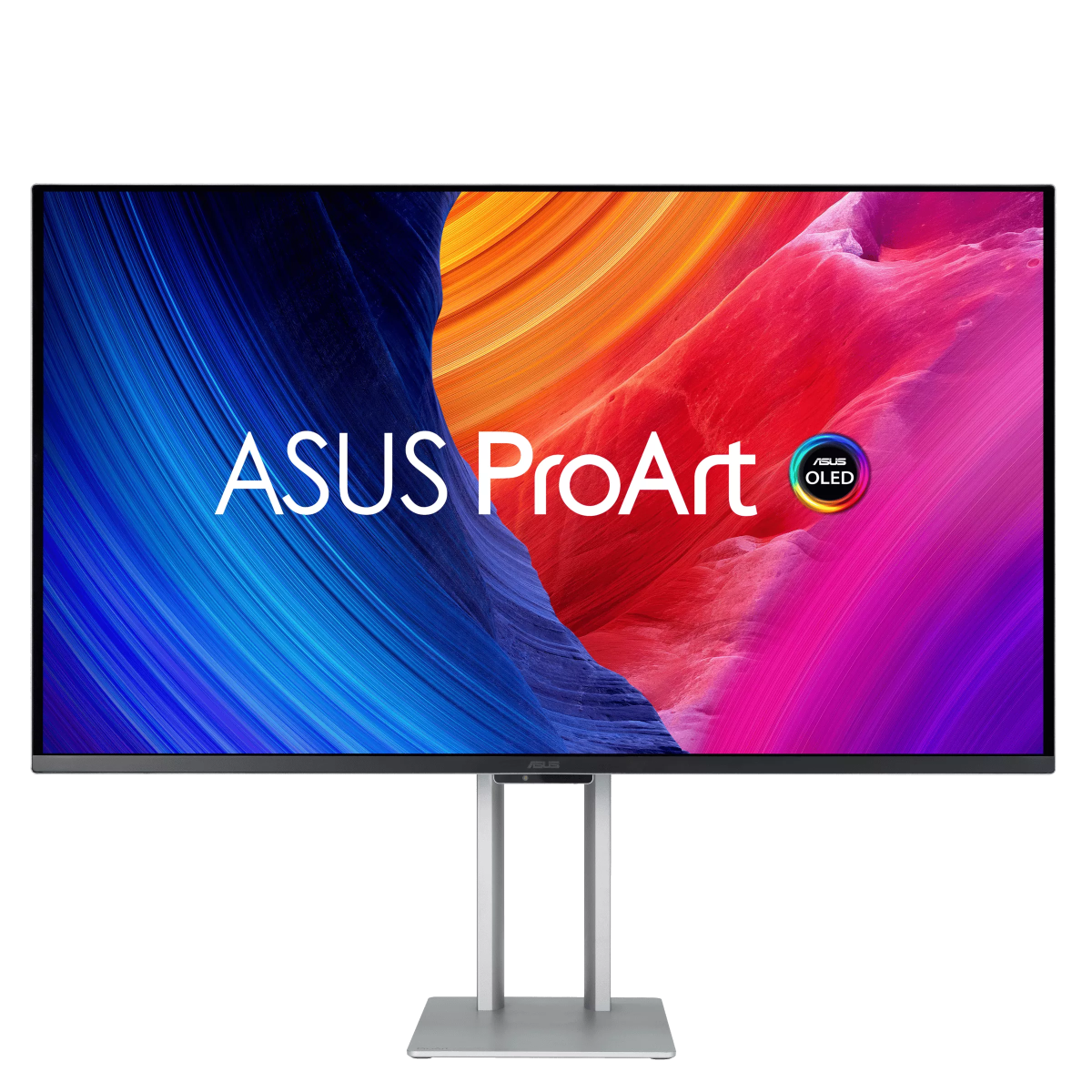
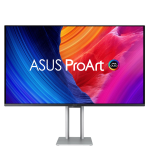
Best Value 4K: ASUS ProArt PA278QV
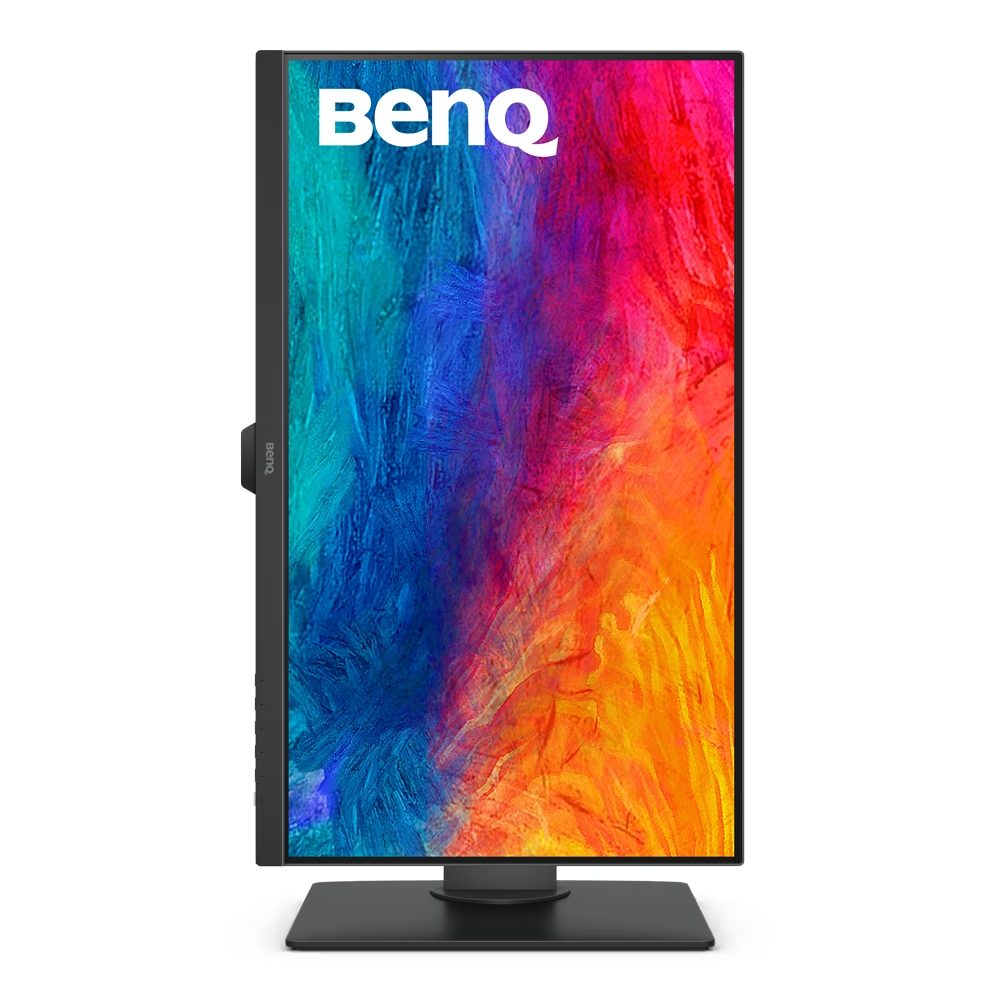
The ASUS ProArt PA278QV hits a remarkable price point while delivering genuine editing capability. At around $280-320, you get a 27-inch 1440p IPS panel with 100% sRGB coverage and factory calibration.
Wait, we said 4K above. Let us correct that. The PA278QV is actually 1440p, not 4K.
But it's our top value pick because the color accuracy at this price is exceptional. Delta E under 2 out of the box. Proper sRGB and Rec. 709 modes.
USB-C connectivity with power delivery.
For editors working primarily in sRGB for web delivery, this monitor does everything you need. The 1440p resolution at 27 inches provides sharp text and reasonable timeline space. You sacrifice 4K resolution, but you gain budget headroom for a calibration tool or other gear.
Best for Color Grading on a Budget: Dell UltraSharp U2723QE
The Dell UltraSharp U2723QE is a 27-inch 4K IPS Black panel that excels at color grading work. Dell's IPS Black technology delivers deeper blacks than standard IPS while maintaining color accuracy.
Factory calibrated with Delta E under 2, it covers 98% DCI-P3 and 100% sRGB. The four-port USB hub and USB-C connectivity with 90W power delivery make it practical for laptop editors. The stand is excellent with full ergonomic adjustments.
At $400-450, it's priced competitively against the BenQ options. The main limitation is that it lacks hardware LUT support, so calibration depends on your graphics card's output. For most editors, this is fine.
For professional color grading work, hardware calibration provides more precision.
Best Budget 1440p Option: LG 27UL850N-W
The LG 27UL850N-W offers 4K resolution at a budget price point, typically $280-350. It covers 99% sRGB and supports HDR10. The IPS panel provides decent viewing angles and reasonable color accuracy.
This monitor works well for editors who need 4K resolution but can't stretch to the BenQ or Dell options. Out-of-box accuracy is acceptable, though not as refined as the factory-calibrated competitors. We'd recommend budgeting for a calibration tool if you choose this panel.
The HDR implementation is basic. DisplayHDR 400 certification means it accepts HDR signals but can't actually deliver meaningful HDR performance. Treat this as an SDR monitor that happens to accept HDR input.
Best Under 0: ASUS ProArt PA278QV vs BenQ GW2780T
For editors under $300, two options stand out. The ASUS ProArt PA278QV delivers better color accuracy and more professional features. The BenQ GW2780T offers 4K resolution at a lower price point.
Choose the ASUS if color accuracy is your priority. Choose the BenK if you need 4K resolution for timeline work. Both require some compromise, but either serves as a solid starting point for budget video editing.
Side-by-Side Comparison: Specs, Strengths, and Weaknesses
Here's how the top contenders stack up against each other.
| Monitor | Resolution | Panel | Color Gamut | Factory Cal | Price Range | Best For |
|---|---|---|---|---|---|---|
| BenQ SW271C | 4K | IPS | 99% Adobe RGB | Yes, DE<2 | $450-500 | Best overall accuracy |
| ASUS ProArt PA278QV | 1440p | IPS | 100% sRGB | Yes, DE<2 | $280-320 | Best value |
| Dell U2723QE | 4K | IPS Black | 98% DCI-P3 | Yes, DE<2 | $400-450 | Color grading |
| LG 27UL850N-W | 4K | IPS | 99% sRGB | No | $280-350 | Budget 4K |
Each monitor serves a different type of editor. The BenQ wins on pure accuracy. The ASUS wins on value.
The Dell wins on connectivity and black levels. The LG wins on resolution per dollar.
Which Monitor Fits Your Editing Workflow
Not every editor needs the same monitor. Your workflow determines which features matter most.
YouTube and Social Media Creators
If you're delivering content for YouTube, Instagram, or TikTok, you're working in sRGB. You don't need wide gamut coverage or DCI-P3 support. What you need is accurate sRGB reproduction and decent resolution for timeline work.
The ASUS ProArt PA278QV is your best bet here. It delivers accurate sRGB at a price that leaves room in your budget for audio gear or lighting. The 1440p resolution provides enough screen space for most editing software without the scaling issues that sometimes affect 4K on smaller screens.
Freelance Editors Working in SDR
Freelance editors working on corporate videos, commercials, or web content need reliable SDR performance. You're likely delivering in sRGB or Rec. 709. Color accuracy matters more than resolution.
The Dell U2723QE serves this workflow well. The IPS Black panel gives you better contrast for evaluating shadow detail. The USB-C connectivity works seamlessly with laptops.
And the factory calibration means you can trust your output without investing in a colorimeter.
Film Students and Aspiring Colorists
If you're learning color grading or working on student films, you need a monitor that teaches you proper color evaluation. You don't need reference-level accuracy, but you need consistency and decent gamut coverage.
The BenQ SW271C works well here if you can stretch the budget. The hardware calibration support means you can learn proper calibration workflows. If budget is tight, the LG 27UL850N-W provides 4K resolution for learning DaVinci Resolve's interface, though you'll want to add a calibration tool.
Editors Who Also Game
If your monitor serves double duty for gaming and editing, you need reasonable refresh rates alongside color accuracy. Most editing-focused monitors run at 60Hz, which is fine for editing but limiting for gaming.
The LG 27UL850N-W supports 60Hz with decent response times. For better gaming performance, you might consider stepping up to the ASUS ProArt PA279CRV, which offers 60Hz but better overall gaming compatibility. Just know that gaming-focused monitors typically sacrifice color accuracy for speed.
Common Mistakes People Make Buying a Budget Editing Monitor
We've seen these mistakes repeatedly. Avoid them and you'll end up with a monitor that actually serves your editing work.
Prioritizing resolution over accuracy. A 4K monitor with Delta E of 5 looks sharp but displays inaccurate colors. You'll make bad color decisions and your exports won't match. A 1440p monitor with Delta E under 2 serves you better.
Ignoring factory calibration. Without factory calibration, you're relying on user calibration with a colorimeter. That's fine if you own a colorimeter and calibrate monthly. Most people don't.
Factory calibration gives you a trustworthy baseline from day one.
Buying based on HDR marketing. DisplayHDR 400 and DisplayHDR 600 certifications on budget monitors are essentially meaningless. These monitors can't deliver real HDR performance. Don't pay a premium for HDR labels on budget panels.
Overlooking panel uniformity. A monitor with great center color accuracy but poor uniformity shows different colors across the screen. This is especially problematic for gradient work and sky shots. Check reviews for uniformity measurements before buying.
Skipping the sRGB mode. If you're editing for web delivery, you need a proper sRGB clamp mode. Without it, wide gamut monitors display oversaturated colors that don't match your delivery target. Verify the monitor has a functional sRGB mode, not just wide gamut coverage.
Pro Tips to Get the Most From Your Budget Monitor
Even a well-chosen monitor needs proper setup to deliver accurate results. These tips will help you get the most from your investment.
Let your monitor warm up. Budget IPS panels need 30 minutes to reach stable color accuracy. Don't start critical color work immediately after turning on the display.
Calibrate monthly. Factory calibration drifts over time. If you don't own a colorimeter, consider budgeting for a Datacolor Spyder X or Calibrite ColorChecker. Monthly calibration maintains accuracy.
Control your environment. Ambient light affects color perception. Work in a room with controlled lighting, ideally around 6000K. Avoid strong color walls that cast reflections on the screen.
Use your editing software's scopes. Don't rely solely on your monitor for color decisions. Use the waveform, vectorscope, and parade displays in DaVinci Resolve or Premiere Pro. Your monitor shows you the image.
The scopes show you the data.
Check your viewing position. IPS panels shift color when viewed off-center. Position your monitor at eye level and directly in front of you. Even small angle changes can affect your perception of skin tones and shadows.
Update your monitor firmware. Manufacturers occasionally release firmware updates that improve color accuracy or fix bugs. Check the support page for your monitor model periodically.
Frequently Asked Questions
Is 4K necessary for video editing?
No, 4K isn't necessary but it helps. A quality 1440p monitor with accurate colors serves you better than a budget 4K panel with poor accuracy. If you're editing 4K footage and need full-resolution preview, then 4K becomes more important.
For most web content editing, 1440p is sufficient.
Can I use a gaming monitor for video editing?
You can, but gaming monitors prioritize refresh rate and response time over color accuracy. If you choose a gaming monitor, look for models with IPS panels and sRGB accuracy. Avoid TN panels and VA panels with slow dark transition times.
You'll likely need to calibrate with a colorimeter.
How much should I spend on a monitor for video editing?
For serious video editing, plan to spend $300-500 on the monitor. Below $300, you'll make significant compromises in color accuracy or build quality. Above $500, you enter professional reference monitor territory with features most editors don't need.
Do I need a colorimeter for my editing monitor?
If you buy a factory-calibrated monitor, you can work without a colorimeter initially. However, calibration drifts over time. A colorimeter like the Calibrite ColorChecker Display Plus lets you maintain accuracy monthly.
We recommend budgeting for one if you're doing client work.
Is HDR worth it on a budget monitor?
No. Budget monitors with HDR certification can't deliver meaningful HDR performance. They accept HDR signals but lack the peak brightness and local dimming for real HDR.
Focus on SDR accuracy instead. Save HDR for when you can invest in a proper HDR reference display.
What size monitor is best for video editing?
27 inches is the sweet spot for most editors. It provides enough screen space for timelines and preview windows without requiring excessive head movement. At 27 inches, 4K resolution gives you sharp text and the option to use 100% scaling without UI elements becoming too small.
Final Verdict: The Right Pick for Your Situation
Choosing the right budget monitor comes down to your specific editing needs and budget constraints.
If you can spend $450-500 and want the most accurate colors for professional work, the BenQ SW271C is the clear winner. Its hardware calibration support and included calibration report make it the most reliable choice for client work.
For editors under $350 who prioritize color accuracy over resolution, the ASUS ProArt PA278QV delivers exceptional value. You sacrifice 4K resolution but gain factory-calibrated sRGB accuracy that outperforms many more expensive options.
The Dell U2723QE sits in the middle, offering 4K resolution, wide gamut coverage, and excellent connectivity. It's the best all-around choice for editors who need versatility.
Whatever you choose, remember that a monitor is a long-term investment in your work. Spending an extra $100 now for better color accuracy saves countless hours of rework and client revisions down the road.

Similar Posts