Can Mini LED Monitors Support 8K Resolution

Can mini LED monitors support 8K resolution? It's one of those questions that sounds like it should have a clean yes-or-no answer, but it doesn't. The real answer depends on what's inside your specific monitor, what ports it has, and what you're trying to drive it with.
Mini LED is a backlight technology, not a resolution spec. A monitor can use mini LED local dimming and still have a 1440p panel, a 4K panel, or if you're lucky and willing to spend, a true native 8K panel. Per VESA standards and manufacturer specs as of 2026, the bottleneck comes down to three things: whether the panel itself is natively 7680 × 4320, whether your cable and port combination can push enough data, and whether your source device can actually output that signal.
This guide walks you through all three so you can figure out exactly where you stand.
Quick Answer
Mini LED backlight technology does not guarantee 8K support. Whether you can run 8K depends on your monitor's native panel resolution, port bandwidth, and GPU capability. Most mini LED monitors on the market still max out at 4K.
True native 8K mini LED monitors exist but are rare and expensive as of 2026. DisplayPort 2.1 or HDMI 2.1 with DSC is typically required for 8K at usable refresh rates.
Why People Get Confused About This
The confusion starts with marketing. Manufacturers love slapping "mini LED" on the box because it sounds premium, and in many ways it is. Mini LED backlighting gives you hundreds or thousands of local dimming zones, deeper blacks, and HDR brightness that conventional edge-lit displays can't touch.
But brightness and contrast have nothing to do with pixel count.
Here's the core issue. Mini LED describes how the screen lights up, not how many pixels it has. You can put a mini LED backlight behind a 1080p panel, a 1440p panel, a 4K panel, or an 8K panel.
They're independent choices. When someone sees "mini LED" and assumes it means 8K ready, they're mixing up two completely different specification layers.
This isn't a small misunderstanding either. Someone spends serious money on a mini LED monitor expecting 8K, only to unbox a very nice 4K display. Not a bad monitor by any means, just not what they thought they were buying.
The flip side is also true. Some buyers who genuinely need 8K assume mini LED monitors can't do it and miss out on the few that actually can.
The two specs you need to separate
- Mini LED backlight: Controls local dimming, HDR performance, peak brightness in nits. Doesn't dictate resolution.
- Native panel resolution: The actual pixel grid (7680 × 4320 for true 8K, 3840 × 2160 for 4K, etc.). This is what determines whether you're viewing 8K content.
Always check the native resolution first. Everything else flows from there.
Step-by-Step: Check Whether Your Setup Can Handle 8K
Think of this as a chain. Every link has to hold or the whole thing breaks. We'll walk through each one in order.
Step 1: Confirm Your Monitor's Native Panel Resolution
This sounds obvious, but you'd be surprised how many people skip it. Pull up the exact model spec sheet from the manufacturer's website. Look for "native resolution" or "panel resolution," not "supported resolution" or "maximum input signal."
Those two phrases mean different things. A monitor might accept a 8K input signal and downscale it to a 4K panel. That's not 8K on screen.
That's 4K with an 8K source being squished to fit. If the spec sheet says 3840 × 2160 native, you have a 4K monitor regardless of what the input ports accept.
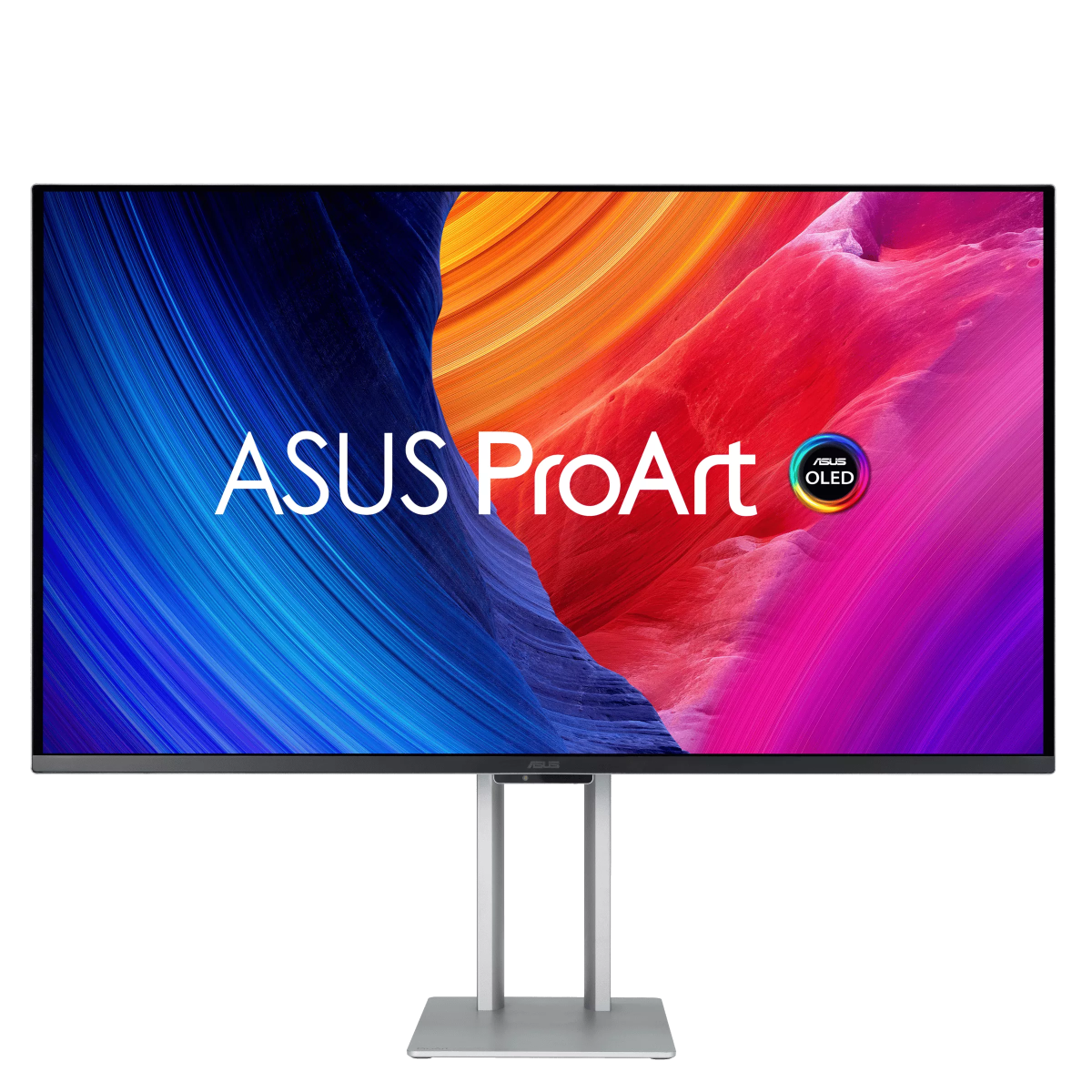
As of 2026, confirmed native 8K mini LED monitors on the consumer and prosumer market are limited. The NEC MultiSync PA32UCG is one verified example. Most options in the mini LED space, like the Samsung Odyssey Neo G9 series, ASUS ProArt PA32UCG, and similar pro-grade displays, still top out at 4K native resolution with mini LED backlighting.
Step 2: Identify Your Available Ports and Versions

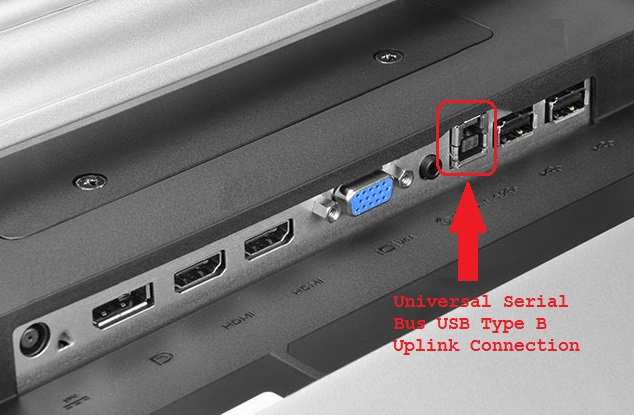
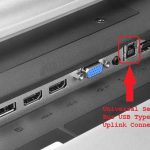
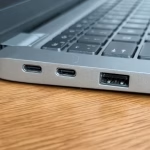
Ports are where most setups live or die. Not all DisplayPort or HDMI ports are created equal. The version stamped on the port determines your maximum bandwidth, and bandwidth is what lets 8K data through the pipe.
Here's what each standard gives you:
| Standard | Max Bandwidth | 8K @ 60Hz Possible? | Notes |
|---|---|---|---|
| DisplayPort 1.4 | 32.4 Gbps (HBR3) | No, unless heavily compressed | Needs DSC and even then limited |
| DisplayPort 2.1 (UHBR13.5) | 54 Gbps | Yes, with DSC | Realistic current-gen option |
| DisplayPort 2.1 (UHBR20) | 80 Gbps | Yes, uncompressed | Ideal but rare on current monitors |
| HDMI 2.0 | 18 Gbps | No | Insufficient bandwidth |
| HDMI 2.1 (FRL) | 48 Gbps | Yes, with DSC | Common on current GPUs and monitors |
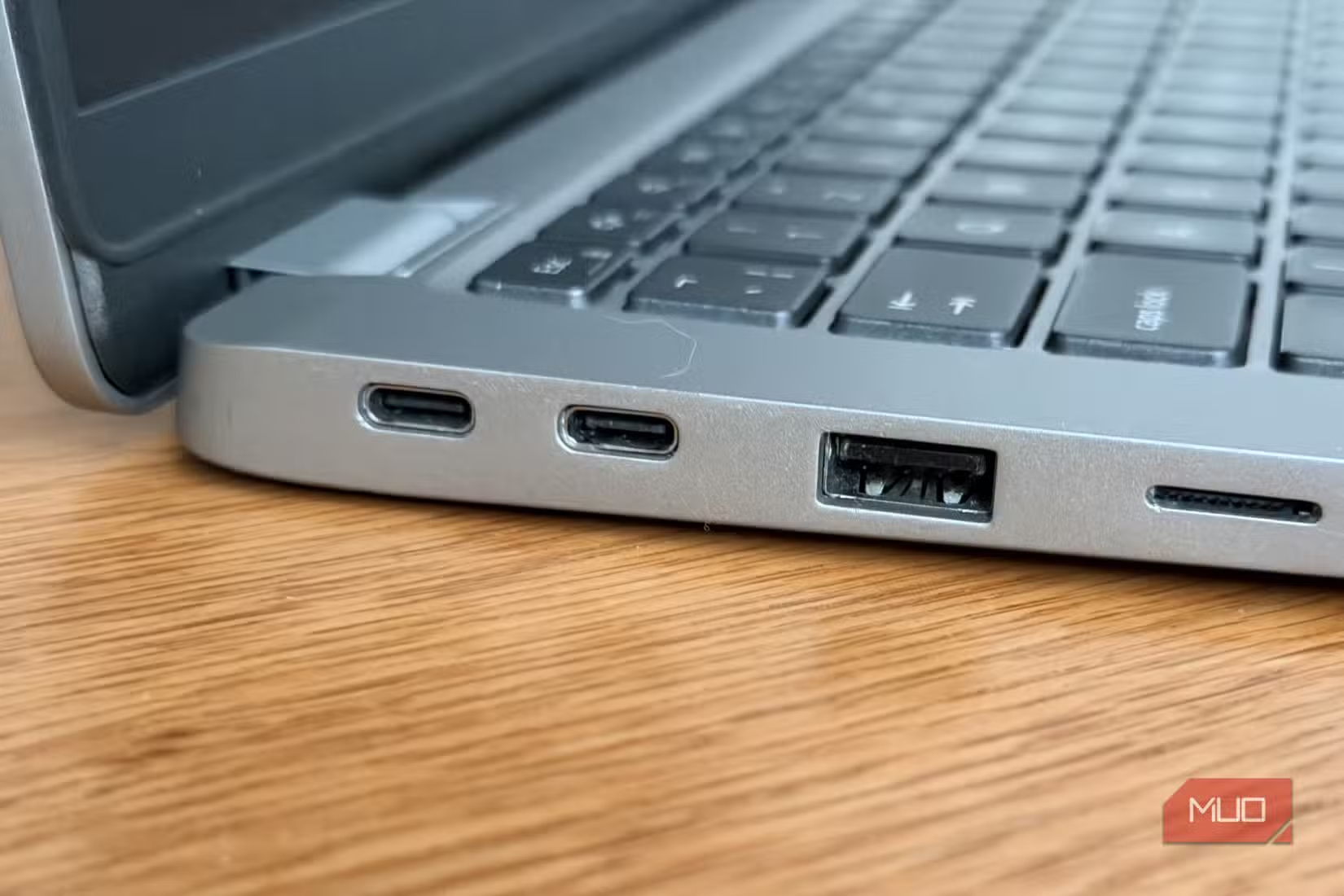
If your monitor only has HDMI 2.0 or DisplayPort 1.4 ports, you're not getting a usable 8K signal. Period. The panel might say 8K if it's a true native panel, but you can't feed it properly over those older ports.
Check the monitor spec sheet for the exact port version. Some manufacturers include one HDMI 2.1 and one HDMI 2.0 on the same monitor. Use the right port.
Step 3: Check Your GPU's 8K Output Support
Your graphics card needs to speak the same language as your monitor. A GPU that maxes out at 4K output won't magically push 8K just because the monitor can receive it.
NVIDIA's RTX 30-series and 40-series cards generally support 8K output via DisplayPort 1.4 with DSC. The RTX 50-series pushes further with DP 2.1 support on select models. AMD's RX 7000-series and newer support 8K output, with DP 2.1 available on some models.
Intel Arc GPUs support 8K over DP 2.1 and HDMI 2.1.
But there's a catch. Support for 8K output doesn't mean 8K at every refresh rate. Many GPUs can do 8K @ 30Hz over certain connections but need DSC to hit 60Hz.
Check your specific card's output specs against your monitor's port version.
For laptops, things get murkier. Many integrated graphics solutions cap at 4K. Discrete mobile GPUs vary widely.
Always verify the specific output capability rather than assuming.
Step 4: Verify DSC Compatibility on Both Ends
Display Stream Compression is what makes modern 8K connections practical. It's a visually lossless compression standard that reduces the bandwidth needed by roughly 3:1. Without DSC, even DP 2.1 UHBR20 struggles with 8K at higher refresh rates and bit depths.
Here's the critical part. Both your GPU AND your monitor need to support DSC. If one end doesn't, the compressed stream can't be decoded properly.
You'll either get a blank screen, a fallback to lower resolution, or an unstable signal that drops out intermittently.
On the NVIDIA side, DSC support has been present since the RTX 20-series on DisplayPort 1.4 and newer on DP 2.1. AMD added DSC support with the RDNA 2 architecture. On the monitor side, DSC support is usually listed in the spec sheet under features or DisplayPort capabilities.
If the spec sheet doesn't mention DSC, assume it's not supported until you can confirm otherwise.
Step 5: Get the Right Certified Cables
This is the step everyone cheapens out on and then wonders why they get signal drops, flickering, or black screens at 8K. Not all HDMI or DisplayPort cables can handle the bandwidth that 8K demands.
For HDMI 2.1 at full 48 Gbps, you need an Ultra High Speed HDMI cable. Look for the official certification hologram or QR code on the packaging. For DisplayPort 2.1 at UHBR20 or UHBR13.5, you need a DP80 certified cable.
These aren't marketing labels. They're VESA certifications that guarantee the cable meets the electrical specifications for that bandwidth tier.
Avoid cables longer than 2 meters without active signal boosting. Passive cables at longer lengths start losing signal integrity, and 8K is far less forgiving than 4K.
Step 6: Configure Refresh Rate and Color Depth in Your OS
You've got the hardware. Now you need to tell the software to actually use it. On Windows, go to Settings > System > Display > Advanced display settings.
On macOS, it's System Preferences > Displays (with more limited 8K options depending on the Mac). On Linux, it depends on your desktop environment and whether you're using X11 or Wayland.
You need to manually set the refresh rate and color depth. Many systems default to a safe lower setting even when the hardware can handle more. Watch for options like 8-bit, 10-bit, or 12-bit color depth, and HDR on or off.
Turning on HDR at 8K increases bandwidth requirements, so you might need to drop from 10-bit to 8-bit or reduce the refresh rate.
What Actually Determines Whether Your Mini LED Monitor Can Do 8K
If you take one thing from this whole guide, let it be this: the answer depends on three independent factors, and all three have to line up. Having mini LED backlighting gets you zero percent closer to 8K on its own.
The first factor is the native panel resolution. If the panel isn't 7680 × 4320 pixels, you're not running 8K, period. No amount of mini LED zones changes that.
This is the foundation everything else sits on.
The second factor is the physical connection. You need enough bandwidth to push 8K at your target refresh rate and color depth. As we covered above, that means DP 2.1 or HDMI 2.1 minimum, often with DSC enabled, and always with certified cables.
The third factor is your source device. Your GPU, its driver implementation, and your operating system all need to support 8K output at the settings you want. A monitor that can do 8K won't help if your laptop's integrated graphics top out at 4K.
When all three align, mini LED and 8K together can produce a genuinely stunning display. The high HDR brightness and deep contrast that mini LED provides, combined with the sheer pixel density of 8K, is currently unmatched by any other consumer display technology. But getting there requires checking every link in the chain.
Current Mini LED Monitors That Actually Support 8K
Here's where the rubber meets the road. As of 2026, the list of true native 8K mini LED monitors you can actually buy is extremely short.
The NEC MultiSync PA32UCG stands out as one of the few verified options. It's a 32-inch 8K (7680 × 4320) mini LED display with 2,376 local dimming zones and DisplayPort 2.1 support built in. Pricing sits around $5,000 to $7,000 depending on configuration and region.
This is firmly in professional territory.
On the consumer side, most popular mini LED monitors you've likely heard of are still 4K. The Samsung Odyssey Neo G9 57-inch is a 7680 × 2160 super-ultrawide, not true 8K. The ASUS ProArt PA32UCG is 4K.
The Cooler Tempest GP27U is 4K. You see the pattern.
The reason is simple economics. 8K panels are expensive to manufacture at high yield rates, and mini LED backlights add more cost on top. Most manufacturers have chosen to focus on 4K mini LED panels where the supply chain is mature and margins work better.
Marketing traps to look for
Watch for phrases like "8K ready" or "supports 8K input" on product pages. These often mean the monitor can accept an 8K signal but will downscale it to the panel's native 4K resolution. That's not the same thing.
Always look for "native resolution: 7680 × 4320" or "8K panel" in the specifications.
Some product descriptions also blur the line between "mini LED" and ultra-high resolution on purpose. A display can have impressive HDR specs with 1,000+ dimming zones and still display 3840 × 2160 pixels. Read the specs carefully.
Don't let the HDR brightness numbers distract you from the resolution specs.
8K at What Refresh Rate? The Trade-Offs Nobody Talks About
Running 8K at 30Hz is technically possible over HDMI 2.1 with DSC or DisplayPort 1.4 with DSC. You'll get your 8K signal, good enough for static desktop work, photo editing, or viewing 8K stills. But try scrolling a web page at that refresh rate.
It feels sluggish immediately.
We compared 8K refresh rate trade-offs to match different use cases:
- 8K @ 30Hz: Fine only for static content, photo review, idle desktop. Unusable for general computing or gaming.
- 8K @ 60Hz: Practical minimum for smooth desktop use and video playback. Needs HDMI 2.1 with DSC or DP 2.1 with DSC.
- 8K @ 120Hz: Smooth gaming at maximum fidelity. Requires DP 2.1 UHBR20 and DSC. Needs a top-tier current-gen GPU.
Bandwidth at these settings multiplies fast. 8K @ 60Hz with 10-bit HDR and DSC enabled hits close to 40 Gbps on the wire. Crank that to 120Hz and you're beyond what most singleable solutions can handle uncompressed. DSC becomes mandatory rather than optional.
This is precisely why DisplayPort 2.1 UHBR20 matters. At 80 Gbps, it gives enough headroom for 8K @ 120Hz with DSC and 10-bit color without cutting corners. But DP 2.1 at UHBR20 is still rare on shipping hardware as of mid-2026.
Most monitors top out at UHBR13.5 (54 Gbps), which is enough for 8K @ 60Hz with DSC but not much more.
Common Mistakes People Make When Trying to Run 8K
The most frequent mistake we see is assuming that a monitor with premium specs automatically supports 8K. Someone buys a $1,500 mini LED monitor with 1,152 dimming zones and 2,000 nits peak brightness. Then they wonder why 8K isn't working.
The answer is sitting right on the box in the resolution spec: 3840 × 2160.
Another common pitfall is cable-related. An uncertified "HDMI 2.1" cable bought from a random third-party seller might not actually handle 48 Gbps. All too often, users find that swapping a certified Ultra High Speed HDMI cable solves the issue.
Forgetting to enable GPU drivers, especially when using a hub or adapter, catches people constantly. DSC defaults to off in many driver menus. Without DSC enabled, an older port will either fail to drive 8K entirely or drop to an unusably low refresh rate.
After a DP 2.1 cable swap, it's worth diving into NVIDIA Control Panel or AMD Software to confirm that DisplayStream Compression is enabled.
macOS users face additional friction. Apple's Macs handle 8K differently than Windows PCs, with M-series chip output capabilities varying by model. macOS tends to require specific configurations per display, and in some cases downscales to Retina resolution at non-native values, producing soft text instead of crisp pixel-perfect rendering at 8K.
HDCP 2.3 compliance gets overlooked during 8K streaming from services like Netflix or Disney+. Your content plays in 4K instead of 8K due to an incomplete HDCP chain between GPU, cable, and monitor. It's not a bandwidth issue at all, just a copy protection handshake failure that downgrades your protected streaming resolution silently.
Who Actually Benefits From 8K on a Mini LED Monitor?

Image source: Bing (Web (fair-use with source credit))
Not everyone needs this combination. For professional video editors working with 8K RED RAW or ProRes footage, seeing every pixel at full resolution is a real workflow improvement. The mini LED HDR capability adds value here because it lets you grade HDR content natively on the same display.
Medical imaging specialists working with high-resolution radiology displays need all the pixel density they can get. This is niche but real. NEC and similar professional display makers target this exact market.
CAD and 3D modeling professionals sometimes want 8K for extreme detail in wireframe views or large assembly models. It's beneficial in specific cases rather than universally useful.
High-end gaming enthusiasts are the group most likely to want this but least likely to achieve it consistently. Running modern AAA titles at native 8K with decent frame rates requires multiple high-end GPUs in ways that practical setups rarely support.
For most people, 4K with mini LED is the sweet spot
A 4K mini LED monitor with 576 or 1,152 dimming zones gives you 95% of the visual experience at a fraction of the bandwidth and cost. It's the honest recommendation for the majority of professionals and enthusiasts.
8K Mini LED vs. Other Setups (Do You Even Need This?)

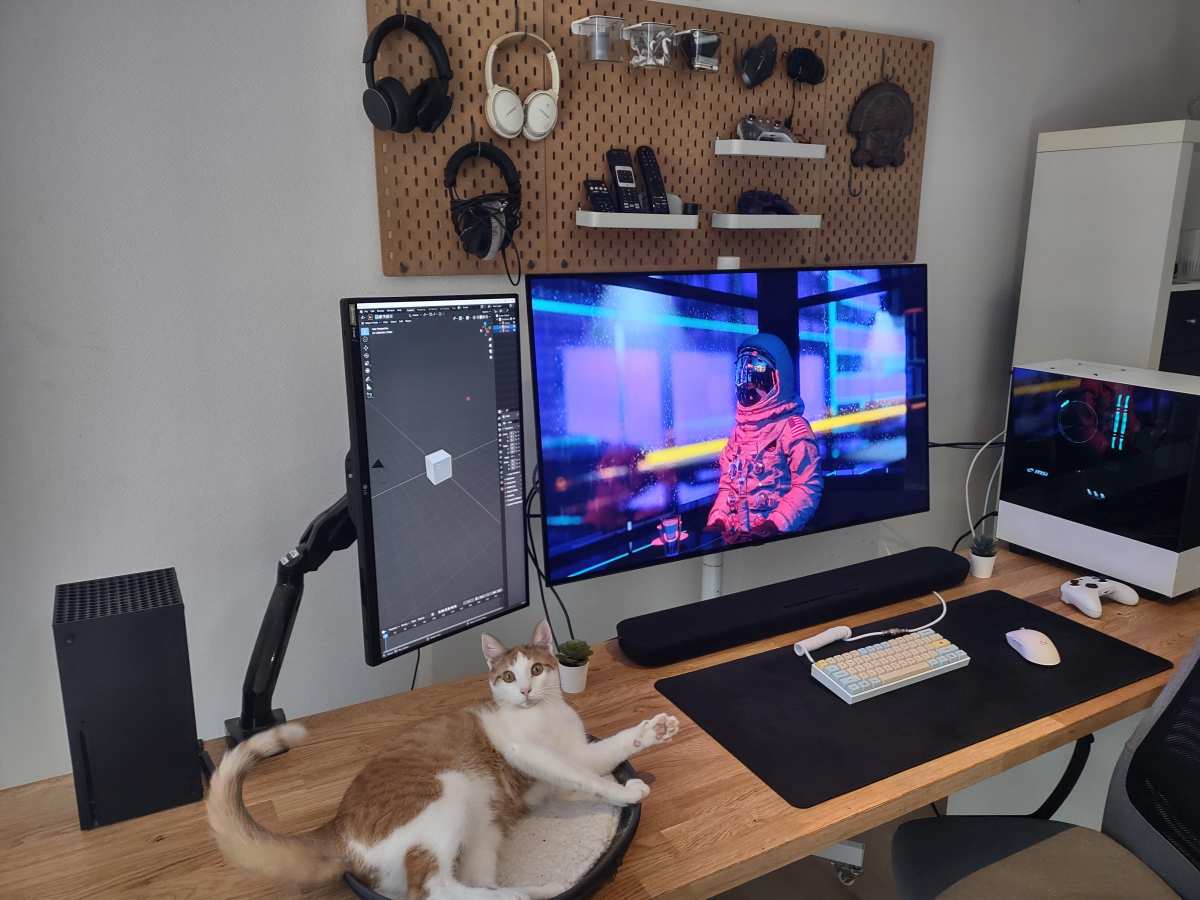
Comparing a single 8K mini LED monitor to other configurations helps put the value in perspective. A dual 4K monitor setup gives you equivalent desktop space (7680 × 2160 combined) for a fraction of the cost. You lose the seamless single-display experience but gain flexibility and redundancy.
8K mini LED versus a high-end 4K OLED at similar size highlights the major tradeoff. OLED gives perfect per-pixel response times and infinite contrast. Mini LED gets much brighter for HDR highlights.
At 4K, OLED wins for gaming motion quality. At 8K, you'll find OLED options scarce.
Upscaling 4K content on a mini LED to an 8K panel looks softer than native 8K. For general productivity at normal viewing distances on 32-inch or larger displays, that softness often goes unnoticed. An upscaler commonly fills the gap in some monitor firmware implementations.
Frequently Asked Questions
Can any mini LED monitor run 8K?
No. Mini LED is a backlight technology, so 8K capability depends on the specific monitor's native panel resolution, ports, and bandwidth support. You might have a mini LED monitor that's a 1440p, 4K, or true 8K panel.
Always check the native resolution spec.
Do I need DisplayPort 2.1 for 8K?
DisplayPort 2.1 isn't strictly needed if you're content with 30Hz, but DP 2.1 with DSC gives you 8K at 60Hz or higher. HDMI 2.1 with DSC also works for 60Hz.
Is DSC visually lossless?
Yes. VESA Display Stream Compression uses a visually lossless algorithm. Observing the difference between a compressed DSC feed and an uncompressed signal at normal viewing distances on consumer monitors requires careful test patterns to notice any difference.
For professional color work, verify your specific monitor's DSC implementation.
Does macOS support 8K output?
Yes, on Apple Silicon Macs with compatible ports. The M1 Pro and later chips support 8K output. But macOS scaling behavior at 8K differs significantly from Windows.
Apple's HiDPI scaling can result in non-integer scaling that makes text appear softer than expected.
What cable should I use for 8K?
For HDMI you need an Ultra High Speed HDMI (certified 48 Gbps). For DisplayPort you need VESA-certified DP80 cables (for DP 2.1 UHBR20). Cheaper uncertified cables often fail at 8K bandwidth, causing flickering or signal drops.
Always look for official certification markings.
Will 8K gaming work on a mini LED monitor?
It depends on your GPU. For 8K gaming at decent frame rates with modern titles, you need a top-end GPU (RTX 5080 or better), DP 2.1 with DSC enabled, and often the willingness to reduce settings. At 8K, even flagship GPUs become the bottleneck.
Final Verdict: Is 8K on a Mini LED Monitor Worth It Right Now?
For the vast majority of users in 2026, the honest answer is not yet. The hardware exists, the technology works, and the visual quality is exceptional when everything aligns. But the combination of limited monitor options, steep pricing, GPU bandwidth constraints, and the practical reality that most content and software still target 4K makes this a solution looking for a problem that most people don't have.
If you're a professional who genuinely needs to see 8K pixels at full resolution, perhaps for medical imaging, broadcast mastering, or high-end photography review, and you also want mini LED HDR capability, the NEC PA32UCG and its professional-class competitors are legitimately excellent tools. They do exactly what they promise.
For everyone else, a high-quality 4K mini LED monitor with strong local dimming and good HDR brightness will serve you better at a fraction of the cost. The Samsung Odyssey Neo G9, ASUS ProArt PA32UCG, and similar 4K mini LED displays deliver 90% of the experience without the 8K tax.
The equation changes fast though. As DP 2.1 becomes standard on GPUs and monitors, as 8K content becomes more common, and as panel manufacturing scales up, the barriers we here will fall within the next couple of years. When that happens, the answer to the headline question shifts from "it depends" to "yes, easily."
Until then, verify your panel native resolution first, check your ports second, and don't let backlight specs distract you from pixel count.

Similar Posts