Do Mini LED Monitors Support Daisy Chaining
Some mini LED monitors support daisy chaining. Others do not. It depends on the specific model's hardware, not the backlight type.
You need a DisplayPort Out port, a GPU with MST support, and proper cables. Check your monitor's spec sheet before assuming it works. For more background on real-world performance, read our breakdown of whether oled monitors support daisy chaining.
You've probably landed here because you just bought (or are eyeing) a mini LED monitor and you're wondering whether you can chain it to a second screen. It's a fair question. The marketing around mini LED panels focuses on HDR, contrast, and brightness.
Nobody talks about daisy chaining on the box.
Here's the thing. Mini LED is a backlight technology. Daisy chaining is a connectivity feature.
They have nothing to do with each other. Whether a mini LED monitor supports daisy chaining comes down to whether the manufacturer included a DisplayPort Out port and built in Multi-Stream Transport (MST) support. Per VESA's DisplayPort standard, MST is what makes daisy chaining possible at all. You can also reference our testing on whether usb c monitors support daisy chaining when configuring your display.
So let's walk through exactly what you need to check.
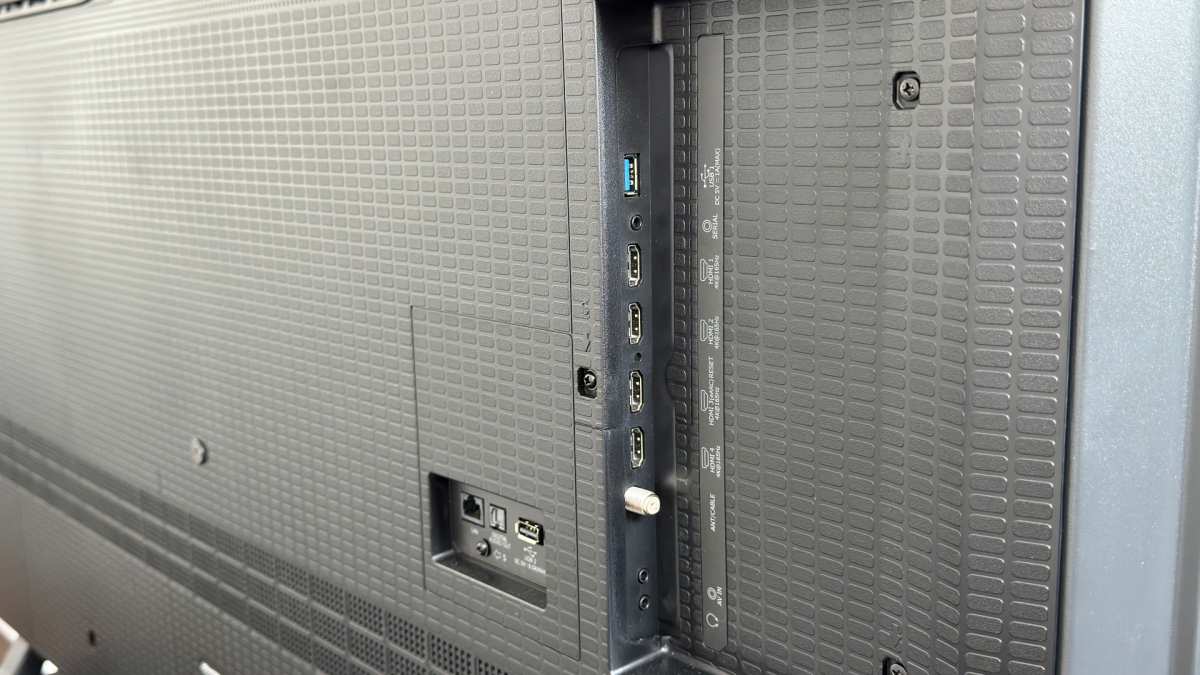
Why Mini LED Doesn't Automatically Mean Daisy Chain Support
This is the single biggest source of confusion, so let's clear it up right now.
Mini LED refers to the backlight system inside the monitor. Thousands of tiny LED zones dim independently for deeper blacks and better HDR. That's it.
It tells you absolutely nothing about the monitor's ports, its MST capability, or whether you can chain it to another display.
You can have a $1,500 mini LED monitor with zero daisy chain support. You can have a $400 standard LED monitor that chains perfectly. The backlight type and the connectivity features are completely separate design decisions.
What actually determines daisy chain support comes down to three things:
- A DisplayPort Out (DP Out) port on the monitor itself
- MST support in the monitor's firmware and your GPU
- A cable rated for the bandwidth you need
If any one of those three is missing, daisy chaining won't work. Period. No amount of mini LED zones will change that.
So before you buy a second monitor and a pile of cables, let's figure out whether your specific setup can actually do this.
What Daisy Chaining Actually Requires (The Three Things That Matter)
Let's break down each requirement so you know exactly what to look for.
The Monitor Needs a DP Out Port
This is the dealbreaker most people miss. Daisy chaining works by sending a signal into Monitor 1, passing a second signal out through Monitor 1's DP Out port, and into Monitor 2. If your monitor only has input ports (HDMI, USB-C, DisplayPort In), you cannot daisy chain it.
Full stop.
Look at the back of your monitor. If you see a DisplayPort labeled "Out" or "DP Out," that's your green light. If you don't see one, check the spec sheet.
Some manufacturers use different labeling.
Common mini LED monitors with DP Out include certain Dell UltraSharp models, some ASUS ProArt displays, and select BenQ SW series panels. But you have to verify per model. Even within the same brand's lineup, one model might have DP Out while another doesn't.
Your GPU Has to Support MST
Multi-Stream Transport is the VESA standard that lets a single DisplayPort output carry multiple video streams. Your graphics card needs to support it.
Most modern GPUs do. NVIDIA GeForce GTX 10-series and newer support MST. AMD Radeon RX 400-series and newer support it.
Intel integrated graphics from the 11th generation onward support it as well.
The catch? macOS does not natively support MST. If you're on a Mac, daisy chaining via DisplayPort MST won't work. You'll need a Thunderbolt dock or a Thunderbolt-capable monitor chain instead.
More on that later.
Your Cable Has to Handle the Bandwidth
Not all DisplayPort cables are created equal. For daisy chaining at 4K 60Hz, you need a DisplayPort 1.4 cable rated for HBR3 (32.4 Gbps). For 1080p or 1440p at lower refresh rates, DisplayPort 1.2 works fine.
Cheap cables that came in the box with your monitor are often DP 1.2. They might work for basic setups but can cause flickering, dropped signals, or resolution caps in a daisy chain. If you're having trouble, the cable is the first thing to swap.
USB-C to USB-C works too, as long as both monitors and your source device support DisplayPort Alt Mode over USB-C. Thunderbolt 4 cables handle this natively and give you the most headroom.
How to Check If Your Mini LED Monitor Can Daisy Chain
Here's your step-by-step verification process. Work through these in order.
Step 1: Look for a DisplayPort Out Port on the Back
Physically inspect your monitor or pull up the product page. You're looking for a port labeled "DP Out," "DisplayPort Out," or sometimes just "Out" next to a DisplayPort connector.

If you don't see one, your monitor cannot daisy chain. You'd need an external MST hub instead, which we'll cover later.
Step 2: Check the Spec Sheet for "MST" or "Daisy Chain"
Even with a DP Out port present, the monitor's firmware needs to support MST. Search the manufacturer's spec sheet for "MST," "Multi-Stream Transport," or "daisy chain." If it's not listed, contact the manufacturer's support team directly. Some monitors have the hardware but need a firmware update to enable it.
Step 3: Verify Your GPU Supports Multi-Stream Transport
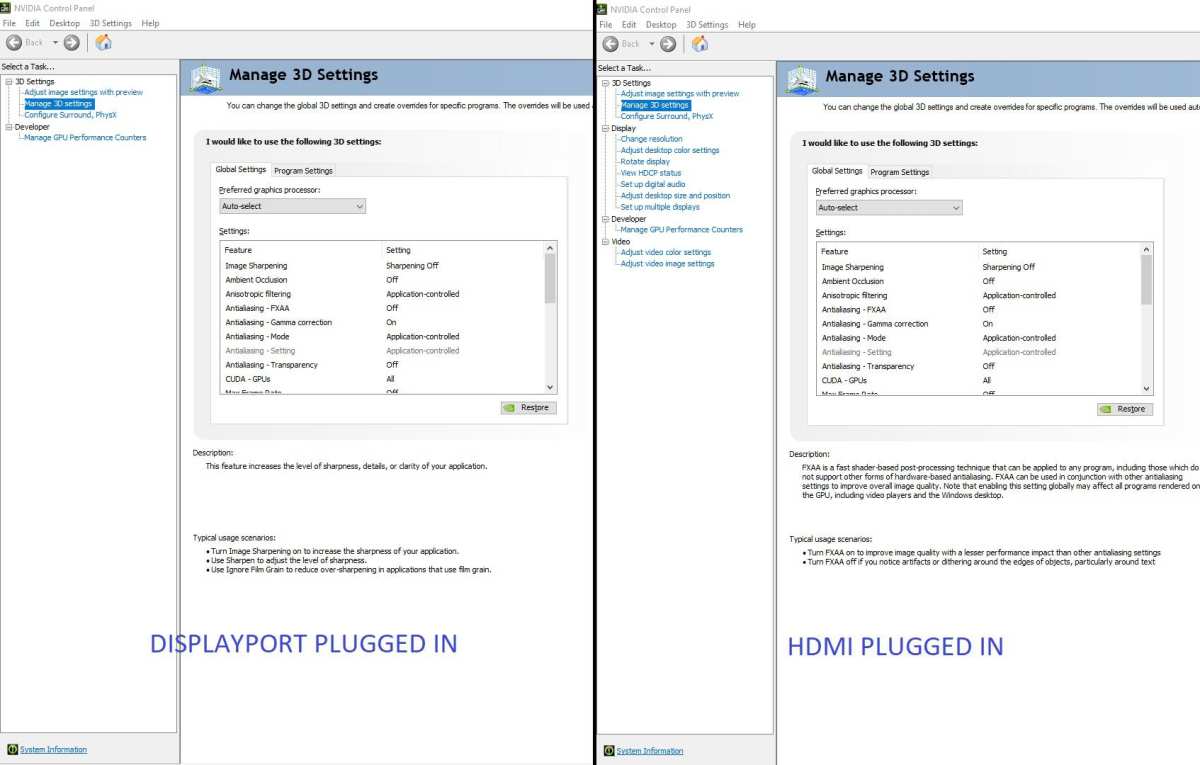
On Windows, open your GPU's control panel. For NVIDIA, that's the NVIDIA Control Panel under "Set up multiple displays." For AMD, it's the AMD Software app. Look for MST or daisy chain options.
On macOS, remember that MST is not supported natively. You'll need Thunderbolt-based chaining or a dock.
On Linux, MST support works through the kernel's DRM subsystem. Most modern distributions handle it well, but your desktop environment may affect the experience.
Step 4: Confirm Your Cable Is Rated for the Job
Check your cable's specification. Look for "DP 1.4," "HBR3," or "DisplayPort 1.4" printed on the cable or its packaging. If you're using USB-C, confirm it supports DisplayPort Alt Mode.
Thunderbolt 4 cables are the safest bet.
If you're chaining at 4K 60Hz, don't use a DP 1.2 cable. It won't have the bandwidth. You'll get a degraded signal or no signal at all on the second monitor.
Mini LED Monitors That Do Support Daisy Chaining (And How They Do It)
Let's look at some real examples. These monitors have confirmed DP Out ports and MST support in their specifications.
| Monitor | Resolution | DP Out | MST Support | Connection to Source |
|---|---|---|---|---|
| Dell U3223QE | 4K | Yes (DP 1.4) | Yes | USB-C or DP |
| ASUS ProArt PA32UCG | 4K HDR | Yes (DP 1.4) | Yes | USB-C or DP |
| BenQ SW272U | 1440p | Yes (DP 1.4) | Yes | USB-C or DP |
| Dell U4025QW | 5K2K | Yes (DP 1.4) | Yes | USB-C or Thunderbolt |
These are professional and prosumer models. They're designed for multi-monitor workflows, so daisy chaining is a priority. The Dell U3223QE is particularly popular because it combines a 4K IPS Black panel with USB-C power delivery and a built-in MST hub.
You connect your laptop via one USB-C cable, then chain a second monitor through the DP Out.
Not all of these use mini LED backlighting, by the way. The Dell U3223QE uses IPS Black. The ASUS ProArt PA32UCG does use mini LED with 1,152 zones.
The point is that daisy chain capability varies model by model, not by backlight technology.
If you're shopping specifically for a mini LED monitor that daisy chains, check the ASUS ProArt PA32UCG and PA32UCX series. Also look at the Dell UP3218K if you can find one, though it's older. Always verify DP Out on the spec sheet before purchasing.
Mini LED Monitors That Don't Support Daisy Chaining (Common Gotchas)
Plenty of mini LED monitors lack DP Out entirely. Gaming-focused models are the biggest offenders. Most gaming mini LED displays prioritize refresh rate and response time over workstation connectivity.
Here's what aggregate reviews frequently report. Samsung's Odyssey Neo G7 and G8 series omit DP Out on many models. Some LG UltraGear mini LED panels lack it too.
A few ASUS ROG Swift mini LED models don't include it either.
Why? Gamers typically run one or two displays directly from their GPU. Daisy chaining isn't a priority for that audience.
So manufacturers leave out the DP Out port to hit lower price points.
Even if a monitor has USB-C, that doesn't mean it supports MST over USB-C. Check the spec sheet carefully. Some ports are input-only for video.
Others support power delivery but not display stream splitting.
Your best move is to look up the exact model number on the manufacturer's website. Search specifically for "MST" or "DP Out" in the manual. If you can't find it after 30 seconds, assume it doesn't support daisy chaining.
macOS Users: Here's the Hard Truth About Daisy Chaining
If you're on a Mac, pay close attention. Apple has never natively supported DisplayPort MST in macOS. This is documented in Apple's own support articles covering multi-display setups.
That means even if your mini LED monitor has a DP Out port and full MST hardware, macOS can't use it for chaining. Plugging in a second monitor via the DP Out won't work. The second display stays blank.
Your options on macOS are:
- Thunderbolt daisy chaining: Use Thunderbolt-capable monitors (like Apple's Studio Display or Pro Display XDR) that chain via Thunderbolt, not DisplayPort MST.
- Thunderbolt dock: Run multiple displays from a single Thunderbolt dock with multiple video outputs.
- Separate cables: Connect each display directly to your Mac's Thunderbolt ports.
This trips up a lot of people. They buy a mini LED monitor spec'd for daisy chaining, hook it up to their MacBook, and nothing happens on the second screen. The hardware is capable.
The operating system limits it.
If you're running Windows or Linux, MST daisy chaining works as expected. This is strictly a macOS limitation.
M3 and M4 Macs can drive multiple external displays natively. But the number varies by model. Check your specific Mac's specs.
You won't need MST to run two displays as long as your Mac supports the required count.
Daisy Chain vs. MST Hub vs. Thunderbolt Dock: Which Setup Wins
Daisy chaining directly between monitors is clean. But let's compare your actual options.
| Method | Cables Needed | Max Displays | Best For | Cost |
|---|---|---|---|---|
| Direct daisy chain | 2 short DP/USB-C cables | 2–4 monitors | Minimal cable clutter, dual-screen setups | $0 (uses monitor DP Out) |
| MST Hub | 1 input + multiple output cables | 3–4 monitors | Single-input sources, high monitor count | $50–$200 |
| Thunderbolt Dock | 1 cable to dock + separate cables to each monitor | 2–6 monitors | Laptop users, cleanest single-cable setup | $150–$350 |
Direct daisy chaining wins for simplicity if your monitors have DP Out. One cable from source to Monitor 1. One cable from Monitor 1 to Monitor 2.
Done. No extra box on your desk.
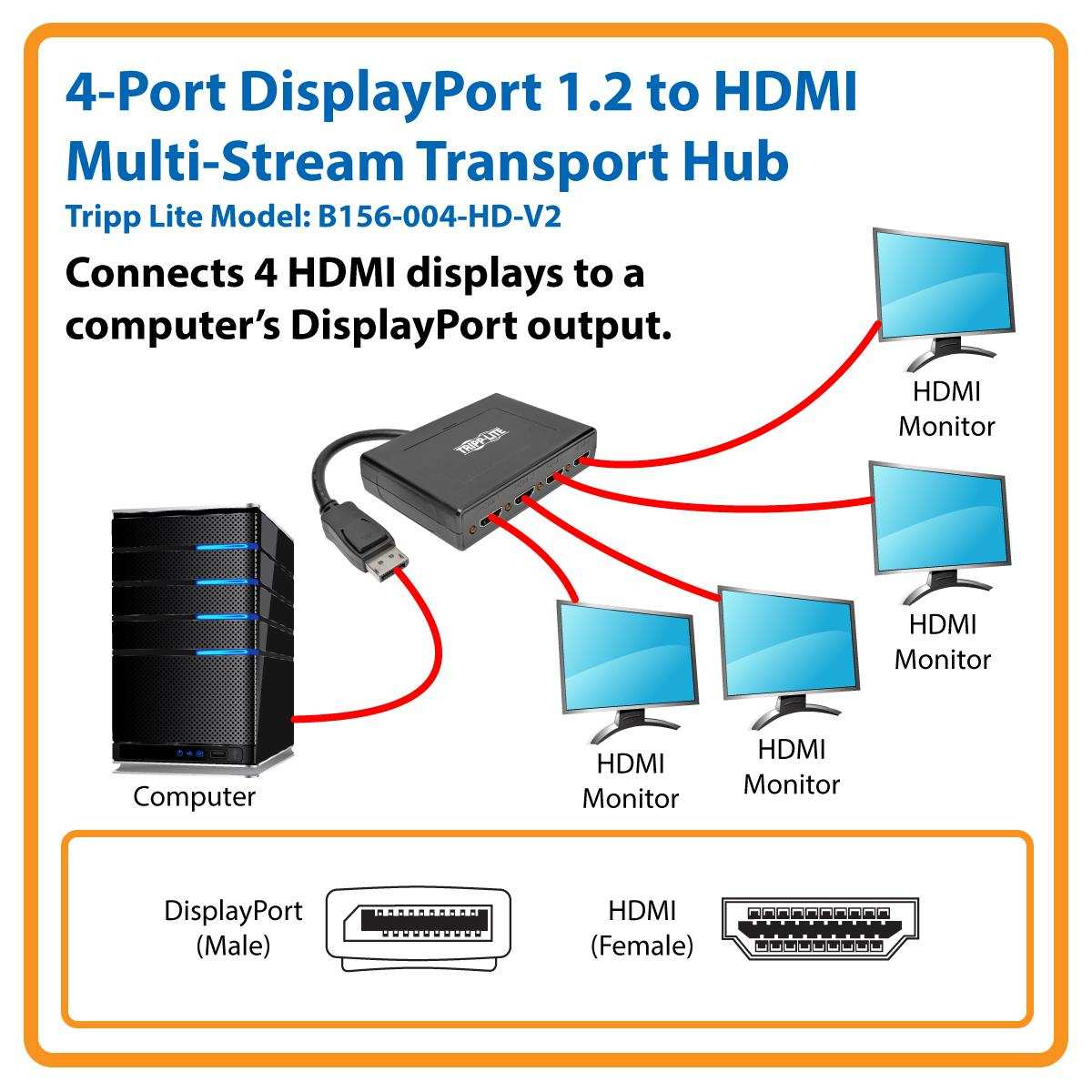
MST hubs make sense when your monitors lack DP Out. You plug the hub into your GPU's DisplayPort and run separate cables to each monitor. The downside is more visible cable clutter.
Thunderbolt docks are the best option for laptop users. One cable from your laptop to the dock. The dock provides charging, data, and video outputs.
Each monitor connects separately to the dock. It costs more but gives you the cleanest setup overall.
For mini LED monitors specifically, check the docks' specs. Not every cheap HDMI dock supports the bandwidth that 4K HDR panels need for full quality. Stick with DP 1.4 or Thunderbolt 4 outputs on any dock you use.
Bandwidth Limits: How Many Monitors Can You Actually Chain?
This is where theory meets reality. Bandwidth is finite. Every display in the chain shares the single input connection.
Here's what you can realistically expect with DP 1.4:
- 2x 4K @ 60Hz: Works fine. Uses DSC (Display Stream Compression) if available.
- 2x 4K @ 120Hz: Tight. May require DSC or drop to 4:2:0 chroma.
- 3x 1440p @ 60Hz: Works on most setups with DSC.
- 3x 4K @ 60Hz: Usually exceeds DP 1.4 bandwidth. Compression alone struggles at this resolution across three monitors.
- 4x 1080p @ 60Hz: Workable but relies heavily on perfect cable quality.
Without DSC, DP 1.4 tops out at about 2x 4K @ 60Hz comfortably. If your mini LED monitor supports DSC (and most newer 4K models do), you get more headroom. DSC is visually lossless.
You won't notice a difference in practice.
DisplayPort 2.0 and 2.1 change the equation entirely. They offer 80 Gbps of bandwidth. That's enough for 3x 4K @ 60Hz or even 2x 4K @ 120Hz with room to spare.
But as of early 2026, DP 2.0 monitors are still rare. Most mini LED displays ship with DP 1.4 or Thunderbolt 4.
If you're planning a chain of three or more mini LED displays, seriously consider a Thunderbolt dock instead. You'll avoid the bandwidth ceiling and have fewer headaches.
Practical tip. Start with your target resolution and refresh rate. Add up the total pixel clock.
Compare against your connection's rated bandwidth. This prevents surprises like a second monitor stuck at 30Hz when you expected 60Hz.
Common Mistakes That Break Daisy Chain Setups
People run into the same problems repeatedly. Here's what we see most often.
Using the wrong cable. That old DP 1.2 cable from your desk drawer won't cut it for 4K HDR chaining. Check the rating on the cable itself. Swap in a certified DP 1.4 or Thunderbolt 4 cable before troubleshooting anything else.
Assuming USB-C means DP Alt Mode. Not every USB-C port supports DisplayPort over USB-C. Some are data-only. Some are charging-only.
Check your laptop's spec sheet for "DisplayPort Alt Mode" or "video out over USB-C."
Connecting to DP In instead of DP Out. It happens more than you'd think. The ports look identical. The signal only flows one way.
Read the labels on the back of your monitor.
Forgetting to enable MST in the monitor's OSD. Some monitors have a toggle for MST in their on-screen display menu. It's not always on by default. Dig through the settings and make sure MST or daisy chain mode is enabled.
Chaining through a KVM switch. Most KVM switches don't pass MST signals properly. Connect directly to the source device first. Add a KVM to the chain only if it specifically advertises MST support.
Ignoring HDCP issues. Protected content (streaming apps, Blu-ray playback) sometimes breaks in a daisy chain if one monitor in the chain doesn't support HDCP 2.2 or 2.3. Test your chain with unprotected content first to rule this out.
The single most common mistake is never checking for a DP Out port in the first place. Always start there. Everything else is secondary.
When Daisy Chaining a Mini LED Monitor Makes Sense (And When It Doesn't)
Daisy chain when:
You have a dual-monitor setup. Your monitors have DP Out. You want a clean desk with fewer cables running to your laptop or desktop.
Use an MST hub when:
You need three or more monitors but only one or two have DP Out. A hub splits the signal externally. It costs more but adds flexibility beyond a simple two-display chain.
Use a Thunderbolt dock when:
You're on a laptop. You want charging, data, and video through one cable. You're on macOS where MST won't work anyway.
Skip daisy chaining when:
Your monitors lack DP Out entirely. You need four or more displays. Bandwidth limits force you to compromise on resolution or refresh rate.
Frequently Asked Questions
Can I daisy chain mini LED monitors with different resolutions?
You can, but each monitor runs at its own native resolution as long as your GPU and cable bandwidth can handle the combined load. Mismatched resolutions (like 4K and 1440p) work fine on Windows. The OS handles independent scaling per display.
Does daisy chain add input lag?
No meaningful increase. MST adds sub-millisecond latency. It's imperceptible for office work, coding, and video editing.
Competitive gamers should always connect directly to their GPU through a dedicated cable. Every millisecond counts when frame rates exceed 240Hz.
Does daisy chaining reduce image quality on the second monitor?
No. MST sends independent video streams. Each display gets its full signal.
There's no splitting or downscaling. HDR and refresh rate remain intact as long as bandwidth supports them.
Can I mix mini LED and OLED monitors in a daisy chain?
Yes. The backlight technology doesn't matter. Mini LED, OLED, standard LED all work in the same chain as long as they have compatible ports and MST support.
What matters is matching bandwidth requirements to your cable and connection specs.
Why does my second monitor show no signal in the chain?
Check for a DP Out port on Monitor 1. Confirm MST is enabled in the OSD settings. Swap your cable for a certified DP 1.4 or Thunderbolt 4 cable.
Verify your GPU supports MST. These four checks solve 90 percent of second-monitor issues.
Do gaming mini LED monitors support daisy chaining?
Most don't. Gaming models typically omit DP Out because their audience connects directly to a GPU. Check the spec sheet.
If DP Out isn't listed, you'll need an MST hub.
Final Decision Guide: Should You Daisy Chain Your Mini LED Monitor?
Daisy chaining your mini LED monitor can work well if you have the right hardware and a simple two-display setup. Check for a DP Out port. Verify your GPU supports MST.
Use certified cables. If all three boxes are ticked, daisy chain away. It's clean and effective.
If your monitor lacks DP Out, use an MST hub. If you're on a Mac, go with a Thunderbolt dock. Don't fight your hardware.
Work with what you've got and pick the cleanest solution that fits your setup.
The bottom line. Mini LED doesn't prevent daisy chaining. But it doesn't enable it either.
Always check the specs, not the marketing. That's the only shortcut you need.

Similar Posts





















