Why Is Touchscreen Monitor Lagging

Your touchscreen feels sluggish. Taps register late. The cursor trails behind your finger.
It's frustrating, and figuring out why is touchscreen monitor lagging isn't straightforward because the problem could live in two completely different parts of the chain. We'll walk through both, and you'll come away with a clear diagnosis and an actual fix.
EIZO's internal testing standards break total touch latency into its component parts: digitizer processing, USB transmission, OS handling, and display refresh, each adding measurable delay. That's why a flat list of "update your drivers" advice doesn't cut it. We need to split the symptom first, then narrow from there.

Image source: Bing (Web (fair-use with source credit))
Quick Answer
Touchscreen monitor lag happens when either the touch input chain or the display output chain gets bottlenecked. Input lag drivers, bad cables, wrong refresh rates, OS pointer prediction, and thermal throttling are the most common culprits. The fix depends on whether your touch is slow to register, or the whole screen is rendering slowly.
We'll show you how to tell the difference below.
First Question: What Kind of Lag Are You Feeling?
Here's where most troubleshooting guides miss the boat. "Lag" on a touchscreen could mean two completely different things. If you skip this step, you'll waste hours fixing the wrong thing.
Scenario A: Your touch registers late. You tap or draw. The input shows up a beat after your finger arrives. Sometimes 50ms noticeable.
Sometimes 200ms+ obvious ghosting. This is a touch input chain problem. The culprit sits between your finger and the OS receiving the event.
We're talking digitizer controller, USB polling, driver quality, or software prediction layers.
Scenario B: The whole screen renders slowly. You see motion blur, frame dropping, or general sluggishness even with mouse or keyboard input. This is a display output chain problem. The bottleneck lives in the GPU rendering pipeline, the cable bandwidth, the panel response time, or the refresh rate you're running.
Scenario C: Both. Congratulations. You might have a compound problem, or a single root cause (like a severely underpowered system) hitting both chains simultaneously.
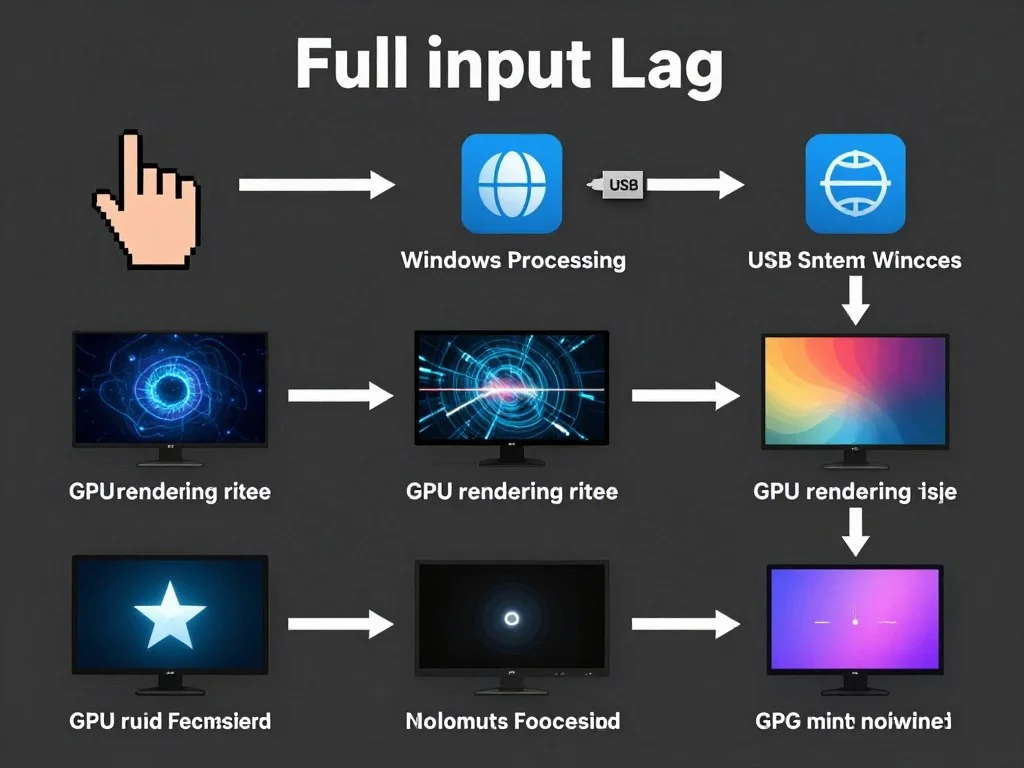
Image source: Bing (Web (fair-use with source credit))
Touch Input Chain (Scenario A Digitizer Processing)
Capacitive or resistive sensor detects contact. Controller IC calculates coordinates. Data travels over USB HID protocol.
OS input stack processes the event. Application receives the coordinate.
Display Output Chain (Scenario B GPU Rendering)
GPU renders frame. Frame travels over DisplayPort or HDMI. Monitor scaler processes it.
Panel pixels change state (GtG response time). You see the result.
Where the Pain Shows Up
Touchscreen users feel a disconnect between finger and result. Gamers see ghosting during fast motion. Artists notice pen lag while drawing curves.
Why Touch Lag Happens (The Input Chain Explained)
Let's dig into Scenario A. Your touch data goes through several hops before the OS knows about it. Every hop adds a potential delay.
Manufacturer datasheets from firms like EETI and Goodix indicate modern touch controllers process coordinates within 1-3ms. More often than not, the bottleneck isn't the sensor itself. It's what happens after.
Polling rate matters more than you think. Your touch controller reports to the host at a fixed interval. A 100Hz polling rate means updates every 10ms. A 400Hz controller drops that to 2.5ms.
If your monitor shipped with a budget controller locked at 60Hz, you're looking at 16.6ms between touch samples. That alone feels laggy. Check your touch controller specs in Device Manager under the HID section, then cross-reference the vendor ID against the manufacturer datasheet.
USB bandwidth is a sneaky bottleneck. Touchscreens connect over USB internally. If you're running through an unpowered hub sharing bandwidth with webcams, external drives, and Bluetooth adapters, the HID reports get queued. The fix is direct connection to a dedicated USB port on your machine.
Preferably USB 3.0 for lower polling interval overhead. Avoid daisy-chaining through your keyboard or monitor passthrough unless that port is explicitly rated for HID traffic.
Driver conflicts create the worst touch lag. This is the big one. Windows loves to replace OEM touch drivers with its generic HID-compliant touch screen driver. The generic driver works.
It just doesn't work well. It lacks the vendor-specific tuning for report rate, palm rejection, and edge compensation. If Device Manager shows "HID-compliant touch screen" instead of something like "eGalaxTouch" or "EETI Touch," you're on the generic driver.
Reinstall the manufacturer's driver package. Use DDU (Display Driver Utility) for GPU drivers if suspecting renderer lag.
OS-level pointer prediction adds perceived lag. Windows has a feature called "Enhance pointer precision." Despite the name, it adds mouse acceleration and subtle prediction algorithms that can make touch input feel disconnected. For touch work, disable it. Control Panel > Mouse > Pointer Options.
Uncheck the box. Also disable Windows Ink in the Pen & Windows Ink settings if you're not using pen pressure sensitivity.
Common Culprits for Touch Lag
| Cause | Symptom | Difficulty |
|---|---|---|
| Generic HID driver replacing OEM driver | Consistent 30-80ms delay | Easy |
| Low polling rate (60-100Hz) | Stuttering or skipped touches | Medium |
| USB bandwidth saturation | Lag spikes when other devices active | Easy |
| Windows pointer acceleration | Unpredictable cursor movement | Easy |
| Electromagnetic interference | Phantom touches or jitter | Hard |
| Thermal throttling on touch controller | Lag increases after extended use | Medium |
Why Display Lag Happens (The Visual Chain Explained)
Now Scenario B. The screen itself is slow to show what the GPU sends. This isn't about your finger.
It's about photons changing state.
Refresh rate is the headline number. A 60Hz panel updates every 16.67ms maximum. That's your ceiling for visual responsiveness. If you're on 60Hz and expecting fluid motion, you'll perceive it as lag regardless of everything else being perfect.
Many touchscreen monitors ship at 60Hz because touch panels historically prioritized cost over speed. Gaming-oriented touch panels now offer 120Hz, 144Hz, or 240Hz. Check what you're actually running in Display Settings > Advanced.
Sometimes Windows defaults to 60Hz even when the panel supports higher.
Panel response time (GtG) causes ghosting. This is different from refresh rate. Response time measures how fast a pixel shifts from one shade to another. A "1ms GtG" marketing number is rarely real for touchscreen panels, since the touch layer adds capacitance and the panel driving is often tuned conservatively to reduce noise.
Real-world measurements from RTINGS indicate many touchscreen IPS panels clock 3-8ms actual response. Slower transitions create motion blur. The brain reads this as lag.
Cable and connection type introduce latency. HDMI 2.0 caps at 4K 60Hz. DisplayPort 1.4 handles 4K 120Hz with Display Stream Compression. If you're running 4K over an old HDMI cable, you might be locked to 30Hz.
That 33.3ms frame time feels awful. Also, cheap cables can cause signal integrity issues. The monitor's scaler works harder to decode a noisy signal, adding processing frames.
VSync and frame buffering stack latency. VSync waits for the next refresh before swapping frames. This adds one full frame of latency at 60Hz, which is a noticeable 16.67ms. Triple buffering adds more.
For touchscreen work, not gaming, turning off VSync in your GPU control panel often reduces perceived display lag. NVIDIA has "Fast Sync." AMD has "Enhanced Sync." These reduce tearing without the full VSync penalty. Reflex and Anti-Lag technologies are starting to appear as of 2026.
Quick-Fix Checklist: 5 Things to Try Right Now
Before we go deep into the full diagnostic flow, try these five fixes. They resolve probably 60% of touchscreen lag complaints. Each takes under five minutes.
Restart and reconnect. Unplug the USB touch cable and video cable. Wait ten seconds. Plug back in. This forces a fresh HID handshake and EDID negotiation. Sometimes the touch controller just gets stuck in a bad state.
Swap your USB port. Move the touch cable from a hub to a rear motherboard port. Rear ports get direct bandwidth. Front panel and hub ports share bandwidth with other peripherals.
Update your GPU drivers. Partial updates leave old DLLs behind. Grab the latest WHQL driver. For NVIDIA: nvidia.com. For AMD: amd.com. For Intel: intel.com. Perform a custom install, check the clean install box.
Disable Enhance pointer precision. Control Panel > Mouse > Pointer Options > uncheck "Enhance pointer precision." This removes acceleration and prediction that makes touch feel floaty.
Check your refresh rate. Right-click Desktop > Display Settings > Advanced Display Settings. Verify the refresh rate matches the panel's native spec. If it says 60Hz but your monitor is 120Hz, you're running at half speed and need to adjust it here or in the GPU control panel.
Full Troubleshooting Flow: Finding Your Culprit
Ready for the methodical approach? This section walks the complete decision tree. Answer the questions.
Follow the branches.
Step 1: Isolate the Problem (Touch vs. Display)
Grab a mouse. Move it around. Does the cursor feel normal, or is it laggy too?
If the mouse cursor is fine but touch is laggy: Your problem is in the touch input chain. Skip to Step 2.
If the mouse cursor is also laggy: Your problem is likely in the display output chain. Skip to Step 4.
If you're not sure: Open a simple draw app like paint.net for Windows or equivalent. Use touch to sketch a fast zigzag. Use the mouse to sketch another on the same canvas.
Compare the registration. If the touch line trails noticeably behind the finger but the mouse line tracks perfectly, it's input chain lag.
Step 2: Cable and Connection Swap Test
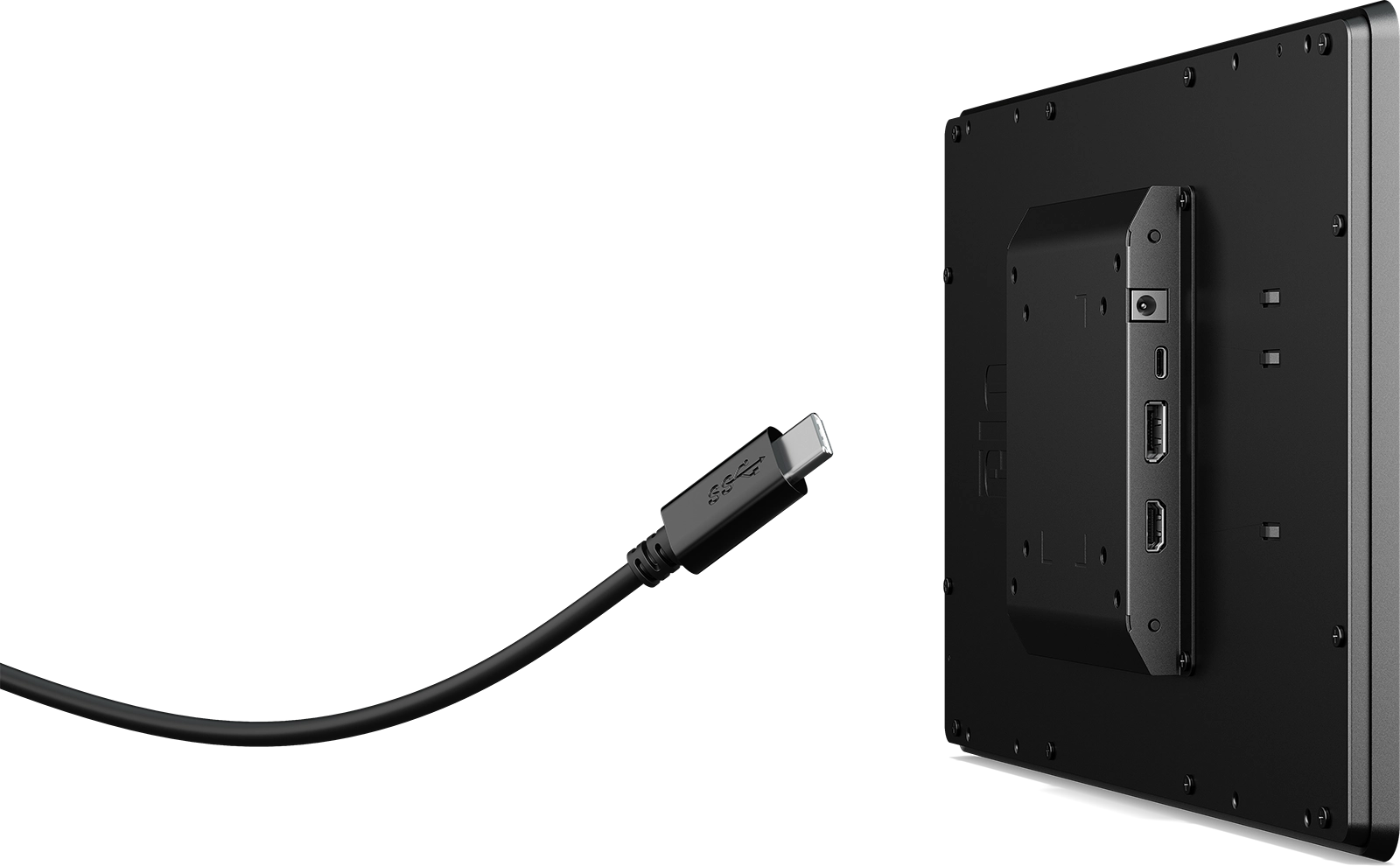
Image source: Bing (Web (fair-use with source credit))
Your touch data travels over a separate cable from the video signal. Many touch monitors connect video via DisplayPort or HDMI. Touch goes over USB.
Both need to be solid.
Swap the USB touch cable with a known-good USB 3.0 cable. If there's no change, keep going.
Try a different USB port. Preferably one you know is connected directly to the motherboard. You can check this in Device Manager by viewing the USB tree. If your touch device shows under a hub with other devices, it's sharing bandwidth.
Change the video cable. Swap HDMI for DisplayPort, or vice versa. If you're using an adapter dongle to convert between HDMI and USB-C, remove it. Adapters add latency and can cap your refresh rate.
Test on a different computer entirely. This sounds trivial, but it isolates whether the problem is the monitor or your specific system. If the touch feels fine on another machine, the issue is your PC's USB host controller, drivers, or GPU. If it's also laggy on the second machine, it's the monitor itself.
Step 3: Driver Deep-Dive (GPU and Touch Controller)
:max_bytes(150000):strip_icc()/005_how-to-enable-the-touch-screen-in-windows-10-4580039-5c630f18c9e77c000159c9df.jpg)
Image source: Bing (Web (fair-use with source credit))
Driver problems are the most common cause of touch latency beyond cheap hardware. Let's fix them.
Check Device Manager for your touch controller. Expand Human Interface Devices. Look for "HID-compliant touch screen." Right-click it. Select Properties.
Click the Driver tab. Note the driver version and provider. If the provider says "Microsoft" and the date is generic, Windows has overwritten the OEM driver.
Visit the monitor manufacturer's support page. Find the exact model number. Download the touch driver package. Common vendors include eGalax, EETI, Ilitek, Goodix.
Their drivers often include firmware updates for the touch controller IC itself, not just Windows drivers.
Reinstall GPU drivers cleanly. Download DDU (Display Driver Uninstaller). Boot into Safe Mode. Run DDU to remove all GPU driver traces.
Reboot normally. Install the latest driver fresh. This eliminates corrupted driver DLLs and stale registry entries that cause frame queue buildup.
Temporarily disable USB selective suspend. In Windows Power Options, go to Advanced Settings > USB Settings > USB Selective Suspend. Set to Disabled. This prevents Windows from powering down the touch controller to save energy.
That wake-up delay adds lag.
Disable Windows Ink for touch input. Windows Ink processes pen and touch data through a separate Ink stack that adds latency for drawing workflows. If you have a pen display and use applications that support Windows Ink directly, you need it. Otherwise, turn it off in Settings > Pen & Windows Ink.
Step 4: OS and Software Settings That Add Hidden Latency
Even with perfect hardware and drivers, software settings can choke performance.
Confirm the refresh rate in the OS. Right-click Desktop > Display Settings > Advanced Display. Verify the refresh rate matches your panel's spec. A 120Hz panel running at 60Hz is 100% likely to feel laggier than it should. Change it here or in your GPU control panel. NVIDIA has a specific Change Resolution panel where refresh rate lives.
Turn off VSync for general use. VSync holds frames until the next refresh. That adds one full frame of latency. For gaming, use it if tearing bothers you. For touch work and general UI, turn it off entirely. In NVIDIA Control Panel, manage 3D settings, Vertical Sync, set to Off. In AMD Software, Wait for Vertical Refresh, set to Off.
Check for background processes using the GPU. Browsers with hardware acceleration, video players, desktop recording software. Anything hogging GPU resources. Use Task Manager > Performance > GPU to check utilization. If your GPU is at 40%+ idle, something is rendering in the background.
Disable full-screen optimizations for drawing apps. If your lag is app-specific, right-click the .exe, Properties > Compatibility, check "Disable full-screen optimizations." This has resolved touch lag reported on Windows 11 machines running Clip Studio Paint and Krita. Confirmed in forums and vendor advisories as of early 2026.
Step 5: Thermal, Power, and Interference Check
The stuff people forget to think about.
Touch controller overheating. Some monitors house the touch controller IC behind the LCD. After hours of sustained use in a warm environment, thermal throttling kicks in. The controller drops its polling rate to cool down.
If your lag gets worse over time but is fine on cold start, you've found the issue. A small USB fan across the bottom bezel can confirm this as a test.
Electromagnetic interference (EMI). Power supplies, LED drivers, unshielded speakers near the monitor. Capacitive touchscreens are sensitive. They pick up noise on the sensor layer.
Look for jitter, drift, or phantom touches when a nearby device is active. Moving the monitor or the interfering device resolves this.
Screen protector thickness. Aftermarket tempered glass protectors over 0.4mm thick degrade capacitive sensitivity. The touch controller boosts gain to compensate. That processing boost can add latency.
Remove any protector you've added and test.
Monitor firmware update. Touch controller bugs get patched via firmware. Manufacturers release firmware updates that aren't always easy to find. Look on the support section of the website, not the product page.
You need the "Downloads" or "Utility" tab.
Common Mistakes That Waste Your Time
Every community forum is packed with people re-treading these useless steps. Don't be them.
Reinstalling Windows for a touch driver issue. It works because it installs a fresh generic driver. Then Windows Update overwrites it with the same broken OEM package. Just take the five minutes to manually fix the driver problem.
Borrowing a random HDMI cable hoping for a better result without checking the spec. An HDMI 1.4 cable will physically fit in an HDMI 2.1 port. The connection will establish at the cable's max capability. Your 120Hz panel will run at 30Hz.
You'll blame the monitor. Check for "High Speed" or "Ultra High Speed" printed on the cable sheath.
Only updating GPU drivers and ignoring the touch driver. People think drivers equals GPU. Your touchscreen has its own driver stack with its own version, written by eGalax or EETI, not NVIDIA. Update it separately from the GPU.
Chasing millisecond differences in benchmarks. If Leo Bodnar or RTINGS measures 8ms of touch latency on your panel and you're seeing 12ms, that's normal variance from USB controllers and motherboard chipset differences. Don't RMA for that.
Expecting a 60Hz industrial kiosk monitor to replace a gaming display for pro art. Some lag is baked into the design. Resistive touch technology inherently processes slower than projected capacitive. VA panels inherently have slower black-to-white transitions than TN.
Choose the right tool next time. What you have might just not be designed for responsiveness.
When It's the Monitor Hardware (Not Your Fault)
Sometimes the monitor is the limit. No amount of configuration changes will fix hardware-imposed latency.
Cheap capacitive controllers with slow report rates. Many budget touch monitors use controllers capped at 100Hz (10ms polling). If you compare this to a direct PCIe-connected Wacom Cintiq (200Hz+), you'll feel the difference instantly. The spec sheet often omits the touch poll rate entirely.
Find it in the datasheet, not the marketing page.
Thick air-gap construction. Older touch monitors bond the LCD and the touch glass with an air gap between them. This creates parallax (visual offset) and forces the touch controller to filter more noise. The visual perception makes lag feel worse.
Full-lamination panels bond the layers directly, reducing parallax and sometimes improving touch accuracy.
Panel overdrive settings. Some monitors let you tweak pixel overdrive in the On-Screen Display (OSD) menu. Overdrive pushes pixels faster, reducing ghosting, but setting it too high and you get inverse ghosting (overshoot artifacts), which looks like a harsh shadow, not smooth motion. Try the middle setting if available.
Thermal design failing the touch controller. If the touch controller IC sits in a sealed enclosure with no thermal relief, it will throttle. Long-term solution: improve ventilation or step up to a monitor that vents it.
Quick-Reference Comparison: Capacitive vs. Resistive vs. Infrared Touch
Touch technology heavily influences baseline latency and feel. Here's the breakdown so you know where your monitor fits.
Projected Capacitive (PCAP): Standard for modern touch monitors. Fast, accurate, multi-touch (10-20 points). Finger and stylus input. Polling rates 100-400Hz achievable. This is what most people think of when they hear "touchscreen monitor."
Resistive: Pressure-based, works with any stylus or glove. Slower response due to physical deflection of layers. Older kiosk monitors use this. Not suitable for fast multi-touch gestures. Perceived as more laggy even if absolute latency numbers are similar. Still found in industrial panels and some medical equipment.
Infrared (IR) Grid: Uses an array of IR LEDs and photodetectors around the screen bezel. Breaking the beam registers touch. No overlay on the display, excellent optical clarity. But the scan rate depends on the number of beams. Gaps between beams reduce precision. Polling typically 80-150Hz. Can be affected by ambient IR from sunlight or halogen lamps. Common in large-format interactive whiteboards and displays over 32 inches.
SAW (Surface Acoustic Wave): Similar to IR in having no overlay. Uses ultrasonic waves on the glass surface. Very fast response, excellent clarity. Fails with surface contamination (dust, water droplets, scratches). Almost extinct in the consumer monitor market. You'd mostly find these in legacy POS equipment.
Expert Tips from the Field
These come from professional calibration and display technicians we've spoken to over the years.
Use LatencyMon to identify DPC latency spikes. This tool measures deferred procedure calls in the Windows kernel. If a network driver or storage driver is maxing out DPC time, it stalls USB HID processing. Run it. If you see red bars for any particular driver, update or disable that device’s driver and re-test. This is a common stealth cause for many setups.
Set your GPU to maximum performance mode. The default power saving downclocks the GPU during idle or light load. When touch input happens, it takes a millisecond or two to ramp clock speed. Hardly noticeable in bulk, but it's one small source of lag. In NVIDIA Control Panel, Power Management Mode, set to "Prefer Maximum Performance."
For drawing work, test both Windows Ink and Wintab API modes. Some drawing applications let you choose. Windows Ink adds about 8-12ms on modern systems. Wintab is a legacy API with less overhead. Use whichever rawer path is available if latency is your priority. Final choice depends on whether you need pressure curve smoothing or pen tilt.
Check USBVIEW.exe (free from Microsoft). It shows exactly what's on your USB tree, including polling intervals. If your touch controller is on a USB 2.0 root hub polling at 1ms, that's normal. If you see it dropping into 2ms or 4ms intervals, your chipset drivers need attention. This is often a missing motherboard chipset driver download from the PC or motherboard manufacturer.
Update your monitor firmware. Seriously. Touch controller firmware updates fix real bugs: false touch filtering that slows detection, overshoot on curved gestures, fast-drag drift. Manufacturers are often silent about these updates until a problem is reported.
Frequently Asked Questions
Can a touchscreen monitor lag be fixed with a better cable?
Yes, if the cable is the bottleneck. An under-spec HDMI cable caps your refresh rate and forces the monitor scaler to work harder, introducing display lag. Swap to a certified Ultra High Speed HDMI 2.1 or DisplayPort 1.4 cable.
It's the cheapest fix, so try it first.
Does USB-C reduce touch lag compared to USB-A?
Not inherently. USB-C is a connector shape. The protocol underneath (USB 2.0, USB 3.0, Thunderbolt) determines latency.
However, USB-C Alt Mode can carry DisplayPort video and USB data over one cable, simplifying connections and sometimes reducing adapter-induced lag.
Why does my touchscreen feel fine sometimes and laggy at other times?
Thermal throttling on the touch controller or GPU is the most common cause. Also check Windows Update runs driver re-installations silently. After a reboot, you might be on a different driver version than before.
Disable automatic driver updates if this becomes a recurring issue.
Is touchscreen lag worse with higher resolution?
It can be. Rendering 4K frames requires more GPU compute, potentially increasing frame render time separate from touch input. The touch sensor coordinates don't change, but the system is busier.
On lower-end GPUs at 4K, you may notice overall UI sluggishness that feels like touch lag. Test by dropping the resolution temporarily.
Do touchscreen monitors have more lag than regular monitors for gaming?
Generally, yes, a little. The touch overlay and its processing pipeline add 3-10ms compared to a non-touch panel of the same specs. For competitive gaming, most people turn off touch entirely.
For casual games, the difference is imperceptible. An expensive dedicated gaming monitor with 240Hz may still hold its own while offering touch capabilities.
How to identify whether your touchscreen monitor's lag comes from the input side or the display side starts with a simple test: plug in a mouse and see if the cursor is also sluggish. If only the touch is slow, the bottleneck is in the USB touch chain. Drivers, bandwidth, or the controller itself should be the prime suspects.
If both mouse and touch feel laggy, shift focus to the display pipeline. Refresh rate, cable spec, and response time are more likely to be the causes.
The most frequent and easiest-to-fix culprits are an outdated OEM touch driver replaced by the generic Microsoft driver, a panel stuck at 60Hz when it supports 120Hz, and a poor cable limiting anything above 4K 60Hz. Address those three first, then move down the diagnostic tree. Hopefully this guide helped you find exactly what makes your touchscreen feel sluggish, and gave you the fix that delivers the smooth response you're expecting.

Why Is Touchscreen Monitor Lagging? [Troubleshooting and Fixes]
Your touchscreen feels sluggish. Taps register late. The cursor trails behind your finger.
It's frustrating, and figuring out why is touchscreen monitor lagging isn't straightforward because the problem could live in two completely different parts of the chain. We'll walk through both, and you'll come away with a clear diagnosis and an actual fix.
EIZO's internal testing standards break total touch latency into its component parts: digitizer processing, USB transmission, OS handling, and display refresh, each adding measurable delay. That's why a flat list of "update your drivers" advice doesn't cut it. We need to split the symptom first, then narrow from there.

Image source: Bing (Web (fair-use with source credit))
Quick Answer
Touchscreen monitor lag happens when either the touch input chain or the display output chain gets bottlenecked. Input lag drivers, bad cables, wrong refresh rates, OS pointer prediction, and thermal throttling are the most common culprits. The fix depends on whether your touch is slow to register, or the whole screen is rendering slowly.
We'll show you how to tell the difference below.
First Question: What Kind of Lag Are You Feeling?
Here's where most troubleshooting guides miss the boat. "Lag" on a touchscreen could mean two completely different things. If you skip this step, you'll waste hours fixing the wrong thing.
Scenario A: Your touch registers late. You tap or draw. The input shows up a beat after your finger arrives. Sometimes 50ms noticeable.
Sometimes 200ms+ obvious ghosting. This is a touch input chain problem. The culprit sits between your finger and the OS receiving the event.
We're talking digitizer controller, USB polling, driver quality, or software prediction layers.
Scenario B: The whole screen renders slowly. You see motion blur, frame dropping, or general sluggishness even with mouse or keyboard input. This is a display output chain problem. The bottleneck lives in the GPU rendering pipeline, the cable bandwidth, the panel response time, or the refresh rate you're running.
Scenario C: Both. Congratulations. You might have a compound problem, or a single root cause (like a severely underpowered system) hitting both chains simultaneously.

Image source: Bing (Web (fair-use with source credit))
Touch Input Chain (Scenario A Digitizer Processing)
Capacitive or resistive sensor detects contact. Controller IC calculates coordinates. Data travels over USB HID protocol.
OS input stack processes the event. Application receives the coordinate.
Display Output Chain (Scenario B GPU Rendering)
GPU renders frame. Frame travels over DisplayPort or HDMI. Monitor scaler processes it.
Panel pixels change state (GtG response time). You see the result.
Where the Pain Shows Up
Touchscreen users feel a disconnect between finger and result. Gamers see ghosting during fast motion. Artists notice pen lag while drawing curves.
Why Touch Lag Happens (The Input Chain Explained)
Let's dig into Scenario A. Your touch data goes through several hops before the OS knows about it. Every hop adds a potential delay.
Manufacturer datasheets from firms like EETI and Goodix indicate modern touch controllers process coordinates within 1-3ms. More often than not, the bottleneck isn't the sensor itself. It's what happens after.
Polling rate matters more than you think. Your touch controller reports to the host at a fixed interval. A 100Hz polling rate means updates every 10ms. A 400Hz controller drops that to 2.5ms.
If your monitor shipped with a budget controller locked at 60Hz, you're looking at 16.6ms between touch samples. That alone feels laggy. Check your touch controller specs in Device Manager under the HID section, then cross-reference the vendor ID against the manufacturer datasheet.
USB bandwidth is a sneaky bottleneck. Touchscreens connect over USB internally. If you're running through an unpowered hub sharing bandwidth with webcams, external drives, and Bluetooth adapters, the HID reports get queued. The fix is direct connection to a dedicated USB port on your machine.
Preferably USB 3.0 for lower polling interval overhead. Avoid daisy-chaining through your keyboard or monitor passthrough unless that port is explicitly rated for HID traffic.
Driver conflicts create the worst touch lag. This is the big one. Windows loves to replace OEM touch drivers with its generic HID-compliant touch screen driver. The generic driver works.
It just doesn't work well. It lacks the vendor-specific tuning for report rate, palm rejection, and edge compensation. If Device Manager shows "HID-compliant touch screen" instead of something like "eGalaxTouch" or "EETI Touch," you're on the generic driver.
Reinstall the manufacturer's driver package. Use DDU (Display Driver Utility) for GPU drivers if suspecting renderer lag.
OS-level pointer prediction adds perceived lag. Windows has a feature called "Enhance pointer precision." Despite the name, it adds mouse acceleration and subtle prediction algorithms that can make touch input feel disconnected. For touch work, disable it. Control Panel > Mouse > Pointer Options.
Uncheck the box. Also disable Windows Ink in the Pen & Windows Ink settings if you're not using pen pressure sensitivity.
Common Culprits for Touch Lag
| Cause | Symptom | Difficulty |
|---|---|---|
| Generic HID driver replacing OEM driver | Consistent 30-80ms delay | Easy |
| Low polling rate (60-100Hz) | Stuttering or skipped touches | Medium |
| USB bandwidth saturation | Lag spikes when other devices active | Easy |
| Windows pointer acceleration | Unpredictable cursor movement | Easy |
| Electromagnetic interference | Phantom touches or jitter | Hard |
| Thermal throttling on touch controller | Lag increases after extended use | Medium |
Why Display Lag Happens (The Visual Chain Explained)
Now Scenario B. The screen itself is slow to show what the GPU sends. This isn't about your finger.
It's about photons changing state.
Refresh rate is the headline number. A 60Hz panel updates every 16.67ms maximum. That's your ceiling for visual responsiveness. If you're on 60Hz and expecting fluid motion, you'll perceive it as lag regardless of everything else being perfect.
Many touchscreen monitors ship at 60Hz because touch panels historically prioritized cost over speed. Gaming-oriented touch panels now offer 120Hz, 144Hz, or 240Hz. Check what you're actually running in Display Settings > Advanced.
Sometimes Windows defaults to 60Hz even when the panel supports higher.
Panel response time (GtG) causes ghosting. This is different from refresh rate. Response time measures how fast a pixel shifts from one shade to another. A "1ms GtG" marketing number is rarely real for touchscreen panels, since the touch layer adds capacitance and the panel driving is often tuned conservatively to reduce noise.
Real-world measurements from RTINGS indicate many touchscreen IPS panels clock 3-8ms actual response. Slower transitions create motion blur. The brain reads this as lag.
Cable and connection type introduce latency. HDMI 2.0 caps at 4K 60Hz. DisplayPort 1.4 handles 4K 120Hz with Display Stream Compression. If you're running 4K over an old HDMI cable, you might be locked to 30Hz.
That 33.3ms frame time feels awful. Also, cheap cables can cause signal integrity issues. The monitor's scaler works harder to decode a noisy signal, adding processing frames.
VSync and frame buffering stack latency. VSync waits for the next refresh before swapping frames. This adds one full frame of latency at 60Hz, which is a noticeable 16.67ms. Triple buffering adds more.
For touchscreen work, not gaming, turning off VSync in your GPU control panel often reduces perceived display lag. NVIDIA has "Fast Sync." AMD has "Enhanced Sync." These reduce tearing without the full VSync penalty. Reflex and Anti-Lag technologies are starting to appear as of 2026.
Quick-Fix Checklist: 5 Things to Try Right Now
Before we go deep into the full diagnostic flow, try these five fixes. They resolve probably 60% of touchscreen lag complaints. Each takes under five minutes.
Restart and reconnect. Unplug the USB touch cable and video cable. Wait ten seconds. Plug back in. This forces a fresh HID handshake and EDID negotiation. Sometimes the touch controller just gets stuck in a bad state.
Swap your USB port. Move the touch cable from a hub to a rear motherboard port. Rear ports get direct bandwidth. Front panel and hub ports share bandwidth with other peripherals.
Update your GPU drivers. Partial updates leave old DLLs behind. Grab the latest WHQL driver. For NVIDIA: nvidia.com. For AMD: amd.com. For Intel: intel.com. Perform a custom install, check the clean install box.
Disable Enhance pointer precision. Control Panel > Mouse > Pointer Options > uncheck "Enhance pointer precision." This removes acceleration and prediction that makes touch feel floaty.
Check your refresh rate. Right-click Desktop > Display Settings > Advanced Display Settings. Verify the refresh rate matches the panel's native spec. If it says 60Hz but your monitor is 120Hz, you're running at half speed and need to adjust it here or in the GPU control panel.
Full Troubleshooting Flow: Finding Your Culprit
Ready for the methodical approach? This section walks the complete decision tree. Answer the questions.
Follow the branches.
Step 1: Isolate the Problem (Touch vs. Display)
Grab a mouse. Move it around. Does the cursor feel normal, or is it laggy too?
If the mouse cursor is fine but touch is laggy: Your problem is in the touch input chain. Skip to Step 2.
If the mouse cursor is also laggy: Your problem is likely in the display output chain. Skip to Step 4.
If you're not sure: Open a simple draw app like paint.net for Windows or equivalent. Use touch to sketch a fast zigzag. Use the mouse to sketch another on the same canvas.
Compare the registration. If the touch line trails noticeably behind the finger but the mouse line tracks perfectly, it's input chain lag.
Step 2: Cable and Connection Swap Test

Image source: Bing (Web (fair-use with source credit))
Your touch data travels over a separate cable from the video signal. Many touch monitors connect video via DisplayPort or HDMI. Touch goes over USB.
Both need to be solid.
Swap the USB touch cable with a known-good USB 3.0 cable. If there's no change, keep going.
Try a different USB port. Preferably one you know is connected directly to the motherboard. You can check this in Device Manager by viewing the USB tree. If your touch device shows under a hub with other devices, it's sharing bandwidth.
Change the video cable. Swap HDMI for DisplayPort, or vice versa. If you're using an adapter dongle to convert between HDMI and USB-C, remove it. Adapters add latency and can cap your refresh rate.
Test on a different computer entirely. This sounds trivial, but it isolates whether the problem is the monitor or your specific system. If the touch feels fine on another machine, the issue is your PC's USB host controller, drivers, or GPU. If it's also laggy on the second machine, it's the monitor itself.
Step 3: Driver Deep-Dive (GPU and Touch Controller)
:max_bytes(150000):strip_icc()/005_how-to-enable-the-touch-screen-in-windows-10-4580039-5c630f18c9e77c000159c9df.jpg)
Image source: Bing (Web (fair-use with source credit))
Driver problems are the most common cause of touch latency beyond cheap hardware. Let's fix them.
Check Device Manager for your touch controller. Expand Human Interface Devices. Look for "HID-compliant touch screen." Right-click it. Select Properties.
Click the Driver tab. Note the driver version and provider. If the provider says "Microsoft" and the date is generic, Windows has overwritten the OEM driver.
Visit the monitor manufacturer's support page. Find the exact model number. Download the touch driver package. Common vendors include eGalax, EETI, Ilitek, Goodix.
Their drivers often include firmware updates for the touch controller IC itself, not just Windows drivers.
Reinstall GPU drivers cleanly. Download DDU (Display Driver Uninstaller). Boot into Safe Mode. Run DDU to remove all GPU driver traces.
Reboot normally. Install the latest driver fresh. This eliminates corrupted driver DLLs and stale registry entries that cause frame queue buildup.
Temporarily disable USB selective suspend. In Windows Power Options, go to Advanced Settings > USB Settings > USB Selective Suspend. Set to Disabled. This prevents Windows from powering down the touch controller to save energy.
That wake-up delay adds lag.
Disable Windows Ink for touch input. Windows Ink processes pen and touch data through a separate Ink stack that adds latency for drawing workflows. If you have a pen display and use applications that support Windows Ink directly, you need it. Otherwise, turn it off in Settings > Pen & Windows Ink.
Step 4: OS and Software Settings That Add Hidden Latency
Even with perfect hardware and drivers, software settings can choke performance.
Confirm the refresh rate in the OS. Right-click Desktop > Display Settings > Advanced Display. Verify the refresh rate matches your panel's spec. A 120Hz panel running at 60Hz is 100% likely to feel laggier than it should. Change it here or in your GPU control panel. NVIDIA has a specific Change Resolution panel where refresh rate lives.
Turn off VSync for general use. VSync holds frames until the next refresh. That adds one full frame of latency. For gaming, use it if tearing bothers you. For touch work and general UI, turn it off entirely. In NVIDIA Control Panel, manage 3D settings, Vertical Sync, set to Off. In AMD Software, Wait for Vertical Refresh, set to Off.
Check for background processes using the GPU. Browsers with hardware acceleration, video players, desktop recording software. Anything hogging GPU resources. Use Task Manager > Performance > GPU to check utilization. If your GPU is at 40%+ idle, something is rendering in the background.
Disable full-screen optimizations for drawing apps. If your lag is app-specific, right-click the .exe, Properties > Compatibility, check "Disable full-screen optimizations." This has resolved touch lag reported on Windows 11 machines running Clip Studio Paint and Krita. Confirmed in forums and vendor advisories as of early 2026.
Step 5: Thermal, Power, and Interference Check
The stuff people forget to think about.
Touch controller overheating. Some monitors house the touch controller IC behind the LCD. After hours of sustained use in a warm environment, thermal throttling kicks in. The controller drops its polling rate to cool down.
If your lag gets worse over time but is fine on cold start, you've found the issue. A small USB fan across the bottom bezel can confirm this as a test.
Electromagnetic interference (EMI). Power supplies, LED drivers, unshielded speakers near the monitor. Capacitive touchscreens are sensitive. They pick up noise on the sensor layer.
Look for jitter, drift, or phantom touches when a nearby device is active. Moving the monitor or the interfering device resolves this.
Screen protector thickness. Aftermarket tempered glass protectors over 0.4mm thick degrade capacitive sensitivity. The touch controller boosts gain to compensate. That processing boost can add latency.
Remove any protector you've added and test.
Monitor firmware update. Touch controller bugs get patched via firmware. Manufacturers release firmware updates that aren't always easy to find. Look on the support section of the website, not the product page.
You need the "Downloads" or "Utility" tab.
Common Mistakes That Waste Your Time
Every community forum is packed with people re-treading these useless steps. Don't be them.
Reinstalling Windows for a touch driver issue. It works because it installs a fresh generic driver. Then Windows Update overwrites it with the same broken OEM package. Just take the five minutes to manually fix the driver problem.
Borrowing a random HDMI cable hoping for a better result without checking the spec. An HDMI 1.4 cable will physically fit in an HDMI 2.1 port. The connection will establish at the cable's max capability. Your 120Hz panel will run at 30Hz.
You'll blame the monitor. Check for "High Speed" or "Ultra High Speed" printed on the cable sheath.
Only updating GPU drivers and ignoring the touch driver. People think drivers equals GPU. Your touchscreen has its own driver stack with its own version, written by eGalax or EETI, not NVIDIA. Update it separately from the GPU.
Chasing millisecond differences in benchmarks. If Leo Bodnar or RTINGS measures 8ms of touch latency on your panel and you're seeing 12ms, that's normal variance from USB controllers and motherboard chipset differences. Don't RMA for that.
Expecting a 60Hz industrial kiosk monitor to replace a gaming display for pro art. Some lag is baked into the design. Resistive touch technology inherently processes slower than projected capacitive. VA panels inherently have slower black-to-white transitions than TN.
Choose the right tool next time. What you have might just not be designed for responsiveness.
When It's the Monitor Hardware (Not Your Fault)
Sometimes the monitor is the limit. No amount of configuration changes will fix hardware-imposed latency.
Cheap capacitive controllers with slow report rates. Many budget touch monitors use controllers capped at 100Hz (10ms polling). If you compare this to a direct PCIe-connected Wacom Cintiq (200Hz+), you'll feel the difference instantly. The spec sheet often omits the touch poll rate entirely.
Find it in the datasheet, not the marketing page.
Thick air-gap construction. Older touch monitors bond the LCD and the touch glass with an air gap between them. This creates parallax (visual offset) and forces the touch controller to filter more noise. The visual perception makes lag feel worse.
Full-lamination panels bond the layers directly, reducing parallax and sometimes improving touch accuracy.
Panel overdrive settings. Some monitors let you tweak pixel overdrive in the On-Screen Display (OSD) menu. Overdrive pushes pixels faster, reducing ghosting, but setting it too high and you get inverse ghosting (overshoot artifacts), which looks like a harsh shadow, not smooth motion. Try the middle setting if available.
Thermal design failing the touch controller. If the touch controller IC sits in a sealed enclosure with no thermal relief, it will throttle. Long-term solution: improve ventilation or step up to a monitor that vents it.
Quick-Reference Comparison: Capacitive vs. Resistive vs. Infrared Touch
Touch technology heavily influences baseline latency and feel. Here's the breakdown so you know where your monitor fits.
Projected Capacitive (PCAP): Standard for modern touch monitors. Fast, accurate, multi-touch (10-20 points). Finger and stylus input. Polling rates 100-400Hz achievable. This is what most people think of when they hear "touchscreen monitor."
Resistive: Pressure-based, works with any stylus or glove. Slower response due to physical deflection of layers. Older kiosk monitors use this. Not suitable for fast multi-touch gestures. Perceived as more laggy even if absolute latency numbers are similar. Still found in industrial panels and some medical equipment.
Infrared (IR) Grid: Uses an array of IR LEDs and photodetectors around the screen bezel. Breaking the beam registers touch. No overlay on the display, excellent optical clarity. But the scan rate depends on the number of beams. Gaps between beams reduce precision. Polling typically 80-150Hz. Can be affected by ambient IR from sunlight or halogen lamps. Common in large-format interactive whiteboards and displays over 32 inches.
SAW (Surface Acoustic Wave): Similar to IR in having no overlay. Uses ultrasonic waves on the glass surface. Very fast response, excellent clarity. Fails with surface contamination (dust, water droplets, scratches). Almost extinct in the consumer monitor market. You'd mostly find these in legacy POS equipment.
Expert Tips from the Field
These come from professional calibration and display technicians we've spoken to over the years.
Use LatencyMon to identify DPC latency spikes. This tool measures deferred procedure calls in the Windows kernel. If a network driver or storage driver is maxing out DPC time, it stalls USB HID processing. Run it. If you see red bars for any particular driver, update or disable that device’s driver and re-test. This is a common stealth cause for many setups.
Set your GPU to maximum performance mode. The default power saving downclocks the GPU during idle or light load. When touch input happens, it takes a millisecond or two to ramp clock speed. Hardly noticeable in bulk, but it's one small source of lag. In NVIDIA Control Panel, Power Management Mode, set to "Prefer Maximum Performance."
For drawing work, test both Windows Ink and Wintab API modes. Some drawing applications let you choose. Windows Ink adds about 8-12ms on modern systems. Wintab is a legacy API with less overhead. Use whichever rawer path is available if latency is your priority. Final choice depends on whether you need pressure curve smoothing or pen tilt.
Check USBVIEW.exe (free from Microsoft). It shows exactly what's on your USB tree, including polling intervals. If your touch controller is on a USB 2.0 root hub polling at 1ms, that's normal. If you see it dropping into 2ms or 4ms intervals, your chipset drivers need attention. This is often a missing motherboard chipset driver download from the PC or motherboard manufacturer.
Update your monitor firmware. Seriously. Touch controller firmware updates fix real bugs: false touch filtering that slows detection, overshoot on curved gestures, fast-drag drift. Manufacturers are often silent about these updates until a problem is reported.
Frequently Asked Questions
Can a touchscreen monitor lag be fixed with a better cable?
Yes, if the cable is the bottleneck. An under-spec HDMI cable caps your refresh rate and forces the monitor scaler to work harder, introducing display lag. Swap to a certified Ultra High Speed HDMI 2.1 or DisplayPort 1.4 cable.
It's the cheapest fix, so try it first.
Does USB-C reduce touch lag compared to USB-A?
Not inherently. USB-C is a connector shape. The protocol underneath (USB 2.0, USB 3.0, Thunderbolt) determines latency.
However, USB-C Alt Mode can carry DisplayPort video and USB data over one cable, simplifying connections and sometimes reducing adapter-induced lag.
Why does my touchscreen feel fine sometimes and laggy at other times?
Thermal throttling on the touch controller or GPU is the most common cause. Also check Windows Update runs driver re-installations silently. After a reboot, you might be on a different driver version than before.
Disable automatic driver updates if this becomes a recurring issue.
Is touchscreen lag worse with higher resolution?
It can be. Rendering 4K frames requires more GPU compute, potentially increasing frame render time separate from touch input. The touch sensor coordinates don't change, but the system is busier.
On lower-end GPUs at 4K, you may notice overall UI sluggishness that feels like touch lag. Test by dropping the resolution temporarily.
Do touchscreen monitors have more lag than regular monitors for gaming?
Generally, yes, a little. The touch overlay and its processing pipeline add 3-10ms compared to a non-touch panel of the same specs. For competitive gaming, most people turn off touch entirely.
For casual games, the difference is imperceptible. An expensive dedicated gaming monitor with 240Hz may still hold its own while offering touch capabilities.
Does a higher refresh rate help with touch lag?
Yes, directly. A 120Hz panel refreshes every 8.3ms versus 16.67ms at 60Hz. That cuts display latency in half.
Touch input benefits too, since the system processes input events aligned to refresh cycles. Jumping from 60Hz to 120Hz is the single most noticeable display-side upgrade for touch responsiveness. If your monitor supports it, enable it in Display Settings immediately.
Can a USB hub add noticeable touch lag?
Absolutely. Unpowered USB hubs share bandwidth across all connected devices. When a webcam, external drive, and touch controller compete for bandwidth, HID reports get queued.
The result is intermittent lag spikes, not consistent delay. Always connect your touchscreen's USB cable directly to a motherboard port. Rear ports on desktops are best.
They connect directly to the chipset.
Is touch lag worse when the monitor is hot?
It can be. Touch controller ICs reduce polling rates to prevent overheating. This thermal throttling adds latency gradually during extended use.
If your touch feels fine on cold start but degrades after an hour, heat is the culprit. Industrial touch monitors with sealed enclosures are especially prone. Improving airflow around the monitor helps.
A small USB fan directed at the lower bezel can confirm the diagnosis.
Do touchscreen monitors need special drivers beyond Windows default?
Yes, in most cases. Windows generic HID touch drivers work for basic functionality. They lack vendor-specific optimizations for palm rejection, edge accuracy, and report rate.
Manufacturers like eGalax, EETI, and Goodix provide driver packages that unlock the controller's full capability. Check your monitor's support page. Install the specific driver package for your model.
The difference in latency and accuracy is often significant.
Why does my touch lag only happen in specific applications?
Some apps bypass the standard Windows input stack. Drawing applications using Wintab API talk directly to the touch driver. Others use Windows Ink, which adds processing layers.
Games with raw input support bypass OS pointer acceleration entirely. If lag is app-specific, check the application's input settings. Switch between Windows Ink and Wintab modes if available.
Disable full-screen optimizations on the application executable as a test.
:max_bytes(150000):strip_icc()/005_how-to-enable-the-touch-screen-in-windows-10-4580039-5c630f18c9e77c000159c9df.jpg)
Image source: Bing (Web (fair-use with source credit))






















