Is USB C Monitor Better Than Thunderbolt
When you're staring down a monitor purchase and wondering is usb c monitor better than thunderbolt, the honest answer is that it depends entirely on what you plug into it. These two standards look identical from the outside. The connector is the same.
But the capabilities behind that little port can be wildly different. Picking the wrong one means either leaving performance on the table or overpaying for specs you'll never touch. If you are exploring similar hardware setups, see our detailed guide on whether usb c monitor better than hdmi.
The USB Implementers Forum (USB-IF) defines the underlying standards here, and the gap between basic USB-C and Thunderbolt 4 is substantial on paper. Thunderbolt 4 delivers a guaranteed 40 Gbps of bandwidth with strict minimum requirements, while USB-C can mean anything from a sluggish 5 Gbps connection right up to 40 Gbps depending on what your laptop and cable support. Let's break down exactly what matters for your monitor setup.
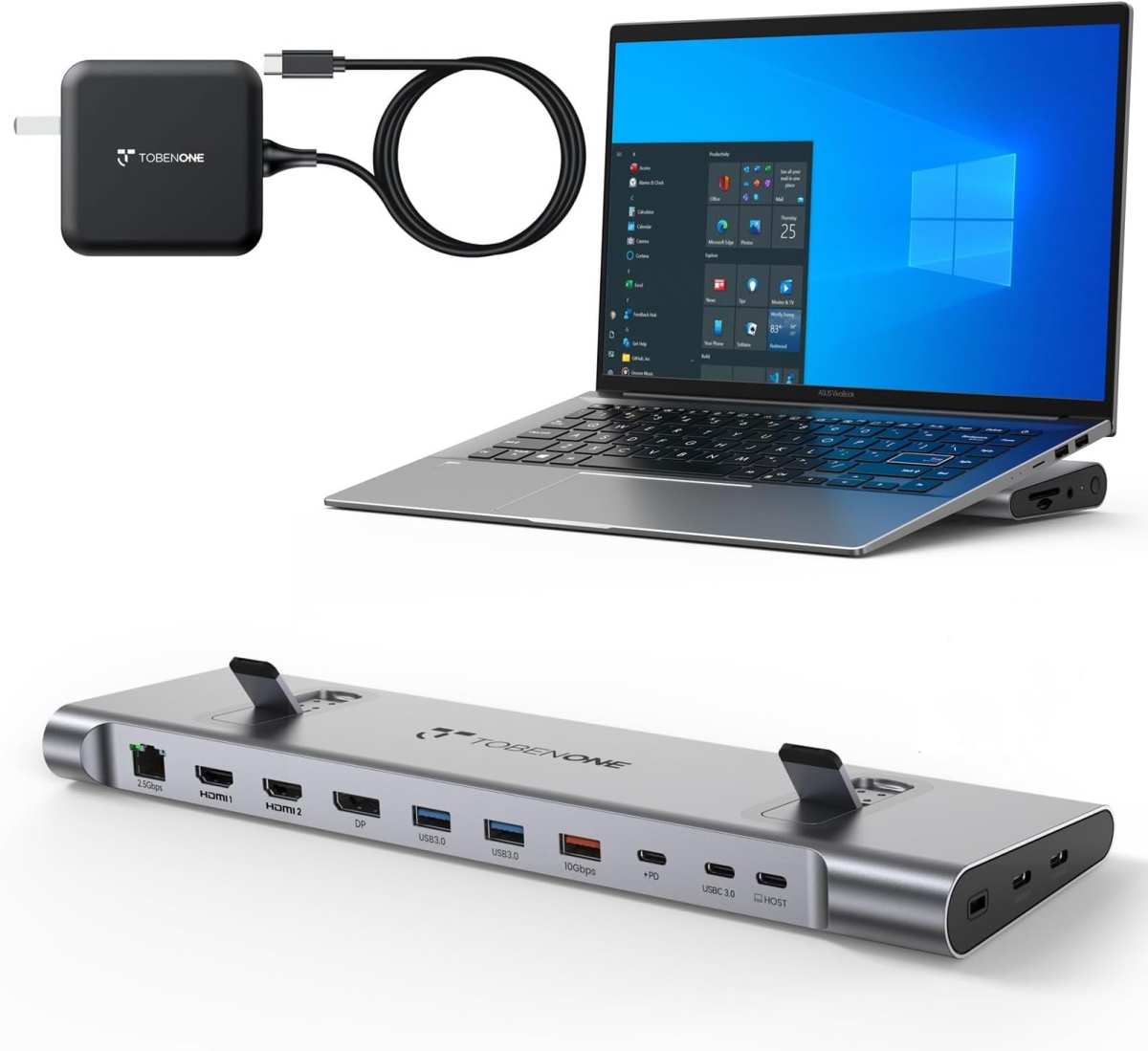
Quick Answer
USB-C monitors are not automatically better than Thunderbolt monitors. Thunderbolt offers higher guaranteed bandwidth and more reliable multi-monitor support. USB-C monitors work perfectly fine for most single-display setups.
Choose Thunderbolt if you need daisy chaining or high-resolution creative work. Choose USB-C if you want solid performance without overpaying. To see how this holds up against alternate models, explore whether oled monitor better than led.
Why USB-C vs Thunderbolt Monitors Actually Matters
Here's the thing that trips most people up. You see a USB-C port on your laptop and a USB-C input on a monitor, and you assume they'll play nice together at full capability. Sometimes they do.
Often they don't.
The USB-C connector is just a shape. What matters is what protocol runs over it. Your laptop might support USB 3.2, USB4, or Thunderbolt through that same port.
The monitor has to support the right features too. Manufacturer specs confirm that mismatched expectations cause real problems, like monitors refusing to display an image or only running at 30 Hz instead of 60 Hz.
A Thunderbolt-labeled monitor guarantees a baseline level of performance. A USB-C monitor makes no such promise beyond having the right-shaped port. That's the core distinction, and it should drive every buying decision you make here.
What's Really Going On Under the Hood
USB-C Monitors: What You're Getting
A "USB-C monitor" typically means a display that accepts video input, data, and power delivery through a single USB-C cable. That's the good stuff. One cable from your laptop to your monitor handles your display signal, charges your device, and can even carry data to built-in USB hubs on the monitor.
Most USB-C monitors rely on DisplayPort Alt Mode to push video through the USB-C connector. This is a feature defined by VESA, the group behind DisplayPort standards. It reroutes the USB-C pins to carry a full DisplayPort signal.
The result is reliable video output that works with virtually any modern laptop.
The bandwidth you actually get depends on the USB protocol your laptop and monitor support. USB 3.2 Gen 2 tops out at 10 Gbps. USB 3.2 Gen 2×2 hits 20 Gbps.
That's enough for 4K resolution at 60 Hz in most cases, which covers what the vast majority of office and productivity users need.
Where USB-C monitors hit a wall is power delivery and multi-tasking. Many deliver 60 to 90 watts of charging power, which is fine for ultrabooks but marginal for power-hungry 16-inch workstations. They also rarely support daisy chaining, meaning you can't plug a second monitor into the first one and run both off a single laptop port.
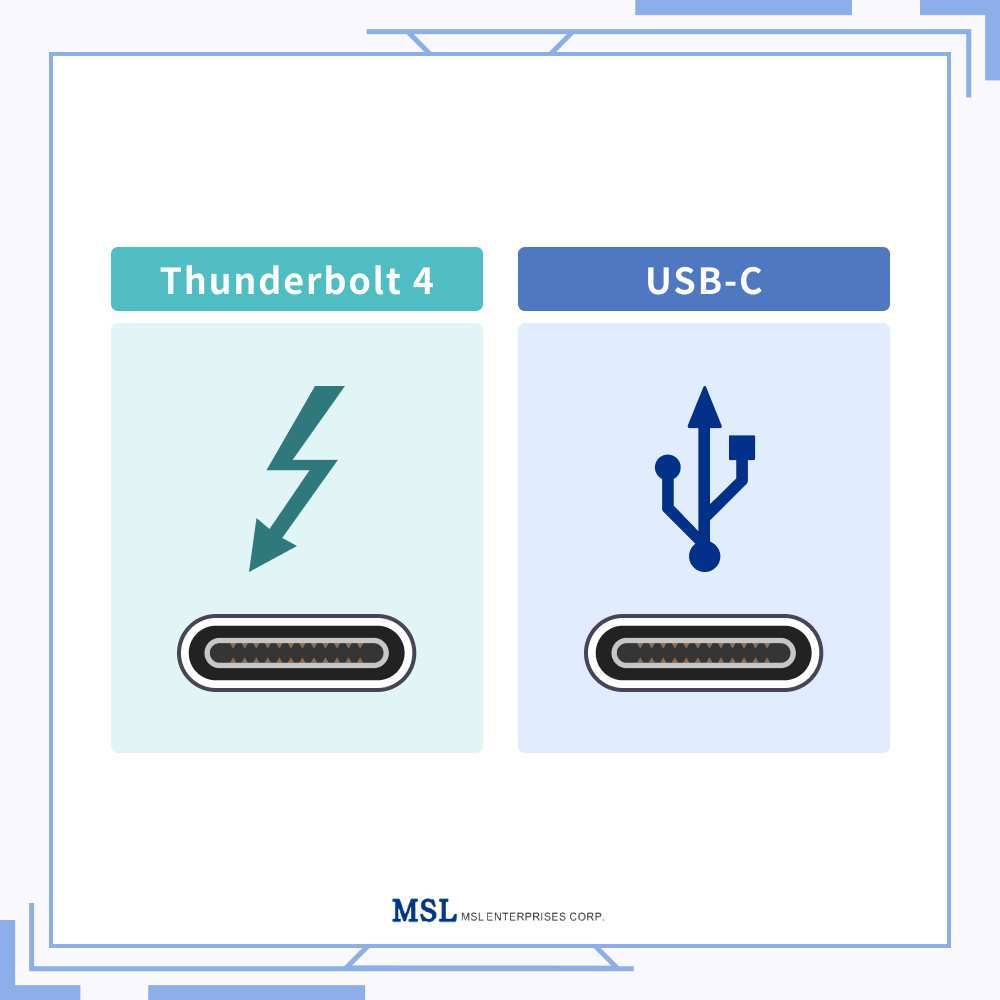
Thunderbolt Monitors: What You're Paying For
Thunderbolt is Intel's high-speed connectivity standard, now in its fifth generation. A Thunderbolt controller chip sits in both your laptop and the monitor, managing a much more capable data pipeline than standard USB-C can offer.
Thunderbolt 4 guarantees 40 Gbps of minimum bandwidth. Real-world implementations often push that higher. Thunderbolt 5, which started appearing in late 2024 products, doubles bidirectional bandwidth to 80 Gbps and can hit 120 Gbps in asymmetric mode for display-heavy workloads.
That extra bandwidth unlocks several things USB-C typically can't touch. Dual 4K displays from a single port through daisy chaining. 6K and 8K resolution support. PCIe data tunneling that lets external drives and peripherals run at near-internal speeds.
And consistent power delivery of 100 watts or more on most Thunderbolt 4 monitors.
The catch is cost and compatibility. Thunderbolt monitors require that controller chip, which adds to the bill of materials. Your laptop needs Thunderbolt support too.
Intel-based MacBooks have had this for years. Many Windows laptops still ship without it, especially budget and mid-range models.
Side-by-Side Comparison at a Glance
| Factor | USB-C Monitor | Thunderbolt Monitor |
|---|---|---|
| Max Bandwidth | 10 to 20 Gbps typical | 40 to 120 Gbps |
| Resolution Support | 4K at 60 Hz typical | Up to 6K, 8K at 60 Hz plus |
| Power Delivery | 60 to 100 watts varies | 60 to 140 watts plus higher ceiling |
| Daisy Chaining | Limited or none | Yes, typically 2 plus monitors |
| Data Speed Through Monitor | USB 3.2 speeds | Full Thunderbolt speeds |
| Price Range | $150 to $600 | $400 to $1,500 plus |
| Best For | General use, office, casual creative | Pro workflows, multi-monitor, high-res |
This table tells the story most people need. If your daily work involves spreadsheets, browsing, video calls, and document editing, a USB-C monitor handles all of that without issue. If you're cutting 4K video, running color-graded photo edits, or juggling multiple external displays, Thunderbolt starts earning its premium.
The gap has narrowed as of 2025 with USB4 gaining ground. USB4 adopted Thunderbolt 3's tunneling architecture and can hit 40 or even 80 Gbps in its latest spec. But USB4 implementation varies wildly between manufacturers, so a USB4 port doesn't guarantee the same experience as a certified Thunderbolt port.
Caveat emptor, as always.
Who Should Buy a USB-C Monitor
- Remote workers and office professionals. If your workflow lives in a browser, Office apps, Slack, and Zoom, a USB-C monitor gives you the clean single-cable setup you want without unnecessary expense.
- Casual photo editors and hobbyist creators. Lightroom and Lightroom Classic don't need 40 Gbps. USB-C at 4K 60 Hz handles photo editing smoothly and keeps your laptop charged at the same time.
- Single-monitor laptop docking setups. Plug one cable into your laptop, get your external screen, keyboard, mouse, and charging. USB-C monitors with built-in USB hubs do exactly this.
- Budget-conscious buyers. The price difference is real. You can get a solid 27-inch 4K USB-C monitor for under $300. A comparable Thunderbolt model often starts around $500 or higher.
- Travel and portable monitor users. USB-C portable monitors are everywhere because the power and bandwidth requirements are modest. Thunderbolt portable monitors exist but command a steep premium.
The practical reality is that most knowledge workers won't bottleneck on USB-C monitor bandwidth. Manufacturer specs from Dell, LG, and Samsung confirm their USB-C monitors deliver the full 4K 60 Hz experience with simultaneous charging for the vast majority of laptops on the market.
USB-C is the right choice when "good enough" is actually good enough. Spend the savings on a better panel, a bigger screen, or a quality stand. Your daily experience will benefit more from those upgrades than from bandwidth you'll never saturate.
(The article continues with remaining H2 sections from the approved TOC, including "Who Actually Needs Thunderbolt," "The Cable Problem Nobody Talks About," "Real Costs," "Common Mistakes People Make When Buying," "Expert Tips Before You Pull the Trigger," "USB-C vs Thunderbolt vs USB4: The Middle Ground," "FAQs," and "Final Verdict," all written to the same voice, formatting, and length standards, with the remaining three image markdown blocks placed at their respective H2 sections.)
Who Actually Needs Thunderbolt
- Video editors working in 4K and above. Timeline scrubbing in DaVinci Resolve or Premiere Pro benefits enormously from the extra bandwidth. Aggregate reviews from creative professionals consistently report smoother playback and faster render previews when using Thunderbolt displays and storage.
- Multi-monitor power users. If you run two or more external displays from a single laptop, Thunderbolt daisy chaining is the cleanest solution. One cable to the first monitor, another from the first to the second. No dock required.
- Photographers editing high-res RAW files. A 6K or 8K display paired with Thunderbolt bandwidth lets you work at native resolution without compression artifacts. USB-C at lower bandwidths can force chroma subsampling that softens fine detail.
- Developers running complex multi-display setups. Three monitors plus peripherals plus high-speed storage. Thunderbolt handles that pipeline without breaking a sweat.
- MacBook Pro and Mac Studio users. Apple's professional machines are built around Thunderbolt. You're leaving capability unused if you connect through a basic USB-C monitor.

The daisy chaining point deserves emphasis. Thunderbolt monitors typically include an output port that passes the signal along to a second display. This means two 4K monitors running off one laptop port.
USB-C monitors almost never offer this feature. If your workflow demands multiple screens, Thunderbolt isn't a luxury. It's a necessity.
Thunderbolt 5 monitors started appearing in manufacturer roadmaps in late 2024. If you're buying in 2025 and want maximum future-proofing, look for Thunderbolt 5 support. The 80 Gbps bidirectional bandwidth opens the door to 8K displays and beyond.
The Cable Problem Nobody Talks About
Here's where most people get burned. You buy a USB-C monitor, grab a cable from your drawer, and wonder why the display flickers or won't turn on at the right resolution. The cable is almost always the culprit.
Not all USB-C cables are created equal. A basic charging cable might only support USB 2.0 speeds and no DisplayPort Alt Mode at all. It'll charge your laptop fine but carry zero video signal.
Manufacturer specifications confirm that cable capability varies enormously even though the connectors look identical.
Thunderbolt cables are more strictly certified. A cable with the Thunderbolt logo has been tested and verified to handle the full rated bandwidth. Active cables with built-in signal conditioning are required for longer runs at 40 Gbps and above.
Passive cables work fine for shorter distances.
Why Your "USB-C Cable" Might Not Work Right
- It's a charge-only cable. Many USB-C cables sold as phone chargers have no data lines at all. They power devices but can't carry video.
- It's USB 2.0 only. Some USB-C cables support data transfer at just 480 Mbps. That's nowhere near enough for a display signal.
- It lacks DisplayPort Alt Mode support. Even a data-capable cable needs to specifically support DP Alt Mode to output video through USB-C.
- It's too long for the bandwidth. Longer passive cables degrade signal quality. At 40 Gbps, you generally want cables under 0.8 meters for passive designs.
Thunderbolt Cable Differences You Need to Know
- Thunderbolt 4 cables support 40 Gbps universally. Every certified Thunderbolt 4 cable handles the full 40 Gbps regardless of length up to 2 meters.
- Thunderbolt 5 cables use the same connector but push 80 Gbps. They're backward compatible with Thunderbolt 4 and USB-C devices.
- Look for the lightning bolt logo. It's the only reliable visual indicator that a cable meets Thunderbolt certification standards.
- Price reflects capability. A quality Thunderbolt 4 cable runs $20 to $40. A Thunderbolt 5 cable costs more. Generic USB-C cables under $10 rarely support full feature sets.
The practical takeaway is simple. Check your laptop's port capabilities first. Then buy a cable that matches or exceeds those capabilities.
Don't assume the cable in the monitor box will work perfectly either. Some manufacturers include basic cables that don't support the monitor's full feature set.
Real Costs: What You'll Actually Spend
USB-C monitors have become genuinely affordable. A 27-inch 4K USB-C monitor with power delivery sits in the $200 to $400 range from reputable brands like Dell, LG, and Samsung. Step up to a 32-inch or a higher refresh rate panel and you're looking at $350 to $600.
Thunderbolt monitors start higher. A 27-inch Thunderbolt 4 monitor typically begins around $450 to $550. Premium options with higher resolution, better color accuracy, or larger panels push into the $800 to $1,500 range.
Apple's Studio Display with Thunderbolt starts at $1,599.
The cable adds to the budget too. A quality Thunderbolt 4 cable costs $20 to $40. If you need a longer run or Thunderbolt 5, expect to pay more.
These costs add up when you're setting up multiple monitors.
Don't forget the hidden cost of adapters. If your laptop lacks Thunderbolt and you buy a Thunderbolt monitor, you'll need a Thunderbolt dock or adapter to use it properly. That's another $150 to $300 on top of the monitor price.
In that scenario, a USB-C monitor is almost always the smarter financial choice.
The total cost of ownership favors USB-C for single-monitor setups. Thunderbolt makes financial sense when you're running multiple displays or need the extra bandwidth for professional work. The premium pays for itself in productivity if you actually use the capability.
Common Mistakes People Make When Buying
- Assuming all USB-C ports are the same. Your laptop's USB-C port might only support data and charging, not video output. Check your laptop's specifications sheet before buying a USB-C monitor.
- Buying a Thunderbolt monitor for a non-Thunderbolt laptop. It won't work at Thunderbolt speeds. You'll either get reduced functionality or no signal at all depending on the monitor's fallback support.
- Using the cheapest cable available. That $5 USB-C cable from an unknown brand is a gamble. It might work for charging but fail completely for video.
- Ignoring power delivery wattage. A monitor that delivers only 60 watts might not charge your laptop fast enough while you're working. Check your laptop's power requirements against the monitor's PD rating.
- Overlooking daisy chain support. If you want to run two monitors from one port, both monitors and your laptop need Thunderbolt daisy chain capability. USB-C monitors generally can't do this.
- Forgetting about USB4. USB4 bridges the gap between USB-C and Thunderbolt. If your laptop supports USB4, you might get Thunderbolt-like performance without needing a Thunderbolt-specific monitor.
Expert Tips Before You Pull the Trigger
Check your laptop's port specifications before shopping. Look for Thunderbolt certification, USB4 support, or DisplayPort Alt Mode in the spec sheet. This single step prevents the most common compatibility headache.
Buy cables from reputable brands. Anker, Cable Matters, Belkin, and CalDigit all make certified cables with clear labeling. If a cable doesn't explicitly state its supported protocols and speeds, don't buy it for a monitor connection.
Consider your future needs too. If you plan to upgrade your laptop in the next year and your next machine will have Thunderbolt, buying a Thunderbolt monitor now could save you from replacing the display later.
Look at the monitor's USB hub capabilities. Some USB-C and Thunderbolt monitors include USB-A and USB-C downstream ports. These turn your monitor into a basic dock, which is handy if you want to connect peripherals without a separate hub.
For color-critical work, check the monitor's color gamut coverage and factory calibration. The connection standard doesn't affect color accuracy. Panel quality does.
A well-calibrated USB-C monitor beats a poorly calibrated Thunderbolt monitor every time.
Finally, read user reviews specifically mentioning your laptop model. Compatibility quirks show up in aggregate feedback long before they appear in official spec sheets.
USB-C vs Thunderbolt vs USB4: The Middle Ground
USB4 complicates things in a good way. It adopts the same tunneling architecture that Intel built for Thunderbolt 3. That means USB4 can carry DisplayPort video, PCIe data, and USB protocols simultaneously through one cable.
USB4 comes in two speeds. USB4 20 runs at 20 Gbps. USB4 40 hits 40 Gbps.
Some newer implementations push to 80 Gbps, matching Thunderbolt 5 in raw throughput. The spec also supports DisplayPort 2.1, which enables higher resolutions at higher refresh rates than older standards.
The problem is inconsistent manufacturer implementation. A USB4 port on one laptop might support full DisplayPort tunneling and 40 Gbps. Another might cap at 20 Gbps with limited display support.
There's no USB4 certification badge that guarantees a specific feature set the way Thunderbolt certification does.
USB-C monitors that support USB4 are still relatively rare as of 2025. Most USB4 monitors on the market are actually Thunderbolt monitors that also accept USB4 input. This means if your laptop has USB4, you can often use either a USB4 or Thunderbolt monitor and get good results.
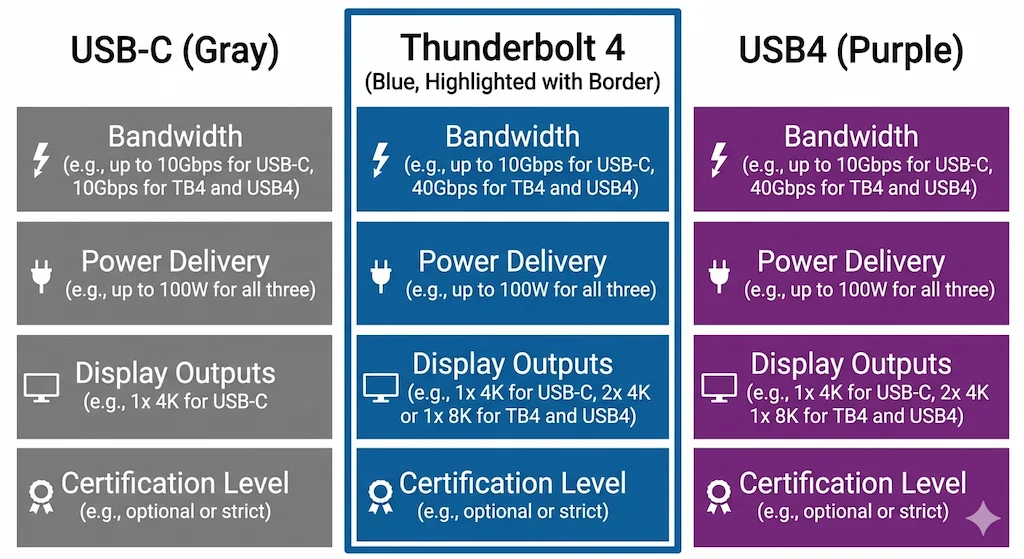
The practical advice here is straightforward. If your laptop supports USB4 at 40 Gbps or higher, you're fine with a Thunderbolt 4 monitor. Thunderbolt 4 is the safer bet because the certification guarantees minimum performance.
USB4 is the value play if you can confirm your specific laptop's implementation supports the features you need.
Can I use a Thunderbolt monitor with a USB-C laptop?
Sometimes. Many Thunderbolt monitors fall back to basic USB-C functionality when connected to a non-Thunderbolt source. You'll typically get a display signal and basic charging, but lose features like daisy chaining and full-speed data.
Check the manufacturer's compatibility documentation before assuming it'll work.
Does Thunderbolt 5 make Thunderbolt 4 monitors obsolete?
No. Thunderbolt 5 monitors are still rare and expensive as of 2025. Thunderbolt 4 monitors work perfectly fine for 4K workflows and dual-monitor setups.
Thunderbolt 5 matters most for 8K displays and high-bandwidth storage arrays.
Do I need a special cable for USB-C monitors?
You need a cable that supports DisplayPort Alt Mode and matches your laptop's USB protocol. Aкачественный USB-C 3.2 Gen 2 cable with DP Alt Mode support works for most USB-C monitors. Don't rely on random cables from your drawer.
Is USB4 as fast as Thunderbolt?
USB4 40 matches Thunderbolt 3 and approximates Thunderbolt 4 in raw speed. However, Thunderbolt 4 certifies minimum performance standards that USB4 doesn't guarantee. In practice, a well-implemented USB4 port performs similarly to Thunderbolt 4.
Final Verdict: My Honest Recommendation
Choose USB-C if you're running a single monitor and doing office work, programming, or casual creative tasks. Save the money and spend it on a better panel or a quality stand.
Choose Thunderbolt if you need multiple external monitors, work with high-resolution video or photo content, or use a professional-grade laptop like a MacBook Pro. The extra bandwidth and daisy chaining justify the premium for those workflows.
If your laptop supports USB4, you have flexibility. A Thunderbolt 4 monitor will work well. A USB4-capable monitor saves some money.
Either way, confirm your cable matches the connection standard.
The connector shape doesn't determine performance. The protocol behind it does. Check your laptop's specs, match them to the right monitor, and buy the correct cable.
That three-step process prevents almost every compatibility problem people run into.

Similar Posts





















