How to Fix Input Lag on 4K Monitor
If you've been wondering how to fix input lag on 4K monitor setups, the answer depends on what's actually causing the delay. It could be your monitor's processing, your cable, your GPU settings, or even Windows itself. Let's walk through each possibility in the right order so you don't waste time changing settings that won't help.
Input lag on a 4K display often comes down to signal processing overhead. Pushing four times the pixels of 1080p takes more work, and every step in the chain adds milliseconds. The good news is most of it is fixable without buying new hardware. This directly compares with our findings on how to fix usb c monitor lag.
Quick Answer
Enable Game Mode on your monitor first. This single setting often cuts input lag by 20 to 40 milliseconds. Next, verify your cable supports the bandwidth you need.
Set your refresh rate to the maximum your panel supports. Turn off V-Sync and enable Adaptive Sync instead.
The Input Lag Troubleshooting Order That Actually Works
Here's the thing about input lag troubleshooting: the fix depends entirely on where the bottleneck lives. It could be the monitor's internal processing. It could be the cable choking your signal. For related troubleshooting and calibration steps, check our walkthrough on how to fix lag on dual monitor setup.
It could be a Windows setting overriding your preferences.
That's why we're going through this in a specific order. Each step rules out a common cause before you move to the next one. Skip around and you'll end up changing settings that don't matter while the real culprit stays hidden.
Let's start with the single biggest fix most people miss.
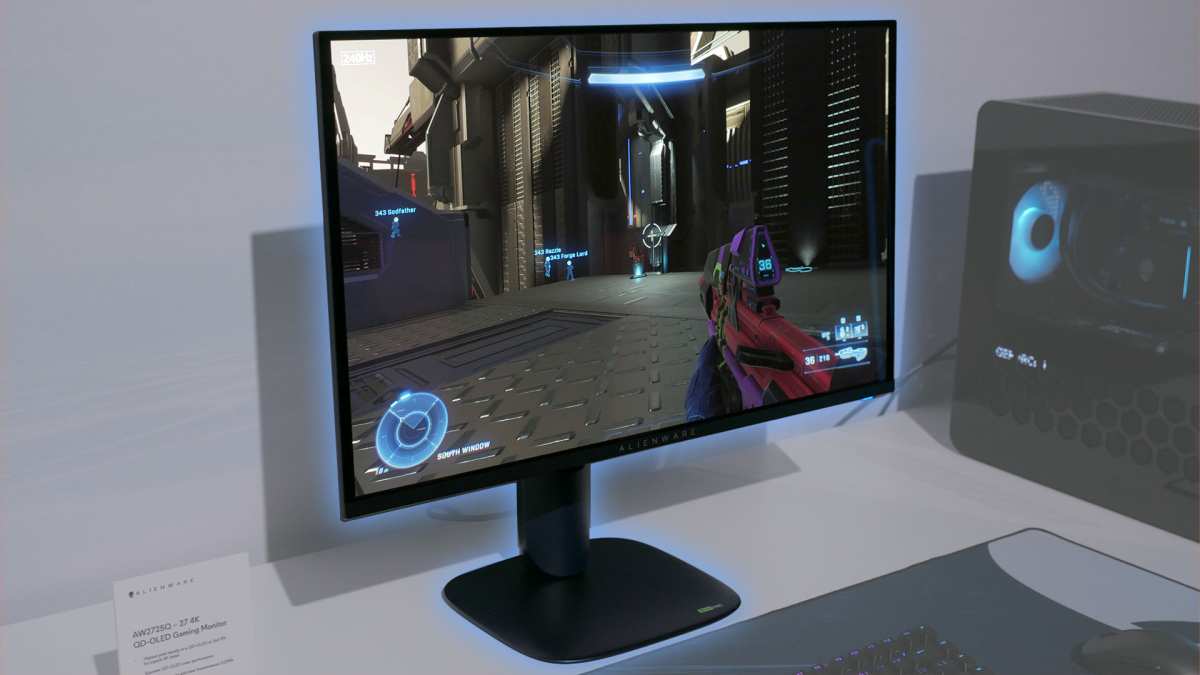
Step 1: Enable Game Mode on Your Monitor
Game Mode is the single most impactful setting on your monitor, and it's disabled by default on almost every 4K display. When it's off, your monitor runs every image through its full processing pipeline. That includes upscaling, dynamic contrast, noise reduction, and color enhancement.
All of that adds latency.
Turn on Game Mode and the monitor bypasses most of that processing. The image might look slightly less "polished," but your input lag drops dramatically. Aggregate testing from display reviewers consistently shows reductions of 20 to 40 milliseconds just from this one toggle.
Here's how to find it:
- Open your monitor's On-Screen Display (OSD) using the physical buttons on the back or bottom edge
- Look for a section called "Game," "Picture," or "Display Mode"
- Select "Game Mode" or "FPS Mode" (the exact name varies by brand)
- Some monitors let you assign Game Mode to a specific input, which is handy if you use multiple devices
Brand-specific menu names to look for:
| Brand | Menu Path |
|---|---|
| LG | Game Mode → Game Optimizer → On |
| Samsung | Game Mode → On (or Adaptive Picture) |
| ASUS | GamePlus → Game Mode |
| Dell/Alienware | Display → Game Mode |
| BenQ | Picture → Game Mode |
| Acer | Visual → Game Mode |
One important note. If you're using HDR at the same time, some monitors re-engage processing even with Game Mode on. We'll address that in Step 6.
Step 2: Check Your Cable and Port (This Trips Up Everyone)
This is the step that catches people off guard. You've got a 4K monitor capable of 120Hz or 144Hz, but you're running an old HDMI 2.0 cable that maxes out at 4K 60Hz. Or worse, you're plugged into the motherboard's video output instead of your dedicated GPU.
Let's break down what each cable standard actually supports at 4K resolution.
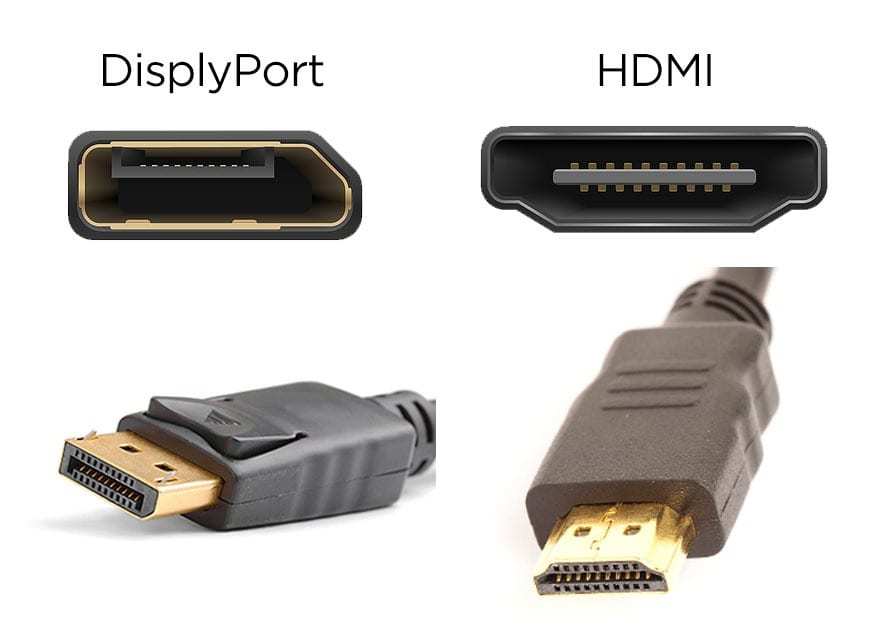
Cable and Port Cheat Sheet for 4K:
| Standard | Max at 4K | HDR | VRR Support |
|---|---|---|---|
| HDMI 2.0 | 60Hz | Yes | Limited |
| HDMI 2.1 | 120Hz (144Hz with DSC) | Yes | Yes (native) |
| DisplayPort 1.4 | 120Hz (144Hz with DSC) | Yes | Yes (Adaptive-Sync) |
| DisplayPort 2.0/2.1 | 240Hz+ | Yes | Yes |
If you're on a PS5 or Xbox Series X, you need an Ultra High Speed HDMI 2.1 cable. Both consoles ship with one in the box. If you've swapped it out for an older cable, that's likely your problem right there.
For PC gaming, DisplayPort 1.4 or higher is generally preferred. It handles 4K at 120Hz with HDR and Adaptive-Sync without needing Display Stream Compression.
Quick checks to make sure:
- Verify the cable is plugged into your GPU, not your motherboard
- Check the cable rating printed on the sheath (look for "Ultra High Speed" or "48 Gbps" for HDMI)
- Try a different port on both the monitor and GPU if available
- Make sure the cable is fully seated. A loose connection can cause the link to negotiate at a lower bandwidth
If you're unsure what cable you have, the printing on the cable itself tells you everything. "High Speed HDMI" means HDMI 2.0. "Ultra High Speed HDMI" means HDMI 2.1.
For DisplayPort, look for "DP8K" or "DP40" markings.
Step 3: Set the Correct Refresh Rate in Windows
This sounds obvious, but it's shockingly common. You buy a 4K 144Hz monitor, plug it in, and Windows defaults to 60Hz. You're literally throwing away two-thirds of your refresh rate, and each frame takes twice as long to display.
At 60Hz, every frame takes 16.67 milliseconds just to display. At 120Hz, that drops to 8.33 milliseconds. At 144Hz, it's 6.94 milliseconds.
That difference is input lag you can feel, especially in fast-paced games.
Here's how to fix it:
- Right-click your desktop and select Display Settings
- Scroll down and click Advanced Display
- Under Refresh Rate, select the highest available option
- If you don't see the rate you expect, your cable or port is the bottleneck (go back to Step 2)
Another thing to check. If you're running multiple monitors with different refresh rates, Windows can force the higher-refresh display to match the lower one in certain scenarios. This was a known issue through 2024, and while Microsoft has improved it, it still crops up. If your refresh rate option looks wrong, try disconnecting the secondary monitor temporarily to confirm.
On NVIDIA cards, you can also set the refresh rate through the NVIDIA Control Panel under Change Resolution. AMD users can find it in AMD Software under Display Settings. Sometimes the GPU control panel shows options that Windows doesn't.
Step 4: Turn Off V-Sync (Or Use Adaptive Sync Instead)
V-Sync was designed to fix screen tearing. It works by holding frames until the monitor is ready to display them. The side effect is that it adds input lag, sometimes a lot of it.
In fast-paced games, V-Sync can add 30 to 50 milliseconds of delay.
The better solution is Adaptive Sync. If your monitor supports G-Sync, FreeSync, or Adaptive-Sync, enable it instead. This lets the monitor refresh exactly when a new frame arrives, eliminating tearing without the latency penalty.
How to enable Adaptive Sync:
- NVIDIA: Open NVIDIA Control Panel → Display → Set up G-Sync → Enable → Apply
- AMD: Open AMD Software → Display → AMD FreeSync → Enable
- Monitor OSD: Make sure Adaptive Sync or FreeSync is turned on in the monitor menu too
Once it's enabled, cap your frame rate 2 to 3 FPS below your monitor's maximum refresh rate. For a 120Hz display, cap at 117 or 118 FPS. This keeps you within the VRR range and prevents the system from falling back to V-Sync behavior.
If your monitor doesn't support any form of Adaptive Sync, turn V-Sync off in your game settings and accept some tearing. For competitive gaming, most players prefer tearing over lag. You can also try Fast Sync (NVIDIA) or Enhanced Sync (AMD), which reduce lag compared to traditional V-Sync while still minimizing tearing.
Step 5: Switch From GPU Scaling to Display Scaling
Scaling determines who handles the work when your game's resolution doesn't match your monitor's native resolution. GPU scaling means your graphics card does the work. Display scaling means the monitor does it.
GPU scaling adds a frame or two of latency. It's not huge, but on a 4K display where you're already pushing a lot of pixels, every millisecond counts.
To switch to display scaling:
- NVIDIA: NVIDIA Control Panel → Adjust Desktop Size and Position → Scaling → Perform scaling on: Display
- AMD: AMD Software → Display → GPU Scaling → Off (this forces the monitor to handle scaling)
If you're running games at native 4K resolution, scaling doesn't apply to you. This step only matters if you're running lower resolutions and stretching them to fill the panel. In that case, you might also consider running the game at a lower resolution with black bars instead.
It looks less polished, but it eliminates the scaling delay entirely.
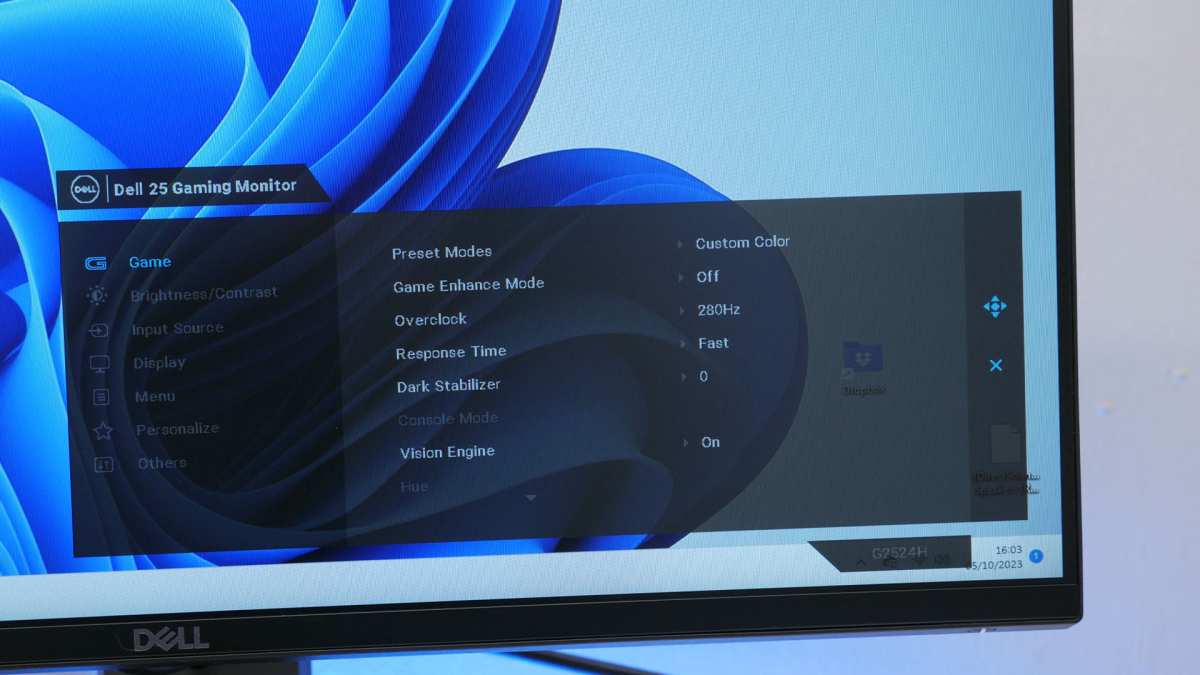
Step 6: Disable HDR If You're Not Actively Using It
HDR looks great when it's working. But on many 4K monitors, enabling HDR in Windows forces the display through additional tone-mapping processing. That processing adds latency, sometimes 15 to 30 milliseconds depending on the panel.
If you're playing a game that doesn't support HDR, or you just prefer SDR for competitive play, turn HDR off in Windows. Go to Settings → System → Display → HDR and toggle it off. Some monitors also have an HDR mode in the OSD that needs to be disabled separately.
The tricky part is that some modern 4K monitors use HDR as a trigger for their "enhanced" processing pipeline. Even with Game Mode on, enabling HDR can re-engage some of that pipeline. If you've turned on Game Mode but still feel lag, check whether HDR is active.
When to keep HDR on:
- You're playing a single-player, story-driven game with HDR support
- You're watching HDR video content
- Your monitor has a high-quality HDR implementation (true local dimming, 1000+ nits peak brightness)
When to turn it off:
- Competitive multiplayer gaming
- Your monitor's HDR is HDR400 or lower (the processing overhead often outweighs the visual benefit)
- The game you're playing doesn't support HDR natively
Step 7: Tweak Your Monitor's Overdrive Setting
Overdrive controls how quickly pixels change color. Crank it too high and you get inverse ghosting, those bright halos that trail behind moving objects. Set it too low and you get motion blur.
The sweet spot minimizes both without adding processing delay.
Most monitors ship with overdrive set to "Normal" or "Medium." This is usually fine. But some panels have an "Extreme" or "Fastest" setting that actually introduces additional frame processing to compensate for aggressive voltage overdrive. That processing can add a frame of latency.
What to try:
- Open your monitor's OSD and find the overdrive setting (sometimes called "Response Time" or "OD")
- If it's set to the highest option, drop it one level down
- Test with a moving object in-game or use a motion blur test pattern
- Look for inverse ghosting. If you see bright trails, the setting is too high
On VA panels especially, aggressive overdrive causes more visible artifacts than on IPS or TN panels. If you're on a VA panel and notice smearing, the overdrive setting is likely the culprit, not input lag itself.
Step 8: Update Your GPU Drivers and Monitor Firmware
This one gets overlooked constantly. GPU driver updates frequently include optimizations for specific games and display configurations. A driver from six months ago might be adding unnecessary latency due to a bug that's since been patched.
Monitor firmware is the other half of the equation. Manufacturers release firmware updates that fix EDID handshake issues, improve Adaptive-Sync behavior, and sometimes reduce processing latency directly. Most people never update their monitor firmware because it's not obvious how to do it.
How to update:
- NVIDIA: Use GeForce Experience or download directly from nvidia.com
- AMD: Use AMD Software or download from amd.com
- Intel: Download from intel.com for integrated graphics
- Monitor firmware: Check the manufacturer's support page for your specific model. You'll usually need a USB drive or a USB cable connection to the PC
Not every monitor has user-updatable firmware. Some require a service center visit. But for major brands like LG, Samsung, ASUS, and Dell, firmware updates are increasingly available as downloadable files.
A word of caution. Monitor firmware updates occasionally reset your OSD settings to defaults. If you've spent time dialing in your configuration, write down your settings before updating.
How to Test Whether Your Fixes Actually Worked
You've gone through the steps. Now you need to know whether anything actually changed. Unfortunately, you can't feel input lag precisely enough to trust your gut on this.
You need to measure it.
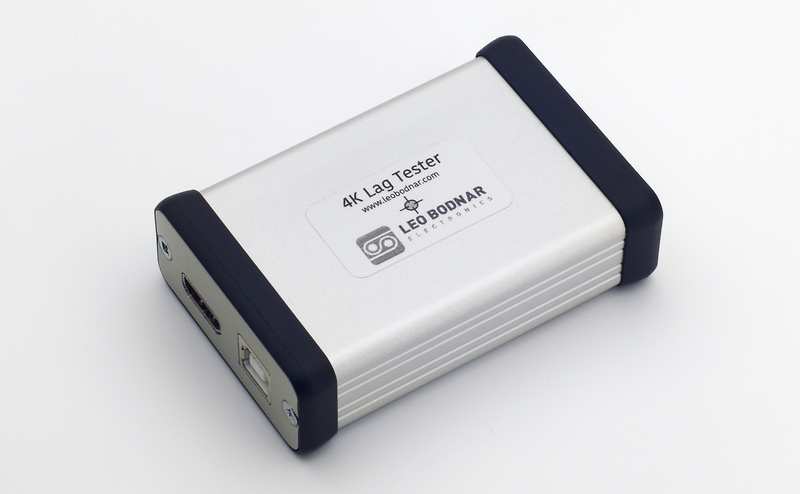
The Leo Bodnar Input Lag Tester is the standard tool used by professional reviewers. It's a small device that plugs between your PC and monitor, then measures the time between a signal being sent and the pixel appearing on screen. It gives you a reading in milliseconds.
For a 4K 120Hz monitor with Game Mode on and Adaptive Sync enabled, you should see readings in the 5 to 10 millisecond range. A 4K 60Hz monitor will typically show 10 to 15 milliseconds. Anything above 25 milliseconds on a modern gaming monitor means something is still wrong.
Free alternatives if you don't have a tester:
- Lagom LCD test pages: Use the "Response Time" test to visually assess lag
- Blur Busters tests: Online tools that use your camera to compare cursor movement against on-screen response
- In-game feel: Not scientific, but if the game feels noticeably more responsive after your changes, that's a valid result
Test before and after each change. That way you know which step actually made the difference.
Common Mistakes That Make Input Lag Worse
Even after following the steps above, some habits can undo your progress. Here are the ones we see most often.
Using the wrong input on the monitor. Many 4K monitors have multiple HDMI and DisplayPort inputs, and not all of them support the same bandwidth. Check your manual. Often only HDMI 1 or DisplayPort 1 supports the full spec.
Plugging into HDMI 2 might limit you to 60Hz even with a 2.1 cable.
Running Windows in "Duplicate" display mode with a second monitor. This forces both displays to run at the lowest common denominator. If your second monitor is 60Hz, your 144Hz 4K panel gets dragged down to 60Hz. Use "Extend" mode instead, or disconnect the secondary display when gaming.
Leaving background recording software running. NVIDIA ShadowPlay, Xbox Game Bar, and OBS all add some overhead. It's usually small, but on a system already struggling to push 4K frames, it can tip the balance. Turn off recording when you don't need it.
Ignoring the monitor's "Eco" or "Power Saving" modes. These features can reduce backlight processing in ways that introduce lag. If your monitor has an Eco mode, turn it off for gaming.
Confusing response time with input lag. A monitor with a 1ms GtG response time spec can still have terrible input lag. Response time is about pixel transitions. Input lag is about the delay between your action and the display reacting.
They're related but not the same thing.
Quick Reference: Cable and Port Cheat Sheet
Here's a condensed version of the cable and port information for quick reference.
| Your Goal | Cable You Need | Port Standard |
|---|---|---|
| 4K 60Hz | High Speed HDMI or DisplayPort 1.2+ | HDMI 2.0 / DP 1.2 |
| 4K 120Hz | Ultra High Speed HDMI or DisplayPort 1.4 | HDMI 2.1 / DP 1.4 |
| 4K 144Hz | Ultra High Speed HDMI (with DSC) or DisplayPort 1.4+ | HDMI 2.1 / DP 1.4 |
| 4K 240Hz | DisplayPort 2.0/2.1 cable | DP 2.0/2.1 |
If you're not sure what cable you have, check the printing on the cable sheath. If there's no printing, assume it's an older cable and replace it. A certified Ultra High Speed HDMI cable costs under $15 and eliminates cable as a variable entirely.
When Input Lag Isn't the Monitor's Fault
Sometimes you go through every step above and the lag persists. At that point, the issue is probably somewhere else in the chain.
Peripheral lag is a real thing. A wireless mouse running at 125Hz polling rate adds up to 8 milliseconds compared to a 1000Hz wired mouse. Wireless keyboards can add similar delay.
If you're serious about reducing input lag, use wired peripherals or high-polling-rate wireless ones.
In-game settings matter too. Some games have built-in input lag from their rendering pipeline. "Raw Input" settings bypass Windows' mouse processing and can shave off a few milliseconds.
Look for this option in your game's settings menu.
Your GPU might be the bottleneck. If you're running a demanding game at 4K and your GPU can't maintain a high frame rate, the lag you're feeling might be render latency, not display latency. Dropping settings to increase FPS can reduce overall system latency even if the monitor itself is fine.
USB polling rate and DPC latency are deeper issues that require tools like LatencyMon to diagnose. If you've ruled out everything on the display side and still experience lag, run LatencyMon for a few minutes while the system is under load. It'll point you to the driver or process causing the delay.
Frequently Asked Questions
Does 4K inherently have more input lag than 1440p?
Not inherently. A 4K monitor and a 1440p monitor with the same panel technology, processing pipeline, and refresh rate will have nearly identical input lag. The resolution itself doesn't add meaningful delay.
However, pushing 4K requires more GPU power, so if your frame rate drops at 4K, the overall system latency increases.
Is HDMI 2.1 always better than DisplayPort for 4K gaming?
Not necessarily. DisplayPort 1.4 with DSC handles 4K at 144Hz with HDR just fine. HDMI 2.1 has more total bandwidth, but for most current gaming monitors, DisplayPort is equally capable.
Use whichever port your monitor recommends for its maximum spec.
How much input lag is noticeable?
Most people start noticing input lag above 20 to 25 milliseconds. Competitive players can detect differences as small as 5 milliseconds. If your monitor measures under 10 milliseconds at 4K, you're in excellent territory.
Does FreeSync or G-Sync add input lag?
No. Adaptive Sync technologies actually reduce perceived input lag compared to V-Sync because they don't hold frames. They can add a tiny amount of processing latency on some monitors, but the net effect is almost always positive for responsiveness.
Should I buy a new monitor to fix input lag?
Only if your current monitor measures above 30 milliseconds of input lag with Game Mode on and all processing disabled. Most modern 4K gaming monitors from 2022 onward perform well once configured correctly. A new monitor won't help if the issue is your cable, settings, or GPU.

Similar Posts





















