How to Fix USB C Monitor Lag
If you're searching for how to fix USB-C monitor lag, chances are your external display feels sluggish, your cursor trails behind, or video playback stutters. The frustrating part is that USB-C lag almost never has a single cause. It's usually a chain of small issues stacking up.
The good news is that most of these fixes take under ten minutes each. DisplayPort Alt Mode over USB-C can carry high-resolution video, power, and data through one cable, but that versatility also means more things can go wrong. Let's walk through it systematically. Readers comparing various configurations should also examine how to fix usb c monitor not detected.
Quick Answer
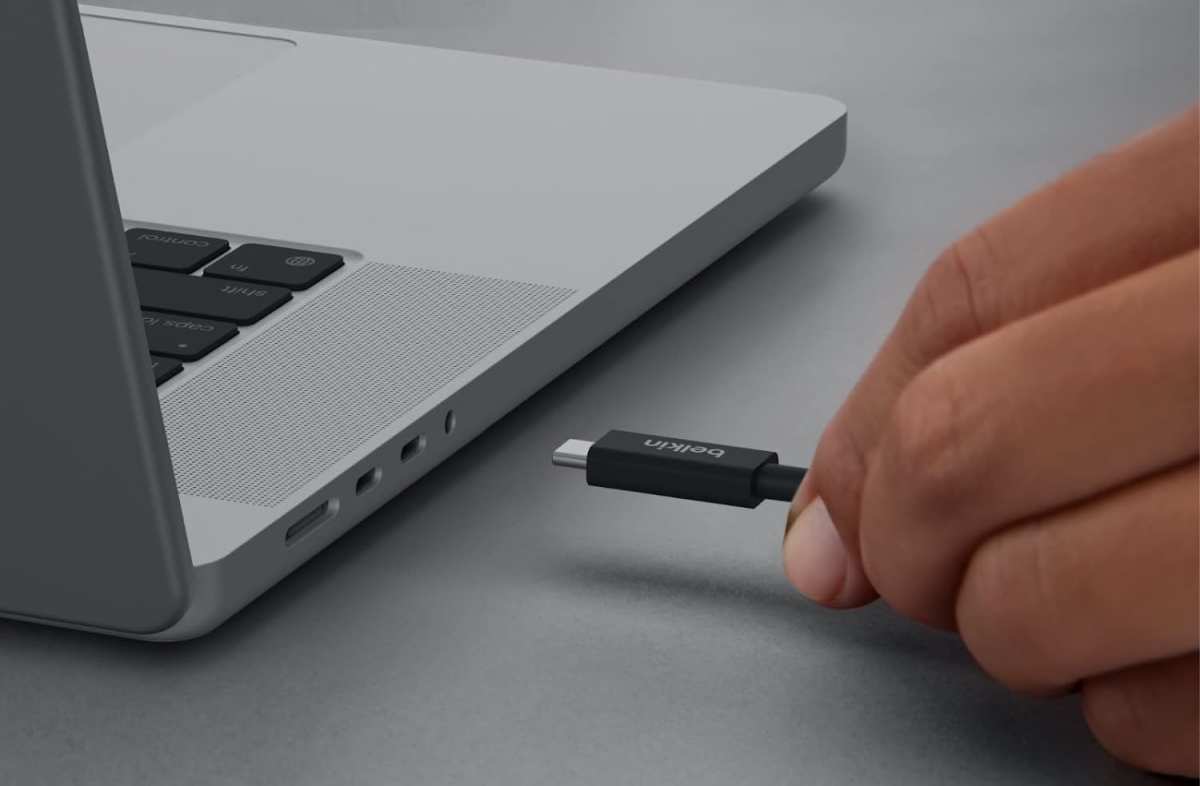
USB-C monitor lag usually comes down to a bad cable, wrong refresh rate, or a port that doesn't support video output. Start by swapping your cable for a certified USB-C cable that supports DisplayPort Alt Mode. Then check that your refresh rate is set to 60Hz or higher in your display settings.
If you're using a dock or hub, try connecting the monitor directly to your laptop. These three steps fix the majority of USB-C lag issues.
The 30-Second Test: Is It Really the USB-C Connection?
Before we dive into settings and cables, let's rule out the obvious. Not every sluggish monitor experience is actually a USB-C problem. You can also reference our testing on how to fix usb c monitor flickering when configuring your display.
Ask yourself what "lag" feels like right now. There are three distinct types, and each points to a different root cause:
- Input lag: You move the mouse and the cursor catches up a beat later. This usually ties to GPU processing, monitor scaler processing, or Adaptive Sync conflicts.
- Display lag / stuttering: Video playback hitches, windows stutter when you drag them, or the screen feels like it's running at a lower refresh rate than it should. This points to bandwidth, cable, or refresh rate issues.
- Connection lag: The monitor flickers, drops signal, or takes several seconds to wake from sleep. This is typically a cable quality, port capability, or EDID handshake problem.
If you can identify which category fits, you'll skip half the troubleshooting steps and go straight to the fix. If you're not sure, that's fine. Just work through the steps below in order.
What's Actually Causing the Lag (It's Not Always What You Think)
Here's what makes USB-C monitor lag tricky. The USB-C connector itself is just a physical shape. What matters is which protocols are running through it.
A USB-C port on your laptop might support any combination of these:
- USB data only (no video at all)
- DisplayPort Alt Mode (video output, the most common video method)
- Thunderbolt 3 or 4 (video plus high-speed data, uses DP under the hood)
- USB4 (the newer standard, also carries DP)
- USB Power Delivery (charging, no video)
Manufacturer specifications confirm that not every USB-C port on every laptop supports video output. Some ports are data-only. Some support video but only at limited bandwidth.
This is the single most overlooked cause of USB-C monitor problems.
On top of that, the cable matters enormously. A USB-C cable that charges your phone perfectly might have zero video capability. Another cable might support video but only at lower bandwidth, capping your resolution or refresh rate.
Then there's the dock or hub layer. USB-C docks and hubs use Multi-Stream Transport (MST) to split bandwidth between multiple displays and data devices. Push too much through one dock and you'll see lag, stuttering, or dropped signals.
Let's start fixing this step by step.
Step 1: Figure Out What Type of Lag You're Dealing With
This is the decision point that determines everything that follows.
If your cursor feels delayed or "floaty": This is input lag. The signal is reaching the display, but something in the chain is adding processing time. Common culprits are GPU scaling (where your graphics card scales the image instead of the monitor), monitor overdrive settings, or Adaptive Sync conflicts.
If video stutters, windows drag slowly, or animations look choppy: This is a bandwidth or refresh rate problem. Your cable, port, or dock can't push enough data to keep up. You might be stuck at 30Hz without realizing it.
If the screen flickers, goes black intermittently, or takes forever to wake: This is a connection or handshake problem. The cable might be low quality, the port might not support DP Alt Mode, or the EDID data isn't being read correctly.
Quick test: Play a video on the external monitor. Drag a window back and forth quickly. Move the mouse in circles.
If the video stutters but mouse movement feels normal, it's bandwidth. If mouse movement feels delayed but video plays fine, it's input processing. If both feel wrong, start with the cable and port checks below.
Step 2: Check Your Cable — This Is the #1 Culprit
If we had to bet, the cable is your problem. It's the single most common cause of USB-C monitor lag, and it's the easiest thing to overlook.
Here's the deal. Not all USB-C cables are created equal. The USB-C connector can carry USB 2.0, USB 3.2, DisplayPort, Thunderbolt, Power Delivery, or some combination.
A cable that came in the box with your phone or earbuds is almost certainly a charging-focused cable with minimal data and no video support.
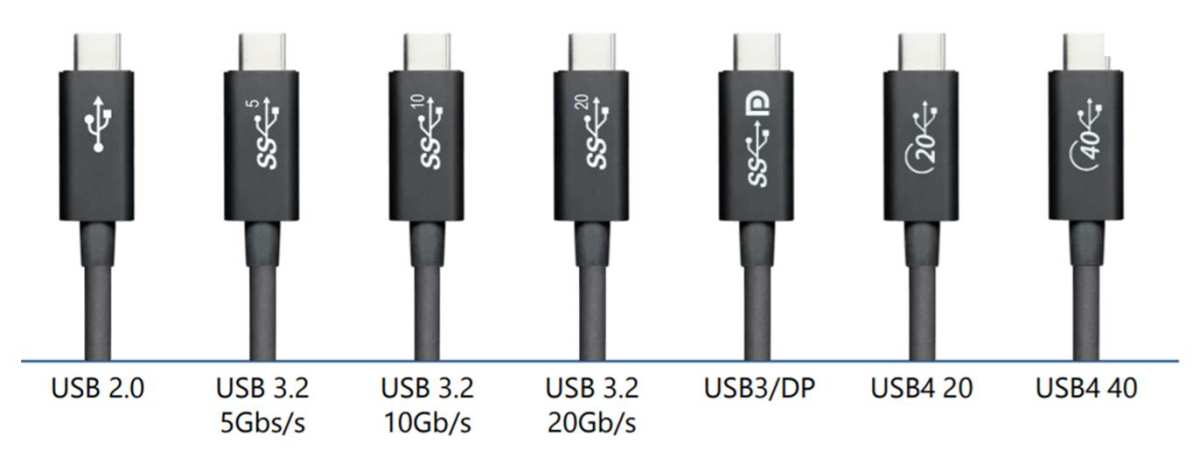
What to look for in a USB-C cable for video
| Feature | Minimum You Need | Ideal for High-Res/High-Refresh |
|---|---|---|
| DP Alt Mode support | Required | Required |
| USB spec | USB 3.2 Gen 1 (5Gbps) | USB 3.2 Gen 2 (10Gbps) or higher |
| DP version | HBR2 (4K@60Hz) | HBR3 (4K@120Hz without DSC) |
| Certification | USB-IF certified | Thunderbolt 4 certified |
| E-marker chip | Present for PD | Present, rated for 40Gbps+ |
How to check your cable: Look for markings on the cable itself. Cables rated for "40Gbps" or "Thunderbolt 4" will almost always support DP Alt Mode at full bandwidth. Cables that only say "USB 3.0" or have no markings at all are suspect.
If the cable has no visible specs printed on it, assume it's a basic charging cable.
The fix: Swap in a certified USB-C cable that explicitly lists DisplayPort Alt Mode support. If you're running 4K at 60Hz or higher, or any resolution above 1440p, you want at least HBR3-rated cable bandwidth. For 4K@120Hz or dual 4K setups, you need Thunderbolt 4 or USB4 cables.
Common mistake: Using a USB-C cable that supports DP Alt Mode but only at HBR2 bandwidth. This works fine for 4K@60Hz but will force 30Hz or cause stuttering at higher resolutions. The cable isn't "bad," it's just not rated for your use case.
Step 3: Verify Your USB-C Port Actually Supports Video
This one catches people constantly. You plug in a USB-C cable, connect it to your monitor, and… nothing. Or it works but performs terribly.
The port itself might not support video output at all.
How to check your port
On Windows:
- Check your laptop or motherboard manual for port specifications.
- Look for a lightning bolt icon (Thunderbolt) or "D" shaped DP icon next to the port.
- In Device Manager, check what's listed under "Display adapters" when the monitor is connected.
On Mac:
- Apple Silicon Macs (M1/M2/M3/M4) support DP Alt Mode on all Thunderbolt/USB4 ports.
- Intel Macs vary by model. Check "System Information" under "Thunderbolt" and "Graphics/Displays."
On desktop GPUs:
- Some NVIDIA and AMD GPUs have USB-C ports with DP Alt Mode built in. Not all do.
- Check your GPU manufacturer's spec sheet. If it lists "VirtualLink" or "DisplayPort over USB-C," you're good.
What if your port doesn't support DP Alt Mode?
You have two options:
- Use a different port that does support video output (if your laptop has multiple USB-C ports, they may have different capabilities).
- Use a USB-C to HDMI or DisplayPort adapter connected to a data-only USB-C port, but this requires an adapter with its own chipset (called a DisplayLink adapter). Note that DisplayLink adds a small amount of latency since it uses software-based video compression.
Key point: If your USB-C port only supports USB 3.2 data (no DP Alt Mode, no Thunderbolt), no cable swap in the world will give you video output. You need a port that explicitly supports video.
Step 4: Bypass the Dock or Hub (Test Direct Connection)
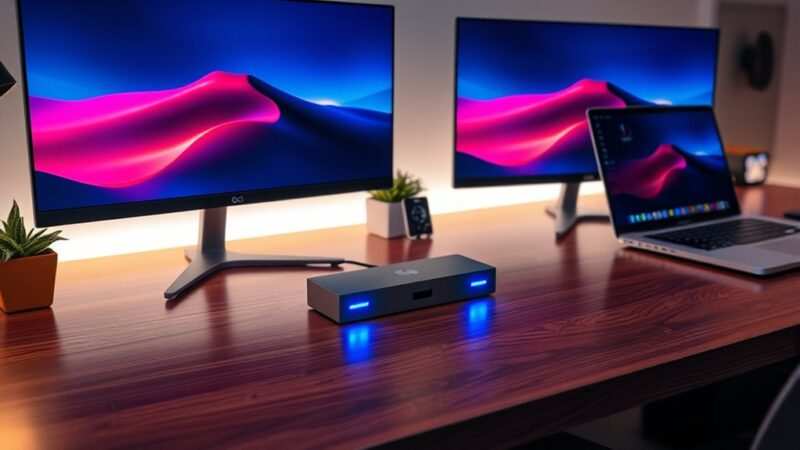
USB-C docks and hubs are incredibly convenient. They're also a frequent source of display lag, stuttering, and resolution caps.
Here's why. A dock splits its available bandwidth between all connected devices. A Thunderbolt 4 dock has 40Gbps total bandwidth.
Your 4K@60Hz display needs roughly 12.54Gbps of that (using 8-bit color, no compression). Add a second display, USB storage, Ethernet, and audio, and you're pushing the limits.
The test
Disconnect the dock entirely. Connect your monitor directly to your laptop with a single USB-C cable. If the lag disappears, the dock is your problem.
If the dock is the cause
- Update the dock firmware. Manufacturers like CalDigit, Anker, and Plugable regularly release firmware updates that fix display performance issues.
- Reduce the load on the dock. Disconnect unnecessary USB devices. If you're running dual monitors through one dock, try connecting one monitor directly to the laptop instead.
- Check the dock's DP bandwidth allocation. Some docks share a single DP lane across multiple display outputs. Running two 4K monitors through one dock often forces both to 30Hz unless the dock supports Display Stream Compression (DSC) passthrough.
- Consider a higher-tier dock. USB-C hubs (non-Thunderbolt) typically have less bandwidth than Thunderbolt docks. If you need dual 4K@60Hz, a Thunderbolt 4 dock is the safer choice.
Real-world pattern: Many users report that their USB-C monitor works perfectly when connected directly but stutters through a dock. This is almost always a bandwidth allocation issue, not a defective dock.
Step 5: Fix Your Refresh Rate — You Might Be Stuck at 30Hz
This is the fix that surprises people the most. Your monitor might be capable of 60Hz, 120Hz, or even 144Hz, but your operating system could have it set to 30Hz. At 30Hz, everything feels sluggish.
Mouse movement looks choppy. Window dragging feels like moving through mud.
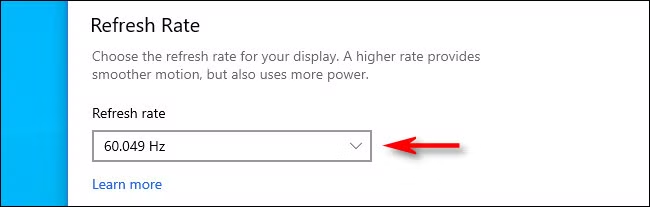
How to check and fix refresh rate
On Windows:
- Right-click the desktop and select "Display settings."
- Scroll down and click "Advanced display settings."
- Select your USB-C monitor from the display dropdown.
- Look at the "Refresh rate" dropdown. If it says 30Hz, change it to 60Hz or higher.
- If 60Hz isn't available, your cable or port is likely limiting bandwidth. Go back to Steps 2 and 3.
On Mac:
- Open "System Settings" (or "System Preferences" on older macOS).
- Go to "Displays."
- Hold the Option key and click "Scaled" to see refresh rate options.
- Select 60Hz or higher.
Why 30Hz happens
- Cable bandwidth limit: A USB-C cable that only supports HBR2 at reduced lanes might not have enough bandwidth for 4K@60Hz, so the system falls back to 30Hz.
- Dock bandwidth limit: As covered above, docks sharing bandwidth across multiple displays often cap each display at 30Hz.
- EDID handshake failure: The monitor tells the computer what modes it supports via EDID data. If this handshake fails (cheap cable, loose connection), the OS might default to a safe low refresh rate.
- macOS specific behavior: macOS sometimes defaults to 30Hz on USB-C displays if it can't confirm the display's capabilities. This is more common with adapters and hubs.
After changing the refresh rate: Move your mouse in circles and drag a window around. The difference between 30Hz and 60Hz is immediately obvious. If it feels smooth now, you've found your problem.

Similar Posts





















