Is a 4K Monitor Worth It
You're staring at a spec sheet wondering if the jump to 4K is actually going to change your daily experience or just drain your wallet. The honest answer is that it depends on what you do all day, how far you sit from your screen, and whether your current hardware can even push that many pixels. Let's cut through the marketing noise and figure this out together.
A 4K monitor packs 8.3 million pixels onto your display, which is exactly four times what you get from a standard 1080p screen. That's a massive jump in raw numbers, but raw numbers don't always translate into a better experience. What matters is how those pixels interact with your eyes, your workflow, and the rest of your setup. If you are exploring similar hardware setups, see our detailed guide on whether microled monitor worth it for home office.
So let's walk through the real factors that decide whether 4K is worth your money.
Quick Answer
A 4K monitor is worth it for creative work, productivity, and media consumption. It's less worth it for competitive gaming on a budget. Screen size and viewing distance matter enormously.
Your GPU needs to match your resolution goals.
Why the Answer Isn't a Simple Yes or No
Here's what trips people up. They see "4K" and assume it's automatically better than anything lower. But a 27-inch 4K monitor at default settings can make text so tiny you'll be squinting within an hour. For related troubleshooting and calibration steps, check our walkthrough on whether touchscreen monitor worth it.
And a budget 4K panel with DisplayHDR 400 won't give you the HDR experience you've seen in TV reviews.
The real question isn't whether 4K is better in a vacuum. It's whether 4K is better for your specific situation. A video editor working in DaVinci Resolve will see a genuine, measurable improvement in their workflow.
A competitive Valorant player would be better off with a 1080p 240Hz display and a lower resolution that lets their frame rate sing.
Your use case is the single biggest factor. Your hardware is the second. And your tolerance for tweaking settings is the third.
Once we lay out the conditions, you'll know exactly which camp you fall into.
The Three Questions That Actually Decide This for You
Before you spend a single dollar, run yourself through these three questions. They'll save you from the most common mistake: buying a 4K monitor that doesn't actually fit your life.
What's your primary use case?
This is the big one. What do you actually do on your computer for most of the day?
- Productivity and office work: 4K gives you enormous screen real estate. You can have two full-size documents side by side with room to spare. Text looks razor-sharp. Your eyes will thank you after a long day.
- Creative work: Photo editing, video editing, 3D modeling, and design work all benefit directly from 4K. You see more detail, you work with accurate pixel-level precision, and color-accurate 4K panels are standard in professional workflows.
- Gaming: This splits into two paths. If you're playing story-driven, visually rich games and want the sharpest image possible, 4K is gorgeous. If you're playing competitive shooters and need every frame you can get, 1440p at high refresh rates is usually the smarter play.
- Media consumption: If you stream a lot of 4K content on YouTube or Netflix, a 4K monitor lets you see it at native resolution. No downscaling, no softness. It just looks correct.
What screen size are you considering, and how far do you sit?
Pixel density is where most people get surprised. A 27-inch 4K display runs at about 163 pixels per inch. That's incredibly sharp, but it also means text and UI elements will look tiny unless you enable display scaling.
Most people sit about 2 to 3 feet from a desktop monitor, which is close enough to notice the difference.
A 32-inch 4K monitor drops you to around 138 PPI. That's still very sharp, but text is more readable at default settings without aggressive scaling. For most desk setups, 32 inches is the 4K sweet spot where you get the resolution benefit without the scaling headaches.
If you're looking at anything smaller than 27 inches, 4K starts to lose its appeal. The pixels are so dense that you're always scaling up, which effectively gives you the same workspace as a lower-resolution display but at a higher cost.
Can your current hardware actually drive 4K?
This catches more people than you'd think. Driving 4K on the desktop, browsing the web, and watching videos is easy. Almost any modern discrete GPU, even an entry-level one, handles that without breaking a sweat.
Gaming at 4K is a completely different story. You're pushing four times as many pixels as 1080p. That demands serious graphics horsepower.
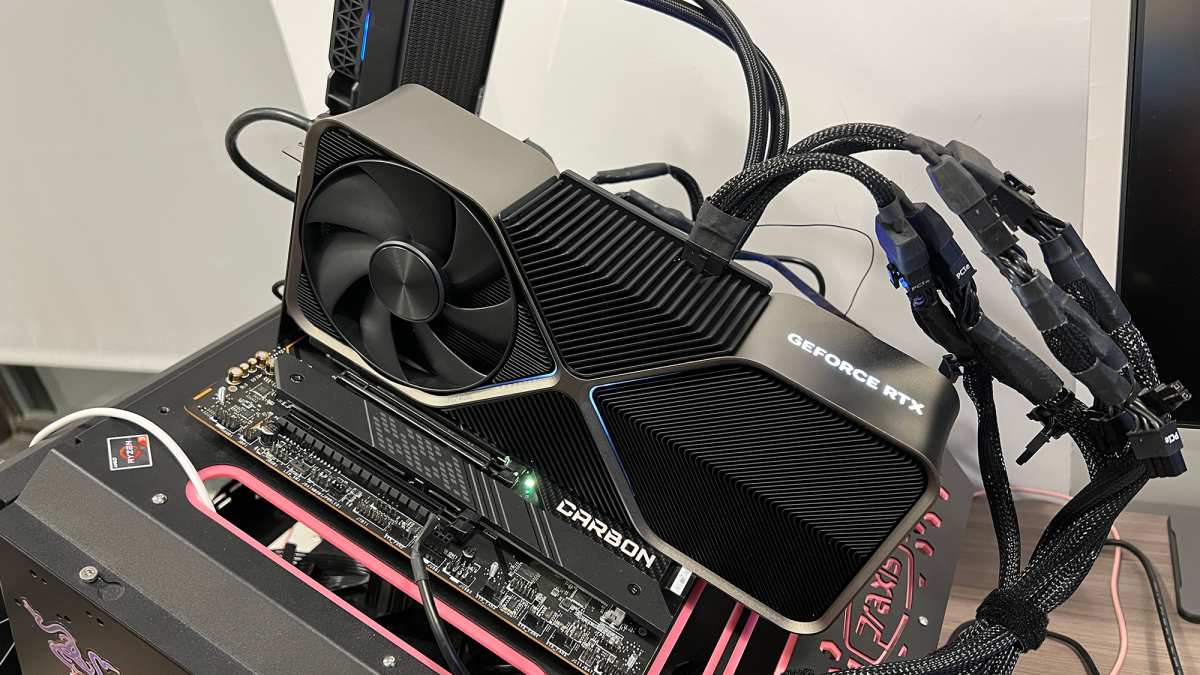
For 4K gaming at high settings with reasonable frame rates, you're looking at an NVIDIA RTX 4070 or AMD RX 7800 XT at minimum. If you want 4K at 120fps or higher in demanding titles, you'll need an RTX 4080, RTX 4090, or AMD RX 7900 XTX.
Don't forget to check your ports, either. HDMI 2.0 tops out at 4K at 60Hz. For 4K at 120Hz or above, you need HDMI 2.1 or DisplayPort 1.4 with Display Stream Compression.
Your cable matters too, not all of them support the full bandwidth.
What You Actually Get With 4K (3840×2160)
Let's ground this in real numbers so you know exactly what you're paying for.
A 4K UHD display has a resolution of 3840×2160. That's 8.3 million individual pixels working together to create your image. Compare that to 1440p at 3.7 million pixels or 1080p at 2.1 million.
The jump from 1080p to 4K is dramatic. The jump from 1440p to 4K is noticeable but less transformative.
Here's how pixel density breaks down at common sizes:
| Screen Size | 4K PPI | 1440p PPI | 1080p PPI |
|---|---|---|---|
| 24" | ~184 | ~122 | ~92 |
| 27" | ~163 | ~109 | ~82 |
| 32" | ~138 | ~92 | ~62 |
| 43" | ~102 | ~69 | ~52 |
At 27 inches, 4K gives you stunning text clarity. Fonts look like they were printed on paper. But you'll almost certainly need to run display scaling at 150% or 175% to keep text comfortable.
At 32 inches, you get a more natural experience with less aggressive scaling needed.
The workspace benefit is real and immediate. On a 4K display, you can comfortably run four 1080p-sized windows in a two-by-two grid. For coding, research, financial work, or any task where you need multiple documents visible simultaneously, this is a genuine productivity upgrade.
You stop alt-tabbing and start actually working.
For creative professionals, the advantage goes beyond convenience. When you're editing a 4K video timeline or working on a high-resolution photo, you see your content at native resolution without constantly zooming and panning. What you see on screen matches the final output.
That's not a luxury. It's a requirement for accurate work.
Where 4K Makes a Real Difference
Not every use case benefits equally. Let's be specific about where 4K earns its price tag.
Productivity and development
If your work involves lots of text, code, spreadsheets, or documents, 4K is one of the most impactful upgrades you can make. The text clarity alone reduces eye strain over long sessions. Developers especially benefit because IDE panels, terminal windows, and documentation can all live on one screen without feeling cramped.
A 32-inch 4K monitor effectively replaces a dual-monitor setup for many people. You get the same usable space as two 27-inch 1080p displays, but without the bezel gap and with a cleaner desk setup.
Creative work
Photo editors, video editors, 3D artists, and graphic designers all work with high-resolution source material. A 4K monitor lets you view that material at native or near-native resolution while still having room for toolbars, timelines, and panels. This isn't about luxury. It's about accuracy and efficiency.
Color-accurate 4K panels are widely available from professional lines. These displays cover sRGB, DCI-P3, and Adobe RGB color spaces with low Delta E values. If color accuracy matters to your work, a good 4K monitor is practically mandatory as of 2026.
Media consumption
Streaming services offer a growing library of 4K content. YouTube, Netflix, Disney+, and Apple TV+ all support 4K playback. On a 4K monitor, you see that content exactly as it was meant to be viewed.
No compression artifacts from upscaling a lower-resolution display. No softness from downscaling to a non-native resolution.
Console gamers on PS5 and Xbox Series X also fall into this category. Both consoles are designed to output at 4K. Playing on a 4K monitor at native resolution gives you the full experience those consoles were built for.
Where 4K Probably Isn't Worth the Money
Let's be honest about the situations where 4K doesn't make sense.
Competitive gaming
If you play competitive titles and prioritize frame rate over visual fidelity, 4K is working against you. Pushing four times the pixels costs GPU performance. That performance hit translates directly into lower frame rates and higher input latency.
For competitive gaming, a 1440p 144Hz or 1080p 240Hz display will serve you better.
Budget builds
If you're building a system on a tight budget, 1440p is the sweet spot. A good 1440p monitor costs less, demands less from your GPU, and still delivers a sharp, enjoyable experience. You can reinvest the savings into a better GPU or more RAM, which will have a bigger impact on your overall experience.
Situations where you sit far from the screen
If your monitor is positioned more than three feet away, or if you're using a 43-inch display as a sort of desktop TV, the perceptual difference between 4K and 1440p diminishes. At those distances and sizes, you're not resolving individual pixels anymore, and the extra sharpness becomes academic rather than visible.
Older or integrated graphics
If you're relying on integrated graphics or an older GPU, 4K gaming is off the table. Even desktop use can feel sluggish if your hardware struggles with the pixel count. Make sure your system can actually handle the resolution before you buy.
The GPU Problem Nobody Talks About Enough
This is where a lot of buyers get burned. They buy a 4K monitor, plug it in, and then wonder why their games are chugging or their system feels sluggish.
For basic desktop use, web browsing, and video playback, almost any modern GPU handles 4K without issue. Even integrated graphics on recent Intel and AMD processors can drive a 4K display at 60Hz for everyday tasks. The bar is low here.
Gaming is a different beast entirely. Here's what you're looking at for 4K gaming at high settings:
| GPU | 4K Gaming Performance | Approximate Price (2026) |
|---|---|---|
| RTX 4060 / RX 7600 | 30-45 fps in demanding titles | $250-$300 |
| RTX 4070 / RX 7800 XT | 60+ fps in most titles at high settings | $450-$550 |
| RTX 4080 / RX 7900 XTX | 90-120+ fps in demanding titles | $900-$1,000 |
| RTX 4090 | 120+ fps in nearly everything | $1,600-$2,000 |
If your GPU can't push the frame rates you want at 4K, you're paying for pixels you can't fully use. In that case, a 1440p high-refresh monitor paired with a mid-range GPU will give you a far better gaming experience than a 4K display paired with underpowered hardware.
Don't overlook the connection standard, either. Here's a quick reference:
| Connection | Max 4K Refresh Rate | Notes |
|---|---|---|
| HDMI 2.0 | 60Hz | Common on older GPUs and monitors |
| HDMI 2.1 | 120Hz (up to 240Hz with DSC) | Required for 4K high-refresh on PS5/Xbox Series X |
| DisplayPort 1.4 | 120Hz (with DSC) | Standard on most modern GPUs |
| DisplayPort 2.1 | 240Hz uncompressed | Newest standard, limited adoption as of 2026 |
| USB-C (DP Alt Mode) | Varies (typically 60Hz) | Check your laptop's specific output capability |
Using the wrong cable or port can cap your refresh rate at 60Hz even if your monitor and GPU both support higher. Always verify the full chain: GPU output, cable spec, and monitor input all need to support your target resolution and refresh rate.
Scaling Issues That Drive People Crazy
You've bought the monitor. It looks gorgeous. Then you notice that some apps look blurry, text is microscopic, or everything feels slightly off.
Welcome to the scaling problem.
Windows scaling at 27"
Windows handles display scaling better than it used to, but it's still not perfect. At 27 inches and 4K resolution, you'll want to set scaling to at least 150%, possibly 175%. Most modern apps handle this fine.
But older applications, some enterprise software, and certain games can render at the wrong size or appear blurry because they don't support fractional scaling properly.
The fix is usually straightforward. Right-click the application's shortcut, go to Properties, and override the high-DPI scaling behavior. It's a per-app fix, which means it's tedious if you rely on older software.
For most people in 2026, this is a minor annoyance rather than a dealbreaker. But it's worth knowing about before you buy.
macOS and third-party 4K monitors
Apple handles scaling beautifully on its own displays. The Retina display on a MacBook Pro uses pixel-doubling to render at exactly double the logical resolution, which produces incredibly crisp text. But when you connect a third-party 4K monitor to a Mac, things get complicated.
macOS supports HiDPI modes on external displays, but not all 4K monitors trigger them automatically. You may need a third-party utility like BetterDisplay to enable proper HiDPI scaling. Without it, you're either running at native 4K with tiny UI elements or at a scaled resolution that looks slightly soft because it's not an exact pixel multiple.
If you're a Mac user buying a 4K monitor, do your research on compatibility first. Some monitors play nicely with macOS scaling out of the box. Others require workarounds.
It's not a reason to avoid 4K on Mac, but it's a reason to check before you click "buy."

4K vs. 1440p vs. Ultrawide: The Real Comparison
This is the comparison most people actually need. Let's lay it out clearly.
| Factor | 4K (32" 60-144Hz) | 1440p (27" 144-240Hz) | Ultrawide (34-49" 3440×1440) |
|---|---|---|---|
| Pixel density | ~138 PPI | ~109 PPI | ~109-140 PPI (varies by size) |
| Best for | Productivity, creative work, media | Gaming, general use | Multitasking, immersion, sims |
| GPU demand (gaming) | High | Moderate | Moderate-High |
| Price range | $250-$1,200+ | $200-$600 | $350-$1,500+ |
| Text clarity | Excellent | Good | Good (depends on PPI) |
| Console gaming | Excellent (native 4K) | Good (upscaled) | Limited (most consoles don't support ultrawide) |
| Competitive gaming | Lower frame rates | Best balance | Wider FOV advantage |
The 1440p 27-inch monitor remains the default recommendation for most people. It hits a great balance of sharpness, performance cost, and price. You don't need a monster GPU to drive it, scaling issues are minimal, and high-refresh 1440p panels are mature and affordable.
4K earns its place when your work demands it or when you want the absolute sharpest image for media and creative tasks. At 32 inches, it's a genuinely excellent experience that many people never want to go back from.
Ultrawides fill a specific niche. If you want immersion in games, a wider field of view in racing or flight sims, or a single monitor that replaces a dual-screen setup, they're fantastic. But console support is limited, and not all games handle the aspect ratio well.
The Hidden Costs Most Buyers Miss
The sticker price isn't the whole story. Here's what else you need to consider.
HDR that isn't really HDR. A monitor with DisplayHDR 400 certification meets a very basic threshold. It can accept an HDR signal, but it can't display the contrast or brightness that makes HDR look impressive. For genuine HDR, you want DisplayHDR 1000 or better, which means a Mini-LED backlight or OLED panel.
Those cost significantly more.
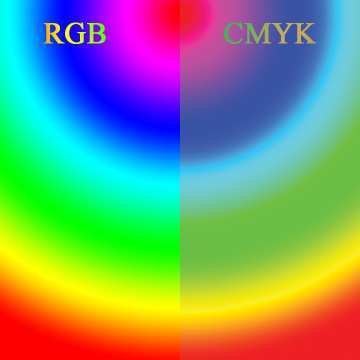
Color accuracy out of the box. Budget 4K monitors often ship with mediocre color calibration. If you're doing creative work, you'll likely need to calibrate with a hardware colorimeter. That's an added cost and time investment.
The refresh rate tax. 4K monitors that do both high resolution and high refresh rate are expensive. A 4K 240Hz display is a premium product with a premium price. If you want 4K and 144Hz, you're looking at $500 to $1,000 or more for a quality panel.
OLED burn-in risk. OLED 4K monitors offer the best image quality you can get. Perfect blacks, infinite contrast, pixel-perfect text. But OLED panels can develop burn-in over time with static elements like taskbars and channel logos.
It's less of a concern with modern OLED panels that include mitigation features, but it's still a factor to weigh against the longevity of an IPS panel.
Common Mistakes People Make When Buying a 4K Monitor
Learn from other people's regrets. These are the most frequent missteps.
- Buying a 27" 4K without planning for scaling. You'll either squint at tiny text or spend time configuring per-app scaling overrides. At 32 inches, this problem largely disappears.
- Assuming their GPU can handle 4K gaming. Check benchmarks for your specific GPU at 4K before you buy. An RTX 4060 is a great 1440p card. It struggles at 4K.
- Paying for DisplayHDR 400 and expecting real HDR. DisplayHDR 400 is a certification tier, not a quality guarantee. Look at DisplayHDR 600 or higher for a meaningful HDR experience.
- Ignoring port compatibility. Your monitor might support 4K at 144Hz, but if your GPU only has HDMI 2.0, you're capped at 60Hz. Verify the entire signal chain before purchase.
- Not checking macOS compatibility. If you're on a Mac, confirm that the monitor supports HiDPI scaling properly. Some require third-party software to look right.
- Overlooking panel type. IPS panels offer good color and viewing angles. VA panels have better contrast but slower response times. TN panels are fast but have poor color and viewing angles. OLED is the best overall but costs more and carries burn-in risk. Choose based on your priorities.
Your Decision Tree: Is 4K Right for You Right Now?
Let's bring it all together. Walk through this and you'll have your answer.
If you're a creative professional doing photo, video, or design work: Yes, 4K is worth it. Get a 32-inch IPS or OLED panel with good color accuracy. Budget $500 to $1,500 depending on color space requirements and HDR needs.
If you're a developer or productivity power user: Yes, 4K is worth it, especially at 32 inches. The text clarity and workspace improvement are immediately noticeable. A $300 to $500 4K 60Hz monitor will serve you well.
If you're a console gamer on PS5 or Xbox Series X: Yes, 4K is worth it. These consoles output natively at 4K. You'll see the full benefit without needing a high-end PC.
Look for a 4K monitor with HDMI 2.1 support.
If you're a PC gamer with a high-end GPU (RTX 4080 or better): Yes, 4K is worth it if you value visual quality over maximum frame rates. Pair it with a 4K 120Hz or 144Hz panel for the best experience.
If you're a competitive gamer: No, 4K is probably not worth it for you. Stick with 1440p at 144Hz or 1080p at 240Hz. The higher frame rates and lower input latency will improve your performance more than extra pixels.
If you're on a tight budget: No, 4K isn't the best use of your money right now. A good 1440p monitor paired with a better GPU will give you a better overall experience for less total cost.
If you're a Mac user: Yes, but do your homework on scaling compatibility first. Not all 4K monitors play nicely with macOS HiDPI rendering. Check user reports for the specific monitor you're considering.
Frequently Asked Questions
Is a 4K monitor good for gaming?
Yes, if your GPU can handle it. 4K gaming looks stunning with incredible detail. But it demands significantly more graphics power than 1440p. You need at least an RTX 4070 or RX 7800 XT for smooth 4K gaming at high settings.
Is 4K worth it at 27 inches?
It can be, but you'll need display scaling enabled. At 163 PPI, text is extremely sharp but very small at default settings. Most users run 150% to 175% scaling.
If you don't want to deal with scaling, 32 inches is a more comfortable 4K size.
Can my laptop drive a 4K monitor?
Most modern laptops can output 4K at 60Hz through HDMI or USB-C with DisplayPort Alt Mode. Check your laptop's specific output capabilities. For 4K at higher refresh rates, you'll need HDMI 2.1 or DisplayPort 1.4 support.
Is 4K worth it for office work?
Absolutely. Text clarity improves dramatically, and the extra workspace lets you keep multiple documents and applications visible simultaneously. For productivity, a 4K monitor is one of the most impactful upgrades you can make.
What's the best 4K monitor size for a desk?
32 inches is the sweet spot for most desk setups. It gives you 138 PPI, which is sharp without requiring aggressive scaling. At this size, you get the full benefit of 4K resolution with comfortable default text sizes.
Do I need a special cable for 4K?
For 4K at 60Hz, a standard HDMI 2.0 or DisplayPort 1.4 cable works. For 4K at 120Hz or above, you need HDMI 2.1 or DisplayPort 1.4 with Display Stream Compression. Always verify your cable supports the required bandwidth.

Similar Posts





















