Do You Need a Powerful PC for 4K Monitor
Most people stress way more than they need to. The answer really hinges on your use case. Office work and video playback?
You're probably fine. Gaming or video editing? That's a different story. This directly compares with our findings on whether console gamers need a gaming monitor.
Let's break it down so you can actually figure out where you stand. A 4K display pushes four times the pixels of a standard 1080p screen. That's the core thing to keep in mind as we go through each scenario.
The DisplayPort 1.4 standard supports 4K output at 60Hz, and your GPU or processor's integrated graphics usually meets that baseline. Most integrated graphics handle this without breaking a sweat.

Do You Need a Powerful PC for a 4K Monitor?
Let's skip the fluff. The short answer is: it depends entirely on what you're using the 4K monitor for. Someone checking email and browsing the web at 4K has vastly different hardware demands than someone editing 4K footage in DaVinci Resolve or playing Cyberpunk 2077 at native resolution. For related troubleshooting and calibration steps, check our walkthrough on whether i need 240hz monitor for esports.
A 4K display pushes 8.3 million pixels on screen. That's four times what a standard 1080p display renders. So yes, outputting a 4K desktop image requires more graphical processing power.
But "more power" doesn't automatically mean you need to drop $1,500 on a new rig.
Here's the real deal, broken down by use case:
- Web browsing and office work: A modern CPU with integrated graphics handles this without breaking a sweat. Intel UHD Graphics (700 series or newer) and AMD Radeon integrated graphics easily output a 4K desktop at 60Hz.
- Media consumption (YouTube, Netflix 4K): Hardware video decoding on most GPUs and iGPUs built after 2018 handles 4K H.264, HEVC, and even AV1 streams. Smooth playback is virtually guaranteed on any reasonably recent system.
- Photo editing and general creative work: You'll benefit from a dedicated GPU with at least VRAM, but you don't need a top-tier card. An NVIDIA RTX 3060 or AMD RX 6600 XT provides plenty of headroom for Photoshop, Lightroom, or Illustrator at 4K.
- 4K video editing: This is where things get demanding. A dedicated GPU with at least VRAM, a strong multi-core CPU, and enough system RAM make a real difference in timeline playback and render times.
- 4K gaming: This is the most GPU-intensive scenario by far. Running modern AAA titles at native resolution with decent frame rates requires a high-end graphics card like an NVIDIA RTX 4080 or AMD RX 7900 XTX.
The bottom line: don't assume you need a monster PC until you've matched your actual workload to the hardware requirements.
4K Desktop Work: Web, Office, Coding, and Everyday Tasks
If your main use case is productivity, you're in luck. This is the least demanding scenario, and most PCs from the last five or six years handle it without any issues.
What's Actually Happening Under the Hood
Rendering a 4K desktop isn't just "more pixels." Your GPU (or integrated graphics processor) needs to compose the desktop environment, scale UI elements, and refresh the display at its native 60Hz. Modern operating systems like Windows 11 and macOS handle this through GPU-accelerated compositing. The actual GPU load for basic desktop rendering at 4K is surprisingly low, typically under utilization on even modest hardware.
Can Integrated Graphics Handle It?
Yes, in most cases. Here's what we're looking at for common iGPUs:
| Integrated Graphics | 4K 60Hz Support | 4K Dual Display | Hardware Decode (HEVC/AV1) |
|---|---|---|---|
| Intel UHD 770 (12th–14th Gen) | Yes (DP 1.4 / HDMI 2.1) | Yes | Yes |
| AMD Radeon 680M (Ryzen 6000+) | Yes (DP 1.4 / HDMI 2.1) | Yes | Yes (AV1 decode) |
| Apple M1/M2/M3 (base) | Yes (Thunderbolt) | Yes | Yes (full hardware decode) |
| Intel UHD 630 (8th–10th Gen) | Yes (DP 1.4, HDMI 2.0) | Limited | Partial (HEVC, no AV1) |
So if you're running a fairly recent laptop or desktop with integrated graphics, you can absolutely drive a 4K monitor for productivity work. You don't need a dedicated graphics card.
One Thing to Watch Out For
Older HDMI ports can limit you to 4K at 30Hz instead of 60Hz. That's a noticeably sluggish mouse cursor and choppy window dragging. It's not broken, just annoying.
Always check whether your output port supports DisplayPort 1.4 or HDMI 2.0 at minimum. If you're limited to HDMI 1.4, you're capped at 30Hz and it'll feel noticeably sluggish. We'll cover cable and port specifics more in the connections section below.
Media Consumption: 4K YouTube, Netflix, and HDR Video
Streaming 4K content is something most modern hardware handles without breaking a sweat. The key is hardware decoding, where a dedicated chip on your GPU or CPU handles the video stream instead of your main processor crunching every frame.
Hardware Decoding Is Your Friend
Without hardware decoding, playing a 4K H.264 video at 60 frames per second would crush even a decent CPU. But virtually all GPUs and integrated graphics built since 2018 include dedicated decode blocks that chew through HEVC (H.265), H.264, and increasingly AV1 codecs with minimal power draw.
As of 2026, GPUs with hardware decode support for HEVC 10-bit and AV1 are standard across NVIDIA, AMD, and Intel lineups. Even budget discrete cards in the 3000 series and beyond handle AV1 decode. This means smooth 4K video playback is almost a given if your hardware isn't ancient.
4K Netflix and DRM Requirements
Here's a gotcha people run into. Streaming 4K from Netflix, Disney+, or other DRM-protected services requires HDCP 2.2 compliance across your entire chain. That means your GPU, cable, and monitor all need to support it.
Most hardware from the last decade does, but it's worth checking if you're repurposing an older workstation.
Also, 4K Netflix playback in a browser requires hardware acceleration enabled and the browser to support PlayReady or Widevine DRM at the correct security level. Windows 11's Edge browser handles this natively. Chrome works too, as long as hardware acceleration is turned on in settings.
HDR Playback at Native Resolution
If your monitor supports HDR10 or Dolby Vision, you can get proper HDR output from most modern GPUs. NVIDIA's RTX 2000 and 3000 series, AMD's RX 6000 series and newer, and Intel's Arc GPUs all support HDR10 output. Windows 11's Auto HDR feature can even inject HDR into SDR content, though results vary by application.
Just make sure your cable and monitor connection support the necessary bandwidth.
4K Content Creation: Photo Editing, Video Editing, and 3D Work
This is where "it depends" starts to tilt toward "yeah, you probably need some real hardware."
Photo Editing at 4K
Working with high-resolution photos benefits from the extra screen real estate a 4K display provides. Adobe Lightroom and Photoshop both support GPU acceleration. A mid-range discrete GPU with at least 4 GB VRAM handles this comfortably.
You don't need a workstation-class card.
GPU acceleration in Lightroom and Photoshop makes a visible difference when applying filters, generating previews, and working with large RAW files. Without it, the application relies entirely on your CPU, which slows down when you're batch-processing 45-megapixel RAW files.
4K Video Editing Is Where It Gets Real
Timeline scrubbing in a 4K video project is genuinely demanding. DaVinci Resolve leans heavily on GPU VRAM and CUDA or Stream Processor count. Premiere Pro uses GPU acceleration for effects rendering and export encoding.
Final Cut Pro on macOS uses Apple's unified memory architecture and benefits from an M2 Pro or higher chip for smooth 4K editing.
Here's a rough guide for 4K video editing performance:
Use Case | Minimum GPU | Recommended GPU | Minimum RAM | Notes
— | — | — | — | —
1080p proxy editing in a 4K timeline | GTX 1650 (4 GB) | RTX 3060 (12 GB) | 16 GB | Smooth scrubbing at reduced preview resolution
Native 4K timeline, basic cuts | RTX 3060 (12 GB) or RX 6600 XT | RTX 4070 (12 GB) or RX 7800 XT | 32 GB | Real-time playback without proxies
4K with color grading and effects | RTX 4070 (12 GB) | RTX 4080 (16 GB) or RTX 4090 (24 GB) | 32, 64 GB | DaVinci Resolve especially VRAM-hungry
DaVinci Resolve is notably more GPU-dependent than Premiere Pro. If Resolve is your primary software, prioritize GPU VRAM and raw shader performance above almost everything else.
3D Rendering and CAD
Blender, SolidWorks, and similar applications benefit enormously from a powerful discrete GPU. Blender's Cycles renderer uses GPU compute (CUDA or HIP) to accelerate renders dramatically. An RTX 3060 cuts render times versus CPU rendering.
An RTX 4090 cuts them dramatically.
For CAD work like SolidWorks, the story is more nuanced. Viewport performance at 4K scales with GPU power, but many CAD operations are still CPU-bound. A balanced build with a strong multi-core CPU and a mid-range discrete GPU (or an NVIDIA RTX A-series workstation card) serves you well here.
4K Gaming: Where Hardware Demands Spike Hard
Let's be honest. If you're gaming at native 4K, you need a powerful PC. There's no way around it.
Rendering modern AAA titles at 3840×2160 with decent frame rates is the most GPU-intensive consumer workload out there.
What Does It Actually Take?
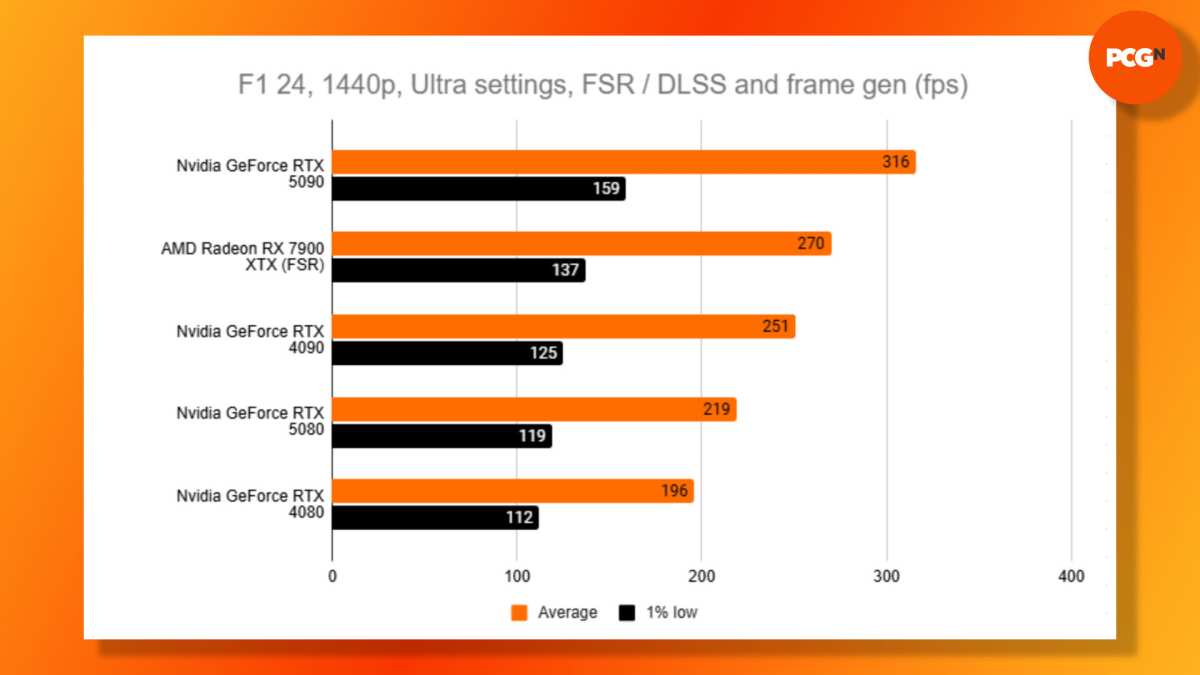
Running Cyberpunk 2077 at 4K with ray tracing enabled and hitting 60 frames per second requires an NVIDIA RTX 4080 or AMD RX 7900 XTX at minimum. Want 120 frames per second in competitive shooters at 4K? You're looking at an RTX 4090.
That's the reality of pushing 8.3 million pixels sixty or more times per second with modern lighting, textures, and effects.
Here's a rough breakdown of what to expect across popular titles at 4K with high or ultra settings:
Game (4K Ultra) | RTX 3060 (12 GB) | RTX 4070 Ti (12 GB) | RTX 4080 (16 GB) | RTX 4090 (24 GB)
— | — | — | — | —
Fortnite (Performance mode) | 60+ fps | 120+ fps | 144+ fps | 165+ fps
Cyberpunk 2077 (RT Overdrive) | 15, 20 fps | 40, 50 fps | 60, 80 fps | 100+ fps
Valorant | 100+ fps | 200+ fps | 300+ fps | 300+ fps
Starfield (Ultra) | 25, 30 fps | 50, 60 fps | 70, 90 fps | 100+ fps
As you can see, there's a massive gap between "entry-level 4K" and "smooth high-refresh 4K." The RTX 3060 can technically output 4K, but it'll struggle with modern AAA titles at native resolution. The RTX 4080 and 4090 are the cards that make native 4K gaming genuinely enjoyable.
DLSS, FSR, and Upscaling Change the Equation
NVIDIA DLSS, AMD FSR, and Intel Xess can help a lot here. These upscaling technologies render the game at a lower internal resolution, like 1440p, and then reconstruct the image to output at 4K. The visual difference versus native 4K is often minimal, and the performance gain is substantial.
DLSS 3 with Frame Generation on RTX 4000 series cards can effectively double your frame rate in supported titles. FSR 3 offers similar frame generation on both AMD and NVIDIA hardware. If you're willing to use upscaling, an RTX 4070 or RX 7800 XT becomes a viable 4K gaming card for many titles, especially with settings tweaked from ultra to high.
This is worth factoring into your decision. If you plan to rely on DLSS or FSR rather than strict native rendering, your hardware requirements come down a tier.
How to Check If Your Current PC Can Handle a 4K Monitor
Before you start shopping for upgrades, let's figure out what you've actually got.
The Quick Check
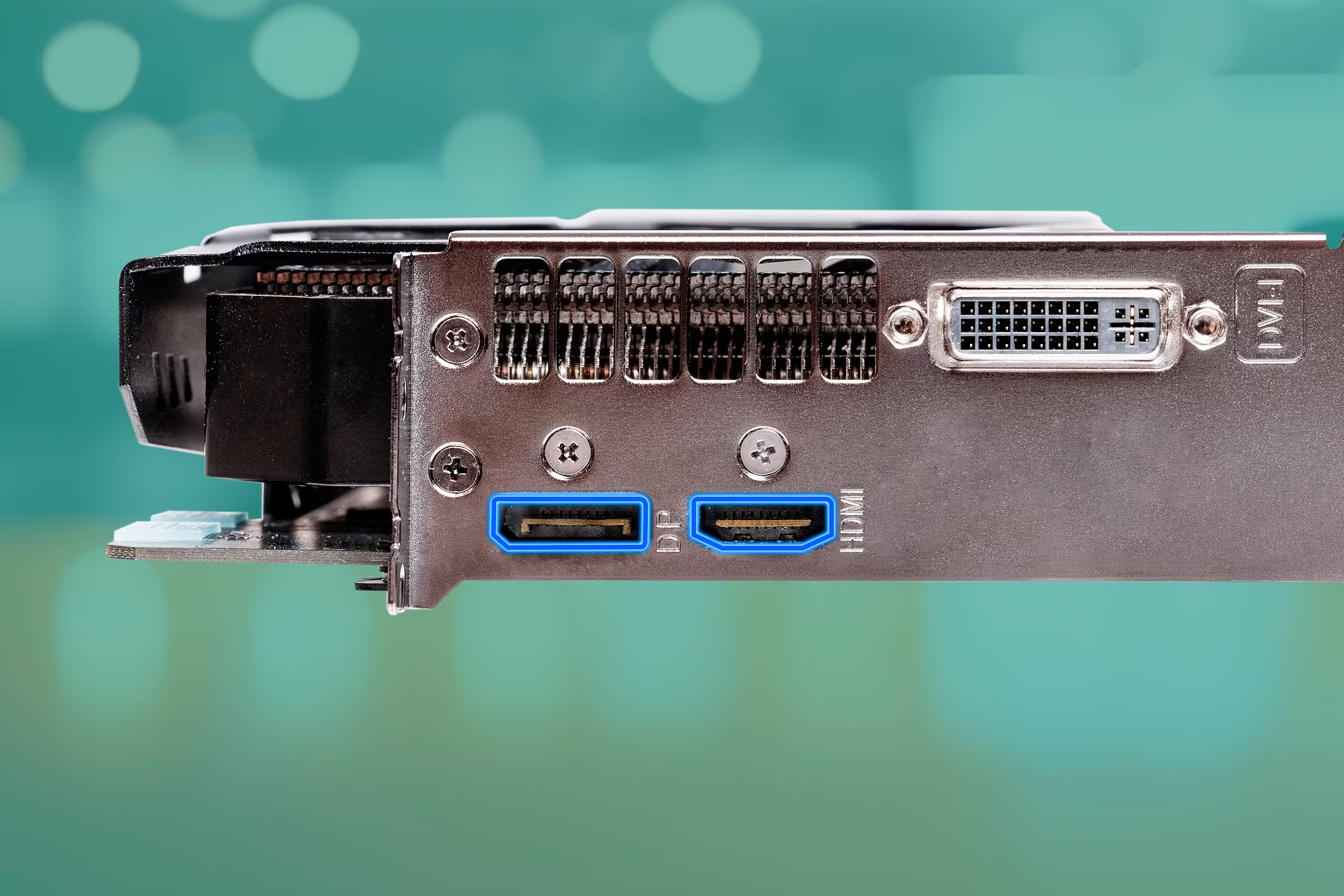
Look at the video output ports on the back of your PC or the side of your laptop. You need either DisplayPort 1.4 or HDMI 2.0 (at minimum) for 4K at 60Hz. Here's how to identify them:
- DisplayPort 1.4: A rectangular port with one corner notched. Supports 4K at 60Hz, and up to 120Hz with DSC (Display Stream Compression).
- HDMI 2.0: The standard HDMI port shape. Supports 4K at 60Hz with 4:4:4 chroma.
- HDMI 1.4: Supports 4K but limited to 30Hz. Passable for desktop work, terrible for gaming.
- USB-C with DisplayPort Alt Mode: Many modern laptops support 4K output through USB-C. Check your laptop's specs for DP Alt Mode support.
- Thunderbolt 4 / USB4: Typically supports DP 1.4 tunneling and can drive a 4K display without issues.
If you have a DisplayPort 1.4 or HDMI 2.0 port available, your PC can output a 4K signal at 60Hz. If you're limited to HDMI 1.4, you'll need a new GPU to get proper 60Hz support.
Checking Windows Display Settings
In Windows 11, right-click the desktop and select Display Settings. If a 4K monitor is already connected, scroll to Display Resolution and see what it's currently set to. Then click Advanced Display to check the refresh rate.
If it shows 30Hz, your cable or port is the bottleneck, not necessarily your GPU.
Open your GPU control panel as well. NVIDIA Control Panel and AMD Software (Adrenalin Edition) both show the current output resolution and refresh rate. They also let you create custom resolutions and adjust color depth settings.
Decoding Your GPU Model
Find your GPU name in Task Manager (Performance tab) or run dxdiag in the command prompt. Cross-reference the model against manufacturer specifications to confirm 4K output support and VRAM capacity. Intel, NVIDIA, and AMD all maintain detailed spec sheets for every processor and graphics card they've released.
If your GPU is a GTX 1000 series or newer, or an AMD RX 400 series or newer, or any Intel processor with HD Graphics 600 series or newer, 4K output support is almost certainly there. The question is whether it has enough horsepower behind it for your intended use.
Minimum Hardware for 4K by Use Case
Let's get specific. Here's what you actually need for each common scenario:
Basic Use (Desktop, Video, Light Productivity)
- CPU: Intel Core i3 (8th Gen or newer) or AMD Ryzen 3 (2000 series or newer)
- iGPU: Intel UHD 630 / AMD Radeon Vega 8 or better
- RAM: 8 GB minimum, 16 GB recommended
- Output: HDMI 2.0 or DisplayPort 1.2 minimum
- GPU: None needed (sufficient iGPU)
This covers web browsing, email, office applications, 4K YouTube, and Netflix. If your use case looks like this, you probably don't need to buy anything. Just plug in the monitor and go.
Content Creation (Photo Editing, 4K Video Editing, 3D)
- CPU: Intel Core i7 (10th Gen or newer) or AMD Ryzen 7 (5000 series or newer)
- GPU: NVIDIA RTX 3060 (12 GB) or AMD RX 6600 XT (8 GB) minimum; RTX 4070 or RX 7800 XT recommended
- RAM: 32 GB strongly recommended
- Output: DisplayPort 1.4
- Storage: SSD with at least 250 GB free for project files and cache
DaVinci Resolve users should lean toward 12 GB VRAM or more. Premiere Pro is more CPU-dependent but still benefits from GPU acceleration. Blender rendering scales almost linearly with CUDA cores or Stream Processors, so more GPU power equals faster renders.
4K Gaming (Playable and High-Refresh)
- CPU: Intel Core i5 (12th Gen or newer) or AMD Ryzen 5 (7000 series or newer)
- GPU: RTX 4070 Ti / RX 7900 XT for 4K 60fps with upscaling; RTX 4080 / RX 7900 XTX for native 4K 60fps+; RTX 4090 for 4K high-refresh
- RAM: 32 GB recommended
- PSU: 750W minimum (850W+ for RTX 4090)
- Output: DisplayPort 1.4 with DSC for high-refresh, or HDMI 2.1
Don't cheap out on the power supply. A 4K gaming GPU can pull 300 to 450 watts under load. Pair that with a strong CPU and you're looking at total system draw north of 600 watts during gaming sessions.
An 850W 80 PLUS Gold unit gives you comfortable headroom.
Do You Need a New PC, or Just a New GPU?
This is a practical question worth thinking through. If your current system is reasonably modern, a GPU upgrade might be all you need.
When a GPU Upgrade Is Enough
If your CPU is from the last four to five years, your motherboard has a PCIe x16 slot, and your power supply can handle a new graphics card, a GPU swap makes perfect sense. An aging system with an i5-10400 or Ryzen 5 3600 paired with a 4K monitor and a new RTX 4070 will handle most 4K workloads admirably. Just verify your PSU wattage and available PCIe power connectors before pulling the trigger on a new card.
When a Full Build Makes Sense
If your CPU is older than that, or if you're on a pre-PCIe 3.0 platform, a GPU upgrade alone won't cut it. An older CPU bottlenecks a modern GPU in gaming and slows down video encoding and rendering workloads. In that case, a new CPU, motherboard, RAM, and GPU give you a meaningful generational leap.
Budget roughly $800 to $1,200 for a solid 4K-capable build in 2026, not counting the monitor itself.
When Your Current Setup Already Handles It
If you're on a recent laptop with Thunderbolt 4 or a modern desktop with an iGPU that supports 4K output, just connect the monitor. You don't need to spend a dime. Enjoy the extra screen space and move on with your life.
The honest truth is that most people asking this question don't need a new PC. They need to check their ports, adjust their display settings, and maybe upgrade their GPU if they're pushing into gaming or creative work territory. A $150 to $300 cable or a $300 to $500 GPU solves the problem for the vast majority of folks.
Cables, Ports, and Connection Standards Matter More Than You Think
You've got the GPU. You've got the monitor. Then you plug it in and get a blurry mess at 30Hz.
The cable is almost always the culprit.
DisplayPort 1.4 handles 4K at 60Hz without breaking a sweat, and supports up to 120Hz with DSC. HDMI 2.0 also supports 4K 60Hz. HDMI 2.1 opens the door to 4K at 120Hz for high-refresh gaming.
If you're using an old HDMI 1.4 cable, you're capped at 4K 30Hz and it feels awful.
Use a certified cable that matches your port standard. Cheap no-name cables sometimes don't support the full bandwidth, especially over longer runs. For runs over 10 feet, look for active cables or fiber optic HDMI cables rated for the spec you need.
Scaling, UI Quirks, and Display Settings to Fix
Plug in a 4K monitor at native scaling and everything looks microscopic. That's expected. At 27 inches, 3840×2160 packs 163 pixels per inch.
Text, icons, and UI elements become tiny without scaling.
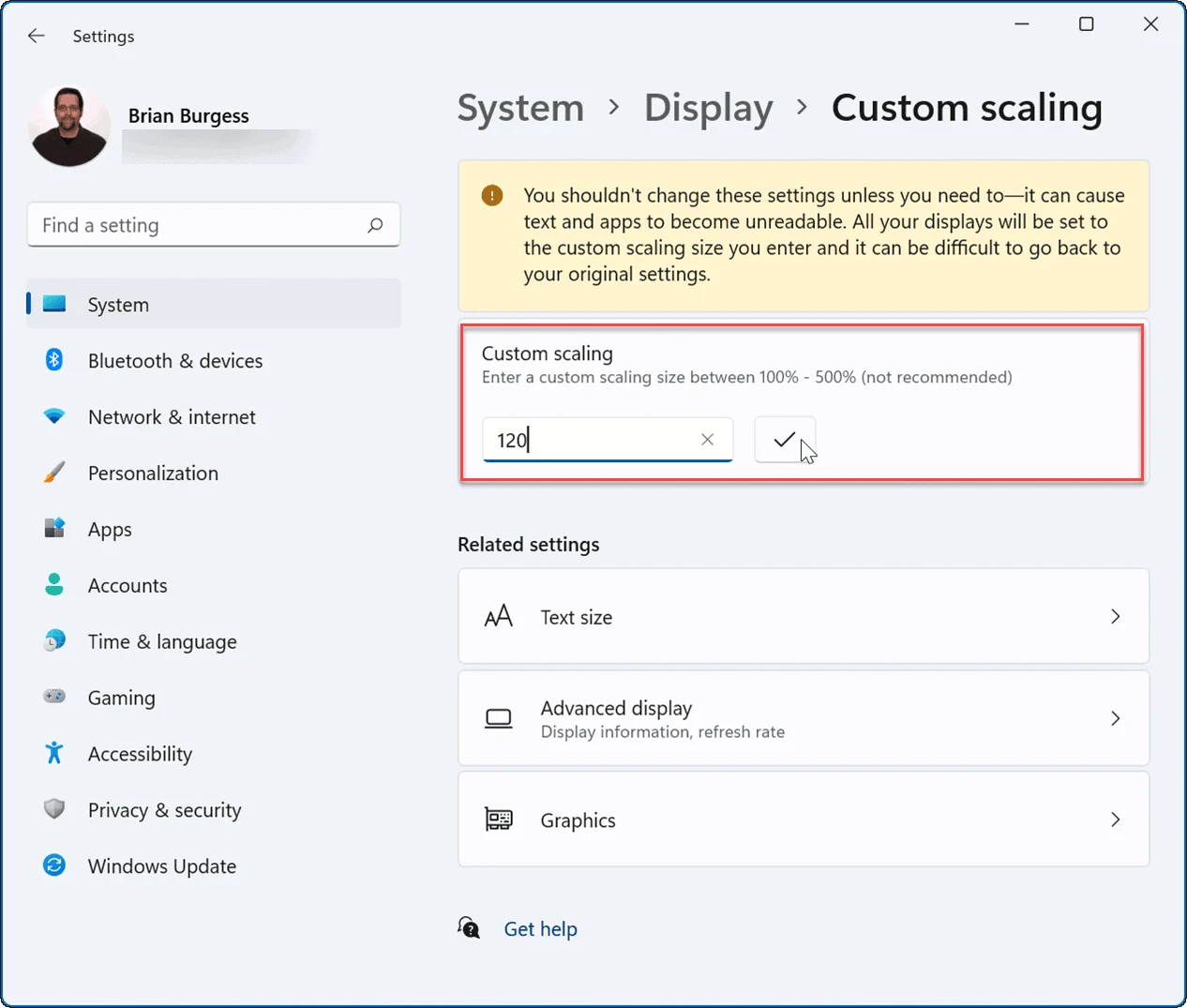
Windows 11 recommends 150% scaling for a 27-inch 4K display. macOS uses a Retina scaling system that renders at double the effective resolution. Adjust scaling in Windows Settings until text is comfortable to read, typically between 125% and 200%.
Some older desktop applications look blurry at non-integer scaling factors like 150%. Enable "Fix scaling for apps" in Windows Settings for sharper rendering per application. Chrome and Firefox handle scaling well natively.
Older Win32 apps sometimes still look soft.
Common Mistakes When Setting Up a 4K Monitor
First, using the wrong cable and getting stuck at 30Hz makes everything feel sluggish. Second, forgetting to enable hardware acceleration in browsers; without it, 4K YouTube stutters even on strong hardware. Third, running exclusive fullscreen games at a different resolution than the desktop creates compositing overhead and input lag.
Fourth, Windows DWM forces vsync on the desktop compositor. You can't benchmark refresh rates by looking at the desktop. Fifth, users often buy a 4K monitor thinking they'll game at 4K, but their existing GPU only supports 1440p gaming comfortably.
They end up running the monitor at 1440p and the image looks soft because of the pixel density mismatch.
Decision Guide: What You Should Doing Based on Your Situation
If office work, web, video (HTPC), and photo editing, get a decent 4K monitor and use integrated or mid-range graphics. Just verify your port supports 60Hz. If 4K gaming, budget for at least an RTX 4070 Ti or RX 7900 XT, including PSU capacity.
If 4K video editing, prioritize VRAM and a strong CPU; don't cheap out on the display panel's color accuracy.
Frequently Asked Questions
Can integrated graphics run a 4K monitor?
Yes. Intel UHD 770, AMD Radeon 680M, and Apple M-series iGPUs all support 4K 60Hz output for desktop use and video playback. Hardware HEVC decode ensures smooth 4K media playback.
Is 4K at 30Hz usable for desktop work?
Technically yes, but it feels noticeably sluggish. Mouse cursor movement and window dragging feel choppy. Always aim for 60Hz minimum.
Does 4K gaming require more VRAM?
Yes. 4K textures consume four times the VRAM of 1080p. Modern AAA titles at Ultra settings routinely use over 10 GB at 4K. An 8 GB card is the bare minimum, with 12 to 24 GB recommended for new titles.
Will a 4K monitor work with my older laptop?
Possibly. Check for DisplayPort over USB-C or at least HDMI 1.4. You'll get a picture, but verify refresh rate and hardware acceleration support for video playback.

Similar Posts





















