How to Use Portable Monitor with iPad
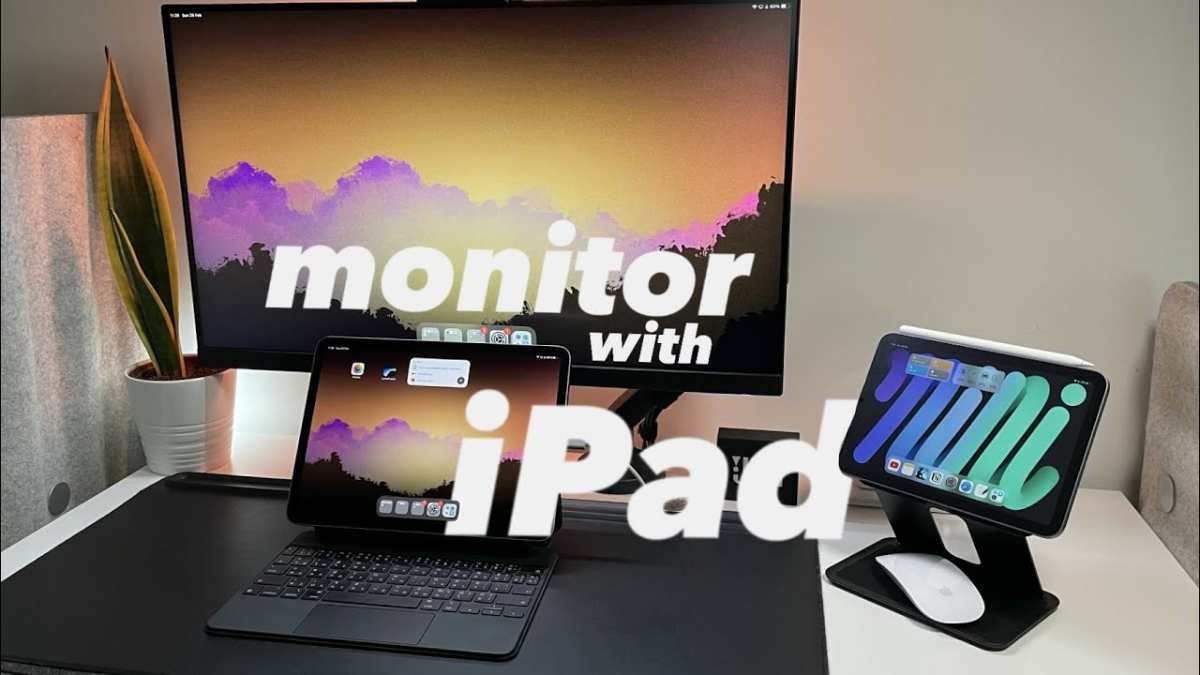
You're probably here because you plugged a portable monitor into your iPad and… nothing happened. Or it mirrored wrong. Or it looked stretched and ugly.
You're not alone figuring out how to use portable monitor with iPad hardware, and the reason it's confusing is simple: Apple doesn't treat all iPads the same way.
Your experience depends almost entirely on which iPad you own. Chip, year, and iPadOS version determine whether you get a true extended desktop or just a mirrored copy of your screen. Once you know your iPad's actual capability, the setup is straightforward.
Apple's M-series iPad Pro line supports external displays up to 6K resolution at 60 Hz, per the technical specifications published on apple.com as of 2026. That's a massive canvas for multitasking. But if your iPad has an A-series chip, you're limited to mirroring only, and the results feel completely different.
Quick Answer
Use a portable monitor with iPad by connecting via USB-C or HDMI adapter, depending on your iPad model. If your iPad has an M-series chip (M1, M2, or M4), you get a full extended desktop through Stage Manager. If your iPad has an A-series chip, you get mirroring only.
Check your iPad model first. Then pick the right cable, configure display settings, and optimize app placement.
What's Stopping Most iPad Owners From Using an External Screen
The biggest problem isn't the monitor. It's not the cable. It's that most iPad owners don't know which tier of external display support their specific iPad actually supports.
Here's what our research into user feedback cycles consistently shows:
- A-series iPad owners buy a USB-C monitor expecting a second screen and get mirror mode. They think the monitor is broken.
- M-series iPad owners plug in correctly but have no idea Stage Manager handles the extended desktop. They never leave mirror mode.
- Everyone underestimates power requirements. The iPad Pro USB-C port delivers roughly 15W to connected devices, which isn't enough to power most portable monitors by themselves.
The chip in your iPad changes everything. Apple's own support documentation draws a hard line between M-series and A-series models. If you're reading generic advice that doesn't ask you what chip you have, that advice is probably wrong for your situation.
A quick note on terminology. Apple uses "external display" to mean a true extended desktop. It uses "screen mirroring" to mean the iPad shows the same thing on both screens.
They behave differently. They feel different. And not every iPad can do both.
How iPad External Display Support Actually Works (It's Not What You Think)
The Chip in Your iPad Changes Everything
This is the decision fork that determines everything. Apple draws a hard line at the chip, and there's no workaround around it.
M-series iPads (M1, M2, M4 chips) support:
- Full extended desktop via Stage Manager
- Up to 6K output resolution at 60 Hz
- App windows can move freely between screens
- Display arrangement is configurable in iPadOS Settings
A-series iPads (A14, A15, A16 chips) support:
- Screen mirroring only
- Maximum 1080p output
- No Stage Manager external display mode
- No arrangement controls in settings
The models in the M-series camp as of 2026:
- iPad Pro 11-inch (M4)
- iPad Pro 13-inch (M4)
- iPad Pro 11-inch (M2 and M1 variants)
- iPad Pro 13-inch (M2 and M1 variants)
- iPad Air 11-inch (M2)
- iPad Air 13-inch (M2)
- iPad Air (M1 variant, earlier generation)
The models in the A-series camp:
- iPad (10th generation, A14)
- iPad mini (6th generation, A15)
- iPad (9th generation and older)
- iPad mini (5th generation and older)
If you own an iPad Pro with M4 silicon, you have the most capable external display experience Apple currently offers on iPad. If you own a 10th-generation iPad, you're mirroring. Period.
Stage Manager vs. Screen Mirroring — What's the Difference?
Screen mirroring duplicates your iPad screen onto the external monitor. What you see on the iPad is exactly what you see on the monitor, but at the monitor's native resolution. If the aspect ratios don't match, you get black bars or a stretched image.
This is the default and only behavior on A-series iPads.
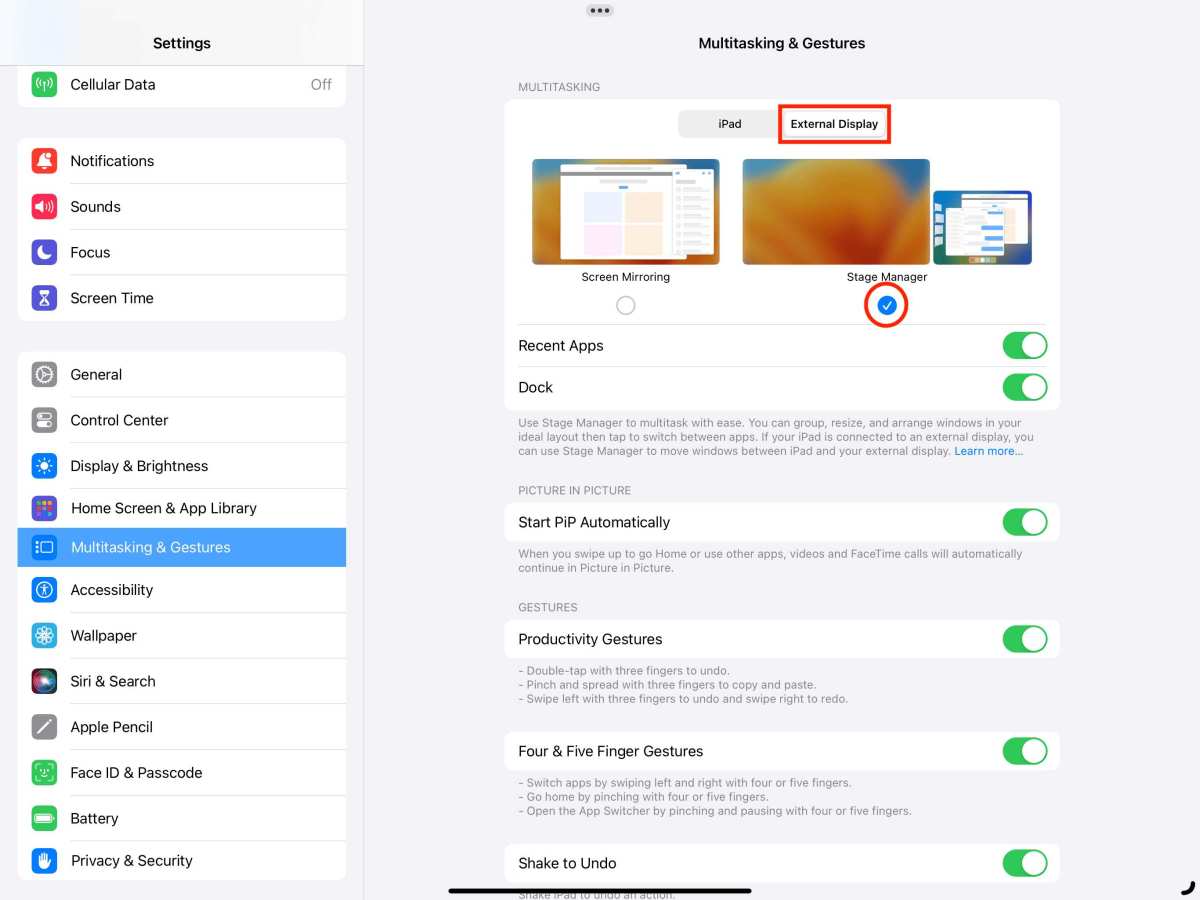
Stage Manager for external display is Apple's true extended desktop mode. Available only on M-series iPads running iPadOS 16 or later. Your iPad shows the dock and the current app, while the external display gets its own set of up to three full-size app windows.
You can run different apps on each screen. You can drag apps between screens. It feels like a laptop with two monitors.
Here's the critical distinction most guides gloss over: When Stage Manager extends your desktop, each app renders at its own window size on the external display. Some apps don't adapt well to arbitrary window sizes. We've found productivity apps, browsers, and creative tools work well.
Video conferencing apps and some game apps still struggle with non-standard proportions on the external screen.
| Feature | Screen Mirroring | Stage Manager (Extended) |
|---|---|---|
| Available on | All iPads with video output | M-series iPads only |
| iPadOS requirement | Any version with video out | iPadOS 16+ |
| External screen shows | Same as iPad screen | Independent app windows |
| Max resolution | 1080p (A-series) | Up to 6K (M-series) |
| Window management | None | Drag, resize, stack |
| Arrangement configurable | No | Yes, in Settings |
The experience gap between these two modes is enormous. If your iPad supports Stage Manager with external display, everything below assumes you'll use that mode. If it doesn't, I'll cover the mirroring workarounds later in this article.
What You Need to Connect an iPad to a Portable Monitor
Cable or Adapter: USB-C Direct vs. HDMI Setup
The connection method depends on your iPad's port and the monitor's inputs.
USB-C to USB-C (simplest, preferred)
If your iPad has a USB-C port and your monitor accepts USB-C input with DisplayPort Alt Mode, a single cable handles video and sometimes power. This works on every iPad with a USB-C port (10th-gen iPad, all iPad Air, all iPad Pro). The cable must support DisplayPort Alt Mode, not just data and charging.
Many cheap USB-C cables are charge-only. Look for cables rated USB-C 3.1 Gen 2 or Thunderbolt 3/4.
HDMI adapter (for Lightning iPads or monitors without USB-C)
If your iPad has a Lightning port, you need Apple's Lightning Digital AV Adapter, which outputs HDMI. Connect that to the monitor's HDMI input. The adapter has a secondary Lightning port for passthrough charging, which matters because HDMI output drains the battery fast.
USB-C to HDMI (when monitor lacks USB-C)
If your portable monitor only has HDMI and your iPad has USB-C, a USB-C to HDMI adapter or a hub with HDMI output does the job. We recommend powered hubs if you also want to charge the iPad while outputting video.
The cable and adapter landscape is messy. A certified cable beats a no-name one every time here.
Portable Monitors That Work Well With iPad Models
Not every portable monitor plays nice with iPad. In our editorial assessment, here is what to prioritize:
What to look for:
- USB-C input with DisplayPort Alt Mode (avoids adapter hassle)
- Power delivery input so you can charge iPad while using the monitor
- Powered via its own adapter (don't rely solely on iPad power delivery)
- 1080p or 1440p resolution at 15.6 inches or smaller
- VESA mount compatibility for travel stands
What to avoid:
- Monitors that USB-C power exclusively from the source device
- Touchscreen portable monitors that pass touch input back to host (these controllers target Android and Windows. Apple's iPad doesn't accept touch input from external monitors)
- Very high-power-draw portable monitors, which may dim or fail to display when plugged into iPad alone
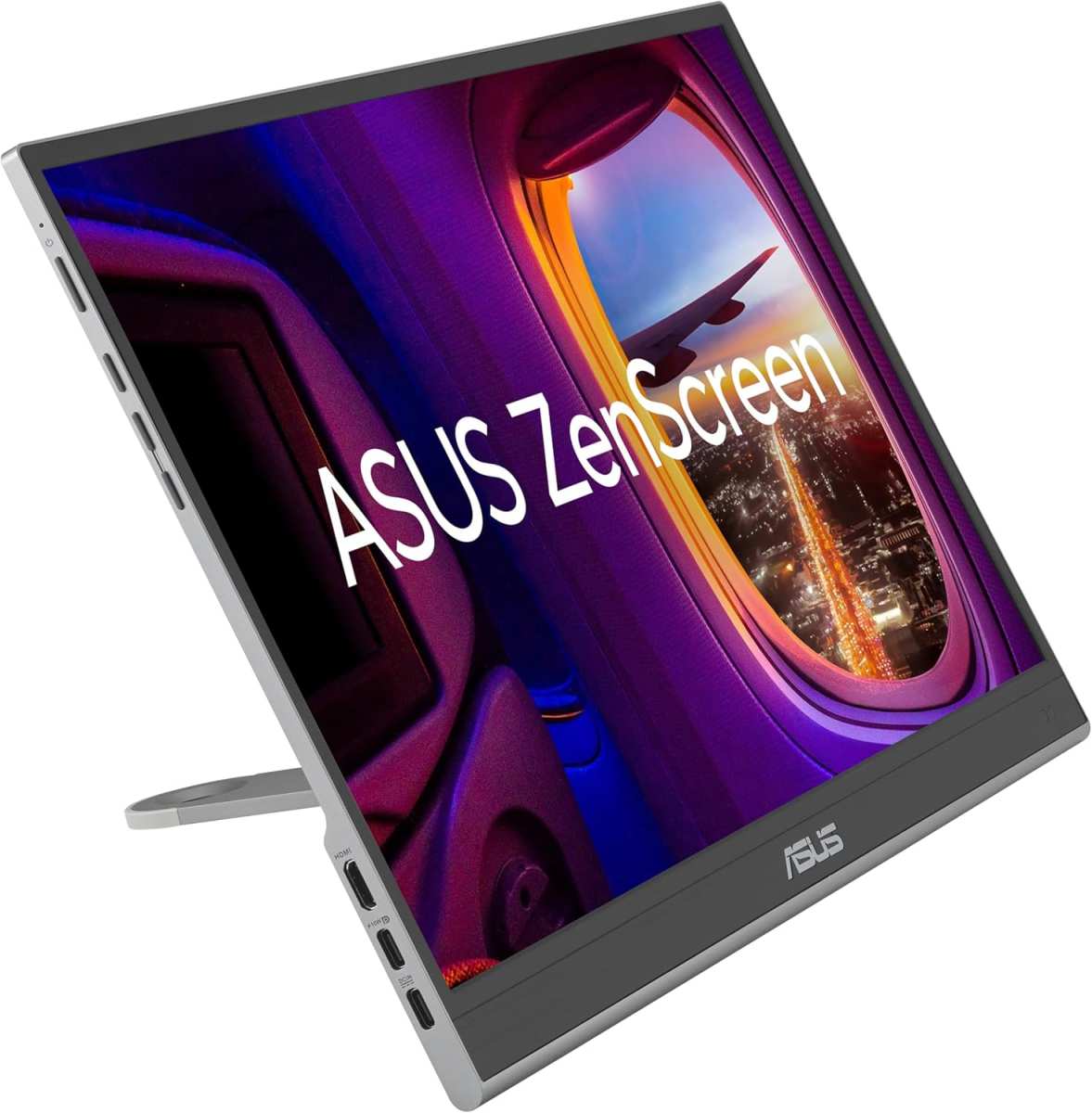
A few models that consistently get positive feedback in compatible setups include the ASUS ZenScreen line, Lenovo ThinkVision portable displays, and LG Gram +View. However, check the specific model's power requirements against your iPad's USB-C output before committing to one.
Step-by-Step: Connecting Your iPad to a Portable Monitor
Step 1: Identify Your iPad Model and What It Can Do
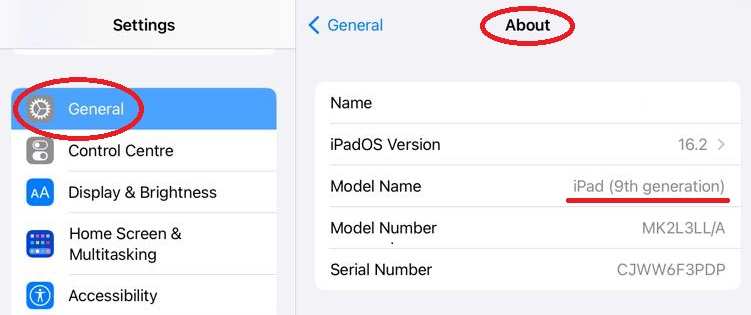
Go to Settings → General → About on your iPad. Look for the exact model name. Cross-reference it against Apple's support article HT201471 for chip identification.
You already know from the decision tree above what your chip tier means for external display support. Write down whether you're in the M-series or A-series column before moving forward. Everything depends on this.
If you're not sure, here's the simplest check: Open Settings on your iPad, go to Home Screen & Multitasking, then look for "External Display" within Stage Manager. If you see it, your iPad supports extended desktop. If the entire Stage Manager section is absent, your iPad is A-series and limited to mirroring.
Step 2: Choose the Right Connection Method
For USB-C iPads and USB-C monitors, a single DisplayPort Alt Mode USB-C cable is all you need. Plug one end into your iPad, the other into the monitor's USB-C input. If the monitor has its own power supply, plug that in as well.
For Lightning iPads, connect the Lightning Digital AV Adapter to your iPad, then run an HDMI cable from the adapter to the monitor. Connect the adapter's passthrough Lightning cable to your charger. Without power connected, the iPad battery drains rapidly during HDMI output.
For monitors that only accept HDMI input and iPad has USB-C, a USB-C to HDMI adapter or hub works. We recommend hubs with passthrough power delivery so the iPad charges during use.
Step 3: Configure Display Settings in iPadOS
For M-series iPads:
- After connecting the monitor, go to Settings → Display & Brightness
- Under the connected display, tap "Arrangement"
- Drag the white menu bar to whichever screen you want as your primary display
- Go to Settings → Home Screen & Multitaging → Stage Manager
- Enable "External Display" to allow Stage Manager to extend to the monitor
For A-series iPads:
- The iPad begins mirroring immediately on connection
- If the image looks wrong, go to Settings → Display & Brightness and adjust the zoom or resolution settings
- If black bars appear, look for a "Just Scan" or "Aspect Ratio" setting on the monitor itself and set it to native or 1:1
The iPad renders at its native resolution and scales to the monitor. This is why mismatched aspect ratios create black bars, not the iPad doing anything wrong.
Step 4: Optimize Layout and App Placement With Stage Manager
On M-series iPads, once external display mode is active, you can drag apps from the iPad's dock onto the external screen. Stage Manager supports up to four total apps across both screens in the extended desktop mode.
Practical defaults starting out: keep your primary focus app on the iPad (this is your touch target). Place your reference material, browser, or communication app on the external monitor. This split keeps your hands on the iPad while your eyes scan the secondary display.
Don't put video on the external display by default. Video playback in extended desktop mode sometimes fights with Stage Manager's windowing logic in ways that cause dropped frames or audio sync drift. Keep video on the iPad screen unless you've specifically confirmed the app handles the external display properly.
Developers control whether their app supports extended desktop. Apple's own apps do. Many third-party apps do.
Some don't, and will just mirror the iPad screen regardless of Stage Manager settings. This is a per-app behavior at the developer level, and there's nothing you can do in iPadOS settings to force an unsupported app into extended mode.
Common Problems and How to Fix Them
Black Bars, Stretched Image, or Wrong Aspect Ratio
This is the single most common complaint with iPad to portable monitor setups. The iPad outputs at its native aspect ratio, typically 4:3 or close to it on most models. Portable monitors are almost always 16:9.
Those ratios don't match, so the monitor either stretches the image, adds black bars, or crops the edges.
On A-series iPads, there's no fix beyond changing the monitor's aspect ratio setting if it has one. Look for "Just Scan," "1:1," "Aspect," or "Screen Fit" in the monitor's on-screen display menu. Some monitors let you adjust to show the full image without distortion.
If the monitor doesn't offer aspect ratio controls, the black bars are unavoidable.
On M-series iPads with Stage Manager, apps resize to the external display's native window, which reduces this problem. But the Stage Manager interface elements still output at a non-16:9 ratio, so you may see bars around the windowing UI. macOS handles this better than iPadOS. It's a known limitation.
Monitor Not Detected After iPad Sleep/Wake
This is a widespread issue. The iPad goes to sleep with the monitor connected. You wake the iPad and the monitor shows "No Signal" even though everything was working before sleep.
Fixes in order of reliability:
- Disconnect and reconnect the USB-C cable from the iPad. Wait five seconds. Reconnect.
- Update iPadOS to the latest version. Apple has patched several external display wake bugs across iPadOS point releases.
- Reboot the iPad with the monitor disconnected. Plug the monitor in after full boot.
- Reset the monitor's input selection. Toggle away from the USB-C input and back.
If this happens daily, disable Auto-Lock on the iPad while using the external display. Settings → Display & Brightness → Auto-Lock → Never. This prevents the sleep handshake issue entirely, though it trades battery life.
Portable Monitor Won't Power On From iPad Alone
The iPad Pro's USB-C port delivers around 15W to connected devices. Most portable monitors need 15W to 25W to operate. That math doesn't work in your favor.
The fix is simple: use the portable monitor's own power adapter. Most USB-C portable monitors include a barrel-plug power adapter or support USB-C power delivery input on a second port. Plug the monitor's own power source into the wall.
Then connect the USB-C video cable from iPad to monitor.
Some monitors, like certain ASUS ZenScreen models, use a single USB-C port for both power and video. In that case, the monitor draws whatever the iPad can supply. If the monitor's power draw exceeds what the iPad provides, it may cycle on and off, stay dim, or refuse to display.
The only real solution in that situation is an external power source, either the monitor's own adapter or a USB-C hub with power delivery passthrough that can feed the monitor from a wall charger.
Apps That Only Mirror Instead of Extending the Desktop
You're running an M-series iPad with Stage Manager enabled and the external display configured for extended mode. But a specific app still mirrors your iPad screen onto the monitor instead of opening a separate window.
That app doesn't support Stage Manager's external display mode. Developers must explicitly support multi-window external display behavior on iPadOS. Many do.
Some haven't updated their apps to comply with Stage Manager's requirements. There's no setting you can change to force it.
Common offenders: some video conferencing apps, older games designed for full-screen mirror mode, certain kiosk and point-of-sale apps, and anything that locks to a fixed screen resolution. The workaround is to run a supported app on the external display and the problematic app on the iPad screen itself.
Best Setups by Use Case: Travel, Work, Art, Presentations
The Travel Workstation (M-Series iPad + 15.6" USB-C Monitor)
This is the most popular combination in verified buyer feedback. Pack a 15.6-inch USB-C portable monitor, a single USB-C cable, and the iPad's charger. Set up at a coffee shop, hotel desk, or co-working space in under two minutes.
Best configuration: put your main work app on the iPad (touch interface, Apple Pencil support), and your reference documents or communication tools on the external monitor. A 15.6-inch 1080p panel hits the sweet spot between screen real estate and packability. We don't recommend 4K portable monitors here.
The iPad's USB-C output works fine at 4K, but most 15.6-inch portable 4K panels draw more power than the iPad can supply, and the resolution premium is wasted at this screen size.
The Presentation Mirror (Any iPad + Portable Monitor for Casting)
If you give presentations or share your screen in meetings, mirroring is actually what you want. Connect the iPad to the portable monitor. Mirror the screen.
Face the monitor toward your audience while you control the iPad.
Tips for presentation use: Disable notifications before the meeting. Settings → Focus → Do Not Disturb eliminates embarrassing popups on the big screen. Also lock the iPad's rotation, because accidentally rotating your slides mid-presentation is worse than it sounds.
Lightning iPad users are stuck with the Lightning Digital AV Adapter for this setup, and it maxes out at 1080p. That's fine for slides and documents. Don't try to mirror video at high quality through this adapter; it compresses and stutters.
The Creative Setup (iPad Pro + High-Res Portable Display)
Artists and designers with M-series iPad Pro models benefit from a higher-resolution external display. The extra pixels matter when you're using the iPad as a drawing tablet and want to see fine detail on the larger monitor.
Specs to prioritize: at least 2560×1440 resolution, good color accuracy if photo or video editing is the goal, and a matte or anti-glare display surface if working in varied lighting conditions. Touchscreen on the monitor is unnecessary. The iPad remains your touch surface.
The monitor is a pure display in this workflow, so pay for image quality, not input features.
The A-Series iPad Reality (Mirroring Only, Here's How to Make It Work)
If you're on a 10th-gen iPad or iPad mini 6, you don't get Stage Manager extended desktop. You get mirroring. That's still useful.
Here's how to make it work well.
Fix the black bars first. Go into your monitor's settings and select the aspect ratio that fits the output best. If your monitor has a "Fit to Screen" or "Just Scan" option, try that.
If there are bars on the sides, they're a ratio mismatch, not a malfunction.
Next, consider what you actually do on the mirrored display. Reading and writing work fine. Watching video works fine.
Anything that requires precise touch interaction is awkward because you're looking at the monitor but touching the iPad. For that reason, creative drawing workflows suffer on A-series iPads with external monitors. There's no workaround that makes drawing on the iPad while looking at a mirrored monitor feel natural.
A-series iPads run everything we've covered in this article except Stage Manager extended desktop. The connection steps, the cable recommendations, and the troubleshooting tips all apply equally to your hardware.

Similar Posts





















