What Monitor Do Pro Gamers Use
If you've ever wondered what monitor do pro gamers use, you've probably spotted the same few brands on stream. BenQ Zowie, ASUS ROG, Alienware, they keep showing up for a reason. But here's the kicker: there isn't one single monitor that every pro picks.
Manufacturer specs confirm that most competitive players prioritize raw speed over resolution or color accuracy. As of 2026, the standard for tournament play is still 24.5 inches at 1920×1080 with a 360 Hz refresh rate. That's the baseline.
But the real choice comes down to panel type and specific features that match the game you play.
Why Pro Gamers Don't Default to the Same Monitor
You might think every pro at a tournament uses identical gear. They don't. It's not a monopoly.
The common thread is high refresh rate, low input lag, and a panel that responds instantly. But the exact model varies by game.
In our research, we found that first-person shooter (FPS) pros overwhelmingly pick TN panels. Why? TN (twisted nematic) technology gives the fastest pixel response, under 1 millisecond gray-to-gray.
That kills ghosting, which matters when you're tracking a moving head at 400 meters.
On the other hand, pros who play battle royales or slower-paced games sometimes lean toward fast IPS panels. IPS gives better color and viewing angles. But it comes with a slightly slower response.
So it's a trade-off. The decision hinges on the game's pace.
Also, personal preference plays a role. Some pros have used the same monitor model for years. They know its feel, its backlight strobing behavior, and its exact input lag.
They stick with what works.
Quick Answer: The Two Paths – Speed First or Balance Second
If you want the monitor most FPS pros choose, go with the BenQ Zowie XL2566K. It's 24.5 inches, 360 Hz, TN panel, with DyAc+ backlight strobing. It's built for speed, not beauty.
If you want a monitor that handles competitive play and also looks good for casual use, pick the ASUS ROG Swift PG27AQN. It's 27 inches, 360 Hz, IPS panel. You get better colors and wider viewing angles.
There's no third path for most pros. Either you max out motion clarity with TN, or you accept a tiny bit of blur for richer visuals. Aggregate reviews report that the vast majority of competitive players choose the first path.
The Reigning King of FPS: BenQ Zowie XL2566K (DyAc+ and 360Hz)
This monitor dominates esports. Look at any CS:GO or Valorant tournament. You'll see rows of these screens.
The XL2566K is the successor to the legendary XL2546K, and it bumps the refresh rate from 240 Hz to 360 Hz.
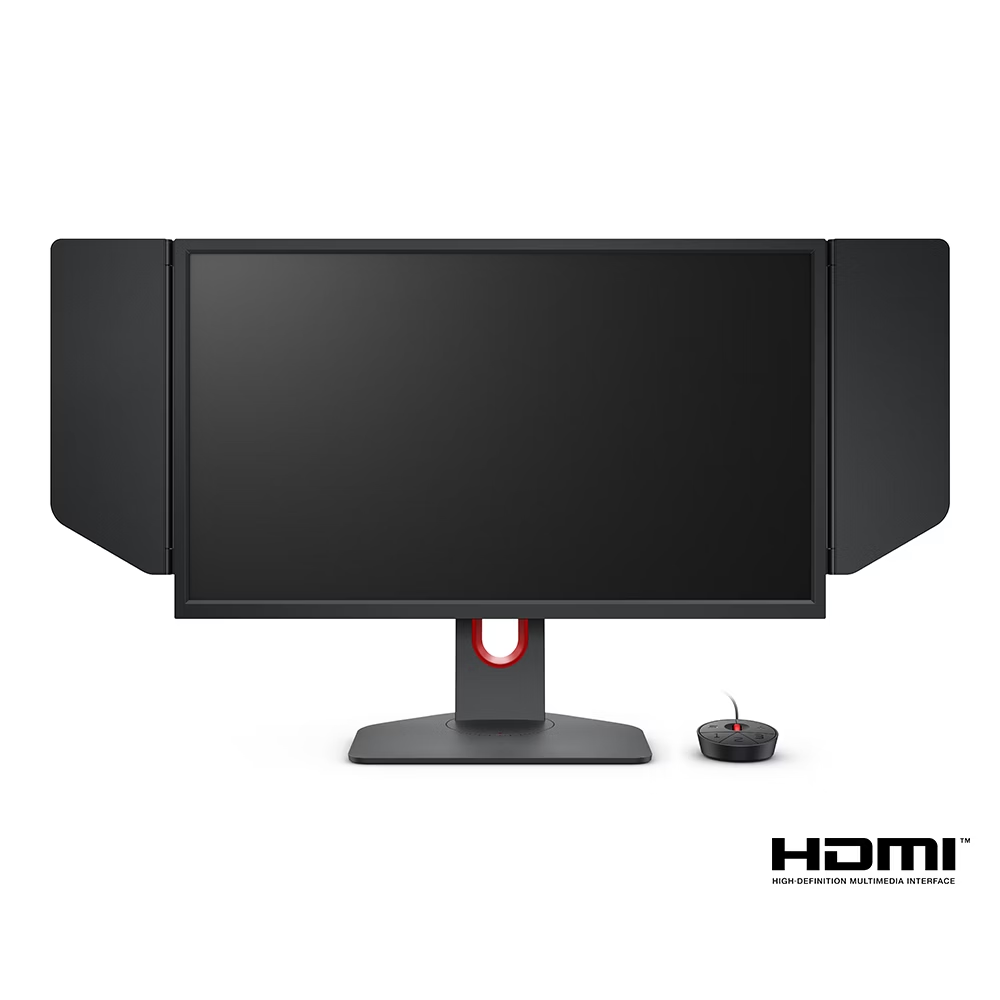
The key feature is DyAc+. That's BenQ's version of backlight strobing. It flashes the backlight between frames to reduce perceived motion blur.
It's not the same as a higher refresh rate. It works by making each frame appear sharper during fast motion.
In practice, DyAc+ helps you spot enemies earlier when you're flicking across the screen. It's especially useful in games where you need to track a target while moving your crosshair fast. Pros love it because it gives a noticeable competitive edge.
Downsides? The TN panel has poor color accuracy and narrow viewing angles. Colors look washed out compared to any modern IPS.
But that doesn't matter when you're staring straight at the center of the screen.
Also, the XL2566K costs around $600. That's steep for a 1080p monitor. But pro players consider it an investment in their reaction time.
The All-Rounder Challenger: ASUS ROG Swift PG27AQN (IPS + 360Hz)
Not every pro sticks with TN. The ASUS ROG Swift PG27AQN offers a 360 Hz refresh rate with an IPS panel. That's a rare combination.
Most IPS monitors cap at 240 Hz or 300 Hz. ASUS pushed the envelope here.
The PG27AQN is 27 inches and 1440p. Yes, 1440p, not 1080p. That means sharper images and more screen real estate.
For games like Overwatch 2 or Apex Legends, that extra resolution can help you see distant enemies more clearly.
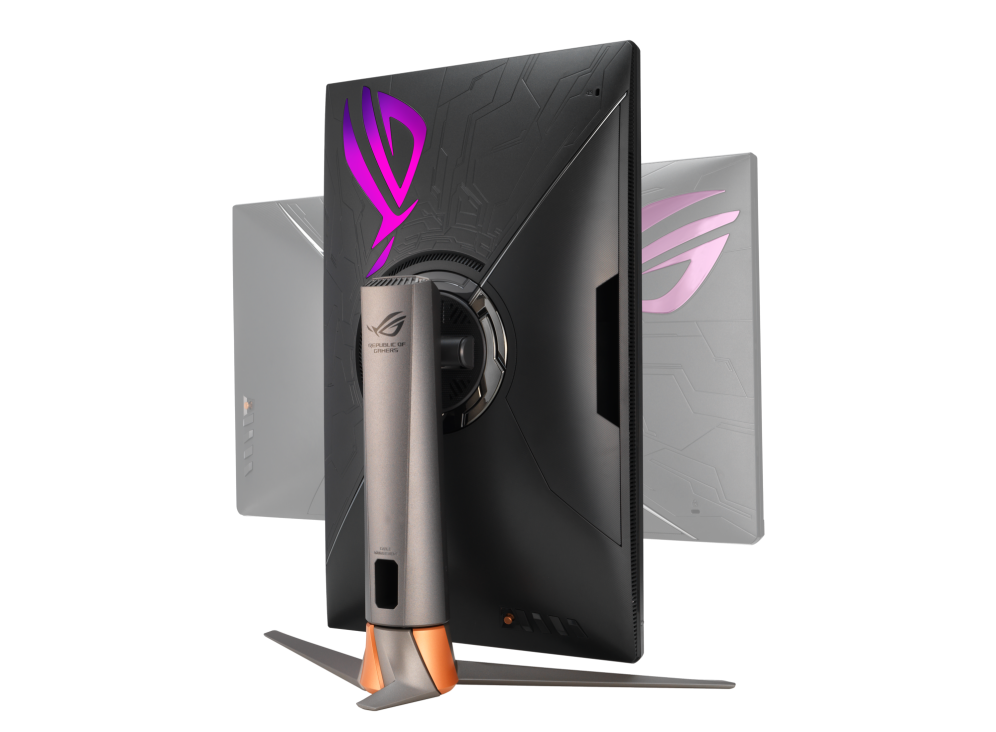
The panel response time is listed at 1 ms GtG, but real-world testing shows it's slightly higher than the best TN panels. Still, it's fast enough for almost any pro. The trade-off is worth it if you want better color for streaming or content creation on the same monitor.
Downsides: Higher price tag, around $800. And the 1440p resolution demands a powerful GPU to hit 360 fps consistently. If your graphics card can't push those frames, you're wasting the monitor's potential.
Pros who use this monitor often play games where target acquisition at range matters more than split-second reaction times in close quarters. It's a solid second choice.
The Budget-Friendly Pro Pick: ViewSonic XG2536
You don't need to spend $600 to get a pro-level monitor. The ViewSonic XG2536 offers 240 Hz, a TN panel, and sub-1 ms response for around $300. It's the dark horse in the pro scene.
ViewSonic doesn't sponsor as many streamers. But the XG2536 shows up in LAN events and budget-friendly setups. It uses a fast TN panel with a refresh rate that most games can actually hit.
Not everyone has a top-tier GPU pulling 360 fps.
The monitor also includes AMD FreeSync Premium for adaptive sync. That helps reduce tearing without adding input lag. Pros who don't use G-Sync find this a nice addition.
Downside: It's only 240 Hz. You lose the motion clarity that 360 Hz provides. But for many players, the jump from 144 Hz to 240 Hz is already huge.
The step from 240 Hz to 360 Hz is less noticeable. So the XG2536 hits the sweet spot of price and performance.
Another limitation: the stand is less adjustable than the BenQ Zowie models. But you can always use a VESA mount. Overall, it's a solid choice if you want pro-grade speed without breaking the bank.

Similar Posts





















