Is OLED Monitor Good for Gaming
Is OLED monitor good for gaming? It's one of the most common questions we see from people building or upgrading a gaming setup right now. The short answer is yes, but the full picture depends on how you play, what you play, and how long you tend to keep your hardware.
OLED gaming monitors deliver near-zero response times, perfect blacks, and HDR performance that LCD panels simply can't match. As of 2026, both QD-OLED and WOLED panels are hitting 240Hz and even 360Hz while maintaining true 10-bit color and DCI-P3 coverage above 98%. That combination makes them genuinely compelling, but there are trade-offs you need to understand before spending your money.
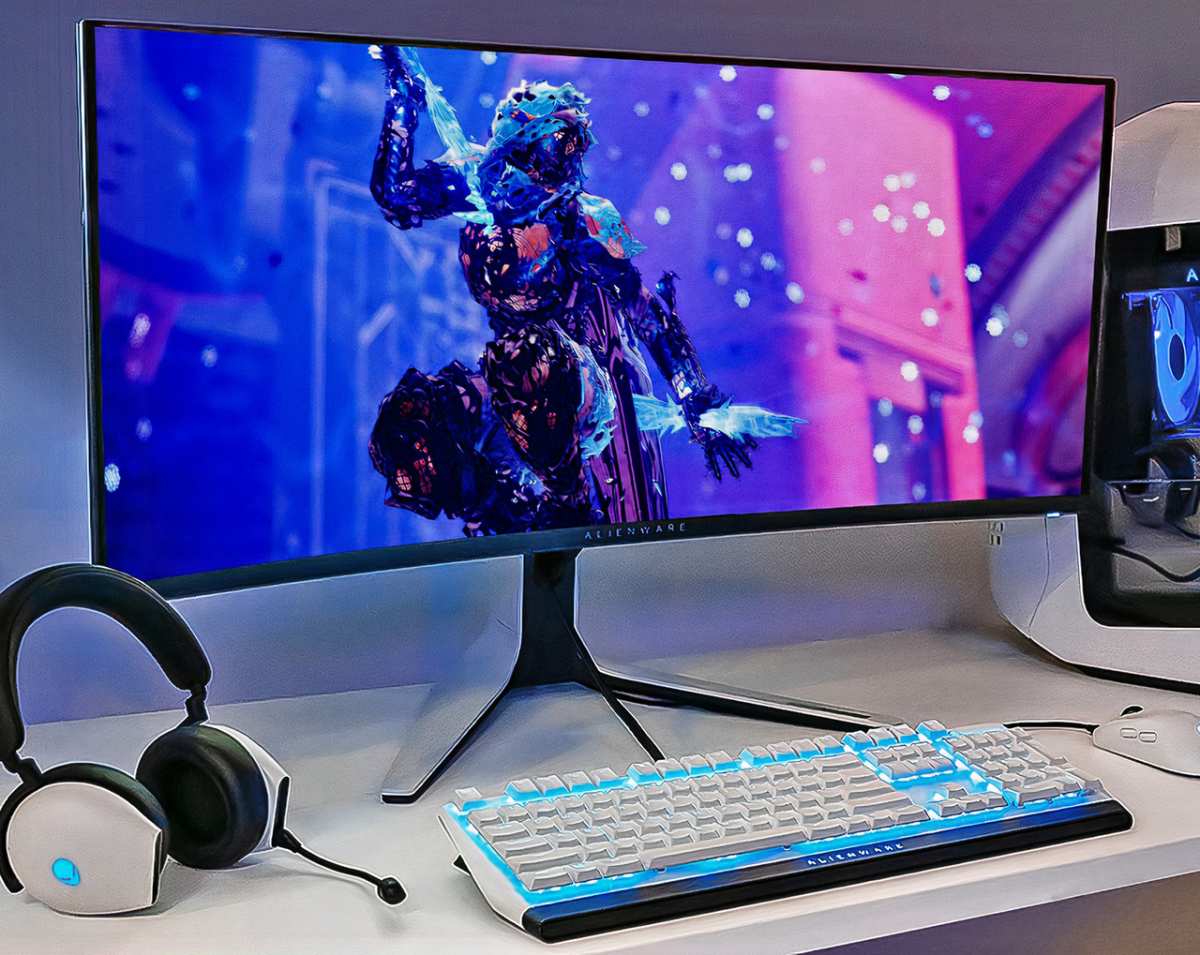
Quick Answer: Yes, But It Depends on What Kind of Gamer You Are
OLED is excellent for gaming. Response times are near-instantaneous at 0.03ms GtG. Contrast is effectively infinite with true per-pixel blacks.
HDR performance surpasses any LCD alternative at similar price points. The catch is brightness limitations, burn-in risk over time, and a price premium that still puts most models above comparable IPS panels.
What Makes OLED Different for Gaming
The core advantage of OLED comes down to how it produces light. Unlike LCD monitors that use a backlight behind a liquid crystal layer, every single pixel on an OLED panel emits its own light. That means when something on screen should be black, that pixel simply turns off.
No backlight bleed, no IPS glow, no haloing around bright objects on dark backgrounds.
Response Time and Motion Clarity
This is where OLED pulls ahead in a way that's immediately visible. LCD pixels have to physically twist or shift to change color, and that transition takes time. Even the fastest IPS panels show some ghosting or overshoot in dark transitions.
OLED pixels change state almost instantaneously. Manufacturer specifications indicate 0.03ms grey-to-grey response times, and while real-world measured numbers vary slightly depending on the specific transition, aggregate reviews consistently place OLED at the top of motion clarity benchmarks.
For gaming, this translates to cleaner motion in fast-paced scenes. Tracking a moving object in a first-person shooter feels sharper. Camera pans in open-world games don't smear.
You're not going to suddenly become a better player, but the visual feedback is noticeably more precise.
HDR That Actually Works
HDR on a good LCD monitor requires local dimming zones. Even with hundreds of zones, you'll see blooming around bright highlights. OLED doesn't have this problem because each pixel is its own zone.
A specular highlight on a wet road at night pops against a truly black sky. The effect is closer to what HDR content creators intended.
Peak brightness is lower than high-end Mini-LED displays. QD-OLED panels hit around 1,000 nits on small windows, while top Mini-LED monitors can sustain 1,600 nits or more across the full screen. But for HDR impact in a dim or dark room, OLED's per-pixel precision wins over raw brightness in most real gaming scenarios.
QD-OLED vs. WOLED: What's the Difference?
Two main OLED technologies dominate the gaming monitor market right now.
| Feature | QD-OLED (Samsung Display) | WOLED (LG Display) |
|---|---|---|
| Color Gamut | 99%+ DCI-P3 | ~98% DCI-P3 |
| Peak Brightness (3% window) | ~1,000 nits | ~800-900 nits |
| Full-Screen Brightness | ~200-250 nits | ~200-250 nits |
| Subpixel Layout | RGB delta (triangular) | RWBG (text clarity concerns) |
| Common Sizes | 27", 32", 34", 49" | 27", 32", 42", 45" |
| Key Models | Alienware AW3225QF, Samsung G80PG | LG 27GR95QE, Corsair Xeneon 27QHD240 |
QD-OLED generally wins on color volume and peak brightness. WOLED tends to have slightly better text clarity due to its subpixel structure. Both are excellent for gaming, and most buyers should choose based on specific model pricing and feature set rather than panel technology alone.
The Real Trade-Offs Nobody Mentions in Spec Sheets
Every monitor technology involves compromises, and OLED is no exception. The spec sheets highlight response times and contrast ratios, but there are practical concerns that affect daily use.
Burn-In: How Real Is the Risk?
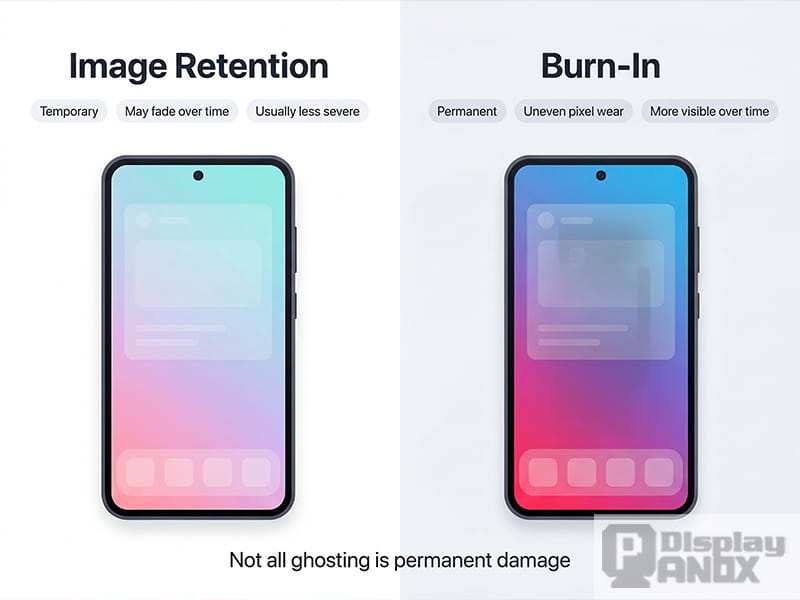
Burn-in (more accurately, uneven organic material degradation) happens when static elements display for thousands of cumulative hours. Think health bars, minimaps, channel logos, or a Windows taskbar that never auto-hides. The pixels showing those static elements degrade slightly faster than the rest of the panel, and over time you can see a faint ghost of that static image.
Modern OLED monitors include multiple mitigation strategies. Pixel shift moves the entire image by a few pixels periodically. Pixel refresh cycles run automatically and manually to equalize wear.
ABL (Automatic Brightness Limiting) reduces power consumption and heat. Manufacturer testing and aggregate long-term reviews from independent testing outlets suggest that for typical gaming use (varied content, 3-6 hours daily), burn-in is unlikely within the practical lifespan of the monitor, typically 5-7 years. But if you play the same competitive game eight hours a day with a bright static HUD, the risk increases meaningfully.
The practical advice is simple. Enable auto-hide on your taskbar. Use dark mode where reasonable.
Don't leave a static image on screen for hours when you step away. And check the warranty. LG and Samsung currently cover burn-in on their OLED gaming monitors.
Some other brands are more restrictive. Read the fine print before you buy.
Brightness and ABL: The Ceiling You'll Notice
Here's something that surprises people coming from LCD. A QD-OLED monitor might hit 1,000 nits on a small bright window, but full-screen white settles around 200-250 nits. That's because ABL kicks in to manage power draw and thermal load across the entire panel.
In a dark or moderately lit room, this is perfectly fine. In a bright room with direct sunlight hitting the screen, you might find yourself wishing for more. Mini-LED IPS monitors can sustain 600-800 nits full-screen, which is a meaningful advantage in bright environments.
For HDR gaming, the limited sustained brightness means specular highlights look stunning but large bright areas (snowy landscapes, bright skies) won't have the same punch as a high-end Mini-LED display. This is the single biggest practical limitation of OLED for gaming, and it's worth considering if your room runs bright.
Text Clarity and Subpixel Rendering
Most LCD monitors use a standard RGB stripe subpixel layout. Text rendering on those panels is straightforward and sharp at native resolution. QD-OLED uses a triangular (delta) subpixel arrangement, and WOLED uses an RWBG layout.
Neither matches the standard RGB stripe that Windows and macOS expect.
The result is that text, especially small text, can show slight color fringing on edges. It's most noticeable on light backgrounds with dark text. ClearType tuning helps.
Some people don't notice it at all. Others find it distracting enough to return the monitor. If you do a lot of reading, coding, or document work on your gaming monitor, this is worth testing in person before committing.
Price Premium
OLED gaming monitors cost more than equivalent LCD models. A 27" 1440p 240Hz IPS panel runs $300-400. The same spec in OLED starts around $600-700 and climbs to $900-1,000 for premium models.
At 32" 4K 240Hz, you're looking at $900-1,300 for OLED versus $600-800 for a good Mini-LED alternative.
The premium buys you objectively better motion clarity, contrast, and HDR. Whether that's worth the extra cost depends on your budget and how much you value those specific advantages.
Who Should Actually Buy an OLED Gaming Monitor
Not every gamer needs OLED. Here's a breakdown of who benefits most and who should look elsewhere.
Competitive and Esports Players
If you play Valorant, CS2, Apex Legends, or similar titles at a high level, OLED's motion clarity is a genuine advantage. The 360Hz QD-OLED models (like the Alienware AW2524H) offer both extreme refresh rates and near-zero ghosting. You get the speed of a TN panel with the image quality of something far better.
The trade-off is that 500Hz TN panels still hold a slight edge in pure motion performance for the absolute top tier of competitive play. If you're grinding ranked and every millisecond counts, a 500Hz TN might still be your best bet. For everyone else, 360Hz QD-OLED is the sweet spot.
Cinematic and Single-Player Gamers
This is where OLED shines brightest. If you play story-driven games, open-world RPGs, or atmospheric horror titles, the contrast and HDR performance transform the experience. True blacks in a dark cave, neon lights against a night sky, the glow of a campfire in a forest.
These moments hit differently on OLED.
A 32" 4K 240Hz QD-OLED like the Alienware AW3225QF or a 34" ultrawide like the Gigabyte AORUS CO49DQ are ideal for this use case. You get high resolution, excellent HDR, and immersive aspect ratios.
Console Gamers on PS5 and Xbox Series X
OLED is arguably the best match for current-gen consoles. Both PS5 and Xbox Series X support 4K 120Hz output over HDMI 2.1, and OLED monitors handle this natively. VRR support works across both platforms.
HDR looks dramatically better than on most LCD gaming monitors.
A 32" 4K OLED gives you a larger screen than most 27" desktop options while still fitting comfortably on a desk. The LG 32GS95UE and Samsung Odyssey OLED G8 are strong choices here.
Content Creators Who Also Game
If your monitor needs to pull double duty for photo editing, video work, or color-critical tasks, QD-OLED's wide color gamut and factory calibration make it a solid choice. Most models ship with Delta E below 2 and cover 98-99% of DCI-P3. You get accurate colors for work and exceptional gaming performance in one panel.
Just be mindful of ABL if your work involves large bright canvases. And consider the text clarity situation if you spend hours reading or writing code.
Who Should Skip OLED and What to Get Instead
OLED isn't the right call for everyone. Here's who should look at alternatives and what to consider.
Bright-Room Gamers
If your gaming space gets a lot of natural light or you prefer playing with bright ambient lighting, OLED's ~200-250 nit full-screen brightness becomes a real limitation. A Mini-LED IPS monitor like the Samsung Odyssey Neo G8 or ASUS ROG Swift PG32UQX will give you 600-800+ nits sustained, which is far more usable in bright environments.
Static-Display Power Users
If your monitor spends significant time showing the same static layout (spreadsheets, trading dashboards, coding with fixed sidebars), the burn-in risk isn't worth the trade-off. A good IPS panel with local dimming gives you excellent image quality without any longevity concerns.
Budget-Conscious Buyers
If your budget is under $500, you'll get more value from a quality IPS or VA panel. The best 27" 1440p IPS gaming monitors deliver 240Hz+ refresh rates, good response times, and solid HDR at $300-400. Save the OLED upgrade for when you can comfortably afford the $700-1,000 range.
Ultra-Competitive Esports Players
If you're playing at the highest competitive levels and want every possible advantage, 500Hz TN panels still offer the fastest pixel response available. The image quality is worse, but pure speed is the priority. OLED at 360Hz is close, but not quite at that extreme tier.
The Decision Framework: Is OLED Right for Your Setup?
Rather than giving a blanket recommendation, work through these five questions. Your answers will point you toward the right choice.
Step 1: What Games Do You Primarily Play?
- Fast-paced competitive shooters → OLED at 360Hz is excellent, but consider 500Hz TN for the absolute top tier
- Cinematic single-player games → OLED is the clear winner
- Mixed library → OLED handles everything well
- Retro or low-resolution games → OLED's near-black performance can reveal smearing in near-black transitions
Step 2: How Many Hours Per Day, and What's on Screen?
- Under 4 hours daily with varied content → Burn-in risk is minimal
- 6+ hours daily with the same game HUD → Enable all mitigation features and consider your warranty
- Mixed use (gaming, browsing, work) → Risk is very low with normal use patterns
Step 3: How Bright Is Your Room?
- Dark or dim room → OLED is ideal
- Moderate ambient light → OLED works well
- Bright room with direct sunlight → Consider Mini-LED instead
Step 4: What's Your Budget Ceiling?
- Under $500 → IPS or VA
- $600-900 → Entry-level to mid-range OLED (27" 1440p 240Hz)
- $900-1,300 → Premium OLED (32" 4K 240Hz or ultrawide QD-OLED)
Step 5: How Long Do You Keep Monitors Before Upgrading?
- Upgrade every 2-3 years → Burn-in is essentially a non-issue
- Keep monitors 5+ years → Factor in long-term degradation and warranty coverage
- Unsure → Lean toward LCD for peace of mind
Branching Outcomes
- Mostly competitive gaming, moderate hours, dark room, budget $700+ → Buy a 27" 1440p 240Hz or 360Hz QD-OLED
- Cinematic gaming, varied use, moderate room, budget $900+ → Buy a 32" 4K QD-OLED
- Bright room, long hours, budget under $500 → Buy a Mini-LED IPS instead
- Mixed use, budget $600+, keep monitors long-term → Buy OLED with burn-in warranty coverage
Living With OLED: Maintenance, Settings, and Warranty
Owning an OLED gaming monitor requires a bit more attention than an LCD. Not a lot more, but enough that you should know what you're getting into.
Pixel Refresh Cycles
Every OLED monitor runs pixel maintenance automatically. There are typically two types.
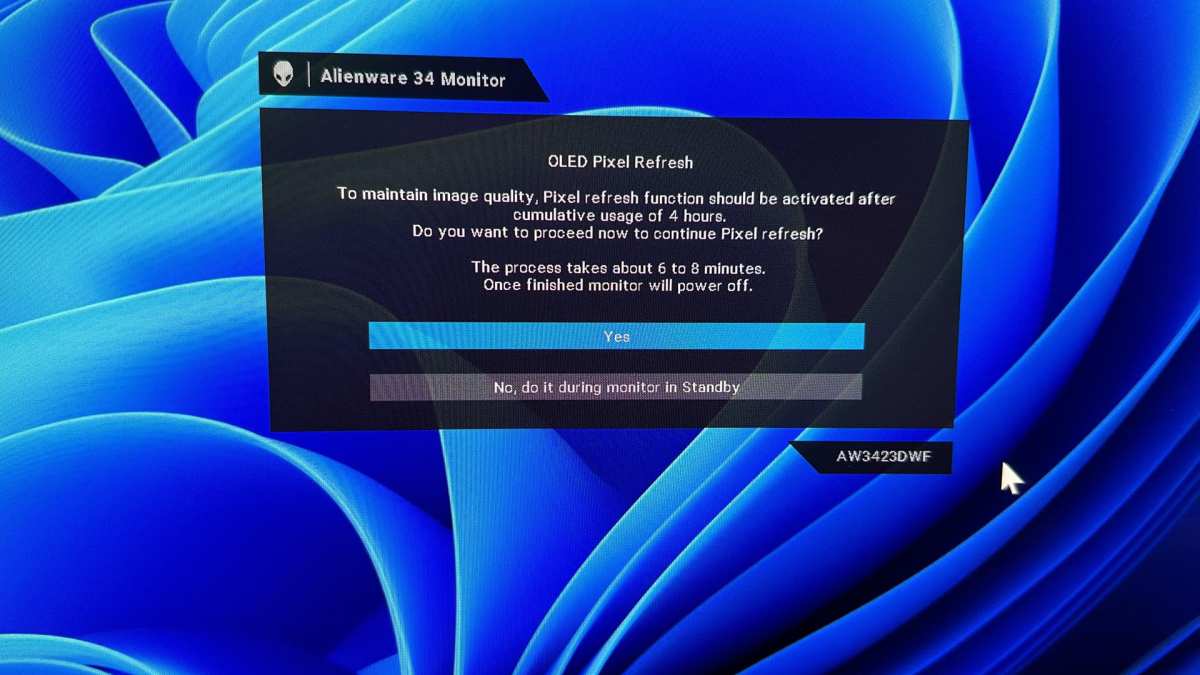
- Automatic refresh: Runs periodically (usually every 4 hours of use) and takes about 5-10 minutes. You'll see a notification. Don't turn off the monitor during this.
- Manual/extended refresh: Runs less frequently (every 1500-2000 hours) and takes up to 60 minutes. This is more thorough and helps equalize pixel wear.
These cycles are normal and necessary. They don't indicate a problem. Just let them complete.
Burn-In Mitigation Settings You Should Enable
- Pixel shift: Moves the image slightly to distribute wear. Enable it.
- Auto brightness limiter: Already on by default on most models. Leave it on.
- Screen saver / auto-off: Set a screen saver or auto-off timer for when you step away.
- Taskbar auto-hide: This is a Windows setting, not a monitor setting, but it matters. Enable it.
- Dark mode: Use dark mode in games, browsers, and applications where possible.
Warranty Coverage: Read the Fine Print
This varies significantly by manufacturer and matters more than you might think.
| Brand | Burn-In Warranty | Notes |
|---|---|---|
| LG | Yes (UltraGear OLED models) | Covers burn-in under normal use |
| Samsung | Yes (Odyssey OLED models) | Covers burn-in and image retention |
| Dell/Alienware | Yes (AW3225QF and newer) | Standard warranty includes burn-in |
| ASUS | Varies by model | Check specific model terms |
| MSI | Varies by model | Some models exclude burn-in |
| Corsair | Yes (Xeneon OLED models) | Covers burn-in under normal use |
Always verify current warranty terms at the time of purchase. Policies can change between product generations.
Firmware Updates
OLED monitors receive firmware updates more frequently than LCD monitors. These updates can improve ABL behavior, fix VRR flickering, update HDR tone mapping, and address other issues. Check the manufacturer's support page periodically.
Some models support USB updates. Others require service center visits.
The Alienware AW3225QF, for example, has received multiple firmware updates since launch that improved HDR performance and VRR stability. Keeping firmware current is part of owning an OLED monitor.
Data & Specs That Actually Matter
When comparing OLED gaming monitors, these are the numbers that affect your actual experience.
Response Time
Marketing claims of 0.03ms GtG are based on best-case transitions. Real-world measured response times vary by transition type. Dark-to-dark transitions are faster than black-to-white.
Independent testing consistently shows OLED outperforming IPS and VA in motion clarity, but the exact numbers depend on the specific panel and transition measured.
Input Lag
OLED gaming monitors typically measure 1.5-3ms of input lag at their native refresh rate. This is competitive with the best IPS panels and better than most VA panels. At 240Hz, input lag drops further.
For practical purposes, you won't perceive a difference between a good OLED and a good IPS in terms of input lag.
Brightness Behavior
Understanding ABL is critical for setting expectations.
| Window Size | QD-OLED Peak Brightness | WOLED Peak Brightness |
|---|---|---|
| 3% window | ~1,000 nits | ~800-900 nits |
| 10% window | ~600-700 nits | ~500-600 nits |
| 25% window | ~350-400 nits | ~300-350 nits |
| 50% window | ~250-300 nits | ~200-250 nits |
| 100% window | ~200-250 nits | ~200-250 nits |
HDR specular highlights look punchy because they're small. Large bright scenes won't hit the same peak numbers.
Color Performance
QD-OLED covers 99%+ of DCI-P3 and a significant portion of Rec. 2020. WOLED covers approximately 98% of DCI-P3. Both are wide enough for HDR content and professional color work.
Factory calibration on most gaming OLED monitors achieves Delta E below 2, which is excellent out of the box.
Price Tiers by Category
| Category | Size/Resolution/Refresh | Typical Price Range |
|---|---|---|
| Entry OLED | 27" 1440p 240Hz | $600-800 |
| Mid-Range OLED | 27" 1440p 240Hz (premium) | $800-950 |
| High-End OLED | 32" 4K 240Hz | $900-1,300 |
| Ultrawide OLED | 34-49" 3440×1440 240Hz | $900-1,300 |
| Premium Ultrawide | 49" 5120×1440 240Hz | $1,000-1,300 |
Prices fluctuate. Sales can drop entry-level models below $600 during major shopping events.
Frequently Asked Questions
Will burn-in happen if I play the same game 4 hours a day?
It's unlikely within the monitor's practical lifespan if you use basic mitigation (auto-hide taskbar, pixel shift enabled, varied content occasionally). Modern OLED panels are more resistant than early generations. But static HUD elements do accelerate uneven wear, so some caution is warranted.
Is OLED good for competitive Valorant/CS2?
Yes. 360Hz QD-OLED monitors offer exceptional motion clarity with near-zero ghosting. The Alienware AW2524H is a popular choice among competitive players. Only the 500Hz TN panels offer measurably faster response, and their image quality is significantly worse.
27" 1440p vs. 32" 4K OLED — which is the sweet spot?
It depends on your use case. 27" 1440p is sharper at that size and easier to drive at high frame rates. 32" 4K offers more immersion and sharper text at native resolution but requires a high-end GPU for 240Hz gaming. Most desk setups favor 27" for competitive play and 32" for cinematic gaming.
QD-OLED or WOLED for gaming?
QD-OLED generally wins on color volume and peak brightness. WOLED has slightly better text clarity. Both are excellent.
Choose based on specific model pricing, features, and warranty terms rather than panel technology alone.
How long do OLED gaming monitors actually last?
Manufacturer specifications indicate 30,000-50,000 hours to half-brightness under normal use. That's roughly 10-15 years at 8 hours daily. Burn-in is the real longevity concern, not overall panel failure.
With reasonable habits, 5-7 years of trouble-free use is realistic.
Are glossy panels worth it over matte?
Glossy OLED panels show deeper blacks and more vibrant colors because there's no anti-glare coating diffusing the image. But they also reflect ambient light and room content. In a dark room, glossy is superior.
In a bright room with light sources behind you, matte is more practical. This is a personal preference that's worth experiencing in person if possible.
Quick Answer: Yes, But It Depends on What Kind of Gamer You Are
OLED monitors are excellent for gaming. Response times sit around 0.03ms GtG. Contrast ratio is effectively infinite with true zero-nit blacks.
HDR performance beats any LCD at similar prices. The main trade-offs are lower full-screen brightness, burn-in considerations, and higher cost than IPS alternatives.
What Makes OLED Different for Gaming
Every pixel on an OLED panel produces its own light. There is no backlight. This means perfect blacks, no IPS glow, and no haloing around bright objects.
The visual difference is immediate and obvious in dark scenes.
Response Time and Motion Clarity
LCD pixels take time to shift between colors. OLED pixels change state almost instantly. This eliminates the ghosting and overshoot you see even on fast IPS panels.
Dark transitions, where LCDs struggle most, are nearly instantaneous on OLED.
For gaming, this means cleaner motion when tracking enemies, panning cameras, or moving quickly through environments. Fast-paced titles benefit noticeably. Slower games still look better, but the advantage is harder to perceive.
HDR That Actually Works
Most LCD monitors use local dimming zones to approximate HDR. Even with hundreds of zones, you see blooming around bright highlights. OLED needs no zones.
Each pixel is its own light source. A small bright highlight on a dark background pops perfectly.
Peak sustained brightness is lower than Mini-LED. Large bright scenes won't hit the same extremes. But for HDR impact in dim or dark rooms, OLED's precision wins.
Per-pixel contrast matters more than raw brightness for most gaming HDR.
QD-OLED vs WOLED: What's the Actual Difference?
Two main OLED technologies dominate the current market. Both work well for gaming. The differences matter in specific situations.
QD-OLED uses quantum dots to enhance color. It typically achieves higher peak brightness and wider color gamut. WOLED uses a white OLED layer with color filters.
It often has better text clarity due to subpixel layout.
| Feature | QD-OLED | WOLED |
|---|---|---|
| Peak Brightness (small window) | ~1,000 nits | ~800-900 nits |
| Full-Screen Brightness | ~200-250 nits | ~200-250 nits |
| Color Gamut (DCI-P3) | 99%+ | ~98% |
| Subpixel Layout | Delta (triangular) | RWBG (better text) |
| Common Sizes | 27", 32", 34", 49" | 27", 32", 45" |
The Real Trade-Offs Nobody Mentions in Spec Sheets
Burn-In: How Concerned Should You Actually Be?
Burn-in happens when static elements cause uneven pixel degradation over time. Health bars, minimaps, taskbars. Modern OLED monitors include pixel shift, ABL, and periodic refresh cycles to mitigate this.
Aggregate long-term reviews from independent testing show burn-in is unlikely within normal gaming lifespans under varied use.
However, if you play one game eight hours daily with a bright static HUD, the risk increases. Enable auto-hide on your taskbar. Turn off the monitor when not in use.
Read the fine print on manufacturer burn-in warranties. Some brands like Dell now cover burn-in for their OLED products, while others may vary.
Brightness and the ABL Ceiling
QD-OLED hits around 1,000 nits on small windows. But full-screen brightness settles around 200-250 nits. This is called Automatic Brightness Limiting.
It protects the panel. It's sufficient for dark rooms.
In bright rooms with direct sunlight, you may struggle to see clearly during daytime gaming. Mini-LED monitors sustain 600-800 nits full-screen. That's a real advantage for bright environments.
Text Clarity on Non-Standard Subpixel Layouts
LCD monitors use RGB stripe subpixels. Text rendering is sharp and expected. QD-OLED uses a delta subpixel layout.
Some users notice slight color fringing on small text. This is most visible on light backgrounds.
ClearType tuning in Windows helps. This won't be an issue for everyone. Users who do significant reading or coding on their monitor should consider this before buying.
Who Should Actually Buy an OLED Gaming Monitor
Competitive and Esports Players
For players focused on titles like Valorant, CS2, or Apex, the 360Hz QD-OLED models offer exceptional motion clarity. The Alienware AW2524H is a popular example. You get near-zero ghosting at extremely high refresh rates.
The only faster option is 500Hz TN panels. Those sacrifice significant image quality. For most competitive players, 360Hz QD-OLED is the better middle ground.
Cinematic and Single-Player Gamers
This is where OLED transforms the experience. Open-world RPGs, atmospheric horror, story-driven titles. The contrast and HDR create immersion that LCD cannot match.
A 32" 4K QD-OLED or a 34" ultrawide provides the ideal canvas.
Console Gamers on PS5 and Xbox Series X
Both consoles support 4K at 120Hz with VRR over HDMI 2.1. OLED monitors handle this natively. HDR benefits are immediate.
A 32" 4K OLED often provides a larger and better experience than many LCD alternatives at similar prices.
Dual-Use Creators Who Also Game
Users needing color-accurate work alongside gaming should consider QD-OLED. It covers over 99% DCI-P3 and ships with factory calibration. You get professional color performance plus top-tier gaming specs in one panel.
Who Should Skip OLED and What to Get Instead
Bright-Room Gamers
If your gaming space has significant ambient light or direct sunlight, OLED's full-screen brightness becomes a limitation. Mini-LED IPS monitors are a better fit. They sustain much higher brightness without the same reflection concerns.
Static-Display Power Users
Users who display static layouts for hours, trading desks, coding with fixed panels, spreadsheets, should consider IPS instead. The burn-in risk isn't worth the trade-off for constant static content. Modern IPS panels have improved significantly in response time and contrast.
Budget-Conscious Buyers
Quality IPS gaming monitors deliver 240Hz at 1440p for $300-400. If your budget is under $500, that remains the better value. The OLED premium starts to make more sense above $600.
Even then, consider whether your priorities align with OLED's strengths.
The Decision Framework: Is OLED Right for Your Setup?
Answer these five questions to determine if OLED makes sense for you.
Step 1: What Games Do You Primarily Play?
- Competitive shooters at 240Hz+ → OLED excels, but check if you need 500Hz TN
- Cinematic single-player games → OLED is the clear winner
- Mixed varied library → OLED handles everything
- Retro pixel-art games → OLED's near-black smearing can be an issue
Step 2: How Many Hours Daily With the Same Content?
- Under 4 hours with varied games → Burn-in risk is minimal
- 8+ hours with the same HUD daily → Use all mitigation features
- Mixed use across browsing, gaming, media → Risk is very low
Step 3: How Bright Is Your Room?
- Dark or dim room → OLED is ideal
- Moderate indirect light → OLED works well
- Bright with sunlight hitting the screen → Consider Mini-LED
Step 4: What's Your Budget?
- Under $500 → Quality IPS or VA panel
- $600-900 → Entry-to-mid OLED territory
- $900+ → Premium 32" 4K or ultrawide OLED
Step 5: How Long Do You Keep Your Monitor?
- Upgrade every 2-3 years → Burn-in is essentially irrelevant
- Keep it 5+ years → Factor in long-term performance and warranty terms
- Unsure → Consider if you are comfortable with the technology's trade-offs
Branching Outcomes Summary
Buy a 27" 1440p QD-OLED if you play competitive titles, have moderate hours, and a $700+ budget. Buy a 32" 4K QD-OLED if you prioritize visuals and immersion above all else. If your room is bright or your use is mostly static content, a Mini-LED IPS is likely the smarter investment.
Living With OLED: Maintenance, Settings, and Warranty
Pixel Refresh Cycles
Your monitor runs maintenance automatically. Quick refreshes happen every few hours and take minutes. Full panel refreshes occur less frequently and can take up to an hour.
Always let these complete without interrupting power.
Settings to Enable on Day One
Turn on pixel shift. Enable taskbar auto-hide in Windows. Consider setting the screen to turn off after 15 minutes of inactivity.
Use dark mode in games and apps when possible. These steps reduce the risk of uneven wear.
Warranty Check Before You Purchase
Burn-in coverage varies by brand. LG covers it on their UltraGear OLED models. Samsung covers it on their Odyssey OLED line.
Dell's Alienware includes burn-in for the AW3225QF and later models. Always verify current terms. Policies can change between product cycles.
Check the manufacturer's official support documentation for the most up-to-date warranty details.
Data & Specs That Actually Matter
Input Lag and Response Time
Most OLED gaming monitors measure 1.5-3ms of input lag at native refresh. This is competitive with the best IPS panels. Response times are consistently faster than LCD across all transitions.
For competitive gaming, these numbers are effectively indistinguishable from the fastest alternatives.
Color Performance
QD-OLED covers 99%+ of DCI-P3. WOLED covers around 98%. Factory calibration typically achieves Delta E below 2.
Both deliver excellent HDR color volume. For gaming, this difference is minor. Color-critical work will notice a slight edge for QD-OLED.
Price Tiers as of Early 2026
27" 1440p 240Hz OLED starts around $600-800 on sale. 32" 4K 240Hz QD-OLED typically sits between $900-1,300. Super ultrawide 49" 240Hz models range from $1,000-1,200. These prices fluctuate.
Major shopping events often bring discounts.
Frequently Asked Questions
Can I use an OLED monitor for work and gaming?
Absolutely. Many users run OLED as a daily driver. Use dark mode for applications.
Set the taskbar to auto-hide. This reduces the risk of uneven wear from static elements. The image quality benefits extend to everything you do.
Does OLED work well with G-Sync and FreeSync?
Yes. Most OLED monitors support both Adaptive-Sync and are G-Sync Compatible or FreeSync Premium Pro certified. Check specific model certifications for your GPU brand.
VRR behavior has improved significantly through firmware updates on recent models.
Is 1440p or 4K better on a 27" OLED?
1440p is easier to drive at high frame rates. It also has slightly less text scaling concern. 4K at 27" is sharper but demands more GPU power. Many gamers find 1440p at 240Hz the sweet spot for competitive and mixed use.
How does OLED handle bright daylight scenes in games?
This is where ABL becomes noticeable. Large bright areas won't reach extreme peak brightness the way a Mini-LED can. Scenes like snowy landscapes or desert sunlight appear good but less punchy.
The contrast between bright areas and shadows remains excellent.
Will next-year's OLED monitors be significantly better?
Brightness and burn-in resistance are improving with each generation. New panel technologies like MicroLED are coming but remain expensive for now. If you need a monitor today, current OLED models are excellent.
Waiting for future improvements is always an option, but current products are mature and reliable.

Similar Posts