Can Mini LED Monitors Run at 240Hz
Can mini LED monitors run at 240hz? It's one of those questions that sounds like it should have a simple yes-or-no answer, but it really doesn't. The short answer is yes, some can. The longer answer is that it depends entirely on the specific model's hardware, its connection interface, and what resolution you're trying to push.
Mini LED is a backlight technology, not a refresh rate spec. That distinction matters more than most people realize. A mini LED panel could be a 60Hz office display, a 165Hz gaming screen, or a 240Hz competitive monitor. If you are exploring similar hardware setups, see our detailed guide on whether mini led monitors run on laptops.
Per VESA standards and manufacturer specs as of 2026, there's nothing inherent to mini LED backlighting that prevents high refresh rates. The limiting factors are elsewhere. Let's walk through exactly what determines whether yours can hit 240Hz and how to verify it.
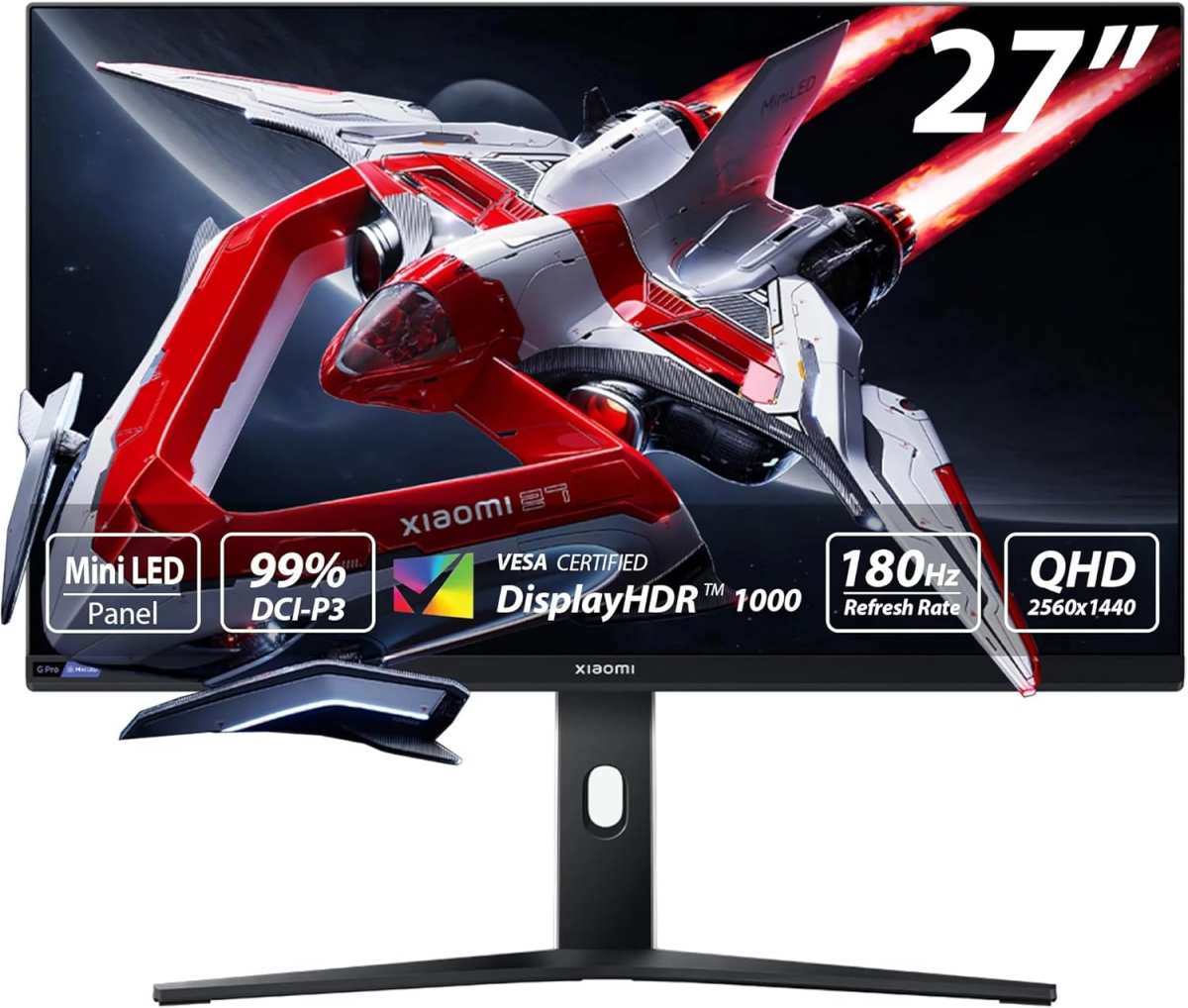
Image source: Bing (Web)
The Quick Answer
Yes, certain mini LED monitors can run at 240Hz. It is not automatic. The specific model matters completely.
The connection type and resolution also matter. Always check the monitor's actual spec sheet. Readers evaluating this setup should also consider whether mini led monitors run on integrated graphics for comparative benchmarks.
Why "Mini LED" Doesn't Tell You Anything About Refresh Rate
Here's the single biggest misconception in this whole conversation. Mini LED refers to the backlighting system behind the LCD panel. It tells you about brightness control and contrast performance.
It tells you nothing about how many times per second the image refreshes.
A miniature LED backlight array with hundreds or thousands of local dimming zones gives you deep blacks and punchy HDR. That's its job. The refresh rate is determined by the liquid crystal panel itself, the scalar processor driving it, and the data connection feeding it pixels.
Those are separate engineering decisions that a manufacturer can mix and match freely.
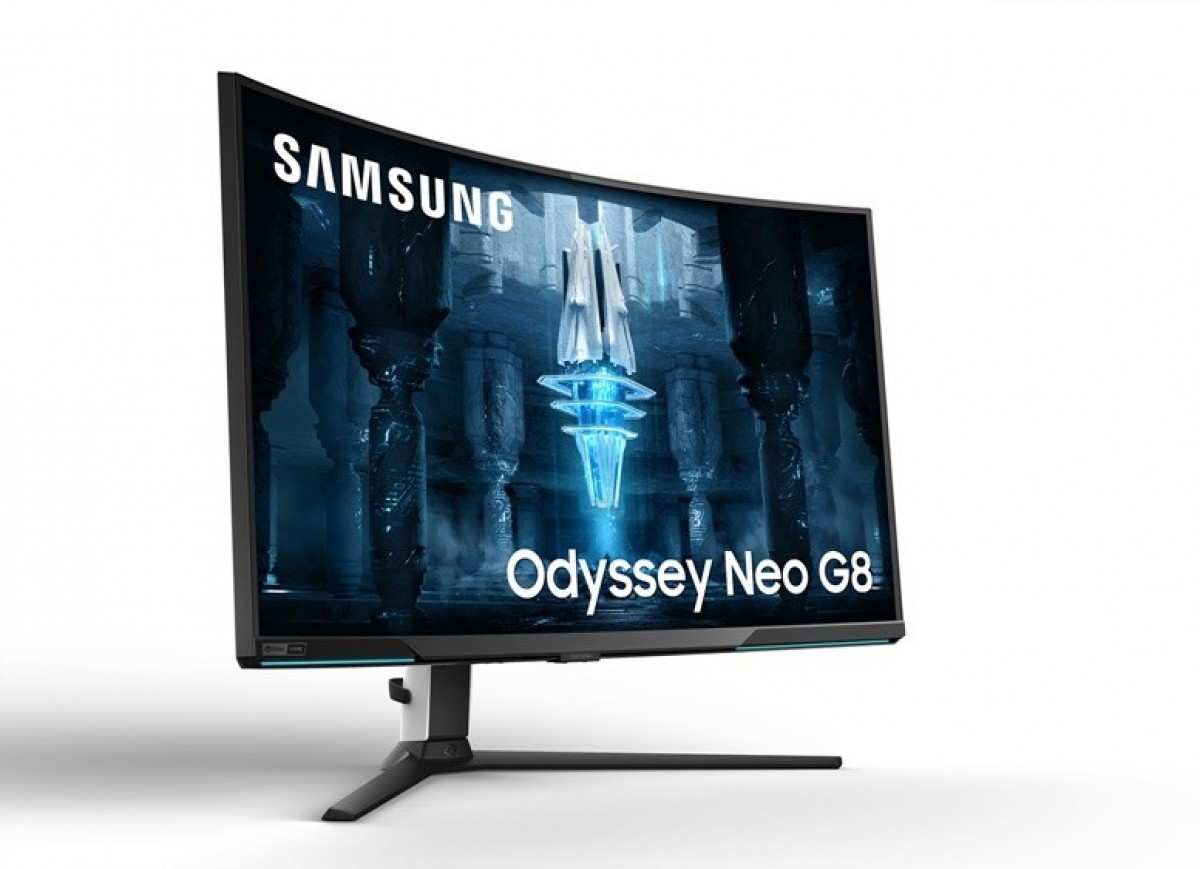
You can see this in the market right now. The KTC M32P10 is a 32-inch 4K mini LED monitor with 165 local dimming zones and a max refresh rate of 165Hz. The Samsung Odyssey Neo G7, also a mini LED, does 4K at 144Hz.
Meanwhile, newer models like the Cooler Master Tempest GP27U 240Hz variant push to 240Hz using a different panel and scalar entirely. Same backlight category. Wildly different refresh ceiling.
The takeaway is straightforward. When you see "mini LED" on a spec sheet, stop reading there. Scroll down to the refresh rate line.
That's where the real answer lives.
The Three Things That Actually Determine 240Hz Support
If you want to know whether a mini LED monitor can run at 240Hz, you need to evaluate three hardware variables. Miss one and you'll hit a wall no matter how good the other two are.
1. The panel and scalar chip. The physical LCD panel must be rated for 240Hz at the resolution you want. The scalar (the board that processes the incoming video signal) must also support that mode.
Some mini LED monitors use a 240Hz-capable panel but pair it with a scalar limited to 144Hz. Others go all the way. You can't tell by looking at the outside of the chassis.
2. The input interface. This is where most people get tripped up. Even if the panel and scalar can handle 240Hz, the physical port on the back of the monitor might not have enough bandwidth to carry that signal at full resolution.
Here's the breakdown as of 2026:
| Interface | Max Bandwidth | 240Hz at 1080p | 240Hz at 1440p | 240Hz at 4K |
|---|---|---|---|---|
| HDMI 2.0 | 18 Gbps | Yes | No (needs DSC via alternate mode) | No |
| HDMI 2.1 | 48 Gbps | Yes | Yes | Yes (usually needs DSC for 4K 240Hz), no DSC required at reduced color |
| DisplayPort 1.4 | 32.4 Gbps | Yes | Yes (with DSC) | Yes (with DSC) |
| DisplayPort 2.1 (UHBR) | 80 Gbps | Yes (no DSC, 4:4:4 full chroma) | Yes | Yes |
| USB-C with DP Alt Mode | Depends on DP version supported | Varies | Varies | Varies |
3. Display Stream Compression (DSC). DSC is a visually lossless compression standard defined by VESA that lets you push higher resolutions and refresh rates through a given bandwidth pipe. For 4K at 240Hz, you almost certainly need DSC enabled on both the GPU and the monitor.
At 1440p 240Hz you may still need it depending on the interface. Most modern NVIDIA RTX 20-series and newer GPUs support DSC, as do AMD RDNA 2 and newer cards. But if you're running an older GPU, that could be your bottleneck.
The chain is only as strong as its weakest link. A 240Hz mini LED panel with a DP 1.4 input and a DSC-capable GPU will work. The same monitor with an HDMI 2.0 cable and an older GPU won't get you there, no matter what the box says.
Step-by-Step: How to Verify Your Mini LED Monitor Can Do 240Hz
Maybe you already own a mini LED monitor and you're wondering if it's running at its full potential. Or you're about to buy one and want to confirm the specs before spending money. Either way, here's the verification flow.
Step 1: Find the exact model number. Not the product line. The exact model number. A brand might sell three different mini LED monitors with different refresh rates under the same family name.
Write down the full SKU.
Step 2: Check the manufacturer spec sheet for max refresh rate at native resolution. Look specifically for the refresh rate listed at the monitor's native resolution (usually 4K or 1440p). Some monitors advertise 240Hz but only at a lower resolution like 1080p. That's not what you want.
Step 3: Verify the input ports. Check which HDMI or DisplayPort version the monitor supports. Then check which version your GPU outputs. They need to match or exceed the requirement for your target resolution and refresh rate.
Step 4: Use the correct cable. This sounds obvious, but people routinely grab whatever cable is in the drawer. For HDMI 2.1 you need an Ultra High Speed HDMI cable. For DP 1.4 or 2.1 you need a cable rated for that DP version.
Cheap cables cause handshake failures that silently drop you to a lower refresh rate.
Step 5: Enable DSC in your GPU driver if needed. In NVIDIA Control Panel, go to Change Resolution and ensure DSC is available. In AMD Adrenalin, check the display info section. If your monitor supports DSC and your GPU does too, you should see it as an option for high refresh modes at 4K.
Step 6: Set the refresh rate in Windows. Right-click desktop, go to Display Settings, click Advanced Display, then select the highest available refresh rate from the dropdown. If 240Hz doesn't appear, something in the chain above is limiting you.
Step 7: Confirm with a test tool. Use the Blur Busters UFO Test or similar tool to verify the monitor is actually refreshing at 240Hz. Don't just trust the Windows setting. Confirm it.
Bandwidth, DSC, and Resolution: The Hidden Bottleneck Nobody Mentions
This is the section where most reviews lose people, but it's the one that matters most for 240Hz. Let's make it concrete.
Say you have a 4K mini LED monitor rated for 240Hz. 4K at 240Hz at 4:4:4 color, 10-bit depth, with HDR enabled, requires roughly 48 Gbps of uncompressed bandwidth. That's more than HDMI 2.1 provides natively. That's more than DP 1.4 provides.
So how do monitors claim to do it?
DSC. Display Stream Compression takes that signal, compresses it by roughly 2:1 to 3:1 in a way that's perceptually invisible to the human eye, and sends it through the cable. Both the source (GPU) and the destination (monitor) need to support DSC for this to work.
If either end doesn't support it, the option simply won't appear.
Here's the practical hierarchy for 4K 240Hz on mini LED monitors:
- DP 2.1 with UHBR (80 Gbps): No DSC needed. Clean signal. Future-proof. Very few monitors and GPUs supported this as of early 2025, but 2026 models are starting to adopt it.
- DP 1.4 with DSC (32.4 Gbps): Works for 4K 240Hz with compression. Requires DSC support on both GPU and monitor. Most current 4K 240Hz setups rely on this.
- HDMI 2.1 (48 Gbps): Can handle 4K 240Hz but usually requires DSC or reduced chroma subsampling (4:2:0 or 4:2:2) depending on bit depth and HDR. Some monitors and TVs use HDMI 2.1 with a dedicated DSC chip to squeeze through 4K 240Hz at 4:4:4.
The real-world impact of DSC is essentially zero for visual quality. VESA's DSC standard is designed to be mathematically lossless at normal viewing distances. You will not see compression artifacts in gaming, video, or desktop use.
If you're worried about DSC degrading your experience, don't be.
Where people get confused is mixing up interfaces. Plugging an HDMI 2.0 cable into an HDMI 2.1 port on the monitor doesn't give you HDMI 2.1 speeds. The cable matters as much as the port.
Always verify the full chain: GPU output version, cable rating, monitor input version.
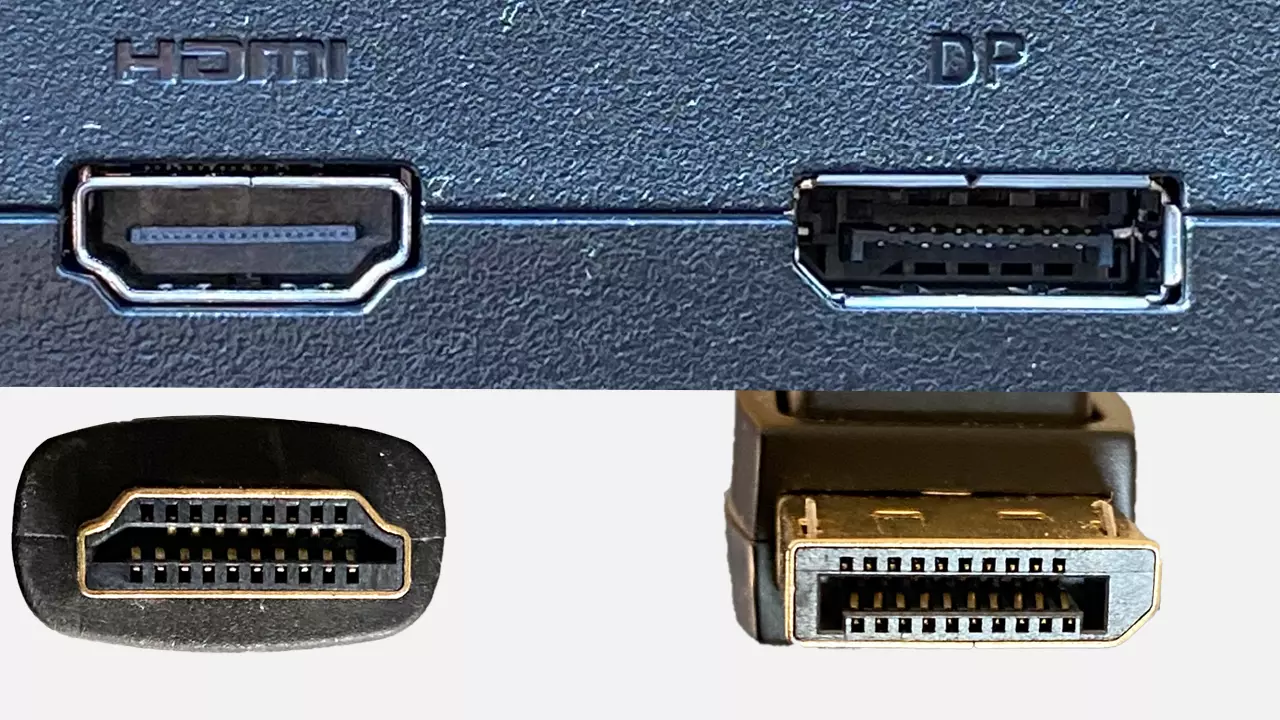
Image source: Bing (Web)


Similar Posts





















