How to Connect 4K Monitor to USB C Port
So you just bought a nice 4K monitor and you're staring at your laptop's USB-C port wondering if it can actually handle it. The good news is that it usually can. The catch is that not every USB-C port is created equal, and grabbing the wrong cable will leave you staring at a black screen or stuck at choppy 30Hz.
Learning how to connect 4K monitor to USB-C port comes down to one thing: matching what your specific port supports to the right cable or adapter. The DisplayPort Alt Mode standard over USB-C can push 4K at 60Hz with the right setup, but plenty of people plug in and get 30Hz or nothing at all because they skipped that step. This directly compares with our findings on how to connect usb c monitor to laptop.
The 30-Second Answer: Check Your Port First
Check your laptop's USB-C port specifications before buying anything. Not every USB-C port supports video output. If yours does, a USB-C to DisplayPort cable or USB-C to HDMI adapter will get you 4K.
For 4K at 60Hz, you need at least DisplayPort Alt Mode 1.2 or HDMI 2.0 through the adapter.
What Your USB-C Port Can Actually Do (It's Not Obvious)
Here's where most people get tripped up. They see the USB-C port and assume it can output video. Many USB-C ports on laptops are data-only or charging-only. For related troubleshooting and calibration steps, check our walkthrough on how to connect usb c monitor with hdmi adapter.
You need to know which type you have before spending money on cables.
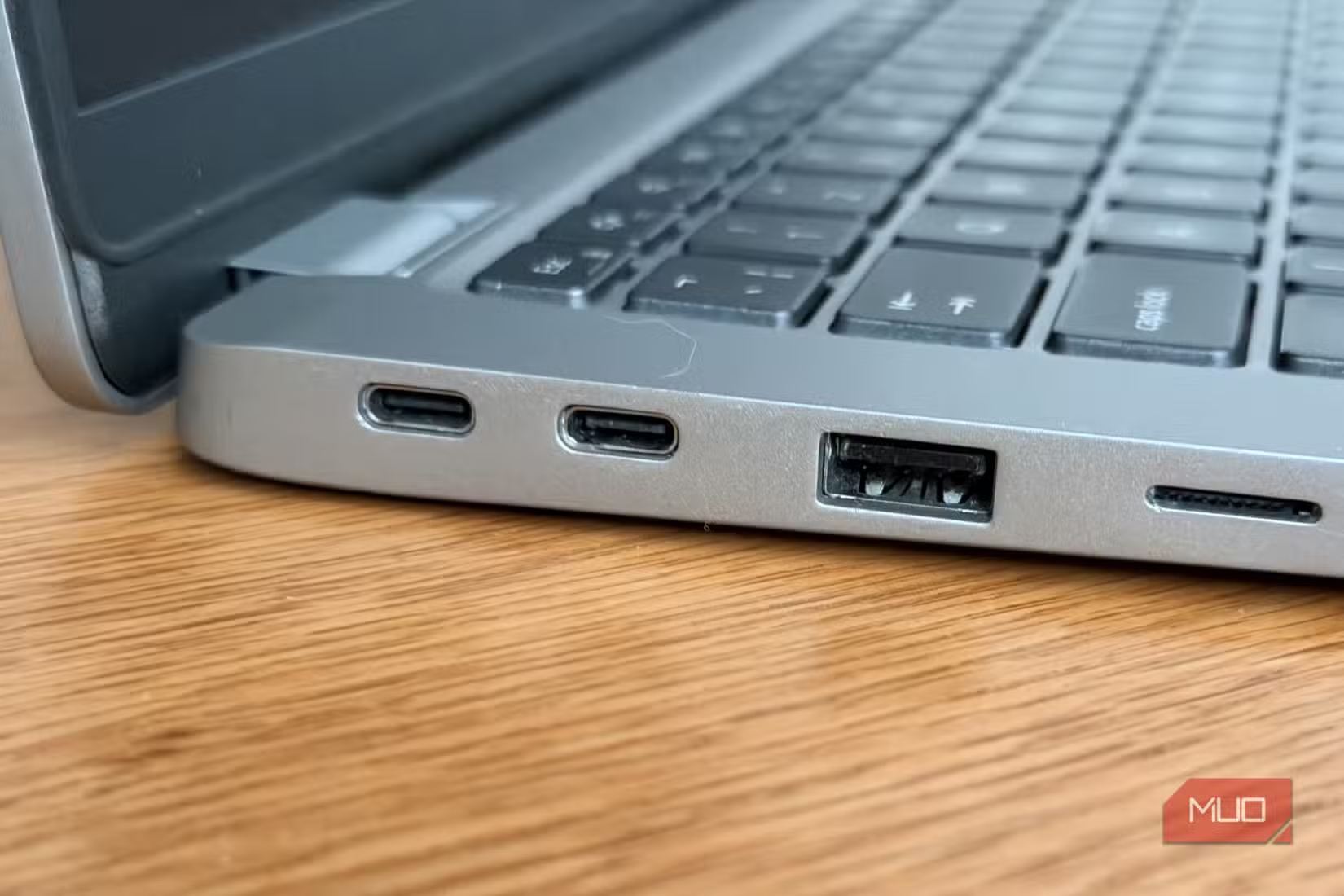
Not All USB-C Ports Support Video
USB-C is just the connector shape. What matters is the protocol running behind it. Your port might support:
- USB data transfer only (USB 3.2 Gen 2, 10Gbps)
- USB Power Delivery charging only
- DisplayPort Alt Mode (video output over USB-C)
- Thunderbolt 3 or 4 (video plus high-speed data)
- USB4 (the newer unified standard)
Manufacturer specifications for laptops like the Dell XPS 13 or MacBook Pro indicate which ports support video. It's not always clearly labeled on the laptop itself. Sometimes you'll see a lightning bolt icon for Thunderbolt or a "D" shaped icon for DisplayPort.
Sometimes there's nothing.
How to Check If Your Port Supports Display Output
The fastest way is to look up your exact laptop model on the manufacturer's spec page. Look for phrases like:
- "DisplayPort over USB-C"
- "DP Alt Mode supported"
- "Thunderbolt 4 with DisplayPort 1.4"
- "USB-C with video output"
If your laptop manual mentions Thunderbolt 3, Thunderbolt 4, or USB4, video output is almost guaranteed. If it only says "USB-C 3.2 Gen 2" without mentioning video, that port likely can't drive a monitor directly.
Windows users can also check Device Manager. Look under "Display adapters" and see if the Intel, AMD, or NVIDIA GPU shows a USB-C or Thunderbolt connection option when you plug something in.
DP Alt Mode vs Thunderbolt vs USB4 — What Matters for 4K
For 4K output, any of these three will work. But they differ in capability.
DisplayPort Alt Mode is the most common. It sends a native DisplayPort signal through the USB-C cable. Supports 4K at 60Hz with DP 1.2, and 4K at 120Hz with DP 1.4 if the monitor and cable support it.
Thunderbolt 3 and 4 tunnel DisplayPort 1.2 or 1.4 data along with PCIe and USB data. Supports 4K at 60Hz easily, and Thunderbolt 4 can handle dual 4K displays from a single port using daisy-chaining or a dock.
USB4 is essentially the successor to Thunderbolt 3, royalty-free. It supports DP 1.4 tunneling and 4K output. USB4 40Gbps ports handle 4K at 60Hz without breaking a sweat.
The table below breaks down what each standard supports for 4K displays.
| Standard | Max 4K Refresh Rate | Multi-Monitor Support | Bandwidth |
|---|---|---|---|
| DP Alt Mode (DP 1.2) | 4K @ 60Hz | Single display | 17.28 Gbps |
| DP Alt Mode (DP 1.4) | 4K @ 120Hz (with DSC) | Single or daisy-chain | 25.92 Gbps |
| Thunderbolt 3 | 4K @ 60Hz | Dual 4K via dock | 40 Gbps |
| Thunderbolt 4 | 4K @ 60Hz | Dual 4K via dock | 40 Gbps |
| USB4 (20Gbps) | 4K @ 60Hz | Single display | 20 Gbps |
| USB4 (40Gbps) | 4K @ 60Hz | Dual 4K via dock | 40 Gbps |
Why Your USB-C Port Might Not Output 4K (And How to Fix It)
If you plugged everything in and got nothing, or the resolution looks wrong, here are the most common culprits.
Your port doesn't support video. This is the number one reason. A USB-C port that's data-only or charge-only simply can't send a display signal. Check the specs.
You're using a charge-only USB-C cable. Some USB-C cables are wired for power delivery only. They have no data lines, let alone video lines. These often come in the box with phone chargers or power banks.
You're using a USB-C hub without DP Alt Mode passthrough. Not all hubs pass through video. Some only handle USB data and charging. Look for hubs explicitly labeled with "4K video" or "DP Alt Mode."
Your GPU drivers are outdated. Particularly on Windows laptops with Intel integrated graphics, an outdated driver can prevent detection of external displays. Update through the manufacturer's support site or Windows Update.
The monitor's input setting is wrong. Many 4K monitors have multiple inputs (HDMI 1, HDMI 2, DisplayPort, USB-C). Make sure you've selected the correct source on the monitor's on-screen display menu.
The 30-Second Answer: Check Your Port First
Look up your laptop's USB-C port specs before anything else. If it supports DisplayPort Alt Mode, Thunderbolt, or USB4, video output works. Buy a USB-C to DisplayPort cable rated for your target refresh rate.
Avoid cheap charge-only cables that lack the wiring for video.
Choosing the Right Connection Method for Your Setup
There are three main paths, and which one makes sense depends on your monitor's inputs and whether you want a single-cable docking solution or just video. A direct cable is simplest. An adapter gives you flexibility.
A dock replaces your charger and adds ports.
Direct USB-C to DisplayPort Cable
This is often the cleanest solution if your monitor has a DisplayPort input. A single cable runs from your laptop's USB-C port to the monitor's DisplayPort input. No adapter, no extra box on your desk.
Look for cables explicitly rated for DisplayPort 1.2 or 1.4. A DP 1.2 cable handles 4K at 60Hz. A DP 1.4 cable handles 4K at 120Hz or 8K at 60Hz if your hardware supports it.
Brankom and Cable Matters are brands users find reliable with these. Avoid no-name cables from questionable sellers. A poorly wired cable can cause flickering, color issues, or no signal at all.
USB-C to HDMI Adapter or Cable
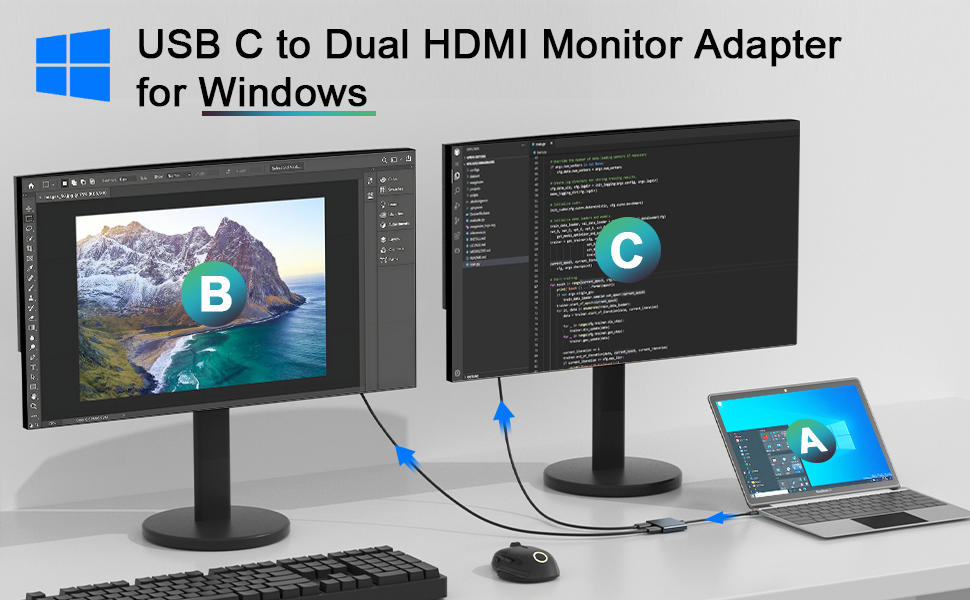
If your monitor only has HDMI, you'll need a USB-C to HDMI adapter or a USB-C to HDMI cable. This is common with 4K TVs used as monitors or budget 4K displays that lack DisplayPort.
For 4K at 60Hz, make sure the adapter supports HDMI 2.0. Older HDMI 1.4 adapters will cap you at 4K at 30Hz, which feels noticeably sluggish when moving windows around. Adapters from brands like Anker, Uni, and Plugable reliably support 4K at 60Hz based on Amazon customer reviews.
USB-C Docking Station or Hub
If you want one cable to handle video, charging, USB peripherals, and maybe Ethernet, a USB-C docking station is the answer. Plug the dock into your laptop's USB-C port, then connect your monitor to the dock's DisplayPort or HDMI output.
Docking stations from CalDigit, Anker, and Plugable are well-reviewed. Make sure the dock explicitly supports 4K at 60Hz output for your specific resolution and refresh rate budget.
This route costs more, usually $50 to $200. But it's the most convenient if you dock and undock your laptop daily at a desk.
Quick Comparison: Which Method Works Best for You
| Method | Best For | Typical Cost | 4K @ 60Hz Support | Simplicity |
|---|---|---|---|---|
| USB-C to DP cable | Monitors with DisplayPort input | $10–$25 | Yes (DP 1.2+) | High |
| USB-C to HDMI adapter/cable | Monitors with HDMI only | $10–$20 | Yes (HDMI 2.0+) | High |
| USB-C docking station | Full desk setup, single-cable dock | $50–$200 | Yes (check specs) | Medium |
| USB-C hub with video | Portable hub for travel | $25–$80 | Sometimes | Medium |
Step-by-Step: Connecting Your 4K Monitor
Once you've confirmed your port supports video and you've got the right cable or adapter, the actual connection process is straightforward. Follow these steps to get up and running without headaches.
Step 1: Confirm Your Laptop's USB-C Capabilities
Look up your exact laptop model number on the manufacturer's website. Find the port specifications page. Verify that your USB-C port explicitly mentions DisplayPort Alt Mode, Thunderbolt, or USB4.
If none of those are listed, that port can't output video and you're stuck.
On Windows, you can also right-click the Start button, open Device Manager, and look under "Display adapters." If your laptop has a Thunderbolt controller listed, your port supports video.
On macOS, click the Apple menu and select "About This Mac." Click "System Report," then look under "Thunderbolt" or "USB." If you see a Thunderbolt entry, video output works.
Step 2: Match Your Monitor's Input to the Right Cable or Adapter
Check the back of your 4K monitor for available inputs. You'll typically find some combination of:
- DisplayPort (full-size)
- HDMI (usually HDMI 2.0 or 2.1)
- USB-C (if the monitor itself supports USB-C input)
- Mini DisplayPort (less common)
If your monitor has DisplayPort, a USB-C to DisplayPort cable is your best bet. If it only has HDMI, grab a USB-C to HDMI adapter or cable rated for HDMI 2.0 or higher.
If your monitor has a USB-C input, you might be able to use a plain USB-C to USB-C cable. But confirm both the laptop port and the monitor port support video. Not every USB-C port on every monitor does.
Step 3: Connect and Configure Your Display Settings
Plug one end into your laptop and the other into your monitor. Power everything on.
On Windows:
- Right-click the desktop and select "Display settings."
- You should see two display boxes. If not, click "Detect."
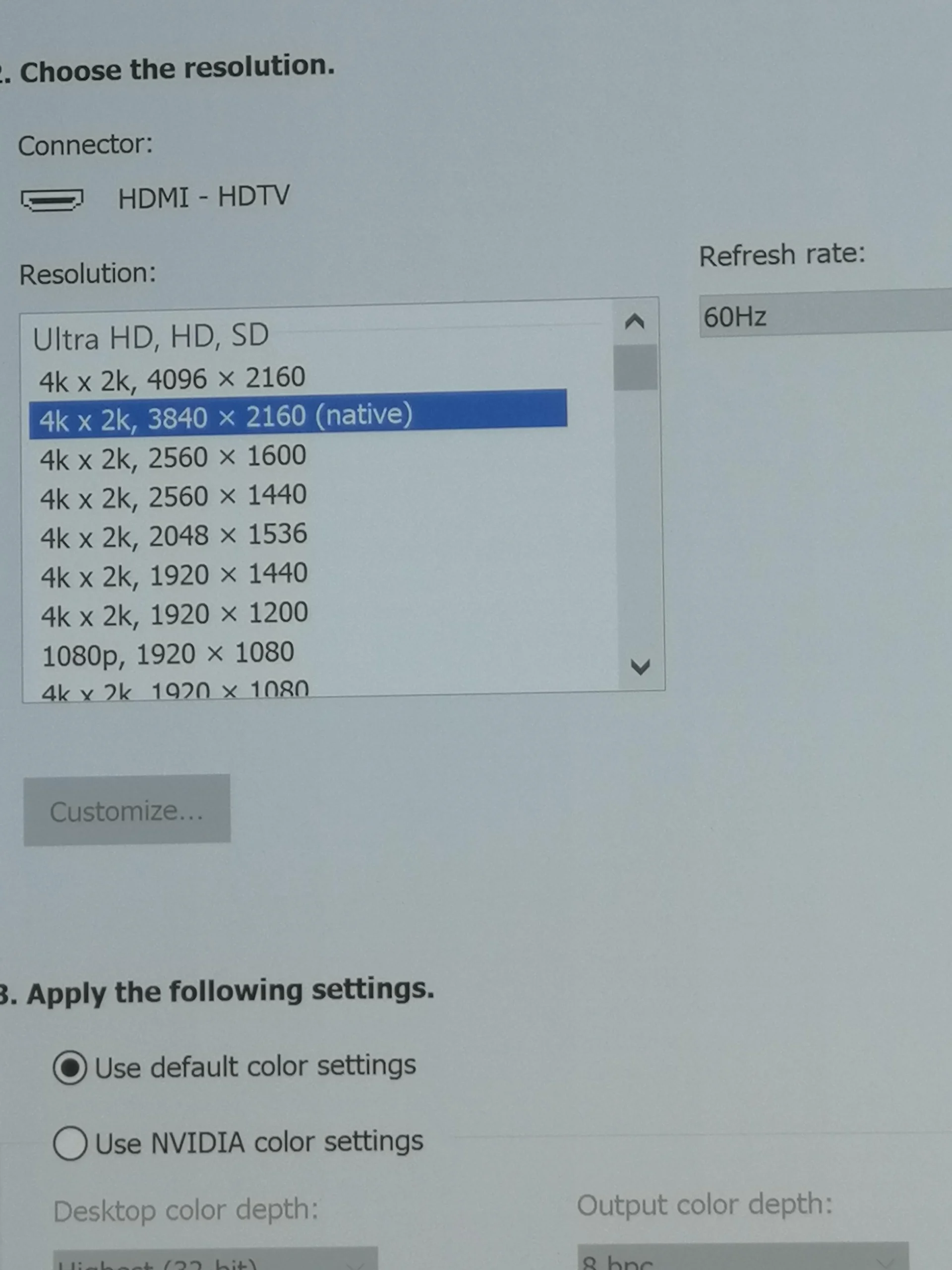
- Select the 4K monitor and set the resolution to 3840 × 2160.
- Click "Advanced display settings" and verify the refresh rate is set to 60Hz.
On macOS:
- Click the Apple menu, then "System Settings."
- Go to "Displays."
- Your 4K monitor should appear. If not, try replugging the cable.
- Set the resolution to "Default for display" or choose "Scaled" and pick 3840 × 2160.
- Click "Refresh rate" and select 60Hz if it defaults to 30Hz.
Step 4: Set the Correct Resolution and Refresh Rate
After connecting, check that you're actually running at 4K and 60Hz. It's easy to think everything looks fine while your display is stuck at 1080p or 30Hz.
To verify on Windows:
Right-click the desktop and select "Display settings," then "Advanced display settings." Check that the resolution reads 3840 × 2160 and the refresh rate shows 60Hz. If it shows 30Hz, your cable or adapter might only support HDMI 1.4 or DP 1.1. Swap for a better cable.
To verify on macOS:
Open "System Settings" and click "Displays." Hold the Option key and click "Scaled" to see all available resolutions. Select 3840 × 2160, then confirm the refresh rate is set to 60Hz in the dropdown below.
If the correct resolution or refresh rate doesn't appear, try these fixes:
- Update your GPU drivers on Windows through Device Manager or the GPU manufacturer's site
- Restart your laptop with the monitor connected
- Try a different USB-C port if your laptop has more than one
- Swap the cable for one rated to a higher specification
The 30Hz trap is the most noticeable problem users report. Everything looks fine at a glance, but moving a window feels sluggish and scrolling stutters once you've seen the difference. Always confirm the refresh rate manually because Windows and macOS won't warn you about it.

Why You're Stuck at 30Hz (And How to Get 60Hz)
This is the single most common complaint. You connect everything, Windows shows 4K, and it looks fine. Then you move a window and it feels like wading through mud.
Your refresh rate is stuck at 30Hz.
The fix almost always comes down to one of three things: your cable, your adapter, or your port specification.
The cable is the weakest link. A USB-C to HDMI cable rated for HDMI 1.4 will cap 4K at 30Hz. You need HDMI 2.0 or higher for 4K at 60Hz. Same story with DisplayPort.
DP 1.1 tops out at 4K at 30Hz. You need DP 1.2 minimum.
The adapter might be the bottleneck. Cheap USB-C to HDMI adapters on Amazon often use older chipsets that only support HDMI 1.4. They'll advertise "4K compatible" but leave out the refresh rate fine print. Look for adapters explicitly labeled "4K @ 60Hz" or "HDMI 2.0."
Your port might not have enough bandwidth. If your laptop only supports USB 3.2 Gen 1 without DP Alt Mode 1.2, the bandwidth simply isn't there for 4K at 60Hz. Check your port specs.
To fix it, swap the cable or adapter first. That solves the problem in most cases. If you're still stuck at 30Hz after that, update your GPU drivers and manually set the refresh rate in your display settings.
Common Problems and How to Troubleshoot Them
Even with the right gear, things sometimes don't work on the first try. Here are the issues that come up most often and what actually fixes them.
Monitor Not Detected
If your laptop doesn't see the monitor at all, start with the basics. Make sure the monitor is powered on and set to the correct input source. Try a different cable.
Restart your laptop with the monitor connected.
On Windows, press Windows key + P and select "Duplicate" or "Extend." Sometimes the display is detected but not activated. On macOS, go to System Settings, Displays, and hold the Option button while clicking "Detect Displays."
If none of that works, your port might not support video. Double-check the specs.
Flickering or Intermittent Black Screen
This usually points to a bad cable or an underpowered adapter. Try a shorter cable, preferably two meters or less. Longer passive cables degrade the signal, especially at 4K resolutions.
If you're using a USB-C hub, make sure it's properly powered. Some hubs need their own power supply to maintain a stable video signal. Running a hub off bus power alone can cause intermittent display drops.
Resolution Capped at 1080p
Your cable or adapter likely doesn't have the bandwidth for 4K. Swap for one rated at HDMI 2.0 or DP 1.2 minimum. Also check your display settings manually.
Sometimes Windows defaults to a lower resolution after detecting a new monitor.
Audio Not Playing Through the Monitor
HDMI carries audio along with video. DisplayPort does too. But your laptop might not automatically route audio to the external display.
On Windows, right-click the speaker icon in the taskbar and select "Sound settings." Under "Output," choose your monitor from the list. On macOS, go to System Settings, Sound, Output, and select the monitor.
Adapter or Dock Overheating
Some compact adapters run hot during use. This is normal to a point. If it gets uncomfortably hot or causes display drops, it might be a sign of a defective unit or insufficient power delivery.
Try a different adapter or one with a dedicated power supply.
What Cable or Adapter to Actually Buy
You don't need to spend a fortune, but you do need to pay attention to specs. Here's what to look for in each category.
USB-C to DisplayPort Cables
Look for cables rated at DisplayPort 1.2 minimum, preferably DP 1.4 if you want headroom for higher refresh rates or future monitors. Cable Matters and Brankom make reliable options in the $12 to $20 range based on Amazon customer reviews.
Avoid cables that don't list a DisplayPort version. If the listing just says "4K" without specifying the refresh rate, assume it's 30Hz.
USB-C to HDMI Adapters
For 4K at 60Hz, you need HDMI 2.0 at minimum. Adapters from Anker, Uni, and Plugable consistently support 4K at 60Hz based on verified buyer feedback. Expect to pay $15 to $25 for a reliable adapter.
If you need 4K at 120Hz, look for HDMI 2.1 support. These adapters cost more, usually $30 to $50.
USB-C Docking Stations for 4K
If you want a full desk setup with charging, USB ports, and video through one cable, a docking station is worth it. CalDigit, Anker, and Plugable make well-reviewed options.
For a single 4K monitor at 60Hz, budget docks in the $50 to $80 range work fine. For dual 4K monitors or 4K at higher refresh rates, look at Thunderbolt 4 docks in the $150 to $250 range. These use the full 40Gbps bandwidth and handle multiple displays without breaking a sweat.
Always check the dock's display output specs before buying. Some budget docks support 4K at 30Hz on one output and 60Hz on another. Read the fine print.
Real-World Scenarios: What Works and What Doesn't
Different laptops and monitors create different challenges. Here's what tends to work and what doesn't in common setups.
MacBook Air/Pro to 4K Monitor
Apple's MacBook Air and MacBook Pro with M1, M2, M3, and M4 chips support DisplayPort Alt Mode over USB-C. A USB-C to DisplayPort cable works perfectly for 4K at 60Hz.
The base model M1 and M2 MacBook Air only support one external display natively. If you're trying to run two 4K monitors, you'll need a DisplayLink dock, which uses software-based video rather than native DP Alt Mode. It works but uses CPU resources.
Windows Ultrabook to 4K Display
Most modern Windows ultrabooks with Intel 11th-gen or newer processors support Thunderbolt 4 or DP Alt Mode. A direct USB-C to DisplayPort cable is the simplest path.
Some budget Windows laptops, especially those with AMD Ryzen 3 or Intel Celeron processors, have USB-C ports without video support. Always check the specs before buying cables.
Chromebook to External 4K Monitor
Chromebooks are hit or miss. Higher-end models like the Lenovo Flex 5i or Acer Chromebook Spin 714 support DP Alt Mode over USB-C. Budget models often don't.
If your Chromebook supports video output, a USB-C to DisplayPort cable or USB-C to HDMI adapter works fine. ChromeOS handles external displays well at 4K and 60Hz once connected.
Conference Room Presentations via USB-C
If you're presenting at a conference room with a 4K display, bring your own adapter. Don't rely on the room's equipment. A compact USB-C to HDMI adapter in your laptop bag is cheap insurance.
For 4K projectors or displays, HDMI is more common than DisplayPort. A USB-C to HDMI adapter rated for HDMI 2.0 is the safest bet for presentations.
Mistakes People Keep Making
After covering all the troubleshooting steps, it's worth calling out the errors that come up over and over again.
Buying a charge-only cable. This is the number one mistake. USB-C cables that come with phone chargers often have no data lines. They can't carry a video signal.
Always buy cables explicitly rated for data and video.
Assuming all USB-C ports are the same. Your laptop might have two USB-C ports with different capabilities. One might support Thunderbolt and video. The other might be data-only.
Check which port does what before blaming the cable.
Ignoring the refresh rate. 4K at 30Hz looks terrible for desktop use. It's fine for watching video, but moving the mouse and dragging windows feels sluggish. Always verify you're at 60Hz in your display settings.
Using a cable that's too long. Passive USB-C to DisplayPort cables longer than two meters can cause signal degradation at 4K. If you need a longer run, use an active cable or a powered adapter.
Not updating drivers. On Windows, outdated Intel or AMD GPU drivers are a common cause of display detection issues. A quick driver update fixes more problems than most people realize.
Forgetting to check the monitor input source. It sounds obvious, but it happens. The monitor might be set to HDMI 1 when you've plugged into DisplayPort. Use the monitor's on-screen display menu to switch inputs.
Frequently Asked Questions
Can any USB-C port output 4K video?
No. Only USB-C ports that support DisplayPort Alt Mode, Thunderbolt, or USB4 can output video. Data-only or charge-only USB-C ports cannot.
Check your laptop's specifications to confirm.
Do I need a special cable for 4K at 60Hz?
Yes. You need a cable rated for DisplayPort 1.2 or HDMI 2.0 minimum. Cables rated at DP 1.1 or HDMI 1.4 will cap 4K at 30Hz.
Look for the version rating on the cable packaging or product listing.
Will a USB-C hub work for 4K video?
Only if the hub explicitly supports video output through DP Alt Mode. Many USB-C hubs only handle data and charging. Look for hubs labeled "4K video passthrough" or "DP Alt Mode supported."
Why is my 4K monitor only showing 30Hz?
Your cable or adapter likely only supports HDMI 1.4 or DP 1.1. Swap for a cable or adapter rated at HDMI 2.0 or DP 1.2 minimum. Then manually set the refresh rate to 60Hz in your display settings.
Can I daisy-chain two 4K monitors from one USB-C port?
Yes, if your laptop supports Thunderbolt 3, Thunderbolt 4, or USB4 with DP 1.4. Both monitors need to support DisplayPort daisy-chaining (MST). This is less common on consumer monitors and more common on business displays.
Does macOS support 4K at 60Hz over USB-C?
Yes. All MacBooks with Thunderbolt 3 or Thunderbolt 4 ports support 4K at 60Hz over USB-C. Use a USB-C to DisplayPort cable or a USB-C to HDMI 2.0 adapter.

Similar Posts





















