Can Mini LED Monitors Run on Laptops
Can mini LED monitors run on laptops? Yes, absolutely. Whether your specific setup will work depends entirely on what ports your laptop has and what the monitor actually needs.
Most mini LED portable monitors connect through USB-C or HDMI, both of which modern laptops commonly support. The USB Implementers Forum confirmed that DisplayPort over USB-C can carry 4K video at 60Hz on a single cable as of 2026. That covers the vast majority of portable mini LED panels out there. If you are exploring similar hardware setups, see our detailed guide on whether mini led monitors run at 240hz.
So let's walk through exactly what you need to check before you buy one or plug one in.
Quick Answer
Mini LED monitors can run on most modern laptops. You need a USB-C port with DisplayPort Alt Mode or an HDMI port. Check your laptop specs first.
Most portable mini LED monitors work with a single USB-C cable. Older laptops may need an adapter. To see how this holds up against alternate models, explore whether mini led monitors run on integrated graphics.
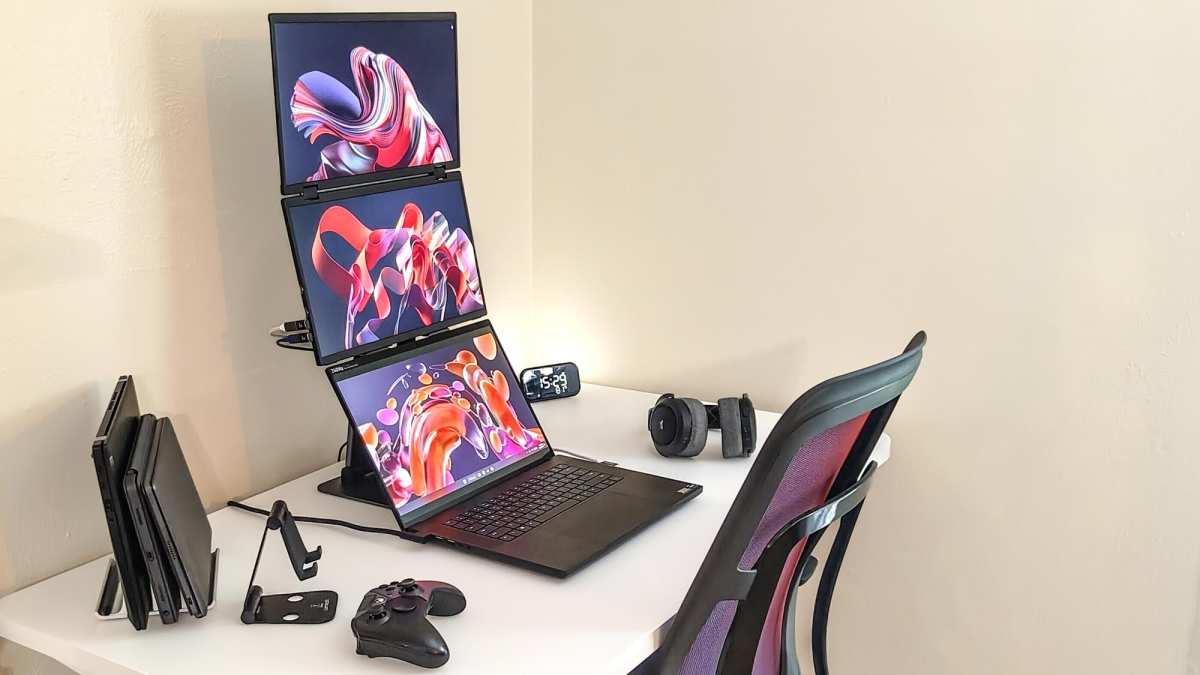
Why This Isn't a Simple Yes or No
Here's the thing. Mini LED is a backlight technology, not an interface. It doesn't care what it's plugged into any more than a standard LED monitor does.
The question is really about your laptop's output capabilities.
A mini LED monitor is just a display panel with a fancier backlight system behind it. It takes a video signal and power, same as any other external monitor. The mini LED part gives you better HDR, deeper blacks, and higher peak brightness.
It doesn't change the connection requirements one bit.
What changes everything is the mismatch between what your laptop can output and what the monitor expects to receive. We've seen people buy a 4K 144Hz mini LED panel only to discover their laptop's HDMI port tops out at 1080p 60Hz. That's not a technology limitation.
That's a specification mismatch.
So the real answer depends on three things: your laptop's port types, the monitor's input requirements, and the cable or adapter bridging them. Let's break each one down.
The Three Things That Actually Decide Whether It Works
Before you do anything else, you need to understand these three factors. Miss one and nothing else matters.
Your Laptop Port Type and What It Supports
Not all USB-C ports are created equal. Some carry video. Some don't.
Some carry enough power to run the monitor. Some can't charge a phone properly.
Check your laptop's spec sheet. Look specifically for "DisplayPort Alt Mode," "Thunderbolt," or "video output" next to any USB-C listing. A plain USB-C port that only handles data and charging won't send a video signal without an adapter.
Your Mini LED Monitor's Power and Video Requirements
Portable mini LED monitors typically draw between 8 and 25 watts. That's well within what a USB-C Power Delivery port can supply. But resolution and refresh rate demands vary wildly.
A 1080p 60Hz panel needs far less bandwidth than a 1440p 144Hz panel.
Check the monitor's spec sheet for its required input. Does it accept USB-C with DisplayPort Alt Mode? Does it need HDMI 2.0 or 2.1?
Does it come with its own power brick, or does it expect USB-C power delivery?
The Cable or Adapter You're Using
This is where most people get tripped up. A cheap USB-C cable from a dollar store might only handle charging. It might not carry any video signal at all.
And even a good cable won't help if the port on the other end doesn't support what you need.
Always use the cable that came with the monitor, or buy one explicitly rated for DisplayPort Alt Mode or HDMI signal transmission. Don't assume any USB-C cable will work for video. Many won't.
Step 1: Check Your Laptop Ports (The Critical First Filter)
This is the single most important step. Everything else flows from what your laptop can actually output.
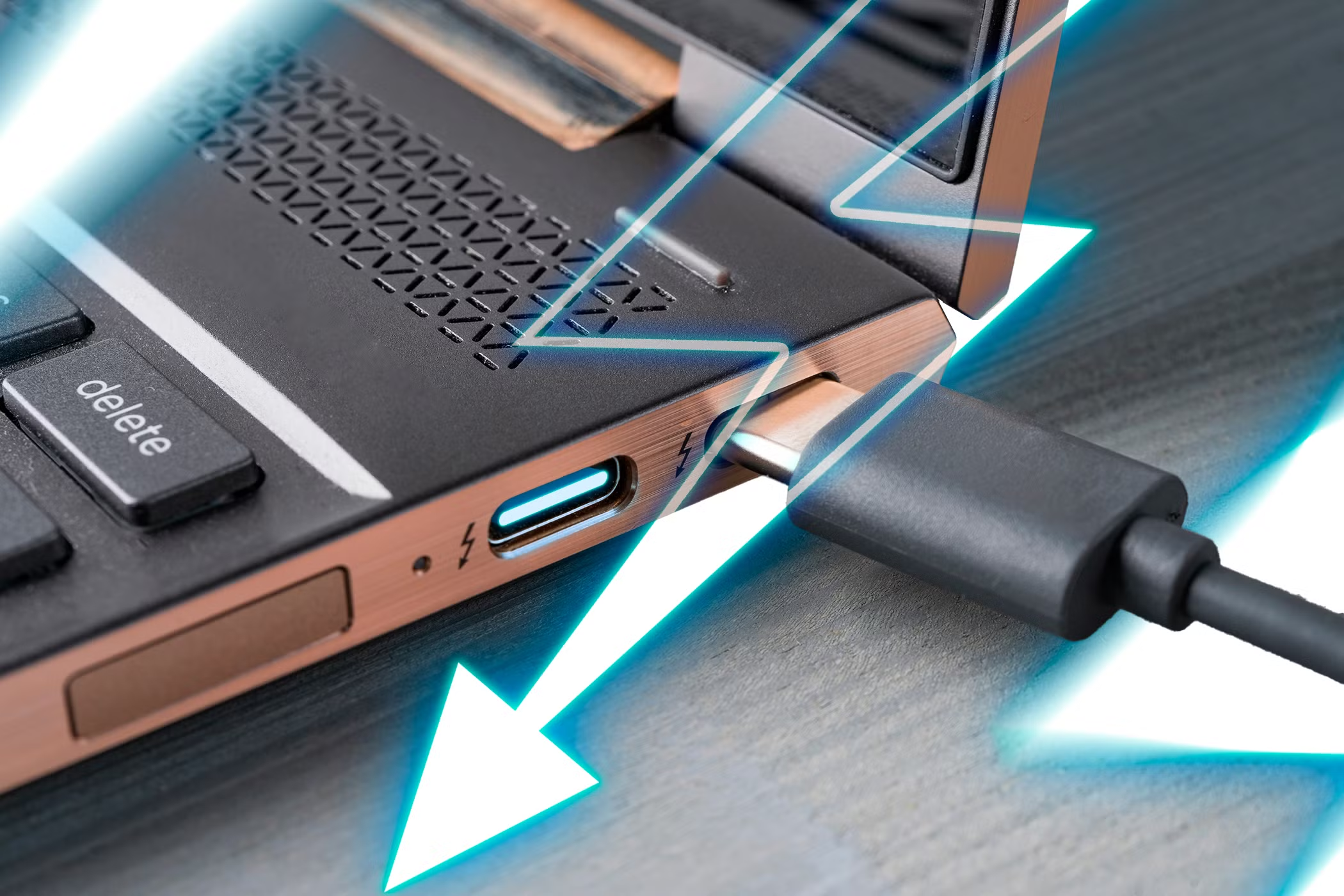
USB-C with DisplayPort Alt Mode
This is the ideal scenario. A USB-C port that supports DisplayPort Alt Mode can carry a full video signal, data, and power through one cable. Most laptops built after 2020 with Thunderbolt 3, Thunderbolt 4, or USB4 support this.
Look for a lightning bolt icon, a "DP" symbol, or a "D" shaped port marking next to the USB-C slot. If you see any of those, you're in good shape. Check your laptop's manual or manufacturer website to confirm if you're unsure.
HDMI Port
A full-size HDMI port is the fallback that almost always works. Every HDMI port can carry video to an external monitor. The question is what resolution and refresh rate it supports.
HDMI 2.0 handles 4K at 60Hz or 1080p at 144Hz. HDMI 2.1 pushes that to 4K at 120Hz or 8K at 60Hz. Most laptops from the last five years have at least HDMI 2.0.
If your mini LED monitor is 1080p or 1440p at 60Hz, any HDMI port you have will work fine.
USB-C Without DisplayPort Alt Mode
This is the trap. Many budget laptops have USB-C ports that only handle data and charging. They look identical to full-featured ports.
They won't output video without help.
If your laptop has this kind of port, you'll need a DisplayLink adapter or dock. DisplayLink is a technology that compresses video data and sends it over standard USB. It works, but it requires drivers and adds a tiny bit of latency.
It's fine for office work. It's not ideal for gaming or color-critical editing.
USB-A Only
If your laptop only has USB-A ports and no USB-C or HDMI, you're limited to DisplayLink solutions. You'll need a USB-A to HDMI or USB-A to DisplayPort adapter with a DisplayLink chip inside. These typically cost between $30 and $80.
Here's a quick reference table to help you identify your situation:
| Laptop Port | Video Output Without Adapter | Video Output With Adapter | Best For |
|---|---|---|---|
| USB-C with DP Alt Mode | Yes (single cable) | Not needed | All use cases |
| Thunderbolt 3/4/USB4 | Yes (single cable) | Not needed | All use cases |
| HDMI 2.0 | Yes | Not needed | Up to 4K 60Hz |
| HDMI 2.1 | Yes | Not needed | Up to 4K 120Hz |
| USB-C (data/charging only) | No | DisplayLink adapter | Office work, browsing |
| USB-A only | No | DisplayLink dock | Office work, browsing |
Step 2: Match Your Monitor's Requirements
Now that you know what your laptop can output, you need to check what the mini LED monitor expects to receive. This is where specifications matter.
Power Requirements
Most portable mini LED monitors draw between 8 and 25 watts during normal use. That's well within the capabilities of USB-C Power Delivery, which can supply up to 100 watts on most laptops.
Some monitors have a USB-C port that both receives video and passes power through to charge your laptop simultaneously. This is the single-cable dream. But it only works if your laptop's USB-C port can supply enough wattage to run the monitor and charge the laptop at the same time.
If your laptop only charges at 45 watts and the monitor draws 20 watts, you're left with 25 watts for charging. That's slow, but it works. If the monitor draws more than your laptop's port can supply, the monitor may not turn on or may run dim until you plug in its separate power adapter.
Video Bandwidth Needs
This is where resolution and refresh rate come into play. Different port versions support different maximum bandwidths. Here's what you need to know:
| Resolution and Refresh Rate | Minimum Port Version Needed | Bandwidth Required |
|---|---|---|
| 1080p at 60Hz | HDMI 1.4 / DP 1.2 | ~3.2 Gbps |
| 1080p at 144Hz | HDMI 2.0 / DP 1.2 | ~5.6 Gbps |
| 1440p at 60Hz | HDMI 2.0 / DP 1.2 | ~5.6 Gbps |
| 1440p at 144Hz | HDMI 2.1 / DP 1.4 | ~12.5 Gbps |
| 4K at 60Hz | HDMI 2.0 / DP 1.4 | ~12.5 Gbps |
| 4K at 120Hz | HDMI 2.1 / DP 1.4 with DSC | ~25.8 Gbps |
If your laptop's port can't handle the bandwidth your monitor needs, you'll get a lower resolution, a lower refresh rate, or no signal at all. There's no workaround for this. You can't push more data through a port than it's designed to carry.
HDR and Color Depth
HDR content requires more bandwidth than standard dynamic range content at the same resolution. If you want true HDR on your mini LED monitor, you generally need DisplayPort 1.4 with Display Stream Compression or HDMI 2.1. Without enough bandwidth, HDR may be limited to 8-bit color or disabled entirely.
Most mini LED monitors advertise HDR10 or DisplayHDR 400/600/1000 certification. To actually experience what those ratings promise, your laptop's output port needs to support the required bandwidth. Check both sides of the equation.
Step 3: Get the Right Cable or Adapter
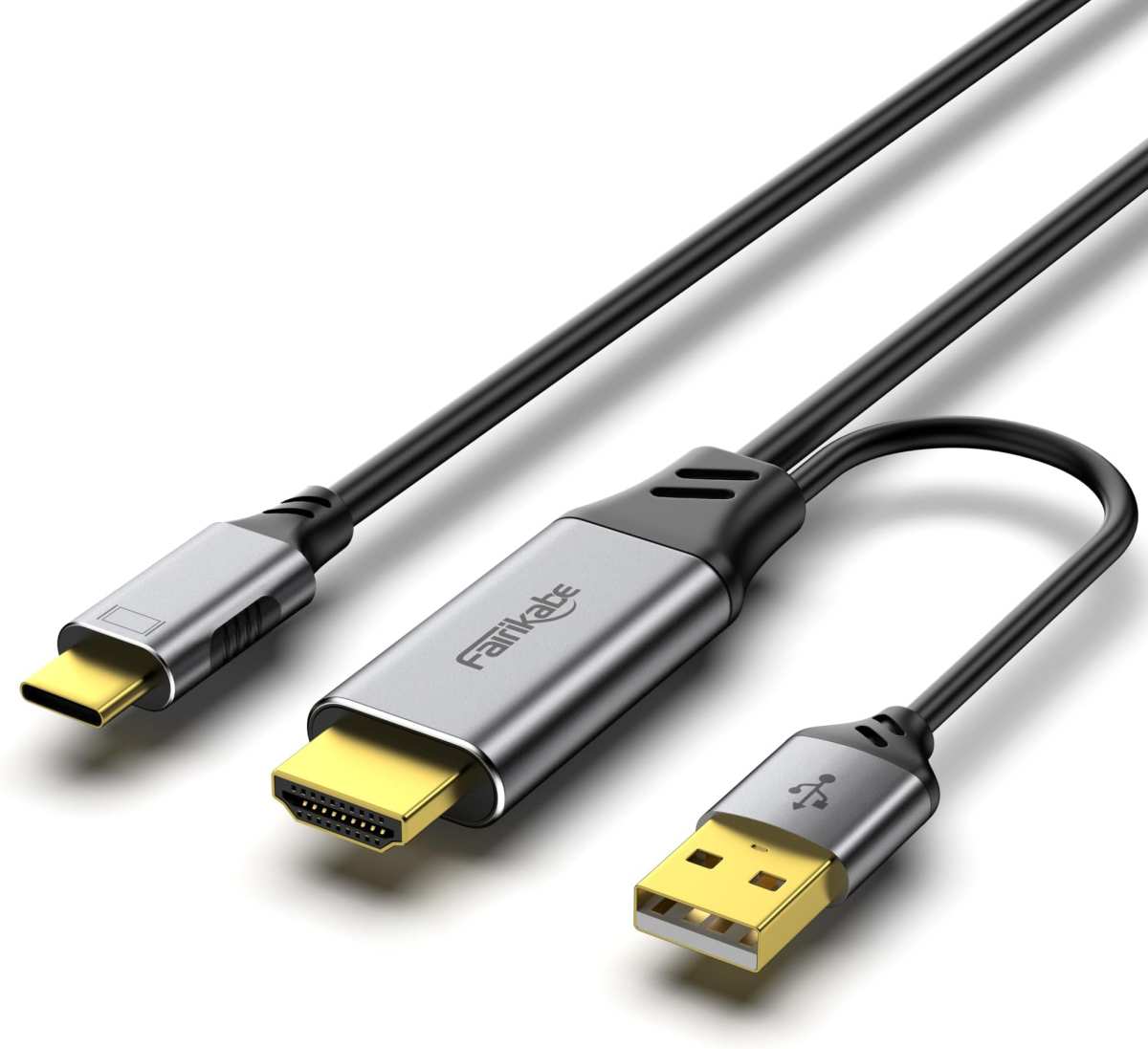
You've checked your laptop. You've checked the monitor. Now you need to connect them with the right hardware.
Direct USB-C to USB-C
This is the best option when both devices support it. A single USB-C cable rated for DisplayPort Alt Mode carries video, data, and power simultaneously. Most portable mini LED monitors include one of these cables in the box.
Make sure the cable supports DisplayPort Alt Mode. Not all USB-C cables do. Look for cables explicitly labeled as supporting video, DisplayPort, or Thunderbolt.
A cable that only handles USB 2.0 data and charging won't carry a video signal.
HDMI Cable + Separate Power
If your laptop has an HDMI port but no USB-C with DisplayPort Alt Mode, use an HDMI cable for video and the monitor's included power adapter for juice. This is a perfectly reliable setup. It just means two cables instead of one.
Many portable mini LED monitors use a mini-HDMI or micro-HDMI input. Make sure you have the right cable or a mini-HDMI to full-size HDMI adapter. These small connectors can be fragile, so handle them carefully.
DisplayLink Dock
When your laptop only has USB-A or a data-only USB-C port, DisplayLink is your path forward. These adapters or docks contain a chip that compresses video and sends it over standard USB data. You install a driver on your laptop, plug in the adapter, and it works.
DisplayLink works well for productivity tasks, web browsing, video playback, and general computing. It's not recommended for fast-paced gaming or professional video editing because it introduces slight latency and compresses the image. For those use cases, you need a direct video connection.
Popular DisplayLink chipsets include the DL-3500 series and newer. Docks using these chips typically support one or two external displays at up to 4K 60Hz. They cost between $40 and $100 depending on the number and type of ports.
Quick Cable Selection Guide
| Your Laptop Port | Monitor Input | Cable or Adapter Needed |
|---|---|---|
| USB-C with DP Alt Mode | USB-C | USB-C to USB-C (DP Alt Mode rated) |
| USB-C with DP Alt Mode | HDMI | USB-C to HDMI adapter or cable |
| HDMI | USB-C | HDMI to USB-C adapter (less common) |
| HDMI | HDMI (or mini-HDMI) | HDMI cable (or mini-HDMI adapter) |
| USB-A only | USB-C or HDMI | DisplayLink dock or adapter |
| Data-only USB-C | USB-C or HDMI | DisplayLink dock or adapter |
Common Problems and How to Fix Them
Even when everything should work on paper, real-world setups sometimes throw curveballs. Here are the most common issues and what to do about them.
Monitor Won't Turn On
First, check the power path. If you're relying on USB-C power delivery from your laptop, make sure the laptop's port can supply enough wattage. Try the monitor's included power adapter if it came with one.
If the monitor turns on with its own adapter but not through USB-C, your laptop's port isn't delivering enough power.
Also check that the USB-C cable is rated for power delivery. Some cheap cables only support low-wattage charging and can't handle the monitor's power draw.
Flickering or Black Screen
This usually points to a cable or bandwidth issue. Try a different cable rated for the resolution and refresh rate you're targeting. If you're using a hub or dock, try connecting directly to the laptop instead.
Hubs can introduce signal degradation, especially with cheap models.
Update your laptop's GPU drivers. Outdated drivers are a surprisingly common cause of external display flickering. Both NVIDIA and AMD regularly release driver updates that improve external display compatibility.
Wrong Resolution or Refresh Rate
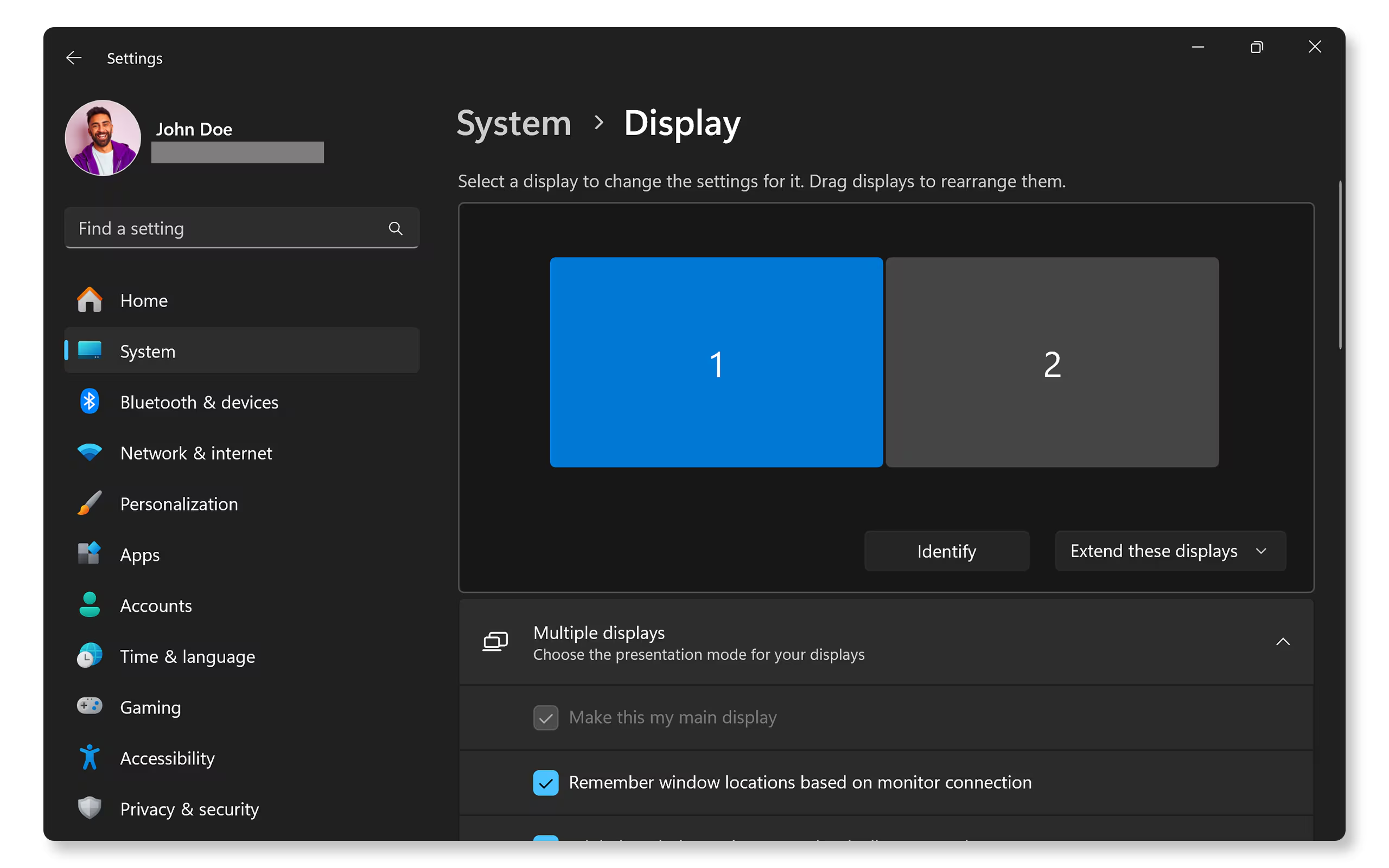
Your laptop's port version caps what you can output. If you're getting 1080p 60Hz on a 4K monitor, your port probably doesn't have enough bandwidth for 4K 60Hz. Check your port specs and match them to the monitor's requirements using the bandwidth table in Step 2.
On Windows, right-click the desktop, select Display Settings, click the external monitor, and check the resolution and refresh rate dropdowns. On macOS, go to System Settings, Displays, and select the external monitor to see available options.
Laptop Battery Drains Fast
If your laptop is powering the monitor through USB-C Power Delivery, it's draining its battery to run the display. This is normal behavior. The monitor might draw 15 to 25 watts from your laptop's battery.
Use the monitor's own power adapter when possible. This takes the power load off your laptop and lets it run on battery normally. If you must use USB-C power delivery, keep your laptop plugged into its own charger.
macOS External Display Limitations
Apple's base M1 and M2 chips support only one external display natively. The M1 Pro, M1 Max, M2 Pro, and M2 Max chips support two or more. If you have a base M1 or M2 MacBook and want multiple external displays, you'll need a DisplayLink adapter to bypass the hardware limitation.
This is a well-documented limitation of Apple's base silicon. It's not a bug. It's a chip-level restriction.
DisplayLink works around it by using software-driven video output instead of the native display pipeline.
Real-World Setup Scenarios
Let's put all of this into context with four common situations. One of these probably matches what you're dealing with.
Scenario 1: Modern Laptop with Thunderbolt 4
You have a laptop with Thunderbolt 4 ports. The mini LED monitor has a USB-C input with DisplayPort Alt Mode. You connect them with a single Thunderbolt or USB4 cable.
Video, power, and data flow through one connection. The monitor charges your laptop while displaying at its native resolution and refresh rate.
This is the ideal setup. It just works. Buy a good cable, plug it in, and you're done.
Scenario 2: Older Laptop with HDMI and USB-A
Your laptop has a full-size HDMI port and USB-A ports. The mini LED monitor accepts mini-HDMI input. You connect an HDMI cable from the laptop to the monitor for video.
You plug the monitor's USB-C power adapter into the wall for power.
Two cables. No adapters needed. Works reliably at up to 4K 60Hz if your laptop has HDMI 2.0.
This is the most common setup for laptops built between 2015 and 2020.
Scenario 3: MacBook with Base M1 or M2 Chip
You have a MacBook Air or 13-inch MacBook Pro with a base M1 or M2 chip. These chips support only one external display natively. You connect the mini LED monitor via USB-C or HDMI.
It works fine as your single external display.
If you want a second external display, you'll need a DisplayLink adapter. Install the DisplayLink driver, connect the adapter to a USB-A or USB-C port, and plug the second display into the adapter. It works for productivity tasks but not for high-refresh gaming or professional video work.
Scenario 4: Budget Laptop with USB-C (No DP Alt Mode)
Your laptop has a USB-C port that only handles data and charging. The mini LED monitor needs a video signal. You buy a DisplayLink dock or adapter, install the driver, and connect through a USB-A or USB-C port.
This works for office work, web browsing, and video playback. It adds about $40 to $80 to your total cost. It's not the cleanest solution, but it gets the job done when your laptop lacks native video output.
What Mini LED Monitors Actually Offer Over Standard Portable Monitors
Mini LED technology uses hundreds or thousands of small LED zones behind the panel instead of a single edge-lit or direct-lit backlight. Each zone can dim independently. This creates deeper blacks and brighter highlights in the same image.
HDR Performance
The main selling point. Standard portable monitors typically hit 250 to 350 nits of brightness with no real HDR capability. Mini LED portable monitors can hit 600 to 1200+ nits with DisplayHDR 600 or DisplayHDR 1000 certification.
That's a massive difference for HDR content.
Contrast Ratio
Because individual dimming zones can turn off completely or nearly so, mini LED monitors achieve much higher contrast ratios than standard LED panels. A standard IPS panel might hit 1000:1. A mini LED panel with full array local dimming can hit 100,000:1 or higher in real-world content.
Brightness and Outdoor Usability
Higher peak brightness means the screen remains visible in bright environments. If you work outdoors or near windows, a mini LED monitor at 600+ nits is far more usable than a standard 300-nit panel that washes out in sunlight.
When the Upgrade Isn't Worth It
If you only use your external monitor for spreadsheets, documents, and email, a standard portable LED monitor is perfectly fine. You won't notice the HDR or contrast benefits in static desktop applications. The premium for mini LED only makes sense if you're watching HDR content, editing photos or video, or working in bright environments where extra brightness matters.
Decision Guide: Is a Mini LED Monitor Right for Your Laptop Setup?
Let's bring it all together. Here's how to decide whether a mini LED portable monitor makes sense for your specific situation.
Yes, Go For It If
- Your laptop has Thunderbolt 3/4, USB4, or USB-C with DisplayPort Alt Mode
- Your laptop has HDMI 2.0 or newer
- You need HDR for content creation, media consumption, or gaming
- You work in bright environments and need high brightness
- You want a single-cable USB-C setup for clean portability
- Your budget allows for the premium over standard portable monitors
Think Twice If
- Your laptop only has USB-A or data-only USB-C ports (you'll need a DisplayLink adapter, adding cost and complexity)
- You're only using the monitor for basic office work (a standard LED portable monitor is cheaper and sufficient)
- Your laptop can't output the resolution and refresh rate the monitor supports (you'll pay for performance you can't use)
- You're on a tight budget (mini LED portable monitors typically cost $200 to $600+ compared to $100 to $200 for standard portable monitors)
Quick Compatibility Checklist
Before you buy, run through this mental checklist:
- Check your laptop's port types and what they support
- Check the monitor's input options and power requirements
- Verify your laptop's port can output the monitor's native resolution and refresh rate
- Confirm you have the right cable or adapter, or budget for one
- Decide whether the mini LED benefits justify the price premium for your use case
If everything checks out, a mini LED portable monitor is one of the best upgrades you can make for a laptop-based workflow. The combination of high brightness, real HDR, and deep contrast in a portable form factor is genuinely impressive. Just make sure your laptop can actually drive it before you spend the money.
Frequently Asked Questions
Can I power a mini LED monitor from my laptop USB-C port?
Yes, if your laptop's USB-C port supports Power Delivery and can supply enough wattage. Most portable mini LED monitors draw 8 to 25 watts. Check your laptop's USB-C power output in its spec sheet.
If it can't supply enough, use the monitor's included power adapter instead.
Do I need Thunderbolt for a mini LED monitor?
No. Thunderbolt is not required. USB-C with DisplayPort Alt Mode works perfectly.
A standard HDMI port also works for most monitors. Thunderbolt is only necessary if you're running very high resolutions or refresh rates that exceed standard DisplayPort bandwidth.
Will a mini LED monitor work with my laptop's HDMI port?
In most cases, yes. HDMI supports video output to any external monitor including mini LED panels. The limitation is bandwidth.
HDMI 2.0 handles up to 4K at 60Hz. HDMI 2.1 handles up to 4K at 120Hz. Match your monitor's resolution and refresh rate to what your HDMI port supports.
Can I use a mini LED monitor with a USB-A laptop?
Yes, but you need a DisplayLink adapter or dock. DisplayLink sends video over standard USB data. It works for productivity and media playback.
It's not ideal for gaming or professional video editing due to slight latency and image compression.
Is mini LED better than OLED for portable monitors?
It depends on your priorities. Mini LED offers higher peak brightness and no burn-in risk. OLED offers perfect per-pixel blacks and faster response times.
For most portable use cases, mini LED's brightness advantage makes it more practical, especially in varied lighting conditions.
How many dimming zones do I need in a mini LED monitor?
More zones mean better HDR and less blooming around bright objects on dark backgrounds. For a portable monitor, 192 to 576 zones provides a noticeable improvement over standard LED backlighting. The difference between 384 and 1152 zones is real but less dramatic than the jump from zero to 192.

Similar Posts





















