How to Setup Budget Monitor with Ps5
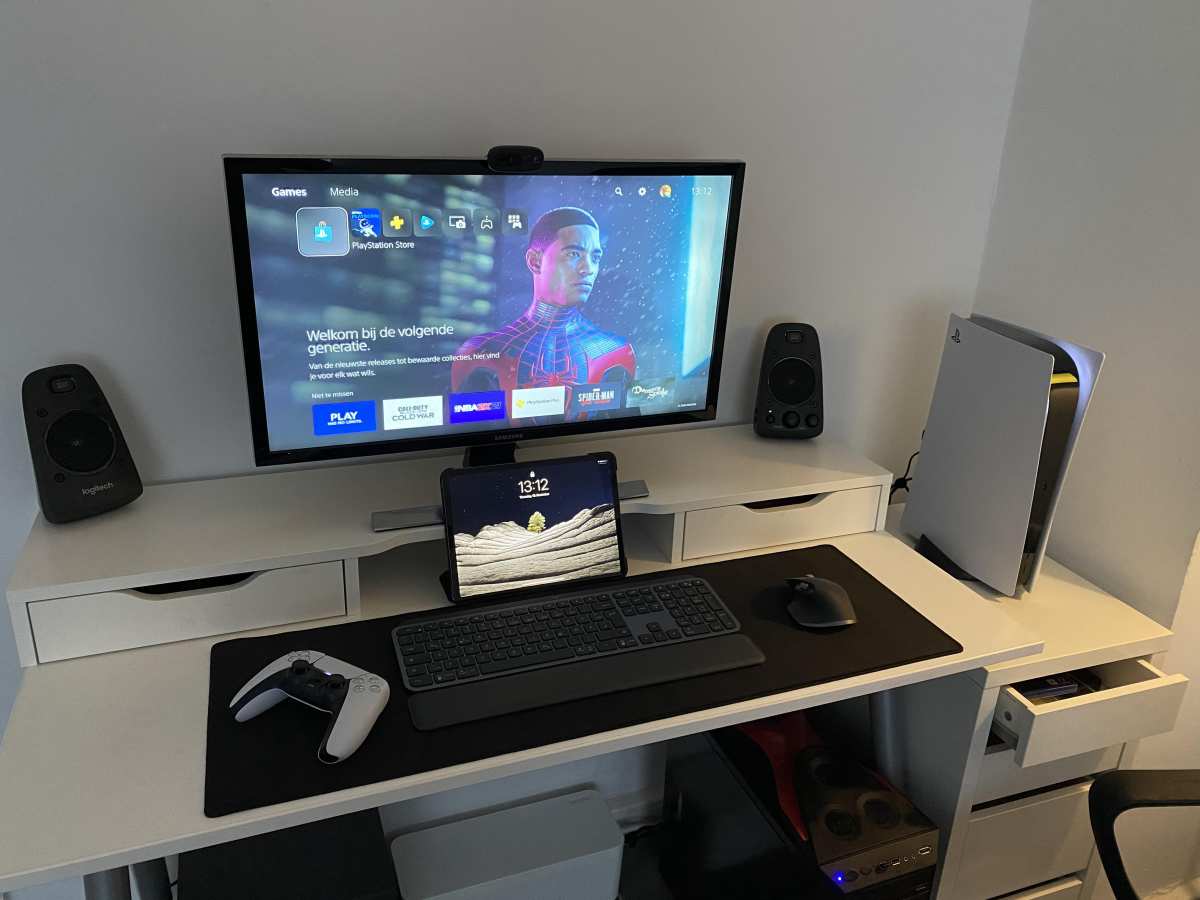
Figuring out how to setup budget monitor with ps5 is simpler than it sounds, but there are a few gotchas that can leave you staring at a black screen or settling for a blurry image. The good news is that once you know what your specific monitor can actually do, the setup process takes about ten minutes.
The PS5 outputs up to 4K resolution through its HDMI 2.1 port, but most budget monitors top out at 1080p or 1440p over HDMI 2.0. That means the key is matching your console's output to your monitor's actual capabilities, not just hoping for the best. Let's walk through it step by step. This directly compares with our findings on how to use budget monitor for dual setup.
First: Check What You Already Have (or Plan to Buy)
Before you touch any settings on the PS5, you need to know exactly what your monitor supports. This single step determines everything else.
Look at the back of your monitor and check what HDMI version it has. Most budget monitors from 2020 onward ship with HDMI 2.0, which handles 1080p at 120Hz or 4K at 60Hz. True HDMI 2.1 on a budget monitor is rare as of 2026, so don't assume you have it.
Here is what to check on your monitor's spec sheet or manual:
- HDMI version: 2.0 supports 1080p/120Hz and 4K/60Hz. HDMI 2.1 supports 4K/120Hz.
- Native resolution: 1080p (Full HD), 1440p (QHD), or 4K (UHD).
- Refresh rate: 60Hz, 75Hz, 120Hz, 144Hz, or higher.
- VRR support: AMD FreeSync or NVIDIA G-SYNC compatibility.
- HDR: Basic HDR10 support or none at all.
If your monitor has DisplayPort but no HDMI port, you will need an active DisplayPort-to-HDMI adapter. Passive cables do not work for this direction of signal conversion. For related troubleshooting and calibration steps, check our walkthrough on how to setup budget monitor for work.
Hooking It Up: The Physical Connection
This part sounds obvious, but the details matter. Use the HDMI cable that came with your PS5, especially if you plan to push higher resolutions or refresh rates. That cable is a certified Ultra High Speed HDMI cable rated for 48 Gbps.
If your budget monitor only supports HDMI 1.4, the included PS5 cable will still work physically, but you will be limited to 4K at 30Hz or 1080p at 60Hz. That is fine for casual gaming, but not ideal.
Here is the connection sequence:
- Plug one end of the HDMI cable into the PS5's HDMI OUT port.
- Connect the other end to your monitor's HDMI IN port.
- Power on the monitor first and select the correct HDMI input.
- Power on the PS5.
If you see a black screen, do not panic. The PS5 may be outputting a resolution your monitor cannot display. Hold the power button on the PS5 for about seven seconds until it beeps twice.
This boots the console in safe mode at 480p, ensuring any monitor can display the image. From there, you can adjust the resolution upward.
PS5 Display Settings You Actually Need to Change
Once you have a picture on screen, the default PS5 settings probably are not optimized for your specific monitor. The console auto-detects capabilities, but it does not always pick the best configuration.
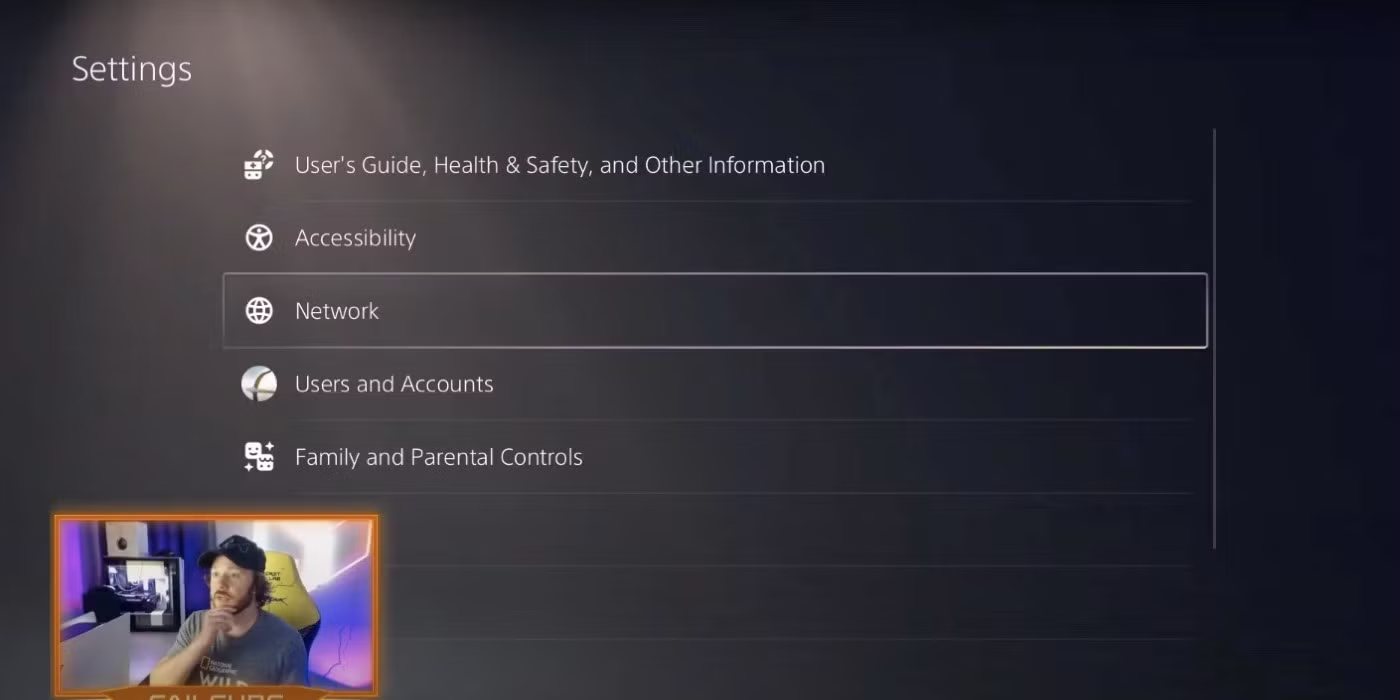
Navigate to Settings > Screen and Video. This is where you control every aspect of the output signal.
Resolution: Set this to "Auto" if your monitor is 1080p or 4K. The PS5 will detect it. If you experience issues, set it manually to match your panel's native resolution.
120Hz Output: Set to "Automatic" if your monitor supports 120Hz over HDMI. If your monitor is 60Hz only, leave this off. Forcing 120Hz on a 60Hz panel will cause signal problems.
VRR (Variable Refresh Rate): The PS5 supports HDMI Forum VRR and, since a 2023 system update, also works with AMD FreeSync monitors that implement VRR over HDMI. Toggle this on if your monitor supports FreeSync. If you experience flickering, some budget FreeSync monitors have unstable VRR ranges.
In that case, turn it off.
HDR: Set to "On When Supported." Budget monitors that claim HDR10 support often lack the brightness and color depth to display HDR properly. If the image looks washed out or dim, turn HDR off entirely. The SDR image on a budget panel almost always looks better than a cheap HDR implementation.
RGB Range: This controls the black level of the image. Set it to "Automatic" first. If blacks look crushed (too dark with no shadow detail), set it to "Full." If blacks look washed out and gray, set it to "Limited." Most budget monitors expect Limited (16-235), but some expect Full (0-255).
Experiment with this setting to find what looks right on your specific panel.
The 1440p Problem (and How to Deal with It)
For years, the PS5 did not support 1440p output at all. If you plugged in a QHD monitor, the console would output 1080p and the monitor would upscale it. The result was a soft, slightly muddy image.
Sony added native 1440p support in a September 2022 system software update. If your PS5 is running current firmware as of 2026, go to Settings > Screen and Video > Video Output > Resolution and select 2560×1440 if it appears as an option.
Not every 1440p monitor passes the PS5's EDID handshake correctly. If 1440p does not show up as a selectable option despite having updated firmware, try these steps:
- Power off the PS5 completely (not rest mode).
- Disconnect the HDMI cable.
- Power on the monitor and let it fully initialize.
- Reconnect the HDMI cable.
- Power on the PS5 and check resolution options again.
If 1440p still does not appear, your monitor may have an incompatible EDID implementation. In that case, running at 1080p with the monitor's built-in upscaling is your only option. Some budget 1440p monitors handle upscaling well enough that the image remains playable.
For most budget buyers, 1080p at 120Hz delivers a better PS5 experience than 1440p at 60Hz. Competitive shooters and action games benefit more from the higher refresh rate than from the extra resolution.
No Sound? Solving the Audio Problem
Here is where budget monitors trip people up. Many affordable gaming monitors, especially those under $200, do not have built-in speakers. Even the ones that do usually sound terrible.
When you connect via HDMI, the PS5 sends audio to the monitor by default. If the monitor has no speakers, you hear nothing. This is not a bug.
It is expected behavior. You need to route audio somewhere else.
Your main options:
- USB headset: Plug a USB headset directly into the PS5's USB port. The PS5 recognizes most USB audio devices automatically and routes game audio through them.
- Wireless headset: The PS5 supports several wireless headsets via USB dongle, including models from Sony, SteelSeries, and Astro.
- 3.5mm headset: Connect a standard headset to the DualSense controller's 3.5mm jack. Audio routes through the controller via cable. This works universally with any wired headset.
- External speakers via optical out: The PS5 does not have an optical audio output. You would need a separate HDMI audio extractor or a USB-to-optical adapter for powered speakers. This is more complex and rarely worth it for a budget setup.
For most people on a budget, plugging a headset into the controller is the fastest, cheapest, and most reliable audio solution. It costs nothing extra and works every time.
Common Issues and How to Fix Them
Even with everything connected correctly, problems come up. Here are the most common ones and what to do about them.
Black screen or no signal: Boot the PS5 in safe mode by holding the power button for seven seconds until you hear a second beep. Select "Change Video Output" to reset the signal to 480p.
Blurry or soft image: Your PS5 is probably outputting 1080p to a 1440p monitor, and the monitor is upscaling poorly. Check that 1440p is selected in the PS5 resolution settings. If it is not available, 1080p is your only option on that panel.
HDR looks washed out: Budget monitors rarely have the peak brightness (600+ nits) or local dimming zones needed for good HDR. Turn HDR off in the PS5 settings. The SDR image will look more vibrant and accurate.
Cannot enable 120Hz: Your monitor may support 120Hz only at 1080p, not at 1440p or 4K. Check the monitor's spec sheet for the specific resolution and refresh rate combination. Also ensure the PS5's 120Hz output is set to "Automatic."
VRR flickering: Some budget FreeSync monitors flicker when VRR is active, especially in loading screens or menus with unstable frame rates. Disable VRR in the PS5 settings if this happens. The monitor's FreeSync range may be too narrow for consistent performance.
Input lag feels high: Make sure the monitor is in "Game Mode" or its lowest-latency preset. Many budget monitors ship in a default picture mode that adds significant processing delay. Check the monitor's on-screen display menu for a game or FPS preset.
Budget Monitor Specs That Actually Matter for PS5
Not all specs on the box are equally important for console gaming. Here is what to prioritize when shopping for a PS5 budget monitor.
Resolution vs. refresh rate: The PS5 can output 4K at 60Hz or 1080p/1440p at 120Hz. For most gamers, 1080p at 120Hz feels smoother and more responsive than 4K at 60Hz. Only prioritize 4K if you primarily play single-player, cinematic games and sit close to a 27-inch or larger screen.
Panel type: IPS panels offer the best color accuracy and viewing angles for the price. VA panels provide better contrast but may have slower pixel response times that cause smearing in fast games. TN panels are cheapest but have poor color reproduction and narrow viewing angles.
IPS is the safest choice for most people.
Response time: Look for 5ms GtG or lower. The "1ms" claim on most budget monitors is an overdriven best-case scenario that often introduces inverse ghosting. A true 3-5ms IPS panel performs better in practice than a overdriven 1ms panel.
Input lag: Under 10ms is acceptable. Under 5ms is ideal. Manufacturers rarely list input lag on budget monitors, so check independent reviews that measure it.
FreeSync range: If you want VRR to work with the PS5, the monitor needs a FreeSync range that includes at least 48-120Hz. Monitors with a narrow range (like 60-90Hz) will flicker or drop VRR outside that window.
Quick Comparison: What You Get at Each Price Point
Budget monitors cluster into a few clear tiers. Here is what each price range typically delivers for PS5 gaming.
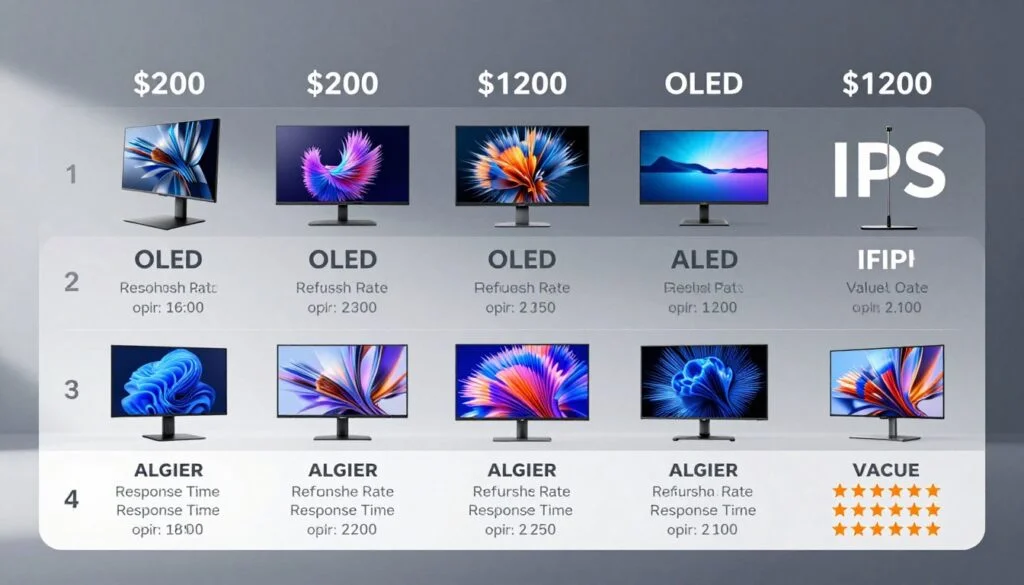
| Price Range | Typical Resolution | Refresh Rate | Panel Type | VRR Support | HDR |
|---|---|---|---|---|---|
| Under $150 | 1080p | 60-75Hz | IPS or VA | Rare or basic | None or HDR400 |
| $150-$200 | 1080p | 144Hz | IPS | FreeSync common | HDR400 |
| $200-$250 | 1440p or 4K | 60-75Hz (4K) / 144Hz (1080p) | IPS | FreeSync standard | HDR400-600 |
| $250-$300 | 1440p | 144Hz | IPS | FreeSync Premium | HDR400-600 |
The sweet spot for PS5 gaming on a budget sits in the $150-$200 range. You get 1080p at 120Hz with FreeSync, which covers the PS5's strengths perfectly. Spending more gets you higher resolution, but the PS5's GPU is optimized for frame rate over resolution in most titles.
Mistakes People Make When Pairing a Budget Monitor with PS5
These are the errors that come up again and again in user reports and forum threads.
Buying a 4K 60Hz monitor for a PS5: The PS5 favors frame rate. Most of its performance modes target 60fps or 120fps at lower resolutions. A 4K 60Hz monitor locks you out of 120Hz gaming entirely.
Unless you only play slow-paced single-player games, 120Hz matters more than 4K.
Ignoring HDMI version: A monitor with HDMI 1.4 cannot do 4K at 60Hz or 1080p at 120Hz. It maxes out at 4K 30Hz or 1080p 60Hz. Always check the HDMI version before buying.
Skipping the PS5 settings: The console does not auto-optimize for every monitor. You need to manually check resolution, 120Hz, VRR, HDR, and RGB range. Ten minutes of setup prevents hours of frustration.
Assuming HDR works on every HDR-labeled monitor: VESA DisplayHDR 400 certification requires only 400 nits peak brightness and no local dimming. The HDR experience on these monitors is minimal at best. Do not buy a budget monitor expecting meaningful HDR performance.
Using a random HDMI cable: Not all HDMI cables are equal. For 4K 120Hz or reliable 1080p 120Hz, use the cable included with the PS5 or a certified Ultra High Speed HDMI cable. Cheap cables from unknown brands can cause signal dropouts, sparkles, or complete failure at higher bandwidths.
Should You Save a Bit More or Use What You Have?
If you already own a 1080p monitor with HDMI input, use it. The PS5 looks great at 1080p, and you can always upgrade later. There is no reason to buy a new monitor if yours works.
If you are buying new, here is a simple decision guide:
- Buy at $150-$200 if: You want 1080p at 120Hz with FreeSync. This covers the PS5's capabilities well for most gamers.
- Buy at $200-$250 if: You want 1440p and your PS5 firmware supports it natively. This gives you a sharper image in desktop use and media, though the PS5 will still render many games at 1080p internally.
- Skip 4K under $300 if: You prioritize frame rate. Budget 4K monitors at this price usually cap at 60Hz and have mediocre HDR. You are better served by a 1440p 144Hz panel.
- Consider a TV instead if: You play from a couch or bed. A 43-inch 4K TV with low input lag can be found for $250-$300 and gives you built-in speakers, HDR that actually works, and a larger image.
Frequently Asked Questions
Can the PS5 run 120Hz on a budget monitor?
Yes, if the monitor supports 120Hz over its HDMI port. Most 1080p budget monitors with HDMI 2.0 support 120Hz at 1080p. Check your monitor's spec sheet to confirm the specific resolution and refresh rate combination it supports.
Does the PS5 support 1440p monitors?
Yes. Sony added native 1440p support in a September 2022 system update. If your PS5 firmware is current as of 2026, 1440p should appear as a selectable resolution when connected to a compatible QHD monitor.
Do I need HDMI 2.1 for PS5?
Not necessarily. HDMI 2.0 handles 1080p at 120Hz and 4K at 60Hz, which covers most use cases. You only need HDMI 2.1 if you want 4K at 120Hz, which requires a monitor well above the budget tier.
Why does my PS5 look blurry on my monitor?
The most common cause is a resolution mismatch. If your monitor is 1440p and the PS5 outputs 1080p, the monitor upscales the image and it looks soft. Check that the PS5 resolution setting matches your monitor's native resolution.
Can I use a DisplayPort monitor with PS5?
Not directly. The PS5 has only an HDMI output. You would need an active DisplayPort-to-HDMI adapter, and these can introduce compatibility issues.
A monitor with a native HDMI port is the more reliable choice for PS5.

Similar Posts





















