Why Are Budget Monitors Popular
If you've been shopping for a display lately, you've probably noticed that budget monitors are everywhere right now. Prices have dropped sharply while baseline quality has climbed, making a $120 screen genuinely usable for everyday work and even casual gaming. So why are budget monitors popular?
The short answer is that panel manufacturing matured, features trickled down from expensive lines, and most people simply don't need a $500+ display for what they actually do at their desk. This directly compares with our findings on why are touchscreen monitors popular in schools.
As of 2026, a solid 24-inch IPS panel with Full HD resolution, 75Hz refresh rate, and FreeSync support can be found for under $130. That's remarkable when you consider these same features were reserved for mid-range monitors just five years ago. Let's break down what's actually driving this trend and whether a budget monitor makes sense for your setup.
Quick Answer
Budget monitors are popular because they deliver adequate performance for most everyday tasks at a fraction of premium prices. Panel technology improvements mean even affordable displays now offer IPS panels, accurate color, and adaptive sync. Most office and casual users don't benefit from expensive monitors.
The value proposition keeps getting stronger as manufacturing costs drop.
The Real Reason People Are Choosing Cheaper Displays
The core driver is simple economics meeting practical needs. Most people use their monitors for web browsing, email, spreadsheets, streaming, and video calls. A $150 budget monitor handles all of that just as smoothly as a $400 mid-range display for these specific tasks. You can also reference our testing on why are usb c monitors popular when configuring your display.
Manufacturers like LG Display, BOE, and AU Optronics have massively scaled IPS panel production. That oversupply pushed prices down across the entire market. When the panels themselves get cheaper, the finished monitors get cheaper too.
There's also a psychological shift happening. Remote and hybrid work made people realize they don't need a top-tier color-accurate display to be productive. A second monitor for reference documents or Slack doesn't need perfect color reproduction.
It just needs to work reliably.
Here's what changed the game:
- IPS panels became the budget standard. Five years ago, cheap monitors mostly used TN panels with washed-out colors and narrow viewing angles. Now IPS is common even under $120.
- Adaptive sync dropped to entry level. FreeSync and G-Sync Compatible support used to be a premium feature. Now it's expected even on budget gaming monitors.
- 75Hz became the new baseline. Many budget displays now ship with 75Hz instead of 60Hz, giving noticeably smoother cursor movement and scrolling.
- Thin bezels trickled down. The clean, modern look of slim bezels used to cost extra. Now it's standard even on affordable models.
The result is that budget monitors stopped feeling "cheap" in the ways that actually matter for daily use.
What Makes a Monitor "Budget" Anyway?
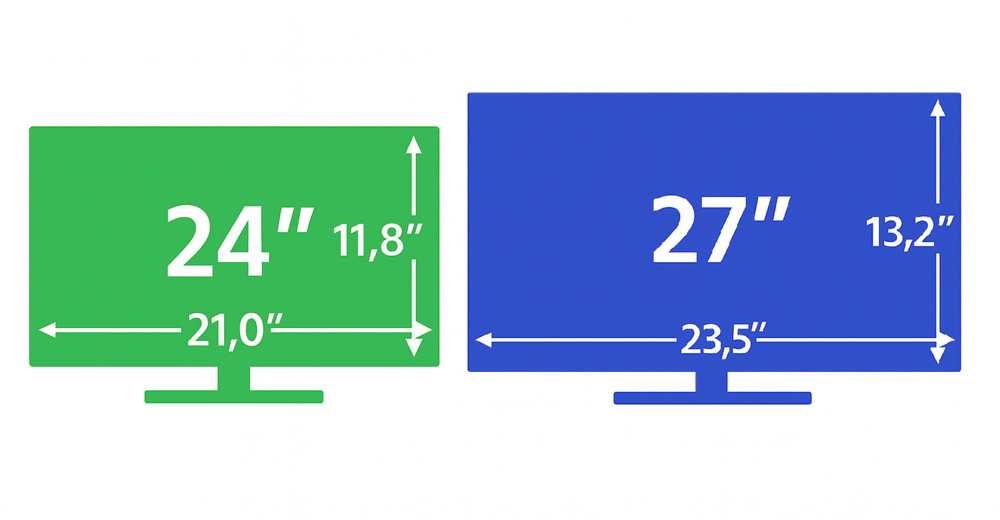
Budget monitors typically fall in the $80 to $200 price range, with the sweet spot sitting around $120 to $150. At this tier, you're usually looking at 24-inch or 27-inch screens with Full HD (1080p) resolution. Some 27-inch models push into 1440p territory near the upper end of this range.
The defining characteristics aren't just about price. Budget monitors share a few common traits:
- Plastic construction with functional but basic stands
- Limited adjustability (tilt only, sometimes no VESA mount)
- Decent but not exceptional color accuracy
- Basic HDR support or none at all
- Fewer port options compared to premium models
- Shorter warranty periods, typically one to three years
What separates a good budget monitor from a bad one comes down to panel quality, factory calibration, and build consistency. Two monitors at the same price point can perform very differently depending on which panel lot they landed in. That's the "panel lottery" issue buyers should know about.
The term "budget" doesn't mean low quality anymore. It means you're prioritizing function over premium extras like USB-C power delivery, hardware calibration, or wide color gamut coverage.
The Key Features You Actually Get at This Price Point
Let's talk specs. Here's what you can realistically expect from a budget monitor in 2026 and which features actually matter for everyday use.

Panel Technology
IPS (In-Plane Switching) panels dominate the budget category now. They offer wide viewing angles and decent color reproduction, which matters when you're looking at the screen from slightly off-center. VA panels show up too, delivering better contrast ratios but sometimes slower response times.
TN panels are increasingly rare outside the absolute cheapest options.
Resolution and Size
| Size | Common Resolution | Best For |
|---|---|---|
| 24 inch | 1080p (Full HD) | Office work, casual gaming, small desks |
| 27 inch | 1080p or 1440p | General use, light content creation, gaming |
| 32 inch | 1080p (rare) | Media consumption, presentations |
At 24 inches, 1080p looks sharp enough for most people. At 27 inches, 1080p starts to show slight pixelation if you sit close. If you want 27 inches, aim for 1440p if your budget allows it.
Refresh Rate and Adaptive Sync
Most budget office monitors stick with 60Hz or 75Hz. Budget gaming monitors jump to 144Hz or 165Hz, which is genuinely useful for competitive titles. FreeSync support is nearly universal now, and many budget models carry "G-Sync Compatible" certification too.
Connectivity
Expect at least one HDMI 1.4 port and possibly a DisplayPort or VGA input. USB-C with power delivery remains rare in true budget models. That's a feature that typically starts appearing in the $250+ range.
What You Won't Get
Don't expect true HDR. Many budget monitors advertise "HDR support" but lack the brightness, bit depth, and local dimming needed for a real HDR experience. Also skip expecting premium ergonomic stands.
You'll likely get tilt-only adjustment at this price.
Budget vs. Mid-Range vs. Premium: Where's the Real Value?
This is where most people get stuck. Let's lay out what each tier actually gives you so you can see where the diminishing returns kick in.
| Feature | Budget ($80-$200) | Mid-Range ($200-$500) | Premium ($500+) |
|---|---|---|---|
| Panel type | IPS or VA | IPS, VA, or OLED | OLED or high-end IPS |
| Resolution | 1080p or 1440p | 1440p or 4K | 4K or ultrawide |
| Color accuracy | Good (95-99% sRGB) | Very good (99%+ sRGB) | Excellent (DCI-P3, Adobe RGB) |
| HDR | Basic or none | Decent (DisplayHDR 400-600) | True HDR (DisplayHDR 1000+) |
| Build quality | Plastic, functional | Mixed metal/plastic | Premium materials |
| Adjustability | Tilt only | Height, tilt, swivel, pivot | Full ergonomic stand |
| USB-C PD | Rare | Common (65-95W) | Standard (90W+) |
| Refresh rate | 60-165Hz | 60-240Hz | 60-360Hz |
| Price per inch of screen | Lowest | Moderate | Highest |
The jump from budget to mid-range gives you noticeable improvements in color accuracy, build quality, and ergonomics. The jump from mid-range to premium is where you start paying significantly more for incremental gains that only professionals truly benefit from.
For the average user doing office work, browsing, and streaming, the budget tier hits a sweet spot. You're getting 80-90% of the experience at 25-35% of the premium price. That math is hard to argue with.
The mid-range makes sense if you need USB-C connectivity for a laptop docking setup, want better color accuracy for light photo editing, or simply prefer a sturdier stand with full adjustability. Premium monitors are for color-critical work, competitive gaming at the highest level, or people who want the absolute best image quality money can buy.

Similar Posts





















