How to Run 4K Monitor on Integrated Graphics

Figuring out how to run 4K monitor on integrated graphics comes down to a few specific hardware checks, not guesswork. Most modern integrated GPUs can output 4K, but whether you get a smooth 60Hz desktop or a sluggish 30Hz mess depends on your exact CPU generation, your motherboard's port versions, and the cable you're using.
The good news is this is almost always fixable without buying a discrete GPU. You just need to know which three things to verify. Let me walk you through the exact decision path so you can get your 4K display running properly.
Quick Answer
Yes, most integrated GPUs from the last several years support 4K output. Intel 6th generation and newer, plus AMD Ryzen APUs, handle 4K for desktop use. The catch is your motherboard's port version and your cable determine whether you get 30Hz or 60Hz.
Check your port specs, use a DisplayPort 1.2 or HDMI 2.0 connection, and set the refresh rate in your operating system.
Can Your Integrated Graphics Actually Run 4K?
The short answer is yes for most systems built in the last eight to ten years. But "run" means different things depending on what you're doing.
For desktop productivity, web browsing, and video playback, integrated graphics handle 4K comfortably on hardware going back to Intel's 6th generation Skylake chips. AMD's Ryzen APUs with Vega graphics have been solid for 4K desktop use since the Ryzen 2000 series launched.
Where it gets complicated is the refresh rate. Your iGPU might support 4K rendering, but the physical port on your motherboard might only push 30Hz at that resolution. That's the single most common frustration people run into, and it's entirely a port and cable issue, not a GPU limitation.
Here's a quick breakdown of what to expect from common integrated GPU generations:
| iGPU Generation | 4K Support | 4K60 Viable? | Best Use Case |
|---|---|---|---|
| Intel HD 520/620/630 (6th-8th Gen) | Yes, via DP 1.2 or HDMI 1.4 | DP only for 60Hz | Desktop, video |
| Intel UHD 630/730 (10th-11th Gen) | Yes | Yes, via DP or HDMI 2.0 | Productivity, media |
| Intel UHD 770 (12th-14th Gen) | Yes | Yes, HDMI 2.0 or DP 1.4 | Smooth general use |
| AMD Vega 6/8 (Ryzen 3000-5000) | Yes | Yes, DP 1.4 or HDMI 2.0 | Very capable desktop |
| AMD Radeon 780M (Ryzen 7000+) | Yes | Yes, HDMI 2.1 or DP 1.4 | Light 4K gaming possible |
| Apple M1/M2/M3/M4 | Yes | Yes, native | Fully supported |
The pattern is clear. Newer generations make this easier, but even older hardware can work if you use the right port.
The Quick Answer: Yes, But It Depends on These 3 Things
Before you change any settings, you need to verify three specific things in order. Skip one and you'll wonder why your 4K monitor feels terrible.
1. Your iGPU model and generation. This determines whether the chip itself can output 4K at your desired refresh rate.
2. Your motherboard's video port versions. Your CPU might support 4K60, but if the HDMI port on your board is only 1.4, you're stuck at 30Hz through that port.
3. Your cable specification. Even with the right port, a cheap or old cable can bottleneck you to lower resolutions or refresh rates.
Get all three right and 4K on integrated graphics works smoothly for everyday use. Miss one and you'll be troubleshooting a blurry, stuttering mess.
How to Check If Your iGPU Supports 4K Output
Finding Your Exact Integrated GPU Model
You need the specific iGPU name, not just your CPU model. Here's how to find it on each platform.
Windows: Right-click the desktop and select Display Settings. Scroll down and click Advanced Display. The "Display information" section shows your adapter name.
Alternatively, open Device Manager, expand Display Adapters, and you'll see the iGPU listed there.
macOS: Click the Apple menu and select About This Mac. The chip name (M1, M2, M3, M4) covers the GPU. For more detail, click System Report and look under Graphics/Displays.
Linux: Open a terminal and run lspci -v | grep -A 12 VGA. This shows your graphics controller details including the specific iGPU model.
Once you have the exact name, look it up on the manufacturer's spec page. Intel's ARK database (ark.intel.com) and AMD's product page (amd.com) both list maximum resolution and supported display standards for every chip.
Checking Your Motherboard's Video Port Versions
This is where most people get tripped up. Your CPU's iGPU might support 4K60, but the physical ports on your motherboard are a separate decision made by the board manufacturer.
Look up your exact motherboard model on the manufacturer's website. Find the specifications page and look for "Rear I/O" or "Video Output" details. You need to confirm the version of each port.
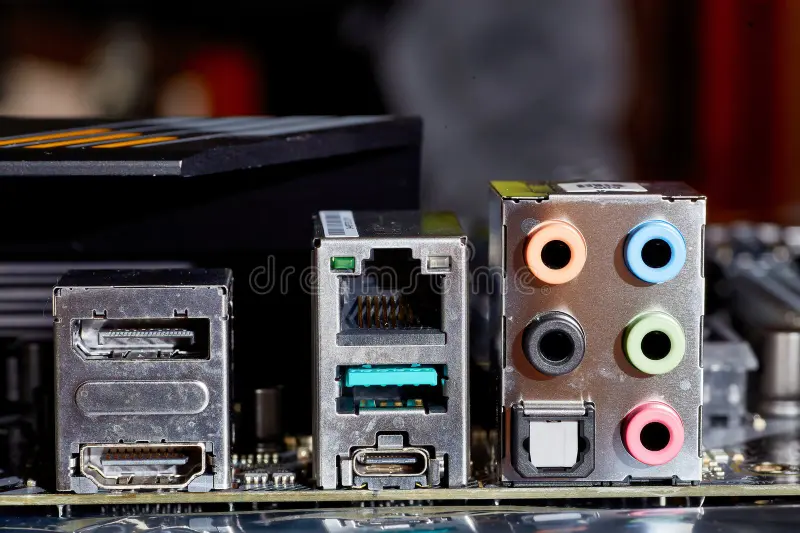
What you're looking for:
- HDMI 1.4 tops out at 4K but only at 30Hz. That's usable for video playback but feels laggy for desktop use.
- HDMI 2.0 handles 4K at 60Hz. This is what you want for a smooth experience.
- DisplayPort 1.2 does 4K60 without any issues.
- DisplayPort 1.4 handles 4K at 120Hz if your monitor supports it.
- USB-C with DisplayPort Alt Mode varies by implementation, but most modern boards route full DP 1.4 through USB-C.
Many budget boards cut costs by including HDMI 1.4 even when the chipset supports better. The DisplayPort on the same board might run at 1.4. Always check the spec sheet rather than assuming.
Understanding Which Port Does What
Not all ports on the back of your PC are created equal, even if they look similar. Here's the practical breakdown.
Use DisplayPort first if your monitor supports it. It's the most reliable path to 4K60 on integrated graphics. DP 1.2 cables are common and inexpensive, and they handle 4K60 without compression or chroma subsampling tricks.
HDMI works fine if it's version 2.0 or newer. The problem is you have to verify the version. A board might have HDMI 2.0 on one port and HDMI 1.4 on another, or the spec might just say "HDMI" without listing the version. When in doubt, check the manual or the manufacturer's detailed specs.
USB-C with DisplayPort Alt Mode is increasingly common on laptops and newer desktop boards. This is often the cleanest single-cable solution. But not every USB-C port supports video output. Look for a DP icon next to the port or check your manual for "DisplayPort over USB-C" support.
Avoid VGA and DVI entirely for 4K. These are analog or limited-digital connections that don't support 4K resolution. If your only outputs are VGA and DVI, you'll need a discrete GPU or a different system.
The Cable Problem That Trips Everyone Up
You'd be surprised how many "my 4K monitor won't work right" threads get solved by swapping the cable. The cable is the weakest link more often than people realize.
HDMI Versions and Why 1.4 vs 2.0 Changes Everything
HDMI 1.4 can technically output 4K, but only at 30Hz. That means your mouse cursor updates 30 times per second instead of 60. It feels laggy and imprecise immediately.
Video playback at 30fps looks fine, but desktop interaction does not.
HDMI 2.0 increases the bandwidth to 18 Gbps, which is enough for 4K at 60Hz with full 4:4:4 chroma. That's the smooth desktop experience you're looking for.
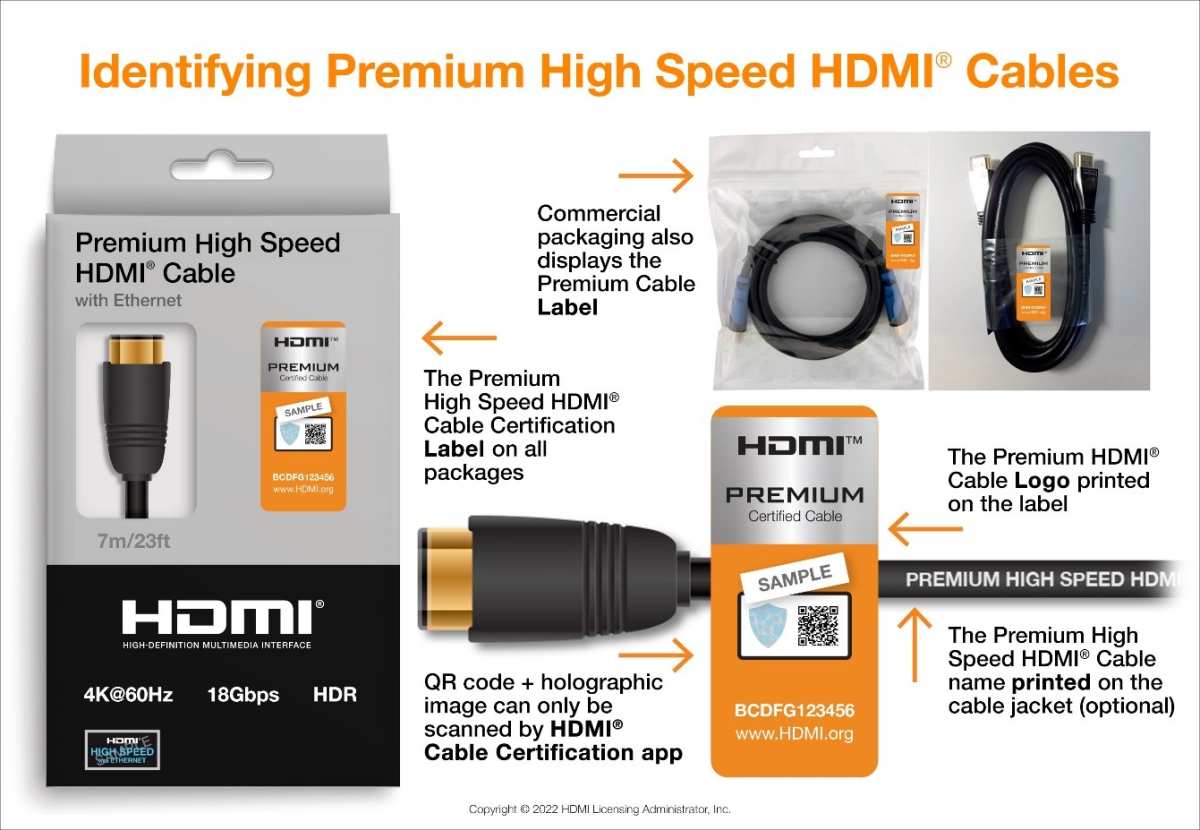
The cable itself doesn't have version numbers printed on it in most cases. Look for these labels instead:
- "Premium High Speed HDMI" means it's certified for 18 Gbps and will handle 4K60.
- "Ultra High Speed HDMI" covers HDMI 2.1 bandwidth for 4K120 and 8K.
- "High Speed HDMI" might only cover HDMI 1.4 speeds. It's ambiguous, so avoid it for 4K60 setups.
If your cable came in the box with a monitor or GPU, it's usually adequate. If it's a no-name cable from a dollar store, it might not be.
DisplayPort: The Reliable Option for 4K60
DisplayPort is simpler. Any DisplayPort 1.2 cable handles 4K60. Most DP cables sold in the last decade are at least 1.2.
You don't need to hunt for special certifications.
The one caveat is cable length. For runs over about 10 feet, get a quality active cable or stay with shorter passive cables. Signal degradation over long DP runs can cause flickering or dropouts at 4K.
USB-C and Thunderbolt: When They Work for 4K
USB-C video output depends on DisplayPort Alt Mode support. Not every USB-C port does this. On laptops especially, some USB-C ports are data-only.
Thunderbolt 3 and 4 ports always support DisplayPort output. If you have a Thunderbolt port, you can use a USB-C to DisplayPort cable or a USB-C to HDMI adapter rated for 4K60.
For adapters, check the specs carefully. Many cheap USB-C to HDMI adapters only support HDMI 1.4, capping you at 4K30. Look for adapters explicitly labeled as supporting 4K60 or HDMI 2.0.
Step-by-Step: Setting Up Your 4K Monitor on Integrated Graphics
Once you've confirmed your hardware chain is capable, the software setup is straightforward. Here's how to configure each operating system.
Windows Setup and Configuration
Connect your monitor to the correct port using the right cable. Power everything on. Windows will usually detect the monitor and set a default resolution, but it might not pick the optimal settings automatically.
Right-click the desktop and select Display Settings. You'll see your displays represented as numbered boxes. Click the box representing your 4K monitor.
:max_bytes(150000):strip_icc()/Displayresolutionannotated-c6db92620fdb4eefac48bd59260470f5.jpg)
Scroll down to Display Resolution and select 3840 x 2160. If this option doesn't appear, your cable or port is likely the bottleneck. Go back and check your hardware chain.
After setting the resolution, click Advanced Display Settings. Look for the Refresh Rate dropdown and select 60Hz. If 60Hz isn't available, you're either on HDMI 1.4, using a cable that can't handle the bandwidth, or your port version is limiting you.
One more thing to check. Scroll back up in Display Settings and look for Scale. At 4K on a 27-inch monitor, text and UI elements will be tiny at 100% scaling.
Set this to 150% for comfortable reading. For a 32-inch 4K display, 125% or 150% usually works well.
If you're still not getting 60Hz after checking everything, update your graphics drivers. Grab the latest Intel or AMD integrated graphics driver from the manufacturer's website rather than relying on Windows Update.
macOS Setup and Configuration
macOS handles 4K on integrated graphics well, especially on Apple Silicon Macs. The M1, M2, M3, and M4 chips all support 4K60 output natively through their Thunderbolt and HDMI ports.
Connect your monitor. Open System Settings and click Displays. Your 4K monitor should appear in the settings panel.
Hold the Option key and click the Scaled option. This reveals all available resolution choices. Select 3840 x 2160.
For refresh rate control, look for the Refresh Rate dropdown in the same panel. Not all Macs expose this option, but when it's there, select 60Hz.
macOS defaults to a scaled resolution that mimics a lower logical resolution while rendering at 4K. This gives you usable UI element sizes while keeping text sharp. If you want more screen real estate, choose a scaled option that's closer to native 4K.
On Intel Macs with older integrated graphics, 4K60 support varies by model. Check your specific Mac's tech specs page on Apple's support site to confirm what it can output.
Linux Setup and Configuration
Linux support for 4K on integrated graphics has improved dramatically. Both Intel and AMD iGPUs work well with modern distributions using Wayland or X11.
For GNOME-based desktops, open Settings and click Displays. Select your 4K monitor and choose 3840 x 2160 from the Resolution dropdown. Set the refresh rate to 60Hz if it's not already selected.
KDE Plasma follows a similar path through System Settings > Display and Monitor.
If your resolution doesn't appear in the GUI options, you may need to add a custom modeline. Open a terminal and run:
cvt 3840 2160 60
This outputs a modeline string. Copy it and use xrandr to add and apply the new mode. The exact commands vary, but the process is well-documented for most distributions.
Wayland compositors like GNOME on Wayland and KDE Plasma on Wayland generally handle 4K scaling better than X11. If you're setting up a fresh system, prefer a Wayland session for the smoothest 4K experience on integrated graphics.
Driver-wise, Intel iGPUs use the built-in i915 kernel driver. AMD APUs use the amdgpu driver. Both are included in the Linux kernel and work out of the box on current distributions.
No manual driver installation needed in most cases.
Why Your 4K Display Feels Sluggish (And How to Fix It)
You've got 4K running, but something feels off. The mouse drags, windows stutter when you move them, and scrolling a webpage doesn't feel smooth. Here's what's usually going on.
Confirming You're Actually at 60Hz
First, verify your refresh rate. Your monitor's on-screen display menu usually shows the current resolution and refresh rate. Press the physical buttons on your monitor and look for an "Information" or "Status" section.
If it shows 30Hz, that's your problem. Go back to your display settings and check the refresh rate dropdown. If 60Hz isn't available, your cable or port is the bottleneck.
Swap to DisplayPort if you're on HDMI, or try a certified Premium High Speed HDMI cable.
Reducing Desktop Overhead on the iGPU
Integrated graphics share system memory and processing resources with your CPU. Heavy desktop effects eat into that shared budget.
On Windows, search for "Adjust the appearance and performance of Windows" in the start menu. In the Visual Effects tab, select "Adjust for best performance" or manually disable animations like "Animate windows when minimizing and maximizing." You don't need transparency effects to get work done.
Make sure your system has adequate RAM. Integrated GPUs borrow from system memory for frame buffering. With 8 GB of total RAM, the iGPU might only have 1 GB allocated.
With 16 GB in dual-channel configuration, you'll see noticeably smoother performance at 4K.
Dual-channel memory matters more than most people realize. Two 8 GB sticks perform significantly better for iGPU workloads than a single 16 GB stick. The memory bandwidth directly affects how fast the iGPU can push pixels.
Browser and Application Hardware Acceleration
Modern browsers use GPU acceleration for rendering web pages. Make sure it's enabled.
In Chrome or Edge, go to Settings > System and confirm "Use hardware acceleration when available" is turned on. In Firefox, look under General > Performance and uncheck "Use recommended performance settings" if needed, then ensure "Use hardware acceleration when available" is checked.
For video playback, apps like VLC and MPC-HC can use DXVA2 or VAAPI hardware decoding on integrated graphics. This offloads 4K video decoding from the CPU to the iGPU's dedicated media engine. Without it, your CPU struggles with 4K H.265 content and you get dropped frames.
What Integrated Graphics Can and Can't Do at 4K
Let's set realistic expectations. Integrated graphics at 4K are great for some tasks and terrible for others.
Productivity, Video, and Desktop Use: Totally Fine
For office work, coding, web browsing, email, spreadsheets, and general desktop use, modern iGPUs handle 4K60 without breaking a sweat. Text is crisp, scrolling is smooth, and having four times the screen real estate of 1080p transforms your workflow.
4K video playback works well too. Intel's Quick Sync Video and AMD's VCN (Video Core Next) are dedicated hardware blocks built into the iGPU specifically for decoding video streams. They handle 4K H.264 and H.265 content efficiently without taxing the main GPU cores.
Gaming at 4K: The Honest Reality
Here's where integrated graphics hit a wall. Gaming at native 4K requires serious GPU horsepower that iGPUs simply don't have.
Older titles and esports games like CS2, Valorant, or League of Legends might hit playable frame rates at 4K with settings turned down. But modern AAA games at native 4K? You're looking at single-digit frame rates on most iGPUs.
The exception is AMD's RDNA 3 iGPUs like the Radeon 780M found in Ryzen 7000 and 8000 series APUs. These can handle lighter games at 4K with reduced settings. For anything demanding, you'd still want to drop to 1440p or 1080p for playable frame rates.
If gaming at 4K matters to you, a discrete GPU is the realistic answer. Even an entry-level card like an AMD RX 6600 or NVIDIA RTX 3060 outperforms any current iGPU for 4K gaming by a wide margin.
Video Editing and Creative Work: Where It Gets Tight
Basic photo editing at 4K works fine on integrated graphics. Lightroom and Photoshop run adequately on modern iGPUs for still image work.
Video editing is a different story. Timeline scrubbing in 4K footage will be choppy on older iGPUs like Intel UHD 630. Newer chips with better media engines handle it more smoothly, but render times will be long compared to a discrete GPU.
DaVinci Resolve and Premiere Pro both benefit from GPU acceleration. An iGPU will work for basic editing, but expect longer export times and less responsive playback with effects and color grading applied.
Common Mistakes That Keep You Stuck at 4K30
These are the issues that come up over and over again.
Using the HDMI port without checking its version. Your motherboard might have HDMI 1.4. That caps you at 4K30. Switch to DisplayPort and the problem disappears.
Using a cable that can't handle the bandwidth. That old HDMI cable from your PS3 era probably isn't rated for 4K60. Grab a certified Premium High Speed HDMI cable or use DisplayPort.
Not checking the refresh rate in OS settings. Windows sometimes defaults to 30Hz even when 60Hz is available. You have to manually select it in display settings.
Connecting to the wrong port on a laptop. Some laptops route HDMI through the discrete GPU only. If you don't have a dGPU, that port might not work at all. Try USB-C with DisplayPort Alt Mode instead.
Forgetting to update graphics drivers. Outdated drivers can limit available resolutions and refresh rates. Grab the latest from Intel or AMD directly.
Assuming all USB-C ports support video. Many USB-C ports are data-only. Check your manual for DisplayPort Alt Mode or Thunderbolt support before buying adapters.
When You Need a Discrete GPU Instead
Integrated graphics cover a lot of ground, but there are clear scenarios where you need a dedicated card.
If you want to game at 4K with decent settings and frame rates, an iGPU won't cut it. You need at least a mid-range discrete GPU.
For professional video editing with tight deadlines, a dGPU dramatically reduces render and export times. The CUDA or ROCm acceleration in creative apps makes a real difference.
Multiple 4K displays can exceed what most iGPUs handle. If you're running two or three 4K monitors, check your iGPU's maximum display count. Many top out at one or two 4K60 outputs.
HDR content creation and display is still finicky on integrated graphics. Color-accurate HDR workflows generally benefit from a discrete GPU with proper HDR pipeline support.
Quick Troubleshooting Checklist
Work through these in order when something isn't right.
- Check your monitor's OSD to confirm current resolution and refresh rate
- Verify your cable is rated for the bandwidth you need
- Try a different port on your motherboard
- Update your integrated graphics drivers from the manufacturer's website
- Confirm your iGPU is enabled in BIOS/UEFI
- Check that your monitor's input source matches the cable you're using
- Test with a different cable to rule out a faulty one
- Restart your system after changing display connections
Final Verdict: Is 4K on Integrated Graphics Worth It for You?
For productivity, media consumption, and general desktop use, running 4K on integrated graphics is absolutely worth it in 2026. Modern iGPUs handle it well, and the clarity and screen real estate improvement over 1080p is transformative.
The key is getting your hardware chain right. Use DisplayPort when possible. Verify your port versions.
Get a proper cable. Set your refresh rate manually. Do those four things and you'll have a smooth 4K experience without spending a dime on a discrete GPU.
If your workload involves gaming, professional video editing, or heavy creative work at 4K, integrated graphics will frustrate you. In those cases, budget for a dedicated GPU. But for everyone else, your iGPU is more capable than you might think.
Frequently Asked Questions
Can Intel UHD 630 run a 4K monitor?
Yes, Intel UHD 630 supports 4K output at 60Hz through DisplayPort 1.2. Over HDMI, you're limited to 4K30 on most boards since the HDMI implementation is typically version 1.4. Use DisplayPort for the best experience.
Why is my 4K monitor only showing 30Hz?
You're likely connected through HDMI 1.4 or using a cable that doesn't support the bandwidth needed for 4K60. Switch to DisplayPort or use a certified Premium High Speed HDMI cable rated for 18 Gbps.
Do I need a dedicated GPU for 4K?
Not for desktop use, productivity, or video playback. Modern integrated graphics handle these tasks at 4K60 without issues. You only need a discrete GPU for 4K gaming, professional video editing, or running multiple 4K displays.
Does running 4K on integrated graphics use more RAM?
Yes, the iGPU borrows system memory for frame buffering. At 4K, the frame buffer is larger than at 1080p. Having 16 GB of RAM in dual-channel configuration gives the iGPU enough headroom to perform well.
Can I run two 4K monitors on integrated graphics?
It depends on your specific iGPU and motherboard. Many Intel iGPUs support up to three displays, but running two at 4K60 may exceed the available display bandwidth. Check your CPU and motherboard specifications for maximum display count and total bandwidth limits.
Will a USB-C to HDMI adapter work for 4K60?
Only if both the USB-C port supports DisplayPort Alt Mode and the adapter is rated for HDMI 2.0 or higher. Many cheap adapters only support HDMI 1.4, which limits you to 4K30. Check the adapter specifications before buying.
Frequently Asked Questions
Can Intel UHD 630 run a 4K monitor?
Yes, Intel UHD 630 supports 4K output at 60Hz through DisplayPort 1.2. Over HDMI, you're limited to 4K30 on most boards since the HDMI implementation is typically version 1.4. Use DisplayPort for the best experience.
Why is my 4K monitor only showing 30Hz?
You're likely connected through HDMI 1.4 or using a cable that doesn't support the bandwidth needed for 4K60. Switch to DisplayPort or use a certified Premium High Speed HDMI cable rated for 18 Gbps.
Do I need a dedicated GPU for 4K?
Not for desktop use, productivity, or video playback. Modern integrated graphics handle these tasks at 4K60 without issues. You only need a discrete GPU for 4K gaming, professional video editing, or running multiple 4K displays.
Does running 4K on integrated graphics use more RAM?
Yes, the iGPU borrows system memory for frame buffering. At 4K, the frame buffer is larger than at 1080p. Having 16 GB of RAM in dual-channel configuration gives the iGPU enough headroom to perform well.
Can I run two 4K monitors on integrated graphics?
It depends on your specific iGPU and motherboard. Many Intel iGPUs support up to three displays, but running two at 4K60 may exceed the available display bandwidth. Check your CPU and motherboard specifications for maximum display count and total bandwidth limits.
Will a USB-C to HDMI adapter work for 4K60?
Only if both the USB-C port supports DisplayPort Alt Mode and the adapter is rated for HDMI 2.0 or higher. Many cheap adapters only support HDMI 1.4, which limits you to 4K30. Check the adapter specifications before buying.
:max_bytes(150000):strip_icc()/Displayresolutionannotated-c6db92620fdb4eefac48bd59260470f5.jpg)

Similar Posts





















