How to Connect Dual 4K Monitors
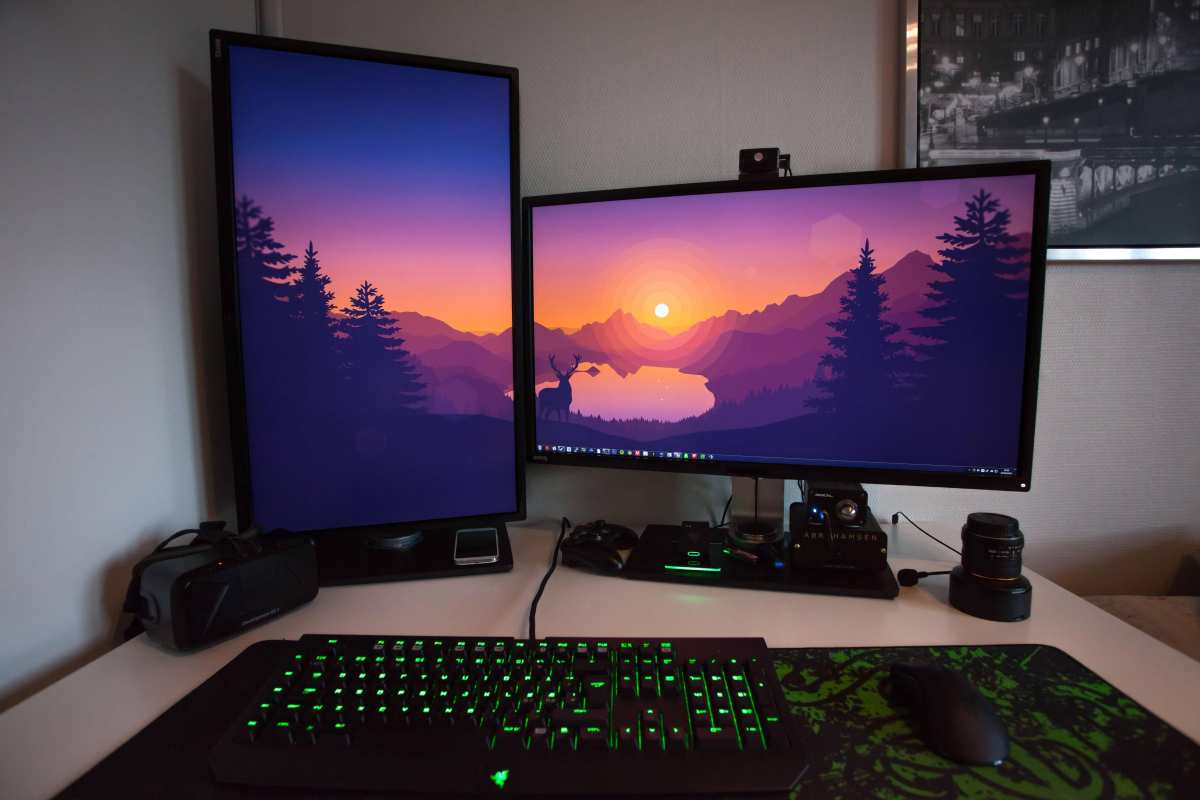
Figuring out how to connect dual 4K monitors usually starts with excitement and ends with frustration. You plug in the second screen and it looks blurry, or it's stuck at 30Hz, or your laptop simply refuses to detect it. The good news is that almost every dual 4K problem comes down to one thing: your connection method doesn't have enough bandwidth.
The fix depends entirely on what ports your laptop or PC has, what inputs your monitors support, and whether you want a clean single-cable setup or don't mind running two cables from your graphics card. DisplayPort 1.4 with Display Stream Compression can push 4K at 60Hz over a single cable. HDMI 2.0 can too, but only at 60Hz with 4:2:0 chroma subsampling.
Let's walk through exactly what you're working with and then match it to the right connection path.
Quick Answer
Connect dual 4K monitors by matching your available ports to the right method. Use direct DisplayPort or HDMI cables from your GPU for the most reliable results. A Thunderbolt dock works best for laptops with a single cable.
DisplayPort MST daisy chaining works if both monitors support it. Always verify your cables support enough bandwidth for 4K at 60Hz.
Why Your Dual 4K Setup Isn't Working (And How to Fix It)
The most common reason a second 4K monitor looks wrong is bandwidth. A 4K signal at 60Hz with full color (4:4:4 chroma) needs roughly 17.8 Gbps of data throughput. HDMI 2.0 tops out at 18 Gbps, which technically works but leaves almost no headroom.
DisplayPort 1.4 handles 32.4 Gbps, giving you comfortable room.
When there isn't enough bandwidth, your system drops to 30Hz. Everything feels sluggish. Mouse movement looks choppy.
Scrolling stutters. You might also see the resolution fall back to 1080p, or the display might show a washed-out image because the system compressed the color signal to fit the cable.
Here's what typically goes wrong:
- Wrong cable: Not all HDMI cables support HDMI 2.0 speeds. Older cables cap at 10.2 Gbps (HDMI 1.4), which can't handle 4K at 60Hz.
- Wrong port: Many USB-C ports on laptops only handle data and charging. They don't carry a video signal at all.
- Dock limitations: Some USB-C hubs share a single DisplayPort stream across multiple outputs, which means two 4K displays have to split the bandwidth and both drop to 30Hz.
- Driver issues: Outdated GPU drivers sometimes fail to negotiate the correct signal format, especially on Windows machines with integrated and discrete graphics.
The fix starts with knowing exactly what hardware you have. Let's do that now.
First, Check What You Actually Have
Before buying any cables or docks, spend five minutes auditing your equipment. This step saves you from the most common mistake: buying the wrong adapter because you assumed a port supported something it doesn't.
The Port Audit: Laptop Side
Look at every port on your laptop. Then look up your exact model's specifications on the manufacturer's website. The physical port doesn't always tell you what it supports.
Here's a quick reference for what to expect from common port types:
| Port Type | Video Support | Max Dual 4K @ 60Hz | Notes |
|---|---|---|---|
| HDMI 2.0 | Yes | One monitor only | 18 Gbps total bandwidth |
| HDMI 2.1 | Yes | Two monitors possible | 48 Gbps, rare on laptops as of 2026 |
| USB-C (DP Alt Mode) | Varies by model | Depends on implementation | Must explicitly support DisplayPort Alt Mode |
| Thunderbolt 4 | Yes | Yes, via dock | 40 Gbps, supports dual 4K with DSC |
| Thunderbolt 3 | Yes | Yes, via dock | 40 Gbps, widely available 2018-2023 |
| USB-C (data only) | No | Not possible | Common on budget laptops |
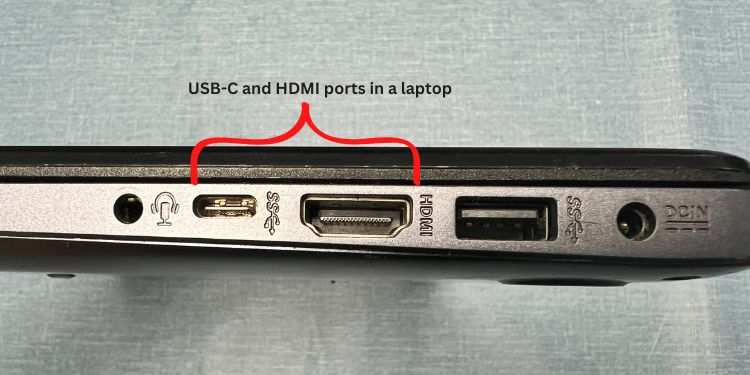
A few things trip people up here. First, two USB-C ports sitting side by side can have completely different capabilities. One might support Thunderbolt and video output while the other handles only USB data and charging.
Second, some laptops with both HDMI and USB-C video ports route both through the same GPU output. That means you can't always use both simultaneously for two external displays.
Check your laptop manufacturer's support page. Look for the phrase "maximum external displays" or "multi-monitor support." That number tells you what's actually possible regardless of how many ports you see on the chassis.
The Port Audit: Monitor Side
Now check the back of each 4K monitor. You need to know what inputs it accepts and whether it supports any special features.
Look for:
- DisplayPort 1.2 vs 1.4: DisplayPort 1.2 can handle 4K at 60Hz. DisplayPort 1.4 adds DSC for higher refresh rates and HDR. Either works for basic dual 4K at 60Hz.
- HDMI version: Check the monitor's spec sheet. Many budget 4K monitors ship with HDMI 2.0, which is fine for 4K at 60Hz. Some older models only have HDMI 1.4, which caps at 4K at 30Hz.
- MST support: If you see "DisplayPort Out" or "MST" in the specs, that monitor can daisy chain to a second display. Not all monitors with DisplayPort support this.
- USB-C input: Some 4K monitors accept video over USB-C directly. This simplifies laptop connections significantly.
Write down the exact model numbers of both monitors. Then look up their input specifications. This matters because one monitor might have DisplayPort 1.4 while the other only has HDMI 1.4.
That mismatch determines which connection method will actually work for both screens at full quality.
Your Connection Options, Ranked
Once you know what ports you have, you can pick the right connection method. There are four main approaches, and each has tradeoffs in reliability, cable clutter, and cost.
Option 1: Direct Cables to Your GPU (Most Reliable)
If you have a desktop PC with a dedicated graphics card, this is the simplest and most reliable path. Run one cable from your GPU to each monitor. Done.
Most modern GPUs have at least two DisplayPort outputs and one HDMI output. Use DisplayPort cables for both monitors if possible. DisplayPort handles 4K at 60Hz with full color without any compression tricks.
It also supports adaptive sync if you're gaming.
When this works best:
- Desktop PCs with dedicated GPUs
- Situations where cable clutter doesn't matter
- When you want zero latency and maximum reliability
Limitations:
- Doesn't help laptop users who need a single-cable connection
- Requires your GPU to support two simultaneous 4K outputs (most GPUs from 2018 onward do)
Cable requirements:
- DisplayPort 1.4 certified cables for each monitor
- Or HDMI 2.0 (minimum) certified cables
- Keep cable runs under 3 meters for passive cables; use active cables for longer runs
Option 2: Thunderbolt or USB-C Dock (Cleanest Setup)
For laptop users, a Thunderbolt dock is the gold standard. One cable from the dock to your laptop handles video, data, and charging. Two cables from the dock to your monitors complete the setup.
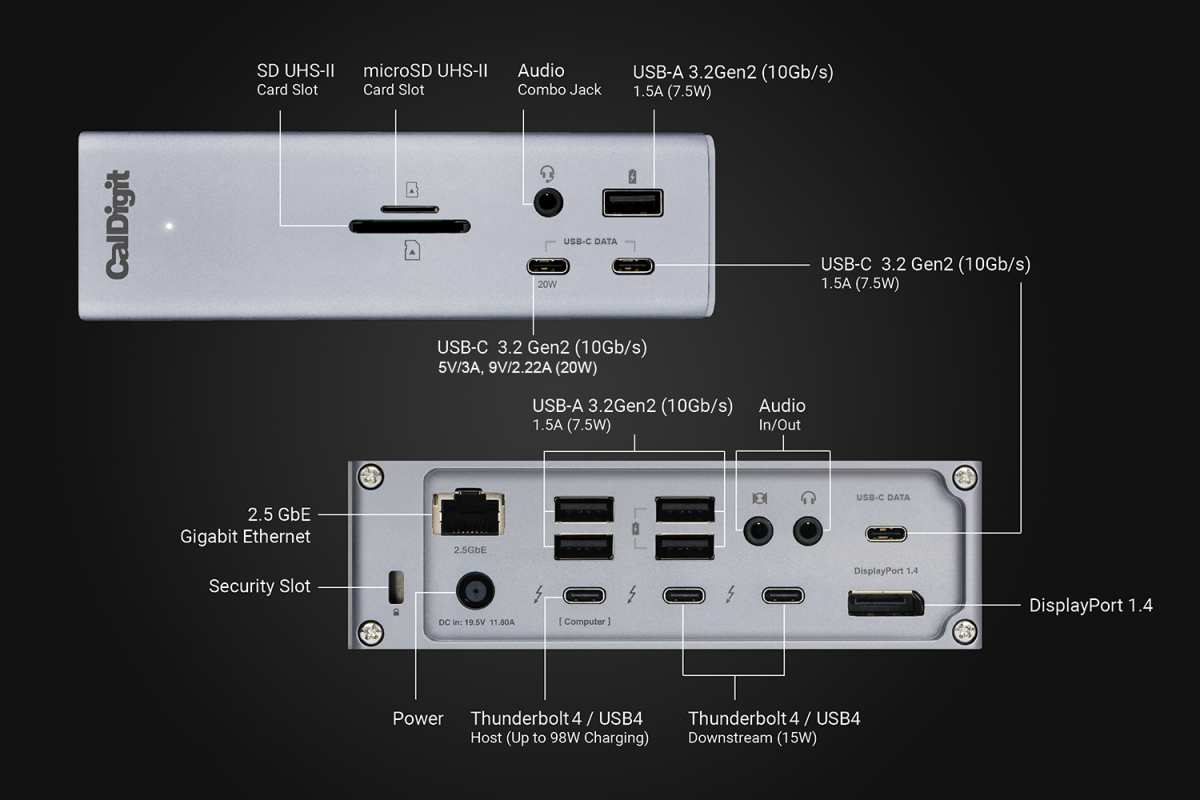
A quality Thunderbolt 4 dock like the CalDigit TS4 provides enough bandwidth for dual 4K at 60Hz while simultaneously charging your laptop at up to 94W. The dock splits the available bandwidth intelligently using DisplayPort tunneling.
When this works best:
- Laptop users who dock and undock frequently
- People who want a clean desk with minimal cable clutter
- MacBook users (Apple Silicon Macs handle this well)
Limitations:
- Docks cost $150 to $350
- Your laptop must have Thunderbolt 3, Thunderbolt 4, or USB4
- Not all USB-C docks support dual 4K at 60Hz; many cheaper models cap at 30Hz on the second display
What to look for in a dock:
- Explicit "dual 4K @ 60Hz" in the product specifications
- Thunderbolt 4 or USB4 connection to the laptop
- At least two DisplayPort or HDMI outputs
- Power delivery that matches your laptop's charging requirement
Option 3: DisplayPort MST Daisy Chain (Fewest Cables)
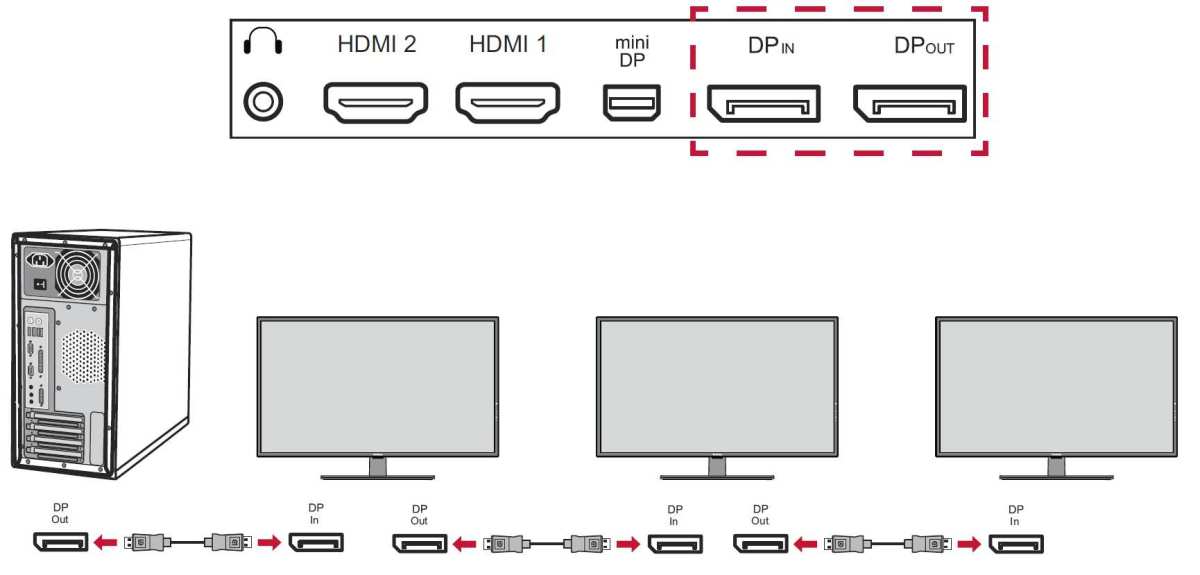
If both your monitors support DisplayPort Multi-Stream Transport (MST), you can connect your PC to the first monitor, then connect the first monitor to the second. Only one cable runs from your computer.
This works because DisplayPort 1.2 and later can carry multiple video streams through a single cable. The first monitor acts as a hub, splitting the signal between itself and the second display.
When this works best:
- Office setups where both monitors support MST
- Reducing cable clutter without buying a dock
- Situations where your GPU has only one DisplayPort output
Limitations:
- Both monitors must have DisplayPort MST support (check the specs carefully)
- The first monitor needs a DisplayPort Out port, not just an input
- macOS does not support MST daisy chaining (this is an Apple limitation, not a hardware one)
- If one monitor loses power, both displays go dark
Option 4: DisplayLink Adapter (Last Resort)
DisplayLink is a technology that compresses the video signal and sends it over a standard USB connection. It works with any USB port, even USB-A 3.0. The tradeoff is that it uses CPU resources and can introduce slight latency.
DisplayLink adapters and docks use a software driver on your computer. The driver captures the display output, compresses it, sends it over USB, and the adapter decompresses it into a video signal. This works, but it's not ideal for video playback or gaming.
When this works best:
- Laptops with no video-capable ports at all
- Adding extra monitors beyond what your GPU natively supports
- Temporary or travel setups
Limitations:
- Noticeable latency for mouse movement and video
- Requires installing DisplayLink drivers
- Uses 5-15% CPU overhead
- Not suitable for gaming or color-critical work
- Protected content (Netflix 4K, Blu-ray) may not display due to HDCP restrictions
Step-by-Step: Connecting Dual 4K Monitors
Now let's put it all together. Follow these steps in order, and you'll avoid the most common pitfalls.
Step 1: Match Your Ports to the Right Cables
Based on your port audit, select your connection method:
- Desktop with dedicated GPU: Use DisplayPort cables from the GPU to each monitor. If you run out of DisplayPort outputs, HDMI 2.0 or later works for one monitor.
- Laptop with Thunderbolt: Connect a Thunderbolt dock, then run cables from the dock to each monitor.
- Laptop with USB-C DP Alt Mode: Use a USB-C to dual DisplayPort adapter that explicitly supports dual 4K at 60Hz, or connect one monitor via USB-C and one via HDMI.
- Laptop with only HDMI: You can run one 4K monitor from HDMI. For the second, you'll need a DisplayLink adapter over USB.
Buy cables that are certified for the bandwidth you need. For DisplayPort, look for DP 1.4 certification. For HDMI, look for "Premium High Speed" or "Ultra High Speed" HDMI certification printed on the cable packaging.
Step 2: Configure Your Displays in Windows or macOS
Once everything is plugged in, your operating system should detect both monitors. If it doesn't, check your cable connections and make sure the monitors are set to the correct input source.
Windows:
- Right-click the desktop and select Display settings
- You should see three displays numbered 1, 2, and 3 (including your laptop screen if applicable)
- Click Identify to see which number corresponds to which physical monitor
- Drag the display icons to match your physical arrangement
- Select each monitor and set the resolution to 3840 × 2160
macOS:
- Open System Settings → Displays
- Click Arrange and drag the display icons to match your layout
- Select each display and set the resolution to 3840 × 2160 (you may need to hold Option and click "Scaled" to see the full resolution list)
Step 3: Set the Correct Refresh Rate (60Hz vs 30Hz)
This is where most people get tripped up. Your monitors might default to 30Hz even though they're capable of 60Hz. You need to manually set the refresh rate.
Windows:
- Go to Display settings → Advanced display settings
- Select each monitor
- Set the refresh rate to 60Hz (or higher if your monitor supports it)
macOS:
- Open System Settings → Displays
- Select each display
- Click the Refresh rate dropdown and select 60Hz
If 60Hz isn't available as an option, your cable or connection method doesn't have enough bandwidth. Double-check that you're using DisplayPort 1.4 or HDMI 2.0 or later. Also check your monitor's on-screen display (OSD) settings.
Some monitors have a setting that limits the input bandwidth to save power or reduce input lag.
Step 4: Fix Scaling So Text Isn't Tiny
At 4K resolution on a 27-inch monitor, everything looks microscopic at 100% scaling. You need to increase the scaling factor so text and UI elements are readable.
Windows:
- Go to Display settings
- Under Scale and layout, set scaling to 150% (recommended for 27" 4K) or 200% (recommended for smaller screens)
- Windows will ask you to sign out and back in for some apps to render correctly
macOS:
- Open System Settings → Displays
- Select each display
- Choose a scaled resolution. macOS renders at a higher resolution and then scales down, which looks sharper than just lowering the resolution.
For a 27-inch 4K monitor, 150% scaling on Windows or the "Looks like 2560 × 1440" scaled option on macOS gives you a comfortable workspace size with crisp text. For 32-inch 4K monitors, 125% to 150% scaling usually works better.
The Most Common Mistakes People Make
After walking through hundreds of forum threads and support cases, these are the mistakes that come up again and again:
Assuming all USB-C ports support video: They don't. Many USB-C ports handle only data and charging. Check your laptop's specifications sheet for "DisplayPort Alt Mode" or "video output" support before buying a USB-C adapter.
Using old HDMI cables: Cables that came with devices from 2015 or earlier are often HDMI 1.4. Those cables physically fit into HDMI 2.0 ports but can't carry a 4K 60Hz signal. If you're not sure what version your cable has, just buy a new one. Certified Premium High Speed HDMI cables cost under $10.
Buying a cheap USB-C hub without checking bandwidth: Many affordable USB-C hubs advertise "dual HDMI" but only support dual 4K at 30Hz. The product listing often buries this in the fine print. Look for explicit "dual 4K @ 60Hz" in the specifications before buying.
Forgetting to check the monitor's OSD settings: Some monitors default to a limited input mode. You might need to manually enable HDMI 2.0 mode or DisplayPort 1.4 mode in the monitor's on-screen menu before the full signal works.
Ignoring driver updates: GPU drivers handle display detection and signal negotiation. An outdated driver can prevent your system from recognizing a second 4K monitor or limit the available refresh rate. Update your graphics drivers before troubleshooting hardware.
Trying to daisy chain on macOS: Apple does not support DisplayPort MST. If you're a Mac user with two DisplayPort monitors, you need to connect each monitor separately (either directly or through a dock). Daisy chaining simply will not work.
Which Setup Is Right for You?
Your ideal setup depends on your hardware and how you use your monitors. Here's a quick decision guide based on common scenarios.
You're a Remote Worker with a MacBook
Get a Thunderbolt 4 dock. One cable handles charging, both 4K monitors, and any peripherals. The CalDigit TS4 or Anker PowerExpand 12-in-1 are solid options.
Make sure your MacBook has Thunderbolt (all MacBook Pro models from 2016 onward do, as do M1/M2/M3 MacBook Pros and Airs).
You're a Desktop PC User with a Dedicated GPU
Run DisplayPort cables directly from your GPU to each monitor. This is the simplest, cheapest, and most reliable method. You don't need a dock or any adapters.
Just two DisplayPort 1.4 cables.
You're a Developer Who Wants One Cable
If your laptop supports Thunderbolt, a dock gives you a single-cable docking experience. If your laptop only has USB-C with DP Alt Mode (no Thunderbolt), look for a USB-C MST hub that explicitly supports dual 4K at 60Hz. Avoid hubs that only list "dual HDMI" without specifying the refresh rate.
You're on a Budget and Already Own a Dock
Check your dock's specifications. If it supports dual 4K at 60Hz, you're good. If it only supports dual 4K at 30Hz, you have two options: live with 30Hz (it's tolerable for office work, just not great for scrolling), or connect one monitor through the dock and the other directly to your laptop's HDMI port.
Quick Reference: Bandwidth and Cable Requirements
Here's a reference table for the bandwidth each connection standard provides and what it can handle:
| Standard | Max Bandwidth | Single 4K @ 60Hz | Dual 4K @ 60Hz | Notes |
|---|---|---|---|---|
| DisplayPort 1.2 | 17.28 Gbps | Yes | No | No DSC support |
| DisplayPort 1.4 | 32.4 Gbps | Yes | Yes (with DSC) | Most common on monitors as of 2026 |
| HDMI 1.4 | 10.2 Gbps | No (30Hz max) | No | Found on older monitors |
| HDMI 2.0 | 18 Gbps | Yes | No (bandwidth limited) | Works for single 4K at 60Hz |
| HDMI 2.1 | 48 Gbps | Yes | Yes | Rare on laptops, common on TVs |
| Thunderbolt 4 | 40 Gbps | Yes | Yes (via dock) | Shares bandwidth with data |
| USB 3.0 (DisplayLink) | 5 Gbps | Yes (compressed) | Yes (compressed) | Uses CPU, adds latency |
Frequently Asked Questions
Can I run dual 4K monitors from a single USB-C port?
Yes, if your USB-C port supports DisplayPort Alt Mode and you use either a Thunderbolt dock or a USB-C MST hub that explicitly supports dual 4K at 60Hz. Not all USB-C hubs can do this. Check the product specifications for "dual 4K @ 60Hz" before buying.
Why is my second 4K monitor stuck at 30Hz?
Your connection doesn't have enough bandwidth. This usually means you're using an HDMI 1.4 cable, a USB-C hub that splits bandwidth between two displays, or a DisplayPort 1.2 connection. Upgrade to DisplayPort 1.4 or HDMI 2.0 or later, and verify your dock supports dual 4K at 60Hz.
Does daisy chaining work on Mac?
No. macOS does not support DisplayPort Multi-Stream Transport (MST). Mac users need to connect each monitor separately, either directly to the computer or through a Thunderbolt dock with multiple video outputs.
Do I need expensive cables for 4K?
No. You need cables that meet the right specification, not cables that cost a fortune. A certified DisplayPort 1.4 cable or Premium High Speed HDMI cable works perfectly.
These typically cost $8 to $15. Avoid cables that don't list a certification on the packaging.
Can I mix DisplayPort and HDMI for dual 4K?
Yes. Your GPU can output one signal over DisplayPort and another over HDMI simultaneously. This is actually a common setup.
Just make sure both connections meet the bandwidth requirements for 4K at 60Hz.
Will a USB-C hub work if my laptop only has USB 3.0?
Not for native video output. But a DisplayLink adapter can work over USB 3.0 by compressing the video signal in software. It works for office tasks and general use, but it's not suitable for gaming or video editing due to added latency and CPU overhead.
Quick Answer
Connect dual 4K monitors by matching your available ports to the right method. Use direct DisplayPort or HDMI cables from your GPU for the most reliable results. A Thunderbolt dock works best for laptops with a single cable.
DisplayPort MST daisy chaining works if both monitors support it. Always verify your cables support enough bandwidth for 4K at 60Hz.
Why Your Dual 4K Setup Isn't Working (And How to Fix It)
The most common reason a second 4K monitor looks wrong is bandwidth. A 4K signal at 60Hz with full color (4:4:4 chroma) needs roughly 17.8 Gbps of data throughput. HDMI 2.0 tops out at 18 Gbps, which technically works but leaves almost no headroom.
DisplayPort 1.4 handles 32.4 Gbps, giving you comfortable room.
When there isn't enough bandwidth, your system drops to 30Hz. Everything feels sluggish. Mouse movement looks choppy.
Scrolling stutters. You might also see the resolution fall back to 1080p, or the display might show a washed-out image because the system compressed the color signal to fit the cable.
Here's what typically goes wrong:
- Wrong cable: Not all HDMI cables support HDMI 2.0 speeds. Older cables cap at 10.2 Gbps (HDMI 1.4), which can't handle 4K at 60Hz.
- Wrong port: Many USB-C ports on laptops only handle data and charging. They don't carry a video signal at all.
- Dock limitations: Some USB-C hubs share a single DisplayPort stream across multiple outputs, which means two 4K displays have to split the bandwidth and both drop to 30Hz.
- Driver issues: Outdated GPU drivers sometimes fail to negotiate the correct signal format, especially on Windows machines with integrated and discrete graphics.
The fix starts with knowing exactly what hardware you have. Let's do that now.
First, Check What You Actually Have
Before buying any cables or docks, spend five minutes auditing your equipment. This step saves you from the most common mistake: buying the wrong adapter because you assumed a port supported something it doesn't.
The Port Audit: Laptop Side
Look at every port on your laptop. Then look up your exact model's specifications on the manufacturer's website. The physical port doesn't always tell you what it supports.
Here's a quick reference for what to expect from common port types:
| Port Type | Video Support | Max Dual 4K @ 60Hz | Notes |
|---|---|---|---|
| HDMI 2.0 | Yes | One monitor only | 18 Gbps total bandwidth |
| HDMI 2.1 | Yes | Two monitors possible | 48 Gbps, rare on laptops as of 2026 |
| USB-C (DP Alt Mode) | Varies by model | Depends on implementation | Must explicitly support DisplayPort Alt Mode |
| Thunderbolt 4 | Yes | Yes, via dock | 40 Gbps, supports dual 4K with DSC |
| Thunderbolt 3 | Yes | Yes, via dock | 40 Gbps, widely available 2018-2023 |
| USB-C (data only) | No | Not possible | Common on budget laptops |
A few things trip people up here. First, two USB-C ports sitting side by side can have completely different capabilities. One might support Thunderbolt and video output while the other handles only USB data and charging.
Second, some laptops with both HDMI and USB-C video ports route both through the same GPU output. That means you can't always use both simultaneously for two external displays.
Check your laptop manufacturer's support page. Look for the phrase "maximum external displays" or "multi-monitor support." That number tells you what's actually possible regardless of how many ports you see on the chassis.
The Port Audit: Monitor Side
Now check the back of each 4K monitor. You need to know what inputs it accepts and whether it supports any special features.
Look for:
- DisplayPort 1.2 vs 1.4: DisplayPort 1.2 can handle 4K at 60Hz. DisplayPort 1.4 adds DSC for higher refresh rates and HDR. Either works for basic dual 4K at 60Hz.
- HDMI version: Check the monitor's spec sheet. Many budget 4K monitors ship with HDMI 2.0, which is fine for 4K at 60Hz. Some older models only have HDMI 1.4, which caps at 4K at 30Hz.
- MST support: If you see "DisplayPort Out" or "MST" in the specs, that monitor can daisy chain to a second display. Not all monitors with DisplayPort support this.
- USB-C input: Some 4K monitors accept video over USB-C directly. This simplifies laptop connections significantly.
Write down the exact model numbers of both monitors. Then look up their input specifications. This matters because one monitor might have DisplayPort 1.4 while the other only has HDMI 1.4.
That mismatch determines which connection method will actually work for both screens at full quality.
Your Connection Options, Ranked
Once you know what ports you have, you can pick the right connection method. There are four main approaches, and each has tradeoffs in reliability, cable clutter, and cost.
Option 1: Direct Cables to Your GPU (Most Reliable)
If you have a desktop PC with a dedicated graphics card, this is the simplest and most reliable path. Run one cable from your GPU to each monitor. Done.
Most modern GPUs have at least two DisplayPort outputs and one HDMI output. Use DisplayPort cables for both monitors if possible. DisplayPort handles 4K at 60Hz with full color without any compression tricks.
It also supports adaptive sync if you're gaming.
When this works best:
- Desktop PCs with dedicated GPUs
- Situations where cable clutter doesn't matter
- When you want zero latency and maximum reliability
Limitations:
- Doesn't help laptop users who need a single-cable connection
- Requires your GPU to support two simultaneous 4K outputs (most GPUs from 2018 onward do)
Cable requirements:
- DisplayPort 1.4 certified cables for each monitor
- Or HDMI 2.0 (minimum) certified cables
- Keep cable runs under 3 meters for passive cables; use active cables for longer runs
Option 2: Thunderbolt or USB-C Dock (Cleanest Setup)
For laptop users, a Thunderbolt dock is the gold standard. One cable from the dock to your laptop handles video, data, and charging. Two cables from the dock to your monitors complete the setup.
A quality Thunderbolt 4 dock like the CalDigit TS4 provides enough bandwidth for dual 4K at 60Hz while simultaneously charging your laptop at up to 94W. The dock splits the available bandwidth intelligently using DisplayPort tunneling.
When this works best:
- Laptop users who dock and undock frequently
- People who want a clean desk with minimal cable clutter
- MacBook users (Apple Silicon Macs handle this well)
Limitations:
- Docks cost $150 to $350
- Your laptop must have Thunderbolt 3, Thunderbolt 4, or USB4
- Not all USB-C docks support dual 4K at 60Hz; many cheaper models cap at 30Hz on the second display
What to look for in a dock:
- Explicit "dual 4K @ 60Hz" in the product specifications
- Thunderbolt 4 or USB4 connection to the laptop
- At least two DisplayPort or HDMI outputs
- Power delivery that matches your laptop's charging requirement
Option 3: DisplayPort MST Daisy Chain (Fewest Cables)
If both your monitors support DisplayPort Multi-Stream Transport (MST), you can connect your PC to the first monitor, then connect the first monitor to the second. Only one cable runs from your computer.
This works because DisplayPort 1.2 and later can carry multiple video streams through a single cable. The first monitor acts as a hub, splitting the signal between itself and the second display.
When this works best:
- Office setups where both monitors support MST
- Reducing cable clutter without buying a dock
- Situations where your GPU has only one DisplayPort output
Limitations:
- Both monitors must have DisplayPort MST support (check the specs carefully)
- The first monitor needs a DisplayPort Out port, not just an input
- macOS does not support MST daisy chaining (this is an Apple limitation, not a hardware one)
- If one monitor loses power, both displays go dark
Option 4: DisplayLink Adapter (Last Resort)
DisplayLink is a technology that compresses the video signal and sends it over a standard USB connection. It works with any USB port, even USB-A 3.0. The tradeoff is that it uses CPU resources and can introduce slight latency.
DisplayLink adapters and docks use a software driver on your computer. The driver captures the display output, compresses it, sends it over USB, and the adapter decompresses it into a video signal. This works, but it's not ideal for video playback or gaming.
When this works best:
- Laptops with no video-capable ports at all
- Adding extra monitors beyond what your GPU natively supports
- Temporary or travel setups
Limitations:
- Noticeable latency for mouse movement and video
- Requires installing DisplayLink drivers
- Uses 5-15% CPU overhead
- Not suitable for gaming or color-critical work
- Protected content (Netflix 4K, Blu-ray) may not display due to HDCP restrictions
Step-by-Step: Connecting Dual 4K Monitors
Now let's put it all together. Follow these steps in order, and you'll avoid the most common pitfalls.
Step 1: Match Your Ports to the Right Cables
Based on your port audit, select your connection method:
- Desktop with dedicated GPU: Use DisplayPort cables from the GPU to each monitor. If you run out of DisplayPort outputs, HDMI 2.0 or later works for one monitor.
- Laptop with Thunderbolt: Connect a Thunderbolt dock, then run cables from the dock to each monitor.
- Laptop with USB-C DP Alt Mode: Use a USB-C to dual DisplayPort adapter that explicitly supports dual 4K at 60Hz, or connect one monitor via USB-C and one via HDMI.
- Laptop with only HDMI: You can run one 4K monitor from HDMI. For the second, you'll need a DisplayLink adapter over USB.
Buy cables that are certified for the bandwidth you need. For DisplayPort, look for DP 1.4 certification. For HDMI, look for "Premium High Speed" or "Ultra High Speed" HDMI certification printed on the cable packaging.
Step 2: Configure Your Displays in Windows or macOS
Once everything is plugged in, your operating system should detect both monitors. If it doesn't, check your cable connections and make sure the monitors are set to the correct input source.
Windows:
- Right-click the desktop and select Display settings
- You should see three displays numbered 1, 2, and 3 (including your laptop screen if applicable)
- Click Identify to see which number corresponds to which physical monitor
- Drag the display icons to match your physical arrangement
- Select each monitor and set the resolution to 3840 × 2160
macOS:
- Open System Settings → Displays
- Click Arrange and drag the display icons to match your layout
- Select each display and set the resolution to 3840 × 2160 (you may need to hold Option and click "Scaled" to see the full resolution list)
Step 3: Set the Correct Refresh Rate (60Hz vs 30Hz)
This is where most people get tripped up. Your monitors might default to 30Hz even though they're capable of 60Hz. You need to manually set the refresh rate.
Windows:
- Go to Display settings → Advanced display settings
- Select each monitor
- Set the refresh rate to 60Hz (or higher if your monitor supports it)
macOS:
- Open System Settings → Displays
- Select each display
- Click the Refresh rate dropdown and select 60Hz
If 60Hz isn't available as an option, your cable or connection method doesn't have enough bandwidth. Double-check that you're using DisplayPort 1.4 or HDMI 2.0 or later. Also check your monitor's on-screen display (OSD) settings.
Some monitors have a setting that limits the input bandwidth to save power or reduce input lag.
Step 4: Fix Scaling So Text Isn't Tiny
At 4K resolution on a 27-inch monitor, everything looks microscopic at 100% scaling. You need to increase the scaling factor so text and UI elements are readable.
Windows:
- Go to Display settings
- Under Scale and layout, set scaling to 150% (recommended for 27" 4K) or 200% (recommended for smaller screens)
- Windows will ask you to sign out and back in for some apps to render correctly
macOS:
- Open System Settings → Displays
- Select each display
- Choose a scaled resolution. macOS renders at a higher resolution and then scales down, which looks sharper than just lowering the resolution.
For a 27-inch 4K monitor, 150% scaling on Windows or the "Looks like 2560 × 1440" scaled option on macOS gives you a comfortable workspace size with crisp text. For 32-inch 4K monitors, 125% to 150% scaling usually works better.
The Most Common Mistakes People Make
After walking through hundreds of forum threads and support cases, these are the mistakes that come up again and again:
Assuming all USB-C ports support video: They don't. Many USB-C ports handle only data and charging. Check your laptop's specifications sheet for "DisplayPort Alt Mode" or "video output" support before buying a USB-C adapter.
Using old HDMI cables: Cables that came with devices from 2015 or earlier are often HDMI 1.4. Those cables physically fit into HDMI 2.0 ports but can't carry a 4K 60Hz signal. If you're not sure what version your cable has, just buy a new one. Certified Premium High Speed HDMI cables cost under $10.
Buying a cheap USB-C hub without checking bandwidth: Many affordable USB-C hubs advertise "dual HDMI" but only support dual 4K at 30Hz. The product listing often buries this in the fine print. Look for explicit "dual 4K @ 60Hz" in the specifications before buying.
Forgetting to check the monitor's OSD settings: Some monitors default to a limited input mode. You might need to manually enable HDMI 2.0 mode or DisplayPort 1.4 mode in the monitor's on-screen menu before the full signal works.
Ignoring driver updates: GPU drivers handle display detection and signal negotiation. An outdated driver can prevent your system from recognizing a second 4K monitor or limit the available refresh rate. Update your graphics drivers before troubleshooting hardware.
Trying to daisy chain on macOS: Apple does not support DisplayPort MST. If you're a Mac user with two DisplayPort monitors, you need to connect each monitor separately (either directly or through a dock). Daisy chaining simply will not work.
Which Setup Is Right for You?
Your ideal setup depends on your hardware and how you use your monitors. Here's a quick decision guide based on common scenarios.
You're a Remote Worker with a MacBook
Get a Thunderbolt 4 dock. One cable handles charging, both 4K monitors, and any peripherals. The CalDigit TS4 or Anker PowerExpand 12-in-1 are solid options.
Make sure your MacBook has Thunderbolt (all MacBook Pro models from 2016 onward do, as do M1/M2/M3 MacBook Pros and Airs).
You're a Desktop PC User with a Dedicated GPU
Run DisplayPort cables directly from your GPU to each monitor. This is the simplest, cheapest, and most reliable method. You don't need a dock or any adapters.
Just two DisplayPort 1.4 cables.
You're a Developer Who Wants One Cable
If your laptop supports Thunderbolt, a dock gives you a single-cable docking experience. If your laptop only has USB-C with DP Alt Mode (no Thunderbolt), look for a USB-C MST hub that explicitly supports dual 4K at 60Hz. Avoid hubs that only list "dual HDMI" without specifying the refresh rate.
You're on a Budget and Already Own a Dock
Check your dock's specifications. If it supports dual 4K at 60Hz, you're good. If it only supports dual 4K at 30Hz, you have two options: live with 30Hz (it's tolerable for office work, just not great for scrolling), or connect one monitor through the dock and the other directly to your laptop's HDMI port.
Quick Reference: Bandwidth and Cable Requirements
Here's a reference table for the bandwidth each connection standard provides and what it can handle:
| Standard | Max Bandwidth | Single 4K @ 60Hz | Dual 4K @ 60Hz | Notes |
|---|---|---|---|---|
| DisplayPort 1.2 | 17.28 Gbps | Yes | No | No DSC support |
| DisplayPort 1.4 | 32.4 Gbps | Yes | Yes (with DSC) | Most common on monitors as of 2026 |
| HDMI 1.4 | 10.2 Gbps | No (30Hz max) | No | Found on older monitors |
| HDMI 2.0 | 18 Gbps | Yes | No (bandwidth limited) | Works for single 4K at 60Hz |
| HDMI 2.1 | 48 Gbps | Yes | Yes | Rare on laptops, common on TVs |
| Thunderbolt 4 | 40 Gbps | Yes | Yes (via dock) | Shares bandwidth with data |
| USB 3.0 (DisplayLink) | 5 Gbps | Yes (compressed) | Yes (compressed) | Uses CPU, adds latency |
Frequently Asked Questions
Can I run dual 4K monitors from a single USB-C port?
Yes, if your USB-C port supports DisplayPort Alt Mode and you use either a Thunderbolt dock or a USB-C MST hub that explicitly supports dual 4K at 60Hz. Not all USB-C hubs can do this. Check the product specifications for "dual 4K @ 60Hz" before buying.
Why is my second 4K monitor stuck at 30Hz?
Your connection doesn't have enough bandwidth. This usually means you're using an HDMI 1.4 cable, a USB-C hub that splits bandwidth between two displays, or a DisplayPort 1.2 connection. Upgrade to DisplayPort 1.4 or HDMI 2.0 or later, and verify your dock supports dual 4K at 60Hz.
Does daisy chaining work on Mac?
No. macOS does not support DisplayPort Multi-Stream Transport (MST). Mac users need to connect each monitor separately, either directly to the computer or through a Thunderbolt dock with multiple video outputs.
Do I need expensive cables for 4K?
No. You need cables that meet the right specification, not cables that cost a fortune. A certified DisplayPort 1.4 cable or Premium High Speed HDMI cable works perfectly.
These typically cost $8 to $15. Avoid cables that don't list a certification on the packaging.
Can I mix DisplayPort and HDMI for dual 4K?
Yes. Your GPU can output one signal over DisplayPort and another over HDMI simultaneously. This is actually a common setup.
Just make sure both connections meet the bandwidth requirements for 4K at 60Hz.
Will a USB-C hub work if my laptop only has USB 3.0?
Not for native video output. But a DisplayLink adapter can work over USB 3.0 by compressing the video signal in software. It works for office tasks and general use, but it's not suitable for gaming or video editing due to added latency and CPU overhead.

Similar Posts





















