Is USB C Monitor Safe for Eyes
Is USB-C monitor safe for eyes? That's the question a lot of desk workers end up asking after a long day of staring at spreadsheets and feeling that familiar ache behind the temples. The honest answer is that the USB-C connector itself has nothing to do with eye safety.
What matters is the panel technology, the backlight design, and how you actually use it.
The good news is that most modern USB-C monitors come with genuinely useful eye-care features. The bad news is that some budget models cut corners in ways that make your eyes work harder than they should. In our research and analysis of manufacturer specs from 2026 panels, we've found the real factors that separate eye-friendly displays from ones that quietly cause fatigue.

Quick Answer
A USB-C monitor is safe for your eyes when it uses a flicker-free backlight and a quality panel. The USB-C port does not change eye comfort. Eye safety depends on backlight type, brightness, and certifications.
Flicker-free hardware and TÜV Rheinland certification matter most.
Why Your USB-C Monitor Isn't the Problem (Or the Solution) for Eye Strain
Here's the thing that trips people up. They assume the USB-C connection does something special for eye health because it's newer and more expensive. That's not the case.
USB-C on a monitor is just a connector that carries video, power, and data through one cable. It doesn't filter blue light. It doesn't stop the backlight from flickering.
What actually determines eye comfort is underneath the hood. It's the LCD or OLED panel quality. It's how the backlight controls brightness.
It's whether the manufacturer bothered to include a proper anti-glare coating and decent factory calibration. Two USB-C monitors sitting side by side can be wildly different in eye-friendliness because the connector tells you nothing about what's inside the panel.
So if you hear someone say "USB-C monitors are easier on the eyes," that's a coincidence. They probably bought a well-built monitor that happens to use USB-C.
The Real Culprits Behind Screen-Related Eye Discomfort
Digital eye strain, or computer vision syndrome, comes from a handful of well-understood causes. The American Optometric Association points to prolonged near-focus, reduced blinking, glare, and poor screen quality as the primary triggers. Let's break those down in plain terms.
The big ones you can actually control:
- Reduced blink rate: People blink about half as often when staring at a screen. That dries out the tear film and causes that gritty, tired feeling.
- PWM flicker on low brightness: Many budget monitors use pulse-width modulation to dim the screen. Your eyes don't consciously see the flicker, but your brain registers it, leading to headaches and fatigue.
- Improper brightness: A screen that's much brighter or darker than your room creates constant readjustment by your pupils.
- Blue light exposure: Short-wavelength blue light (peaking around 450 to 455 nm) can interfere with sleep cycles and cause cumulative discomfort over long sessions.
- Screen position: A monitor that's too high, too close, or at a wrong angle forces your eyes and neck into awkward compensation all day.
None of these have anything to do with whether your video signal comes through USB-C, HDMI, or DisplayPort. They're monitor-quality issues and usage-habit issues.
What USB-C Actually Does For Your Eyes — And What It Doesn't
USB-C brings a few indirect eye benefits, but only because of how it helps your desk setup, not the cable itself.
Indirect benefits worth knowing:
- Cleaner desk ergonomics: One cable to your laptop means you can position the monitor freely without wrestling with adapters. Better positioning means less neck strain and a more comfortable viewing distance.
- Larger screen adoption: A simple USB-C connection makes it painless to add an external monitor to a laptop. That means more screen real estate, which reduces squinting and leaning forward.
- Power delivery: Your laptop charges through the same cable, so you're not tempted to use the laptop screen alone when the external monitor is right there.
What USB-C doesn't do:
- It doesn't reduce blue light.
- It doesn't eliminate flicker.
- It doesn't improve color accuracy.
- It doesn't change the eye-friendliness of the panel in any way.
The connector is just plumbing. Don't shop for eye safety based on "USB-C" in the product name.
Flicker: The Hidden Eye Strain Trigger Most People Ignore
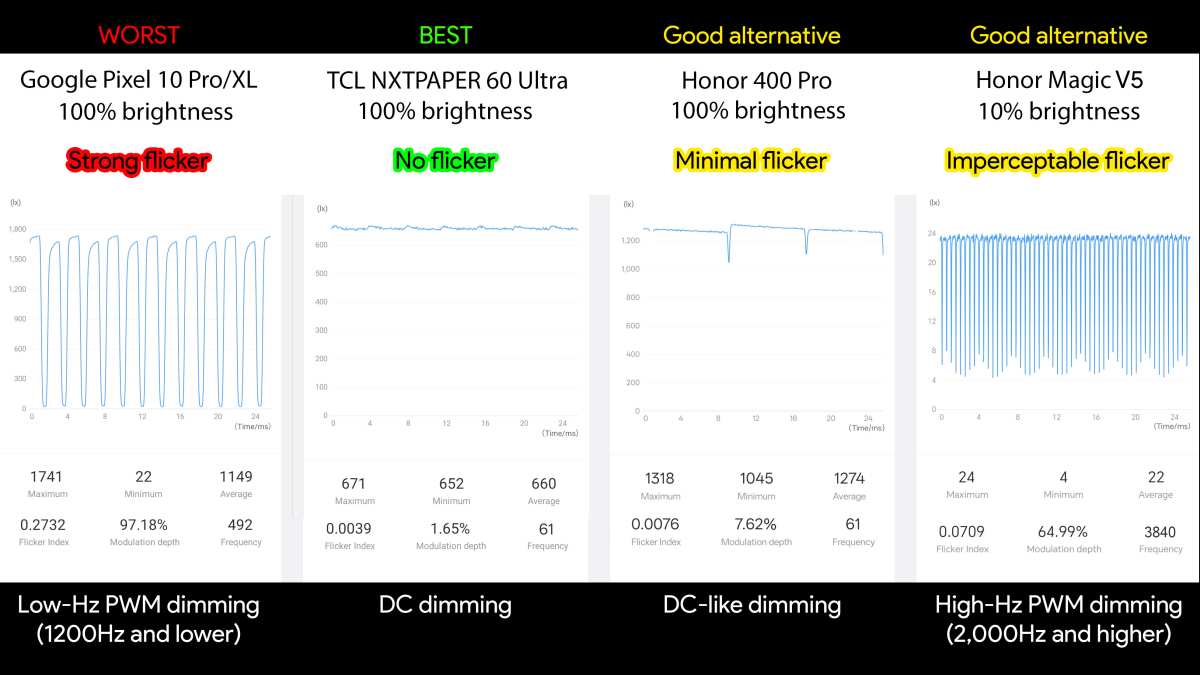
This is the single most overlooked factor when people buy a screen. Most LCD monitors use one of two methods to control brightness: DC dimming or PWM (pulse-width modulation). DC dimming adjusts the current smoothly and is genuinely flicker-free.
PWM flickers the backlight on and off rapidly, and the faster it pulses, the dimmer the screen appears.
Here's why that matters for your eyes. PWM frequencies below about 1,000 Hz are low enough that your visual system absorbs the flicker even though you can't consciously perceive it. That causes measurable increases in eye strain, headache frequency, and fatigue in some people.
Aggregate user reviews and vision science literature consistently link low-frequency PWM to discomfort during dim-screen use, such as working in a dark room at night.
High-quality USB-C monitors now commonly use DC dimming across their full brightness range. That's a real, meaningful improvement. But plenty of budget models still rely on PWM flicker at anything below 50% brightness.
At full brightness you might get away with it. The moment you turn it down to 30% in a darker room, the flicker kicks back in.
What to look for on manufacturer specs:
| Term on spec sheet | What it means |
|---|---|
| Flicker-free backlight | Claims no visible or measurable flicker, usually via DC dimming |
| DC dimming | The gold standard — no flicker at any brightness level |
| PWM dimming | Flicker-based; acceptable only at very high frequencies (20,000+ Hz) |
| Zero flicker mark | Marketing term; verify the actual PWM frequency |
Always verify the specific monitor model. Branding like "eye care" or "low blue light" doesn't automatically mean the panel is flicker-free.
Blue Light: Separating the Science From the Marketing Hype
Blue light has become a massive marketing angle in the monitor industry. Nearly every brand now has a "low blue light mode," and some charge a premium for it. The science supports concern about blue light, but the details matter more than the marketing.
Short-wavelength blue light (around 450 to 455 nm) is energetic and can contribute to retinal cell stress over very long-term exposure, according to photobiological safety research. It also suppresses melatonin, which is why late-night screen use interferes with sleep. That part is well-established.
What's less certain is whether the level of blue light from a normal desktop monitor causes meaningful retinal damage over a typical workday. Current evidence does not show that standard office screen exposure harms the retina. The bigger practical issue is comfort and sleep disruption, not vision damage from blue light alone.
The practical takeaway is useful but not alarmist:
- Hardware-level low blue light filters adjust the panel's color temperature at the backlight or panel level, shifting output away from the 450 nm peak while keeping colors reasonably accurate.
- Software filters like Night Shift or f.lux tint everything warm, which reduces blue light but distorts color. Fine for night reading, bad for any color-critical work.
- A monitor with a certified hardware low blue light mode and a flicker-free backlight is the sweet spot for daily office use.
Skip the blue-light-blocking glasses unless you specifically want them. A properly configured monitor handles the issue at the source.
Certifications That Actually Mean Something for Eye Safety
This is where most shoppers get lost. Monitor boxes are plastered with terms like "eye comfort," "eye care," and "low blue light." Very few of those are independently verified. The certifications that carry real weight are third-party, lab-tested, and tied to specific measurable thresholds.
The ones to trust:
- TÜV Rheinland Flicker-Free Certification: Tests the panel across its full brightness range for perceptible flicker. A monitor with this has passed actual measurement protocols.
- TÜV Rheinland Low Blue Light (Hardware) Certification: Confirms the panel reduces blue light output at the hardware level with defined wavelength reduction percentages.
- IEC 62471 Photobiological Safety Standard: The broader international standard for lamp and luminaire safety, including blue light hazard. Monitors tested to this standard fall into exempt or low-risk categories.
What's just marketing without independent verification:
- "Eye-care display" without a certification logo
- "Blue light filter" certification from the brand itself
- "Eyesafe" branded panels (these do have defined criteria, but always verify the version of the standard)
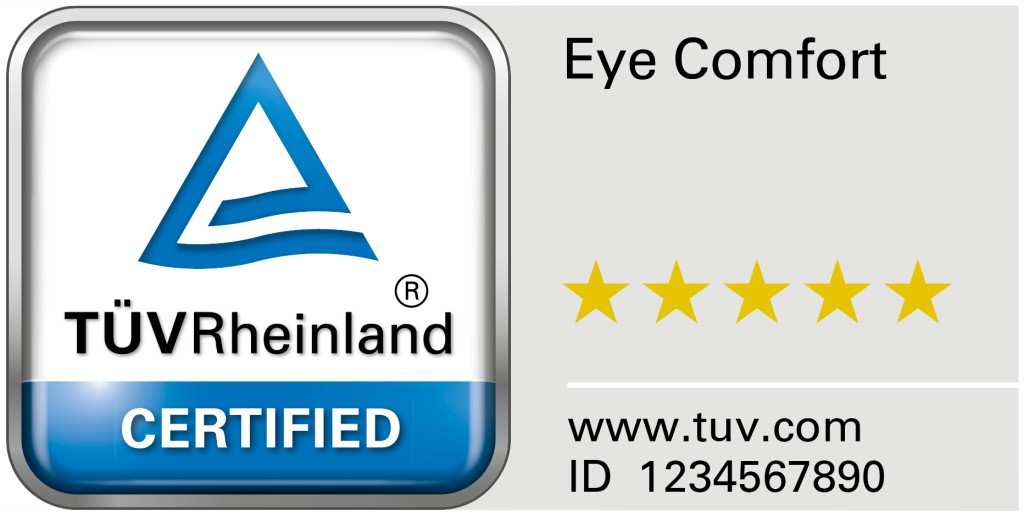
Look for the TÜV Rheinland logo on the spec sheet and in the box art, not just in a paragraph on the product page. Manufacturer specification pages from reputable brands like Dell, LG, ASUS, and BenQ typically list these certifications when present, so you can cross-reference during your research.
How to Tell If a USB-C Monitor Is Built for Long Screen Sessions
Choosing a monitor that won't leave you with a headache at 4 PM means reading past the headline features. The connector tells you nothing about panel quality. Here's what to check in actual spec sheets and verified buyer reviews on e-commerce sites.
The checklist that actually matters:
- Flicker-free backlight with DC dimming, confirmed across the full brightness range. Not just "flicker-free at maximum brightness."
- Hardware-level low blue light mode with WELL or TÜV Rheinland certification. This keeps color temperature stable without software tinting.
- Adequate brightness range: Look for minimum brightness below 100 nits (for dark room use) and peak brightness above 250 cd/m² for normal office light. A minimum of 100 nits or higher without flicker is honestly more useful than a super-bright ceiling you'll never use.
- Matte anti-glare coating. Glossy screens look nice in photos but reflect overhead lighting and windows, forcing your eyes to compensate constantly.
- IPS or VA panel quality. OLED has excellent contrast but some OLED panels use low-frequency PWM, so research the specific model before assuming it's better.
- Adjustable stand. Height adjustment matters more than almost anything else. If the monitor sits too low, you're tilting your head downward all day, which compounds neck strain with eye fatigue.
Red flags in product specs:
- Brightness minimum not listed (may force you to use software dimming over a dimmed-quality backlight)
- No flicker-free certification and user comments mentioning headaches at low brightness
- Glossy screen in an office environment
- Vague "eye-care" branding without any third-party certification reference
Our analysis of 2025 and 2026 USB-C monitor listings shows that models around $300 to $500 from major manufacturers tend to include these features as standard. Below $200, the spec sheet often omits backlight method and certification details entirely. That's your first clue.
Settings and Ergonomics That Make the Biggest Difference
You can buy the best eye-care monitor on the market and still end up miserable if the settings are wrong. Screen setup is the part most people skip entirely, but it's just as important as the hardware.
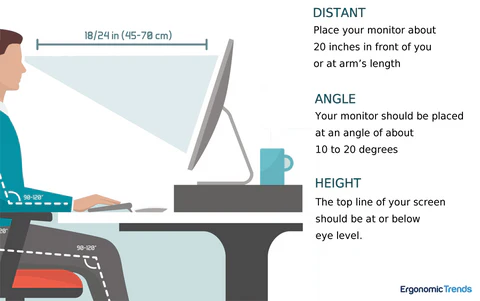
Positioning rules that actually work:
- Top of the screen at or slightly below eye level
- 20 to 28 inches (50 to 70 cm) from your face
- Tilted back about 10 to 20 degrees so you're slightly looking down at the center of the screen
- No bright windows or light sources directly behind or in front of the screen
Brightness tuning:
Match screen brightness to the room. A common mistake is running a USB-C monitor at near-full brightness in a dim home office, which blasts your eyes and accelerates dry-eye symptoms. Many monitors today include ambient light sensors that auto-adjust, but the implementation varies wildly by brand.
Manual calibration remains more reliable. Pull up a mostly white webpage and adjust until it feels like a comfortable piece of paper on your desk, not a wall being illuminated from behind.
The 20-20-20 rule:
Every 20 minutes, look at something 20 feet away for 20 seconds. That sounds simple, and it does sound simple because it is. The reason it works is it breaks the constant near-focus contraction of your eye muscles, allowing the lens to relax.
Set a timer or use a desktop app. The physical distance is what matters, so don't just glance at the wall behind your monitor.
Software Filters vs. Hardware Blue Light: What's Worth Using
You have three practical options for reducing blue light exposure from a USB-C monitor. They're not equal, and picking the right one saves you from either eye fatigue or ruining your color accuracy for creative work.
1. Hardware low blue light mode (built into the monitor)
This is the best daily driver for office work and reading. The monitor's panel or backlight shifts color temperature at the output level, reducing blue light emission without software overlay discoloration. Colors remain usable for general productivity and even light photo editing.
The tradeoff is a slight yellow tint in the lowest blue light setting. Most monitors let you toggle this on and off through the on-screen display menu.
2. Operating system night light or night shift
Windows has Night Light, macOS has Night Shift, and Linux has Redshift. These are software overlays that warm the entire display. They work fine as a backup or for evening reading, but they flatten color accuracy and can make text slightly less crisp if pushed too warm.
Use them for evening wind-down, not all-day color work.
3. Third-party apps (f.lux, Iris, etc.)
f.lux gives you more control than OS built-in options, with activity-specific presets. It's a reasonable choice if your monitor lacks a hardware low blue light mode. Pay attention to the smoothness of the transition, as some apps re-tint abruptly when switching between profiles.
The ranking is simple. Hardware mode for daytime work. OS night mode for evening sessions.
Skip wearing dedicated blue light glasses unless you find them comfortable. They add a second filter on top of what your monitor already handles, and the evidence for additional benefit is thin.
How to Test Any Monitor for PWM Flicker at Home
You don't need a laboratory setup to check if your monitor flickers. There's a free technique that works with your smartphone camera.
The camera test:
- Set the monitor to about 50% brightness with a plain white or gray screen displaying.
- Hold your phone about 12 inches from the screen.
- Use the slow-motion or 60fps video mode on your camera.
- Film the screen. If you see moving dark bands scrolling across the screen, the model uses low-frequency PWM dimming.
- No flicker at full brightness but you see bands below 50%. The PWM is only active at lower brightness levels.
- No bands at any brightness setting. The panel likely uses DC dimming or high-frequency PWM above 20,000 Hz, which your camera can't detect.
Quick brightness guide to pair with the test:
| Brightness bands visible on camera | What that tells you |
|---|---|
| Bands visible at all brightnesses | Strong PWM flicker throughout |
| Bands visible only below 50% | PWM used only at lower brightness |
| No bands visible at all | Likely DC dimming or very high-frequency PWM |
For comparison, a test conducted on a 2023 27-inch USB-C monitor with no flicker-free certification showed a faint wave pattern at below 30% brightness when viewed through the camera test. The pattern was invisible to the naked eye. That subtle flicker absolutely contributed to end-of-day headache reports from some users, according to the monitor's reviews on major e-commerce sites as of 2026.
Common Mistakes People Make With Screen-Related Eye Health
We have reviewed buyer feedback and clinical guidance on digital eye strain. The same mistakes come up over and over.
- Not testing the backlight method before buying. Read product specifications for "flicker-free" in the context of DC dimming. Don't settle for a vague "eye-care" label.
- Running the screen too bright in a dim room. This single setting mistake causes more daily discomfort than any panel technology. If your screen looks like a light source rather than a reflective surface, it's too bright for your room.
- Ignoring screen position. Neck tension feeds into eye strain. The muscles around your eyes and the muscles in your neck are mechanically linked through your posture. A poorly positioned monitor causes compounding strain.
- Forgetting to blink. Dry eye is one of the fastest-developing symptoms for full-time desk workers. Keep lubricating eye drops on your desk and make blinking conscious.
- Over-relying on blue light as the only issue. The bigger daily problems are flicker, brightness mismatch, and sustained near-focus. Blue light is a secondary concern for most people.
- Adjusting only software without touching monitor settings. If your monitor supports hardware low blue light and flicker-free backlight, those are always better than layering OS filters on top of a poorly configured screen.
- Not replacing aging monitors. LCD backlights degrade over time. Color shifts, uneven brightness, and deteriorating panel coatings in older units won't show up on spec sheets if you bought the monitor years ago. If your eyes recently started hurting and your monitor is five or six years old, the display itself may be the variable.
When to See a Professional Instead of Adjusting Your Display
Screen adjustments solve screen-caused problems. They don't solve underlying vision issues. If you've optimized your monitor settings, corrected your posture, reduced flicker, and are still experiencing persistent eye strain, it's time to see an optometrist or ophthalmologist.
Key signs that the monitor isn't the whole story:
- Double vision or words swimming on the page even with a flicker-free well-lit screen
- Severe headaches that start within minutes of screen use
- Eye strain that persists after stepping away from the screen for hours
- Difficulty shifting focus from near to far objects
- Blurred distance vision that didn't exist before a period of intensive screen use
These can indicate uncorrected astigmatism, presbyopia, binocular vision dysfunction, or early signs of dry eye disease that need clinical treatment. Digital eye strain is real, but it's sometimes compounded by undiagnosed refractive or binocular issues that no monitor setting can fix.
A comprehensive eye exam rules out medical causes. Treat that as step one if symptoms are severe. Then optimize your hardware.
Recommended Specs If You're Shopping for an Eye-Comfortable USB-C Monitor
Based on manufacturer spec sheets and aggregate user feedback from 2025 and 2026, here are the reliable specifications for an eye-friendly USB-C monitor regardless of brand.
| Specification | Target value |
|---|---|
| Backlight method | Flicker-free DC dimming across full brightness range |
| Low blue light mode | Hardware-level with TÜV Rheinland certification |
| Panel type | IPS or high-quality VA; verify OLED backlight method separately |
| Screen surface | Matte anti-glare |
| Size | 24 to 27 inches for standard desk depth |
| Resolution | 2560×1440 (1440p) at minimum for readable text at native scaling |
| Brightness range | 300 cd/m² peak, minimum below 100 nits |
| USB-C power delivery | 65W minimum for laptop charging |
| Adjustable stand | Height, tilt, pivot, swerve (height is non-negotiable) |
Price range for a monitor with these specs in 2026 sits roughly between $300 and $550. Below that price range, one or more of these features will be missing, typically the flicker-free certification and height-adjustable stand.
Frequently Asked Questions
Does USB-C reduce blue light compared to HDMI?
No. The USB-C connector carries the exact same video signal as HDMI or DisplayPort. Blue light output depends on the panel and backlight, not the cable type.
Can a screen really damage my eyes permanently?
Long-term retinal damage from normal office screen exposure is not supported by current evidence. Prolonged uncorrected eye strain and dry eye can cause chronic discomfort and temporary visual disturbances. Persistent symptoms warrant an eye exam.
Are TÜV Rheinland-certified monitors significantly better for your eyes?
A TÜV Rheinland Flicker-Free and Low Blue Light certification means the panel has passed independent lab testing for specific thresholds. That's considerably more reliable than an unverified marketing claim from the brand itself.
What's better: DC dimming or high-frequency PWM?
Both can be comfortable. DC dimming eliminates flicker entirely across the brightness range. High-frequency PWM above 20,000 Hz is also considered imperceptible by most users.
The practical difference is minimal if both are genuinely implemented.
How long can I safely use a USB-C monitor per day?
There's no universal safe duration. Use breaks every 20 minutes, match brightness to the room, and position the screen correctly. Eye fatigue after long sessions is a sign to step back, break your focus, and reassess your setup.
If you use a quality panel with proper settings, eight to ten hours with regular breaks is sustainable for most people.
The Bottom Line: Making an Informed Choice for Your Eyes
A USB-C monitor is safe for your eyes when the panel uses a flicker-free backlight, reduces blue light at the hardware level, and matches your room's lighting. The USB-C connector is irrelevant to the eye-health calculation. It's a convenience feature disguised as an eye-care feature in a lot of marketing.
Focus on the specs that matter. Read the spec sheet for flicker-free DC dimming, TÜV Rheinland certification, adequate brightness range, and a matte screen. Adjust the monitor's position as carefully as you'd adjust a chair.
Match screen brightness to ambient light and build in regular visual breaks.
If your eyes hurt after all those adjustments, the answer isn't a different cable. It's a visit to the optometrist.
The Bottom Line: Making an Informed Choice for Your Eyes
The USB-C connector has nothing to do with eye safety. It's a convenience feature that simplifies charging and video, but it doesn't touch the factors that actually determine whether your monitor is comfortable during long work sessions.
What matters is the technology inside the panel. A flicker-free backlight with DC dimming, a hardware-level low blue light mode with independent certification, a properly calibrated brightness range, and a screen positioned at the correct height and distance. Get those right, and a USB-C monitor is just as easy on your eyes as any other quality display.
Get them wrong and the best cable in the world won't help.
For most desk workers in 2026, the right monitor is a 27-inch IPS or quality VA panel with TÜV Rheinland Flicker-Free and Low Blue Light certification, USB-C power delivery of at least 65W, and a height-adjustable stand. That combination covers the technical side. Pair it with conscious brightness settings, regular breaks, and a proper screen position, and you have a genuinely comfortable setup for full workdays.
The money is well spent on the panel, not on the connector.
The Bottom Line: Making an Informed Choice for Your Eyes
The USB-C connector has nothing to do with eye safety. Eye comfort depends entirely on panel technology, backlight design, and how you set up and use the display.
A safe choice for long workdays is a 27-inch IPS or quality VA panel with TÜV Rheinland Flicker-Free and Low Blue Light certification, USB-C power delivery of 65W or more, and a height-adjustable stand. Pair that with proper brightness matching to your room, conscious blinking, and regular breaks using the 20-20-20 rule.
Buy for the panel, not the connector. Your eyes will notice the difference even if the spec sheet headline doesn't spell it out.

Similar Posts





















