Is 4K Monitor Worth It for Casual Use
The short answer to "is 4K monitor worth it for casual use" depends on what your everyday screen routine actually looks like. If you're mostly browsing, emailing, and streaming video, the difference between 4K and a good 1440p display is smaller than most people expect. But for specific situations, like sitting close to a large monitor or coming straight from a 1080p screen, the upgrade can feel genuinely worthwhile.
Here's what our research found. At typical desk viewing distances, the jump from a 27-inch 1440p panel to a 27-inch 4K panel produces only a modest clarity bump that many casual users won't notice during normal use. What matters more is understanding when 4K solves a real problem for you and when it just adds cost without a meaningful benefit.
Quick Answer
A 4K monitor is worth it for casual use if you come from 1080p or use a screen 32 inches or larger. At 27 inches and under, the difference is subtle at best. Scaling issues on Windows can also frustrate casual users.
For browsing and streaming, a good 1440p display often delivers better value per dollar.
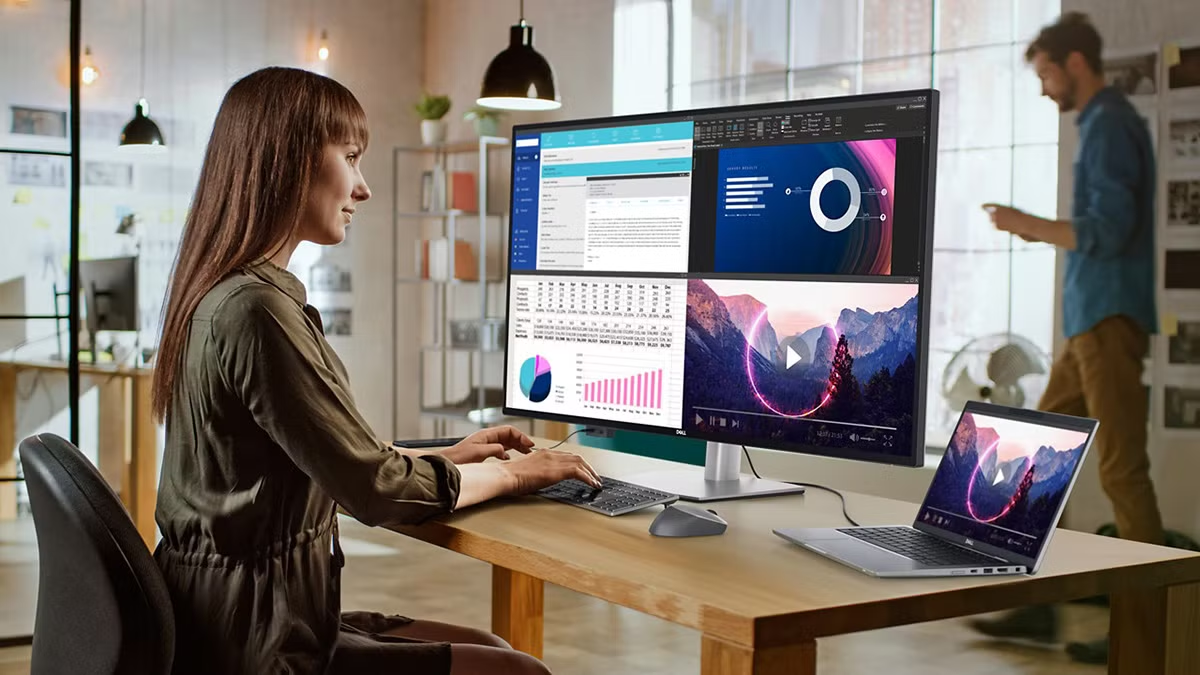
What 4K Actually Looks Like at Normal Desk Distances
The pixel density reality check
Resolution alone doesn't tell the story. What matters is pixels per inch, and that number depends on both the resolution and the screen size.
Here's the math for common configurations at 3840 × 2160 (UHD):
| Screen Size | PPI | Equivalent "Retina" Distance |
|---|---|---|
| 24 inches | 184 PPI | About 14 inches |
| 27 inches | 163 PPI | About 17 inches |
| 32 inches | 138 PPI | About 20 inches |
| 43 inches | 105 PPI | About 27 inches |
Apple's HiDPI threshold sits around 220 PPI, where individual pixels become invisible at a typical use distance. At 27 inches, a 4K panel hits 163 PPI, which is impressive but not quite in that "can't see the pixels" zone unless you're sitting unusually close.
What this means in practice. Most people sit 24 to 30 inches from a desktop monitor. At that range, a 27-inch 4K display looks noticeably sharper in fine text details compared to 1080p.
But against 1440p at the same size, the gap narrows considerably. It's there if you look for it, but you probably won't glance over and think "wow" during your morning email check.
Why 27 inches is the sweet spot
Somewhere around 27 inches, 4K resolution hits a practical intersection of pixel density and usable screen real estate. Smaller than that, like 24 inches, and the resolution becomes overkill for most casual tasks. Everything looks razor sharp but you gain little functional benefit.
Larger than 27 inches, around 32 inches and up, 4K starts to make more sense because 1080p or even 1440p at that size gets visibly soft. Manufacturer specifications confirm that 32-inch 1440p panels hover around 93 PPI, which shows visible pixel structure at arm's length. Stepping to 4K at 32 inches pulls that back up to 138 PPI, a more comfortable number for desk use.
Aggregate reviews indicate that most casual users prefer the 27-inch 4K form factor, large enough to notice the detail without aggressive scaling. Screen real estate for multi-window work still feels generous. Pixel density stays high enough to deliver clean text rendering.
How your eyes actually perceive the difference from 2 to 3 feet away
Human visual acuity varies, but at average acuity (20/20 vision), you need about 1 arcminute of angular resolution to distinguish individual pixels. At a 27-inch 4K display viewed from 2.5 feet, each pixel subtends roughly 1.05 arcminutes. That means pixels are just at the threshold of visibility.
Move to 1440p at the same size and distance, and each pixel balloons to about 1.55 arcminutes. Suddenly those pixels are easily visible if you look closely. The difference is most obvious in small text, like a small font size in a document or browser tabs.
Large images and video content look nearly identical between the two resolutions on a screen this size.
For casual use, this matters when you spend hours reading on screen. Comfort improves when text edges are cleaner. If you mostly watch Netflix in fullscreen, the resolution difference barely registers.
The content itself is rarely mastered above 1080p on most streaming platforms anyway.
When a 4K Monitor Is Genuinely Worth It for Casual Use
You're coming from 1080p and the jump is real
If your current monitor is a 24-inch 1080p panel or you're using a laptop at that resolution, stepping up to a 27-inch 4K display is a dramatic improvement. The PPI roughly doubles, rendering text, icons, and interface elements dramatically sharper.
This is the scenario where most people are genuinely happy with the upgrade. The difference is unmistakable. You see it immediately when you open a web browser or type an email.
Verified buyer feedback on major retail platforms consistently ranks the 1080p to 4K jump among the most noticeable upgrades in everyday computing. Not as dramatic as going from a hard drive to an SSD, but right up there.
You sit at a desk with a 32-inch or larger screen
At 32 inches and above, 4K stops being a luxury and starts being almost necessary for a clean image. A 32-inch 1080p monitor at typical desk distance looks visibly pixelated. A 32-inch 1440p panel is passable but still shows pixel structure.
The PPI difference is stark. At 32 inches, 4K gives you 138 PPI versus about 93 PPI for 1440p. That's a 48% increase in pixel density that translates directly into cleaner lines and smoother curves in everything you see on screen.
For larger screens, around 43 inches used as a desktop monitor, 4K is essentially the minimum for a usable experience. Anything lower and you'll notice pixelation from just about any seating distance.
You watch a lot of 4K video content
If your casual routine includes heavy YouTube watching, Netflix streaming in UHD, or local 4K video playback, a 4K monitor lets you see that content without downscaling. The difference is most apparent in Netflix's premium tier, which streams at 4K with HDR on compatible displays.
However, this benefit depends on quality. The jump from a 1080p stream on a 1080p screen to a 4K stream on a 4K screen looks excellent. The jump from a 1480p stream on a 1480p screen to a 4K stream on a 4K screen is much less dramatic and often depends on the bitrate of the compressed video.
A good quality Blu-ray at 1080p viewed on a 4K monitor gets upscaled, and the result is acceptable but soft. SDR content doesn't gain resolution, only the panel's color and contrast characteristics influence the look.
You multitask with multiple windows side by side
Here's where 4K arguably provides the most practical value for casual users. At 3840 × 2160, you have four times the screen space of a 1080p display, and you don't need to use fractional scaling to get a usable layout.
Common layout examples on a 27-inch 4K monitor:
- Two full-width browser windows stacked vertically, each at 1920 × 1080 effective resolution
- Document on the left, chat and email on the right, coding tools on a secondary display
- Spreadsheet taking up half the screen with a calculator and reference notes filling the other half
With 150% scaling, text and UI elements remain comfortable. The extra screen real estate becomes obvious when you snap windows and always feel cramped at lower resolutions.
You use a PS5 or Xbox Series X
Both current-generation consoles support native 4K output. A 4K monitor with HDMI 2.0 or later gives you the full console experience without upscaling artifacts.
A 4K monitor with a 60Hz refresh rate and HDMI 2.0 bandwidth is the minimum. DisplayPort isn't relevant here since consoles use HDMI exclusively. HDR support on budget 4K monitors is rarely worth chasing, but the resolution bump itself is immediately noticeable in games.
When You Should Skip 4K and Save Your Money
You're already on a decent 1440p monitor
If you currently use a 27-inch 1440p display at 60Hz or higher, the upgrade to 4K won't transform your daily experience. The PPI increase from about 109 to 163 is real, but at typical desk distances, most people don't notice it outside of close-up text inspection.
The better move at this point is often to stay at 1440p and invest in better panel quality, like an IPS panel with wide color gamut or an OLED screen.
You're using a 24-inch screen at normal distance
At 24 inches, 4K reaches 184 PPI. That's genuinely sharp, but for casual use, it's overkill in the most literal sense. Everything looks crisp at default rendering, but your eyes probably can't resolve the difference between this and a good 1440p panel at the same size.
What you'll notice instead is that Windows often needs 175% or 200% scaling at this size, which eats into the effective screen real estate. You end up with less usable space than a native 1440p 24-inch panel.
Your laptop or PC has weak integrated graphics
Driving a 4K desktop at 60Hz requires display output hardware that not all systems have. Intel's UHD 630 integrated graphics handle basic 4K desktop use at 60Hz over DisplayPort, but struggle with 4K over HDMI 1.4, which maxes out at 30Hz.
30Hz refresh rates at the desktop level feel sluggish and laggy. Mouse cursor movement feels disconnected. Windows animations stutter.
If your system can only output 4K at 30Hz, don't bother with daily tasks until you upgrade the GPU or use a proper cable.
You're on a tight budget and 1440p would serve you just fine
The price gap between decent 1440p and 4K monitors has narrowed considerably. As of 2025, quality 27-inch 1440p IPS monitors start around $200, while equivalent 4K models run $280 to $350 for similar feature sets.
That $80 to $150 difference could go toward more RAM, a better keyboard, or just saved. For purely casual use, the value proposition of 4K over 1440p is rarely worth the premium.
You rely on older Windows apps that hate scaling
This is the dealbreaker for a lot of casual users, and it doesn't get discussed enough. Some older applications, including legacy business software, custom internal tools, and even some modern apps built on older frameworks, don't handle high-DPI scaling well. Text gets blurry when Windows attempts to scale the interface.
Common offenders include:
- Older Win32 applications without DPI-aware manifests
- Some Java-based enterprise software
- Legacy accounting and database tools
- Screen-sharing apps that capture at system DPI
If your daily workflow includes even one of these, a 4K monitor can introduce daily frustration. The workaround is to run those apps in compatibility mode at 100% scaling, but that makes them tiny on a high-PPI display.
The Scaling Problem Nobody Warns You About
Why Windows still struggles with 4K on some apps
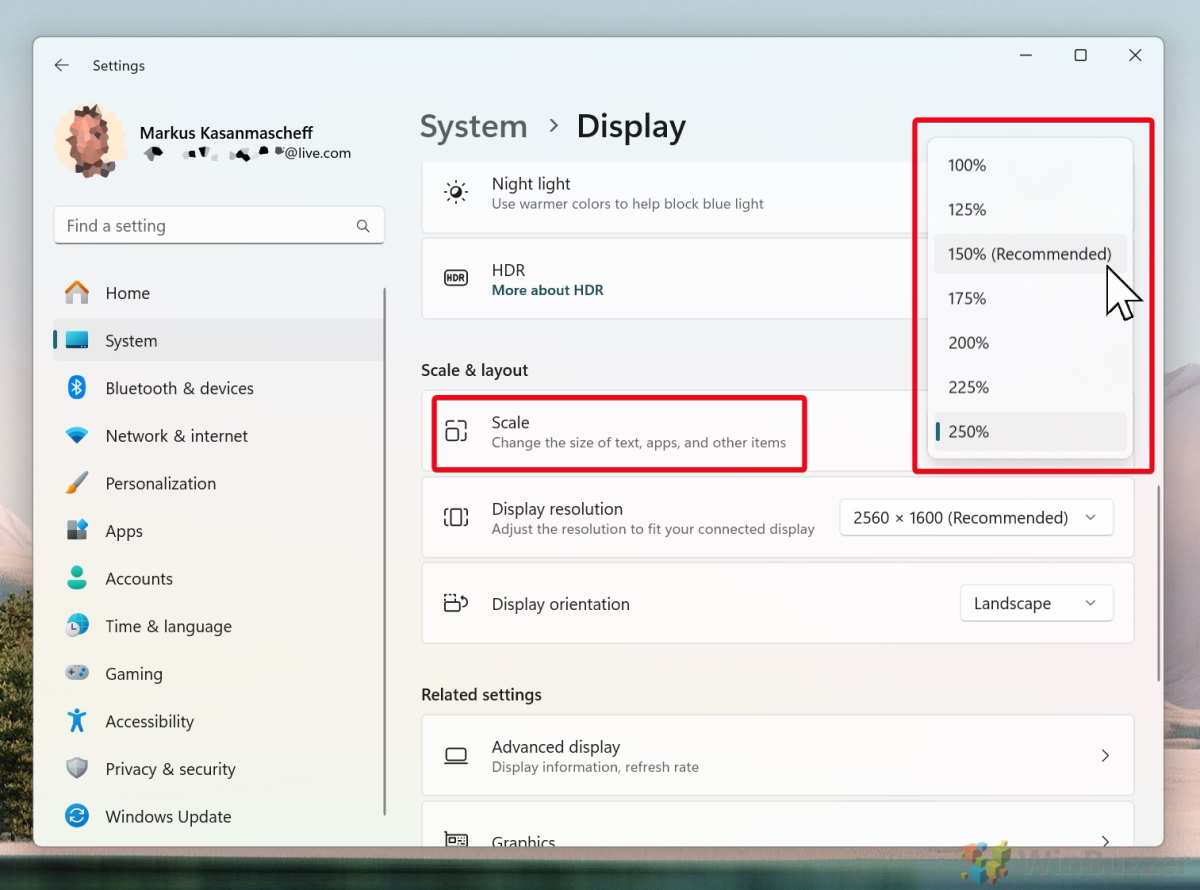
Windows uses a system called DPI scaling to make interface elements readable on high-density displays. At 27 inches and 4K resolution, the recommended setting is 150%, which effectively gives you a logical resolution of 2560 × 1440 with scaled-up elements.
The problem is that not all applications handle this gracefully. Windows marks applications as "DPI-aware" in the system metadata, but many programs either don't declare this correctly or render at native resolution and get bitmap-stretched by the system. The result is a blurry mess that looks worse than running at native 1440p.
This has improved significantly since Windows 10, and Windows 11 handles it better still. But it's not solved. You'll still encounter blurry apps, especially if you use niche or older software.
How macOS handles it differently
Apple's approach to high-DPI displays is more consistent because macOS uses a fixed scaling model. On a 4K external display, macOS renders at an internal resolution and then outputs at the panel's native resolution, with the system handling the scaling in between.
This means text and UI elements look consistently sharp across all applications. The tradeoff is less flexibility in scaling options. You get a set of discrete scaling levels rather than a continuous slider.
For casual users who just want things to work without fiddling, macOS on a 4K display is a smoother experience out of the box. The downside is that you need a Mac, which is a separate cost consideration entirely.
What 150% scaling actually costs you in screen space
At 150% scaling on a 4K display, your effective workspace is 2560 × 1440. That's identical to a native 1440p monitor in terms of how many windows you can fit on screen. You're not gaining any functional screen real estate over a 1440p panel.
What you are gaining is rendering quality. Text, icons, and vector elements are rendered at 4K resolution and then scaled down, producing smoother edges. It's a quality improvement, not a quantity improvement.
If you want more screen space, you need to drop scaling below 150%, like 125%, which gives you an effective 3072 × 1728 workspace. But at that level, some UI elements become uncomfortably small for extended reading.
The blurry legacy app problem and workarounds
When you encounter a blurry app on a 4K display, Windows provides a compatibility setting. Right-click the application, go to Properties, then Compatibility, and override the high-DPI scaling behavior. This forces the application to render at native resolution and let the system handle scaling.
This works for most apps, but not all. Some applications crash or render incorrectly when forced into DPI override mode. Others simply look terrible at any scaling level because they use bitmap assets that don't scale well.
The practical advice is this. Before committing to a 4K monitor, check whether your most-used applications handle high-DPI displays well. A quick search for the app name plus "4K scaling" usually reveals whether other users have reported issues.
If your daily tools are all modern, web-based, or well-maintained, you'll likely have a smooth experience. If you depend on older or niche software, proceed with caution.
4K vs. 1440p vs. 1080p: Honest Comparison for Casual Users
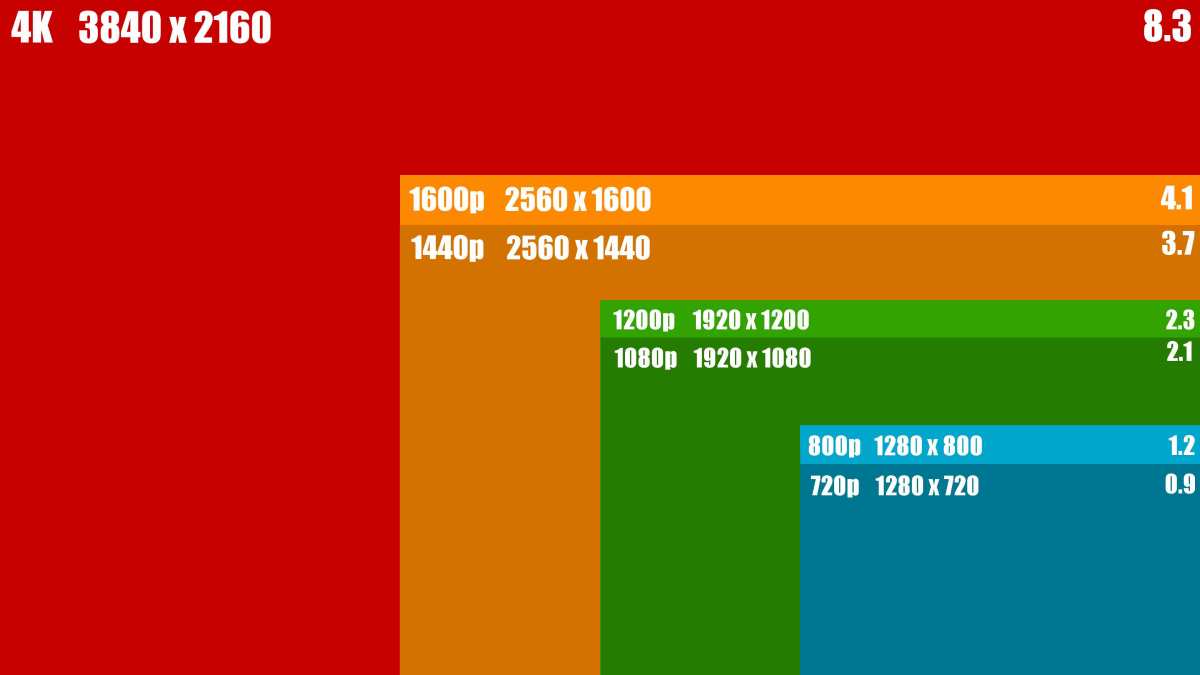
Side-by-side at typical use cases
Here's how the three most common resolution tiers compare for everyday tasks:
| Use Case | 1080p (24") | 1440p (27") | 4K (27") |
|---|---|---|---|
| Web browsing | Perfectly fine | Sharp and comfortable | Slightly sharper text |
| Email and documents | Adequate | Comfortable for long sessions | Best readability |
| Streaming video | Good | Very good | Best if source is 4K |
| Multi-window work | Cramped | Comfortable | Excellent |
| Photo viewing | Soft details | Good detail | Full detail visible |
| Eye strain over hours | Moderate | Low | Lowest |
The honest takeaway is that 1440p at 27 inches is the sweet spot for most casual users. It provides a clear step up from 1080p without the scaling complications or cost premium of 4K.
Price-to-benefit breakdown
Current pricing for quality IPS panels in each tier:
| Resolution | Typical Size | Price Range | Best For |
|---|---|---|---|
| 1080p | 24 inches | $120 to $180 | Budget builds, secondary displays |
| 1440p | 27 inches | $200 to $320 | Most casual users, general productivity |
| 4K | 27 inches | $280 to $450 | Text-heavy work, media consumption, future-proofing |
| 4K | 32 inches | $350 to $600 | Large displays, console gaming, professional use |
The jump from 1080p to 1440p delivers the biggest per-dollar improvement in daily experience. The jump from 1440p to 4K is more incremental.
The real-world difference you'll actually notice
In our research, the most commonly reported "aha moment" for 4K monitor buyers is text clarity. If you spend hours reading documents, browsing articles, or writing emails, the sharper text rendering on a 4K panel reduces eye fatigue and makes the experience more pleasant.
For video content, the difference is smaller. Most streaming platforms deliver content at 1080p or lower for casual viewing, and the upscaling quality of the monitor or software matters more than the panel resolution itself.
For gaming, the difference is more pronounced but falls outside "casual use" territory. Console gamers on PS5 or Xbox Series X benefit from native 4K output, but PC gamers need a significantly more powerful GPU to render at 4K, which adds cost well beyond the monitor itself.
The bottom line is that 4K is a nice upgrade for casual use, but it's rarely a necessary one. If you have the budget and your use case aligns with the strengths of a high-PPI display, go for it. If you're choosing between a better 1440p panel and a budget 4K panel, the 1440p option usually delivers a better overall experience.
What to Check Before You Buy
Does your GPU actually support 4K at 60Hz?
This is the most common compatibility issue people overlook. Your graphics hardware needs to support 4K output at 60Hz, not just 30Hz, for a usable desktop experience.
Minimum GPU requirements for 4K at 60Hz desktop use:
- Intel: UHD Graphics 630 or newer (7th gen Core or later)
- AMD: Radeon Vega integrated graphics or RX 500 series and newer
- NVIDIA: GTX 1050 or newer, or any RTX card
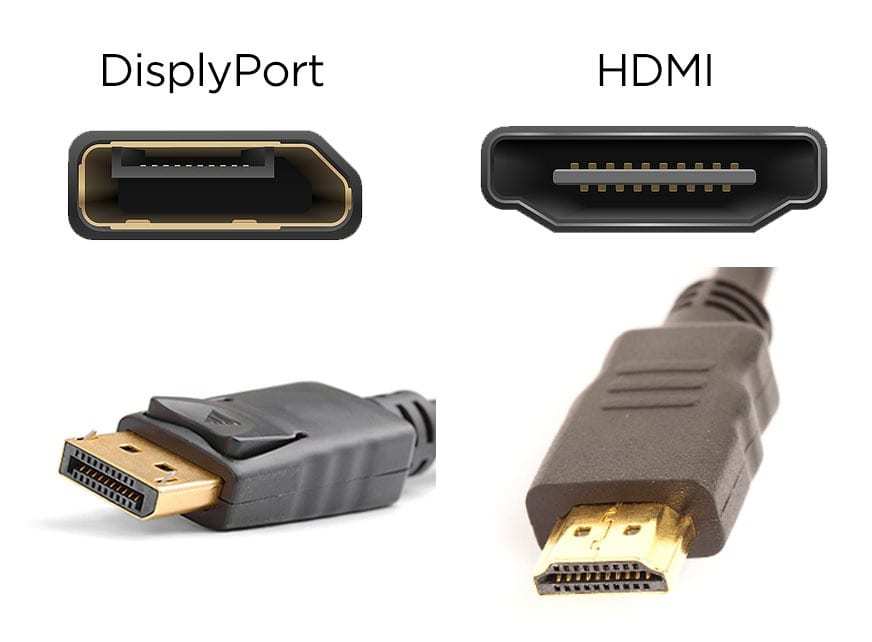
For HDMI output, you need HDMI 2.0 or later. HDMI 1.4 supports 4K but only at 30Hz, which feels terrible for desktop use. DisplayPort 1.2 or later supports 4K at 60Hz without issue.
Are you using the right cable?
Not all cables are created equal. Many people discover that the cable they've been using for years doesn't have the bandwidth for 4K at 60Hz.
Cable requirements for 4K at 60Hz:
- HDMI 2.0 cable (High Speed HDMI) minimum, HDMI 2.1 preferred
- DisplayPort 1.2 cable minimum, DisplayPort 1.4 preferred for HDR
- USB-C to DisplayPort Alt Mode cable for laptops without dedicated video outputs
The cable that ships in the box with most 4K monitors is usually adequate, but if you're reusing an older cable, check the specification printed on the cable itself. A cable rated for HDMI 1.4 will not carry a 4K 60Hz signal, regardless of what the connector looks like.
USB-C and Thunderbolt docking considerations
Many modern laptops, especially ultrabooks, rely on USB-C or Thunderbolt ports for display output. A single Thunderbolt 4 cable can carry a 4K 60Hz signal, power delivery, and data simultaneously, which is incredibly convenient for casual users who want a clean desk setup.
However, not all USB-C ports support DisplayPort Alt Mode. Some cheaper laptops only support data and charging over USB-C. Check your laptop's specifications before assuming a single-cable setup will work.
Thunderbolt docks with 4K output start around $150 and can simplify your setup significantly. They're particularly useful if you use a laptop and want to connect a monitor, keyboard, and mouse with a single cable.
Panel type: IPS vs. VA vs. OLED for casual use
The panel technology matters as much as the resolution for overall image quality:
- IPS (In-Plane Switching): Best all-around choice. Wide viewing angles, good color accuracy, decent response times. Most common in 300-dollar range 4K monitors.
- VA (Vertical Alignment): Higher contrast ratios, deeper blacks, but slower response times and more ghosting. Good for movie watching, less ideal for fast motion.
- OLED: Best image quality with perfect blacks and infinite contrast. Still rare and expensive in the monitor category, with prices starting around 800 dollars for 27-inch 4K panels. Risk of burn-in with static UI elements over time.
For casual use, a good IPS panel at 4K resolution is the safest bet. It delivers consistent image quality across viewing angles, handles text rendering well, and doesn't carry the burn-in concerns of OLED.
Common Mistakes People Make When Switching to 4K
Buying a 27-inch 4K and running it at 1080p
This sounds obvious, but it happens more often than you'd think. Some users, especially those with older hardware, set their 4K monitor to 1080p output because their system can't handle 4K rendering. The result is a blurry, soft image because 1080p doesn't divide evenly into 4K pixels.
Unlike integer scaling from 1080p to 1440p, 1080p on a 4K panel requires interpolation because the pixel ratio is 4:1. Each 1080p pixel maps to exactly four 4K pixels, which actually works reasonably well. But text rendering still looks worse than native 1080p on a native 1080p panel because the monitor's scaler isn't always optimized for this use case.
If your hardware can't drive 4K at 60Hz, don't buy a 4K monitor. Get a 1440p display instead.
Ignoring scaling settings out of the box
Most 4K monitors ship with Windows set to 100% scaling by default. At 27 inches, this makes everything microscopic. Text becomes unreadable, buttons become tiny targets, and the overall experience feels broken.
Before you judge a 4K monitor, go to Settings > System > Display and set scaling to 150%. This is the recommended setting for 27-inch 4K displays and makes everything a comfortable size while preserving the sharpness benefits of the higher resolution.
Assuming all 4K monitors are color-accurate
Resolution and color accuracy are completely different specifications. A 4K monitor with a cheap TN panel might have high resolution but poor color reproduction and terrible viewing angles. A 4K monitor with a high-quality IPS or OLED panel will look dramatically better.
Key specs to check beyond resolution:
- Panel type (IPS preferred for casual use)
- Color gamut coverage (99% sRGB minimum for decent color)
- Factory calibration (Delta E below 2 is good)
- Contrast ratio (1000:1 minimum for IPS, higher is better)
Budget 4K monitors often cut corners on panel quality to hit a price point. A 250-dollar 4K TN panel will look worse for everyday use than a 250-dollar 1440p IPS panel.
Pairing a 4K panel with a cheap, washed-out budget panel
This ties into the previous point but deserves its own mention. The monitor market has matured to the point where you can get a good 4K IPS panel with decent color accuracy for around 300 dollars. Spending less than that often means compromising on panel quality, ergonomics, or both.
The sweet spot for a quality 27-inch 4K IPS monitor in 2025 is roughly 280 to 400 dollars. Below that, you're usually trading away color accuracy, build quality, or ergonomic adjustability. Above that, you're paying for premium features like USB-C power delivery, higher refresh rates, or HDR support that most casual users don't need.
Real Scenarios: Who Should Buy and Who Shouldn't
The remote worker who lives in a browser
If your daily routine is Gmail, Google Docs, Slack, and a dozen browser tabs, a 27-inch 1440p monitor is the better buy. You'll get plenty of screen real estate, sharp text, and none of the scaling headaches that can come with 4K on Windows.
A 4K monitor is still nice here, but the extra cost doesn't translate into a meaningfully better experience for browser-based work. Put the savings toward a better chair or keyboard instead.
The Netflix-and-email retiree
For someone who primarily watches video content and checks email, a 4K monitor paired with a streaming service that supports UHD is a genuine upgrade. Text in email looks crisp, and video content benefits from the higher resolution when the source material supports it.
The key consideration is scaling. Make sure to set display scaling to 150% or higher so text is comfortable to read. At this use level, the simplicity of a single large 4K display beats a multi-monitor setup.
The college student on a budget
A 24-inch 1080p monitor at 150 dollars serves college work perfectly well. Papers, research, and streaming all look fine at this resolution. The money saved is better spent on other essentials.
If the budget allows, a 27-inch 1440p panel at 200 to 250 dollars is the ideal college monitor. It provides enough screen space for writing papers while keeping notes visible, and it won't strain a tight budget.
The console gamer on a TV-like experience
A 4K monitor with HDMI 2.0 support is a great match for PS5 and Xbox Series X. Console games render at native 4K, and a monitor with low input lag provides a more responsive experience than most TVs.
Look for a monitor with a 60Hz refresh rate, HDMI 2.0, and HDR10 support. You don't need 120Hz or HDMI 2.1 unless you're specifically gaming on a PC with a high-end GPU. For console use, a 4K 60Hz panel hits the sweet spot of price and performance.
Final Decision Guide: Should You Get One?
The 5-question checklist
Before you buy, answer these honestly:
- What resolution are you coming from? If it's 1080p, 4K is a big upgrade. If it's 1440p, the difference is marginal.
- What size monitor do you want? At 27 inches, 4K is nice but not essential. At 32 inches and up, 4K is almost necessary.
- What do you do most on your screen? Text-heavy work benefits from 4K. Video streaming benefits if the source is 4K. General browsing doesn't change much.
- Does your hardware support 4K at 60Hz? Check your GPU and cable specifications before buying.
- Do you use any older or niche Windows apps? If yes, research their high-DPI compatibility first.
If you answered "1080p," "32 inches or larger," "text work," "yes," and "no," a 4K monitor is a solid investment for you. If most of your answers point the other direction, save your money or go with 1440p.
Best budget 4K monitors worth considering in 2025
The market for budget 4K monitors has improved dramatically. Here are the categories worth looking at:
- Best overall value: 27-inch 4K IPS at 280 to 350 dollars. Look for models with USB-C power delivery if you use a laptop.
- Best for console gaming: 4K 60Hz with HDMI 2.0 and low input lag. HDR is a bonus but not essential at this price point.
- Best budget option: 27-inch 4K IPS at 200 to 250 dollars. Expect to compromise on color accuracy or ergonomic features.
- Best for large displays: 32-inch 4K IPS at 350 to 450 dollars. The extra screen real estate makes 4K feel more justified.
When to wait and when to pull the trigger
If your current monitor works fine and you're happy with it, there's no rush. 4K monitor prices continue to drop, and panel quality continues to improve. Waiting six months to a year will get you better value.
If you're buying your first monitor or upgrading from 1080p, now is a good time. The current generation of budget 4K IPS panels offers excellent image quality at prices that were unthinkable five years ago. Just make sure your hardware and use case align with the benefits of a high-PPI display before you commit.
Frequently Asked Questions
Is a 4K monitor good for just browsing and email?
Yes, but the improvement over 1440p is subtle. Text looks slightly sharper, but you won't notice a dramatic difference during casual browsing. A 1440p monitor serves this use case just as well for most people.
Does 4K make a difference for Netflix and YouTube?
It does if the content is streamed in 4K and you're on a premium Netflix plan. YouTube 4K content also looks noticeably better on a 4K panel. However, most streaming content is still delivered at 1080p, so the benefit is limited to specific titles.
Can my laptop handle a 4K monitor?
Most laptops made in the last five years with Intel UHD 630 graphics or better can drive a 4K display at 60Hz. Check that your laptop has HDMI 2.0 or DisplayPort over USB-C. HDMI 1.4 only supports 4K at 30Hz, which feels sluggish for desktop use.
Is 4K worth it on a 27-inch monitor?
At 27 inches, 4K provides 163 PPI, which is noticeably sharper than 1440p at the same size. The difference is most visible in text rendering. Whether it's worth the price premium depends on how much you value that extra sharpness versus the cost savings of 1440p.
Will a 4K monitor hurt my eyes?
No, a 4K monitor won't hurt your eyes. In fact, the sharper text and cleaner image rendering can reduce eye strain during long reading sessions. The key factor for eye comfort is brightness, blue light filtering, and taking regular breaks, not resolution.
How far should I sit from a 4K monitor?
For a 27-inch 4K display, a viewing distance of 2 to 3 feet is ideal. At this range, you get the full benefit of the higher pixel density without needing to turn your head to see the edges of the screen. For 32-inch and larger displays, 3 to 4 feet is more comfortable.
Common Mistakes People Make When Switching to 4K
Buying a 27-inch 4K and running it at 1080p
This sounds obvious, but it happens more often than you'd think. Some users, especially those with older hardware, set their 4K monitor to 1080p output because their system can't handle 4K rendering. The result is a blurry, soft image because 1080p doesn't divide evenly into 4K pixels.
Unlike integer scaling from 1080p to 1440p, 1080p on a 4K panel requires interpolation because the pixel ratio is 4:1. Each 1080p pixel maps to exactly four 4K pixels, which actually works reasonably well. But text rendering still looks worse than native 1080p on a native 1080p panel because the monitor's scaler isn't always optimized for this use case.
If your hardware can't drive 4K at 60Hz, don't buy a 4K monitor. Get a 1440p display instead.
Ignoring scaling settings out of the box
Most 4K monitors ship with Windows set to 100% scaling by default. At 27 inches, this makes everything microscopic. Text becomes unreadable, buttons become tiny targets, and the overall experience feels broken.
Before you judge a 4K monitor, go to Settings > System > Display and set scaling to 150%. This is the recommended setting for 27-inch 4K displays and makes everything a comfortable size while preserving the sharpness benefits of the higher resolution.
Assuming all 4K monitors are color-accurate
Resolution and color accuracy are completely different specifications. A 4K monitor with a cheap TN panel might have high resolution but poor color reproduction and terrible viewing angles. A 4K monitor with a high-quality IPS or OLED panel will look dramatically better.
Key specs to check beyond resolution:
- Panel type (IPS preferred for casual use)
- Color gamut coverage (99% sRGB minimum for decent color)
- Factory calibration (Delta E below 2 is good)
- Contrast ratio (1000:1 minimum for IPS, higher is better)
Budget 4K monitors often cut corners on panel quality to hit a price point. A 250-dollar 4K TN panel will look worse for everyday use than a 250-dollar 1440p IPS panel.
Pairing a 4K panel with a cheap, washed-out budget panel
This ties into the previous point but deserves its own mention. The monitor market has matured to the point where you can get a good 4K IPS panel with decent color accuracy for around 300 dollars. Spending less than that often means compromising on panel quality, ergonomics, or both.
The sweet spot for a quality 27-inch 4K IPS monitor in 2025 is roughly 280 to 400 dollars. Below that, you're usually trading away color accuracy, build quality, or ergonomic adjustability. Above that, you're paying for premium features like USB-C power delivery, higher refresh rates, or HDR support that most casual users don't need.
Real Scenarios: Who Should Buy and Who Shouldn't
The remote worker who lives in a browser
If your daily routine is Gmail, Google Docs, Slack, and a dozen browser tabs, a 27-inch 1440p monitor is the better buy. You'll get plenty of screen real estate, sharp text, and none of the scaling headaches that can come with 4K on Windows.
A 4K monitor is still nice here, but the extra cost doesn't translate into a meaningfully better experience for browser-based work. Put the savings toward a better chair or keyboard instead.
The Netflix-and-email retiree
For someone who primarily watches video content and checks email, a 4K monitor paired with a streaming service that supports UHD is a genuine upgrade. Text in email looks crisp, and video content benefits from the higher resolution when the source material supports it.
The key consideration is scaling. Make sure to set display scaling to 150% or higher so text is comfortable to read. At this use level, the simplicity of a single large 4K display beats a multi-monitor setup.
The college student on a budget
A 24-inch 1080p monitor at 150 dollars serves college work perfectly well. Papers, research, and streaming all look fine at this resolution. The money saved is better spent on other essentials.
If the budget allows, a 27-inch 1440p panel at 200 to 250 dollars is the ideal college monitor. It provides enough screen space for writing papers while keeping notes visible, and it won't strain a tight budget.
The console gamer on a TV-like experience
A 4K monitor with HDMI 2.0 support is a great match for PS5 and Xbox Series X. Console games render at native 4K, and a monitor with low input lag provides a more responsive experience than most TVs.
Look for a monitor with a 60Hz refresh rate, HDMI 2.0, and HDR10 support. You don't need 120Hz or HDMI 2.1 unless you're specifically gaming on a PC with a high-end GPU. For console use, a 4K 60Hz panel hits the sweet spot of price and performance.
Final Decision Guide: Should You Get One?
The 5-question checklist
Before you buy, answer these honestly:
- What resolution are you coming from? If it's 1080p, 4K is a big upgrade. If it's 1440p, the difference is marginal.
- What size monitor do you want? At 27 inches, 4K is nice but not essential. At 32 inches and up, 4K is almost necessary.
- What do you do most on your screen? Text-heavy work benefits from 4K. Video streaming benefits if the source is 4K. General browsing doesn't change much.
- Does your hardware support 4K at 60Hz? Check your GPU and cable specifications before buying.
- Do you use any older or niche Windows apps? If yes, research their high-DPI compatibility first.
If you answered "1080p," "32 inches or larger," "text work," "yes," and "no," a 4K monitor is a solid investment for you. If most of your answers point the other direction, save your money or go with 1440p.
Best budget 4K monitors worth considering in 2025
The market for budget 4K monitors has improved dramatically. Here are the categories worth looking at:
- Best overall value: 27-inch 4K IPS at 280 to 350 dollars. Look for models with USB-C power delivery if you use a laptop.
- Best for console gaming: 4K 60Hz with HDMI 2.0 and low input lag. HDR is a bonus but not essential at this price point.
- Best budget option: 27-inch 4K IPS at 200 to 250 dollars. Expect to compromise on color accuracy or ergonomic features.
- Best for large displays: 32-inch 4K IPS at 350 to 450 dollars. The extra screen real estate makes 4K feel more justified.
When to wait and when to pull the trigger
If your current monitor works fine and you're happy with it, there's no rush. 4K monitor prices continue to drop, and panel quality continues to improve. Waiting six months to a year will get you better value.
If you're buying your first monitor or upgrading from 1080p, now is a good time. The current generation of budget 4K IPS panels offers excellent image quality at prices that were unthinkable five years ago. Just make sure your hardware and use case align with the benefits of a high-PPI display before you commit.
Frequently Asked Questions
Is a 4K monitor good for just browsing and email?
Yes, but the improvement over 1440p is subtle. Text looks slightly sharper, but you won't notice a dramatic difference during casual browsing. A 1440p monitor serves this use case just as well for most people.
Does 4K make a difference for Netflix and YouTube?
It does if the content is streamed in 4K and you're on a premium Netflix plan. YouTube 4K content also looks noticeably better on a 4K panel. However, most streaming content is still delivered at 1080p, so the benefit is limited to specific titles.
Can my laptop handle a 4K monitor?
Most laptops made in the last five years with Intel UHD 630 graphics or better can drive a 4K display at 60Hz. Check that your laptop has HDMI 2.0 or DisplayPort over USB-C. HDMI 1.4 only supports 4K at 30Hz, which feels sluggish for desktop use.
Is 4K worth it on a 27-inch monitor?
At 27 inches, 4K provides 163 PPI, which is noticeably sharper than 1440p at the same size. The difference is most visible in text rendering. Whether it's worth the price premium depends on how much you value that extra sharpness versus the cost savings of 1440p.
Will a 4K monitor hurt my eyes?
No, a 4K monitor won't hurt your eyes. In fact, the sharper text and cleaner image rendering can reduce eye strain during long reading sessions. The key factor for eye comfort is brightness, blue light filtering, and taking regular breaks, not resolution.
How far should I sit from a 4K monitor?
For a 27-inch 4K display, a viewing distance of 2 to 3 feet is ideal. At this range, you get the full benefit of the higher pixel density without needing to turn your head to see the edges of the screen. For 32-inch and larger displays, 3 to 4 feet is more comfortable.

Similar Posts





















