Are Touchscreen Monitors Good for Education
Are touchscreen monitors good for education? The honest answer is: it depends entirely on your situation. A touchscreen monitor can transform a classroom into an interactive learning hub, or it can become an expensive dust collector that nobody uses properly.
The reality sits somewhere in between, and the right call changes based on student age, your existing tech setup, teacher readiness, and budget. Let's walk through this step by step so you can make the right decision for your specific context. If you are exploring similar hardware setups, see our detailed guide on whether touchscreen monitors good for office use.

Quick Answer
Touchscreen monitors can be excellent for education in the right context. They boost engagement, support interactive teaching, and help diverse learners. But they're not automatically better than non-touch displays.
The value depends on student age, teacher training, software compatibility, and total cost of ownership. For many schools, a mixed approach works best.
Why This Question Doesn't Have a One-Size-Fits-All Answer
Here's what most product reviews skip. A touchscreen monitor that's perfect for a university lecture hall can be completely wrong for a second-grade classroom. The variables matter enormously. For related troubleshooting and calibration steps, check our walkthrough on whether touchscreen monitors good for designers.
Let's break down the factors that actually determine whether this investment pays off for you.
Student Age and Motor Skills
Younger students (K-5) interact with screens differently than older ones. They're more likely to grab, poke, and accidentally lean on a display. Their fine motor skills are still developing, so touch accuracy matters less than durability.
Older students and adults use touch more precisely. They're also more likely to use stylus input for note-taking or annotation. This distinction alone can determine whether you need a ruggedized panel or a standard desktop touch monitor.
Your Existing Devices and Software Ecosystem
This is the factor most schools overlook. A touchscreen monitor is only as useful as the software running on it.
If your school runs Google Classroom on Chromebooks, you'll have solid touch support out of the box. If you're on a Windows environment, Windows Ink and native touch integration work well as of 2026. But if your teachers rely on legacy desktop software that was designed for mouse and keyboard, the touch capability may go unused.
Check these compatibility points before anything else:
- Does your OS support multi-touch natively?
- Do your core education apps have touch-optimized interfaces?
- Can student devices cast or mirror to the display wirelessly?
- Does your LMS support annotation or markup features?
Classroom Size and Viewing Distance
A 24-inch desktop touch monitor works fine for a small group of six to eight students. It's useless in a 30-person classroom where students in the back row can't see the screen.
Screen size needs to match room size. Here's a rough guide:
| Room Size | Recommended Display Size | Touch Type |
|---|---|---|
| Small group (2-8 students) | 21-27" desktop monitor | PCAP or IR |
| Standard classroom (15-30 students) | 55-65" interactive flat panel | IR or optical |
| Lecture hall (30+ students) | 75-86" interactive flat panel | IR multi-touch |
If your room is large, a small touchscreen monitor on the teacher's desk won't cut it. You need a display that everyone can see and interact with from their seats.
Budget Reality (Not Just the Sticker Price)
Consumer touchscreen monitors start around $200 for a 21.5-inch model. Education-grade interactive flat panels run $2,000 to $8,000 depending on size and features.
But the purchase price is just the beginning. You also need to budget for:
- Mounting hardware or mobile carts
- Installation labor
- Replacement styluses or pens
- Software licenses for whiteboard or annotation apps
- Teacher training time
- Ongoing IT support
- Potential repairs or replacement panels
The true cost of ownership over five years can be two to three times the initial purchase price. Plan accordingly.
How Touchscreen Monitors Actually Work in Education
Understanding the technology helps you evaluate what you're actually buying. Not all touchscreens are created equal, and the differences matter in a classroom setting.
Touch Technologies Explained Simply
There are three main types of touch technology used in education displays:
PCAP (Projected Capacitive)
This is the same tech in your smartphone. It's highly responsive, supports multi-touch, and offers excellent image clarity. Most consumer touchscreen monitors use PCAP.
The downside? It doesn't work with gloved hands, and it's more expensive at larger sizes.
Infrared (IR)
IR touch systems use a grid of infrared sensors around the screen bezel. Anything that breaks the beam registers as a touch. This is the dominant technology in education-grade interactive flat panels.
It works with fingers, styluses, gloved hands, basically anything. It scales well to large sizes (55" and up). The tradeoff is slightly less precision than PCAP and potential interference from bright ambient light.
Optical Touch
Optical systems use cameras in the bezel to detect touch. They're less common in education but appear in some interactive projectors and overlays. They're cost-effective for retrofitting existing displays but can struggle in bright rooms.
For most K-12 classrooms, IR-based interactive flat panels are the standard choice. For individual teacher desks or small group setups, PCAP desktop monitors work well.
What Makes an Education-Grade Display Different from Consumer Ones
You might wonder why schools don't just buy cheap consumer touch monitors. Fair question. Here's the difference:
| Feature | Consumer Touch Monitor | Education-Grade IFP |
|---|---|---|
| Screen size | 21-32" | 55-86" |
| Touch technology | PCAP | IR multi-touch |
| Durability | Standard glass | Tempered, anti-glare |
| Built-in OS | None | Android or dual OS |
| Built-in speakers | Basic or none | 20W+ stereo |
| Warranty | 1-3 years | 3-5 years |
| Education software | Not included | Pre-installed |
| VESA mount | Yes | Yes (heavy-duty) |
| Price range | $200-$600 | $2,000-$8,000+ |
Education-grade panels are built for eight hours of daily use, five days a week, for years. They come with built-in whiteboard software, screen sharing tools, and device management features that IT administrators need. Consumer monitors aren't designed for that kind of workload.
Where Touchscreen Monitors Shine in Education
When the conditions are right, touch displays genuinely improve learning outcomes. Here's where they deliver the most value.
Interactive Lessons and Real-Time Annotation
Teachers can mark up documents, highlight key concepts, and solve problems live while students watch and participate. This kind of dynamic instruction is hard to replicate with a static projector or whiteboard.
Research published in Computers & Education consistently shows that interactive display use correlates with increased student engagement and improved conceptual understanding, particularly in STEM subjects. The key word is "interactive." The display itself doesn't teach better. The teacher's use of interactive techniques does.

Collaborative Learning and Multi-Student Engagement
Multi-touch displays allow several students to interact with the content simultaneously. This is powerful for group problem-solving, collaborative diagramming, and classroom games.
A 20-point or 40-point touch panel can handle two to four students working at once. This turns a passive lecture into an active learning session. Students who might never raise their hand in a traditional setting often engage more readily with a touchscreen.
Accessibility Benefits for Diverse Learners
Touchscreens can be a game-changer for students with certain learning differences. Students with ADHD often benefit from the kinesthetic engagement. Visual learners benefit from on-screen annotation and diagramming.
Students with fine motor challenges may find touch easier than mouse navigation.
The Web Content Accessibility Guidelines (WCAG) 2.1 recommend providing multiple modes of interaction, and touch input supports that goal when implemented thoughtfully.
Hybrid and Remote Learning Support
Touch displays with built-in cameras and microphones have become standard in many post-2020 classrooms. They integrate with platforms like Microsoft Teams, Google Meet, and Zoom, allowing remote students to see and interact with the same content as in-person students.
A teacher can annotate a shared screen in real time, and both in-room and remote students see the changes instantly. This setup bridges the gap between physical and virtual classrooms effectively.
Where They Fall Short
Touchscreen monitors aren't a magic solution. There are real drawbacks that schools need to consider honestly.
Durability Concerns with Younger Students
Young children are rough on equipment. A touchscreen panel in a kindergarten classroom will face sticky fingers, stray pencils, and the occasional tantrum. Even tempered glass can crack under impact.
Education-grade panels are built tougher than consumer ones, but they're not indestructible. Budget for potential repairs, and consider protective bezels or recessed mounting for younger grade levels.
The Hidden Costs Nobody Mentions
The purchase price is just the entry ticket. Here's what adds up over time:
- Software licenses for interactive whiteboard platforms ($50-$200 per year per device)
- Replacement styluses or pens ($5-$30 each, and they disappear)
- Mounting hardware and professional installation ($200-$1,000)
- Teacher training programs (time is money)
- IT support hours for troubleshooting and maintenance
- Extended warranty coverage (recommended for education use)
A $3,000 interactive flat panel can easily cost $5,000-$6,000 over five years when you factor in everything.
When a Touchscreen Adds Nothing Over a Regular Display
If your teachers primarily lecture from slides and don't interact with the content on screen, a touch display adds zero value. A standard non-touch display or even a projector would serve the same purpose at lower cost.
Touchscreens are only worth the investment when teachers actually use the interactive features. If your staff isn't trained or motivated to change their teaching methods, that expensive panel becomes a very shiny bulletin board.
Touchscreen Monitor vs. The Alternatives
Before committing, it's worth comparing touchscreen monitors against other options that might serve your needs better (or for less money).
Touchscreen Monitor vs. Interactive Flat Panel (IFP)
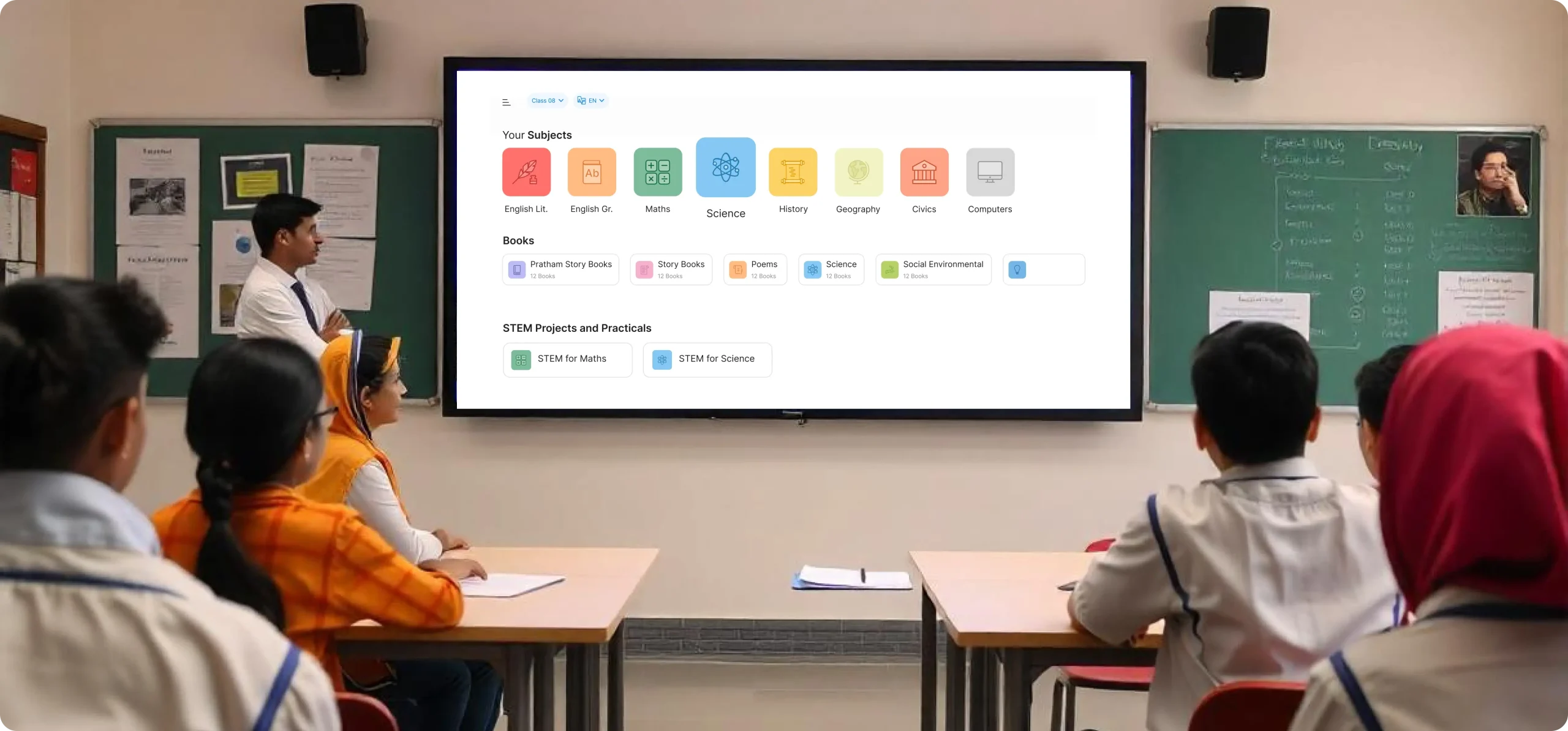
For standard classrooms, an IFP is almost always the better choice. They're larger, brighter, more durable, and come with education-specific software built in. A desktop touchscreen monitor only makes sense for individual teacher use or very small group settings.
Choose IFP if: You're outfitting a standard classroom for whole-group instruction.
Choose touchscreen monitor if: You need a personal display for a teacher's desk or a small intervention group.
Touchscreen Monitor vs. Tablet (iPad, Surface)
Tablets offer touch input in a portable form factor. An iPad with Apple Pencil is excellent for individual student work or small group activities. But it's not a classroom display.
Choose a tablet if: Students need individual devices for hands-on work.
Choose a touchscreen monitor if: You need a shared display for whole-class instruction.
Many schools use both. Students work on tablets while the teacher presents on a larger touch display.
Touchscreen Monitor vs. Interactive Projector
Interactive projectors (like Epson or BenQ models) can turn any whiteboard into a surface. They're cheaper than flat panels and work well in rooms where you want to preserve the existing whiteboard.
The downsides? Projectors need dim lighting, bulbs degrade over time, and the interactive experience isn't as smooth as a purpose-built touch panel.
Choose interactive projector if: Budget is tight and you want to keep your whiteboard.
Choose touchscreen display if: You want a reliable, low-maintenance solution with better image quality.
Touchscreen Monitor vs. Non-Touch Display + Wireless Casting
This is the most practical alternative for many schools. A standard non-touch display paired with wireless casting (AirPlay, Chromecast, Miracast) lets teachers and students share their device screens without touching the display at all.
Choose this if: Your teachers and students already have touchscreen devices (tablets, laptops) and just need a way to share content on a big screen.
Choose a touchscreen display if: You want the teacher to interact directly with the classroom display without mirroring from another device.
Decision Framework: Is It Right for Your Situation?
Let's make this practical. Walk through these five steps to determine whether touchscreen monitors make sense for your specific context.
Step 1: Check Your Compatibility Baseline
Before anything else, verify that your existing infrastructure supports touch input:
- Operating system: Windows 10/11, Chrome OS, and iPadOS all have native touch support. Older systems may need drivers.
- Core software: Test whether your primary education apps respond to touch. If they don't, the display won't help.
- Connectivity: Ensure your devices can connect via USB-C (preferred for touch signal + video) or HDMI + USB upstream.
- Network: If you plan to use wireless casting, your Wi-Fi infrastructure needs to handle it reliably.
If any of these are missing, fix them first. A touchscreen on an incompatible system is just an expensive monitor.
Step 2: Match Screen Size to Room Size
This seems obvious but gets overlooked constantly. Measure your room and seating arrangement.
- Under 15 students, close seating: A 27" desktop touch monitor can work for small group instruction.
- 15-30 students, standard classroom: You need at least a 55" display mounted at viewing height.
- 30+ students, large room or lecture hall: Go 75" or larger. Touch capability becomes less critical at this distance since students won't reach the screen.
A good rule of thumb: every student should be able to clearly read 24-point text on the display from their seat. If they can't, the screen is too small for the room.
Step 3: Calculate True Cost of Ownership
Don't just compare sticker prices. Build a five-year cost model:
| Cost Category | Consumer Touch Monitor | Education-Grade IFP |
|---|---|---|
| Purchase price | $200-$600 | $2,000-$8,000 |
| Mounting/installation | $50-$200 | $200-$1,000 |
| Software licenses (5 yr) | $0-$500 | $250-$1,000 |
| Training | Minimal | $500-$2,000 |
| Maintenance/repairs | $100-$300 | $300-$1,500 |
| Total 5-year cost | $350-$1,600 | $2,750-$13,500 |
Be honest about what your budget can handle. A well-chosen cheaper option that actually gets used beats an expensive panel that sits idle.
Step 4: Evaluate Your Teachers' Readiness
This is the make-or-break factor that technology directors often underestimate.
Ask yourself honestly:
- Do your teachers currently use technology interactively, or mostly for slides?
- Are they open to learning new tools, or resistant to change?
- Do you have instructional technology coaches who can support adoption?
- Can you dedicate time for meaningful training (not just a one-hour PD session)?
If your staff isn't ready, invest in training first and hardware second. The best display in the world won't improve outcomes if teachers don't know how to use it effectively.
Step 5: Make the Call
Based on the previous four steps, here's your decision path:
Go with a touchscreen monitor if:
- Your teachers are already using interactive teaching methods
- Your software ecosystem supports touch input
- You have budget for both hardware and training
- The room size matches the display size
- You have IT support ready to maintain the equipment
Consider alternatives if:
- Your teachers primarily lecture from static slides
- Your budget can't cover training and ongoing costs
- Your room is too large for a practical touch display
- Your existing devices don't support touch output
- You don't have a plan for long-term support and maintenance
Common Mistakes Schools Make When Buying Touch Displays
After reviewing dozens of district deployment plans and post-implementation reports, these are the most frequent missteps.
Buying on price alone. The cheapest option rarely lasts in an education environment. Consumer-grade displays aren't built for daily classroom use and tend to fail within two to three years.
Skipping teacher training. Schools routinely spend thousands on hardware and pennies on training. Without proper professional development, adoption rates hover around 20-30 percent. That's a terrible return on investment.
Ignoring the software ecosystem. A touchscreen without good software is just a fancy monitor. Make sure you have whiteboard apps, annotation tools, and content creation platforms ready to go on day one.
Mounting too high or too low. Displays mounted too high are unreachable for younger students. Displays mounted too low get blocked by desks. Follow ADA guidelines and adjust for the age group using the room.
Not planning for maintenance. Touch displays need regular cleaning, calibration checks, and occasional repairs. If your IT team doesn't have a maintenance schedule, performance will degrade quickly.
Assuming touch replaces good teaching. Technology is a tool, not a strategy. A touchscreen won't fix a poorly designed lesson plan. Focus on pedagogy first, then find the right technology to support it.
Real Scenarios: What Works Where
Let's ground this in practical examples. Here are four common situations and what tends to work best in each.
Scenario 1: Elementary School, Limited Budget
Context: A K-5 school with 25 students per classroom and a tight technology budget.
What works: A 65" interactive flat panel on a mobile cart that can be shared between classrooms. This keeps costs manageable while giving teachers flexibility. Pair it with a few tablets for small group activities.
What doesn't work: Individual desktop touch monitors for each teacher. At this age, whole-class interactive instruction matters more than individual teacher displays.
Scenario 2: University Lecture Hall, Large Enrollment
Context: A 100-seat lecture hall where most instruction is presentation-based.
What works: A large non-touch display or projection system paired with wireless casting. Touch capability adds little value when the instructor is presenting to a large room. Save the budget for better audio and screen sharing infrastructure.
What doesn't work: A single interactive flat panel at the front. Students in the back can't see or interact with it. If interactivity matters, consider audience response systems instead.
Scenario 3: Special Education Classroom
Context: A small class of 8-12 students with diverse learning needs.
What works: A 55" interactive flat panel with accessibility features enabled. Touch input helps students who struggle with mouse or keyboard navigation. Built-in speakers and screen reader compatibility are essential.
What doesn't work: A setup that relies on a single shared device without individual options. Special education often benefits from a combination of shared displays and personalized devices.
Scenario 4: District-Wide Deployment
Context: A school district outfitting 50+ classrooms across multiple buildings.
What works: Standardize on one or two display models. Negotiate volume pricing. Invest heavily in training and create a cohort of teacher champions who can support peers.
Plan for centralized device management so IT can push updates and troubleshoot remotely.
What doesn't work: Letting each school choose its own equipment. Inconsistent hardware creates a support nightmare and makes training nearly impossible to scale.
Frequently Asked Questions
What size touchscreen is best for a classroom?
For a standard classroom of 15-30 students, a 55" to 65" display is the sweet spot. Smaller rooms with fewer students can use 43" to 50" panels. Lecture halls need 75" or larger.
Desktop touch monitors (21-32") only work for individual or very small group use.
Do touchscreen monitors work with all operating systems?
Most modern touch displays work plug-and-play with Windows 10/11, Chrome OS, and macOS. Linux support varies by manufacturer. Always verify driver availability for your specific OS before purchasing, especially if you're running older systems.
How long do interactive flat panels last?
Most education-grade panels are rated for 30,000 to 50,000 hours of use. At six hours per day, that's roughly 13 to 22 years of classroom service. Backlight brightness will gradually decrease over time, but the touch system typically outlasts the display panel's useful brightness.
Can students damage a touchscreen display?
Yes, especially younger students. Education-grade panels use tempered glass and are designed to withstand normal classroom use. They're not indestructible though.
Impact from sharp objects, excessive force, or vandalism can crack or damage the screen. Protective bezels and proper mounting reduce risk significantly.
Is a touchscreen monitor worth it for remote learning?
It can be, especially if the display has a built-in camera, microphone, and speaker system. Teachers can run video calls, annotate shared content, and interact with remote students in real time. Without those built-in features, a standard webcam and display setup works fine and costs less.
What's the difference between a touchscreen monitor and an interactive flat panel?
A touchscreen monitor is an external display that connects to a computer. An interactive flat panel is a self-contained unit with a built-in operating system (usually Android or dual OS). IFPs are designed specifically for education with pre-installed software, better durability, and larger sizes.
Touchscreen monitors are more affordable but lack education-specific features.
Final Verdict: The Decision Guide
Here's the simplest way to think about it.
Yes, invest in touchscreen displays if:
- Your teachers actively use interactive teaching methods or want to start
- Your budget covers both hardware and meaningful professional development
- You're choosing education-grade panels (not consumer monitors) for classroom use
- Your room size matches the display size
- You have a multi-year support and maintenance plan
No, skip them (for now) if:
- Your teachers aren't ready to change how they teach
- You can't afford training alongside the hardware
- You're buying consumer monitors expecting commercial-grade durability
- Your existing setup (tablets, non-touch display, wireless casting) already meets your needs
For most schools, the sweet spot is a phased approach. Start with one or two classrooms. Train those teachers well.
Measure the results. Then expand based on real feedback, not vendor promises.
Touchscreen monitors are good for education. But only when the conditions are right, the training is in place, and the investment is sustainable. Get those pieces lined up, and you'll see real results.
Skip them, and you'll wonder why that expensive screen just sits there.
Where to Buy and What to Look For
For consumer touchscreen monitors, major retailers like Amazon, B&H Photo, and direct from manufacturers like Dell, LG, and ASUS offer solid options with easy returns. Look for at least a two-year warranty and verified driver support for your OS.
For education-grade interactive flat panels, work with specialized education technology distributors. Promethean, SMART Technologies, and Samsung all have dedicated education sales teams. Request a pilot unit before committing to a bulk purchase.
What to verify before buying:
- Does the warranty cover education-use scenarios (not just consumer use)?
- Is on-site service available in your area?
- Can you get replacement parts (bezels, touch sensors) within days, not weeks?
- Does the manufacturer offer educator training resources?
- Is there a loaner program if your unit needs off-site repair?
These questions separate vendors who understand schools from those who just want to sell you hardware.
Long-Term Care and Maintenance
Touch displays need regular attention to keep working well. Build these habits from day one:
Daily: Wipe the screen with a microfiber cloth. Avoid paper towels and standard glass cleaners, they damage anti-glare coatings over time.
Weekly: Check touch calibration. Most systems have a built-in calibration routine. Run it if you notice touch points registering inaccurately.
Monthly: Inspect cables and connections. A loose USB upstream cable is the most common cause of "my touchscreen stopped working."
Annually: Update firmware and software. Manufacturers release fixes that improve touch responsiveness, add features, and patch security issues.
Teach your teachers the basics. A five-minute orientation on cleaning, restarting, and flagging issues can cut your support tickets by half.
Quick Reference Card
Here's a one-page summary you can share with your technology committee:
| Question | Answer |
|---|---|
| Best for K-5 | 55-65" IFP, mobile cart, IR touch |
| Best for 6-12 | 65-75" IFP, wall mount, multi-touch |
| Best for higher ed | 75"+ display or projection + casting |
| Best for small group | 24-27" desktop touch monitor |
| Minimum warranty | 3 years (education-grade) |
| Budget per classroom | $3,000-$6,000 (all-in) |
| Training investment | 10-15 hours per teacher |
| Expected lifespan | 7-10 years with proper maintenance |
This keeps everyone on the same page when decisions are being made. Print it, share it, refer back to it when the sales pitches start rolling in.
Final Thoughts
Touchscreen monitors and interactive displays have a genuine place in modern education. They're not gimmicks, and they're not automatically the right choice either. The difference between a successful deployment and an expensive mistake comes down to planning, training, and honest assessment of your needs.
If you've walked through the decision framework in this article and everything lines up, you're in good shape to move forward. If something doesn't line up yet, fix that piece first. The technology will still be there, and it'll be even more affordable by the time you're ready.
The best classroom technology is the kind teachers actually use, students genuinely benefit from, and your budget can sustain. Everything else is just noise.

Similar Posts





















