Are Touchscreen Monitors Good for Designers
Are touchscreen monitors good for designers? The honest answer is: it depends entirely on what kind of design work you do and how your workflow is set up. A touchscreen monitor can be a genuine productivity boost for some designers and an expensive frustration for others.
Professional-grade touch displays now cover 99% of the Adobe RGB color gamut and ship with 8192 levels of pen pressure sensitivity, according to manufacturer specifications from Wacom and ASUS ProArt. But specs on paper don't tell the whole story. Let's break down exactly where these monitors shine, where they fall short, and whether one belongs on your desk. For more background on real-world performance, read our breakdown of whether touchscreen monitors good for office use.

Quick Answer
Touchscreen monitors are good for illustrators and digital painters who draw directly on screen. They are less ideal for pure photo editing or color-critical print work. A pen display like the Wacom Cintiq outperforms a standard touchscreen for most design tasks.
Your specific workflow should drive this decision.
Why This Comparison Actually Matters for Designers
Choosing a monitor is one of the biggest hardware decisions you'll make as a designer. It's the one piece of equipment you stare at for eight or more hours a day. Get it wrong and you're fighting your tools instead of doing your best work.
The market has exploded with options. You've got traditional IPS monitors, pen-enabled displays, and full touchscreen monitors all competing for the same budget. Each one handles color, input, and workflow differently. To see how this holds up against alternate models, explore whether touchscreen monitors good for education.
A wrong choice here can cost you $1,000 or more and months of frustration.
What makes this tricky is that the "best" option changes depending on your discipline. An illustrator has completely different needs than a UI designer or a photo retoucher. That's why we're going to walk through each option, compare them honestly, and match them to real-world design workflows.
Touchscreen Monitors vs. Pen Displays vs. Traditional Monitors: The Real Breakdown
Before you spend any money, you need to understand what you're actually choosing between. These three categories get lumped together constantly, but they serve very different purposes.
Touchscreen Monitors
A touchscreen monitor is a standard display with a touch-sensitive overlay layered on top. You interact with it using your fingers, and most models also support pen input. Think of it like a giant tablet that connects to your computer.
These monitors typically use IPS panels and support 10-point multi-touch, meaning they can detect ten simultaneous finger touches. Many models from Dell UltraSharp and ASUS ProArt also include pen support with 4096 or 8192 pressure levels.
The appeal is obvious. You get a regular monitor that also lets you tap, swipe, pinch, and zoom directly on screen. For presentations, quick annotations, or casual sketching, that's genuinely useful.
But here's the catch. The touch layer adds a thin gap between your eyes and the pixels. This creates parallax, a small but noticeable offset between where your finger or pen touches and where the cursor appears.
For precision design work, that offset can be maddening.
Touchscreen monitors also tend to be glossy. The touch surface reflects ambient light, which makes color evaluation harder in bright rooms. You're trading convenience for visual accuracy.
Pen Displays (Like Wacom Cintiq)
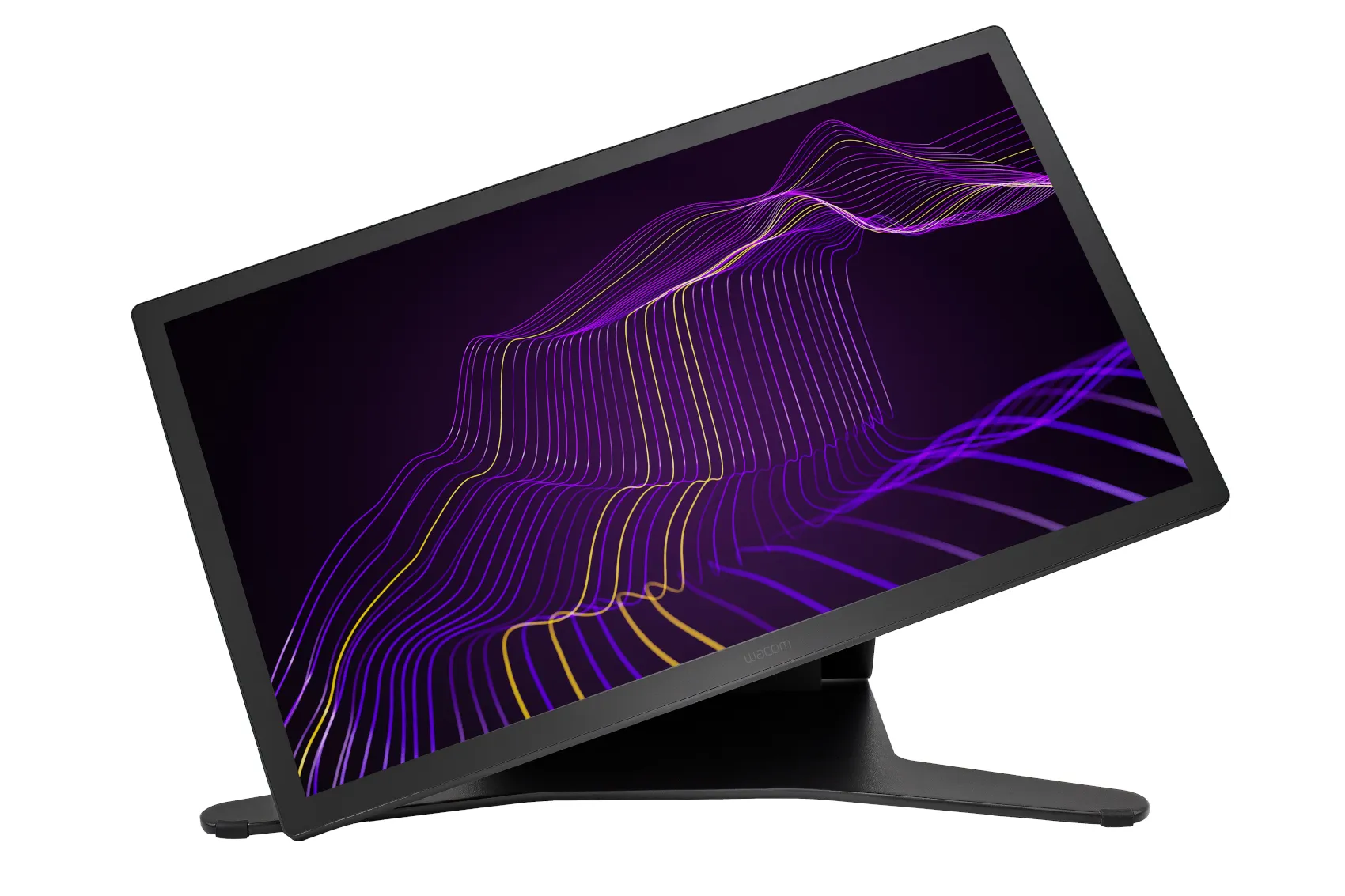
A pen display is purpose-built for creative work. The Wacom Cintiq Pro line, Huion Kamvas series, and XP-Pen Artist displays all fall into this category. These aren't regular monitors with touch added.
They're drawing first, display second.
The key difference is the digitizer technology. Wacom's Pro Pen 3 uses electromagnetic resonance (EMR) to detect the pen's position, pressure, and tilt without the pen needing a battery. This gives you exceptional accuracy with virtually zero parallax when properly calibrated.
Pen displays also come factory-calibrated. The Cintiq Pro 27 ships with a Delta E of less than 2 out of the box, which is the threshold for professional color-accurate work. You can hardware-calibrate these displays using built-in profiles, something most touchscreen monitors don't support.
The downside? Price. A Cintiq Pro 27 costs around $3,500 as of 2026.
Even budget options from Huion or XP-Pen run $400 to $1,200 for smaller sizes. You're paying for that specialized digitizer layer and the calibration pipeline.
Another thing to consider. Pen displays work best at a drafting-table angle. Using one flat on your desk like a regular monitor causes neck strain and makes drawing awkward.
You'll want an adjustable stand or arm, which adds to the cost.
Traditional Non-Touch Monitors + Separate Tablet
This is the classic setup. You pair a high-quality IPS or OLED monitor with a separate pen tablet like a Wacom Intuos Pro. The monitor handles color-accurate display work.
The tablet handles input.
This combination gives you the best of both worlds for many workflows. Your monitor can be a top-tier display like an ASUS ProArt PA329CRV or an EIZO ColorEdge with factory calibration and hardware LUT support. Your tablet gives you pressure-sensitive pen input without any parallax concerns.
The trade-off is desk space and context switching. Your eyes are on the monitor while your hand moves on the tablet. For some designers, that disconnect feels natural.
For others, especially illustrators who want to draw directly on the image, it never stops feeling awkward.
Cost-wise, this setup can be surprisingly reasonable. A solid 27-inch 4K IPS monitor runs $400 to $800. A Wacom Intuos Pro Medium adds another $250 to $350.
You're at $650 to $1,150 total, which is less than most pen displays and far less than a Cintiq Pro.
Side-by-Side Comparison: How They Stack Up for Design Work
Here's how the three options compare across the specs and features that actually matter for design work.
| Feature | Touchscreen Monitor | Pen Display (Wacom Cintiq) | Traditional Monitor + Tablet |
|---|---|---|---|
| Color accuracy (Delta E) | < 3 typical | < 2 factory-calibrated | < 2 possible with pro monitors |
| Parallax | Noticeable (3-8mm) | Minimal (< 2mm) | None (separate input surface) |
| Pen pressure levels | 4096 to 8192 | 8192 to 16384 | 8192 standard |
| Tilt support | Varies by model | Full tilt recognition | Full tilt recognition |
| Multi-touch gestures | Yes (10-point) | Limited or none | No |
| Palm rejection | Inconsistent | Excellent | N/A (pen only) |
| Hardware calibration | Rarely supported | Built-in on pro models | Monitor-dependent |
| Price range | $300 – $1,500 | $400 – $3,500+ | $650 – $1,500 |
| Best for | Presentations, annotation | Illustration, 3D sculpting | Photo editing, UI design, print |
| Ergonomic flexibility | Moderate | Needs angled stand | Highly flexible |
| Fingerprint/glare issues | Yes | Matte screen options | Minimal |
The table tells a clear story. If you need the absolute best color accuracy and hardware calibration, a traditional monitor or pen display wins. If you want touch gestures and direct manipulation, a touchscreen monitor has features the others simply can't match.
Who Should Actually Buy a Touchscreen Monitor
Not every designer benefits from touch. But for certain workflows, a touchscreen monitor is genuinely the right tool.
Illustrators and Digital Painters
If your primary work involves drawing, painting, or sketching directly in apps like Procreate, Clip Studio Paint, or Photoshop, a touchscreen or pen display gives you the most natural input method. The ability to draw directly on the image you're creating changes how you work. It's faster, more intuitive, and closer to traditional media.
For illustrators specifically, a pen display beats a standard touchscreen monitor. The parallax is lower, the pen accuracy is higher, and the surface texture feels more like paper. A Huion Kamvas Pro 24 at around $900 gives you 4K resolution and excellent pen performance without the Wacom premium.
UI/UX Designers
UI and UX designers often work in Figma, Sketch, or Adobe XD. These tools are primarily mouse and keyboard driven. Touch input adds limited value here.
Where touch helps is in prototyping and testing. You can interact with your designs the way end users will. Pinch to zoom, swipe between screens, tap through flows.
It's a better way to validate mobile and tablet interfaces than clicking a mouse.
For this use case, a mid-range touchscreen monitor works fine. You don't need Wacom-level pen accuracy. A Dell P2424H touch at around $400 gives you solid color and responsive touch without overpaying.
Photo Editors and Retouchers
Photo editing is where touchscreen monitors get complicated. The touch layer can affect color uniformity and add glare. For work where color accuracy is non-negotiable, like commercial photography or print preparation, most professionals stick with a calibrated IPS or OLED monitor.
That said, touch gestures for zooming, panning, and before-after comparisons can speed up your workflow. Lightroom's touch support on Windows is actually quite good. If you're editing for web and social media rather than print, a touchscreen monitor can work.
Just make sure you hardware-calibrate it regularly. The touch layer can shift colors slightly over time, and you need a colorimeter to catch that drift.
3D Sculptors (ZBrush, Blender)
Digital sculptors benefit enormously from pen input. ZBrush and Blender both respond beautifully to pressure-sensitive strokes. A pen display gives you the control you need for fine detail work.
A standard touchscreen monitor works in a pinch, but the parallax and lower pen accuracy make it harder to do precise sculpting. If 3D work is your main focus, invest in a proper pen display.
Client-Facing Designers and Presenters
Here's an underrated use case. If you regularly present work to clients and want to mark up designs live, a touchscreen monitor is fantastic. You can sketch ideas, annotate mockups, and make real-time adjustments during meetings.
This is where a standard touchscreen monitor shines over a pen display. You get the touch interface for gestures and the ability to hand the screen to a client for their own markup. It's collaborative in a way that a Wacom Cintiq, designed for single-user precision, isn't.
Who Should Skip It and Stick with Traditional Setups
Some designers should save their money and go with a proven traditional setup.
If your work is primarily print production, color grading for video, or any discipline where Delta E values below 2 are mandatory, a hardware-calibrated monitor like an EIZO ColorEdge or ASUS ProArt is the safer choice. These monitors are built for color accuracy first. No touch layer means no parallax, no glare compromise, and no calibration drift from the digitizer.
If you're on a tight budget, a traditional monitor plus a Wacom Intuos Pro tablet gives you professional-grade input and display for less money than most pen displays. You lose the direct on-screen drawing experience, but you gain flexibility and save hundreds of dollars.
Designers who work primarily in code-heavy environments, like front-end development or design systems engineering, will get almost zero benefit from touch. Your workflow is keyboard and mouse driven. Spend that money on a better monitor or more RAM instead.
The Hidden Problems Nobody Tells You About
Marketing for touchscreen monitors focuses on the benefits. Here are the frustrations that only show up after you've been using one for a few weeks.
Parallax and Cursor Offset
This is the biggest complaint. When you touch the screen or place the pen tip on it, the cursor appears slightly offset from where you're touching. On cheaper monitors, this gap can be 5 to 8 millimeters.
That doesn't sound like much until you're trying to click a tiny UI element or draw a precise line.
Higher-end pen displays reduce this to under 2 millimeters through better digitizer calibration. But standard touchscreen monitors rarely achieve that level of precision. You adapt to it over time, but it never fully goes away.
Color Accuracy Trade-Offs
The touch layer sits on top of the display panel. This layer can reduce brightness by 10 to 15 percent and slightly affect color uniformity across the screen. Manufacturer specs rarely mention this because it's not a spec they want to highlight.
For casual design work, you won't notice. For professional color work, it matters. A touchscreen monitor that measures Delta E < 3 out of the box might drift to Delta E > 4 after a year of use.
Hardware calibration can correct this, but only if the monitor supports it. Most touchscreen monitors don't.
Palm Rejection Failures
Palm rejection is the technology that tells the screen to ignore your hand when you're using the pen. When it works, it's invisible. When it fails, your canvas zooms randomly, stray marks appear, and you want to throw the monitor out the window.
Palm rejection quality varies wildly between manufacturers. Wacom's implementation is the gold standard. Budget touchscreen monitors often have unreliable palm rejection that requires you to hover your hand above the screen like a surgeon.
That gets tiring fast.
Gorilla Arm and Ergonomic Fatigue
Using a vertical or near-vertical touchscreen for extended periods causes a phenomenon designers call "gorilla arm." Your arm is raised, your shoulder is engaged, and after an hour or two, you're in pain.
This is why pen displays work best at a 20 to 30 degree angle, like a drafting table. A touchscreen monitor mounted vertically on a stand forces your arm into an unnatural position. If you're using one flat on your desk, you'll hunch over it.
Neither option is ergonomic for long sessions.
The fix is a good monitor arm that lets you adjust the angle. Budget another $50 to $150 for that.
Software That Just Isn't Touch-Ready
Here's something nobody talks about. Most professional design software was built for mouse and keyboard input. Touch support is an afterthought.
Photoshop has basic touch gestures for zoom and pan. Illustrator's touch support is minimal. Figma works with touch but wasn't designed for it.
You'll find yourself reaching for the mouse constantly because the touch interface doesn't actually speed up your workflow.
The exception is apps designed for touch from the ground up. Procreate on iPad is the gold standard. Clip Studio Paint has excellent touch and pen support.
Fresco from Adobe works well with touch. But the desktop design tools most professionals rely on? They're still mouse-first.
What Specs Actually Matter When Shopping
If you've decided a touchscreen monitor is right for you, here's what to prioritize.
Color Accuracy and Gamut
Look for Delta E < 3 at minimum. For professional print or video work, Delta E < 2 is the target. Check the color gamut coverage: 100% sRGB is the baseline, 95% or higher DCI-P3 is good for video work, and 99% Adobe RGB is ideal for print.
Factory calibration matters. Some monitors ship with individual calibration reports. That's a good sign.
If the monitor supports hardware calibration through software like CalMAN or X-Rite, even better.
Pen Pressure and Tilt
4096 pressure levels is the minimum for design work. 8192 is the current standard and gives you much finer control over brush strokes. Tilt recognition lets you angle the pen for shading effects, which illustrators will use constantly.
Check whether the pen requires batteries or is battery-powered. EMR pens that don't need charging, like Wacom's Pro Pen, are more convenient and lighter.
Resolution and Size
For a 27-inch monitor, 4K (3840 x 2160) is the sweet spot. You get enough screen real estate for toolbars and canvases, and the pixel density is sharp enough to see fine detail. At 32 inches, 4K is basically mandatory.
1080p on anything larger than 24 inches looks soft and pixelated. Avoid it for design work.
Panel Type
IPS panels give you the best color accuracy and viewing angles. VA panels have better contrast but slower response times and slightly worse color shift at angles. OLED is emerging in monitors and gives you perfect blacks and excellent color, but it's expensive and carries a burn-in risk for static UI elements.
For most designers, IPS is the safe choice. OLED is worth considering if your budget allows and you don't leave static elements on screen for hours at a time.
Connectivity
USB-C with power delivery is ideal. A single cable carries video, data for the touch layer, and charges your laptop. Thunderbolt 4 is even better for higher bandwidth.
Make sure the monitor has the right ports for your setup. Some budget models only have HDMI and VGA, which limits your options.
Real-World Pricing: What You'll Actually Spend
Here's a realistic breakdown of what you'll pay for each option as of 2026.
| Setup | Budget Option | Mid-Range | Professional |
|---|---|---|---|
| Touchscreen monitor | $300 – $400 | $500 – $800 | $1,000 – $1,500 |
| Pen display | $400 – $600 (Huion) | $900 – $1,500 | $2,000 – $3,500 (Wacom) |
| Traditional monitor + tablet | $650 – $800 | $900 – $1,200 | $1,500 – $2,500 |
Don't forget the hidden costs. A good monitor arm runs $50 to $150. A colorimeter for calibration costs $150 to $300.
Replacement pen nibs are $5 to $10 each and wear out every few months with heavy use.
If you go the pen display route, factor in the stand. Many pen displays don't include an adjustable stand in the box. Wacom's optional stand for the Cintiq Pro 27 costs around $200 separately.
Expert Tips If You Decide to Go Touch
If you're moving forward with a touchscreen monitor, these tips will save you headaches.
Calibrate Before You Judge It
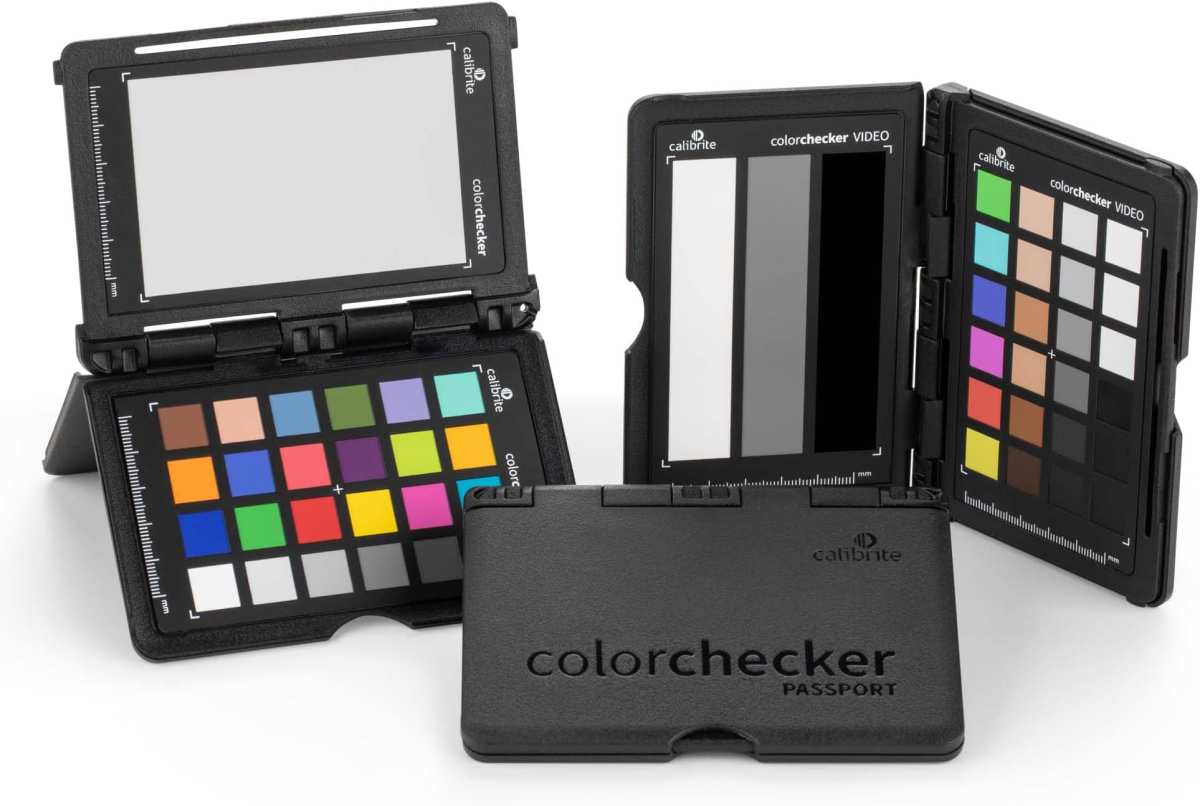
Out-of-box color on most monitors is mediocre. Use a colorimeter like the Calibrite ColorChecker Display or X-Rite i1Display to create a custom ICC profile. You'll be amazed at the difference.
Recalibrate every four to six weeks.
Set Up Your Workspace for Vertical Use
If you're using the monitor at an angle for drawing, make sure your arm supports it securely. A cheap stand that wobbles will ruin the experience. Invest in a VESA-compatible arm with good tilt range.
Tune Your Palm Rejection Settings
Most touchscreen monitors let you adjust palm rejection sensitivity in the driver software. Spend ten minutes dialing it in. Too aggressive and the screen ignores light touches.
Too lenient and your palm creates artifacts.
Keep Your Drivers Updated
Touch and pen drivers get updated regularly. Check the manufacturer's website every few months. Driver updates frequently fix lag issues, improve compatibility with new software, and add gesture support.
Budget for Replacement Pen Nibs
Pen nibs wear down. On a textured screen surface, expect to replace yours every two to four months with daily use. Running a pen on a bare monitor screen without a protective film will also scratch the surface over time.
Consider a matte screen protector if your monitor doesn't have a textured surface.
Common Mistakes Designers Make with Touch Monitors
Avoid these pitfalls if you're new to touchscreen design work.
Buying based on touch alone. A touchscreen monitor is still a monitor first. If the panel has poor color accuracy, slow response times, or low resolution, the touch feature won't save it. Evaluate it as a monitor that happens to have touch, not a touch device that happens to display images.
Ignoring the surface texture. Glossy screens feel smooth but show every fingerprint and reflect room lighting. Matte or etched surfaces reduce glare and give the pen more tooth, but they also reduce perceived sharpness. Try both if you can before buying.
Skipping the ergonomics. Using a flat monitor for drawing is a recipe for back and neck pain. Angle it. Your body will thank you after a long session.
Expecting touch to replace the mouse. It won't. Touch is great for some tasks and terrible for others. You'll still reach for the mouse for precise selections, keyboard shortcuts, and fine control.
Touch is a supplement, not a replacement.
Forgetting about software compatibility. Check whether your primary design apps support touch input well. If they don't, you're paying for a feature you'll rarely use.
Frequently Asked Questions
Can I use a touchscreen monitor for professional photo editing?
Yes, but with caveats. Make sure the monitor covers at least 99% of the sRGB gamut and supports hardware calibration. Budget touchscreen monitors often struggle with color uniformity, which is critical for photo work.
A dedicated photo editing monitor is usually the safer choice.
Do touchscreen monitors work with Macs?
Most touchscreen monitors work with macOS, but the experience isn't as smooth as on Windows. macOS has limited native touch support compared to Windows 11. You may need third-party drivers, and some gesture features won't function on Mac.
Is a Wacom Cintiq better than a touchscreen monitor?
For drawing and illustration, yes. The Cintiq's digitizer technology gives you better pen accuracy, lower parallax, and more reliable palm rejection. A standard touchscreen monitor is more versatile for general use and presentations, but it can't match the Cintiq for precision creative work.
How long do touchscreen monitors last?
The backlight typically lasts 30,000 to 50,000 hours, which is eight to ten years of daily use. The touch digitizer layer is generally reliable, but the surface coating can wear over time, especially with heavy pen use. A screen protector extends the usable life.
Do I need a screen protector on a touchscreen monitor?
It depends on the surface. Monitors with etched glass or textured surfaces don't need one. If your monitor has smooth glass, a matte screen protector prevents scratches and gives the pen a better feel.
Just make sure the protector doesn't significantly affect color accuracy.
Can I use a regular stylus on a touchscreen monitor?
Capacitive styluses work for basic tapping and scrolling, but they lack pressure sensitivity. For design work, you need an active stylus that communicates with the monitor's digitizer. Check which pen models are compatible with your specific monitor before buying.
Final Verdict: Should You Buy One?
Here's the bottom line. A touchscreen monitor is a solid choice if you do illustration work, need client presentation capabilities, or want the flexibility of touch gestures alongside traditional input. It's not the best choice for color-critical print work, tight budgets, or workflows that are entirely mouse and keyboard driven.
If you're an illustrator or digital painter, skip the standard touchscreen monitor and go straight to a pen display. The accuracy and pen experience are worth the extra investment. A Huion Kamvas or Wacom Cintiq will serve you far better than a general-purpose touchscreen.
If you're a photo editor, UI designer, or print professional, stick with a high-quality traditional monitor. Pair it with a separate pen tablet if you need occasional pen input. You'll get better color accuracy, fewer ergonomic issues, and more value for your money.
The right answer isn't about which monitor is "best." It's about which monitor fits your specific work. Be honest about what you actually do all day, and let that guide your decision.
Final Verdict: Should You Buy One?
Final Verdict: Should You Buy One?
Here's the simple decision framework. Buy a pen display if you draw or paint on screen daily. Buy a touchscreen monitor if you present to clients or annotate designs live.
Stick with a traditional monitor plus tablet for everything else.
The right choice comes down to your actual daily workflow, not spec sheets. If you spend most of your time retouching photos or designing interfaces, a regular IPS monitor serves you better. If you sketch on screen for hours every day, a pen display pays for itself in speed and comfort.
Touchscreen monitors sit in an interesting middle ground. They're versatile and increasingly affordable. But they're a compromise.
You sacrifice some color accuracy, some ergonomic comfort, and some pen precision in exchange for flexibility. That trade-off is worth it for some designers and a dealbreaker for others.
Know what you actually need before you spend the money. That's the only advice that matters.

Similar Posts





















