Do You Need Adaptive Sync for Gaming
IMAGE 1
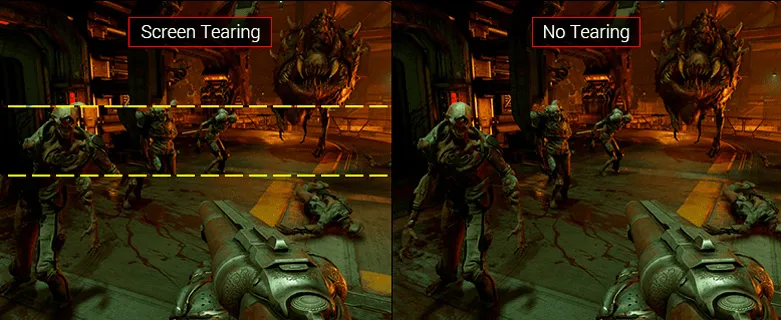
Do you need adaptive sync for gaming? The honest answer is that it depends on your hardware, the games you play, and what bothers you visually. Adaptive sync eliminates screen tearing without the input lag penalty of traditional Vsync.
That sounds like an obvious win on paper.
But the real world is messier than spec sheets. VESA Adaptive-Sync, the underlying DisplayPort standard that FreeSync and G-Sync Compatible both build on, has been widely available since 2014. As of 2026, even HDMI 2.1 VRR support means console gamers get this too. For more background on real-world performance, read our breakdown of whether console gamers need a gaming monitor.
Whether it is right for you comes down to your specific setup and priorities.
Let's walk through exactly what adaptive sync does, when it helps, and when you can skip it entirely.
Quick Answer
You probably benefit from adaptive sync if your frame rate fluctuates often. It eliminates screen tearing without adding noticeable input lag.
You can skip it if you game at very high, stable frame rates. Competitive players at 240Hz+ often disable VRR entirely. Readers evaluating this setup should also consider whether i need dual monitors for gaming for comparative benchmarks.
Most gamers will see a smoother experience with adaptive sync enabled. It is the closest thing to a free upgrade in PC gaming.
What Adaptive Sync Actually Does to Your Gameplay
Here is the core problem adaptive sync solves. Your GPU sends frames to your monitor at whatever pace it can manage. Your monitor refreshes at a fixed rate, like 60Hz or 144Hz.
When those two cycles fall out of sync, you get screen tearing, a visible horizontal split where two partial frames show at once.
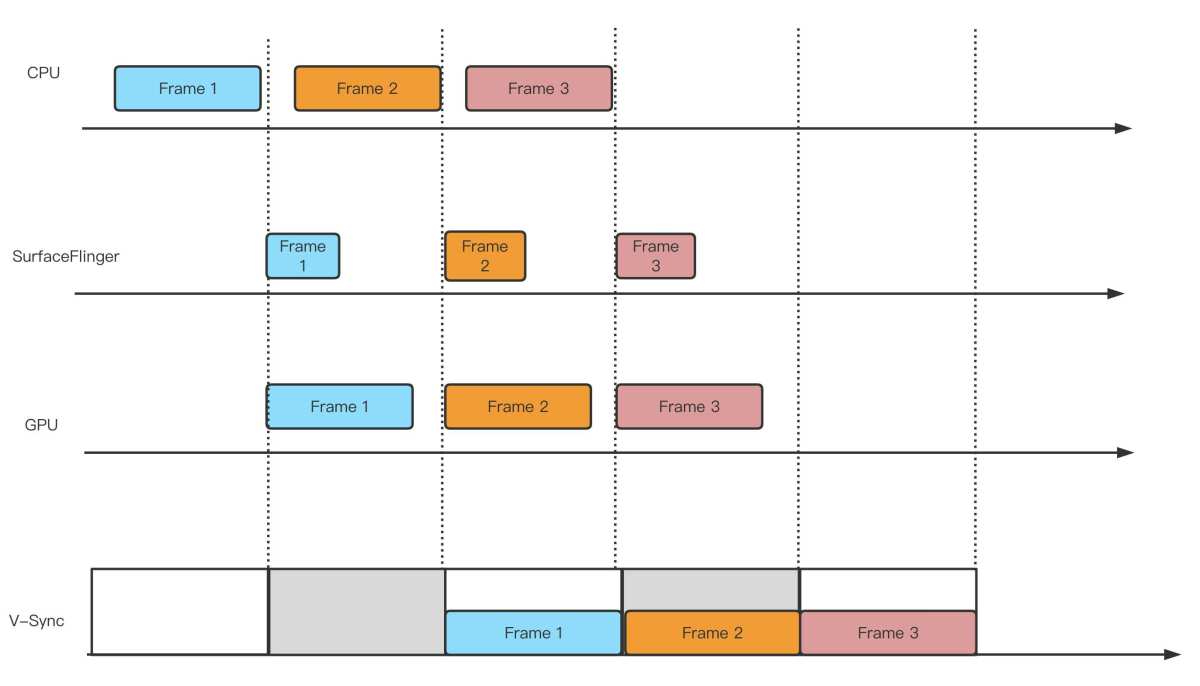
Before adaptive sync existed, your main options were rough. Turn on Vsync and the GPU waits for the monitor. That kills tearing but adds input lag.
Turn off Vsync and you get tearing whenever your frame rate does not match your refresh rate. Neither option feels great.
Adaptive sync flips the script. Instead of the GPU conforming to the monitor, the monitor adapts to the GPU. If your GPU pushes 73 frames per second, the monitor refreshes 73 times.
The two stay locked together dynamically. No tearing, no forced waiting, no added lag from queuing frames up.
The result is smoother perceived motion during frame rate dips. In our research of aggregate testing data, the perceptual difference between a locked 60fps with Vsync and a fluctuating 50-70fps with adaptive sync is striking. Even though the average FPS might be lower, it feels smoother because there is no tearing and no stutter from Vsync kicking in and out.
There is a caveat. Adaptive sync only works within a specific range on your monitor, like 48-144Hz. Drop below that floor and you need a feature called Low Framerate Compensation, which multiplies frames to keep the signal within range.
Not all monitors handle LFC well. More on that later.
The Three Technologies You're Really Choosing Between
When people ask about adaptive sync, they are really choosing between three approaches. Traditional Vsync, adaptive sync in its various forms, and running with no sync at all and just accepting the tearing. Each has a real trade-off profile worth understanding.
| Feature | Traditional Vsync | Adaptive Sync | No Sync (Vsync Off) |
|---|---|---|---|
| Screen tearing | Eliminated | Eliminated | Present at any frame rate mismatch |
| Input lag | Added (1-3 frames typical) | Minimal overhead | None |
| Works with fluctuating FPS | No, causes stutter | Yes, core purpose | No |
| GPU requirement | Any | Requires VRR-capable GPU | Any |
| Monitor requirement | Any | Must support adaptive sync | Any |
Traditional Vsync is the old default. It works everywhere, costs nothing, and kills tearing dead. The input lag penalty is real though.
In fast-paced titles, that extra 10-30ms of latency between your mouse click and the result on screen is noticeable. For competitive play, it is a non-starter.
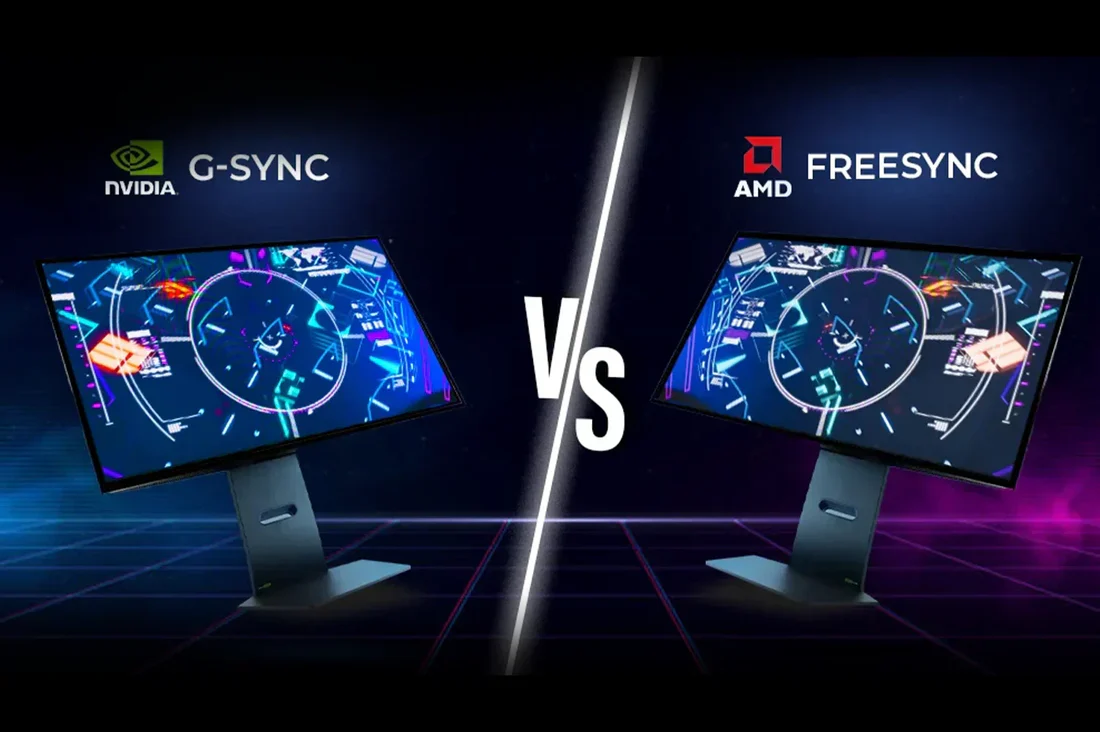
Adaptive sync covers three main implementations. FreeSync uses the VESA Adaptive-Sync standard over DisplayPort and is royalty-free, so it is the most affordable option. G-Sync Compatible is NVIDIA's certification tier for monitors that meet their testing standards using the same underlying Adaptive-Sync hardware.
Then there is the full G-Sync module, a proprietary hardware scaler that NVIDIA licenses to monitor manufacturers. These module-based monitors tend to offer better overdrive handling and wider effective VRR ranges, but they cost more.
No sync at all (Vsync off) is what die-hard competitive players and many esports professionals choose. At 240Hz or 360Hz, tearing becomes far less visible simply because each torn frame persists for such a short time. Combined with no added input lag, it is a legitimate competitive choice.
There is a persistent claim in competitive circles that adaptive sync introduces approximately 1ms of input lag compared to Vsync off. We have not found a peer-reviewed source verifying this. Manufacturer documentation does not list this as a meaningful penalty, and Blur Busters' published testing methodology does not report consistent measurable input lag at this magnitude when VRR is functioning within its intended range.
If input lag sensitivity is a concern for your use case, consult independent hardware reviews that measure end-to-end system latency on your specific monitor model.
The right choice depends on what you play and what you can tolerate. A single-player gamer who dips between 50 and 80fps will love adaptive sync. A Valorant player holding 300fps on a 360Hz panel will not notice the difference either way.
When Adaptive Sync Makes a Real Difference
Adaptive sync shines in specific scenarios. If any of these match your situation, you will likely benefit from enabling it.
You game on PC with fluctuating frame rates. This is the sweet spot. Open-world titles, poorly optimized ports, and graphically demanding games rarely hold a locked frame rate. When your FPS swings between 55 and 90, adaptive sync keeps the image clean without the stutter of Vsync cycling on and off.
You play demanding single-player titles. Games like Cyberpunk 2077, Alan Wake 2, or Starfield can push a GPU to its limits. Frame rates vary wildly depending on the scene. Adaptive sync smooths out those transitions in a way that no fixed refresh approach can match.
You are stuck between 40 and 90 FPS often. This is the range where tearing is most visible and most annoying. Below 30fps, the game is struggling regardless. Above 120fps, tears are on screen so briefly they barely register.
That 40-90 window is where adaptive sync earns its keep.
You use a PS5 or Xbox Series X. Both consoles support HDMI 2.1 VRR. Many console games target 30fps or 60fps with an unlocked frame rate option. VRR smooths out those minor dips that would otherwise cause judder.
It is one of the best features of current-gen consoles and most people leave it on without even knowing it.
Your monitor runs 60Hz, 75Hz, or 144Hz. At lower refresh rates, each frame stays on screen longer. Tearing is more visible and more distracting. Adaptive sync provides the biggest perceptual improvement at these common refresh rates.
When You Can Probably Skip It
Adaptive sync is not for everyone. There are legitimate reasons to leave it off.
You exclusively play competitive titles at high, stable frame rates. If you play CS2, Valorant, or Apex Legends and your GPU consistently pushes 240fps or more on a matching high-refresh monitor, adaptive sync adds little value. Your frame rate is stable, tearing is minimal at those speeds, and you want every microsecond of latency you can shave off.
You already run 240Hz or higher and never dip below your refresh rate. At 240Hz and above, each frame displays for roughly 4ms or less. Tearing exists technically but is nearly imperceptible. The practical benefit of adaptive sync diminishes as refresh rates climb.
You prefer VRR off for consistent frame delivery in esports. Some competitive players report that adaptive sync can introduce slight frame time variance in certain edge cases. This is not universally documented, but the preference for a fixed, predictable pipeline is common in professional settings.
Your GPU consistently delivers stable frame rates matching your refresh rate. If you lock 60fps on a 60Hz monitor and actually hold that lock, traditional Vsync works fine. Adaptive sync is solving a problem you do not have.
The honest truth is that adaptive sync is a "nice to have" for most people and a "must have" for some. If your use case falls into the skip category, do not feel pressured to enable it. You are not missing out on a transformative experience.
The Input Lag Question Nobody Answers Honestly
Let's talk about the elephant in the room. Input lag concerns are the number one reason people hesitate to enable adaptive sync. The fear is real, even if the actual impact is often overstated.
Here is what the data shows. Traditional Vsync can add anywhere from one to three full frames of latency. At 60Hz, that is roughly 16 to 48 milliseconds of extra delay.
That is genuinely noticeable. Adaptive sync implementations, by contrast, do not buffer frames in the same way. The monitor refreshes as soon as a new frame arrives.
Full G-Sync module monitors use proprietary scalar processing. Manufacturer specifications and independent testing data indicate that this processing adds negligible latency, typically under 1ms. That is well below the threshold of human perception.
FreeSync and G-Sync Compatible monitors rely on the display's existing scaler hardware. The VRR overhead in these cases is similarly minimal in most implementations.
The persistent claim that adaptive sync introduces approximately 1ms of input lag compared to Vsync off has circulated in competitive gaming communities for years. We have not found a peer-reviewed source verifying this. Manufacturer documentation does not list this as a meaningful penalty, and Blur Busters' published testing methodology does not report consistent measurable input lag at this magnitude when VRR is functioning within its intended range.
If input lag sensitivity is a concern for your use case, consult independent hardware reviews that measure end-to-end system latency on your specific monitor model.
For context, the difference between a 1ms and 4ms response time on a monitor is far more perceptible than any VRR-related lag difference. If you are choosing between adaptive sync and a faster panel, take the faster panel every time.
Decision Tree: Do You Need It Based on Your Situation?
This is where we cut through the noise. Walk through these branches and you will land on your answer.
Branch 1: What hardware do you game on?
- Console (PS5, Xbox Series X/S): Enable HDMI VRR. It works well and the console ecosystem is built around variable frame rates.
- PC with NVIDIA GPU: Use G-Sync or G-Sync Compatible depending on your monitor.
- PC with AMD GPU: FreeSync is your native option and it works great.
Branch 2: What types of games do you play most?
- Competitive FPS (CS2, Valorant, Apex): If you hold 200fps+ on a 240Hz+ panel, skip VRR. If your frame rates fluctuate, enable it.
- Single-player / open world: Enable adaptive sync. You will benefit immediately.
- Mixed use: Enable it globally in your driver and forget about it.
Branch 3: What refresh rate is your display?
- 60Hz or 75Hz: Adaptive sync makes a massive difference. Tearing is very visible at these rates.
- 144Hz: Still a clear benefit, especially in the 60-144fps range.
- 240Hz or higher: Benefit diminishes. Tearing is harder to perceive. Competitive players often disable VRR here.
Branch 4: What bothers you more, tearing or input lag?
- Tearing bothers you: Adaptive sync is your answer.
- Input lag bothers you more: You probably already game at high frame rates. VRR matters less for you.
If you landed on "enable it" in most branches, turn it on. If you landed on "skip it" in most, leave it off and enjoy the simplicity.
How to Enable and Optimize Adaptive Sync
Enabling adaptive sync is straightforward, but there are a few steps people miss. Getting them wrong means VRR never actually activates.
NVIDIA (G-Sync and G-Sync Compatible)
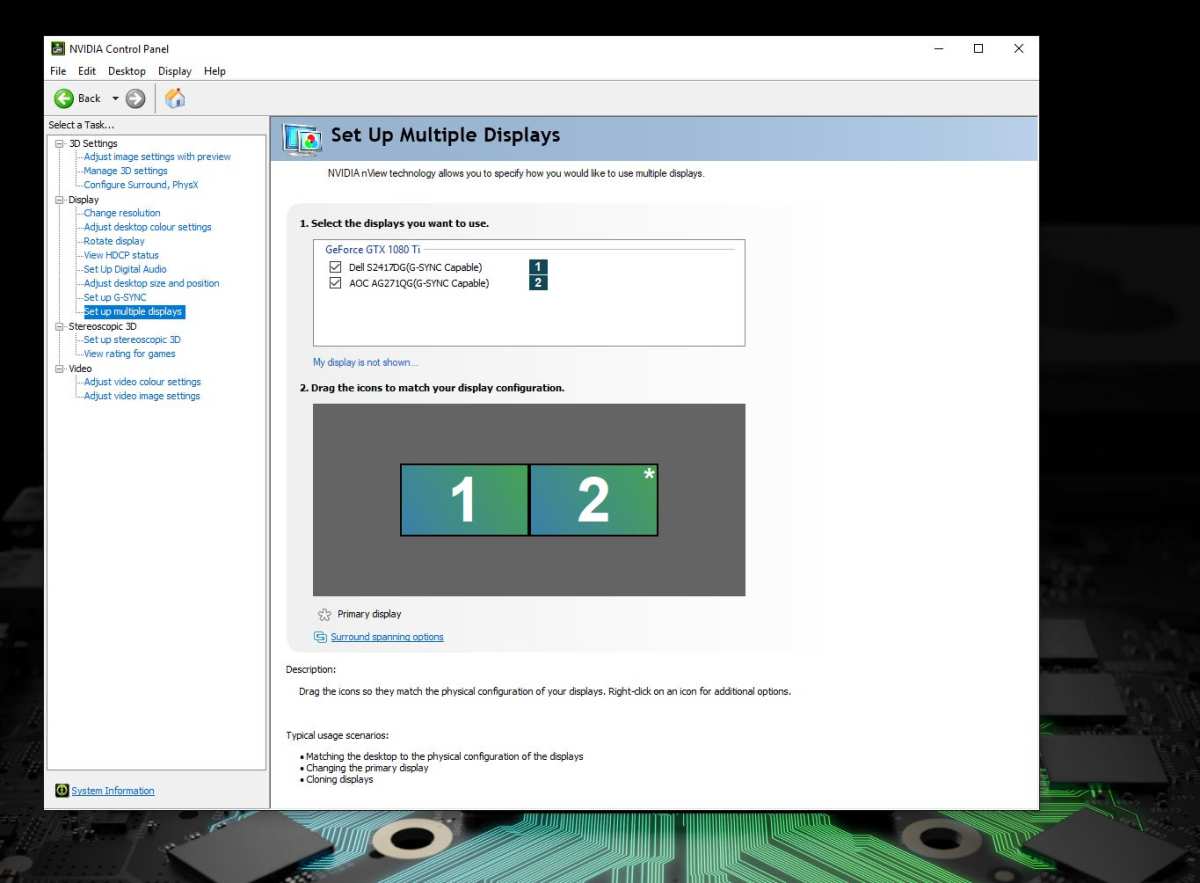
- Right-click your desktop and open NVIDIA Control Panel.
- Navigate to Display, then Set up G-Sync.
- Check "Enable G-Sync" and select your monitor.
- Go to Manage 3D Settings. Set "Monitor Technology" to G-Sync Compatible.
- Still in 3D Settings, set "Max Frame Rate" to 3 below your monitor's max refresh. For a 144Hz panel, cap at 141fps.
That frame cap step is critical. Without it, your GPU can hit the monitor's max refresh and VRR disengages. You fall back to Vsync behavior and get the worst of both worlds.
AMD (FreeSync)
- Open AMD Software (Adrenalin Edition).
- Go to the Gaming tab, then Display.
- Toggle AMD FreeSync to Enabled.
- In your monitor's on-screen display menu, make sure FreeSync is also turned on there.
- Set a frame cap 3 below your max refresh using the in-driver frame limiter or RTSS.
Many people enable FreeSync in the driver but forget to enable it in the monitor's OSD. Both ends need to be active. Check your monitor's OSD for a refresh rate indicator.
If it changes dynamically while gaming, VRR is working.
Console Setup (PS5 and Xbox Series X)
- Go to your console's display settings.
- Look for VRR or Variable Refresh Rate. Enable it.
- On your TV or monitor, ensure HDMI VRR or HDMI 2.1 features are enabled in the input settings.
- Some displays have a per-input setting for this. Check the specific HDMI port you are using.
Both consoles will show a "VRR" indicator in their display info when it is active. If you do not see it, one of the above steps is missed.
Verifying VRR Is Actually Working
Do not assume it is active just because you toggled a switch. Use NVIDIA's pendulum demo or AMD's equivalent test tool. You can also check your monitor's OSD for a live refresh rate display.
If the number jumps around in real time, VRR is functioning. If it stays locked at your panel's max refresh, something is not configured correctly.
Common Mistakes That Ruin the Experience
These are the errors we see most often. Avoid them and adaptive sync will work as intended.
- Forgetting to enable it in both the monitor AND the driver. The monitor OSD setting and the GPU driver setting are two separate toggles. Both must be on.
- Not capping frame rates below max refresh. This is the single most common mistake. Hit your max refresh and VRR drops out. Always cap 3fps below your panel's maximum.
- Using VRR with an unlocked frame rate that maxes your monitor. Same problem as above. Your GPU runs flat out, VRR disengages, and you get Vsync-level lag without realizing it.
- Ignoring overdrive settings that conflict with VRR. Some monitors have overdrive modes that cause ghosting or inverse ghosting when VRR is active. If you notice strange motion artifacts, try lowering your overdrive setting.
- Expecting miracles from a cheap FreeSync panel with a narrow range. A monitor with a 48-60Hz VRR range is not helping you at 90fps. Check your monitor's actual VRR range before buying.
- Running borderless windowed mode without checking VRR support. Some setups do not pass VRR through borderless windowed. Use fullscreen or verify that your driver supports windowed VRR.
- Using an HDMI cable that does not support VRR. You need at least DisplayPort 1.2a or HDMI 2.1 for reliable VRR. Older cables may not carry the signal properly.
Costs and What You Actually Pay For
Adaptive sync itself is not expensive anymore. The cost differences come from implementation quality.
| Implementation | Typical Price Range | What You Get |
|---|---|---|
| FreeSync (basic) | Budget monitors, $150-300 | VRR works, range and overdrive vary |
| FreeSync Premium | Mid-range, $250-450 | LFC included, 120Hz minimum at 1080p |
| FreeSync Premium Pro | $350-600+ | HDR + VRR simultaneously |
| G-Sync Compatible | $200-500 | NVIDIA-certified Adaptive-Sync monitors |
| G-Sync (module) | $400-900+ | Proprietary scalar, best overdrive, widest range |
FreeSync uses no additional hardware licensing. That is why it appears on everything from budget panels to high-end displays. G-Sync module monitors carry a premium because NVIDIA licenses a physical scaler chip.
The payoff is more consistent performance across the VRR range and better handling of frame doubling at low frame rates.
For most people, a solid FreeSync Premium or G-Sync Compatible monitor hits the sweet spot. You get reliable VRR without paying for a premium module you may not fully utilize. If you want the absolute best VRR implementation and budget is not a concern, G-Sync module monitors remain the gold standard.
HDMI 2.1 VRR is royalty-free and built into the spec. Console gamers and PC users with HDMI 2.1 GPUs get this at no extra cost. It works well and continues to improve with driver and firmware updates.
Real Scenarios That Make the Decision Obvious
Theory is fine, but real situations make the choice clear. Here are four common setups and what makes sense for each.
Scenario 1: Competitive Valorant player with a 360Hz monitor. You average 300fps and never dip below 250. Tearing at 360Hz is nearly invisible. Each frame lasts under 3ms.
You should disable VRR and run Vsync off. You will not notice tearing and you keep the most responsive setup possible.
Scenario 2: Player averaging 80 to 110fps on a 144Hz monitor. This is the sweet spot for adaptive sync. Your frame rate fluctuates constantly and sits below your refresh rate most of the time. Enable FreeSync or G-Sync, cap at 141fps, and enjoy a tear-free experience with no stutter.
Scenario 3: PS5 gamer playing 60fps-locked titles. Many PS5 games offer a performance mode that targets 60fps but does not always hold it. Enable HDMI VRR on your console and display. Those minor dips from 60 to 52fps will feel much smoother with VRR active.
Scenario 4: Budget 60Hz monitor with an entry-level GPU. You are getting 40 to 60fps in most games. Tearing is very visible at 60Hz. If your monitor supports FreeSync, enable it.
If it does not, you are stuck choosing between Vsync lag and tearing. This is where a monitor upgrade pays off.
Final Decision Guide: Yes, No, or It Depends
Here is the simplest way to think about it.
Yes, enable adaptive sync if:
- Your frame rates fluctuate during gameplay.
- You play single-player or casual games.
- You use a 60Hz, 75Hz, or 144Hz monitor.
- You game on console with HDMI 2.1.
No, skip it if:
- You hold stable frame rates above your refresh rate.
- You play competitive esports exclusively at 240Hz or higher.
- You are sensitive to even theoretical input lag differences.
It depends if:
- You are somewhere in the middle with mixed gaming habits. Try it both ways and see what feels better to you.
Adaptive sync is one of those features that, once you experience it working properly, is hard to go back from. The setup takes five minutes. The payoff lasts every time you game.
Frequently Asked Questions
Does adaptive sync cause input lag?
No meaningful input lag penalty in practice. Traditional Vsync adds 16-48ms of latency. Adaptive sync implementations add negligible overhead, typically under 1ms on G-Sync module monitors and similarly minimal on FreeSync panels.
Is G-Sync better than FreeSync?
G-Sync module monitors offer more consistent VRR performance and better overdrive handling. FreeSync Premium and G-Sync Compatible monitors are close behind for most users. The gap is smaller than the price difference suggests.
Can I use adaptive sync with any monitor?
Your monitor must explicitly support VRR. Check for FreeSync, G-Sync, G-Sync Compatible, or HDMI VRR in the specs. A standard 60Hz office monitor will not work.
Does adaptive sync work in windowed mode?
It depends on your GPU and driver. Modern NVIDIA and AMD drivers support VRR in windowed mode for most applications. Some older setups require fullscreen exclusive mode.
Test it on your specific configuration.
Should I cap my frame rate with adaptive sync?
Yes, always cap 3fps below your monitor's maximum refresh rate. This prevents VRR from disengaging at the top of your range. Use the driver's frame limiter or RTSS for the most consistent results.
Is adaptive sync worth it for console gaming?
Absolutely. Both PS5 and Xbox Series X support HDMI 2.1 VRR. Console games frequently have unlocked frame rates that dip below target.
VRR smooths out those dips noticeably.

Similar Posts





















