Does Monitor Cable Affect Gaming Performance
Does monitor cable affect gaming performance? Yes, more than most people realize. The cable connecting your GPU to your monitor determines whether you actually get the refresh rate, resolution, and features you paid for.
Use the wrong cable and you're leaving performance on the table.
It's not about expensive cables or fancy marketing. It's about bandwidth. HDMI 2.1 pushes 48 Gbps while DisplayPort 1.4 manages 25.92 Gbps. If you are exploring similar hardware setups, see our detailed guide on whether dual monitors affect gaming performance.
Match the wrong cable to your setup and your monitor can't deliver what it's capable of.
The Short Answer Most People Get Wrong
Yes, your monitor cable affects gaming performance. But the cable type matters far more than the cable price.
Bandwidth is the bottleneck. Your cable has enough bandwidth, and everything works. It doesn't, and you'll face a missing refresh rate, no adaptive sync, screen flickering, resolution stuck at 1080p, or signal drops. Readers evaluating this setup should also consider whether console gamers need a gaming monitor for comparative benchmarks.
Most problems come from using the wrong cable version, not a bad cable. A cheap certified cable beats an expensive outdated one every time.
How Monitor Cables Work (And Where They Bottleneck)
Bandwidth Is the Only Thing That Matters
Every monitor cable has a maximum bandwidth, measured in gigabits per second (Gbps). That bandwidth determines what resolution, refresh rate, color depth, and features like HDR or adaptive sync can travel through. Exceed the bandwidth and something has to give.
A 4K signal at 120Hz with HDR needs roughly 32 Gbps of bandwidth. Try pushing that through a cable that only supports 18 Gbps and your display gets stuck at 4K 60Hz, or the GPU drops color depth to make it fit. Your monitor didn't change, and neither did your settings.
The cable couldn't keep up. That's where bottlenecks live, in the cable's ceiling, not your hardware's capability.
HDMI vs DisplayPort vs DVI vs VGA — What Each Cable Can Actually Do
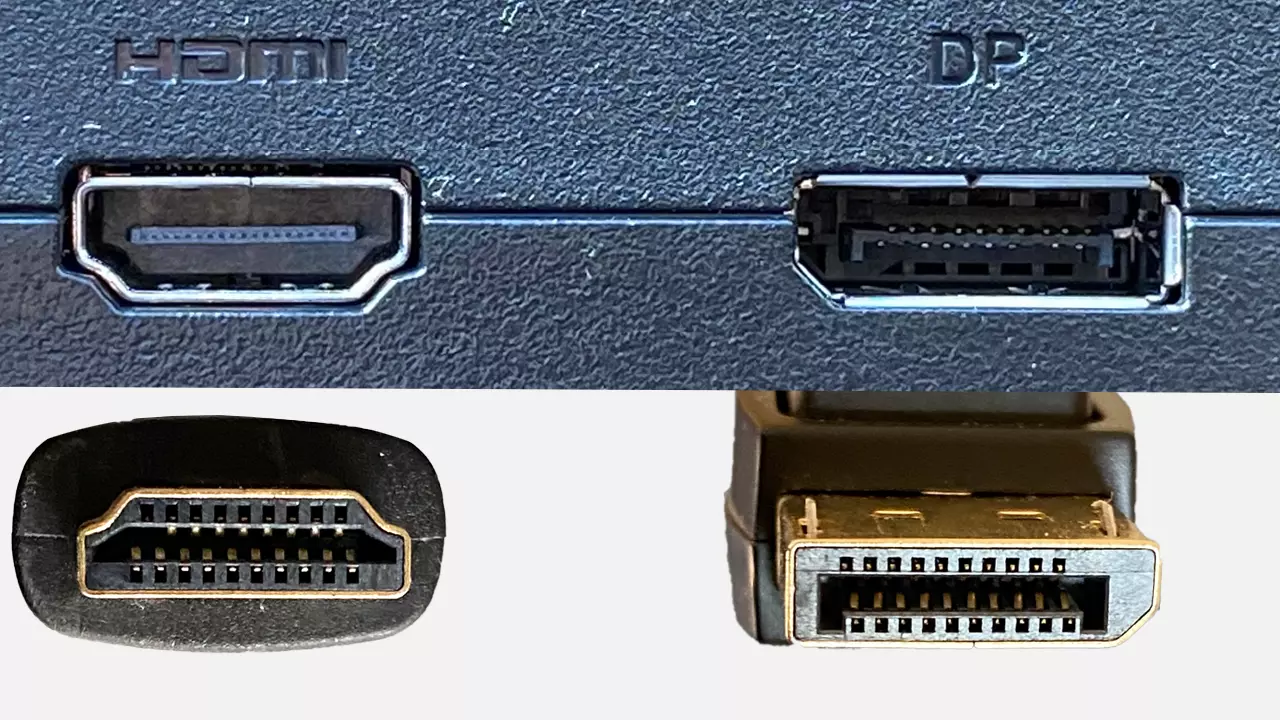
HDMI (High-Definition Multimedia Interface)
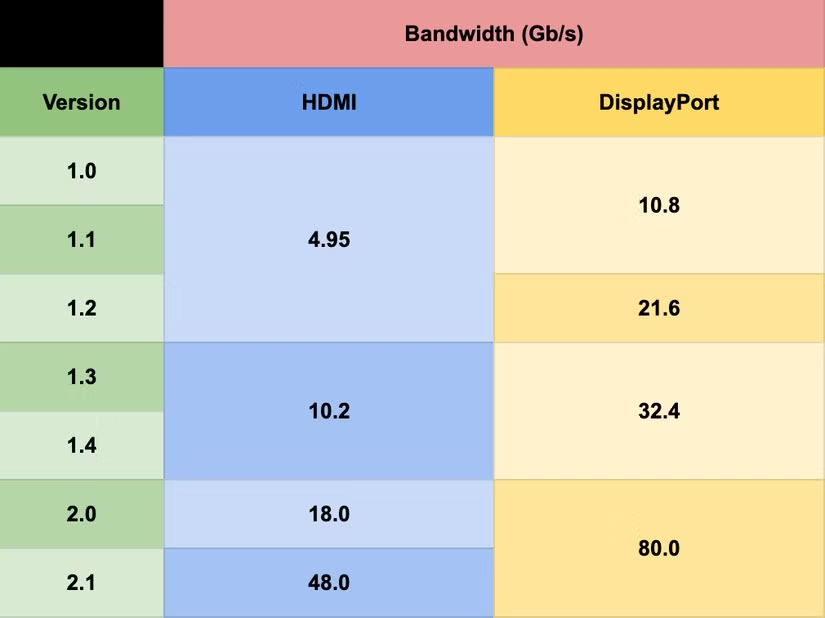
HDMI dominates the console and TV space. HDMI 2.0 caps at 18 Gbps, enough for 4K at 60Hz. HDMI 2.1 jumps to 48 Gbps, supporting 4K 120Hz, 8K 60Hz, and features like Variable Refresh Rate (VRR) and Auto Low Latency Mode (ALLM).
Most modern consoles use HDMI 2.1 exclusively.
DisplayPort
DisplayPort is the PC standard. Version 1.2 handles 17.28 Gbps, version 1.4 reaches 25.92 Gbps, and version 2.0 hits 77.37 Gbps. DisplayPort natively supports both NVIDIA G-Sync and AMD FreeSync.
It also handles Multi-Stream Transport for daisy-chaining multiple monitors from one output. The small locking latch on DisplayPort connectors is genuinely useful for preventing accidental disconnection.
DVI (Digital Visual Interface)
DVI-D Dual Link maxes out at 7.92 Gbps, enough for 1080p at 144Hz or 1440p at 60Hz. DVI doesn't carry audio, doesn't support HDR, and doesn't work with any adaptive sync technology. It still exists on some older monitors and budget GPUs, but it's a legacy option at this point.
VGA (Video Graphics Array)
VGA is analog, not digital. It has no defined bandwidth cap in the same sense, but signal quality degrades noticeably above 1080p. No modern gaming features work over VGA.
Avoid it completely for gaming unless you have zero other options.
Side-by-Side Cable Comparison for Gaming
Here's how every relevant cable stacks up for gaming use cases as of 2026.
| Cable Type | Max Bandwidth | 1080p 144Hz | 1440p 144Hz | 4K 120Hz | Adaptive Sync | Best For |
|---|---|---|---|---|---|---|
| VGA | Analog | Unreliable | No | No | No | Legacy monitors only |
| DVI-D Dual Link | 7.92 Gbps | Yes | 60Hz max | No | No | Older 1080p 144Hz monitors |
| HDMI 2.0 | 18 Gbps | Yes | Yes (8-bit) | 60Hz | FreeSync limited | Console gaming, budget setups |
| HDMI 2.1 | 48 Gbps | Yes | Yes | Yes | FreeSync, G-Sync Compatible | PS5, Xbox Series X, future-proofing |
| DisplayPort 1.2 | 17.28 Gbps | Yes | Yes | 60Hz | FreeSync, G-Sync | Older high-refresh monitors |
| DisplayPort 1.4 | 25.92 Gbps | Yes | Yes | Yes (with DSC) | FreeSync, G-Sync | Most modern gaming setups |
| DisplayPort 2.0 | 77.37 Gbps | Yes | Yes | Yes (native) | Full support | Future-proof, 8K displays |
DSC stands for DisplayStream Compression. It's a visually lossless compression method that lets DisplayPort 1.4 push 4K at 120Hz despite the bandwidth math not quite adding up. Both your GPU and monitor need to support it.
Most NVIDIA RTX 20-series and newer GPUs handle it fine, and most 4K 120Hz monitors from the last few years support it too.
Best Cable for Your Gaming Setup
Competitive FPS at 1080p or 1440p 144Hz+
DisplayPort 1.2 or newer handles this without breaking a sweat. Most competitive gamers run 1080p at 240Hz or 1440p at 144Hz, and DisplayPort has native support for both G-Sync and FreeSync. HDMI 2.0 technically supports 1080p at 240Hz, but DisplayPort is the safer bet with broader adaptive sync compatibility.
Just make sure your cable is VESA-certified for the bandwidth you need.
Console Gaming (PS5 / Xbox Series X)
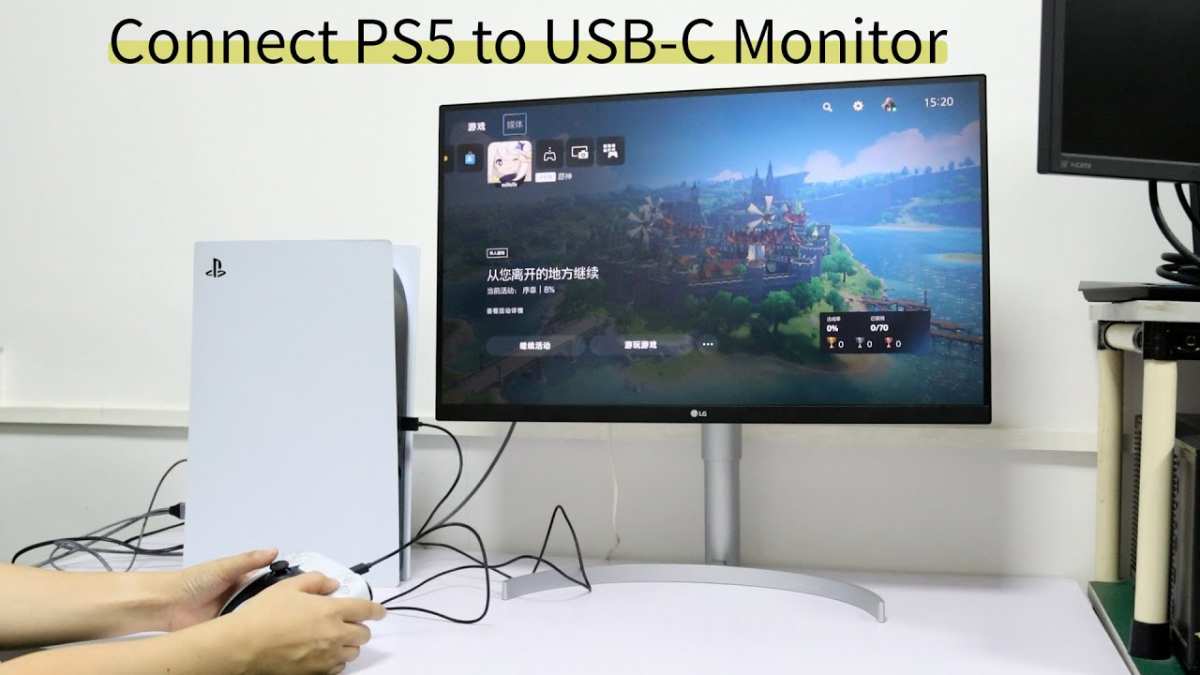
Both the PlayStation 5 and Xbox Series X ship with HDMI 2.1 cables, and both consoles only have HDMI outputs. You need HDMI 2.1 to hit 4K at 120Hz. Stick with the included cable or replace it with a certified Ultra High Speed HDMI cable.
DisplayPort is irrelevant here since neither console has a DP output.
4K 120Hz PC Gaming
DisplayPort 1.4 with DSC or HDMI 2.1 both work. HDMI 2.1 has more native headroom, so it's the cleaner option if your GPU and monitor both support it. DisplayPort 1.4 relies on DSC, which is visually lossless but adds a tiny amount of processing.
In practice, you won't notice the difference. Check what your monitor's input specs actually say before buying anything.
Budget or Older Setups
If your monitor maxes out at 1080p 60Hz, almost any cable you already own works fine. HDMI 1.4 or DisplayPort 1.2 handles that resolution and refresh rate easily. Don't overspend.
The cable that came in the box with your monitor is probably fine.
When Cable Quality Actually Matters (And When It Doesn't)
Cheap Cables That Cause Real Problems
Ultra-cheap, uncertified cables from unknown brands cause real issues. Signal flickering, random dropouts, and failure to hit advertised refresh rates are common complaints in user reviews. A $3 no-name HDMI cable might work fine for 1080p 60Hz but fall apart at higher bandwidths.
Poor shielding causes interference, especially if the cable runs near power cables or other electronics.
Expensive Cables That Are a Waste of Money
A $100 "gaming" HDMI cable with gold-plated connectors and braided sheathing performs identically to a $10 certified cable for the same spec. Gold plating resists corrosion but doesn't improve signal quality at these distances. Marketing terms like "gaming grade" or "zero latency" are meaningless.
The signal either arrives intact or it doesn't. There's no gradient of quality beyond pass or fail.
Common Cable Mistakes That Kill Gaming Performance
- Using the cable that came in the box without checking its version. Many monitors ship with HDMI 2.0 cables even when the monitor supports higher refresh rates over DisplayPort.
- Assuming all HDMI cables are the same. A cable manufactured in 2015 likely tops out at HDMI 1.4 speeds. You can't tell the version by looking at the connector.
- Running cables longer than 3 meters without active signal boosting. Copper HDMI and DisplayPort cables degrade past 3 meters at high bandwidths. For longer runs, active cables or fiber optic cables are necessary.
- Using adapters carelessly. A DisplayPort-to-HDMI adapter can bottleneck your signal to whatever the HDMI side supports. Passive adapters don't convert protocols, they just reroute pins.
- Ignoring the monitor's input specifications. Some monitors have different capabilities on different ports. One HDMI port might be 2.0 while another is 1.4. Check the manual.
How to Check What Cable You Actually Need
- Check your GPU's output specifications. Look up your graphics card model on the manufacturer's website. Note which output ports it has and what version they support.
- Check your monitor's input specifications. Find the manual or the manufacturer's product page. Look at each input individually since they often differ.
- Match the cable version to the lowest spec in the chain. Your cable needs to support whatever your weakest link can output. A DisplayPort 1.4 cable won't help if your monitor only has DisplayPort 1.2 inputs.
- Buy certified cables. Look for "Ultra High Speed HDMI" certification from the HDMI Forum or VESA certification for DisplayPort cables. Certification means the cable was tested to meet its rated spec.
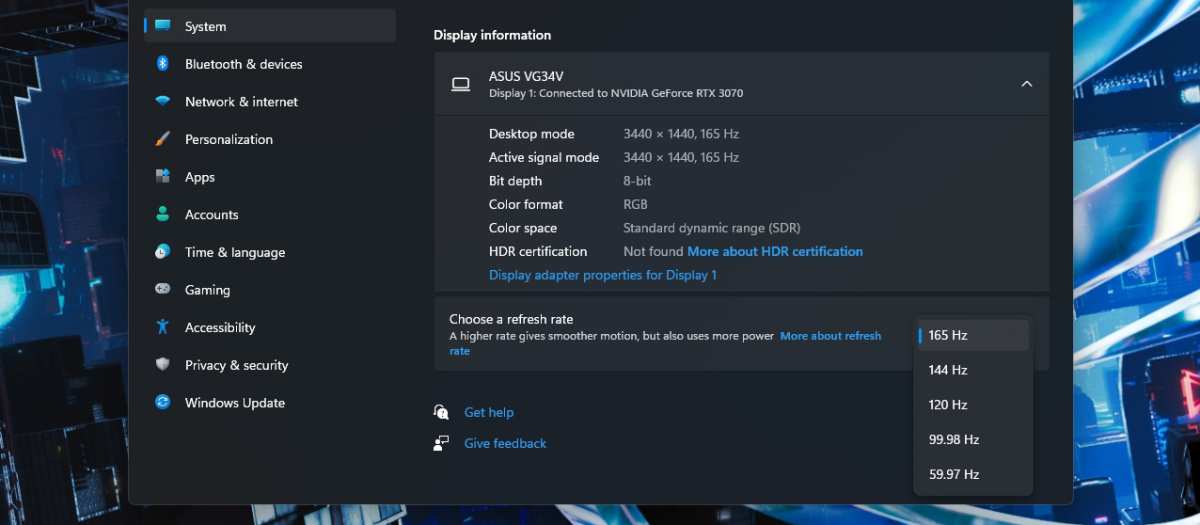
- Test your current setup. If your monitor's on-screen display shows the correct refresh rate and resolution, your current cable is fine. If not, check the cable version before assuming your hardware is the problem.

Similar Posts





















