Can Mini LED Monitors Be Used Vertically
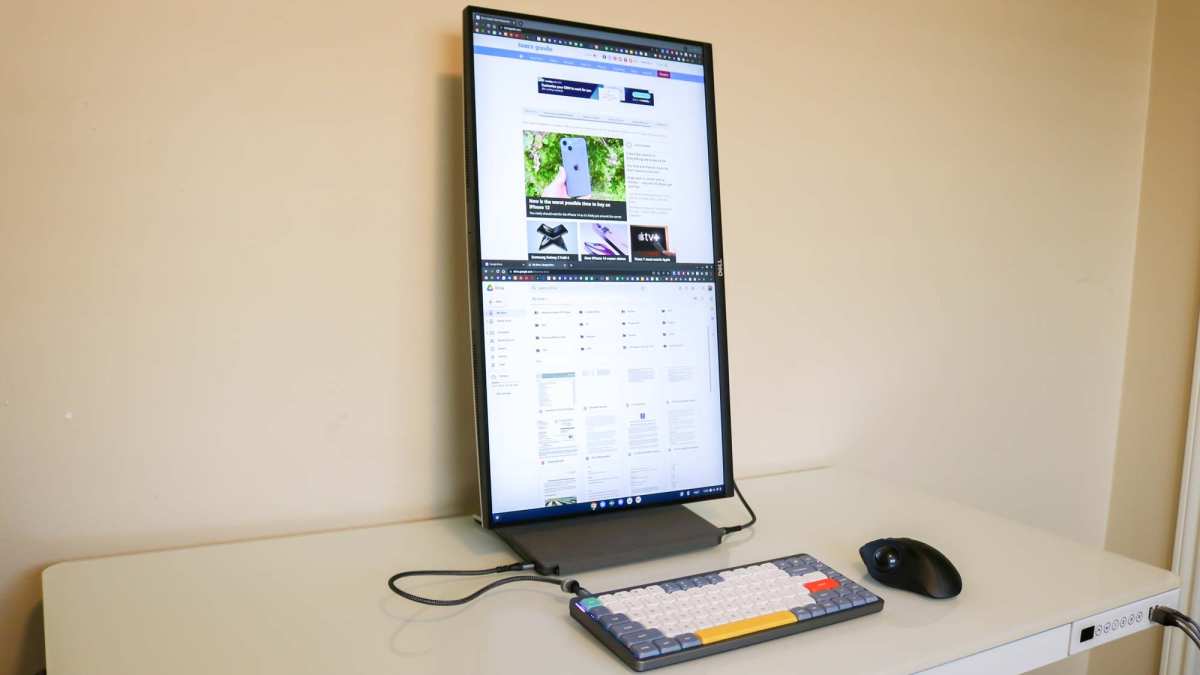
Can mini LED monitors be used vertically? It's a fair question, and the answer is a solid "yes" with some important caveats. Most mini LED monitors can rotate to portrait orientation, but whether yours actually can depends on the stand it ships with, the panel underneath, and how you've got it mounted. The mini LED backlight technology itself doesn't care about orientation.
The hardware around it is what makes or breaks things.
Per VESA's Mounting Interface Standard, any monitor with compatible mounting holes can be oriented either way. The real question is whether your specific setup supports it without buying extra gear. Let's walk through exactly what to check.
Quick Answer
Yes, most mini LED monitors can be used vertically. The mini LED backlight works identically in any orientation. Your stand or mount determines whether rotation is possible.
Software rotation through your operating system handles the image. Check for pivot support or VESA mounting holes first.
What Makes a Mini LED Monitor Portrait-Compatible
The Stand Situation
This is where most people hit a wall. The mini LED panel itself doesn't know which way is up. The stand is what locks you into landscape mode.
Budget and mid-range mini LED monitors often come with fixed stands. These only tilt and maybe swivel. No rotation.
You'll see models from brands like KTC, Innocn, and some Cooler Master displays that ship this way. The monitor works perfectly fine, but it's stuck in landscape unless you change the mounting hardware.
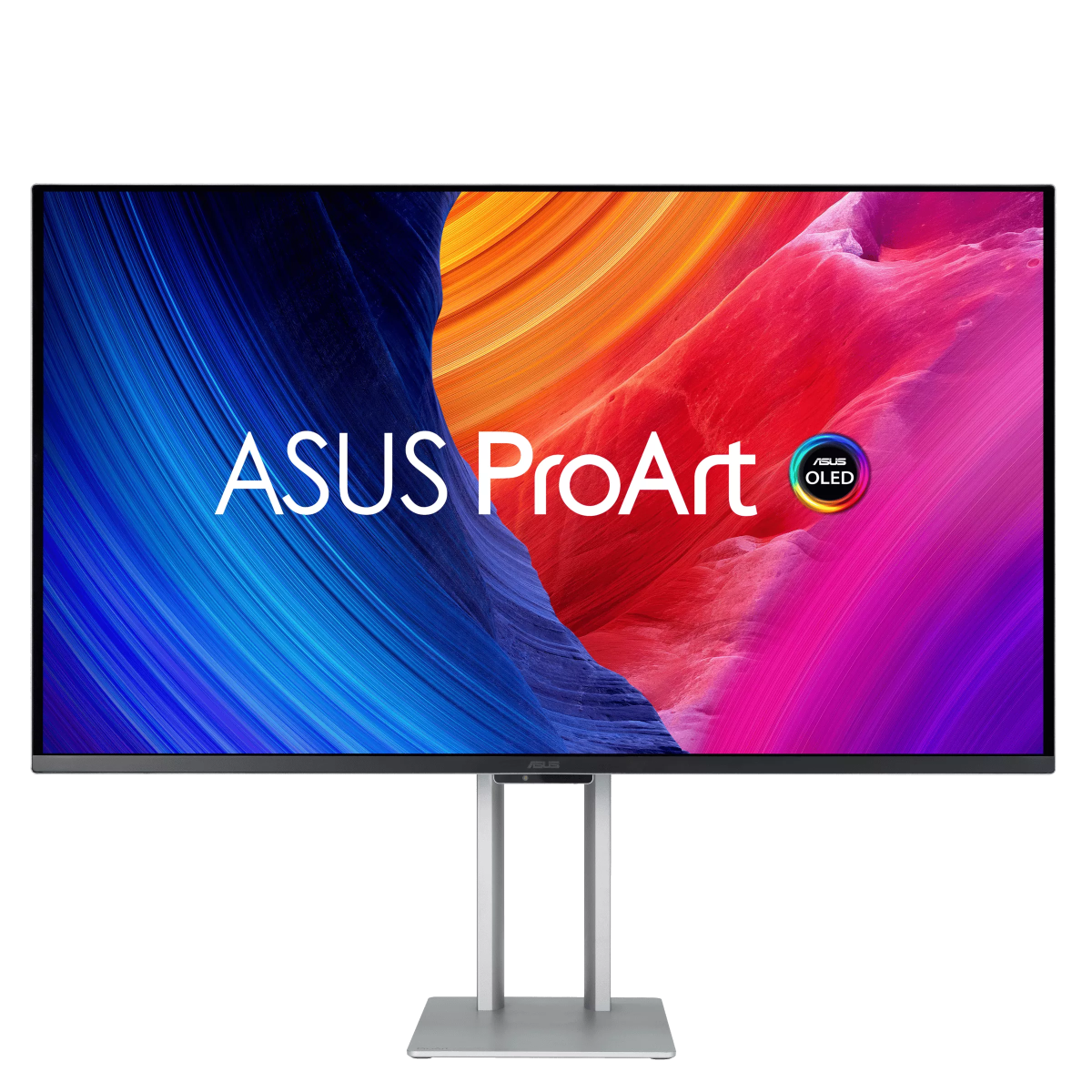
Higher-end options, like Samsung's Odyssey OLED and Mini LED series or Dell's UltraSharp line, frequently include a full-adjustable stand. These support pivot, which is the 90-degree rotation that turns landscape into portrait. Manufacturer specs will list "pivot: 0, 90°" if it's supported.
Here's a quick breakdown of what different stand types allow:
| Stand Type | Tilt | Swivel | Height Adjust | Pivot (Portrait) |
|---|---|---|---|---|
| Fixed stand | Sometimes | No | No | No |
| Basic adjustable | Yes | Sometimes | Sometimes | No |
| Full ergonomic | Yes | Yes | Yes | Yes |
| VESA-only (no stand) | Depends on arm | Depends on arm | Depends on arm | Depends on arm |
If your monitor has a fixed stand and no VESA holes, you're out of luck without an adapter. Some people 3D-print or third-party mod a vertical holder, but that's risky and voids warranties.
VESA Mount Compatibility
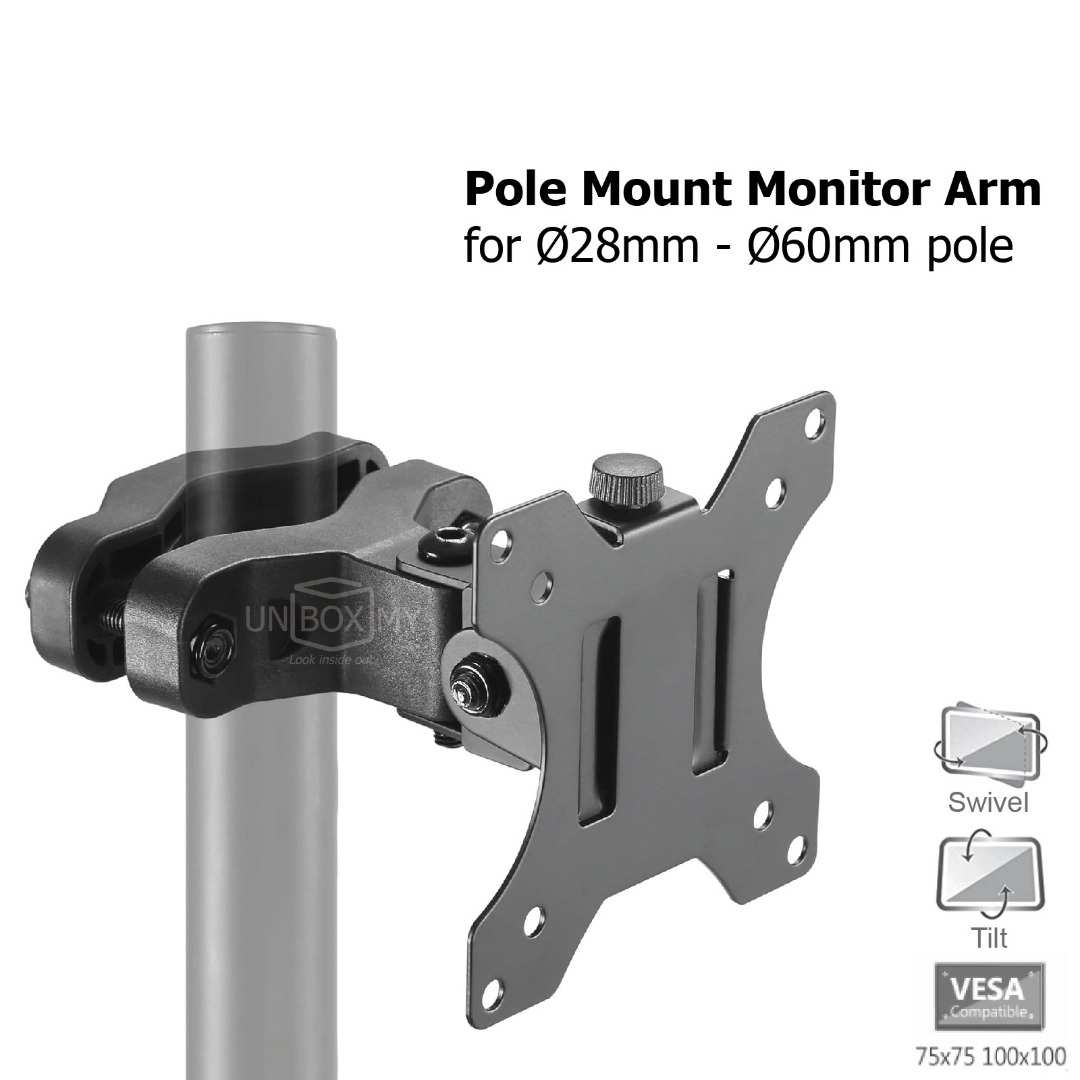
VESA mounts are the universal solution here. If your mini LED monitor has VESA mounting holes on the back, you're in business regardless of what stand it came with.
The two common patterns are 75×75mm and 100×100mm. Most 27-inch and 32-inch mini LED monitors use the 100×100mm pattern. Smaller portable mini LED displays sometimes use 75×75mm or don't support VESA at all.
You'll need a monitor arm or wall mount rated for your monitor's weight. Mini LED monitors tend to be heavier than standard LED displays because of the backlight hardware. A 32-inch mini LED with a full array backlight can weigh 7 to 9 kilograms without the stand.
Make sure whatever arm you pick handles that.
Panel Type Matters More Than You Think
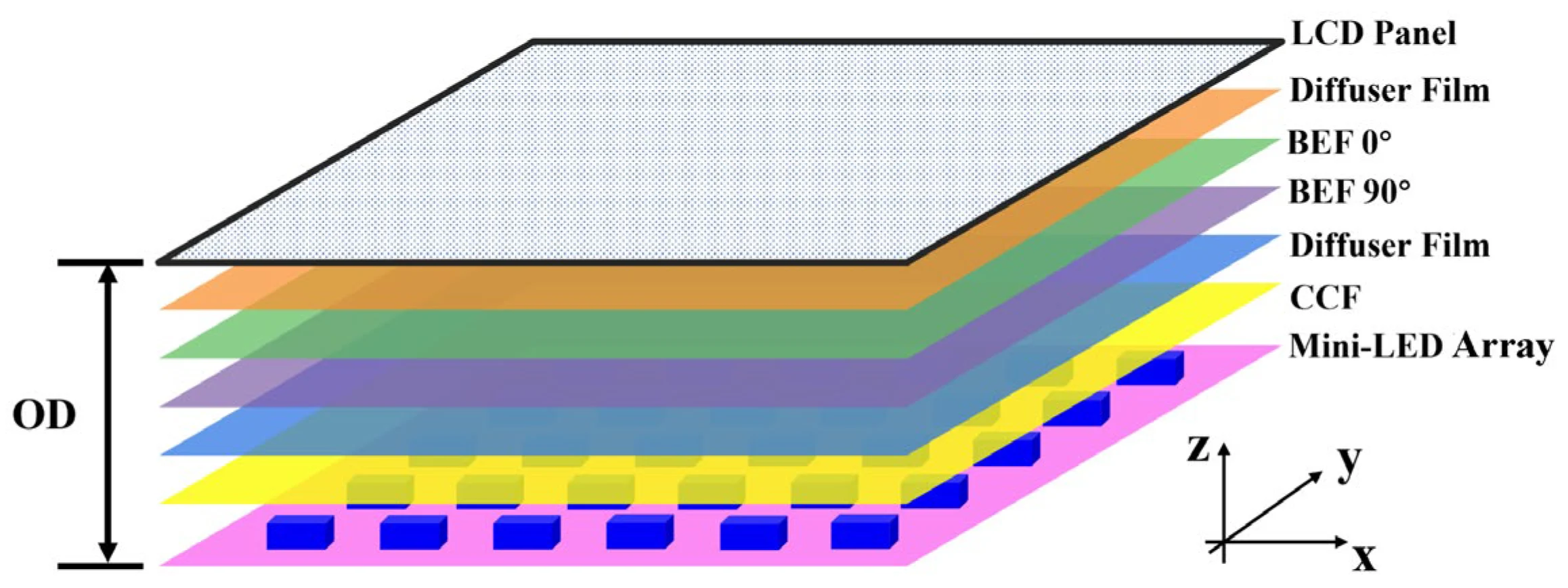
Mini LED is a backlight technology, not a panel type. The actual display panel underneath is usually IPS, VA, or occasionally OLED with mini LED assist. This matters for portrait use.
IPS panels handle rotation well. Color and contrast stay consistent from different angles, which matters when you're reading text up close. VA panels can shift colors when viewed from slightly off-center, and that shift becomes more noticeable in portrait mode where your viewing angle relative to the top and bottom of the screen changes.
Most mini LED monitors use IPS panels for this exact reason. But some budget models use VA for better contrast ratios. Check your specific model's panel type before committing to a vertical setup.
How to Check If YOUR Mini LED Monitor Can Go Vertical
Step 1: Check Your Stand for Pivot Support
Look at your monitor's stand. Can the display rotate 90 degrees on its own? Try gently rotating it.
If it pivots smoothly and clicks into a vertical position, you're done. No further steps needed.
If the stand doesn't rotate, check the neck of the stand. Some stands look fixed but actually have a pivot mechanism hidden at the joint where the arm meets the base. Look for a rotating collar or a release button.
Step 2: Look for VESA Mounting Holes
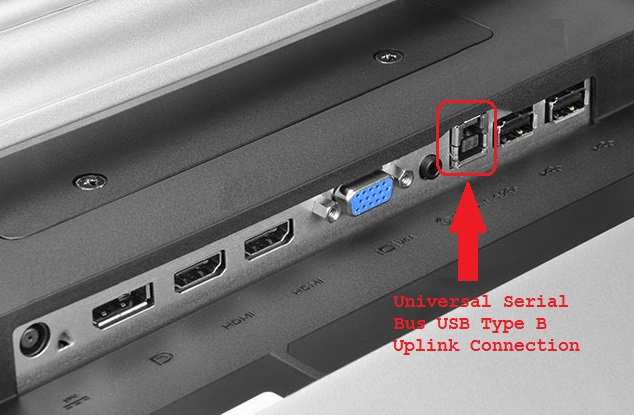
Flip the monitor around (carefully, on a soft surface). Look for four screw holes arranged in a square pattern on the back. These are your VESA mounting holes.
Measure the distance between the holes. 100mm × 100mm is standard for most desktop monitors. If you see these holes, you can buy a VESA-compatible arm and mount it vertically regardless of the original stand.
Some monitors hide the VESA holes behind a plastic cover or the stand attachment plate. Check the user manual if you can't spot them immediately.
Step 3: Verify Software Rotation Works
Even before you physically rotate the display, test whether your operating system supports rotation.
Windows: Right-click the desktop, select Display settings, scroll to Display orientation, and try switching to Portrait. If the option is there and the image rotates, your GPU drivers support it.
macOS: Open System Settings, go to Displays, select your monitor, and look for the Rotation dropdown. Not all external Mac monitors support rotation, but most do.
Linux: Use your display settings tool or run xrandr --output [display] --rotate left in the terminal.
If the rotation option is missing, update your GPU drivers first. An outdated driver is the most common cause.
Step 4: Test It Before Committing
Once you've rotated the display (either physically or via software), spend 10 minutes actually using it. Open a long document, browse a website, check your usual apps. Look for:
- Text rendering issues
- Color shifts at the top or bottom of the screen
- Apps that don't resize properly
- Taskbar or dock placement problems
If anything looks off, you can always rotate back. No harm done.
When You Need a Monitor Arm Instead
Built-In Pivot vs. Aftermarket Arm
If your monitor's stand doesn't support pivot, a VESA arm is the cleanest solution. It also gives you better ergonomic adjustability than most built-in stands.
Built-in pivot stands are convenient. No extra purchase, no installation. But they often have limited height adjustment in portrait mode and can look awkward if the base isn't designed for it.
Aftermarket arms offer more flexibility. You can position the screen at exactly the height and angle you want. They also free up desk space since the arm clamps to the edge or a grommet hole instead of sitting on the surface.
The downside is cost and installation. A decent VESA arm runs $30 to $100. Installation takes 10 to 20 minutes.
You need a desk that can support a clamp mount or a drill for a grommet mount.
What to Look for in a VESA Arm for Mini LED
Not every arm can handle a mini LED monitor. Here's what to check:
- Weight capacity: Mini LED monitors are heavy. Confirm the arm's maximum weight exceeds your monitor's weight by at least 20 percent.
- VESA pattern: Match the arm's plate to your monitor's hole pattern (usually 100×100mm).
- Pivot joint: Not all arms rotate the display 90 degrees. Look for "display rotation" or "portrait mode" in the product description.
- Gas spring vs. mechanical: Gas spring arms hold heavier monitors more smoothly. For anything over 7 kilograms, gas spring is worth the extra cost.
Arms that explicitly support 32-inch monitors are your safest bet. They're built for the weight and size of most mini LED displays.
What Changes When You Rotate a Mini LED Display
Text Clarity and Subpixel Rendering
Here's something most people don't think about until they see it. Text can look slightly different in portrait mode.
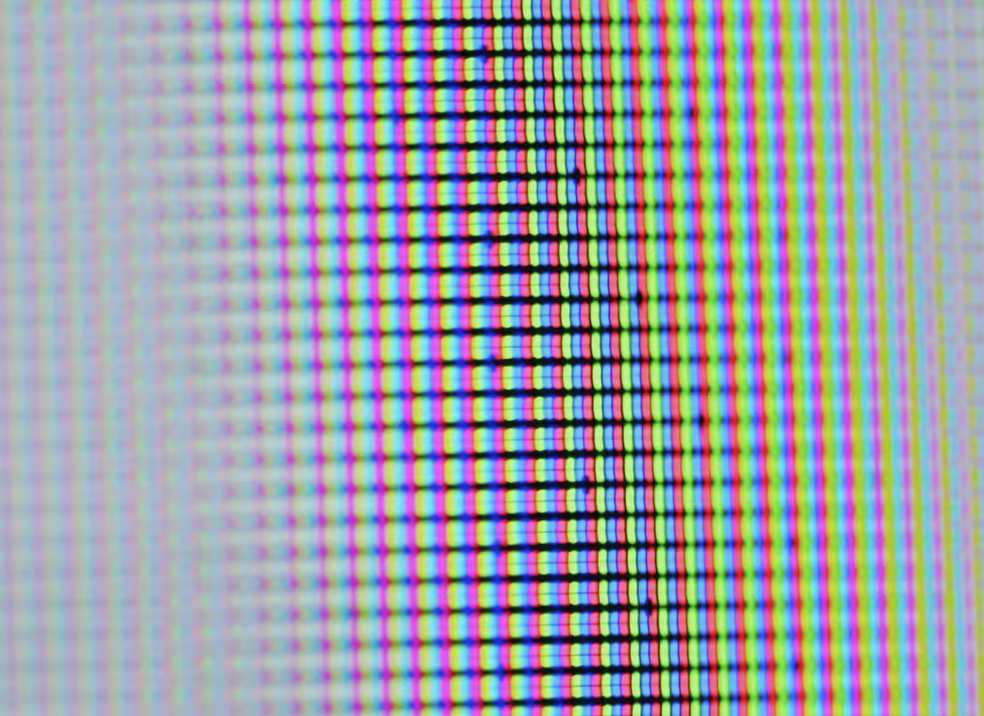
Most monitors are optimized for landscape use. The subpixel layout (the tiny red, green, and blue elements that make up each pixel) is arranged assuming horizontal text rendering. When you rotate the display, some rendering engines don't adjust perfectly.
Windows ClearType handles portrait mode reasonably well, but you may notice slight fringing on colored text edges. macOS generally handles it better since it uses grayscale antialiasing by default. Linux font rendering varies by distribution and settings.
You can re-run ClearType tuning in portrait mode to improve things. It's not a dealbreaker, but it's worth knowing about.
Local Dimming Zones and HDR Performance
Mini LED's big selling point is local dimming. Hundreds or thousands of small LED zones that dim independently for deeper blacks and brighter highlights.
Here's the good news: local dimming works identically in portrait mode. The zones are arranged in a grid across the panel, and that grid doesn't care about orientation. A zone in the top-left corner in landscape becomes the bottom-left zone in portrait.
The algorithm adjusts automatically.
HDR content looks the same. Bright highlights against dark backgrounds perform identically. You're not losing any of the mini LED advantage by rotating.
Color Shift on VA Panels
If your mini LED monitor uses a VA panel, pay attention here. VA panels have a known characteristic: colors shift when viewed from angles that aren't dead center.
In landscape mode, your eyes are roughly centered vertically on the screen. In portrait mode, the top of the screen is farther from your eyes and the bottom is closer. This exaggerates the viewing angle difference.
You might notice the top of the screen looks slightly washed out or warmer compared to the bottom. It's subtle, but once you see it, you can't unsee it.
IPS panels don't have this issue to the same degree. If you're buying a mini LED monitor specifically for portrait use, prioritize an IPS model.
App Compatibility Headaches
Most modern apps handle portrait resolution just fine. But some don't.
Older applications, especially those designed for fixed layouts, might display windows that are too tall for the screen or positioned off-screen. Video players may show black bars on all four sides. Some games simply don't support portrait aspect ratios.
This isn't a monitor problem. It's a software limitation. You can usually work around it with window management tools or compatibility settings, but it's worth testing your specific workflow before committing.
Who Actually Benefits from a Vertical Mini LED Setup
_1771693388263.webp)
Image source: Bing (Web (fair-use with source credit))
Developers and Coders
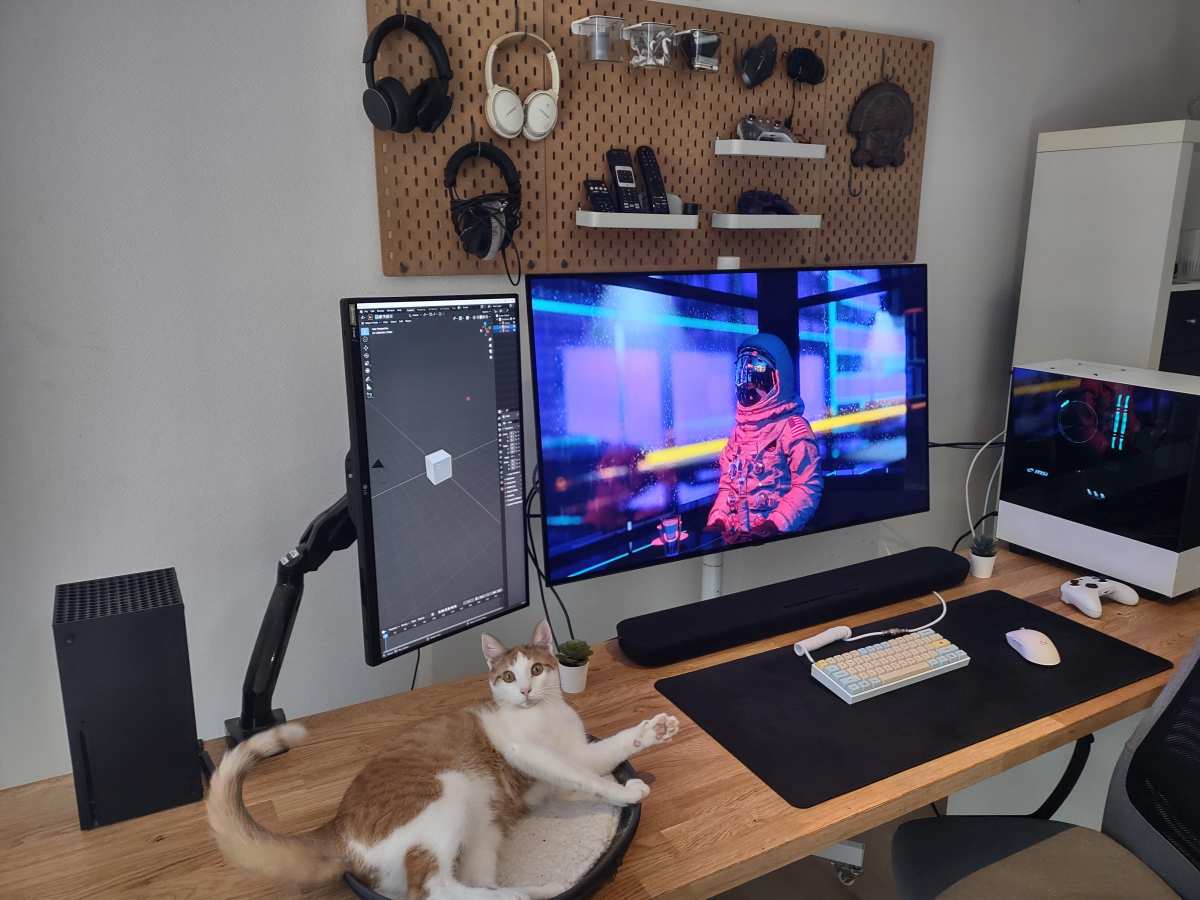
This is probably the strongest use case. Code is vertical by nature. Functions are short, and you want to see as many lines as possible without scrolling.
A 27-inch mini LED in portrait mode shows roughly 80 to 100 lines of code depending on font size. That's significantly more than landscape mode. The mini LED backlight means you can use dark themes without worrying about IPS glow in the corners.
Writers and Editors
Long-form writing benefits from seeing more of the document at once. A vertical monitor lets you view a full page or close to it. Less scrolling means better flow and fewer interruptions.
The high contrast and HDR capability of mini LED is less relevant here, but the sharp text rendering and consistent backlight uniformity are nice bonuses.
Traders and Financial Analysts
Stock tickers, watchlists, and financial data are all vertically oriented information. A portrait monitor displays more rows of data without scrolling. Multiple vertical monitors side by side create a dense information wall that's hard to replicate with landscape displays.
Portrait Photographers and Content Creators
Reviewing portrait-oriented photos at full height on a vertical monitor is a better experience than seeing them letterboxed on a landscape screen. You see more detail and a more accurate representation of the final output.
Social media content creators working with vertical video (TikTok, Instagram Reels, YouTube Shorts) also benefit from previewing content in its native aspect ratio.
Who Should Skip It
If your workflow is primarily video editing, gaming, or graphic design with landscape-oriented canvases, portrait mode probably isn't worth it. Video timelines need horizontal space. Games are designed for landscape.
Most design tools assume a horizontal layout.
There's also the ergonomic consideration. A tall vertical monitor can strain your neck if you're constantly looking up and down. The top of a 27-inch portrait monitor is quite high unless you position it carefully.
_1771693388263.webp)
Common Mistakes People Make
Buying a monitor arm without checking weight capacity. Mini LED monitors are heavier than they look. An arm rated for 5 kilograms will struggle with a 7-kilogram display.
It'll sag, drift downward, or fail entirely.
Ignoring the VESA pattern. Not all arms fit all patterns. Confirm your monitor's hole spacing before purchasing.
Forgetting about cable management. When you rotate a monitor, cables need enough slack to twist without pulling. Standard cables are usually fine, but thick DisplayPort cables or rigid USB-C cables can be problematic.
Not updating drivers before troubleshooting. If rotation options are missing from your display settings, the first thing to try is a GPU driver update. This fixes the issue more often than people expect.
Assuming all mini LED monitors are the same. They're not. Panel type, stand features, weight, and VESA compatibility vary significantly between models and brands.
Always check your specific monitor's specifications.
Overlooking text rendering differences. If text looks slightly off after rotating, don't assume something's broken. Run ClearType tuning or adjust your font rendering settings.
It's usually a software issue, not a hardware one.
Quick Decision Guide: Should You Run Your Mini LED Vertically?
Yes, go for it if:
- Your monitor has a pivot stand or VESA mounting holes
- Your primary work involves code, documents, or vertical data
- You have an IPS panel (or don't mind slight color shift on VA)
- You're willing to spend 10 minutes adjusting software settings
Maybe reconsider if:
- Your monitor has a fixed stand with no VESA holes
- You primarily game, edit video, or work with landscape media
- You have a VA panel and are sensitive to color shift
- Your desk space can't accommodate a monitor arm
Don't bother if:
- You'd need to buy a new monitor just to get portrait capability
- Your workflow doesn't benefit from vertical screen space
- You're happy with your current landscape setup
Frequently Asked Questions
Does mini LED brightness change in portrait mode?
No. Mini LED backlight performance is identical regardless of orientation. Local dimming zones, peak brightness, and HDR performance all work the same way.
The hardware doesn't know or care about rotation.
Can I use a mini LED monitor vertically without a VESA mount?
Only if the included stand supports pivot. If the stand is fixed and there are no VESA holes, you're stuck in landscape mode. Some people use third-party stands or risers, but these are less stable than proper VESA solutions.
Will rotating my mini LED monitor void the warranty?
Rotating a monitor that supports pivot won't void anything. It's a designed feature. Using a third-party VESA arm usually doesn't void the warranty either, unless you damage the monitor during installation.
Check your manufacturer's policy to be sure.
Is a 32-inch mini LED too big for portrait mode?
It can be. A 32-inch display in portrait mode is very tall. You'll need to position it so the center of the screen is at eye level, which means the top edge will be well above your head.
A 27-inch monitor is generally more comfortable for portrait use.
Do I need a special cable for vertical orientation?
No. DisplayPort, HDMI, and USB-C cables work the same regardless of orientation. Just make sure cables are long enough to accommodate the rotation without tension.
Does portrait mode affect mini LED monitor lifespan?
No. The LEDs, drivers, and panel all function identically. There's no increased wear or reduced lifespan from operating in portrait mode.
Costs and Pricing: What Portrait Support Actually Adds
| Feature | Price Impact |
|---|---|
| Fixed stand (no pivot) | Base price, no premium |
| Full ergonomic stand with pivot | $20–$50 more than fixed stand models |
| VESA mounting holes | Usually included, no added cost |
| Aftermarket VESA arm (if needed) | $30–$100 for a quality unit |
| Gas spring arm for heavy mini LED | $60–$150 |
Most mini LED monitors with pivot-capable stands don't charge a significant premium for the feature. Brands like Dell, LG, and Samsung include full-adjustable stands on their mid-range and premium models without a separate "pivot tax." The cost only hits if your monitor lacks VESA holes and you need to buy an arm anyway.
Budget mini LED monitors, often from smaller brands, tend to cut costs on the stand. They'll give you the panel and the backlight hardware but skimp on adjustability. That's where the $30 to $100 arm expense comes in.
Setup Time Expectations
| Scenario | Estimated Time |
|---|---|
| Built-in pivot stand, software rotation only | 2–5 minutes |
| VESA arm installation + rotation | 15–30 minutes |
| Troubleshooting driver or cable issues | 10–20 minutes |
The physical rotation takes seconds. Most of your time goes into software settings and, if needed, mounting hardware. If you're using a VESA arm, budget extra time for cable routing and tension adjustment.
Safety and Stability Considerations
Always verify your monitor arm can handle the weight. Mini LED monitors with full-array backlight are heavier than edge-lit alternatives. Check both the monitor's weight without the stand and the arm's rated capacity.
After rotating to portrait mode, test stability by gently touching the screen. If it wobbles excessively or the arm drifts, tighten all joints or reconsider the arm's weight rating. A falling monitor is both a safety hazard and an expensive mistake.
For clamp-mount arms, confirm your desk thickness falls within the arm's supported range. Desks that are too thin won't hold the clamp securely in portrait mode, where the center of gravity shifts.

Similar Posts