Do Touchscreen Monitors Come with Stands
Do touchscreen monitors come with stands? It's one of those questions that seems like it should have a simple answer, but it really doesn't. The truth is, some do and some don't, and figuring out which is which before you order can save you a real headache.
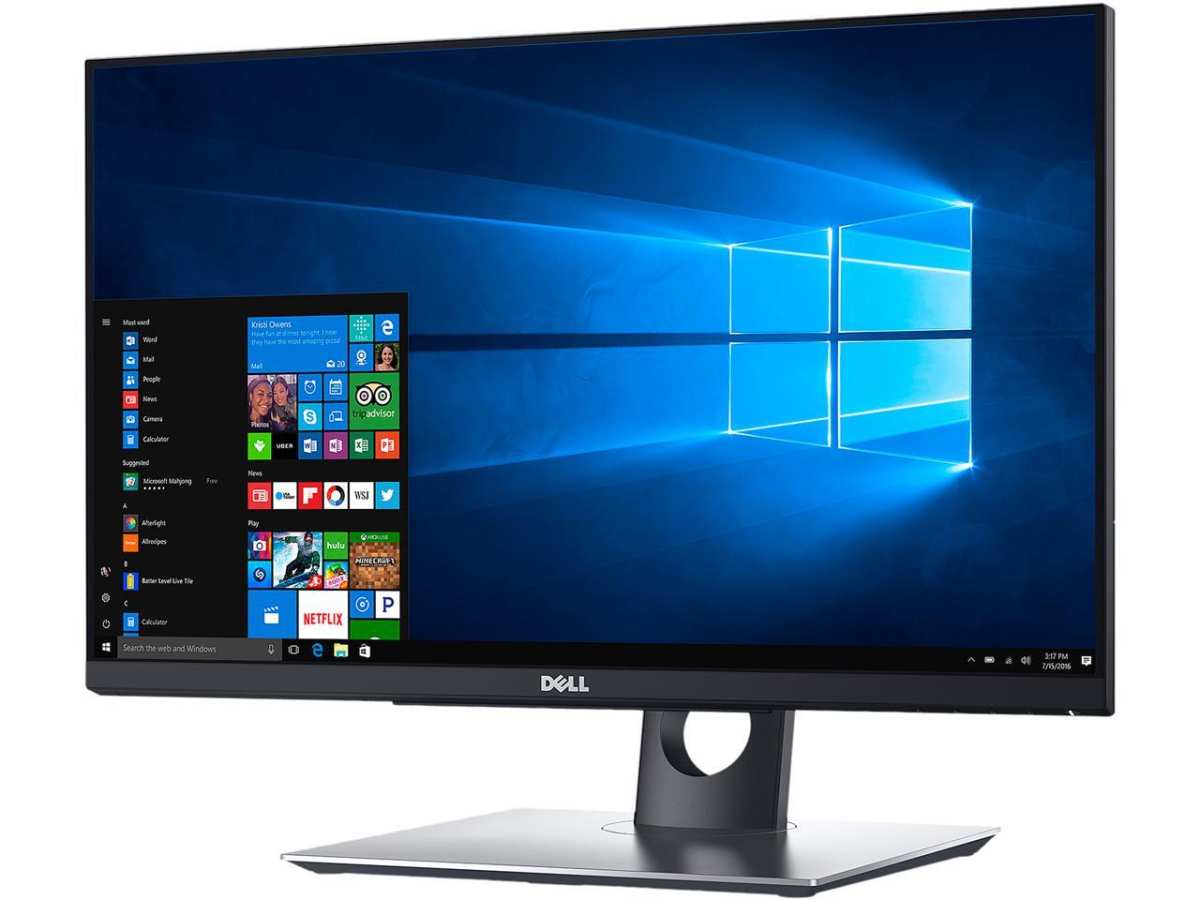
Our research into manufacturer specs and aggregate buyer feedback shows a clear split between consumer and commercial models. Consumer touchscreen monitors from brands like Dell, ASUS, and ViewSonic typically ship with a stand included. Commercial and industrial touch displays, like those from Elo Touch Solutions and 3M MicroTouch, more often come as panel-only units designed for VESA mounting.
Let's break down exactly what to expect and what to watch for.
Quick Answer
Some touchscreen monitors come with stands. Others do not. Consumer models usually include one.
Commercial models often skip the stand entirely. Always check the product spec sheet before ordering. The box contents listing will tell you for sure.
Why Touchscreen Monitors Don't Always Come With Stands
Consumer vs. Commercial — The Big Divide
The single biggest factor determining whether your touchscreen monitor comes with a stand is which category it falls into. Consumer touch monitors are designed for desk use right out of the box. Manufacturers know you're plugging it into your home office or workstation, so they bundle a stand to make setup painless.
Commercial and industrial touch displays play by completely different rules. These are built for POS terminals, self-service kiosks, factory control panels, and digital signage enclosures. The end user is integrating the panel into a custom housing or mounting it on a wall or pedestal.
A built-in stand would just get in the way.
Here's the general pattern we've found across product lines as of 2026:
| Category | Stand Typically Included? | Examples |
|---|---|---|
| Consumer touch monitors | Yes | Dell P2418HT, ASUS VT229H, ViewSonic TD2455 |
| Commercial touch displays | No (VESA only) | Elo 1522L, 3M MicroTouch, Planar Helium |
| Industrial/open-frame panels | No (VESA only) | Advantech, Axiomtek, Elo open-frame series |
| All-in-one touch PCs | Yes (built-in) | HP EliteOne, Dell OptiPlex AIO touch models |
Why the distinction matters for your budget
If you're shopping for a consumer touch monitor at $250 to $500, the stand is almost certainly included in that price. You unbox it, attach the base, and you're done. But if you're looking at a commercial display in the $500 to $1,500 range, that price often covers the panel and touch controller only.
You'll need to budget another $30 to $150 for a stand or mount.
What to Check Before You Buy
How to verify stand inclusion
Manufacturer product pages don't always make it obvious. The marketing headline might say "24-inch Touch Monitor" with no mention of a stand at all. Here's what to look for in our experience:
- Check the "What's in the Box" or "Package Contents" section. This is the most reliable place. If a stand isn't listed there, assume it's not included.
- Look at the product photos. If every image shows the monitor on a wall, mounted on an arm, or sitting on a third-party stand, that's a strong signal.
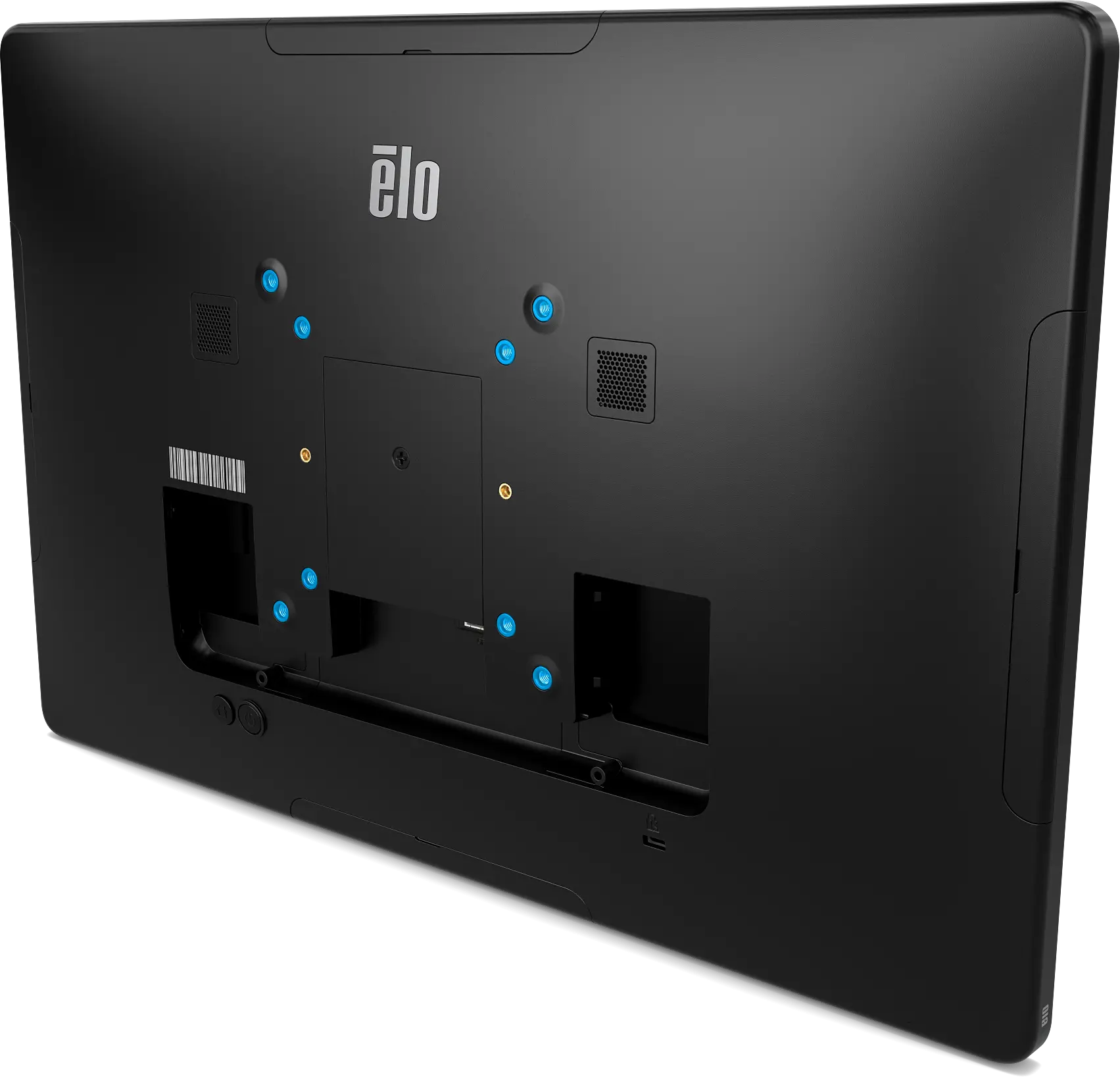
- Search the spec sheet for VESA dimensions. If the only mounting option listed is "100x100mm VESA" with no mention of a stand, you're buying a panel-only unit.
- Read verified buyer reviews. Search for phrases like "stand not included" or "needed to buy a separate mount." Real buyers call this out fast.
Red flags that mean no stand included
There are a few telltale signs that a touchscreen monitor ships without a stand. Watch for these:
- The product is listed under categories like "Open Frame," "Display Only," or "Panel PC."
- The price seems surprisingly low for the feature set. That's often because the stand is unbundled.
- The spec sheet lists VESA mount dimensions but zero information about a stand's tilt range, height, or adjustability.
- The manufacturer sells a matching stand as a separate accessory on the same product page. That's a dead giveaway.
Touchscreen Monitors That Typically Come With Stands
Consumer models (stand usually included)
Most consumer touchscreen monitors are designed for plug-and-play desk use. Manufacturers bundle a stand because they know you want to open the box and start working within minutes. Here are some common models that include stands out of the box:
- Dell P2418HT (23.8", 10-point capacitive, IPS), includes a tilt-adjustable stand
- ASUS VT168H (15.6", 10-point capacitive), includes a basic stand
- ASUS VT229H (21.5", 10-point capacitive, IPS), includes a stand with tilt adjustment
- Acer T232HL (23", capacitive), includes a tilt stand
- ViewSonic TD2230 (19.5", 5-wire resistive), includes a stand
- ViewSonic TD2455 (24", 10-point capacitive, IPS), includes a tilt-adjustable stand
- HP EliteDisplay E243d (23.8", capacitive), includes a fully adjustable stand with height, tilt, and swivel
What kind of stands you'll get
Don't expect premium ergonomic adjustments on most consumer touch monitors. The included stands are functional but basic:
- Tilt-only stands are the most common. You get around -5° to +30° of tilt. That's enough for desk work but not much else.
- Height-adjustable stands show up on higher-end models like the HP EliteDisplay E243d. These give you 100mm or more of vertical travel.
- Swivel and pivot are rare on bundled stands. If you need those, you're probably looking at a third-party arm.
The stand weight capacity matters too. Touch monitors are heavier than their non-touch equivalents because of the touch sensor layer and bonding. A typical 24-inch touch monitor weighs 1 to 3 pounds more than the non-touch version.
The included stand is rated for that specific weight, so it works. But if you ever swap to a third-party arm, you need to check the rating yourself.
Touchscreen Monitors That Typically Don't Come With Stands
Commercial and industrial models
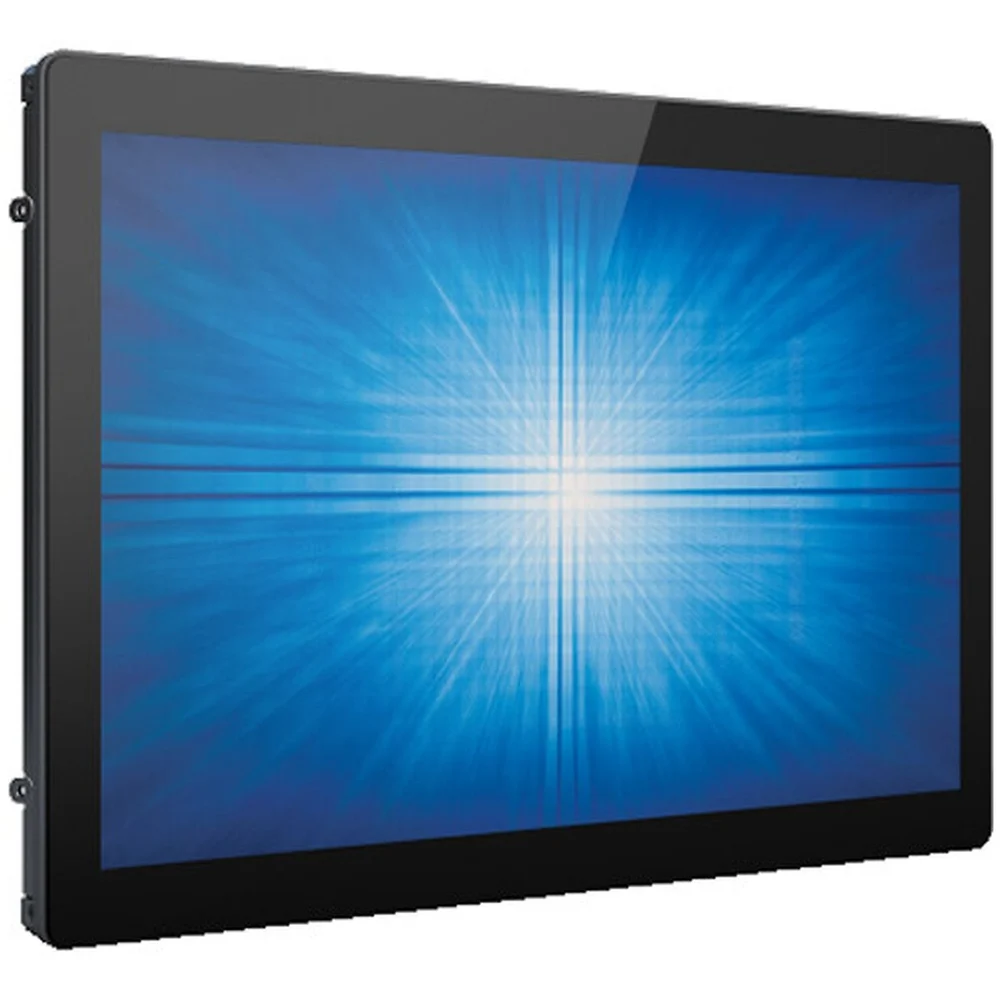
Commercial touch displays are a different animal. They're built for integration into POS systems, kiosks, medical equipment, and industrial enclosures. The manufacturer assumes you'll mount them however your setup requires.
Here are the main brands and product lines that typically ship without stands:
- Elo Touch Solutions, most of their 15", 17", and 19"+ touch monitors are VESA-only. The Elo 1522L, 1928L, and 2243L are common examples. Elo does sell optional stands as separate accessories.
- 3M MicroTouch, their MCT-150 and MCT-190 series displays are panel-only units.
- Planar, the Helium and Simplicity series touch displays are VESA-mount only.
- Advantech, industrial touch panels like the UTC-520 series ship as display-only.
- Axiomtek, their open-frame touch displays are designed for enclosure integration.
Why they skip the stand
It's not about cutting costs. It's about flexibility. A POS terminal in a restaurant needs the display mounted at a specific angle on a counter.
A medical kiosk needs it integrated into a wall panel. A factory control room needs it bolted to a machine enclosure. A built-in stand would be useless in all of those scenarios.
The VESA standard (75x75mm or 100x100mm bolt pattern) is the universal solution. It lets the end user choose exactly the mount they need. That's the whole point of commercial touch displays.
Stand vs. VESA Mount vs. Monitor Arm — Which Setup Works Best
Quick comparison
| Setup | Best For | Pros | Cons |
|---|---|---|---|
| Built-in stand | Home office, general use | No extra cost, plug and play | Limited adjustability |
| VESA desk mount | Fixed workstation | Clean look, stable | Needs desk space or clamp |
| Monitor arm | Ergonomic, shared desks | Full range of motion, frees desk | Extra cost ($30–$150+) |
| Wall mount | Kiosks, displays, tight spaces | Saves floor and desk space | Harder to adjust, needs stud |
When a built-in stand is enough
If you're setting up a personal workstation and you just need basic tilt, the included stand on a consumer touch monitor does the job fine. You won't get height adjustment or swivel on most models, but for casual touch use, web browsing, or light creative work, it's perfectly adequate.
When you'll want a VESA mount or arm
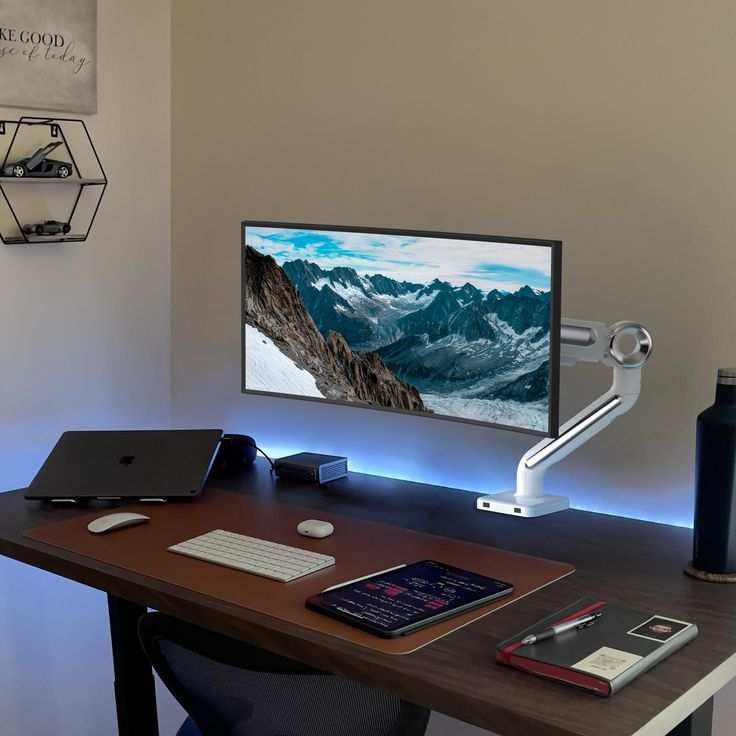
If you're using the touch monitor for extended periods, the tilt-only stand becomes a problem. Touch interaction works best when the screen is angled toward your hand, and that often means you need more adjustability than a basic stand offers. A VESA-compatible monitor arm gives you height, tilt, swivel, and rotation.
That's a big deal if you're drawing, annotating documents, or using the screen in a standing desk setup.
There's a practical consideration most people overlook. Touch monitors have a USB cable for the touch controller, plus a video cable, plus a power cable. That's three cables minimum.
A good monitor arm with cable management keeps those tidy. A built-in stand with no cable channel turns into a spaghetti mess fast.
Weight and compatibility matter
Touch monitors are heavier than standard displays. A 24-inch non-touch IPS panel might weigh 7 to 9 pounds. The touch version of the same panel can weigh 9 to 12 pounds.
If you're buying a third-party arm, check the weight rating carefully. Most budget arms are rated for 2 to 15 pounds, which sounds fine until you add the stress of repeated touch force pushing the screen around.
Look for arms rated for at least 15 pounds with a weight capacity that exceeds your monitor's weight by 30% or more. That buffer accounts for the dynamic force of touch interaction. The Ergotron LX and Humanscale M2 are solid choices that handle touch displays well.
Best Setup by Use Case
Home office or personal use
Get a consumer touch monitor with a built-in stand. The Dell P2418HT or ViewSonic TD2455 are solid picks. You'll spend $250 to $400, and everything you need comes in the box.
If you want better ergonomics down the road, these models have VESA mounting points (100x100mm) so you can always add an arm later.
Retail or restaurant POS
Commercial displays like the Elo 1522L or 1928L are the standard here. They don't come with stands because they're designed for counter mounts, wall mounts, or pedestal stands. Elo sells purpose-built POS stands for their displays, and those run $50 to $120 depending on the model.
Budget for both pieces from the start.
Creative work (drawing, photo editing)
You want a touch monitor with a wide tilt range or a quality arm. The ASUS ProArt display line and Wacom Cintiq models are purpose-built for this. Wacom pen displays include stands, but they're specialized.
If you're using a standard touch monitor for creative work, a VESA arm gives you the flexibility to pull the screen close and angle it like a drafting table.
Industrial or kiosk integration
Display-only is expected here. You're mounting the panel into an enclosure, a wall box, or a custom fixture. Confirm the VESA pattern (75×75 or 100×100) and the panel weight before ordering your mount.
Also check the IP rating if the environment is dusty or wet. Many industrial touch panels carry IP65 ratings for the front panel.
Common Mistakes When Buying a Touchscreen Monitor
Assuming every touch monitor includes a stand
This is the number one mistake we see. The product title says "Touchscreen Monitor" and the photo shows it sitting on a desk. People assume the stand is included.
It often isn't, especially with commercial models. Always verify before you click "Buy."
Not checking the spec sheet before ordering
The spec sheet tells you everything. Mounting options, weight, dimensions, what's in the box. Two minutes of reading saves you a return or an unexpected $80 accessory purchase.
Buying a monitor arm rated for the wrong weight
Touch monitors are heavier than you expect. And touch interaction adds repeated force that a static weight rating doesn't fully capture. Buy an arm with headroom.
If your monitor weighs 11 pounds, get an arm rated for at least 15.
Forgetting about the USB touch cable
Every capacitive touch monitor has a USB cable that runs from the display to your computer. That's the touch data connection. It's easy to forget about when you're planning a clean arm mount.
Make sure the arm has a cable channel and that the USB cable length reaches your machine.
Choosing a glossy screen without anti-fingerprint coating
If you're touching the screen constantly, fingerprints are unavoidable. But some touch monitors ship with glossy panels and no oleophobic coating. Within an hour, the screen looks smudged.
Look for anti-fingerprint or anti-glare coatings if you'll be touching the display regularly.
Frequently Asked Questions
Do all touchscreen monitors come with stands?
No. Consumer models from brands like Dell, ASUS, and ViewSonic usually include a stand. Commercial models from Elo, 3M, and Planar typically ship as VESA-only panels without stands.
Can I add a stand to a VESA-only touch monitor?
Yes. Any VESA-compatible stand or arm that matches the bolt pattern (75x75mm or 100x100mm) and supports the display's weight will work. Just make sure the weight rating has some headroom for touch force.
Are touchscreen monitor stands different from regular monitor stands?
The mounting standard is the same (VESA), but touch monitors are heavier. You need a stand or arm rated for the actual weight of the touch display, not just the screen size. Stability matters more because you're pushing on the screen during use.
How much does a touchscreen monitor stand cost if sold separately?
Basic VESA stands run $30 to $60. Ergonomic monitor arms rated for touch displays cost $80 to $150 or more. Commercial POS-specific stands from manufacturers like Elo can run $50 to $120.
Do touchscreen monitors work with any VESA mount?
Physically, yes, as long as the bolt pattern matches and the weight rating is sufficient. But you also need to account for the USB touch cable routing and the added stress of repeated touch interaction on the mount.
What Happens If You Buy a Touch Monitor Without a Stand
The real cost of going VESA-only
You found a great deal on a commercial touch display. The price looks right. Then it arrives and there's no stand in the box.
Now you need to spend another $30 to $150 on a stand or arm before you can even use it.
Touch monitors are heavier than their non-touch counterparts. That means cheap monitor arms often won't cut it. You need something with enough weight capacity and a sturdy enough joint to handle repeated touch pressure without drifting.
Mounting mistakes people make
The most common error is buying a non-touch rated arm and wondering why the screen slowly sinks over time. Touch interaction applies downward and lateral force. A static weight rating doesn't account for that dynamic load.
Another mistake is ignoring the USB touch cable during arm installation. The cable tethers the display and limits the arm's range of motion. If you don't plan for it, you'll find the cable yanking tight every time you adjust the screen position.
Some arms have built-in cable channels. Others require velcro ties or clips.
Wobble is the third complaint we see frequently. Lightweight arms paired with heavy touch panels produce noticeable oscillation every time you tap the screen. For precise touch work like annotation or drawing, that wobble is maddening.
Look with arms that use gas-spring mechanisms rather than cheaper friction-based joints.
Setup and Configuration Checklist
What you need before starting
Working through the setup flow is straightforward if you have everything ready. Here is the checklist we recommend:
- Confirm what's in the box: panel, cables, stand or mounting hardware
- Check VESA pattern if using a third-party mount (75×75 or 100×100)
- Verify your computer has an available USB port for the touch controller cable
- Have a Phillips-head screwdriver ready for VESA bolts. Don't use a drill, you can overtighten and strip the threads.
- Plan cable routing: video (HDMI/DisplayPort/USB-C), USB touch data, and power
Touch driver installation
Once the monitor is mounted and connected, the touch function needs a driver to work properly. Most modern touch monitors use HID-compliant controllers that Windows and ChromeOS recognize automatically. macOS often needs a manufacturer-specific driver for full multi-touch support. Linux varies by distribution.
Some Elo and 3M models need their proprietary drivers for advanced features like palm rejection and gesture mapping. Check the manufacturer's support page before setup so you're not troubleshooting a "dead" touchscreen that just needs software.
Which Setup Works Best for Ergonomics
Reducing touch fatigue
Touchscreen use on a vertical or near-vertical display causes what's sometimes called "gorilla arm." You reach up, hold your arm extended, and interact with a screen that isn't angled toward you. After 20 minutes, your shoulder burns.
The fix is tilt. A good touch workstation angles the screen 30 to 45 degrees from vertical. This brings the display surface closer to your natural hand position.
A basic tilt-only stand gets you partway there. An adjustable arm gets you all the way.
Height and viewing distance
For touch monitors, you want the screen close enough that your forearm rests on the desk or your lap while your hand reaches the display. That's closer than you'd position a non-touch monitor. A monitor arm lets you pull the display forward and adjust angle simultaneously.
That flexibility is hard to match with a fixed stand or wall mount.
Final Verdict: What Should You Do?
Here is the decision guide based on everything we've covered.
If you want simplicity and a clean out-of-box experience, buy a consumer touch monitor that lists a stand in the box contents. The Dell P2418HT, ViewSonic TD2455, or ASUS VT229H are safe choices at the 21 to 24 inch range.
If you are building a POS system or kiosk, expect to buy the display and mount separately. Budget $50 to $120 extra for a commercial-grade stand. Elo and 3M both sell purpose-built stands for their panels that include cable management and the right tilt angles for counter use.
If you already have a VESA arm, confirm the weight rating exceeds your touch monitor's weight by at least 30%. Check that the bolt pattern matches. Plan your USB cable routing before you tighten anything down.
The bottom line: always check the spec sheet. The product title will not tell you the full story. Two minutes of reading before you order will save you a return trip.
Frequently Asked Questions
Do all touchscreen monitors come with stands?
No. Consumer models from brands like Dell, ASUS, and ViewSonic usually include a stand. Commercial models from Elo, 3M, and Planar typically ship as VESA-only panels without stands.
Can I add a stand to a VESA-only touch monitor?
Yes. Any VESA-compatible stand or arm that matches the bolt pattern (75x75mm or 100x100mm) and supports the display's weight will work. Just make sure the weight rating has some headroom for touch force.
Are touchscreen monitor stands different from regular monitor stands?
The mounting standard is the same (VESA), but touch monitors are heavier. You need a stand or arm rated for the actual weight of the touch display, not just the screen size. Stability matters more because you're pushing on the screen during use.
How much does a touchscreen monitor stand cost if sold separately?
Basic VESA stands run $30 to $60. Ergonomic monitor arms rated for touch displays cost $80 to $150 or more. Commercial POS-specific stands from manufacturers like Elo can run $50 to $120.
Do touchscreen monitors work with any VESA mount?
Physically, yes, as long as the bolt pattern matches and the weight rating is sufficient. But you also need to account for the USB touch cable routing and the added stress of repeated touch interaction on the mount.

Similar Posts





















