How to Fix 4K Monitor Not Detected
If you've just plugged in a 4K monitor and your computer acts like nothing's there, you're not alone. Knowing how to fix 4K monitor not detected problems starts with understanding that the issue is almost always a handshake failure between your GPU, the cable, and the display. The good news is that most of these fixes take under ten minutes and don't require buying new hardware.
The trick is working through the signal chain in the right order instead of guessing. A 4K signal at 60Hz needs at least HDMI 2.0 or DisplayPort 1.2 bandwidth, so the wrong cable or port is the single most common culprit. Let's walk through exactly how to find and fix it.
Quick Answer
Check that your cable supports 4K at 60Hz. HDMI 2.0 or DisplayPort 1.2 is the minimum. Try a different port on your graphics card.
Update your GPU driver from the manufacturer's website. If the monitor still isn't detected, test it on another device to rule out hardware failure.
The 60-Second Checks That Solve Most Detection Problems
Before diving into driver updates and settings menus, run through these quick physical checks. They solve the majority of 4K detection issues.
- Reseat both ends of the cable. A slightly loose DisplayPort or HDMI connection is the number one cause of "no signal" at 4K. Unplug, inspect the pins, and push firmly until it clicks.
- Confirm the monitor's input source. Use the monitor's on-screen display (OSD) menu to manually select the correct input. Auto-detect sometimes fails, especially with DisplayPort.
- Check which port on the GPU you're using. If you have a dedicated graphics card, plug into that, not the motherboard's video output. The motherboard ports often run the integrated GPU, which may be disabled or lack 4K support.
- Power cycle everything. Turn off the PC and monitor, unplug both for 30 seconds, then power the monitor on first. This resets the EDID handshake.
If none of that works, the problem is likely bandwidth, a driver issue, or a hardware fault. That's where the next steps come in.
Is It the Cable, the Port, or the Settings? How to Tell the Difference
Pinpointing which part of the signal chain failed saves you from replacing things you don't need to. Here's how to narrow it down fast.
Cable issues usually show up as intermittent detection, flickering, or the monitor working at 1080p but not 4K. If you swap the cable and the problem disappears, that was it.
Port issues reveal themselves when one port on your GPU works and another doesn't. Try every DisplayPort and HDMI output on your graphics card. If one port detects the monitor and another doesn't, the faulty port is your answer.
Settings or driver issues tend to appear after a Windows update, a GPU driver update, or a macOS upgrade. The monitor was working yesterday and isn't today, with no hardware changes. That points squarely at software.
Monitor hardware failure is the last possibility. If the monitor isn't detected on any computer, with any cable, on any input, the monitor itself likely has a fault.
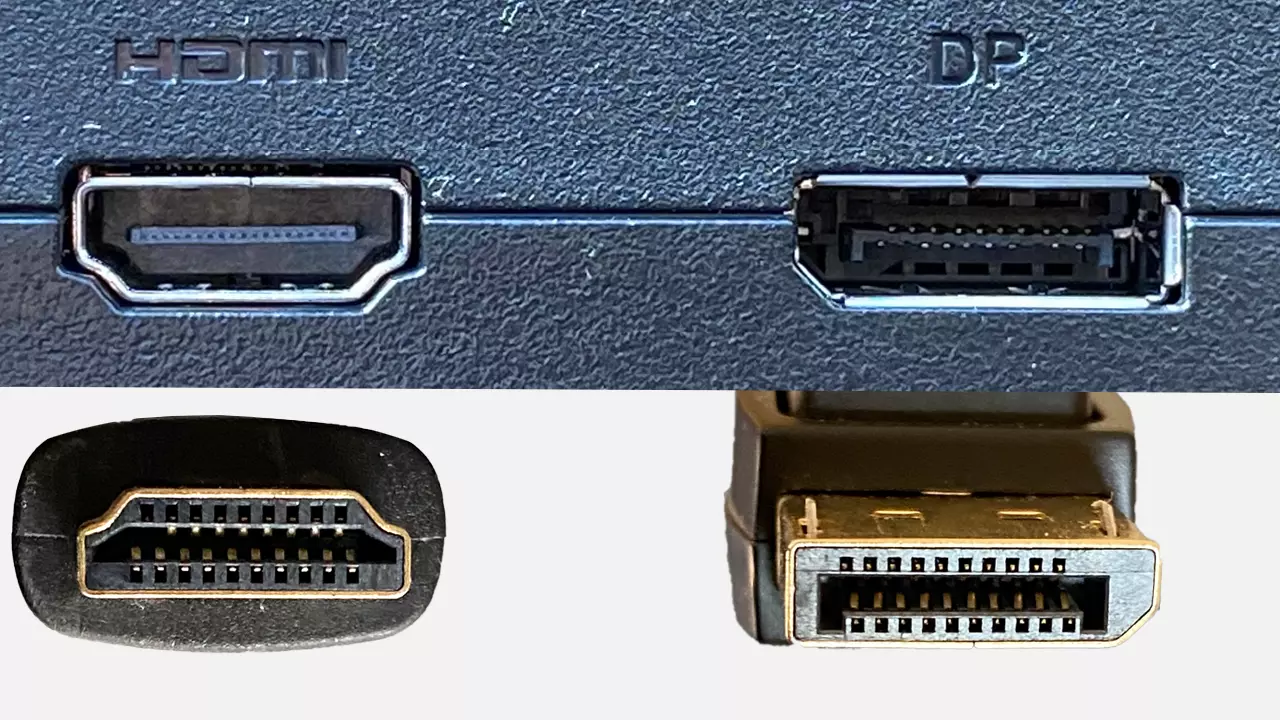
Here's a quick reference for what each connection type supports at 4K:
| Connection | Max 4K Refresh Rate | Minimum Version Needed |
|---|---|---|
| HDMI | 30Hz | HDMI 1.4 |
| HDMI | 60Hz | HDMI 2.0 |
| HDMI | 120Hz | HDMI 2.1 |
| DisplayPort | 60Hz | DP 1.2 |
| DisplayPort | 120Hz+ | DP 1.4 |
| USB-C (Alt Mode) | 60Hz | DP Alt Mode over USB-C |
If you're using an HDMI 1.4 cable and expecting 4K at 60Hz, that's your problem right there. The cable physically fits but can't carry enough data.
Step-by-Step: Fixing 4K Monitor Detection on Windows
Windows 10 and 11 handle display detection slightly differently, but the core troubleshooting path is the same. Work through these in order.
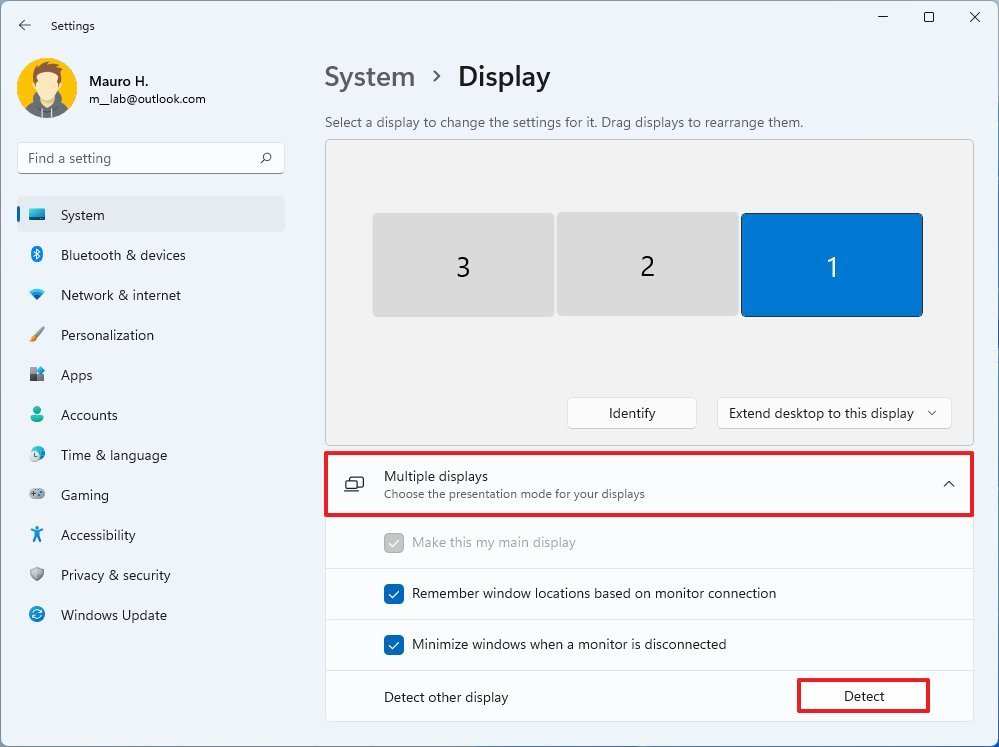
Step 1: Force Windows to detect the display.
Go to Settings → System → Display → Multiple displays → Detect. Windows will actively scan for connected displays. If the monitor shows up here but says "Disconnected," the issue is likely the cable or port.
Step 2: Check Device Manager.
Open Device Manager and expand "Display adapters." If you see a yellow warning triangle next to your GPU, the driver is the problem. Also expand "Monitors" and see if your 4K display appears. If it shows as "Generic PnP Monitor" instead of the actual model name, Windows isn't reading the EDID data correctly.
Step 3: Update or reinstall the GPU driver.
Don't rely on Windows Update for this. Go directly to NVIDIA, AMD, or Intel's website and download the latest driver for your specific GPU model. During installation, choose the "Clean install" option (NVIDIA) or use AMD's factory reset option.
This removes old driver remnants that can block detection.
Step 4: Roll back the driver if the problem started recently.
If the monitor stopped being detected after a driver update, go to Device Manager → Display adapters → right-click your GPU → Properties → Driver → Roll Back Driver. This reverts to the previous version.
Step 5: Disable Fast Startup.
Fast Startup in Windows can prevent proper GPU initialization on boot. Go to Control Panel → Power Options → Choose what the power buttons do → Change settings that are currently unavailable → uncheck "Turn on fast startup." Restart and check detection again.
Step 6: Check the GPU control panel.
Open NVIDIA Control Panel, AMD Adrenalin, or Intel Graphics Command Center. These tools sometimes detect displays that Windows Settings doesn't show. Look for a "Set up multiple displays" or "Detect displays" option within the GPU software.
Step-by-Step: Fixing 4K Monitor Detection on macOS
Mac users face a different set of detection issues, especially with USB-C and Thunderbolt connections. Here's the macOS-specific path.
Step 1: Use System Settings → Displays.
In macOS Ventura and later, go to System Settings → Displays. Hold the Option key and click the "Detect Displays" button that appears in the bottom right. This forces a fresh EDID scan.
Step 2: Reset NVRAM or PRAM.
Shut down your Mac. Turn it on and immediately hold Option + Command + P + R for about 20 seconds. This resets display resolution and output settings stored in memory.
Step 3: Check for macOS updates.
Apple regularly patches display compatibility issues. Go to System Settings → General → Software Update. As of 2026, macOS Sonoma and Sequoia both include fixes for specific 4K monitor detection bugs.
Step 4: Try a different adapter or cable.
If you're using a USB-C to HDMI adapter, not all adapters support 4K at 60Hz. Apple's own USB-C Digital AV Multiport Adapter supports 4K at 60Hz, but many third-party adapters are limited to 30Hz or fail to trigger detection entirely.
Step 5: Test in Safe Mode.
Restart your Mac and hold Shift during boot. Safe Mode loads only essential kernel extensions. If the monitor is detected in Safe Mode, a third-party app or extension is interfering with display detection.
When the GPU Driver Is the Real Problem
If the physical checks and port swaps didn't help, the GPU driver is the next most likely culprit. Driver issues tend to appear suddenly, often right after a Windows update or a new game install that triggered a driver change.
A corrupted or mismatched driver can prevent Windows from reading the monitor's EDID data. That's the small data block the monitor sends to tell the PC what resolutions and refresh rates it supports. Without it, Windows doesn't know the monitor exists.
The most reliable fix is a clean driver install. For NVIDIA users, download the latest driver from NVIDIA's website, choose "Custom installation," and check the "Perform a clean installation" box. For AMD, use the AMD Cleanup Utility first, then install the latest Adrenalin driver fresh.
If the problem started after a recent update, rolling back is faster than troubleshooting further. Device Manager → Display adapters → right-click your GPU → Properties → Driver → Roll Back Driver. This reverts to the previous version without a full reinstall.
Docking Stations and USB-C Hubs: Why They Break 4K Detection
Docking stations add a middleman to the signal chain, and that middleman has to support the full bandwidth your 4K monitor needs. Many don't.
A USB-C dock that only supports DisplayPort 1.2 over Alt Mode can handle 4K at 60Hz on a single monitor. Add a second 4K display and the bandwidth gets split, often dropping one or both to 30Hz or killing detection entirely. Check your dock's specs for the exact DP version and maximum resolution per port.
Thunderbolt 3 and Thunderbolt 4 docks have more bandwidth to work with. They can typically drive two 4K displays at 60Hz without issue. But even then, the cable between the dock and your laptop matters.
A USB-C cable that only supports USB 2.0 data won't carry a display signal at all.
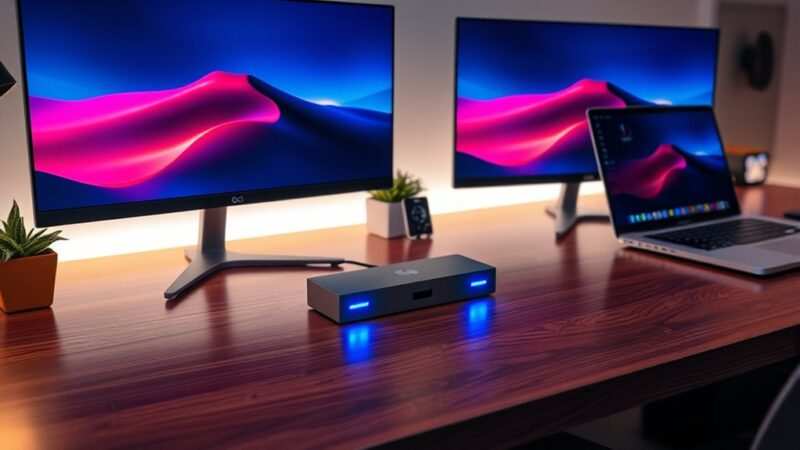
If you're going through a dock and the monitor isn't detected, try connecting the monitor directly to your laptop first. If it works direct but not through the dock, the dock is the bottleneck. Either upgrade the dock or connect the 4K monitor directly to the laptop and run any secondary displays through the dock instead.
Bandwidth Limits: Why Your Setup Works at 1080p but Not 4K
This is one of the most confusing detection issues because the monitor clearly works, just not at the resolution you want. The root cause is almost always bandwidth.
A 1080p signal at 60Hz needs about 3.2 Gbps of bandwidth. A 4K signal at 60Hz with 8-bit color needs roughly 12.5 Gbps. That's a fourfold jump, and older cables or ports simply can't deliver it.
HDMI 1.4 maxes out at 10.2 Gbps. It can technically do 4K, but only at 30Hz. If your monitor is set to expect 60Hz and the cable can't deliver it, you'll get a black screen or "no signal" instead of a fallback to 30Hz.
DisplayPort 1.2 handles 17.28 Gbps, enough for 4K at 60Hz with 8-bit color. DisplayPort 1.4 pushes that to 25.92 Gbps, supporting 4K at 120Hz or 4K at 60Hz with 10-bit HDR.
The practical takeaway: if your monitor works at 1080p but not 4K, check the cable version printed on the jacket. Replace anything labeled HDMI 1.4 or DP 1.1 with a current spec cable. VESA-certified DisplayPort cables and HDMI Premium Certified cables are the safest bets.
Testing Hardware: How to Isolate the Faulty Component
When you're not sure which piece of hardware is failing, you need to test each one independently. This is the fastest way to stop guessing.
Test the monitor on another device. Connect it to a different PC, a laptop, or even a game console. If it works elsewhere, the monitor is fine and the problem is your original PC or cable.
Test your PC with a different monitor. Plug in any other display, even an old 1080p screen. If that works, your GPU and ports are functioning. The issue is specific to the 4K monitor or the cable connecting it.
Test with a different cable. Swap in a known-good cable that you've verified works at 4K on another setup. This eliminates the cable as a variable.
Test a different port on the GPU. If your graphics card has multiple DisplayPort and HDMI outputs, try each one. A single dead port is more common than people think, especially on cards that have seen heavy use.
Once you've isolated the faulty component, the fix becomes obvious. A bad cable gets replaced. A dead port means using a different output or replacing the GPU.
A monitor that fails on every device needs repair or replacement.
Common Mistakes That Waste Hours of Troubleshooting
A few habits trip people up repeatedly. Avoiding these saves real time.
- Using the motherboard video output instead of the GPU. If you have a dedicated graphics card, the motherboard ports are usually disabled or run the weaker integrated GPU. Always plug into the card.
- Assuming all HDMI cables are the same. A cable that came with a DVD player five years ago is probably HDMI 1.4. It won't do 4K at 60Hz.
- Forcing a resolution the cable can't handle. Manually setting 4K at 60Hz in Windows when the cable only supports 30Hz will give you a black screen. Start at 1080p, confirm the connection works, then step up.
- Ignoring the monitor's OSD input selection. Some monitors don't auto-switch inputs reliably. Manually select the correct input from the monitor's menu.
- Skipping the power cycle. A full power off and unplug resets the EDID handshake between the GPU and monitor. It's simple but surprisingly effective.
When to Update Monitor Firmware (and How)
Monitor firmware updates aren't common, but they do fix detection and compatibility issues. If your monitor is relatively new and a recent GPU driver or OS update broke detection, check the manufacturer's support page.
Dell, LG, Samsung, and ASUS all host firmware updates on their support sites. You'll usually need the exact model number and serial number. The update process typically involves downloading a file to a USB drive and running it from the monitor's OSD menu.
This is a last-resort step, not a first one. But aggregate user reports show that firmware updates have resolved specific 4K detection bugs on several LG UltraFine and Dell UltraSharp models. If you've exhausted every other fix, it's worth a look.
Real Scenarios: Detection Fixes for Specific Setups
Scenario 1: Laptop with USB-C to HDMI adapter, monitor not detected.
The adapter likely doesn't support 4K output. Try a USB-C to DisplayPort cable instead, or confirm the adapter's specs. Many cheap USB-C HDMI adapters are limited to 1080p.
Scenario 2: Desktop with NVIDIA GPU, second 4K monitor not detected.
Check that you're not mixing ports across different GPU controllers. Some NVIDIA cards split outputs between two internal controllers, and using specific port combinations can cause detection failures. Try moving the cable to a different DisplayPort on the same card.
Scenario 3: Monitor detected but stuck at 30Hz.
This is a bandwidth limitation. You're probably using an HDMI 1.4 cable or port. Swap to HDMI 2.0 or DisplayPort 1.2 or higher.
Then manually set the refresh rate in Windows Display Settings → Advanced display → Refresh rate.
Scenario 4: macOS not detecting external 4K display after sleep.
This is a known issue with certain USB-C docks on macOS. Unplug and replug the dock's USB-C connection to the Mac. If it happens repeatedly, try a different Thunderbolt or USB-C port on the Mac.
FAQs: 4K Monitor Detection Problems
Why does my 4K monitor work on another PC but not mine?
Your PC's GPU port, cable, or driver is the weak link. Test with a different cable first. Then update your GPU driver from the manufacturer's website.
If that fails, the GPU port itself may not support the required bandwidth.
Can a bad HDMI cable prevent 4K detection?
Absolutely. A damaged or outdated HDMI cable can fail to carry the 4K signal while still working at lower resolutions. Swap in a known-good HDMI 2.0 or HDMI 2.1 cable and see if detection improves.
Does USB-C always support 4K output?
No. USB-C is a connector shape, not a guarantee of display capability. The port must support DisplayPort Alt Mode or Thunderbolt to output video.
Check your laptop's specs to confirm.
Why is my monitor detected but showing the wrong resolution?
Windows is falling back to a safe resolution because it can't read the monitor's EDID data properly. Update your GPU driver and try a different cable. The EDID handshake is failing somewhere in the chain.
Do I need a special cable for 4K at 120Hz?
Yes. You need either HDMI 2.1 or DisplayPort 1.4. Older cables physically fit but lack the bandwidth.
Look for cables labeled "Ultra High Speed HDMI" or "VESA-certified DisplayPort 1.4."
Final Decision Guide: What to Do Based on Your Situation
If you've read this far and still aren't sure where to start, here's the fastest path based on your specific situation.
Monitor never detected on any PC or cable. The monitor likely has a hardware fault. Contact the manufacturer for warranty support.
Monitor detected at 1080p but not 4K. Your cable or port doesn't support the bandwidth. Upgrade to HDMI 2.0 or DisplayPort 1.2 minimum.
Monitor was working and stopped after an update. Roll back your GPU driver. Disable Fast Startup in Windows. Check for a monitor firmware update.
Monitor not detected through a docking station. Connect directly to the laptop first. If that works, the dock is the bottleneck. Either upgrade the dock or connect the 4K monitor directly.
Monitor intermittently drops detection. Reseat the cable at both ends. Try a different cable. Loose connections cause exactly this symptom, especially with DisplayPort.
The signal chain is only as strong as its weakest link. Find that link, replace it, and your 4K monitor will detect and display exactly as it should.

Similar Posts





















