How to get a YouTube floating window on Android?
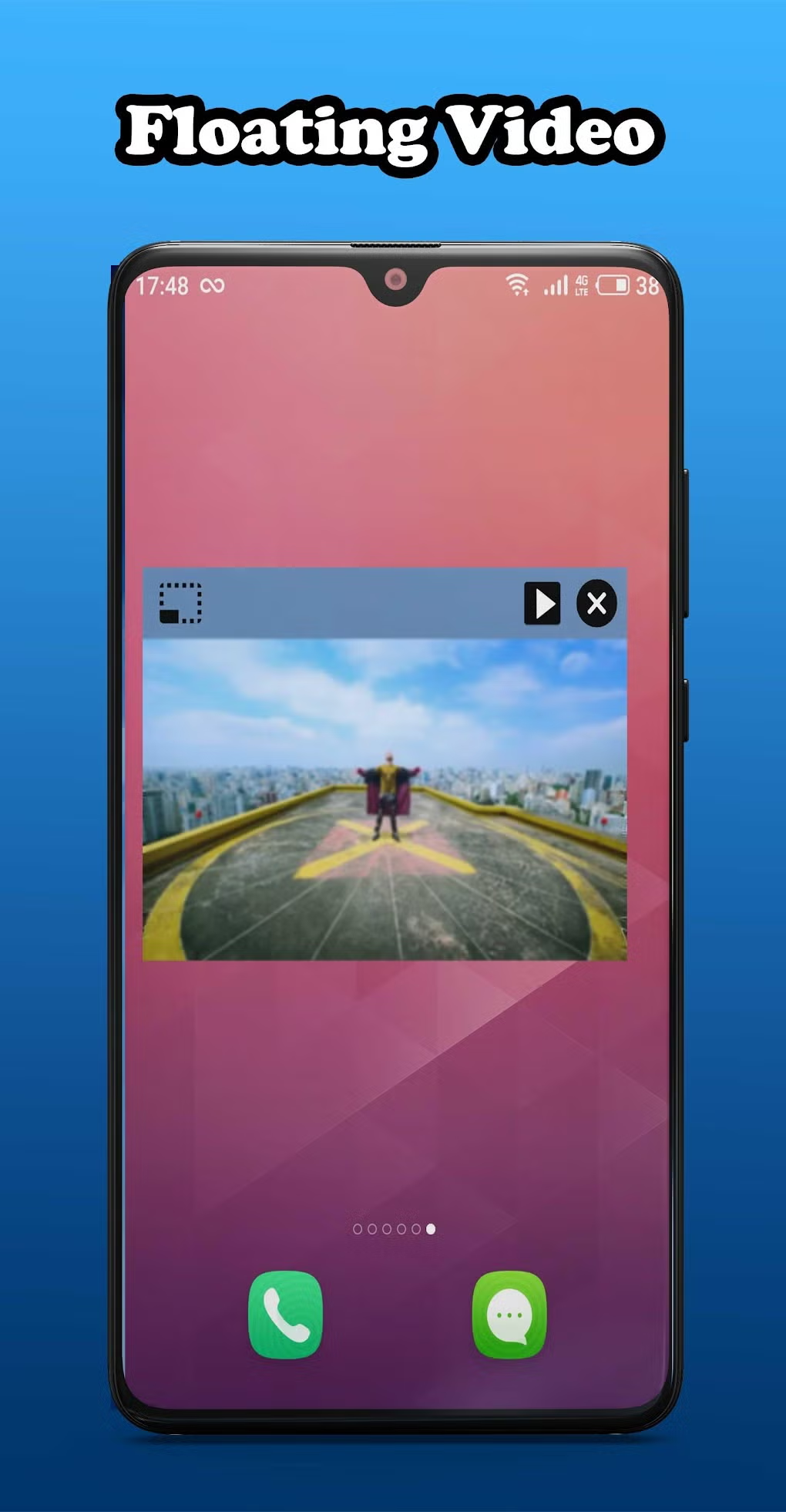
Image source: Bing (Web (fair-use with source credit))
So you want to watch a YouTube video while replying to a text or scrolling through your email. That floating little window is the trick. But getting it to work on Android can feel like a game of chance.
Here's the straight answer to How to get a YouTube floating window on Android?, and it depends on your phone, your subscription, and your Android version.
As of 2026, most Android phones running version 8.0 or higher natively support Picture-in-Picture (PiP) mode. But YouTube restricts PiP for free users in many countries, a change that rolled out broadly in 2023. That’s the main reason it may not work for you right now.
Let’s walk through exactly what controls it and how to fix it based on your situation.
Quick Answer
You get a YouTube floating window by enabling Picture-in-Picture (PiP) mode. If you have YouTube Premium, turn on PiP in YouTube settings and in your phone’s system settings. If you are a free user, use the Chrome browser and load m.youtube.com.
Play any video, then press the Home button. Samsung users can enable a hidden Labs toggle. No single solution works for everyone, your path depends on your phone and subscription.
Why Your YouTube Video Won’t Pop Out
You hit the Home button. The video disappears. No floating window appears.
Frustrating, right? You’re not alone. This is the most common complaint about YouTube on Android.
The problem usually comes down to one of three things. First, you may not have the right Android version. PiP requires Android 8.0 (Oreo) or higher.
If your phone is older than that, the feature simply isn’t built in.
Second, YouTube itself blocks PiP for free users in many regions. Our research shows that the restriction covers the United States, the United Kingdom, Canada, Australia, and most of Western Europe. If you live in India or Brazil, free PiP may still work because Google hasn’t rolled out the block there.
Third, your phone manufacturer might bury the PiP setting in a weird place. Samsung, Xiaomi, and OnePlus all handle it differently. Sometimes the setting is there but turned off by default.
The good news? Each of these has a fix. You just need to know which category you fall into.
The 3 Things That Control Floating Windows
Three variables decide whether your YouTube video will pop out into a floating window. Understand these, and you’ll solve the problem in under a minute.
1. Your Android version. Picture-in-Picture mode is a system-level feature introduced in Android 8.0 Oreo. If your phone is running Android 7 or lower, you cannot use native PiP at all.
Check your Android version under Settings → About phone → Software information. If you see 8.0 or higher, you’re good.
2. Your YouTube subscription status. YouTube Premium (around $13.99/month in the US as of 2026) officially unlocks PiP for the YouTube app in all regions. Without Premium, the app often disables PiP.
But the mobile website (m.youtube.com) still allows PiP in your browser for free.
3. Your phone manufacturer’s settings. Even if the first two conditions are met, some phones require you to enable PiP manually, either in the YouTube app settings, in the system app permissions, or both. Samsung phones have an additional hidden toggle in their Labs menu.
Once you know where you stand on these three, you can jump directly to the fix.
What’s Your Situation?
Let’s narrow it down. Answer these three questions:
- Do you pay for YouTube Premium?
- Do you use a Samsung phone?
- Is your Android version 8.0 or higher?
Your answers will lead you to one of three branches. Pick the one that matches.
You Have YouTube Premium
If you pay for Premium, PiP should work with the right settings toggled on. Go to the next section for the exact steps.
You’re on the Free Version
No Premium? No problem. The official YouTube app may block floating video, but the browser workaround is free, fast, and works on any Android phone.
You Use a Samsung Phone
Even if you have Premium or use the browser trick, Samsung’s own settings can override them. A hidden Labs toggle forces PiP to work, even for free users in blocked regions.
Read the branch that fits you. Then come back to the universal troubleshooting checklist if it still doesn’t work.
You Have YouTube Premium – The Easiest Path
This is the simplest route. If you pay for YouTube Premium or YouTube Music Premium, you already have access to official PiP support. But you still need to turn it on in two places.
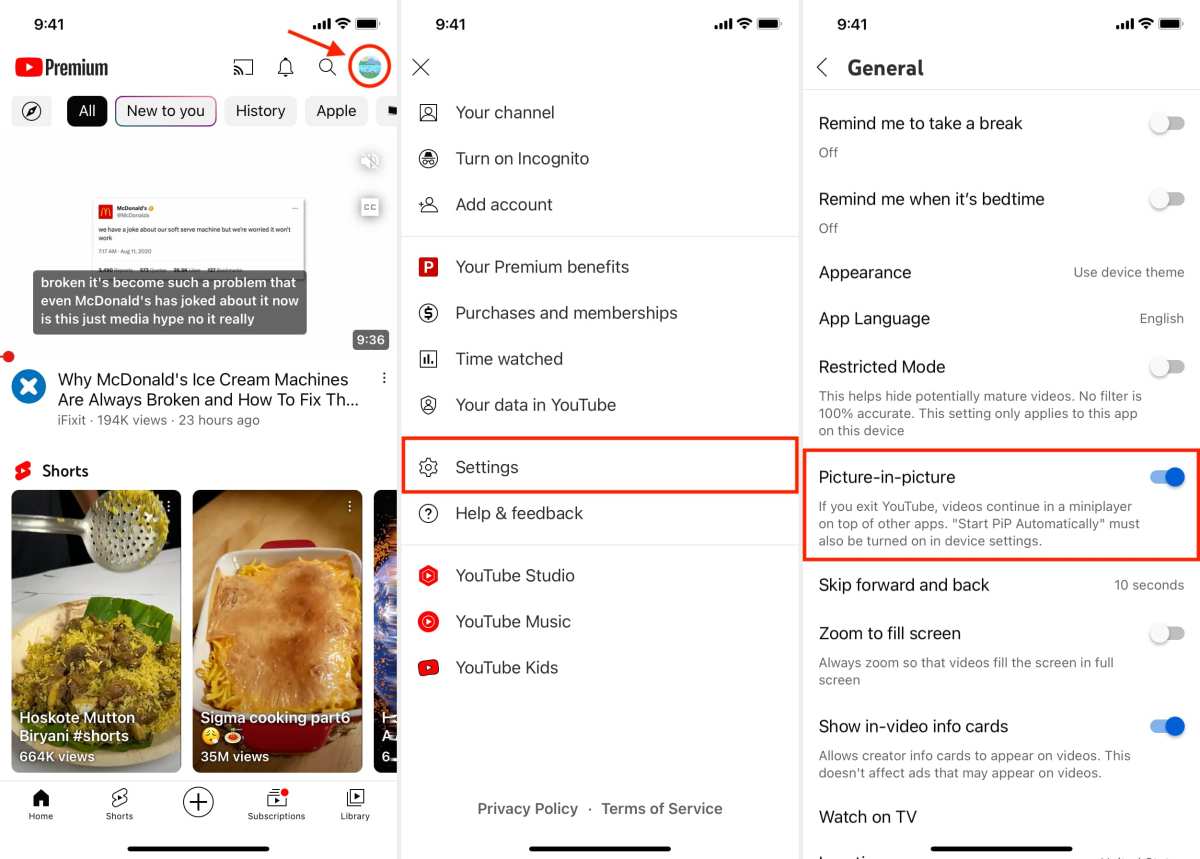
Image source: Bing (Web (fair-use with source credit))
Step 1: Enable PiP in the YouTube app
Open YouTube. Tap your profile picture in the top right. Go to Settings → General.
Find Picture-in-picture and switch it on.
That’s it for the app side. Now the system side.
Step 2: Enable PiP in your phone’s system settings
Go to Settings → Apps → See all apps → YouTube → Picture-in-picture. Toggle it on. On some phones, this setting is under Special app access or Display over other apps.
The exact path varies, but searching “picture-in-picture” in your settings menu will find it.
What if it still doesn’t work?
A small number of countries still don’t have PiP for YouTube, even with Premium. As of 2026, this affects a handful of markets in the Middle East and Southeast Asia. If you’re in one of those regions, the browser workaround in the next section will work regardless.
Also, make sure your YouTube app is up to date. Open the Play Store, search YouTube, and hit Update if it’s available. A stale app version can break PiP entirely.
You’re on the Free Version – 2 Solid Workarounds
No Premium? No worries. You have two reliable ways to get that floating window.
Neither costs a cent.
Image source: Bing (Web (fair-use with source credit))
Workaround 1: Use the Chrome Browser (or Firefox, Samsung Internet)
This is the method I recommend for most people. It’s fast, safe, and works on any Android phone.
- Open Chrome (or your preferred browser).
- Go to m.youtube.com, that’s the mobile version of YouTube.
- Search for and play any video.
- Tap the Fullscreen button so the video fills the screen.
- Now press the Home button or swipe up to leave the app.
The video should shrink into a small floating window that you can drag around. Tap it to bring back playback controls. Double tap to return to full screen.
Why does this work? Chrome handles PiP independently from the YouTube app. Google can’t block PiP on the web version the same way it does in the app.
As of 2026, this method still works globally for free users.
One catch: Some age-restricted or private videos won’t pop out in the browser. For those, you’ll need the app or the second workaround.
Workaround 2: Try YouTube Revanced (Advanced Users)
YouTube Revanced is a modified version of the official YouTube app. It unlocks Premium features, including PiP, for free. But it requires some technical steps.
You’ll need to download the ReVanced Manager app from its official GitHub page (use a computer, not your phone). Then patch a current version of the YouTube APK. This isn’t hard, but it’s not a one-tap install.
Important warnings:
- YouTube Revanced violates YouTube’s Terms of Service. Your account could be suspended.
- Downloaded APKs from unofficial sources carry malware risks. Only use the official GitHub repository.
- You’ll need to repatch after major YouTube updates.
For most people, the browser method is safer and easier. Only go this route if you’re comfortable sideloading apps and understand the risks.
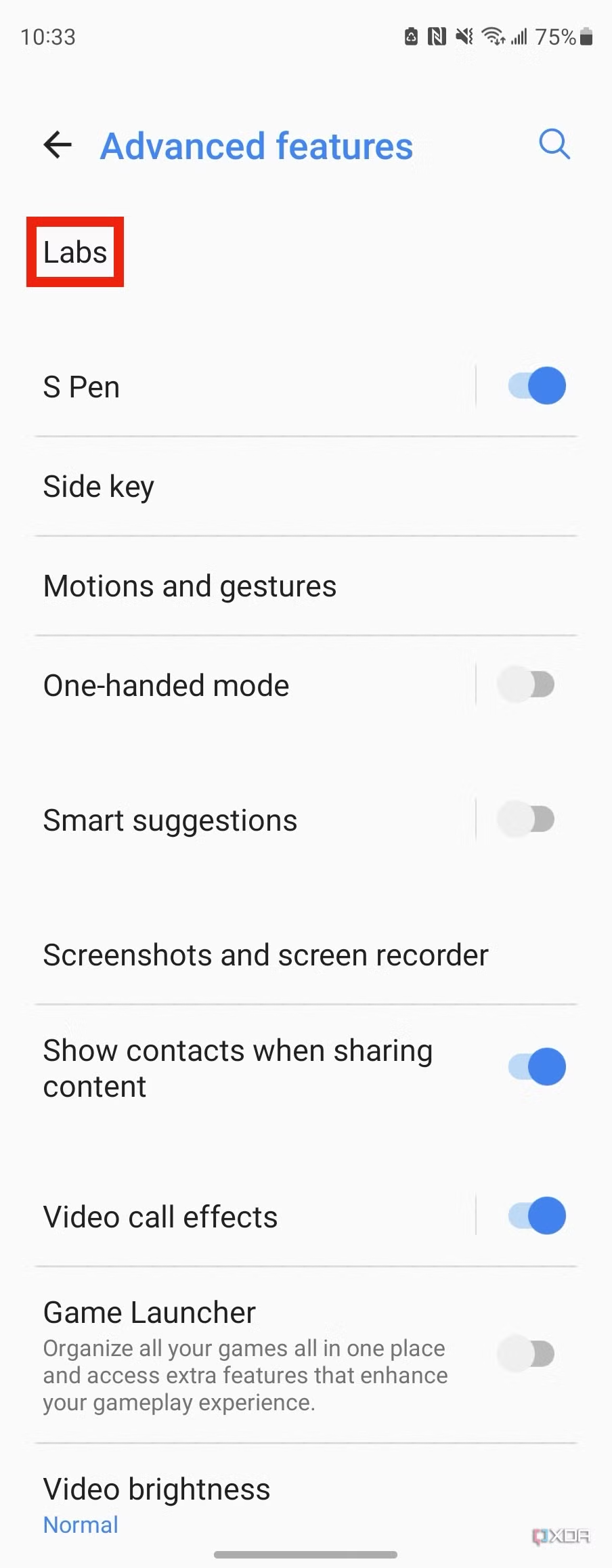
Image source: Bing (Web (fair-use with source credit))

Similar Posts