why do gamers use dual monitors
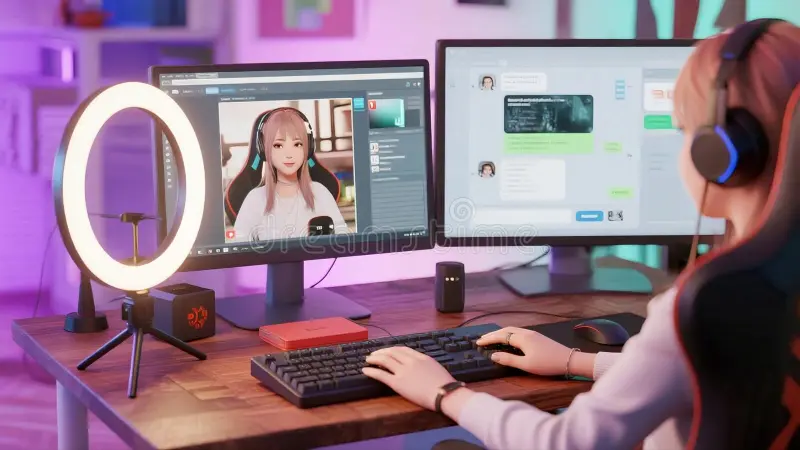
If you've ever scrolled through a gaming battlestation photo online, you've probably noticed one thing: two monitors seem to be the default. So why do gamers use dual monitors? The short answer is that a second screen solves a bunch of real problems, from keeping an eye on your stream chat to pulling up a guide without alt-tabbing out of your game.
But whether it actually makes sense for you depends on what you play and how you play it.
Modern GPUs from NVIDIA and AMD have supported multi-display output for years, and as of 2026, even mid-range cards handle dual monitors without breaking a sweat. That said, not every gamer benefits equally. Let's break down who actually gains from a dual setup, when a single screen is smarter, and what you need to get it right.

Image source: Wikimedia Commons / RiseAngel (CC BY-SA)
Quick Answer
Gamers use dual monitors to keep communication apps, guides, streaming tools, or system stats visible at all times. A second screen eliminates constant alt-tabbing during gameplay. Streamers rely on them to monitor chat and broadcast software.
Not every gamer needs one though. Competitive players often prefer a single high-refresh display.
The Real Reasons Gamers Run Two Screens
The core appeal comes down to one thing: not having to leave your game to do something else. On a single monitor, checking Discord, looking up a build guide, or monitoring your stream means alt-tabbing. That breaks immersion.
It can also cause stuttering or crashes in some titles. A second display keeps all of that visible while your game stays full-screen on the primary monitor.
Here are the most common reasons gamers add that second screen:
- Streaming chat and alerts. If you broadcast on Twitch or YouTube Gaming, you need to see viewer messages and donation alerts without overlaying them on your gameplay feed.
- Discord and voice chat. Keeping your server list, active call, or voice channels open on a side screen means you never miss a call or message.
- Guides, maps, and walkthroughs. MMOs, open-world RPGs, and strategy games often benefit from having a map or quest guide open at all times.
- System monitoring. Tools like MSI Afterburner or HWiNFO can display GPU temps, frame rates, and CPU usage on the second screen.
- Content creation workflow. Recording and editing gameplay footage is easier when your editing software or OBS controls live on a separate display.
The practical result is fewer interruptions. You stay in the game while staying connected to everything around it.
Who Actually Benefits From a Dual Monitor Setup
Not every gamer gets the same value out of two screens. Your genre, playstyle, and whether you create content all matter. Here's a breakdown of who benefits most.
Streamers and Content Creators
This is the group that gains the most. Running OBS Studio or Streamlabs on one screen while gaming on the other is the standard streaming setup. You can monitor your broadcast health, manage scenes, and read chat without any overlay cluttering your gameplay view.
If you record and edit videos too, having Premiere Pro or DaVinci Resolve open on a second screen while you game is a massive workflow improvement.
Image source: Bing (Web (fair-use with source credit))
MMO and Strategy Players
Games like World of Warcraft, Final Fantasy XIV, Civilization VI, or League of Legends reward you for having information accessible. A second screen lets you keep a wiki, tier list, or minimap tool open. MMO players especially use this for raid coordination, Discord call management, or tracking damage meters.
Sim and Racing Enthusiasts
Flight sim and racing sim communities often run three or more displays for surround-style immersion. But even a second screen is useful for telemetry data, lap timing apps, or navigation tools. Some sim rigs dedicate the secondary screen to a virtual spotter or pit strategy dashboard.
Gamers Who Work From Home
If your desk doubles as your office, a second monitor might already be there for work. Gamers in this situation simply keep their productivity tools on one screen and their game on the other. It's a practical dual-use setup that justifies the extra hardware cost.
Competitive FPS Players
Here's where it gets counterintuitive. Most competitive first-person shooter players actually prefer a single monitor, often a 24-inch 240Hz or 360Hz display. The reason is focus.
A second screen creates peripheral distraction. It also adds potential input latency concerns if your GPU is driving multiple displays under load. For ranked or tournament play, a single high-refresh screen is usually the better call.
When a Single Monitor Is Actually Better
A dual setup isn't automatically superior. There are real situations where one screen wins.
- Competitive gaming. Fewer distractions. Less GPU overhead. Cleaner focus on the action.
- Limited desk space. Two monitors need depth and width. If your desk is shallow or small, a single larger display is more practical.
- Budget constraints. A second monitor, mount, and the cables to connect them add cost. That money might go better toward a single higher-quality display.
- GPU limitations. Older or budget GPUs may struggle to drive two high-resolution displays smoothly, especially if you're gaming across both simultaneously.
- Portability. If you game at LAN events or move your setup frequently, one monitor is far easier to transport.
The honest take is this: if you don't stream, don't need guides open constantly, and don't multitask at your desk, a single good monitor will serve you just fine. The dual setup earns its keep when you have a specific workflow that demands it.
What You Need Before Setting Up Dual Monitors
Before you buy a second screen or dig one out of a closet, make sure your system can actually handle it. Here's what to check.
GPU Output Ports
Look at the back of your graphics card. You need at least two available outputs. Most modern GPUs ship with a mix of DisplayPort and HDMI connections.
Common configurations include:
| Port Type | Typical Use | Max Common Resolution/Refresh |
|---|---|---|
| DisplayPort 1.4 | Primary gaming monitor | 4K at 120Hz or 1440p at 240Hz |
| HDMI 2.1 | Secondary monitor or TV | 4K at 120Hz |
| HDMI 2.0 | Secondary monitor | 4K at 60Hz or 1080p at 144Hz |
| USB-C (DP Alt Mode) | Laptop or compact setup | Varies by implementation |
If your GPU only has one output, you'll need a new card or a USB display adapter. USB adapters work for basic desktop use but aren't ideal for gaming on the secondary screen.
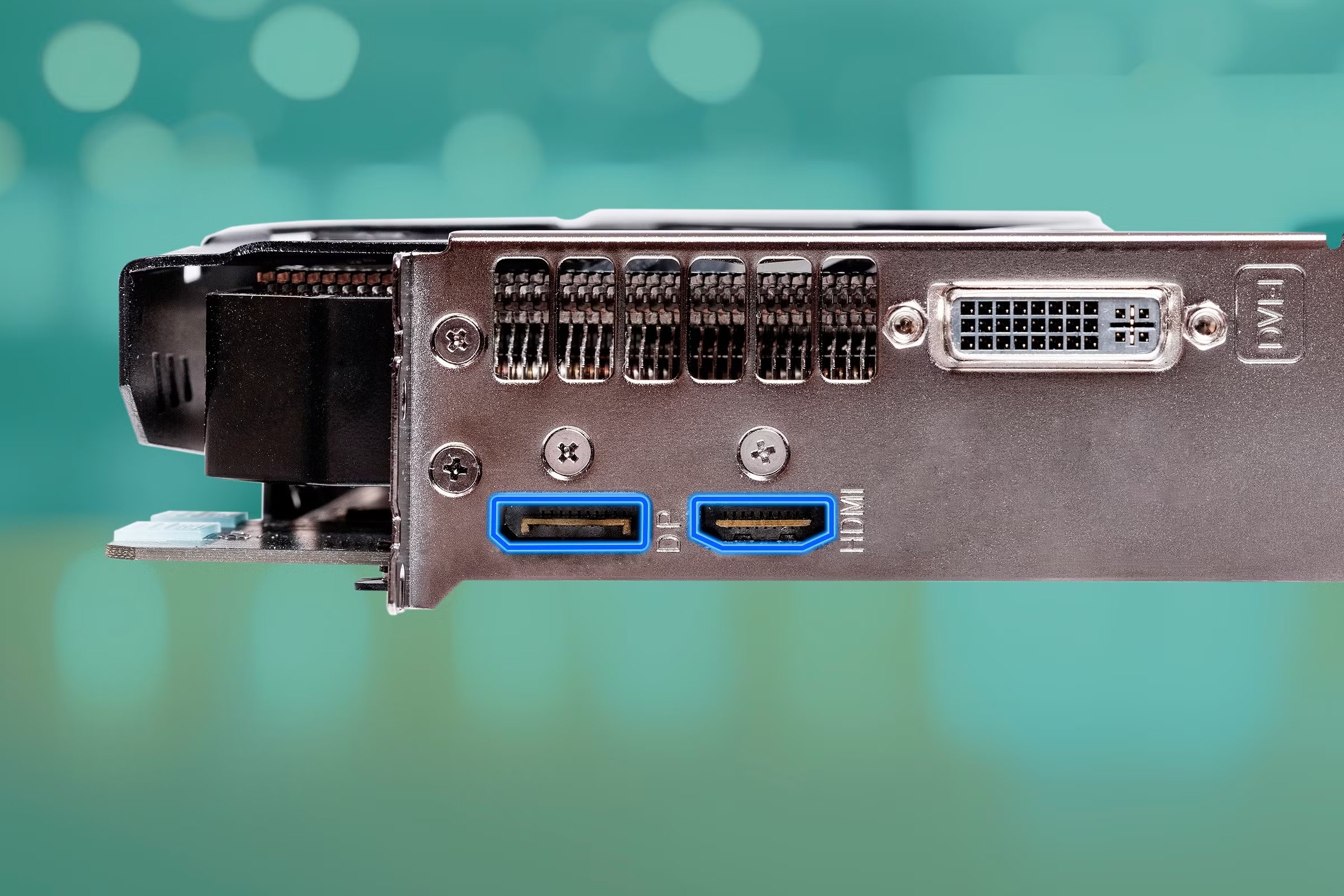
Image source: Bing (Web (fair-use with source credit))
Monitor Matching
You don't need two identical monitors, but mismatched setups can cause annoyances. If one screen is 1440p 144Hz and the other is 1080p 60Hz, your mouse will feel different crossing between them. Window scaling can look inconsistent.
For the smoothest experience, try to match at least the resolution and refresh rate. If that's not possible, matching the physical screen size helps with visual alignment.
Desk Space and Mounting
Two 27-inch monitors need roughly 48 inches of width plus stand depth. Measure your desk before buying. A dual monitor arm frees up desk surface and lets you position both screens ergonomically.
VESA-compatible mounts (75x75mm or 100x100mm) are standard on most gaming monitors. Budget around $40 to $120 for a quality dual arm mount as of 2026.
Cables and Connections
Use the best cable your GPU and monitor both support. DisplayPort is generally preferred for high-refresh gaming monitors. HDMI 2.1 works well for 4K setups.
Avoid cheap no-name cables for high-refresh or high-resolution displays since signal issues cause flickering and dropouts.
How to Set Up Dual Monitors for Gaming (Step by Step)
Once you've confirmed your hardware supports it, the setup process is straightforward.
- Power down your PC. Connect the second monitor to an available GPU port. Use the cable type that both your GPU and monitor support best.
- Power everything on. Boot into Windows. The second screen may stay black or mirror your desktop initially.
- Open display settings. Right-click your desktop and select "Display settings." You should see two numbered rectangles representing your monitors.
- Arrange the displays. Drag the numbered boxes to match your physical layout. If the second monitor sits to the left of your primary, position it accordingly.
- Set the primary display. Click the monitor you want as your main gaming screen. Check "Make this my main display." This is where your game will launch by default.
- Choose display mode. Under "Multiple displays," select "Extend these displays." This gives you two independent screens rather than a mirrored image.
- Match refresh rates. Click each monitor in the settings, then click "Advanced display settings." Set each to its maximum supported refresh rate. Windows sometimes defaults to 60Hz even on 144Hz panels.
- Adjust scaling. If one monitor is higher resolution than the other, set scaling per display so text and icons look consistent across both.
- Configure your game. Launch your game and set it to full-screen or borderless windowed mode on the primary monitor. Full-screen usually gives the best performance.
- Set up your secondary apps. Open Discord, OBS, a browser, or monitoring tools on the second screen. Arrange them how you like. Some gamers use Windows Snap (Win + arrow keys) to tile apps efficiently.
That's the basic flow. Once configured, Windows remembers your layout across reboots. If something looks off, the most common culprit is the refresh rate defaulting to 60Hz on the secondary display.
Common Mistakes That Ruin the Dual Monitor Experience
Even a straightforward setup can go sideways if you overlook a few things. These are the most frequent issues gamers run into.
- Mismatched refresh rates. Running a 144Hz primary and 60Hz secondary causes mouse cursor stutter when crossing between screens. Windows also sometimes forces the higher-refresh panel to match the lower one. Always verify each display is set to its native rate in Windows advanced display settings.
- Borderless windowed mode confusion. Borderless windowed lets you move between screens seamlessly. But it can introduce slight input lag compared to exclusive full-screen. Competitive players should stick to full-screen on the primary monitor.
- The bezel right in your face. If your two monitors are angled poorly, the bezel seam sits directly in your peripheral vision. It's distracting. Use a dual monitor arm to angle both screens slightly inward with thebezels meeting just below your sight line.
- GPU load spikes. Driving two displays, especially at high resolution, increases GPU memory usage and power draw. On cards with 6GB VRAM or less, you might notice frame drops when hardware-accelerated content (like a Chrome browser) runs on the secondary screen during gameplay.
- Accidental clicks on the wrong screen. During intense moments, your mouse can drift onto the secondary display. You click a browser tab and your game loses focus. Tools like Actual Multiple Monitors or Windows Cursor Lock can confine the cursor to your gaming screen during full-screen sessions.
- Cable mess under the desk. Two monitors mean twice the power and video cables. Cable management trays and Velcro straps keep things tidy and make future troubleshooting much easier.
Dual Monitor Setup vs Ultrawide vs Super-Ultrawide
A dual monitor setup is not the only way to get more screen space. Ultrawide and super-ultrawide monitors offer alternatives that solve some of the problems dual screens create.
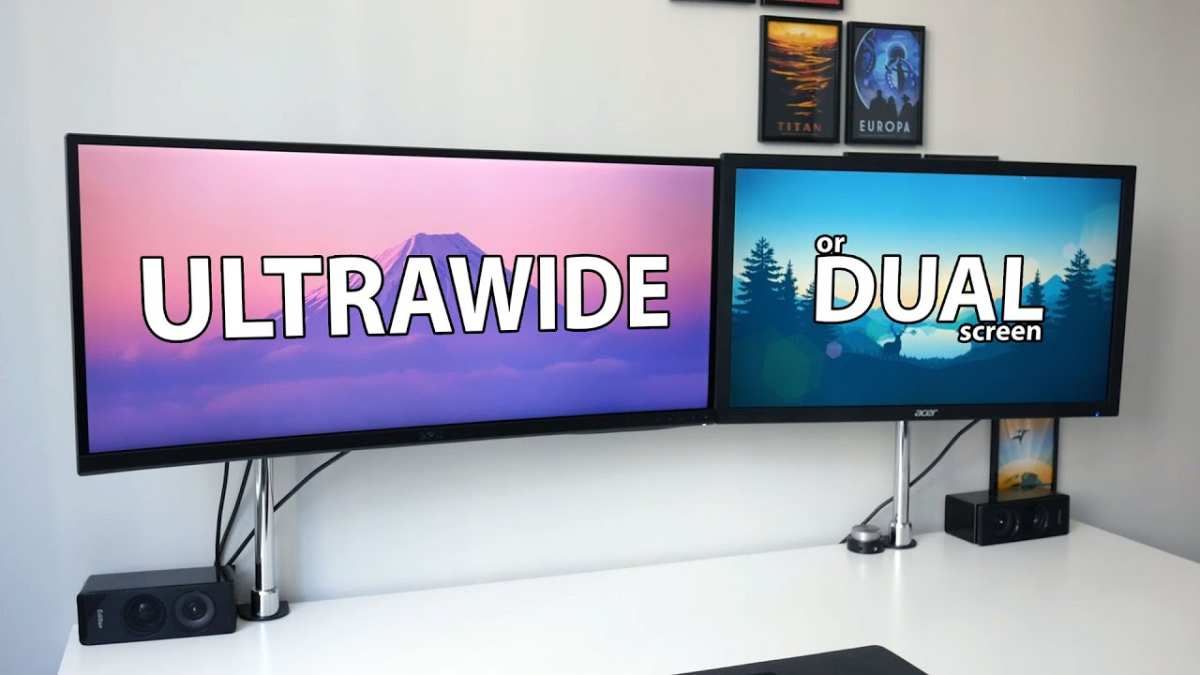
Image source: Bing (Web (fair-use with source credit))
| Feature | Dual 16:9 Monitors | 21:9 Ultrawide | 32:9 Super-Ultrawide |
|---|---|---|---|
| Total resolution | 3840×1080 (2x 1080p) | 3440×1440 | 5120×1440 |
| Bezel in the line of sight | Yes, center seam | No | No |
| Game compatibility | Universal | Good, some black bars | Poor for competitive titles |
| Best for streaming | Strong (separate chat screen) | Moderate (software splits) | Strong (lots of space) |
| Price range (2026) | $300–$800 pair | $350–$1200 | $600–$1800 |
| Desk depth needed | 28–32 inches | 24–28 inches | 28–32 inches |
A dual monitor setup wins for streaming workflows because you can dedicate one screen entirely to OBS and chat without any software window management. An ultrawide gives you a seamless, bezel-free view that's better for immersion in single-player games. A super-ultrawide is functionally two 16:9 panels stitched together without the bezel, but many competitive games don't support the 32:9 aspect ratio natively.
Choose dual monitors if you stream or need hard separation between gaming and everything else. Choose ultrawide if you want immersion without the hassle. Choose super-ultrawide if you want both, and your budget allows it.
What Real Dual Monitor Gaming Rigs Look Like
Real-world setups vary based on the gamer's priority. Here are three common configurations we see across the gaming community.
The streamer rig. Two 27-inch monitors mounted on a dual arm. The primary is a 1440p 165Hz IPS panel running the game in full-screen. The secondary is a basic 1080p 60Hz IPS panel showing OBS, Twitch chat, and Discord.
The GPU is typically an NVIDIA RTX 4070 or higher. This handles encoding on NVENC while driving both displays without frame drops.
The MMO player's desk. A primary 32-inch 1440p curved monitor paired with a secondary 24-inch 1080p monitor in portrait mode. The portrait screen holds a browser with Wowhead or the FFXIV wiki. Discord and music apps run there too.
GPU load is modest since MMO titles are rarely as demanding as modern shooters.
The work-and-play setup. A 27-inch 4K monitor as the primary for both work and gaming. A 27-inch 1440p monitor in landscape mode as the secondary for email, Slack, or video calls during the work day. After hours, the secondary becomes a Discord and guide screen.
This is popular with developers and designers who game at the same desk.
Costs, Power Draw, and Specs to Know
Here's what to expect financially and electrically when you add a second monitor.
| Expense | Typical Range (2026) |
|---|---|
| Budget 1080p 144Hz gaming monitor | $130–$220 |
| Mid-range 1440p 165Hz monitor | $250–$400 |
| Dual monitor arm (VESA) | $40–$120 |
| Additional DisplayPort or HDMI cable | $8–$20 |
| Electricity (two monitors, average use) | 40–$100/year |
Power draw per monitor averages 25 to 45 watts for a 27-inch gaming panel. Running two adds roughly 50 to 90 watts to your system's total power consumption. Over a year at average US electricity rates, that's around $50 to $100 in added cost depending on usage hours and local rates.
On the GPU side, driving a second display for desktop tasks uses minimal additional resources, typically 1 to 3GB of extra VRAM. If you're gaming across both screens simultaneously using NVIDIA Surround or AMD Eyefinity, expect a 30 to 50 percent performance hit since the GPU is rendering across the combined resolution.
Should You Add a Second Monitor?
After everything we've covered, the decision comes down to a few simple questions. If you stream or create content, yes, a second screen is practically essential. If you play MMOs, strategy games, or sims, it's a strong quality-of-life upgrade.
If you work from your gaming desk, the extra screen pays for itself in productivity.
If you primarily play competitive FPS titles on a tight budget, or your desk is small, stick with one great monitor. Spend the money on the best single panel you can afford. You'll get better refresh rates, less distraction, and a simpler setup.
The right answer depends on what you do at your desk, not on what looks good in a photo. Figure out your actual workflow. Then decide whether a second screen solves a real problem or just adds clutter.
Frequently Asked Questions
Does a second monitor affect gaming performance?
For basic desktop use on the secondary screen, the performance hit is negligible. Your GPU uses a small amount of extra VRAM, typically 1 to 3GB. If you game across both screens using NVIDIA Surround or AMD Eyefinity, expect a 30 to 50 percent frame drop since you're rendering double the pixels.
Do both monitors need to be the same size and resolution?
No, but matching them makes the experience smoother. Mismatched refresh rates cause mouse stutter when crossing between screens. Different resolutions create inconsistent scaling.
At minimum, try to match the physical screen size so the bezels align cleanly.
Can I use dual monitors with a laptop?
Yes. Most modern laptops support at least one external display through HDMI or USB-C with DisplayPort Alt Mode. Check your laptop's specs for available outputs.
USB-C docking stations can add multiple display outputs if your laptop has Thunderbolt 4 or USB4 support.
Is a dual monitor setup good for competitive gaming?
Generally no. Competitive FPS players prefer a single high-refresh monitor, often 24 inches at 240Hz or 360Hz. A second screen creates peripheral distraction and adds potential GPU overhead.
Focus matters more than screen space in ranked or tournament play.
How long does it take to set up dual monitors?
The physical setup takes about 15 to 20 minutes. Configuring Windows display settings, refresh rates, and app placement adds another 10 to 15 minutes. Most people have everything running within half an hour.
What is the best second monitor for gaming?
A 27-inch 1440p IPS panel at 144Hz or higher is the sweet spot in 2026. If budget is tight, a 24-inch 1080p 144Hz panel works fine. For streaming, even a basic 1080p 60Hz screen handles chat and OBS controls without issues.

Similar Posts