Do Dual Monitors Use More GPU

Do dual monitors use more GPU? Yes, adding a second monitor does increase GPU load, but the real-world impact depends entirely on what you're doing and what hardware you're running. For basic productivity work, the hit is so small you'll never notice it. For gaming or high-resolution creative work, the cost can be more significant.
A single 1920×1080 60Hz display requires roughly 150 to 300MB of VRAM just for desktop composition through Windows' Desktop Window Manager (DWM). That number scales with resolution and refresh rate, so a 4K panel demands considerably more. Let's break down exactly when a second monitor matters and when it doesn't.
Quick Answer
Yes, dual monitors use more GPU. The increase ranges from negligible to significant. For office work, the extra load is around 2 to 5 percent.
For gaming across both displays, it can reach 30 percent or more. Your GPU type, resolution, and refresh rate determine the actual impact.
How Dual Monitors Actually Load Your GPU
The Desktop Window Manager Tax
Every pixel your GPU pushes to a screen costs something. Windows uses the Desktop Window Manager (DWM) to composite your desktop, and that compositor needs GPU resources to run. With one monitor, DWM is already working.
With two, it has more pixels to manage and more surfaces to composite every frame.
This isn't optional overhead. It's how the Windows rendering pipeline works. Even if you're just staring at your desktop doing nothing, the GPU is actively compositing the desktop surface for each display at its configured refresh rate.
Resolution and Refresh Rate: The Real Multipliers
The actual GPU cost scales with total pixel count and refresh rate. Here's how that breaks down:
| Display Configuration | Total Pixels | Approximate Frame Buffer (per frame) | Relative GPU Load |
|---|---|---|---|
| Single 1080p 60Hz | 2.07 million | ~32MB | Baseline |
| Dual 1080p 60Hz | 4.14 million | ~64MB | ~2× baseline |
| Single 4K 60Hz | 8.29 million | ~128MB | ~4× baseline |
| Dual 4K 60Hz | 16.59 million | ~256MB | ~8× baseline |
| Dual 1440p 144Hz | 7.37 million | ~114MB | ~3.5× baseline |
These numbers represent raw frame buffer allocation. Actual GPU processing overhead for desktop composition is higher because DWM is also handling transparency effects, animations, and window transitions across both surfaces.
VRAM Consumption Explained
VRAM on a dedicated GPU typically ranges from 4GB on budget cards to 24GB on high-end models as of 2026. The desktop composition buffers for two monitors consume a small fraction of that. The real VRAM pressure comes from applications running on those displays, not from the displays themselves.
If you're running a browser with 30 tabs on your second monitor, that browser is using VRAM for page rendering. The monitor didn't cause that. The content on the monitor caused it.
This distinction matters because people often blame the second monitor when the real culprit is what's running on it.
When a Second Monitor Barely Matters
Office Work, Email, and Web Browsing
If you're running spreadsheets, email clients, word processors, and a web browser across two 1080p 60Hz monitors, your GPU load will barely budge. Modern discrete GPUs handle this without breaking a sweat. Even most integrated GPUs from the last several years can manage it.
The DWM compositor might use an extra 2 to 5 percent of GPU processing power. You won't see that in any performance metric that matters. Frame times stay consistent.
Applications respond the same way they would on a single display.
Single Monitor Gaming + Passive Second Screen Use
Here's where most gamers actually sit. You're playing a game on your primary monitor in fullscreen or borderless windowed mode. Your second monitor is showing Discord, a stream chat, or a walkthrough guide.
In this scenario, the GPU focuses its rendering effort on the game. The second monitor's desktop composition is a rounding error. Most users report zero to 3 percent FPS loss in this configuration.
If your game is already GPU-bound, you might see a frame or two drop, but it's rarely perceptible.
The exception is if you're running the game in borderless windowed mode. That forces DWM to composite the game surface alongside everything else on your desktop. In that case, the second monitor's content does factor into the composition pipeline, and you might see a slightly larger impact.
When Dual Monitors Actually Hit GPU Performance
Gaming Across Both Displays (Surround/Eyefinity)
This is the scenario that genuinely taxes your GPU. NVIDIA Surround and AMD Eyefinity let you span a single game across multiple monitors, treating them as one ultra-wide display. Two 1080p monitors in Surround become a 3840×1080 resolution.
Three become 5760×1080.
That's a massive increase in pixel count. Your GPU has to render every frame at that combined resolution. Performance drops proportionally.
If you're getting 100 FPS at 1080p single-screen, expect roughly 50 FPS at 3840×1080 across two displays with the same settings.
This is the one scenario where "do dual monitors use more GPU" gets an unequivocal and significant yes.
High-Resolution Display Combinos
Running dual 4K monitors, even just for desktop use, demands more from your GPU than dual 1080p panels. The DWM is compositing over 16 million pixels per frame at 60Hz. That's real work, and on integrated graphics it can cause visible sluggishness when dragging windows or switching desktops.
If you're also running HDR on both displays, the compositing overhead increases further because HDR requires additional color processing per frame.
Content Creation and Video Editing Workflows
Video editors running a timeline on one monitor and a full-screen preview on another are pushing meaningful GPU load. The preview monitor needs real-time decoding and color processing. Applications like DaVinci Resolve and Premiere Pro will show higher GPU utilization with a secondary preview display active.
This isn't necessarily a problem if your GPU has the headroom. But on mid-range cards, you might notice slower timeline scrubbing or longer export times when the preview monitor is active.
Integrated Graphics vs. Discrete GPU: The Big Divide
Why Integrated Graphics Struggle More
Integrated GPUs (found in most non-gaming laptops and budget desktop CPUs) share system RAM instead of having dedicated VRAM. They also have far less processing power than discrete cards. When you add a second monitor to an iGPU, you're asking an already resource-constrained chip to composite more pixels while still handling application rendering.
Intel's UHD Graphics and Iris Xe integrated GPUs can typically drive two displays, but users frequently report increased sluggishness in window animations and browser scrolling when both panels are active at higher resolutions. AMD's integrated RDNA graphics in Ryzen APUs handle it somewhat better, but the same ceiling applies.
Manufacturer specifications from Intel confirm that integrated graphics support a maximum total pixel output across all connected displays. Exceeding that limit, or pushing close to it, forces the iGPU to work harder on composition tasks that a discrete GPU would handle without effort.
Why Discrete GPUs Handle It Trivially
A dedicated graphics card has its own VRAM, its own cooling, and processing power designed specifically for parallel rendering work. Desktop composition across two monitors uses a tiny fraction of that capability. Even a budget discrete GPU like an NVIDIA GTX 1650 or AMD RX 6400 handles dual 1080p desktop composition without measurable impact on gaming or application performance.
The story changes when you push to dual 4K or try gaming across both displays. But for everyday multi-monitor productivity, a discrete GPU barely notices the second screen.
Does Dual Monitor Reduce FPS in Games?
What the Numbers Actually Show
This is the question most people actually care about. The answer depends on your game mode and what's on the second screen.
| Scenario | Typical FPS Impact |
|---|---|
| Fullscreen game on primary, idle desktop on secondary | 0 to 2% loss |
| Fullscreen game, video playing on secondary | 2 to 5% loss |
| Borderless windowed game, idle desktop on secondary | 3 to 7% loss |
| Borderless windowed game, video on secondary | 5 to 10% loss |
| Game spanned across both monitors (Surround/Eyefinity) | 40 to 60% loss |
These figures come from aggregate community testing data across multiple GPU generations. Your specific results will vary based on your GPU, the game engine, and your settings.
When You'll Notice It vs. When You Won't
If you're gaming at 60 FPS on a 60Hz monitor, a 5 percent loss is 3 frames per second. You won't feel that. If you're gaming at 144 FPS on a 144Hz monitor, the same 5 percent loss is 7 frames per second.
Still barely perceptible for most people.
The scenario where you'll actually notice a difference is when you're already GPU-bound. If your game is running at 55 FPS and you add a second monitor with a hardware-accelerated video playing, you might drop to 48 FPS. That's where stutter becomes visible and frame pacing suffers.
Competitive gamers who optimize every setting for maximum FPS should be aware of this. Everyone else can add a second monitor without worrying about it.
How to Check Your Own GPU Load Right Now
Using Task Manager
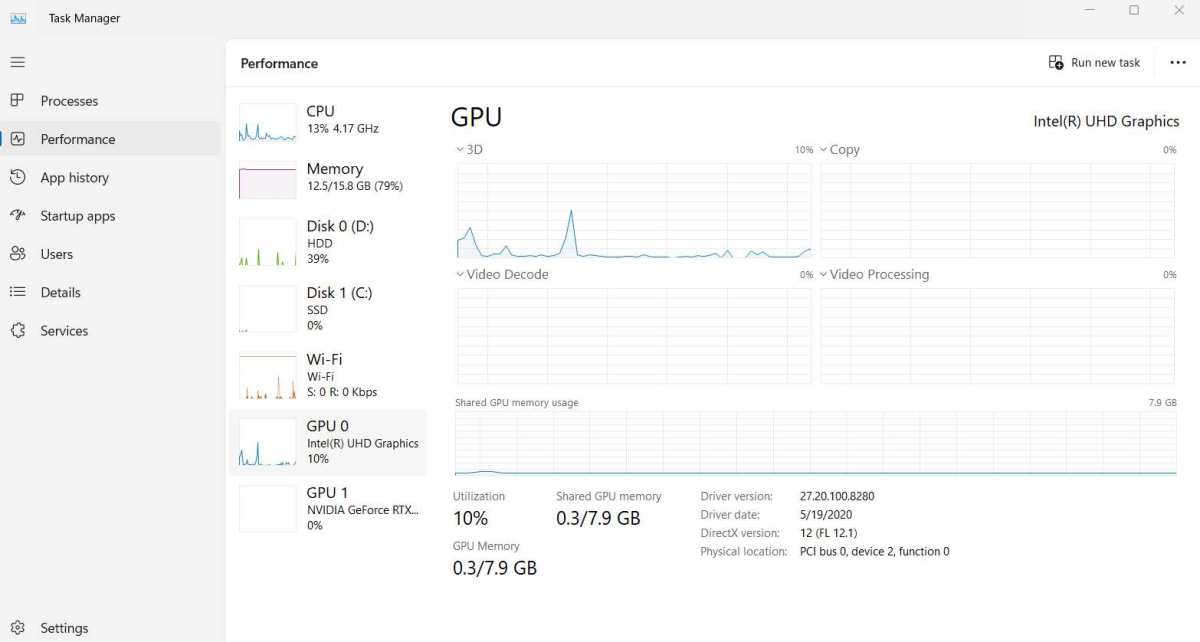
Windows Task Manager gives you a quick snapshot. Open it with Ctrl+Shift+Esc, go to the Performance tab, and select GPU. You'll see overall GPU utilization, VRAM usage, and a breakdown by process.
Look for "Desktop Window Manager" in the Processes tab. That's your compositor. Its GPU usage tells you exactly how much work your displays are generating just by existing.
Using GPU-Z or HWiNFO
For more detailed monitoring, GPU-Z and HWiNFO provide per-sensor readings including GPU core load, memory controller load, and memory usage. These tools let you see the difference in VRAM consumption before and after connecting a second monitor.
Run the tool, note your idle VRAM usage with one monitor, then connect the second and check again. The difference is your desktop composition overhead for the additional display.
What Numbers to Look For
- GPU utilization under 10% at idle with two monitors: Normal for a discrete GPU.
- VRAM usage increase of 150-300MB after adding a second 1080p display: Expected.
- GPU utilization over 15% at idle: Worth investigating. Could indicate a driver issue or excessive DWM load.
- VRAM usage over 500MB increase for a single 1080p display: Unusual. Check for hardware acceleration bugs in running applications.
Dual Monitor vs. Single Ultrawide: Which Taxes the GPU More?
This comparison comes up constantly, and the answer is straightforward once you look at pixel counts.
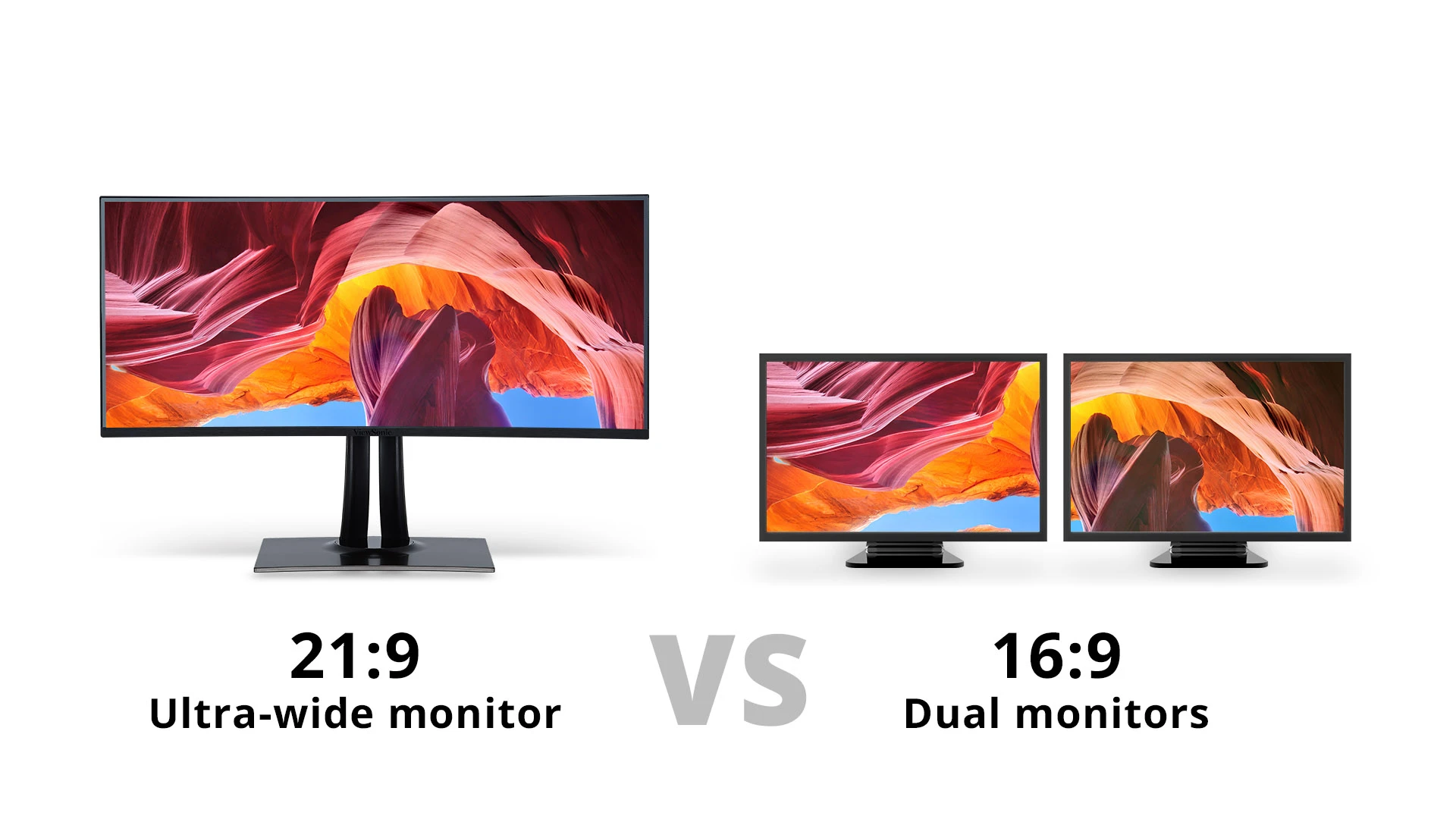
Two 27-inch 1440p monitors side by side give you a combined resolution of 5120×1440. That's 7.37 million pixels. A single 34-inch ultrawide at 3440×1440 gives you 4.95 million pixels.
The dual monitor setup pushes 49 percent more pixels to your GPU.
| Setup | Combined Resolution | Total Pixels | GPU Load Profile |
|---|---|---|---|
| Dual 27" 1440p | 5120×1440 | 7.37M | Higher |
| Single 34" ultrawide | 3440×1440 | 4.95M | Lower |
| Dual 24" 1080p | 3840×1080 | 4.14M | Lowest |
| Single 27" 4K | 3840×2160 | 8.29M | Highest |
For pure desktop composition, the single ultrawide is easier on your GPU than dual 1440p monitors. For gaming, it depends on whether you're spanning the game across both displays or just using one.
There's also a practical consideration. With dual monitors, DWM has to composite across two separate display surfaces with a bezel gap. With a single ultrawide, it's one continuous surface.
The compositor overhead is slightly lower for the single panel.
Common Mistakes People Make with Multi-Monitor GPU Load
Assuming Zero Cost
The most common mistake is believing a second monitor has no GPU cost at all. It does. It's small for most setups, but it exists.
If you're on integrated graphics or an older GPU, that small cost can push you over the edge into noticeable sluggishness.
Mismatched Refresh Rates Causing Stutter
Running one monitor at 60Hz and another at 144Hz creates a timing problem for DWM. The compositor has to work within the timing constraints of both displays. On some systems, this causes micro-stutter on the higher-refresh monitor because DWM's composition cycle syncs to the slower display.
This is a known Windows behavior. If you're experiencing stutter on a high-refresh monitor paired with a 60Hz secondary display, try running both at the same refresh rate temporarily to confirm the cause.
Forgetting Hardware Acceleration Settings
Modern browsers and many applications use hardware acceleration by default, which means they're using your GPU to render content. With a second monitor showing a hardware-accelerated browser or video player, your GPU is doing real work for that content.
If you're on a tight GPU budget, disabling hardware acceleration in browsers and video applications can reduce the load from a second monitor. It shifts the rendering work to your CPU, which may or may not help depending on your specific hardware balance.
Optimizing Your Dual Monitor Setup for Minimal GPU Impact
Adjust Windows Visual Settings
Windows offers transparency effects, animations, and shadow rendering through DWM. On systems where every bit of GPU headroom matters, reducing these effects helps.
Go to Settings > Accessibility > Visual Effects and turn off transparency effects and animation. This reduces DWM's per-frame composition workload across both displays.
Manage Per-App Hardware Acceleration
Chrome, Edge, Firefox, Discord, Slack, and Spotify all use hardware acceleration by default. On a discrete GPU, this is fine. On integrated graphics, having multiple hardware-accelerated applications running across two monitors can create meaningful GPU load.
Most browsers let you toggle hardware acceleration in their settings. Try turning it off for apps running on your secondary monitor and see if system responsiveness improves.
Keep Drivers Updated
GPU driver updates frequently include optimizations for multi-display composition. Both NVIDIA and AMD have historically improved DWM performance through driver updates. Running outdated drivers means you're leaving performance on the table.
As of 2026, both manufacturers support multi-display efficiency improvements in their current driver branches. Check for updates through GeForce Experience, AMD Adrenalin, or your GPU manufacturer's support page.
Frequently Asked Questions
Does a second monitor use a lot of GPU?
For basic desktop work, no. A second 1080p 60Hz monitor adds roughly 2 to 5 percent GPU load for desktop composition. For gaming or high-resolution creative work, the impact can be significantly higher depending on what you're running on that second display.
Can dual monitors cause FPS drops in games?
Yes, but usually only by 2 to 10 percent when gaming on one monitor with content on the second. The exception is spanning a game across both monitors using Surround or Eyefinity, which can cut FPS by 40 to 60 percent due to the doubled or tripled pixel count.
Is it better to use integrated graphics for a second monitor?
No. Connecting both monitors to the same GPU (whether integrated or discrete) is almost always better. Splitting displays across integrated and discrete GPUs creates additional overhead and can cause stuttering when moving windows between displays.
How much VRAM does a second monitor use?
A single 1080p 60Hz display uses approximately 150 to 300MB of VRAM for desktop composition. A 4K 60Hz display uses roughly 400 to 600MB. These numbers scale with resolution and refresh rate.
Does refresh rate affect GPU load with dual monitors?
Yes. A 144Hz monitor requires the GPU to composite frames 2.4 times more often than a 60Hz monitor. Running one high-refresh and one standard-refresh monitor together can cause timing issues that increase perceived stutter on the higher-refresh display.
Will dual monitors damage my GPU?
No. Driving multiple displays is a standard GPU function. The increased workload stays well within designed operating parameters.
Your GPU will run slightly warmer with two active displays, but not enough to affect longevity or stability.
Final Verdict: Should You Worry About GPU Load with Two Monitors?
For most people, no. If you're running a discrete GPU and using your second monitor for productivity, browsing, or passive content, the GPU cost is negligible. You'll never notice it in daily use.
The situations where you should pay attention are specific. You're running integrated graphics. You're gaming across both displays.
You're working with dual 4K panels on a mid-range GPU. In those cases, the second monitor has a real and measurable impact.
The best approach is to connect both monitors, use your system normally, and check your GPU utilization through Task Manager. If everything feels smooth and your GPU load stays reasonable, stop worrying. If you notice stutter or performance drops, the troubleshooting steps in this guide will help you identify and fix the bottleneck.
Dual monitors are worth it for the productivity gain alone. Don't let GPU concerns stop you from setting up a better workspace.
Frequently Asked Questions
Does a second monitor use a lot of GPU?
For basic desktop work, no. A second 1080p 60Hz monitor adds roughly 2 to 5 percent GPU load for desktop composition. For gaming or high-resolution creative work, the impact can be significantly higher depending on what you're running on that second display.
Can dual monitors cause FPS drops in games?
Yes, but usually only by 2 to 10 percent when gaming on one monitor with content on the second. The exception is spanning a game across both monitors using Surround or Eyefinity, which can cut FPS by 40 to 60 percent due to the doubled or tripled pixel count.
Is it better to use integrated graphics for a second monitor?
No. Connecting both monitors to the same GPU (whether integrated or discrete) is almost always better. Splitting displays across integrated and discrete GPUs creates additional overhead and can cause stuttering when moving windows between displays.
How much VRAM does a second monitor use?
A single 1080p 60Hz display uses approximately 150 to 300MB of VRAM for desktop composition. A 4K 60Hz display uses roughly 400 to 600MB. These numbers scale with resolution and refresh rate.
Does refresh rate affect GPU load with dual monitors?
Yes. A 144Hz monitor requires the GPU to composite frames 2.4 times more often than a 60Hz monitor. Running one high-refresh and one standard-refresh monitor together can cause timing issues that increase perceived stutter on the higher-refresh display.
Will dual monitors damage my GPU?
No. Driving multiple displays is a standard GPU function. The increased workload stays well within designed operating parameters.
Your GPU will run slightly warmer with two active displays, but not enough to affect longevity or stability.
 ✓
✓Chris Nolan
Senior Hardware & Tech Editor · Lead Benchmark SpecialistChris Nolan leads consumer electronics benchmarking and hardware diagnostics at TechBink. With over 15 years of laboratory stress-testing experience across mobile silicon, PC computing architectures, and cutting-edge gadgetry, Chris provides objective, data-backed hardware reviews and teardowns.

Similar Posts