Can I Recover Permanently Deleted WhatsApp Messages?
Here's the truth about recovering permanently deleted WhatsApp messages: you can likely get them back, but only if you have a backup from before the deletion. Without one, those messages are gone forever, and anyone promising otherwise is selling you a fantasy.
WhatsApp's end-to-end encryption means your chats exist only on your device and in your configured backup destination (iCloud for iPhone, Google Drive for Android). As of 2026, there's no server-side storage of deleted messages, no "recovery vault" hidden in the app, and no official tool that pulls deleted data from your phone's memory. Your recovery window depends entirely on backup timing, so let's figure out exactly where you stand.
Quick Answer
You can recover permanently deleted WhatsApp messages by restoring from a backup made before deletion. Check your iCloud or Google Drive backup date first. If it predates the deletion, reinstall WhatsApp and restore.
If no backup exists, the messages are unrecoverable. Third-party tools won't help.
Step 1: Check Your Backup Before You Do Anything Else
Before you uninstall anything, before you download any "recovery" tool, you need to check one thing: your backup date. This single piece of information determines whether you have a shot at all.
Here's why this matters. WhatsApp creates encrypted backup files that live either in iCloud (iPhone) or Google Drive (Android). These backups overwrite themselves on a schedule you control.
If your last backup ran before you deleted those messages, the deleted messages are still inside that backup file. If your backup ran after the deletion, the file is "clean" of the messages you want back.
Why the Backup Date Is Everything
Think of it like a photograph. If you took a picture of your living room last week and then moved the couch yesterday, that old photo still shows the couch. Your WhatsApp backup works the same way.
It captures your chat history at a specific moment in time.
- Backup before deletion: Your deleted messages are in the backup file. Restore works.
- Backup after deletion: The backup file doesn't contain those messages. Restore brings back everything except what you deleted.
- No backup at all: Nothing to restore from. This is the dead end.
The key phrase to remember is "backup date versus deletion date." If the backup date is earlier, you're in business.
How to Check Your Backup on iPhone (iCloud)
Checking your iCloud backup is quick. Here's the path:
- Open WhatsApp on your iPhone.
- Tap Settings (the gear icon in the bottom-right corner).
- Tap Chats.
- Tap Chat Backup.
You'll see the date and time of your last successful backup right at the top. It'll say something like "Last backup: Today at 3:42 AM." That's your reference point.
If that date is before you deleted the messages, you have a viable path forward. If it's after, you'll need to check if iCloud has an older backup. For that, you'd need to go to Settings > [Your Name] > iCloud > Manage Storage > Backups and look at the backup history for your device.
Note that iCloud typically only keeps the most recent backup per device, so older ones may not exist.
How to Check Your Backup on Android (Google Drive)
Android users follow a similar route:
- Open WhatsApp.
- Tap the three-dot menu (top-right corner).
- Go to Settings.
- Tap Chats.
- Tap Chat backup.
You'll see the Google Drive backup date, the Google account it's linked to, and the backup frequency setting. Same rule applies: if that date predates your deletion, you're in good shape.
One extra note for Android users. WhatsApp also creates a local backup on your device every day at 2 AM, stored in the phone's internal storage. This backup isn't uploaded anywhere, but it exists on your device.
We'll cover how to use it in Step 3.
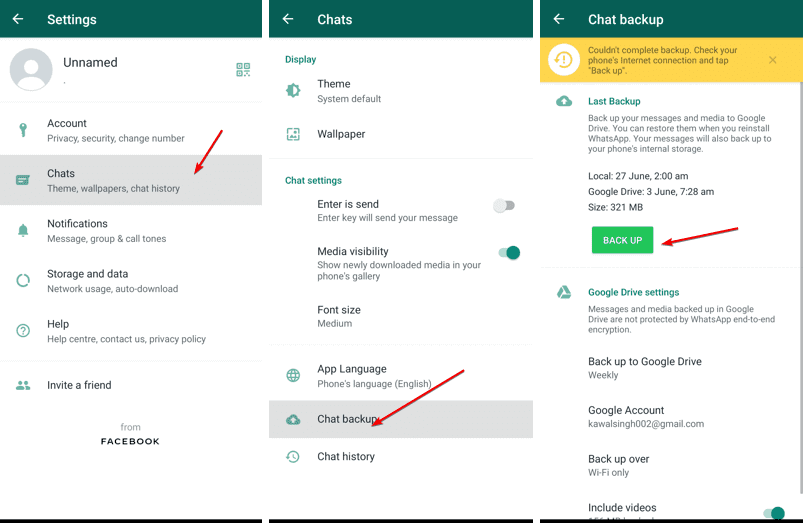
Image source: Bing (Web (fair-use with source credit))
Step 2: The iPhone Restore Path (iCloud Backup)
If your iCloud backup predates the deletion, here's your recovery workflow. It's straightforward, but it requires a full uninstall and reinstall. There's no "undo" button inside the app.
Uninstall and Reinstall: The Only Way
This is the part that scares people. Deleting WhatsApp from your iPhone feels permanent, but your iCloud backup is safe and separate. The app itself is just the interface; your chat history lives in the backup file.
Here's the exact process:
- Confirm your backup is fresh. Double-check the backup date in WhatsApp Settings. If it's older than you'd like, you can manually trigger a backup right now by tapping "Back Up Now." Wait for it to finish.
- Delete WhatsApp from your iPhone. Press and hold the app icon, tap "Remove App," then "Delete App." This removes the app and its local data.
- Reinstall WhatsApp from the App Store.
- Open the app and verify your phone number. You'll need SMS verification, so make sure your SIM is active.
- When prompted, tap "Restore Chat History." This pulls your iCloud backup down to your device.
That's the entire flow. Once the restore finishes, your chats reappear, including the "permanently deleted" ones, assuming the backup captured them.
What Happens When You Tap "Restore Chat History"
This is where the magic happens, and where you need to be patient. The restore process downloads your encrypted backup from iCloud and rebuilds your chat database. The time it takes depends on the backup size.
- Small backups (under 100 MB): 1 to 2 minutes.
- Medium backups (100 MB to 1 GB): 5 to 10 minutes.
- Large backups (over 1 GB): 15 minutes or more.
Don't force-close the app during this process. Let it finish. You'll know it's done when your chat list populates with your conversations.
If you're migrating to a new iPhone or dealing with a phone that's been reset, the same restore process applies. Just sign in with the same Apple ID and phone number you used for the original backup.
Step 3: The Android Restore Path (Google Drive Backup)
Android recovery follows the same logic but with an extra tool in your belt: the local backup file. Let's start with the standard method, then dig into the trick most people don't know about.
The Standard Reinstall Method
Just like iPhone, Android requires a full uninstall and reinstall to trigger a restore.
- Verify your Google Drive backup date. Go to WhatsApp Settings > Chats > Chat backup. Confirm the date is before your deletion.
- Uninstall WhatsApp. Long-press the app icon, tap "Uninstall," and confirm.
- Reinstall from the Google Play Store.
- Open WhatsApp and verify your phone number. Use the same number linked to your backup.
- Tap "Restore" when prompted. WhatsApp will detect the Google Drive backup and offer to restore it.
After the restore completes, you'll see your chat history. Any media files that were part of the backup will also come back, though sometimes they need a moment to re-download from Google Drive.
One thing to know: Google Drive has a backup retention policy. As of 2026, WhatsApp backups that remain inactive for 30 to 60 days may be removed from Google Drive. If you haven't opened WhatsApp in a while, your backup might already be gone.
Check the backup date carefully.
The Hidden Local Backup Trick (Databases Folder)
Here's where Android users have an advantage. WhatsApp on Android saves a local backup to your phone's internal storage every day at 2 AM. This backup exists independently of Google Drive.
It's not synced anywhere, but it's sitting on your device right now.
To access it:
- Open a file manager app on your phone (like Files by Google).
- Navigate to Internal Storage > WhatsApp > Databases.
- You'll see files like
msgstore.db.crypt14and older dated backups likemsgstore-2025-11-01.1.db.crypt14.
Here's the catch. The most recent local backup (msgstore.db.crypt14) is from today's 2 AM backup. If you deleted the message before 2 AM today, this file doesn't have it.
But if you deleted the message after 2 AM today, this file still has the message, because the backup ran before the deletion.
The workflow for restoring from a local backup:
- Uninstall WhatsApp completely.
- Open the Databases folder with a file manager.
- Find the backup file dated before your deletion. It'll have a name like
msgstore-2025-11-01.1.db.crypt14. - Make a copy of it and rename the copy to
msgstore.db.crypt14. Don't delete the original. - Reinstall WhatsApp.
- Verify your number.
- Tap "Restore" when WhatsApp finds the local backup.
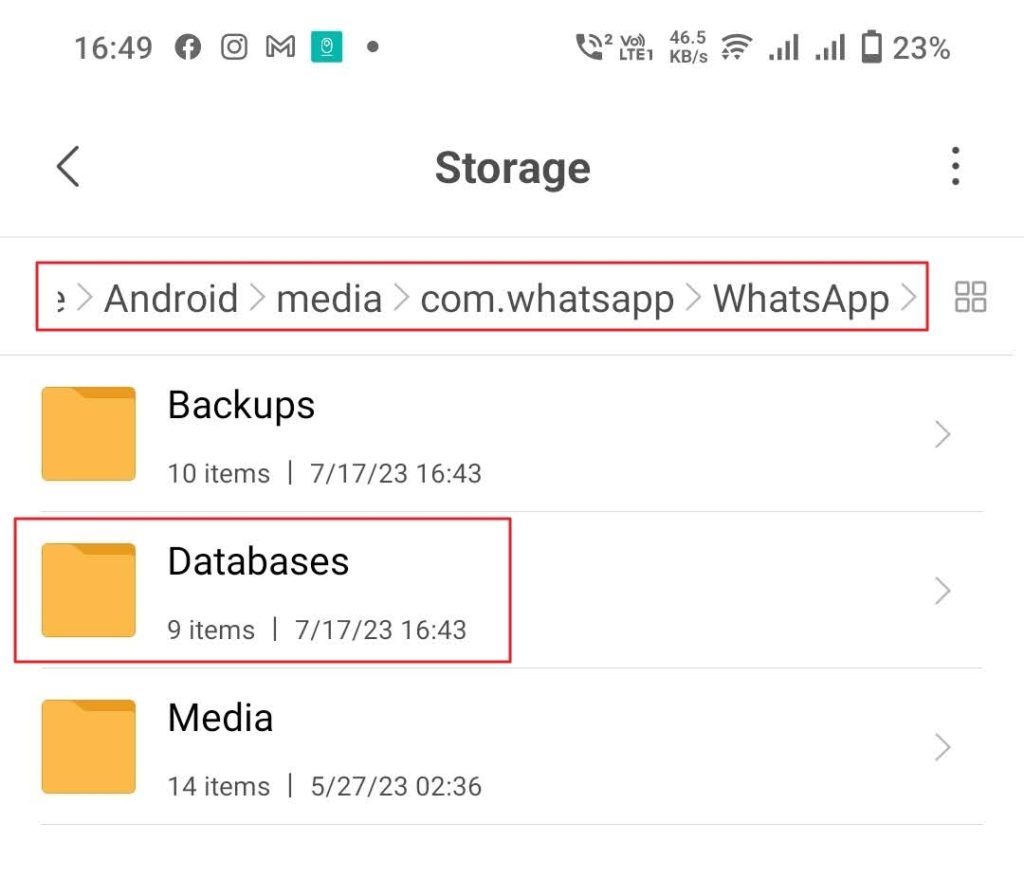
Image source: Bing (Web (fair-use with source credit))
If you're comfortable with file managers, this method gives you an extra recovery window that iPhone users simply don't have. The catch is timing. WhatsApp overwrites that local backup every night at 2 AM.
If you deleted a message on Tuesday at 3 PM and the local backup ran at 2 AM Tuesday (before the deletion), you're good. If you're reading this on Wednesday, Tuesday's 2 AM backup already overwrote the Monday file, so the local backup won't help either.
Step 4: What to Do If Your Backup Is From After the Deletion
This is the frustrating scenario. You have a backup, but it's "clean." It was made after you deleted the messages, so restoring it brings back everything except what you want. What now?
Check for Older Backups
The first thing to do is look for older backup files.
- iPhone users: iCloud typically keeps only the most recent backup per device. If you have an older device backup or a manual backup from a previous iTunes/Finder sync, that could work. Otherwise, you're out of luck on this front.
- Android users: This is where the local backup shines. Check the Databases folder for dated files from before the deletion. If you're within a week of the deletion, there's a good chance an older local backup exists. Grab it and follow the local restore method above.
The "Back Up Now" Trap
Don't tap "Back Up Now" in this situation. It will overwrite your current backup with the state of your chats right now, which is exactly what you don't want. Only trigger a manual backup if your current backup is older than you'd like and you're okay with losing the "pre-deletion" version.
When There's No Older Backup
If no older backup exists, the messages are not recoverable through official means. This is the honest answer, and it's important to hear it clearly.
No amount of toggling settings, clearing caches, or restarting your phone will bring back data that exists in limbo. WhatsApp's encryption means even Meta can't access your chats. The deletion is permanent on their end, and without a backup snapshot, the data is simply gone.
No Backup? Here's the Hard Truth
If you've checked every corner and found no backup, I need to be blunt with you. Those messages are gone. Not "probably gone." Not "maybe recoverable with the right tool." Gone.
Period.
WhatsApp's end-to-end encryption means your chats exist only on your device and in your configured backup destination. Once deleted, the data doesn't sit in a hidden folder waiting to be rescued. It's overwritten and unrecoverable through any official method.
Why Third-Party Recovery Tools Are a Waste of Money
This is where I have to get a little heated, because predatory software companies are making money off people who are already hurting.
The market is full of "WhatsApp recovery" tools that promise to pull deleted messages from your phone's memory. Here's what they actually do:
- They scan for existing backups. If you already have an iCloud or Google Drive backup, these tools might find it and present it as "recovery." You didn't need them for that.
- They install bloatware. Many of these apps bundle adware, tracking scripts, or other junk onto your device.
- They charge you after the fact. Free trial versions detect your backup, then demand $30 to $60 to "complete" the recovery you could have done yourself through WhatsApp's native restore.
In our research, we found zero evidence of any consumer tool that can recover WhatsApp messages without a backup. The encryption is too strong, and the data is too thoroughly overwritten.
What About Forensic Recovery? (Don't Get Your Hopes Up)
You might have read about law enforcement extracting deleted messages from suspects' phones. That's real, but it's not something you can do at home.
Digital forensics labs use specialized hardware and software that costs tens of thousands of dollars. They work with physical memory chips and can sometimes recover fragments of deleted data before it's overwritten. Even then, the success rate for encrypted app data like WhatsApp is low.
The National Institute of Standards and Technology (NIST) publishes guidelines on mobile device forensics. Per their documentation, extracting data from encrypted third-party apps remains a significant challenge even for trained professionals with proper equipment.
Short version: unless you have a forensic lab in your garage, this path is closed.
Common Mistakes That Kill Your Chances
People sabotage their own recovery attempts more often than you'd think. Let's walk through the most common errors so you don't make them.
Deleting the App Before Checking Backup Date
This is the #1 mistake. Someone panics, deletes WhatsApp "to make it reload," and accidentally triggers a fresh backup that overwrites the old one.
WhatsApp creates a backup when you uninstall the app. On Android, this local backup overwrites your Databases folder. On iPhone, it pushes a fresh snapshot to iCloud.
Either way, you've just destroyed your chance of recovering the old version.
Always check your backup date before you uninstall anything.
Overwriting the Local Backup at 2 AM
Android users who know about the local backup trick often miss the timing window. WhatsApp quietly creates a new local backup every single night at 2 AM.
If you deleted a message on Tuesday afternoon and you're trying to recover it on Wednesday, Tuesday's 2 AM backup has already overwritten the file that contained your deleted message. The window is about 12 hours for messages deleted after 2 AM.
Trusting Sketchy Recovery Software
We covered this above, but it deserves repeating. The moment you Google "WhatsApp recovery tool," you're entering a minefield of malware, phishing attempts, and fake software.
Many of these sites ask for your phone number "to verify your identity." They then use it for SMS spam or account takeover attempts. Never give your phone number to a recovery tool.
If a recovery method isn't described in WhatsApp's official documentation, it doesn't exist.
How to Never Lose WhatsApp Messages Again
The good news is that preventing this situation is simple. It takes about five minutes to set up and ten seconds to maintain.
Set Up Automatic Backups (Both Platforms)
On iPhone:
- Open WhatsApp Settings.
- Tap Chats.
- Tap Chat Backup.
- Tap Auto Backup.
- Choose Daily.
- Toggle on "Include Videos" if you want video backups (this uses more iCloud storage).
On Android:
- Open WhatsApp Settings.
- Tap Chats.
- Tap Chat backup.
- Tap Back up to Google Drive.
- Choose Daily.
- Confirm your Google account is linked.
The Daily setting is non-negotiable. Weekly backups leave a seven-day gap where you could lose messages. Monthly backups are barely worth the effort.
Image source: Bing (Web (fair-use with source credit))
You should also enable the "Back Up Now" button before you switch phones or reset your device. It takes seconds and gives you a fresh snapshot at the exact moment you need it.
The Screenshot Habit That Saves You
Here's the one habit that makes all the difference. If a message matters, screenshot it.
I know it sounds obvious, but hear me out. A screenshot lives in your camera roll. It doesn't depend on backups, encryption keys, or restore processes.
It's just there.
| Backup type | Recovery window | Reliability |
|---|---|---|
| Daily automatic backup | Up to 24 hours | High |
| Weekly backup | Up to 7 days | Medium |
| Manual backup | Until overwritten | Varies |
| Screenshot | Forever | 100% |
For critical information like addresses, confirmation codes, or business details, a screenshot is the only guaranteed recovery method.
Frequently Asked Questions
Can I recover deleted WhatsApp messages without a backup?
No. Without a backup, WhatsApp cannot retrieve deleted messages. End-to-end encryption means the data is unreadable to anyone without the key, and once deleted, the key becomes useless.
No third-party tool can bypass this.
How long do WhatsApp backups last on Google Drive?
Inactive backups are removed after 30 to 60 days. If you haven't opened WhatsApp in that time, your Google Drive backup may be deleted. Active backups are kept as long as you continue using the app.
Does restoring from a backup delete my current messages?
Yes. Restoring replaces your entire chat history with the backup version. Any messages received after the backup date will be lost.
This is why you should only restore when you're certain the backup contains what you need.
Can I recover a single deleted message without restoring everything?
No. WhatsApp doesn't offer a selective restore option. You either restore the full backup or nothing.
If you only need one message, check if it exists in any other device's chat history first.
Will WhatsApp Web help me recover deleted messages?
No. WhatsApp Web syncs with your phone. If the message is deleted from your phone, it's deleted from the web client too.
WhatsApp Web doesn't store any data independently.

Similar Posts





















