How to Fix iPhone Battery Draining Fast: 12 Proven Tips
Your iPhone shouldn't drop a third of its charge overnight while it sits untouched on the nightstand. If that's happening, you don't need twenty random settings toggles. Learning how to fix iphone battery draining really comes down to one question: is the battery worn out, is a single app misbehaving, or is iOS still settling in after an update?
Apple rates iPhone batteries at 80% of original capacity after 500 full charge cycles on iPhone 14 and earlier, and 1000 cycles on iPhone 15 and later. That one spec explains why a two-year-old phone drains faster than a new one. In our research, the Settings app tells you which of the three causes you're facing in under a minute. Readers comparing various configurations should also examine how to fix battery draining fast on macbook: practical.
Quick Answer
To fix iphone battery draining, start in Settings. Open Battery, then Battery Health. Check Maximum Capacity and any Service message.
Next, open Battery Usage by App. Restrict whatever sits at the top. Wait 48 hours after an iOS update.

Why Your iPhone Battery Is Draining Faster Than It Used To
Battery drain isn't a single problem. It splits into two very different ones, and each has its own fix. You can also reference our testing on ways to stop battery draining too fast on iphone for better when configuring your display.
Screen-on drain is the charge you lose while you're actively using the phone. Standby drain is what disappears while the screen is off and the phone sits in your bag or on a table. A phone that dies after four hours of scrolling has a screen-on problem.
A phone that loses 30% overnight has a standby problem.
Every iPhone runs on a lithium-ion cell, and those cells lose capacity with age and heat. Apple's own battery guidance sets the design target at 80% capacity after 500 full cycles on older models, with newer iPhones rated for 1000. Heat speeds that decay up.
So does sitting at 100% charge in a warm room all night.
Here's the baseline our research keeps pointing to:
| What you're seeing | Roughly normal | Time to investigate |
|---|---|---|
| Overnight standby drain | 1 to 3% | 10% or more |
| Screen-on time, new phone | 6 to 8 hours | Under 4 hours |
| Drain after an iOS update | Mild for 24 to 48 hours | Still heavy after 3 days |
If your numbers sit outside those ranges, don't guess. The next section narrows the whole thing down to one cause in about 30 seconds.
Start Here: 30 Seconds in Settings That Tell You Which Problem You Have
Open Settings, tap Battery, then tap Battery Health & Charging. That's the diagnostic hub, and it points you down one of three paths.
What Battery Health & Charging Actually Shows You
Maximum Capacity is the health number, shown as a percentage of the original design capacity. Peak Performance Capability tells you whether the cell can still deliver sudden bursts of power. On iPhone 15 and later you also get Cycle Count, which is how many full charge cycles the battery has been through.
Reading Battery Usage by App
Now tap Battery Usage by App. Switch between Last 24 Hours and Last 10 Days, because a one-day snapshot can mislead you. Tap Show Activity to split each app's time into Screen On and Screen Off.
That split is the tell. An app with heavy Screen Off time is working while you're not looking.
If This, Then That
- Maximum Capacity is under 80%, or you see Service Recommended: the battery is worn. Head to Branch 1.
- Health looks fine, but one app dominates Screen Off time: something is running in the background. Head to Branch 2.
- Health is normal, usage looks ordinary, and iOS updated recently: it's probably temporary. Head to Branch 3.
While you're in Settings, check your iOS version under General, since running the newest iOS build can clear known drain bugs.
Branch 1: When Battery Health Says Service Recommended, Your Battery Is Worn

If Maximum Capacity sits below 80%, no setting is going to bring your runtime back. The cell itself has aged out. Apple treats 80% as the service threshold, and third-party guidance lines up with that number because it's roughly where voltage sag starts causing real problems.
An 85% reading is a different story. Plenty of phones at 85% still deliver a full day of light use. Aggregate user reports suggest the drop gets noticeable somewhere between 80% and 85%, depending on how hard you push the phone.
Two numbers matter here, and they measure different things:
- Maximum Capacity shows current health versus the original design capacity.
- Cycle Count shows how much total wear the battery has absorbed. Roughly 500 cycles for iPhone 14 and earlier, 1000 for iPhone 15 and later.
What Peak Performance Capability Means for You
Peak Performance Capability tells you whether the battery can still handle sudden current spikes. If it can't, iOS may slow the processor down to stop random shutdowns. That's why a worn iPhone sometimes feels sluggish, not just short-lived.
If you see an unexpected shutdown message or a battery service banner, get it looked at. AppleCare+ covers a replacement below 80% capacity, and as of 2026 an out-of-warranty battery service runs about $89 to $119 depending on the model.
One safety note. If the screen is lifting or the back panel bulges, stop charging the phone and take it in. A swollen lithium-ion cell isn't a battery-life problem, it's a hazard.
Branch 2: When One App or Setting Is Eating Your Battery
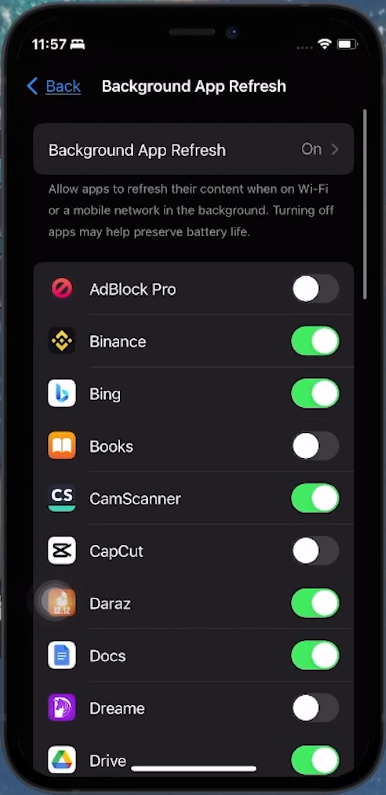
If your battery health looks healthy but one app owns your Screen Off time, that's your culprit. Fix the app, not the battery.
Work through these in order:
- Background App Refresh. Go to Settings, General, Background App Refresh. Set the heavy hitters to Off or Wi-Fi only. Leave messaging apps on unless you don't mind missing alerts.
- Location Services. Set most apps to While Using instead of Always. Then open System Services at the bottom of that screen and turn off anything you don't need.
- Push email. Fetching every 15 minutes on three accounts adds up. Switch to hourly, or manual for accounts you check rarely.
- iCloud Photos and iCloud Backup. Full-resolution uploads on a big library can chew through charge for days. Pause them if photos that won't finish syncing are adding to the load.
- Widgets, Live Activities, and Always-On Display. Each one refreshes on a schedule. Cut the ones you never glance at.
The Signal Problem Nobody Checks
A weak cellular connection can drain a battery faster than heavy screen use. The radio pushes more power hunting for a tower, and that gets worse if you're stuck on an older network. Wi-Fi calling usually helps in low-signal areas because it hands the call to your router.
Also, switch from 5G On to 5G Auto if you're chasing runtime. 5G Auto drops to LTE when the faster band won't help. And turn off Wi-Fi Assist, which quietly pushes you onto cellular data whenever Wi-Fi gets flaky.
Branch 3: When It Started After an iOS Update or Restore
If the drain began right after an iOS update, a restore, or a new phone setup, don't panic and don't reset anything yet. This branch usually fixes itself.
The First 24 to 48 Hours Are Misleading
After major updates, iOS reindexes files, rescans photos for faces and objects, rebuilds Spotlight, and resyncs iCloud data. All of that runs on battery. Manufacturer specifications for post-update indexing behavior match what users report, which is a steep drain for a day or two, then a return to normal.
In our research, the pattern is consistent. Give it 48 hours on the charger before you change a single setting. If the drain is still there on day three, post-update glitches are a real possibility and it's worth escalating.
The Escalation Ladder
Work down this list one step at a time. Test for a full day between steps.
- Force restart. Volume up, volume down, then hold the side button until the Apple logo appears.
- Install the latest iOS update if one is waiting.
- Reset All Settings. This keeps your data but clears network and system preferences.
- Restore from a backup. If drain returns, set the phone up as new instead.
- Restore through a computer. If you hit a failed restore or a stubborn error, there's usually a specific fix for it.
- Get the battery tested. Free at an Apple Store, and it takes about 20 minutes.
Most people never get past step two. That's the point of the ladder. Escalate only when the cheaper, faster option has already failed.
Fixes That Backfire: Force-Quitting Apps, Bluetooth Myths, and Other Dead Ends
Force-quitting your apps every night makes drain worse, not better. Swiping an app away wipes its saved state. The next launch rebuilds everything from scratch, which burns more power than simply resuming.
Bluetooth is another dead end. Modern Bluetooth Low Energy uses so little current that leaving it on barely touches your runtime. The same goes for True Tone, haptic feedback, and most "battery saver" tips you'll find online.
Dark mode is a partial exception. On OLED iPhones, true black pixels switch off completely, so a dark interface genuinely saves charge. On LCD models the backlight runs either way, so you gain nothing.
Here's an if-then rule worth sticking to. If you can't explain the mechanism behind a fix, skip it and measure instead. Note your battery percentage at 10 pm, then check it again at 7 am.
A change of 1 to 3% is normal. Anything above 10% still points at a real problem.
That matters for hardware faults too. Sometimes an unrelated glitch forces constant radio hunting, which drains the cell faster than any app could. A phone stuck on a legacy network is a classic example, and the fix has nothing to do with your battery settings.
Battery Replacement: Costs, Genuine vs Third-Party Parts, and Safety
Once capacity falls below 80%, replacement is the only real answer. The good news is that it's cheaper than most people assume, and it restores both runtime and full processor performance.
| Service route | Typical US cost (2026) | Turnaround |
|---|---|---|
| Apple Store / Genius Bar | $89-$119 by model | Usually same day |
| Apple Authorized Service Provider | Matches Apple pricing | 1 to 3 days |
| Apple Self Service Repair | Parts plus tool rental kit | A few hours, DIY |
AppleCare+ drops the fee to zero when capacity falls under 80%. Without coverage, budget roughly $89 for standard models and up to $119 for Pro and Pro Max sizes. Prices shift by region, so confirm on Apple's official service page before you book.
Third-party batteries are where things get messy. iOS flags a non-genuine cell with an "Unknown Part" message under Parts and Service History. Newer iPhones also pair the battery serial number to the logic board, which means even a perfectly good aftermarket cell may lose health reporting.
Resale value takes a hit too. Buyers check that screen, and a warning banner raises questions.
Safety comes first if the battery is swollen. A bulging back panel or a lifted screen means the cell is venting gas. Stop charging immediately and don't press on it.
The US Consumer Product Safety Commission treats swollen lithium-ion packs as a fire risk, and a punctured cell can ignite.
Then there's the habit side. Replacing a battery and then charging to 100% in a hot car every day just repeats the cycle. Cap charging at 80% when you can, and pull the case off during fast charging.
Frequently Asked Questions
Will turning off Background App Refresh stop overnight drain?
Often, yes. If Battery Usage shows heavy Screen Off time, that app is working while the screen is dark. Setting it to Off, or Wi-Fi only, usually cuts standby drain back to 1 to 3% overnight.
Why is my iPhone still draining after an iOS update?
Because iOS is still reindexing. Photos, Spotlight, and iCloud all rebuild in the background for 24 to 48 hours. Older models tend to take longer, so it helps to know what a normal post-update period looks like on an older iPhone after an update.
Should I restore my iPhone to fix battery drain?
Only as a late step. Back up first, then restore. If you're stuck with a restore that keeps failing, fix that error before trying again.
Restoring as a new device is the last resort before hardware testing.
Is it worth replacing the battery at 85% health?
Usually not yet. Most people still get a full day at 85%. Wait until you drop below 80%, or until you notice unexpected shutdowns and sluggish performance.
That's the point where replacement pays off.
Do iCloud Photo uploads drain the battery?
They can, especially on large libraries. Full-resolution sync keeps working whenever the phone is awake. If you suspect uploads are the problem, look at how photos behave when sync stalls, then pause it and retest.

Similar Posts




















