Ways To Stop Battery Draining Too Fast On Iphone For Better


Ways to Stop Battery Draining Too Fast on iPhone
Understand Why Your iPhone Battery Drains Quickly
Many users notice their iPhone battery life diminishes faster than expected. Several factors cause this, including background app activity, screen brightness, and software issues. Recognizing these causes helps you take targeted steps to improve battery life.Optimize Screen Brightness and Display Settings
Your screen uses a significant amount of power. Lowering screen brightness can greatly extend battery life. Turn on auto-brightness so your iPhone adjusts brightness based on ambient light. Also, reduce screen timeout duration to prevent the display from staying lit longer than needed.Steps to Adjust Brightness and Timeout Settings
- Go to Settings
- Tap Display & Brightness
- Enable Auto-Brightness
- Set a shorter Auto-Lock duration to limit screen on time
Manage Background App Refresh and App Activity
Many apps are active in the background, consuming power even when you’re not using them. Disabling unnecessary background refresh conserves battery. Open Settings, then General, and select Background App Refresh to disable it for apps you don’t need updating constantly.Identify Power-Hungry Apps
Check Settings > Battery to see which apps use the most power. If an app is draining your battery quickly, consider deleting it or limiting its background activity.Turn Off Location Services When Not Needed
Location-based services are useful but can drain your battery rapidly. Turn off location services for apps that don’t require real-time location updates. Navigate to Settings > Privacy > Location Services, and select ‘Never’ or ‘While Using’ depending on your needs.Use Low Power Mode Effectively
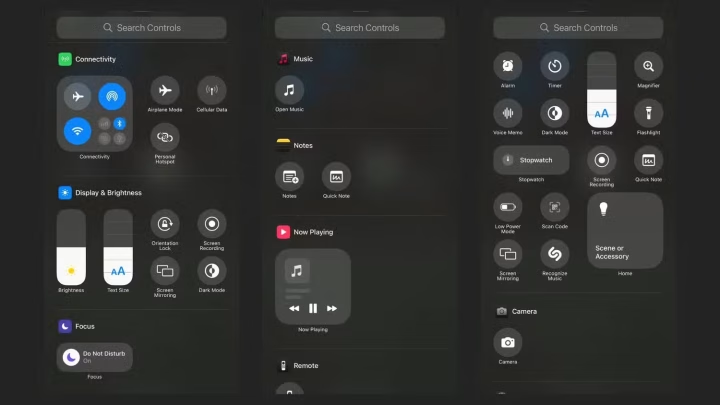
Low Power Mode reduces background activity, disables mail fetch, and limits visual effects, extending battery life. Enable it in Settings > Battery or via the Control Center for quick access.Manage Notifications Wisely
Frequent notifications light up your screen and activate sounds, consuming power. Turn off notifications for apps that aren’t essential. Go to Settings > Notifications, and customize notification settings for each app.Limit Push Email and Fetch Data
Switch your email account from push to fetch manually or less frequently. Go to Settings > Mail > Accounts > Fetch New Data. Select ‘Manually’ for better battery conservation.Keep Software Updated and Restart Regularly
Apple regularly releases software updates that improve battery efficiency. Ensure your device runs the latest iOS version by visiting Settings > General > Software Update. Restarting your iPhone occasionally helps clear temporary glitches affecting battery life.Disable Unnecessary Connectivity Features
Turning off Wi-Fi, Bluetooth, and Cellular Data when not in use prevents unnecessary power drain. Use Airplane Mode if you’re in an area with no signal or need to conserve battery during emergencies.Tips for Managing Wi-Fi and Bluetooth
- Swipe down or up to access Control Center
- Tap Wi-Fi or Bluetooth icons to turn them off
Reduce Background App Refresh and Downloads
Large downloads happening in the background can deplete battery. Pause or cancel any ongoing downloads. To prevent automatic updates of apps, go to Settings > App Store, and disable Automatic Downloads for updates and app content.Enable Airplane Mode When Necessary
In areas with poor signal, your iPhone works harder to find a network, which drains battery. Turning on Airplane Mode stops all wireless activity, conserving power during these times.Utilize Battery Health Features
Checking your battery health in Settings > Battery > Battery Health helps you monitor its capacity. If your battery’s maximum capacity falls below 80%, consider replacing it to restore optimal performance.Consider External Solutions and Accessories
Portable power banks and external chargers provide backup power when you’re away from outlets. Use these to prevent your battery from dying during long outings.Final Tips for Maximizing Battery Life
Ensure your device is not exposed to extreme temperatures, which can affect battery health. Clearing cache and unnecessary data can also improve overall device efficiency.Summary of Essential Tips
- Lower screen brightness and timeout duration
- Disable background app refresh and unnecessary notifications
- Use Low Power Mode and turn off unused connectivity features
- Keep software updated and restart regularly
- Manage location services and fetch settings
- Avoid exposing your iPhone to extreme temperatures
5 iPhone Battery Saving Tips you need!
Frequently Asked Questions
How can I identify which apps are draining my iPhone’s battery the fastest?
Go to your iPhone settings and tap on Battery. Here, you can see a list of apps ranked by how much battery they use over a specific period. This information helps you pinpoint which apps consume the most power and decide whether to limit their usage or uninstall them.
What settings should I adjust to extend my iPhone’s battery life during the day?
Reducing screen brightness, enabling Low Power Mode, turning off Bluetooth and Wi-Fi when not in use, and disabling background app refresh can significantly conserve battery. Additionally, setting a shorter auto-lock time prevents the display from staying on unnecessarily.
How does keeping software updated help prevent quick battery drain?
Software updates often include bug fixes and performance improvements that optimize battery usage. Installing the latest iOS version ensures your device runs efficiently, reducing unnecessary power drain caused by outdated software.
What role does disabling location services play in saving battery?
Turning off or limiting location services for apps that don’t need them constantly reduces power consumption. Access your settings, review which apps use location data, and set them to use it only while the app is in use or turn off location services entirely for unnecessary apps.
Are there specific hardware features I should turn off to conserve battery?
Yes, features like Wi-Fi, Bluetooth, and AirDrop use power even when not actively in use. Turning them off when unused helps prolong battery life. Additionally, disabling unnecessary notifications and background app refresh can prevent your device from waking up frequently and consuming power.
Final Thoughts
Ways to stop battery draining too fast on iPhone include managing app usage and turning off background refresh. Adjust your screen brightness and enable auto-lock to save power. Use Low Power Mode whenever possible to extend battery life. Regularly update your iOS to benefit from the latest optimizations. By implementing these steps, you can significantly improve your iPhone’s battery performance and enjoy longer usage throughout the day.
Similar Posts