How To Fix Iphone Stuck On Apple Logo: Simple Solutions
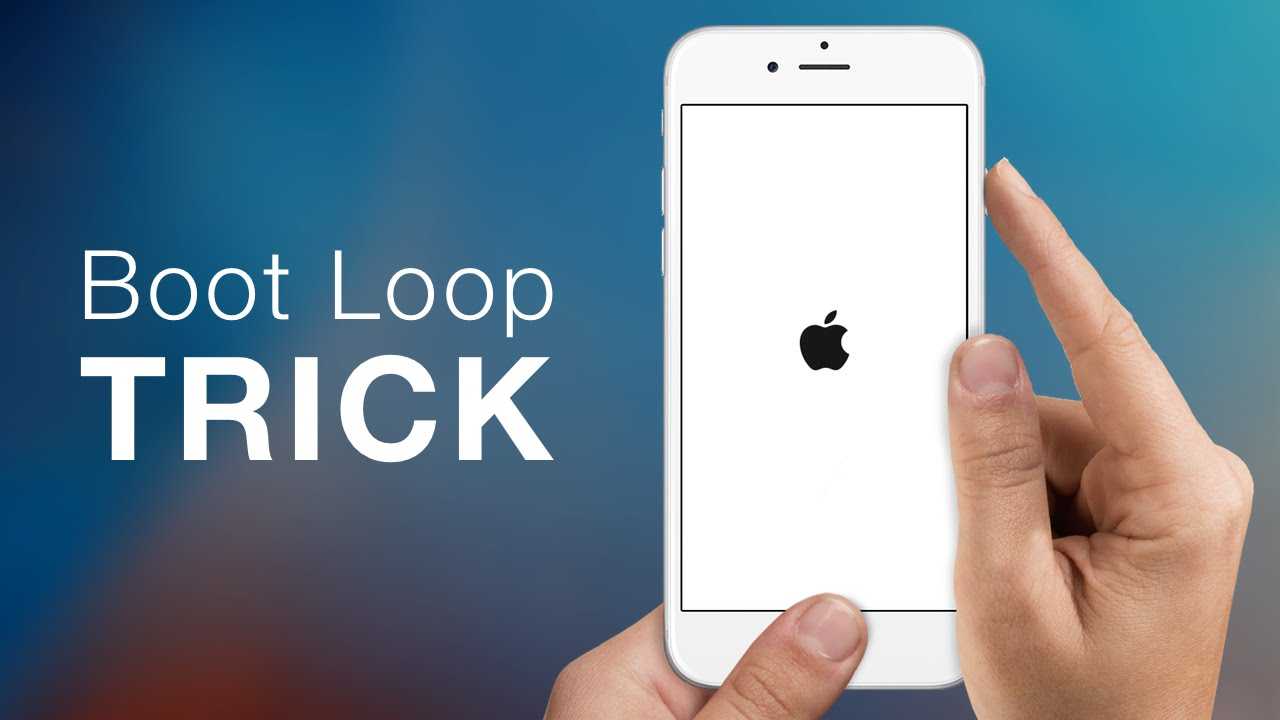

How to Fix iPhone Stuck on Apple Logo
Understanding Why Your iPhone Gets Stuck on the Apple Logo
Many iPhone users experience a frustrating situation where their device remains stuck on the Apple logo after turning it on or restarting. This common problem can happen for several reasons. Software glitches, failed updates, or hardware issues can all cause this startup loop. Recognizing the root cause helps determine the best fix for your specific situation.Common Causes of the iPhone Stuck on the Apple Logo
- Software update errors: An interrupted or failed iOS upgrade can leave the device unable to boot properly.
- Corrupt firmware: If the firmware files are damaged or incomplete, the startup process may get stuck.
- Jailbreaking issues: Modifications to the operating system can cause startup problems if not done correctly.
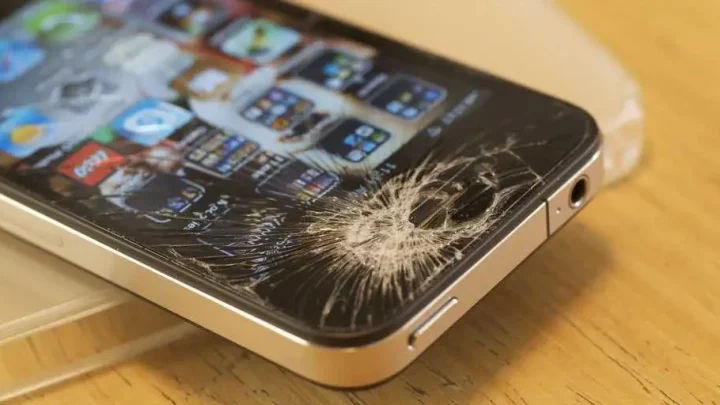
- Hardware malfunctions: Problems with the battery, logic board, or other components can prevent the device from booting normally.
- Third-party app conflicts: Certain apps or tweaks might interfere with system startup processes.
Preparing to Fix Your iPhone
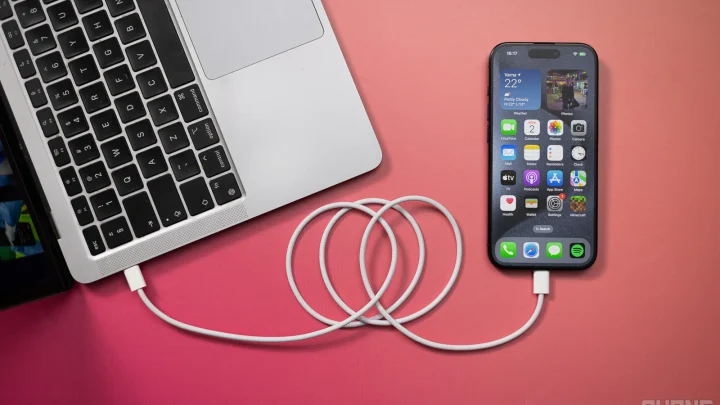
Before attempting any fixes, make sure to back up your data if possible. Connect your device to a computer and use iTunes or Finder to save your important files. If your iPhone is unresponsive, proceed carefully with repair options to prevent data loss or further damage.Basic Troubleshooting Steps
1. Force Restart Your iPhone
Sometimes a simple restart can resolve the issue. The method varies based on your iPhone model:- For iPhone 8 or later: Quickly press and release the volume up button, then press and release the volume down button. Finally, press and hold the side button until the Apple logo appears.
- For iPhone 7 and iPhone 7 Plus: Press and hold both the volume down button and the sleep/wake button simultaneously until the Apple logo shows up.
- For iPhone 6s or earlier: Press and hold the home button along with the sleep/wake button until the Apple logo appears.
2. Check for Software Updates or Restore via iTunes/Finder
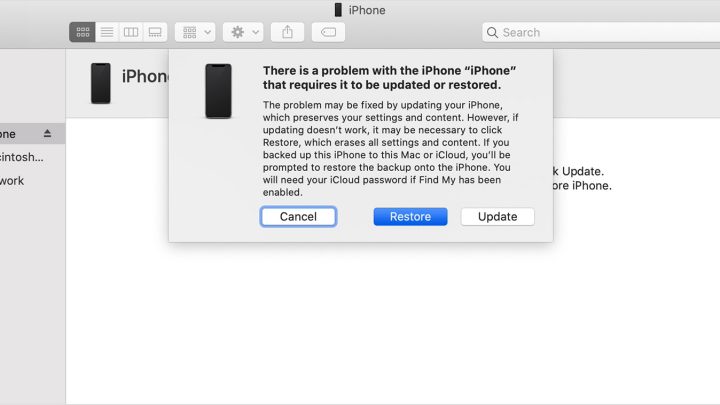
Connect your iPhone to a computer with the latest version of iTunes or Finder. If the device is recognized, you can attempt to update or restore it:- Update: Select the device and click on “Check for Update” to reinstall iOS without erasing data.
- Restore: Choose “Restore” to wipe the device and install the latest iOS version. Note: Restoring will erase your data unless you have a backup.
Using Recovery Mode to Fix the Apple Logo Issue
When basic troubleshooting fails, recovery mode offers a more advanced way to fix the problem. It allows you to reinstall iOS or perform a complete restore.Steps to Enter Recovery Mode
Depending on your iPhone model, follow these steps:- For iPhone 8 or later:
- Press and release the volume up button.
- Press and release the volume down button.
- Press and hold the side button until the recovery mode screen appears.
- For iPhone 7 and iPhone 7 Plus:
- Press and hold both the volume down button and the sleep/wake button.
- Keep holding until the recovery mode screen shows up.
- For iPhone 6s or earlier:
- Press and hold the home button and the sleep/wake button.
- Keep holding until the recovery mode screen appears.
Restoring Your iPhone in Recovery Mode
Once in recovery mode:- Connect your iPhone to your computer with a Lightning cable.
- Open iTunes or Finder, which will detect your device in recovery mode.
- You will see options to “Update” or “Restore.”
- Select “Update” to reinstall iOS without erasing data. If an update doesn’t work, choose “Restore.”
Using Third-Party Tools for Fixing the Apple Logo Loop
Many tools are available that can help fix iPhones stuck on the Apple logo, especially if iTunes or recovery mode options fail. These tools often offer one-click solutions to repair iOS and resolve boot loop issues.Popular Repair Tools
- Dr.Fone – Repair
- Tenorshare ReiBoot
- iMyFone Fixppo
- Ensure it is compatible with your iPhone model and iOS version.
- Read reviews to confirm its reliability.
- Follow the instructions carefully for safe operation.
Hardware Fixes and When to Seek Professional Help
If software fixes don’t work, hardware issues might be the culprit. Common hardware problems include damaged batteries, faulty logic boards, or damaged connectors.Signs You Need Professional Repair
- Your device shows no signs of power even after charging.
- Hardware components like buttons, camera, or speakers aren’t working properly.
- You observe physical damage or signs of water exposure.
Preventing Future iPhone Boot Loop Issues
Regular updates and careful handling can reduce the chances of your iPhone getting stuck on the Apple logo.- Always keep your iOS device updated to the latest version.
- Avoid installing incompatible or unstable apps.
- Charge your device properly and avoid sudden power losses during updates.
- Use official accessories and avoid jailbreaking unless you understand the risks.
Additional Tips and Resources
– Keep your device backed up regularly using iCloud or iTunes/Finder. – Check Apple’s official support pages for the latest troubleshooting guides. – Join online communities where users share their experiences and solutions. – Consider visiting Apple stores or authorized service centers for in-depth repairs. By following these steps and understanding the underlying causes, you can effectively deal with an iPhone stuck on the Apple logo. Whether through simple restarts, recovery mode, or professional help, most issues are fixable without excessive trouble.How to Fix iPhone Stuck on Apple Logo or Boot Loop (No Data Loss)
Frequently Asked Questions
What steps can I take if my iPhone is frozen on the Apple logo during startup?
If your iPhone gets stuck on the Apple logo, try performing a force restart. For iPhone 8 and later, quickly press and release the volume up button, then the volume down button, and then press and hold the side button until the Apple logo appears. For earlier models, press and hold both the home button and the side (or top) button until the device restarts. This process can help resolve temporary software issues causing the logo to remain onscreen.
How can I restore my iPhone if it remains on the Apple logo after a force restart?
Connect your iPhone to a computer with the latest version of iTunes (or Finder on macOS Catalina and later). Enter recovery mode by following the steps appropriate for your device model. When prompted, choose the ‘Restore’ option to erase the device and reinstall iOS. Keep in mind this will delete all your data, so ensure you have a backup if possible. After completion, set up your iPhone anew or restore from a backup.
Is there a way to repair my iPhone without erasing data if it is stuck on the Apple logo?
Yes, using third-party repair tools can sometimes fix the issue without data loss. These tools attempt to repair system errors causing the device to hang on the Apple logo. Before proceeding, ensure you choose a reputable software provider. Note that, in some cases, if the problem persists, restoring the device might become necessary to fully resolve the issue.
Could hardware issues be responsible for my iPhone being stuck on the Apple logo?
Hardware problems, like faulty storage or damaged components, can cause your iPhone to get stuck during startup. If software solutions do not resolve the issue, consider seeking assistance from an authorized service center. They can diagnose hardware faults and advise on necessary repairs or replacements to restore your device’s functionality.
What precautions should I take before attempting to fix my iPhone on my own?
Before attempting repairs, back up your data if possible to prevent loss. Use official cables and tools to avoid damaging your device further. Follow trusted guides carefully, and if you’re unsure about the process, consulting a professional technician can help minimize risks. Avoid using unnecessary software or methods that could void your warranty or cause additional harm.
Final Thoughts
To fix iPhone stuck on Apple logo, start with a force restart. If that doesn’t work, connect your device to a computer and use recovery mode to restore it. You can also try updating your iPhone’s software through a computer if available. If these steps fail, consider visiting an authorized service provider for professional assistance. In summary, how to fix iPhone stuck on Apple logo involves using recovery options or seeking expert help. These methods can resolve the issue efficiently and get your device back to normal.
Similar Posts