What To Do When Iphone Apps Keep Crashing

What to do when iPhone apps keep crashing
Understanding Why iPhone Apps Crash
Apps on your iPhone may crash for multiple reasons. Sometimes, it’s due to outdated software or corrupt files. Other times, conflicts between apps or insufficient device resources can cause these interruptions. Knowing the root causes helps you choose the most effective solution quickly.Check for iOS Updates
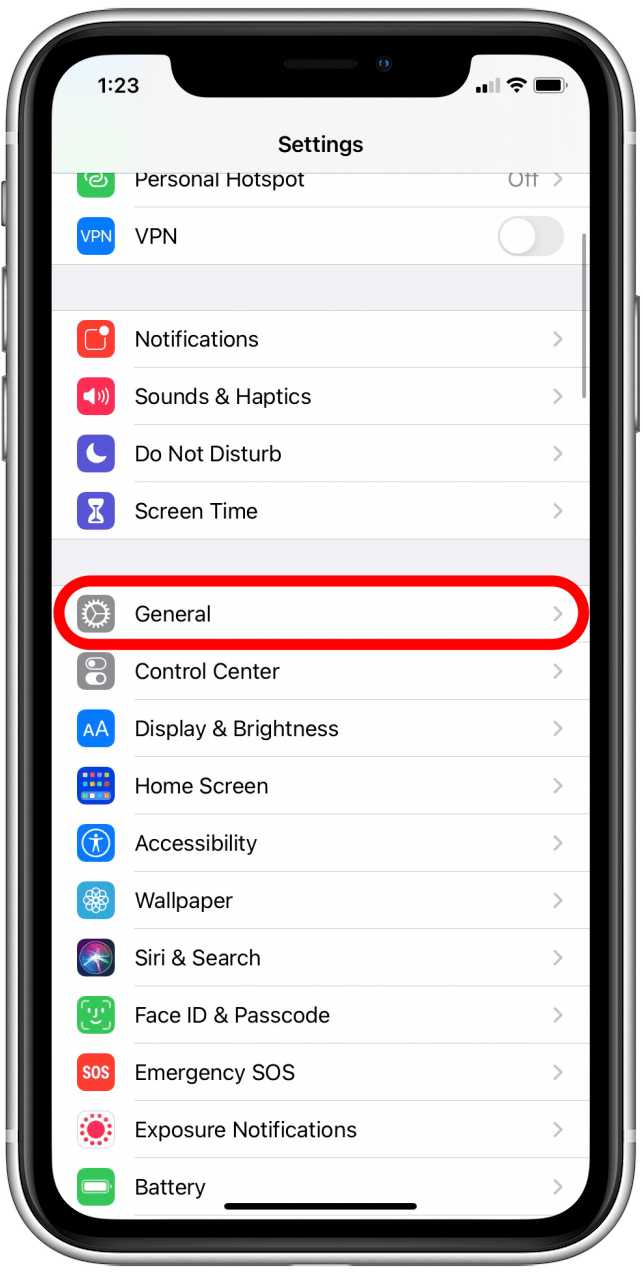
Keeping your iPhone’s software current is one of the easiest ways to fix crashing apps. Apple regularly releases updates that fix bugs and improve stability. To check for updates, go to Settings, tap General, then select Software Update. If an update is available, download and install it.Close and Reopen the App
Often, simply closing an app and reopening it can fix minor glitches. Double-tap the Home button or swipe up from the bottom (depending on your iPhone model). Find the problematic app in the app switcher, swipe it up to close, and then reopen it from the Home screen.Restart Your iPhone
Sometimes, a quick restart clears temporary issues causing app crashes. For iPhones with Face ID, press and hold the side button along with volume buttons until the power off slider appears. For other models, hold the side or top button. Slide to power off, wait a few seconds, then turn your phone back on.Free Up Device Storage
Insufficient storage is a common reason for apps crashing. When your iPhone runs low on space, apps may malfunction. Check your storage by going to Settings, then General, and tapping iPhone Storage. Delete unnecessary apps, photos, or files to free up space.Update the Problematic App
Developers regularly release updates to fix bugs and improve compatibility. Visit the App Store, tap your profile picture, then scroll to see available updates. Update the crashing app to the latest version to resolve known issues.Clear App Cache and Data
Some apps store temporary files that can cause crashes if corrupted. To clear cache data, you might need to delete and reinstall the app. Tap and hold the app icon, select Remove App, then confirm. Reinstall it from the App Store afterward.Check App Permissions
Incorrect permissions may cause apps to malfunction or crash. Go to Settings, scroll down to the app’s name, and review its permissions. Enable necessary permissions like Location, Camera, or Microphone to ensure smooth operation.Reset All Settings
If other fixes fail, resetting your device settings can help. This action resets Wi-Fi passwords, system preferences, and configurations but keeps your data intact. To do this, go to Settings, tap General, then Reset, and select Reset All Settings. Confirm your choice and check if apps stabilize afterward.Reinstall the App
Uninstalling and reinstalling a problematic app often resolves underlying issues. Tap and hold the app, choose Remove App, then confirm deletion. Visit the App Store and reinstall the app fresh. This ensures you get a clean, updated version free from corrupt files.Update Your iPhone to the Latest iOS Version
Running an outdated iOS version can lead to app crashes due to incompatibility. Regularly check for updates by visiting Settings, then General, and Software Update. Install any available updates to keep your phone and apps running smoothly.Perform a Factory Reset (Last Resort)
If nothing else works, a factory reset can clear deeper software issues. Before proceeding, back up your data to iCloud or a computer. Go to Settings, then General, Reset, and select Erase All Content and Settings. After resetting, restore your data and apps carefully.Contact Apple Support or App Developer
If crashes persist despite all efforts, reaching out for professional help is wise. Contact Apple Support for device-related issues or the app developer for app-specific problems. They can offer tailored guidance or updates to fix persistent crashing.Prevent Future App Crashes
Maintaining your device with regular updates, cleaning storage, and avoiding suspicious downloads can prevent future issues. Use trusted apps, keep your iOS current, and restart your device periodically to maintain stability.Related Topics to Explore
- How to troubleshoot iPhone performance issues
- Best ways to manage storage on iPhone
- How to troubleshoot common iOS problems
- Security tips for avoiding app crashes caused by malware
Important Tips for Stable App Use
- Always download apps from trusted sources like the App Store
- Keep your device updated with the latest iOS release
- Regularly restart your device to clear temporary glitches
- Monitor app permissions and update apps regularly
- Avoid installing too many apps simultaneously to reduce conflicts
iPhone Apps Keep Crashing Randomly? – Here’s Real Fix!
Frequently Asked Questions
How can I troubleshoot app crashes caused by my device’s storage issues?
If your iPhone’s storage is nearly full, it can cause apps to crash unexpectedly. Check your device’s storage in Settings > General > iPhone Storage. Delete unused apps, clear app caches, or remove large files like videos and photos to free up space. Restart your device after freeing up storage to see if that resolves the crashing issues.
What steps should I take if an app keeps crashing after a recent update?
If an app crashes following an update, try deleting the app entirely and then reinstalling it from the App Store. This can remove corrupted data or files that might be causing the problem. Additionally, ensure your iOS is up to date, as updates often include fixes for compatibility issues that cause apps to malfunction.
How can resetting app preferences or settings help resolve crashing issues?
Resetting app preferences or settings can resolve conflicts that lead to crashes. To do this, go to Settings > General > Reset > Reset All Settings. This action resets system settings like Wi-Fi passwords and preferences without deleting your data. After resetting, reopen the app to check if it still crashes, and customize your preferences again.
What should I do if clearing app data doesn’t fix the crashing problem?
If clearing app data doesn’t help, try updating your device’s firmware or reinstalling the app. Ensure that your iPhone’s iOS version is current, as outdated software can cause compatibility issues. If problems persist, contact the app’s support team for further assistance or check for known bugs related to your specific device model.
Is there a way to identify problematic apps that cause system-wide crashes?
Yes, check the device’s crash logs in Settings > Privacy & Security > Analytics & Improvements > Analytics Data. Look for repeated logs associated with specific apps. You can also monitor your device’s behavior after installing or updating apps to see if certain ones trigger crashes. Removing problematic apps can often improve overall stability.
Final Thoughts
If your iPhone apps keep crashing, try restarting your device first. Update your apps and iOS to the latest versions to fix bugs. Clearing app cache or reinstalling the problematic apps can also resolve issues. In summary, what to do when iPhone apps keep crashing involves updating, restarting, and reinstalling apps. Taking these steps ensures your device runs smoothly and minimizes app crashes.
Similar Posts