How To Fix Apps That Keep Crashing On Macbook
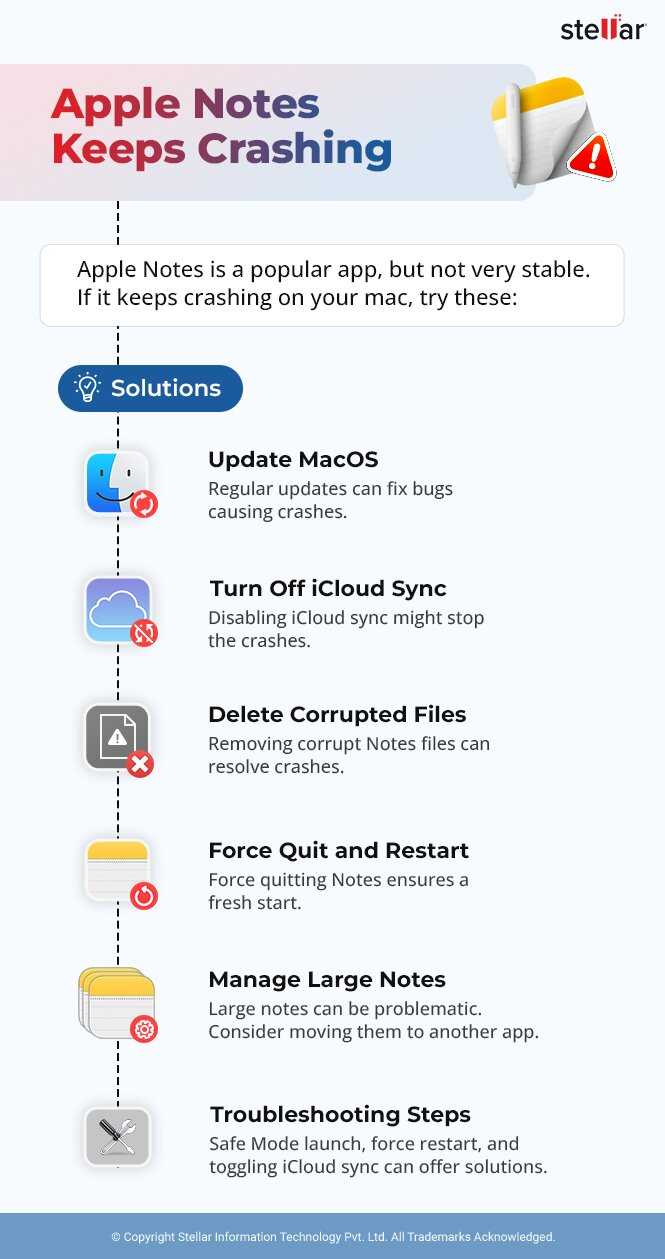

How to Fix Apps That Keep Crashing on MacBook
Understanding Why Apps Crash on MacBook
Apps can crash for many reasons on your MacBook. Sometimes, it is because of software bugs, outdated apps, or incompatible versions. Other times, system issues or corrupted files can cause these crashes. Knowing the root cause helps you find the right solution faster.Update macOS and Apps Regularly
Keeping your macOS and apps updated is one of the simplest ways to prevent crashes. Apple releases updates that fix bugs and improve stability. To update macOS, click the Apple menu, select ‘System Preferences,’ then ‘Software Update.’ For apps, open the App Store, click ‘Updates,’ and install any available updates.Restart Your MacBook
Sometimes, a simple restart can resolve app crashes. Restarting clears temporary files and refreshes system resources. To restart, click the Apple menu and select ‘Restart.’ Wait for your Mac to boot up again before opening the app.Close and Reopen the App
If an app crashes, try closing it completely. Use ‘Force Quit’ if necessary by clicking the Apple menu, selecting ‘Force Quit,’ then choosing the problematic app. Reopen the app to see if it works properly.Check for App Compatibility
Ensure the app is compatible with your version of macOS. Developers often update apps to support current macOS versions. Visit the app’s website or check the Mac App Store for compatibility information. Using incompatible apps can cause frequent crashes.Free Up Disk Space
Insufficient disk space can make apps unstable. Check your storage by clicking the Apple menu, choosing ‘About This Mac,’ then ‘Storage.’ Delete unnecessary files or move data to an external drive to free up space. Ideally, keep at least 10% of your disk free.Clear App Cache and Preferences
Corrupted cache files or preferences can cause app crashes. To fix this, locate the cache folder by opening Finder, selecting ‘Go’ > ‘Go to Folder,’ then typing ‘~/Library/Caches.’ Delete the cache files related to the crashing app. Repeat with preferences in ‘~/Library/Preferences.’Practice Caution When Deleting Files
Always back up files before deleting cache or preferences. Deleting the wrong files can cause further issues. Use Time Machine or other backup solutions regularly to protect your data.Reset the App
If clearing cache doesn’t work, try resetting the app. Delete the app completely, then reinstall it from the App Store or the developer’s website. This often fixes corrupted files associated with the app.Check for Malware or Viruses
Malware can interfere with app performance and cause crashes. Use trusted antivirus software to scan your Mac. Remove any threats found and restart your Mac to check if the issue persists.Run Disk Utility to Repair Disk Errors
Disk errors can corrupt app files and lead to crashes. Open ‘Disk Utility’ from Applications > Utilities. Select your startup disk and click ‘First Aid’ to repair disk errors. Wait for the process to complete before relaunching apps.Reset the System Management Controller (SMC)
Resetting the SMC can resolve hardware-related issues affecting app stability. Turn off your MacBook, press and hold specific keys (depending on your Mac model), then release and start your Mac. Instructions vary between MacBook Air and Pro models; check Apple’s guide for exact steps.Reset NVRAM/PRAM
Resetting NVRAM or PRAM can fix certain system settings causing app crashes. Restart your Mac and press Option + Command + P + R keys simultaneously. Hold for about 20 seconds until your Mac restarts again.Boot into Safe Mode
Safe Mode helps identify if third-party software causes app crashes. Turn off your Mac, then turn it on and immediately hold the Shift key. Release when you see the login window. Test the app in Safe Mode, then restart normally.Check for Hardware Issues
Hardware problems like failing RAM or a faulty hard drive can cause frequent crashes. Use Apple Diagnostics or third-party tools to run hardware tests. Replace or repair faulty components as needed.Review Crash Reports and Console Logs
Crash logs provide details about why an app failed. To access logs, open ‘Console’ from Utilities. Look for error messages related to the crashing app. Share these logs with technical support if needed for further assistance.Reinstall macOS if Necessary
If none of the above solutions work, reinstalling macOS might be necessary. Use macOS Recovery Mode by restarting your Mac and holding Command + R. Select ‘Reinstall macOS’ and follow the instructions. Make sure to back up your data beforehand.Consider Using Third-Party Repair Tools
Some tools can automatically scan and fix app issues on MacBooks. Choose reputable options like CleanMyMac or AppCleaner. These tools often clean cache files, repair permissions, and remove malware.Prevent Future App Crashes
To minimize crashes, regularly update software, avoid installing incompatible apps, and keep your system clean. Regular backups help recover data if crashes lead to data loss. Maintaining your MacBook ensures a smoother experience over time. By following these steps, you can address most causes of app crashes on your MacBook. Consistent maintenance and cautious installation practices keep your system stable and your apps running smoothly.How To Fix Apps Not Opening / Crashing on Mac OS
Frequently Asked Questions
What steps can I take if an app crashes immediately after opening on my MacBook?
When an app crashes right after launching, start by closing the app completely and reopening it. If that doesn’t work, restart your MacBook to clear temporary glitches. Ensure the app is updated to the latest version, as updates often fix stability issues. You can also try reinstalling the app to replace corrupted files. If the problem persists, check for macOS updates since system updates can resolve compatibility issues.
How can I identify if a specific app is causing my MacBook to slow down or crash?
Use Activity Monitor to monitor resource usage and spot any app consuming excessive CPU or memory. If an app appears to dominate system resources, it could be responsible for crashes or slowdowns. Quit the app through Activity Monitor to see if performance improves. Additionally, review crash reports in Console to identify recurring issues linked to that app. Uninstalling and reinstalling the app can also help determine if it’s the root cause.
What system settings should I review to prevent frequent app crashes on my MacBook?
Check your MacBook’s security and privacy settings to ensure apps have appropriate permissions. Run disk utility to verify and repair disk permissions and health. Disable any third-party security or cleanup tools that might interfere with app stability. Also, clear cache files and reset NVRAM or PRAM if necessary, as these actions can resolve underlying system conflicts that cause apps to crash.
Are there specific troubleshooting steps for resolving app compatibility issues on older MacBook models?
If you’re using an older MacBook, verify that the app supports your macOS version and hardware specifications. Consider updating your macOS if possible, but only to versions compatible with your device. Look for legacy or older versions of the app that are optimized for your system. Reduce resource-intensive activities and close background apps to free up system capacity. Sometimes, running the app in compatibility mode or using alternative applications can help prevent crashes.
Final Thoughts
How to fix apps that keep crashing on MacBook involves a few straightforward steps. First, update your macOS and apps to ensure compatibility and bug fixes. Next, restart your MacBook to clear temporary glitches. If problems persist, delete and reinstall the problematic app to restore its original files. Additionally, check for sufficient storage and run Disk Utility to repair your disk. Following these tips can help resolve app crashes efficiently.
Similar Posts































