How to Fix Control Center Not Working on iPhone iOS 18
Your Control Center should drop down the moment you swipe from the top-right corner. When that swipe does nothing after the iOS 18 update, a full reset usually isn't the answer. To figure out how to fix Control Center on iPhone iOS 18, start with one question: does it fail everywhere, or only on the Lock Screen?
Apple shipped iOS 18 on September 16, 2024, and rebuilt Control Center around a paged layout with a customizable gallery. That redesign moved familiar toggles and added fresh access rules tied to Face ID and Passcode. Apple's official documentation points to three culprits most of the time: access toggles, layout edits, and software state.
Let's start with the fastest check.

Quick Answer
Fixing Control Center on iPhone iOS 18 usually takes under five minutes. Swipe from the top-right corner, not the middle. Check Settings, then Face ID & Passcode, and turn on Control Center.
Enable Access Within Apps under Settings, Control Center. Still nothing? Force restart, then install the newest iOS 18 build.
Why Control Center Breaks After the iOS 18 Update
iOS 18 didn't just reskin Control Center. It rebuilt the panel as a set of swipeable pages, each holding resizable controls you add from a gallery.
That matters, because the redesign changed where things live. A toggle you tapped daily might now sit on a second page, or it may never have been added at all. Aggregate user reports after launch point to configuration problems far more often than genuine hardware failure.
The Usual Suspects: Toggles, Restrictions, Layout, Software, and Hardware
- Access toggles. Both Allow Access When Locked and Access Within Apps can be switched off.
- Restrictions. Guided Access, Screen Time, and corporate management profiles can block the panel outright.
- Layout state. Deleted pages, empty controls, or a half-finished edit session leave you staring at a blank grid.
- Software state. Early iOS 18 builds carried reported glitches, and beta profiles add more.
- Hardware. Digitizer damage, a thick screen protector, or a loose case edge can kill the swipe.
The access settings live under Settings, Face ID & Passcode, and that's the first place worth checking. Apple's own support documentation spells out each toggle. If none of that matches what you're seeing, narrow down your exact symptom next.
Which Control Center Problem Do You Actually Have?
Different symptoms need different fixes. Guessing wastes time, so match what you're seeing to the table below before you change anything.
| What You See | Most Likely Cause | Where to Go |
|---|---|---|
| Swipe does nothing anywhere | Panel disabled or hardware issue | Fix #1, then hardware check |
| Works in apps, not on Lock Screen | Allow Access When Locked is off | Fix #1 |
| Opens but shows blank pages | Layout wiped or edit unfinished | Fix #2 |
| Controls missing or grayed out | Access Within Apps or Screen Time | Fix #1 |
| Opens, then freezes or lags | Software bug or beta profile | Fix #3 |
If It Fails Everywhere, Suspect Settings Before Hardware
If the swipe never works, the panel is probably disabled somewhere in Settings. That's good news, because it's a two-minute fix. Screen damage rarely kills only the top-right gesture while leaving everything else responsive.
If It Only Fails on the Lock Screen or Inside Apps
This points straight at the access toggles, not the panel itself. iOS 18 treats the Lock Screen as a restricted environment by default, and it treats in-app access as a separate permission. Both have their own switches.
If you've been chasing other glitches since the update, you may already know the drill. Problems like photos glitching after an update usually trace back to the same handful of settings resets.
Fix #1: Check the Access Toggles People Forget About
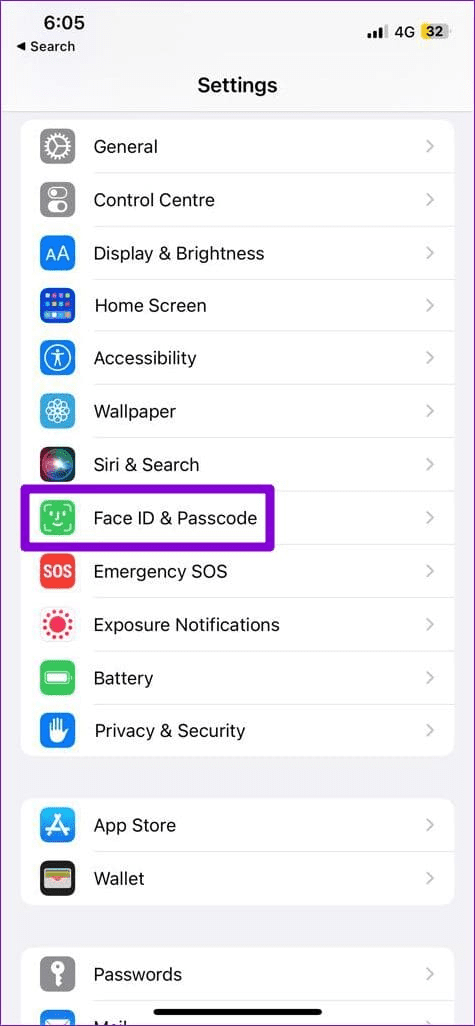
Allow Access When Locked
Open Settings, tap Face ID & Passcode, and enter your passcode. Scroll to the Allow Access When Locked list and confirm Control Center is on. With that switch off, Control Center will refuse to open from the Lock Screen no matter how many times you swipe.
Access Within Apps
Head to Settings, then Control Center, and check Access Within Apps. Turn it on if you want the swipe to work while another app is in front of you. Plenty of people switch this off and forget, then assume the panel is broken.
Guided Access, Screen Time, and Management Profiles
- Guided Access. Go to Settings, Accessibility, Guided Access, then Options. Control Center has to be allowed inside that menu.
- Screen Time. Open Settings, Screen Time, Content & Privacy Restrictions, then Allowed Apps. Some restriction sets hide panel access completely.
- Management profiles. Check Settings, General, VPN & Device Management. A work profile can disable Control Center, and you can't override it yourself.
If your iPhone is managed by an employer, talk to IT before resetting anything. You can't bypass a management profile, and trying can lock the device down further. A phone that's sluggish since an update is usually a separate issue from a blocked Control Center.
Fix #2: Rebuild a Broken or Messy Control Center Layout
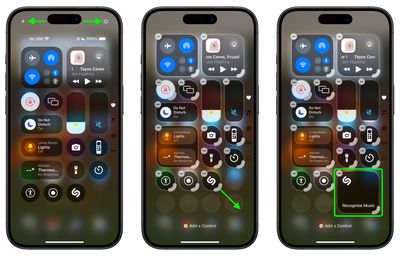
How Do You Enter Control Center Edit Mode?
Touch and hold any empty spot on the Control Center background. The panel shrinks, a grid appears, and an Add Control button shows up at the bottom. Tap it to open the gallery of available controls.
Adding, Removing, and Rearranging Controls
- Add. Open the gallery, tap a control, and it drops straight onto your current page.
- Remove. Tap the small minus icon on a control, then confirm with Remove.
- Resize. Drag the handle in a control's bottom-right corner to make it bigger or smaller.
- Rearrange. Press and drag a control anywhere on the grid, including onto another page.
Fixing Blank Pages and Controls That Won't Respond
If a page looks empty, swipe left and right through the whole panel first. Controls may have shifted to another page during an edit session. A control that ignores taps usually just needs to be removed and re-added.
Third-party controls from newly installed apps are the most common troublemakers here. Pull the app off your iPhone, then check whether the panel behaves again. Once the layout is stable, tap Done in the top-right corner to save everything.
Fix #3: Escalate Through Restarts, Updates, and Resets
Force Restart Before You Reset Anything
A force restart clears memory without touching a single setting. Press volume up, then volume down, then hold the side button until the Apple logo appears. It takes about fifteen seconds and fixes a surprising number of frozen panels.
Software Updates, Carrier Settings, and Beta Profiles
As of 2026, iOS 18 has moved through several point releases, and Apple has patched multiple Control Center bugs along the way. Go to Settings, General, Software Update and install whatever is waiting. Then check Settings, General, About for a carrier settings prompt.
If you're running a beta, that's your answer. Remove the beta profile under Settings, General, VPN & Device Management, then update to the public build. If you're still deciding whether to install the new version on an older handset, loading the new build on an iPhone 11 Pro is a fair test case.
Reset All Settings vs Reset All Content and Settings
| Reset Level | What It Clears | Data Lost |
|---|---|---|
| Force restart | Memory only | None |
| Software update | Installed bugs | None |
| Reset All Settings | All preferences, including Control Center layout | None |
| Reset All Content and Settings | Everything on the device | All of it |
Reset All Settings sits under Settings, General, Transfer or Reset iPhone, Reset. It wipes your Control Center layout back to factory defaults but keeps photos, apps, and messages intact.
Only go further if that fails. A full erase and restore can throw odd errors along the way, and something like a stubborn restore failure is its own headache. Back up first, and make sure your Apple ID isn't tangled with third-party unlocking tools before you wipe anything.
Mistakes to Avoid and When It's Actually Hardware
Most Control Center problems come from impatience, not damage. Before you assume the worst, rule out these common errors.
- Swiping from the wrong spot. On iOS 18, the gesture starts at the top-right corner, specifically over the battery icon. Swiping from the middle opens Notification Center instead.
- Panic resets. Wiping the whole phone to fix a swipe issue destroys data you can't easily recover. Always try the cheaper fixes first.
- Ignoring the case. Thick cases and raised edges block the top-right corner. Pop the case off and test the swipe.
- Forgetting the screen protector. A peeling or misaligned protector can interrupt touch input near the corner.
Hardware Red Flags to Watch For
If the swipe fails in only one small area of the screen, that's a hardware clue, not a software one. A damaged digitizer often leaves dead zones you can feel with a drawing app.
Water exposure is another one. Check the SIM tray for the liquid contact indicator. A red mark means moisture got inside, and no settings reset will fix that.
Third-party screen repairs are a frequent culprit too. Cheap replacements sometimes lose touch sensitivity along the top edge. Apple Authorized Service Providers can run diagnostics that tell you whether the panel itself is failing.
When to Contact Apple Support
Book a session with Apple Support or visit an Apple Store if two things are true. The panel still fails after a clean restore, and the failure is isolated to one region of the screen. That combination points to hardware, and no amount of troubleshooting will change it.
Control Center Fix Decision Guide
Use these branches to skip straight to the fix that matches your situation.
If Your Swipe Fails Everywhere
Check Access Within Apps first. Turn it on under Settings, then Control Center. If it's already on, force restart the iPhone.
If that still fails, install the newest iOS 18 update. A swipe that never works anywhere rarely comes down to one setting alone.
If It Only Fails on the Lock Screen
Flip Control Center on under Settings, Face ID & Passcode, Allow Access When Locked. This is the single most common cause of Lock Screen-only failures. If that toggle is already on, check Guided Access options next.
If Controls Are Missing or Blank
Touch and hold the Control Center background to enter edit mode. Look for Add Control at the bottom of the screen. If the panel shows empty pages, swipe through all of them before assuming anything vanished.
If Controls Are Grayed Out
Screen Time restrictions and management profiles are the usual reasons. Check Settings, Screen Time, Content & Privacy Restrictions, then Allowed Apps. For work phones, call IT rather than fighting the profile.
If It Freezes or Lags After Opening
Remove any beta profile and update to the public build. If lag persists, reset all settings rather than erasing the device. A full erase should be your last option, not your first.
FAQs About Fixing Control Center on iOS 18
Does resetting settings delete my photos or apps?
No. Reset All Settings only wipes preferences and restores default layouts, including Control Center. Your photos, messages, and apps stay exactly where they are.
Only Reset All Content and Settings erases everything, so save that option for last.
Why did my Control Center change after updating to iOS 18?
Apple rebuilt Control Center as paged layouts with a customizable gallery in iOS 18. Your old single-panel arrangement got replaced. Toggles may have shifted to a different page or dropped from the layout entirely.
Re-add any missing controls through edit mode.
Can a third-party app break Control Center?
Yes, occasionally. Apps that add their own Control Center controls can cause freezes or make buttons unresponsive. Uninstall the most recently added app first, then test the panel.
If it behaves normally, that app was your culprit.
Does a DFU restore always fix Control Center?
No. A DFU restore reinstalls iOS from scratch and clears software conflicts, but it won't help if the digitizer or screen is damaged. Try a normal restore first, and back up your data before anything more aggressive.
Is Control Center the same as Notification Center?
No, they're separate panels. Control Center holds toggles, sliders, and shortcuts, and it opens from the top-right corner. Notification Center shows alerts and opens from the top-left or middle.
Swiping the wrong corner is a common reason people think Control Center is broken.

Similar Posts




















