iPhone 11 Slow After iOS 18? How to Fix It
If you're looking up how to fix iPhone 11 after iOS 18 update, here's the short version: most glitches settle within a day or two. Apple's 2024 release still supports the A13 Bionic, so the phone runs iOS 18 without issue. What confuses people is that the first 24 to 48 hours often feel worse, not better.
That's usually background indexing, not a broken handset.
Per Apple's published specs, battery health below 80% triggers performance management, and that changes how the phone behaves. So before blaming the update, check Battery Health & Charging. Our research into user reports points to three branches: power, performance, and connectivity.
Here's how to find yours.
Quick Answer
Most iPhone 11 problems after iOS 18 fix themselves within 48 hours. First, restart the phone. Then check Battery Health and free up storage.
If one app misbehaves, reinstall it. For network trouble, reset network settings. Only erase and restore as a last resort.
Why Your iPhone 11 Acts Up After iOS 18 (And What's Normal)

The 24 to 48 hour indexing window
After a major update, your iPhone rebuilds search indexes, photo libraries, and app caches. That work runs quietly in the background and eats both battery and processor time. Apple's own documentation notes that a device can feel warm and sluggish during this stretch.
Aggregate user reports show the worst of it landing in the first day. If things are still rough on day three, you've moved past normal settling.
What iOS 18 changes on the iPhone 11
iOS 18 runs on the iPhone 11 because it still meets Apple's minimum hardware requirements. Not every feature comes along, though. Apple Intelligence, satellite messaging, and Game Mode all need newer silicon.
What you do get is the redesigned Photos app, the Passwords app, Control Center changes, and RCS messaging where your carrier supports it.
Bug, battery, or hardware?
Three problems look identical from the outside: a software bug, a worn battery, and failing hardware. Battery Health & Charging separates them fast. If capacity sits above 80% and the phone only misbehaves after the update, it's software.
If capacity has dropped sharply, or the phone shuts down under load, the cell is the suspect. The same logic applies to any accessory that suddenly quits, whether it's a Bluetooth speaker or a stylus that stopped responding.
Quick Triage: Match Your Symptom to the Fix
Before you reset anything, work out which branch you're in. Most iPhone 11 complaints after iOS 18 land in three groups: power, performance, and connectivity. Use this table to pick your path.
| Symptom | Likely cause | First move |
|---|---|---|
| Battery drains fast, phone warm | Background indexing or degraded cell | Check Battery Health, wait 48 hours |
| Apps freeze, keyboard lags | Low storage or a bad app build | Free up space, update apps |
| Wi-Fi drops, calls fail | Corrupted network settings | Reset Network Settings |
| Face ID or Bluetooth fails | Profile conflict or hardware fault | Remove VPN profiles, then test |
Which fixes are safe to try first
Start with the free, reversible steps. A force restart changes nothing on your phone. Reinstalling an app usually keeps its data if it syncs to iCloud.
Reset Network Settings is a bigger step. It wipes saved Wi-Fi passwords and Bluetooth pairings, which is why a device that won't pair at all afterward is a common complaint.
When to skip ahead
If the phone won't boot, sits on the Apple logo, or throws an update error, skip the small stuff. Go straight to recovery mode. Poking at a phone that won't start just burns time.
Branch 1: Battery Drain and Overheating After the Update
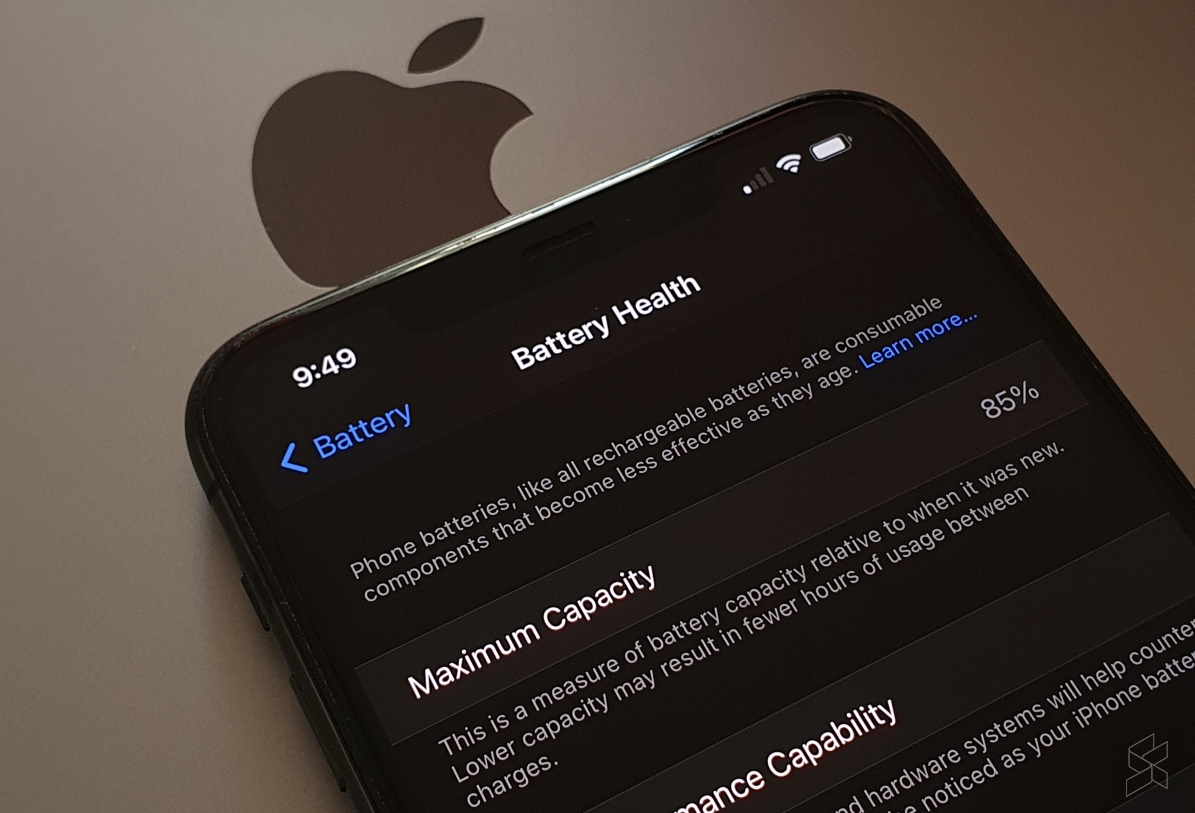
Check Battery Health and Peak Performance Capability
Open Settings, then Battery, then Battery Health & Charging. Capacity tells you how much charge the cell still holds. Apple's consumer battery information treats 80% as the service threshold.
Below that number, the phone may throttle itself to avoid sudden shutdowns. Our reading of user reports suggests a cell at 85% or lower ages badly on iOS 18.
Settings changes that actually cut drain
- Turn on Optimized Battery Charging.
- Lower screen brightness and shorten auto-lock.
- Limit Background App Refresh to apps you actually use.
- Switch off Location Services for anything that doesn't need it.
- Enable Low Power Mode on heavy days.
Charging habits matter just as much. Cheap cables and worn adapters generate heat, and heat shortens battery life. If an accessory refuses to take a charge, the same checks apply as with a stylus that won't charge.
When heat means stop, not troubleshoot
Unplug and power down if the phone is too hot to hold comfortably. Heat plus charging is the worst combination for a lithium-ion cell. If it overheats while idle and cool, that points to hardware, not software.
Branch 2: Lag, Freezes, and Crashing Apps
Free up storage first
iOS 18 needs breathing room to work. When you're near capacity, the phone spends time shuffling data instead of running apps. Keep at least 10% of your total storage free.
Offload apps you rarely open. Clear out old videos, voice memos, and message attachments. On a 64GB iPhone 11, this single step fixes more lag complaints than anything else.
Update and reinstall problem apps
A single misbehaving app isn't an iOS problem. Update everything through the App Store, then delete and reinstall the one causing trouble. That clears corrupted caches without touching the rest of your phone.
If a paired accessory keeps dropping its connection, the same reinstall logic often applies, just as it does when a connection suddenly fails.
Reset All Settings versus Reset Network Settings
Reset All Settings restores system preferences without deleting your data. You'll lose wallpapers, ringtones, and saved Wi-Fi networks. Reset Network Settings is narrower and only clears connectivity profiles.
Try Reset All Settings second, after app-level fixes have failed. Do a full erase only if nothing else moves the needle.
Branch 3: Wi-Fi, Cellular, Bluetooth, and Face ID Glitches
Carrier settings and eSIM checks
Carrier settings update automatically, but you can nudge them from Settings, then General, then About. RCS, Wi-Fi Calling, and VoLTE all depend on your carrier pushing the right profile.
If calls fail while data works fine, that's usually a carrier issue rather than a phone problem. A quick call to your network provider saves a lot of guesswork.
VPN and MDM profile conflicts
VPN apps and workplace management profiles intercept network traffic. They break after major updates more often than most people expect. Head to Settings, then General, then VPN & Device Management.
Remove anything you don't recognize or no longer need. Reboot and test again.
Network reset and what it wipes
Reset Network Settings clears saved Wi-Fi networks, Bluetooth pairings, and VPN configs. It leaves photos, messages, and apps alone. You'll need to reconnect your watch and car afterward.
For Bluetooth accessories, the standard unpair-and-repair routine usually does the job, including cases where basic pairing has gone sideways.
Face ID and camera failures
Face ID problems after an update are genuinely rare. Clean the TrueDepth sensor area, then delete and re-add your face in Settings. Test it in good lighting.
If it still fails, that's a hardware symptom rather than an iOS 18 one. Apple's official support pages walk through the service options from there.
The Heavy Fixes: Erase, Restore, Recovery, and DFU
Back up before you wipe anything
An unbacked-up erase is how people lose years of photos. Run an iCloud backup first, then make a local one on a Mac or PC. Choose the encrypted local option, because it saves saved passwords and health data that iCloud sometimes skips.
Erase All Content and Settings
Head to Settings, then General, then Transfer or Reset iPhone. Tap Erase All Content and Settings and confirm. The phone returns to factory state in 15 to 30 minutes, depending on how much data it holds.
When it restarts, choose Restore from iCloud Backup or Restore from Mac or PC Backup. Don't pick Set Up as New unless you want a clean slate.
Recovery mode and DFU mode
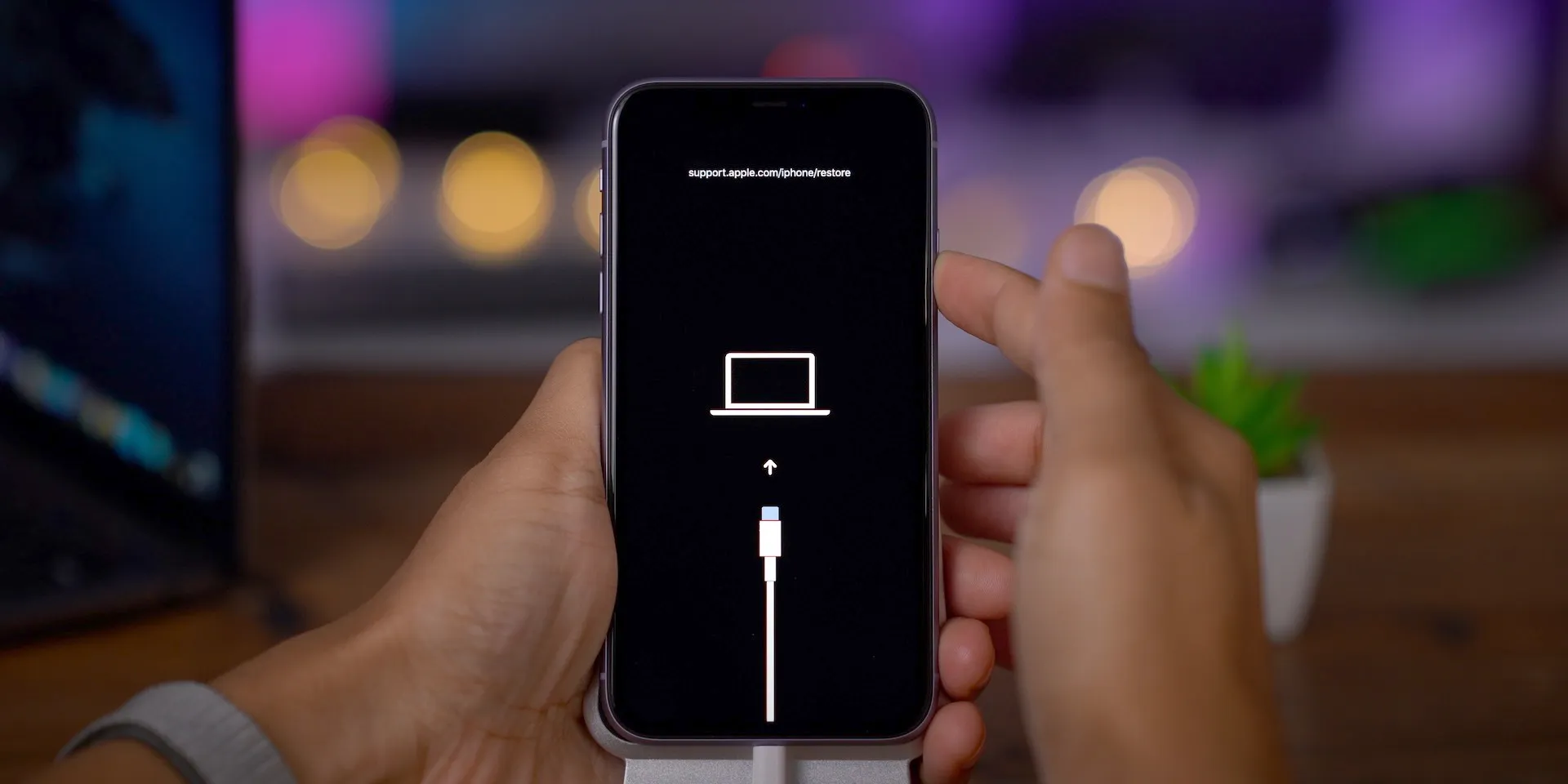
Use recovery mode when the phone won't boot, sits on the Apple logo, or fails an update. Connect it to a Mac with Finder, or a Windows PC with the Apple Devices app. Then force restart using volume up, volume down, and a long hold on the side button.
DFU mode goes deeper and bypasses the bootloader entirely. Only reach for it when recovery mode has already failed. It's your last software step before hardware service.
Why downgrading to iOS 17 usually isn't an option
Apple stops signing older firmware shortly after each release. Once that signing window closes, you can't roll back through normal tools. Restoring an old IPSW file just fails, so plan around iOS 18 rather than trying to escape it.
Mistakes That Make Things Worse
Interrupting an update or restore
Pulling the cable mid-restore can wreck a phone that was working fine. Leave it connected until it reboots on its own. A progress bar that sits still for ten minutes is usually still working, not frozen.
Resetting before backing up
People erase first and ask questions later. That's the single fastest way to turn a software glitch into permanent data loss. Backup first, always, even when you're confident the phone is fine.
Cheap cables and third-party repair tools
Low-quality Lightning cables cause failed restores, error codes, and heat. So do "one-click fix" utilities that promise to repair iOS. Apple's own recovery tools are free and do the same job with fewer risks.
Chasing features the iPhone 11 can't run
Apple Intelligence, satellite messaging, and Game Mode need newer hardware. No setting, reset, or restore will unlock them. Accept the limits and you'll stop chasing fixes that don't exist.
Waiting too long on a failing battery
A cell under 80% capacity throttles performance and cuts runtime. Software tweaks won't fix a worn chemical cell. If your phone dies at 30% or shuts down randomly, book a battery service.
Battery Replacement or New Phone? Your Decision Guide
Once the software side is exhausted, you're deciding between repairing and replacing. Here's the honest breakdown.
| Option | Typical cost | Best for |
|---|---|---|
| Battery service | Under $100 from Apple, less from third parties | Healthy phone, worn cell |
| Full restore plus setup | Free, costs you time | Software bugs, glitches |
| Upgrade to a newer iPhone | Several hundred dollars | Cracked screen plus weak battery |
Signs the iPhone 11 still has life left
If Battery Health sits above 85%, storage isn't maxed out, and the screen is intact, a battery service makes sense. The A13 Bionic still handles everyday apps, messaging, and streaming without strain.
As of 2026, a battery swap costs a fraction of a new handset. That same value math drives most tech buying decisions, the kind of premium you weigh when pricier gear asks for more money.
Signs it's time to move on
Two or more hardware faults change the math. A cracked screen plus a weak battery plus 64GB of storage that's always full adds up to more than the phone is worth.
When to bring in Apple
Book Apple Support, an Apple Store appointment, or an Apple Authorized Service Provider when the phone won't boot after a DFU restore. Also go official if you see error codes like 4013, 9, or 3194. Those usually mean a hardware or cable fault, not a setting you missed.
Frequently Asked Questions
How long should I wait before worrying?
Give it 48 hours. Background indexing rebuilds photo libraries, search indexes, and app caches, and that work eats battery. If things are still bad on day three, move to the triage steps above.
Will resetting my iPhone delete everything?
Reset Network Settings and Reset All Settings keep your photos, messages, and apps. Erase All Content and Settings wipes the phone completely. Back up before you touch that one.
Can I go back to iOS 17?
Almost never. Apple stops signing older firmware within weeks of a release, and unsigned firmware can't be installed through normal tools. Plan around iOS 18 instead.
Does iOS 18 deliberately slow down the iPhone 11?
No. Apple applies performance management only when battery health drops below 80%, and that rule predates iOS 18. A healthy cell runs the update at full speed.
Is iOS 18 worth installing on an iPhone 11?
Yes, for the security patches alone. You lose Apple Intelligence and satellite features, but you gain the Passwords app, RCS messaging, and a redesigned Photos app.

Similar Posts





















