How to Install iOS 18 on iPhone 11 Pro (Step-by-Step)

The short answer to how to install iOS 18 iPhone 11 Pro is simple. Apple still supports the device as of 2026, and the job usually finishes in under an hour. The A13 Bionic inside your phone clears the compatibility bar without argument.
The download alone runs about 4 to 7 GB, and Apple's guidance asks for 50% battery or a charger before the install starts. In our research, low storage is the most common reason a 64 GB iPhone 11 Pro stalls mid-download. Sort out three conditions first, and the rest is routine.
Image source: Web (Bing) / gettyimagesbank.com (Web image (fair-use with source credit))
Quick Answer
Back up your iPhone 11 Pro first. Charge it to 50% or plug it in. Free up at least 10 GB.
Then open Settings, General, Software Update. Tap Download and Install. Keep the phone on Wi-Fi and wait.
The whole process takes 20 to 45 minutes.
Before You Tap Install: The Three Conditions That Decide Your Path
Three things decide whether your install cruises or stalls at 30%. Sort them out before you touch the Software Update screen.
Storage: the 64 GB squeeze
Open Settings, then General, then iPhone Storage. Apple's official support guidance wants enough room to download the package and unpack it. On a 64 GB iPhone 11 Pro, that lands around 8 to 10 GB of free space.
If you're short, offload unused apps and delete large videos. Old Messages attachments are the quiet space hog here. They can eat several gigabytes on their own.
| Check | Target | Where to look |
|---|---|---|
| Free storage | 8 to 10 GB | Settings > General > iPhone Storage |
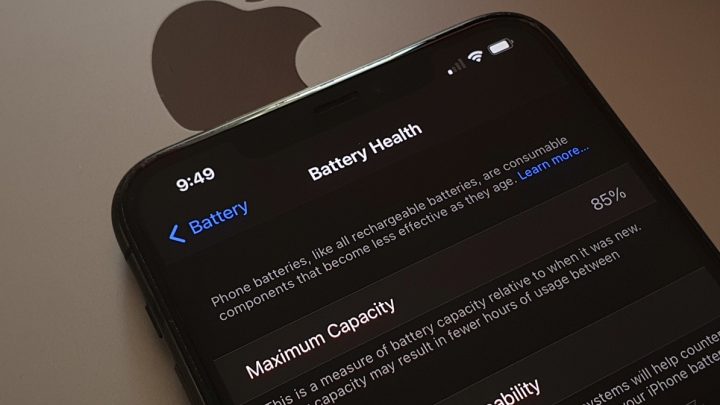
| Battery level | 50% or plugged in | Settings > Battery |
| Backup age | Under 24 hours old | Settings > your name > iCloud |
Battery and power
Plug the phone in. The 50% threshold is the minimum, not a comfortable margin. A dead battery mid-install is the fastest route to a long, annoying evening.
Backup, and why encrypted matters
Run an iCloud backup or a wired one through Finder or the Apple Devices app. Go encrypted if you can. An encrypted local backup keeps Health, Activity, and saved passwords that a standard backup leaves out.
While you're tidying up, it's worth checking your accessories too. A stylus that suddenly reads as dead often just needs keeping older accessories topped up.
Beta profiles and managed devices
If your phone has ever run a beta, remove the profile first. Head to Settings, General, VPN & Device Management. Otherwise the Beta Updates toggle can keep pushing test builds at you.
If your iPhone is supervised by an employer or school, updates may be deferred by policy. Check with IT before you force anything.
Branch 1: The Standard Over-the-Air Update (Settings → General → Software Update)
Most iPhone 11 Pro owners take this path. It's free, it keeps your data, and it needs nothing but Wi-Fi and patience.
- Connect to a stable Wi-Fi network. Cellular updates are capped or blocked outright.
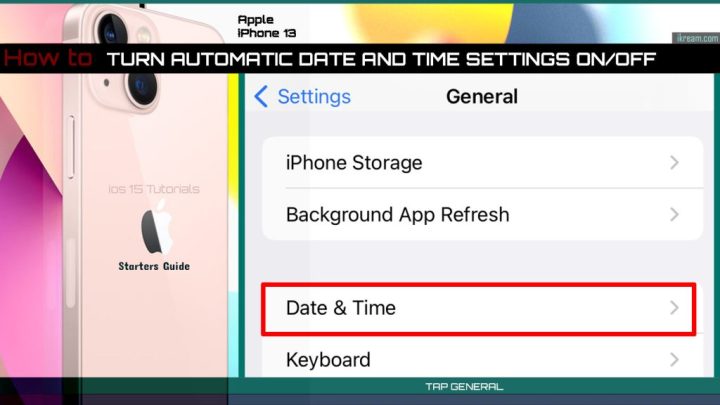
- Open Settings, then General, then Software Update.
- Tap Download and Install. On some versions the button reads Update Now.
- Agree to the terms and enter your passcode.
- Let it run. The screen dims, goes black, then shows an Apple logo with a progress bar.
Don't touch the phone during step five. Don't force a restart. Don't unplug it.
The bar can sit in one spot for several minutes, and that's normal.
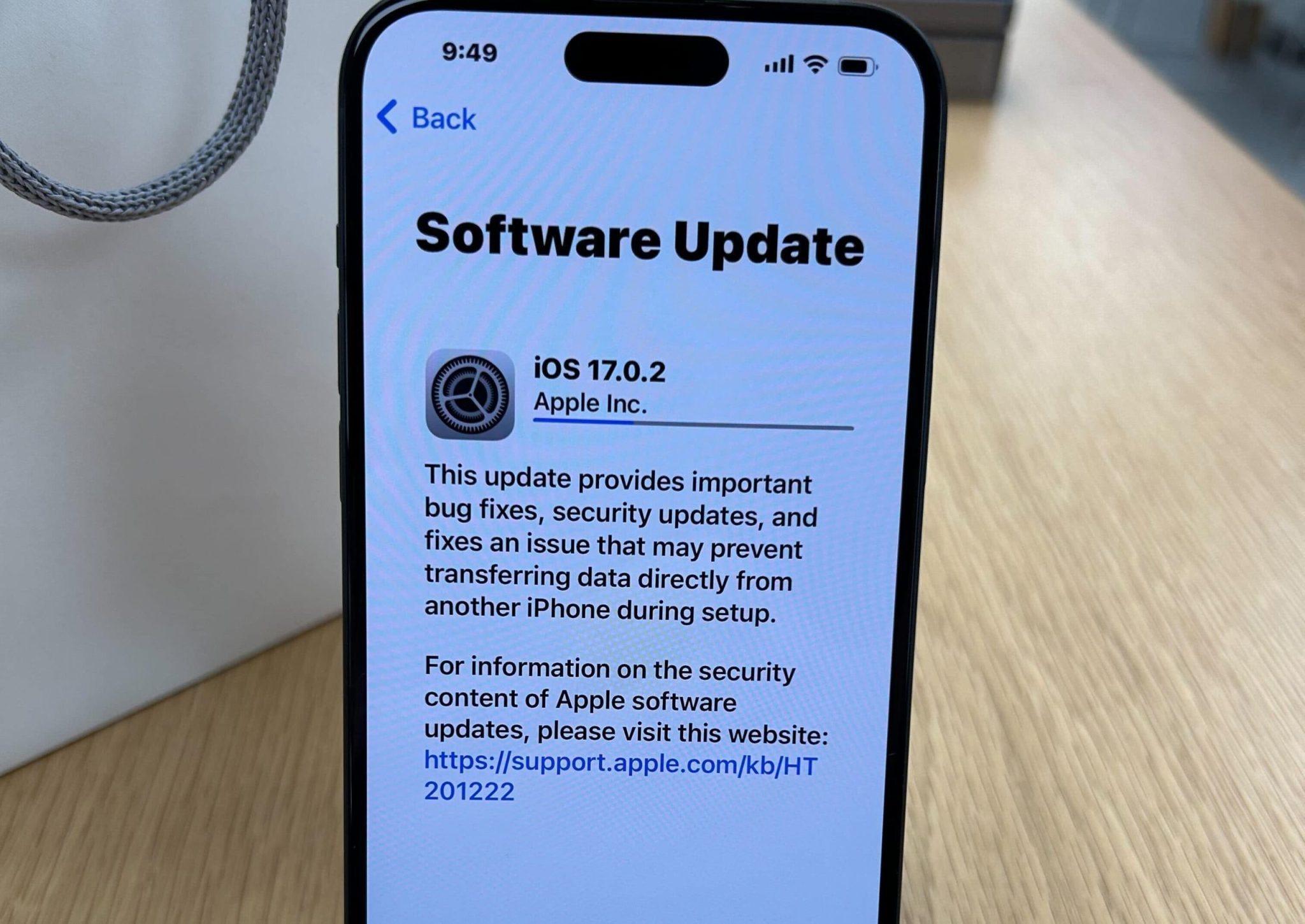
Image source: Web (Bing) / cultofmac.com (Web image (fair-use with source credit))
Download time depends on your connection. On solid Wi-Fi, expect 5 to 20 minutes. The install itself runs 15 to 30 minutes.
All in, you're looking at 20 to 45 minutes from tap to Home Screen.
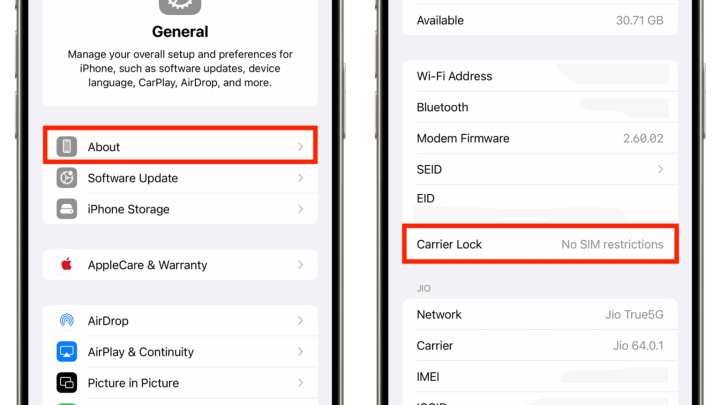
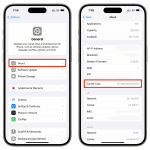
When it finishes, confirm the version. Go to Settings, General, About. You should see iOS 18 followed by a point release like 18.6.
Then switch on Automatic Updates so future point releases install overnight. You'll find it under Settings, General, Software Update, Automatic Updates.
Keep Bluetooth accessories nearby after the restart. A device that won't wake usually just needs a forced re-pair.
Branch 2: When the Update Fails With Finder, Apple Devices, Recovery Mode, and DFU
Updates fail. Most of the time the fix is small. Work through this in order and stop as soon as something works.
If the download stalls or won't verify
Switch to a different Wi-Fi network. Restart the phone. Then delete the partial file.
You'll find it under Settings, General, iPhone Storage, where it shows up as an iOS update entry.
If it's stuck on the Apple logo
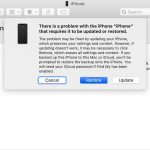
Force restart first. Press volume up, press volume down, then hold the side button until the screen goes black and the Apple logo returns. If the bar starts moving again, you're clear.
If it stays frozen past 15 minutes, move to Recovery mode.
Recovery mode with a computer
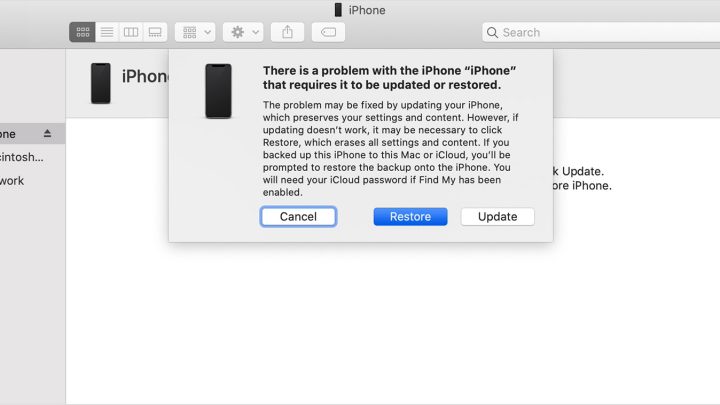
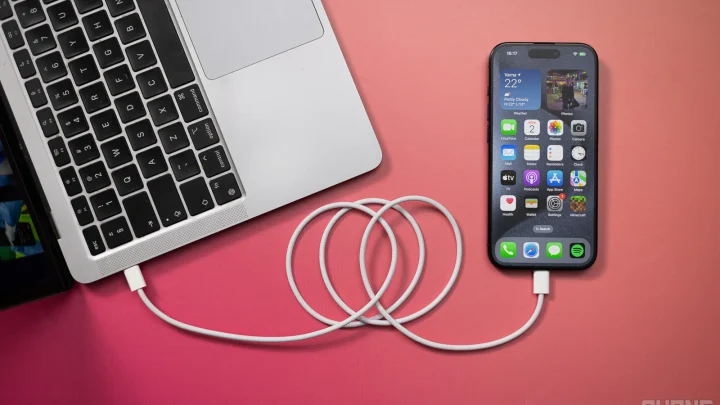
Plug the iPhone into a Mac or PC with a Lightning cable. Quick-press volume up, quick-press volume down, then hold the side button. Keep holding until a computer icon appears on the phone screen.
On a Mac running macOS Catalina or later, open Finder. On Windows, open the Apple Devices app. Your phone shows up in the sidebar.
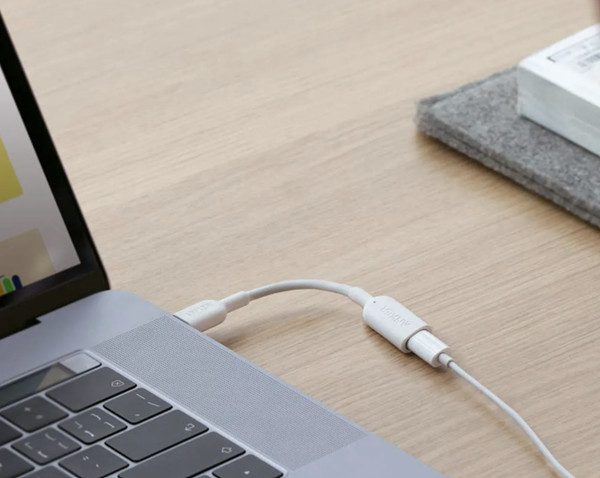
Image source: Web (Bing) / tencomputer.com (Web image (fair-use with source credit))
Click Update. That reinstalls iOS and keeps your data. Choose Restore only if Update fails, because Restore wipes the device clean.
DFU as the last resort
DFU mode goes deeper and bypasses the bootloader entirely. The button sequence is fussy and the screen stays black the whole time. Try it only after Update and Restore both fail.
After any restore, set the phone up and pick Restore from Backup. Choose your most recent one. If an accessory misbehaves afterward, it's usually a stubborn stylus dropout rather than real damage.
What iOS 18 Actually Gives an A13 iPhone, and What It Doesn't
Here's the honest version. iOS 18 modernizes the interface and adds genuinely useful tools. It does not turn an iPhone 11 Pro into a current flagship.
What you do get:
- Free icon placement and tinted Home Screen icons
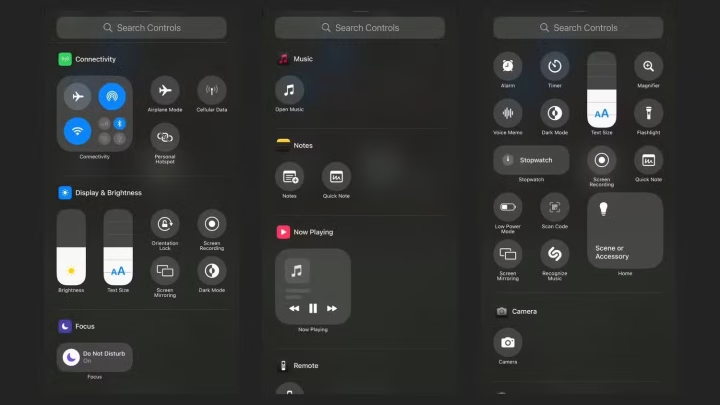
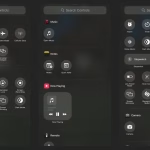
- A multi-page Control Center with a controls gallery
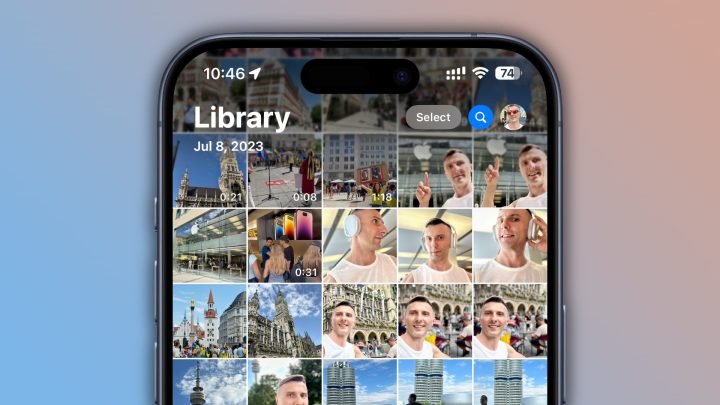
- The redesigned Photos app with Collections and Trips
- A standalone Passwords app
- Math Notes and live audio transcription in Notes
- Game Mode and Safari's Distraction Control
- RCS messaging, assuming your carrier supports it
What you don't get is Apple Intelligence. That feature set needs an A17 Pro or A18 chip. The A13 doesn't qualify.
No Genmoji, no Image Playground, no rewritten Siri.
Performance is the other caveat. Aggregate user reports describe a modest slowdown on A13 hardware, mostly inside the Photos app. Battery drain also spikes for a day or two while the system reindexes photos and files.
Then it settles.
Two accessory quirks are worth knowing. Some Bluetooth devices need a re-pair after a major update. If battery-related dropouts show up on your stylus, charge it fully before blaming the software.
And if your stylus stops reacting to taps, it's usually the app, not the OS.
Mistakes to Avoid and Post-Install Cleanup
The biggest mistake is skipping the backup. Anyone who's lost a photo library to a failed restore remembers that lesson forever. Apple's published security guidance treats a current backup as step one for good reason.
The second mistake is unplugging the phone mid-install. If the progress bar stalls, leave it alone. Force-restarting during an active install can corrupt the partition and send you straight to Recovery mode.
A few more to sidestep:
- Don't clear storage by deleting the iOS update file after it finishes downloading
- Don't install on a weak Wi-Fi signal just because you're impatient
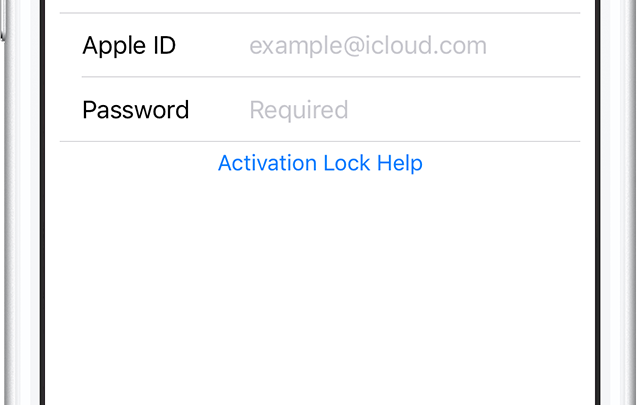
- Don't update a phone you can't sign into, especially a used one with Activation Lock
- Don't assume Apple Intelligence is coming. It isn't, and no setting unlocks it
Cleanup after the restart
Once you're on the Home Screen, give it twenty minutes before judging performance. Photos, Spotlight, and Messages all reindex in the background. That's why the phone feels warm and the battery drops faster than usual.
Check a few things manually. Open Wallet and confirm your cards are still there. Pair up in the car and make sure CarPlay connects.
Reconnect any Bluetooth accessories that dropped off.
Then review storage again. iOS 18 itself adds a couple of gigabytes over iOS 17. If you're back at 95% full, clear some space before the next point release lands.
If a paired accessory acts up after the update, a fresh pairing usually solves it. We covered that sequence earlier, and it applies to headphones and watches just as much as styluses.
Decision Guide: Update Now, Restore Clean, Wait, or Stay on iOS 17
Use this to pick your path. Four honest options, and each one suits a different situation.
| Your situation | Best path | Why |
|---|---|---|
| Healthy phone, 10 GB free, backed up | Over-the-air update | Fastest, keeps all data |
| 64 GB model, constantly full | Clear space, then OTA | Restore won't fix a storage habit |
| Stuck on Apple logo or boot loop | Finder or Apple Devices | OTA can't recover a bad boot |
| Heavy crashes, jailbreak history | Clean restore, then backup | Wipes corrupted system files |
| Enterprise or school device | Check with IT first | MDM policy may defer updates |
| Happy on iOS 17, no pressing need | Wait a few weeks | Point releases smooth early bugs |
Update now if your phone is healthy and you want the current security patches. iOS 18 point releases have been out long enough by 2026 that the early rough edges are gone.
Restore clean if the phone has a history of instability. It takes 30 to 90 minutes instead of 20 to 45, but it gives you a genuinely fresh system. That matters on a device that's been updated through six major versions.
Wait if you depend on a specific app that hasn't been updated. Check the App Store listing for its minimum iOS requirement before you commit.
Stay on iOS 17 only if you have a hard reason. Dropping off the update path means missing security fixes, and those don't get backported forever. The A13 chip handles iOS 18 fine, so there's no performance argument for sitting it out.
Frequently Asked Questions
Does the iPhone 11 Pro support iOS 18?
Yes. Apple's compatibility list includes every iPhone 11 model, and the A13 Bionic meets the minimum chip requirement. Support has continued through the iOS 18 point releases as of 2026.
How long does the install take?
Roughly 20 to 45 minutes on solid Wi-Fi. The download accounts for 5 to 20 minutes and the install itself runs 15 to 30. A wired update through Finder usually takes longer than a straight over-the-air install.
Why does my iPhone say there's not enough storage?
The package needs to download and then unpack, so it wants 8 to 10 GB free. Delete large videos, offload unused apps, and clear old Messages attachments. A 64 GB iPhone 11 Pro hits this wall often.
What if the update gets stuck on the Apple logo?
Force restart with volume up, volume down, then hold the side button. If the bar doesn't move after 15 minutes, connect to a computer and use Recovery mode. Choose Update, not Restore, to keep your data.
Will I lose my photos and messages?
Not through an over-the-air update or a Recovery mode Update. You only lose data if you choose Restore or erase the device. That's exactly why you run a backup before tapping Install.
Do I get Apple Intelligence on the iPhone 11 Pro?
No. Apple Intelligence requires an A17 Pro or A18 chip. The A13 in the iPhone 11 Pro doesn't qualify, so no Genmoji, Image Playground, or rewritten Siri.

Similar Posts