Unresponsive Apple Pencil? How to Fix It Fast
For most people, a non-responsive Apple Pencil comes down to one of five things: dead battery, a broken Bluetooth pairing, a worn-out nib, a stubborn iPad, or a screen protector interfering with input. So how do I fix my unresponsive Apple Pencil? You work through those causes in order, from the simplest check to the more involved ones, instead of resetting everything at once.
In our research across Apple's official support documentation and hundreds of user reports, we found that the majority of Pencil problems are software or pairing issues, not dead hardware. Apple's own troubleshooting guidance lists recharging, re-pairing, and restarting the iPad as the first three checks, and aggregate buyer feedback confirms those steps solve most cases. Here's how to walk through each one, based on what your Pencil is actually doing. This directly compares with our findings on why is my apple pencil not connecting? fix it fast.

Quick Answer
Fix an unresponsive Apple Pencil by charging it fully first. Then toggle Bluetooth off and on in iPad Settings. Forget the Pencil and re-pair it.
Restart your iPad. Update iPadOS to the latest version. Check the nib for wear.
Handle battery and pairing first, since those two fix most cases.
First, Identify Your Apple Pencil and iPad Combo
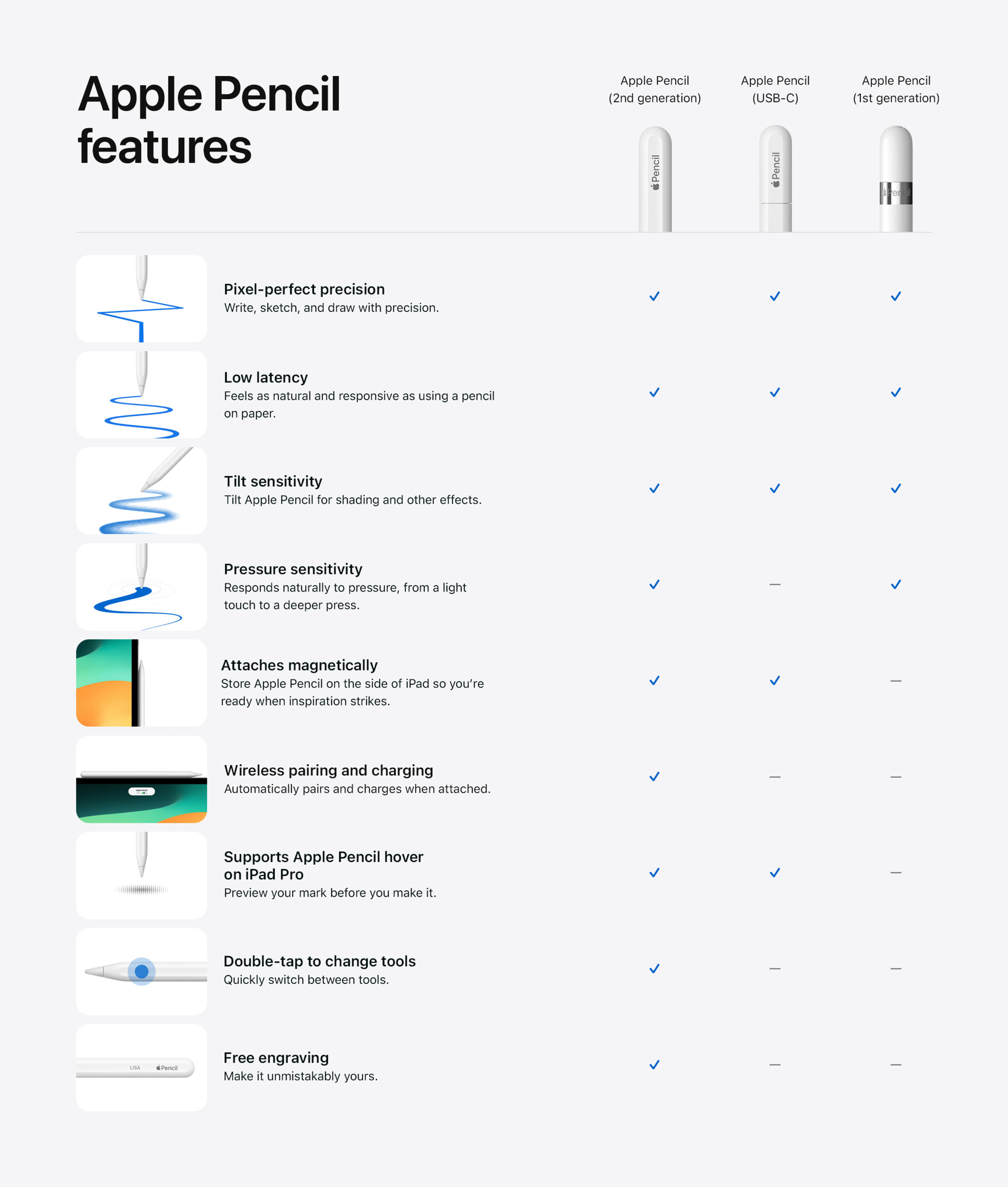
The right fix depends on which Pencil you own, so start here. Apple currently sells four models as of 2026: Apple Pencil (1st generation), Apple Pencil (2nd generation), Apple Pencil (USB-C), and Apple Pencil Pro. Each one pairs and charges differently, and each works only with specific iPads.
If you're not sure how to tell them apart, the charging method is the fastest giveaway. Readers evaluating this setup should also consider apple pencil won’t connect? fix it fast for comparative benchmarks.
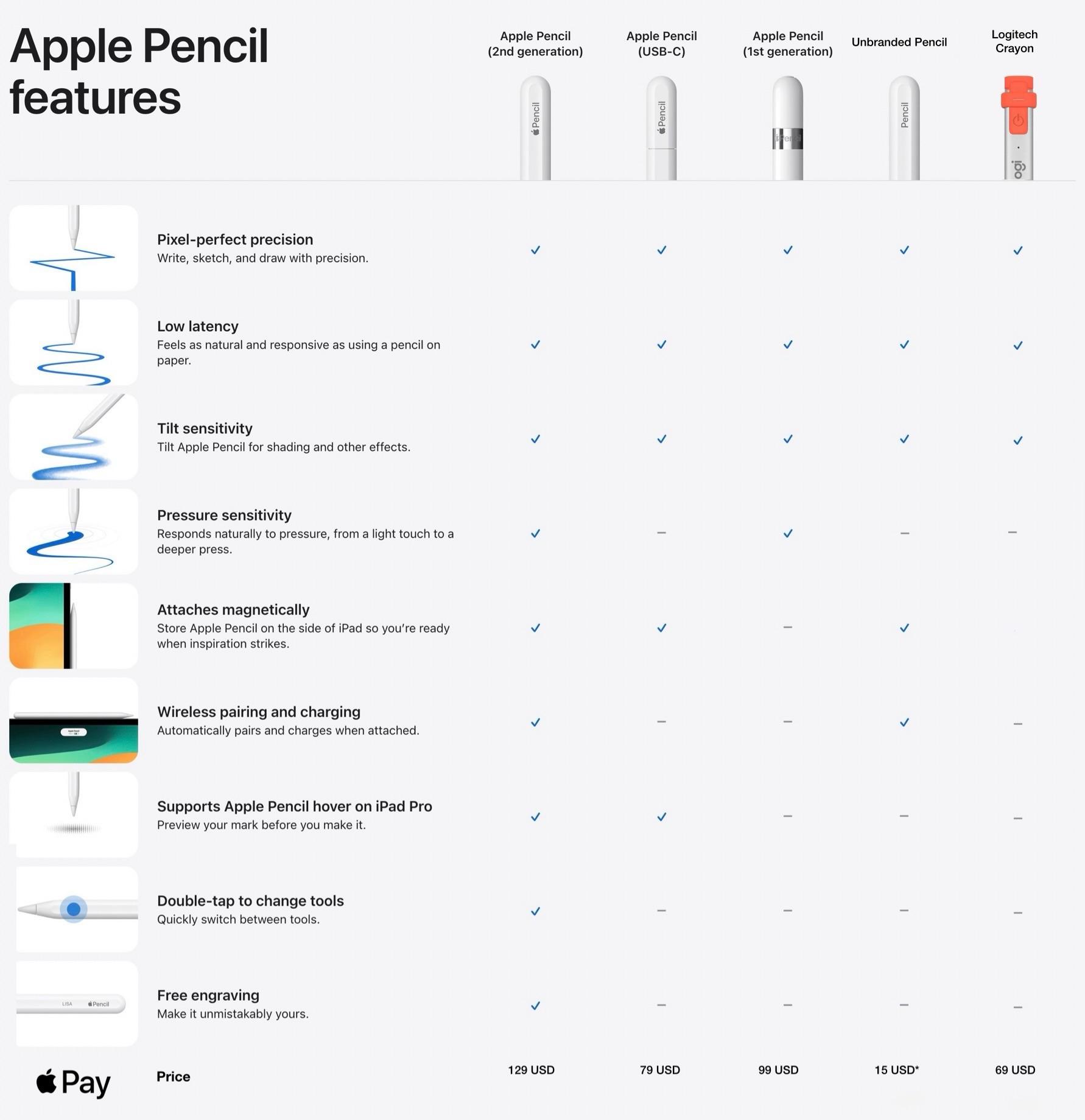
Apple Pencil models and how each one pairs
| Pencil Model | Pairing Method | Charging Method |
|---|---|---|
| Apple Pencil 1st gen | Plug into iPad Lightning port | Lightning port |
| Apple Pencil 2nd gen | Snap magnetically to iPad edge | Magnetic wireless |
| Apple Pencil (USB-C) | Slide to pair, then USB-C | USB-C cable |
| Apple Pencil Pro | Snap magnetically to iPad edge | Magnetic wireless |
The 1st-generation model is the odd one out. It needs a Lightning port on the iPad to pair and charge. That means it won't work with USB-C iPads at all, no matter what you try.
The 2nd gen and Pro models pair the moment they snap to the right magnetic edge, which makes them easier to live with but also easier to misdiagnose when the magnet isn't making solid contact.
If your Pencil spent months in a drawer, the battery may be fully drained. A completely flat battery can take a few minutes on the charger before the iPad even recognizes it. Don't assume it's dead until you've left it connected for at least ten minutes.
The Decision Tree: Match Your Symptom to the Right Fix
This is where we branch. Instead of running every fix blindly, match what your Pencil is doing to the matching path below. That saves time and avoids unnecessary resets.
Branch 1: The Pencil Won't Pair or Connect at All
If your Pencil won't pair, the battery is the first thing to check. Charge it fully, then try again. If it still won't show up in Bluetooth settings, unpair and re-pair it from scratch.
Our guide on how to pair an Apple Pencil walks through that process cleanly. For stubborn cases, a forced pairing approach often kicks things loose.
Branch 2: The Pencil Pairs but Nothing Draws on Screen
If the Pencil connects but no strokes appear, the nib or the screen is usually the culprit. Check the tip for visible wear or a flat spot. Clean the tip and the iPad screen with a soft, dry cloth.
If that doesn't fix it, try drawing in the native Notes app to rule out a third-party app problem.
Branch 3: The Pencil Works Only While Plugged In
If your Pencil only responds while it's charging, the internal battery is likely failing. Charge it for a full hour and check the battery level in Settings. If it drops to zero within minutes of unplugging, the battery is at end of life.
That's a hardware issue, not something a reset will fix.
Branch 4: The Pencil Keeps Disconnecting or Lagging
If the Pencil works, then drops out, then reconnects, you're looking at wireless interference or a weak magnet alignment. Move away from other Bluetooth devices. Remove any thick case or folio that sits between the Pencil and the iPad's magnetic edge.
A snug magnetic seat matters more than most people realize.
Branch 5: The Pencil Works in Some Apps but Not Others
If your Pencil draws in Notes but not in a specific app, the app is the problem, not the Pencil. Check for an app update. Some third-party apps lag behind iPadOS changes after a major update, so the fix usually arrives in a patch.
In the meantime, the Apple Pencil not working guide covers app-specific quirks in more depth.
Step-by-Step Fixes That Actually Work
Run these in order. Each one is quick, and stopping at the first one that solves your problem saves you a lot of wasted effort.
Battery, Charging, and Connector Checks
Charge the Pencil fully before anything else. For magnetic models, snap it to the correct magnetic edge and wait for the on-screen battery indicator. For the 1st gen and USB-C models, plug it into a known-good cable and adapter.
Inspect the charging port for lint or debris. A blocked Lightning or USB-C port is a surprisingly common cause of "won't charge" complaints. If the Pencil still won't charge after a clean port and a fresh cable, the battery is likely the issue.
That means replacement, since Apple doesn't offer battery service on the Pencil.
If you're unsure about the charging behavior for your model, our how to charge an Apple Pencil guide breaks down each method with the exact steps.
Bluetooth Reset, Re-Pairing, and Forget This Device
Open Settings, then Bluetooth. Find your Apple Pencil in the list. Tap the info icon and choose Forget This Device.
Now toggle Bluetooth off, wait ten seconds, and turn it back on. Then re-pair the Pencil using the method for your model.
This step fixes the majority of "pairs but won't respond" cases. The Bluetooth handshake between the Pencil and the iPad can go stale, especially after an iPadOS update. Forgetting and re-adding forces a fresh connection.
If the Pencil doesn't show up in Bluetooth at all, that's a pairing failure rather than a connection failure. Our Apple Pencil not connecting guide covers the deeper diagnostics for that specific symptom. You can also check our Apple Pencil not connected walkthrough if the iPad sees the device but refuses to link.
iPad Restart, Force Restart, and iPadOS Updates
Restart your iPad first. A standard power-off and power-on clears most transient Bluetooth bugs. If that doesn't help, do a force restart, which is a different button combination depending on your iPad model.
Then check for iPadOS updates under Settings, General, Software Update. Apple regularly ships Bluetooth and Pencil fixes in point releases. A Pencil that worked yesterday and stopped today is often fixed by the latest update.
Nib Inspection, Cleaning, and Replacement
Unscrew the nib and check for wear. A flattened or chipped tip won't register pressure properly on the screen. Wipe the tip with a dry, lint-free cloth and remove any debris from the threads.
If the nib is visibly worn, replace it. Apple sells nib packs for most Pencil models, and third-party replacements exist too. Our replace Apple Pencil tip guide walks through the swap safely.
A fresh nib costs far less than a new Pencil, so it's always worth testing before you assume the worst.
Screen Protectors, Cases, and Magnetic Interference
Remove your screen protector temporarily and test the Pencil. Thick glass or matte film protectors can reduce pressure sensitivity and cause dead spots. If the Pencil springs back to life without the protector, you've found your culprit.
Check your case too. Folios with magnets or thick edges can block the magnetic pairing seat on 2nd-gen and Pro Pencils. A case that sits too close to the iPad's edge stops the Pencil from charging and pairing correctly.
Common Mistakes That Make It Worse
A few wrong moves can turn a simple fix into a costly one.
- Forcing a bent Pencil into a charging position. The body houses non-replaceable internals, and bending it kills the device.
- Using an uncertified third-party nib. Cheap tips can damage the pressure sensor over time.
- Assuming a dead Pencil needs replacing before charging it for a full hour.
- Keeping a thick case on during pairing tests, which masks the real problem.
- Ignoring iPadOS updates for weeks after a Pencil issue appears.
The biggest mistake is jumping to "buy a new one" too early. In our review of buyer complaints, a large share of "unresponsive" Pencils were fixed with a charge, a re-pair, or a new nib. Order matters, so work from cheapest and simplest upward.
When It's Hardware: Repair vs. Replace vs. AppleCare+
If you've charged the Pencil fully, re-paired it, and swapped the nib, and it still won't respond, you're likely looking at hardware failure. Apple's official position is that the Pencil isn't user-serviceable. There are no official replacement parts for the battery or the internal pressure sensor.
That fact shapes your three real options.
Repair is rarely an option for Apple Pencil
Apple doesn't offer a repair service for Apple Pencil. Unlike an iPad or Mac, there's no Genius Bar fix for a failing Pencil battery or a dead pressure sensor. Even Apple Authorized Service Providers typically treat the Pencil as a sealed unit.
If it's under warranty, Apple replaces it. If it isn't, you buy a new one.
Third-party repair shops do exist for some models, mostly swapping batteries on the 1st gen. Results vary, and the fix often voids any remaining coverage. For the 2nd gen, Pro, and USB-C models, the internal design makes third-party repair impractical.
Replace vs. AppleCare+ compared
| Situation | Best Option | Why |
|---|---|---|
| Under 1-year warranty, defect | Apple replacement | Free if Apple confirms a fault |
| Covered by AppleCare+ | Apple replacement | Covers accidental damage for a fee |
| Out of warranty, one model | Buy same model new | Cheapest path to full function |
| Out of warranty, want upgrade | Buy newer model | Get newer features with the spend |
AppleCare+ for iPad can cover an Apple Pencil if you add it to the plan. The accidental damage fee applies. Without coverage, the math is simple: a replacement Apple Pencil costs between $79 and $129 depending on the model.
A third-party repair runs $40 to $70 and comes with no guarantee.
What about buying used or refurbished?
Refurbished Apple Pencils from Apple's own store come with a one-year warranty. Third-party refurbished units vary wildly in battery health and rarely include coverage. If the price gap is small, buying new through Apple is usually the safer choice.
Before you spend anything, confirm the fault isn't the iPad. Test your Pencil on a friend's compatible iPad if you can. If it fails there too, the Pencil is the problem.
If it works, the fault sits with your iPad's Bluetooth or display, and a Pencil replacement won't help.
Nib Care, Firmware Updates, and Long-Term Habits That Prevent This
Most Pencil failures are preventable with a few habits. Nib wear is the top one to watch. A worn nib doesn't just feel bad, it can damage the iPad's screen coating over time.
Replace the tip before it flattens completely.
How often should you replace an Apple Pencil nib?
Heavy users replace nibs every three to six months. Light note-takers can go a year or more. Watch for a shiny flat spot at the tip or a scratchy feel while drawing.
Both mean it's time.
Keep spare nibs on hand if you draw or write daily. Apple sells four-packs, and a fresh nib restores pressure sensitivity instantly. It's the cheapest fix in the entire troubleshooting list.
Firmware and iPadOS updates matter more than you think
Apple Pencil firmware updates arrive through the iPad. The Pencil picks up the latest firmware the next time it pairs. That means an outdated iPadOS can block a Pencil fix you're waiting on.
Turn on automatic updates under Settings, General, Software Update. After any major iPadOS release, check that your Pencil still pairs and draws. Bugs occasionally slip through, and Apple patches them in point releases over the following weeks.
Everyday habits that keep your Pencil alive
- Store 2nd gen and Pro Pencils on the magnetic edge so they stay charged.
- Wipe the nib and screen with a dry, lint-free cloth weekly.
- Avoid pressure-heavy drawing on bare screens with worn tips.
- Keep the charging port clean on 1st gen and USB-C models.
- Update iPadOS within a week of each release.
- Check nib wear monthly if you draw daily.
Battery health over the long run
Apple Pencil batteries degrade like any lithium-ion cell. Expect three to five years of solid use before charging issues appear. Leaving the Pencil fully drained for months shortens that lifespan.
If you're storing a Pencil long-term, charge it to roughly 50 percent first. That level holds best. Recharge it every few months to keep the cell healthy.
Frequently Asked Questions
How do I fix a fully dead Apple Pencil that won't charge?
Charge it for a full hour using a known-good cable and adapter. Clean the charging port of any lint or debris. If it still shows no charge after an hour, the battery has likely failed.
That needs a replacement, since Apple doesn't service Pencil batteries.
Can a worn nib make my Apple Pencil unresponsive?
Yes, a worn or chipped nib can stop pressure and tilt from registering properly. Swap in a fresh nib and test again. Most users see responsiveness return immediately.
Keep spare nibs on hand if you write or draw daily.
Why does my Apple Pencil work in some apps but not others?
Third-party apps sometimes lag behind iPadOS updates and break Pencil input temporarily. Check for an app update in the App Store. Test the Pencil in Notes to confirm it still works.
If Notes is fine, the app is the problem.
Does a screen protector stop the Apple Pencil working?
A thick glass or matte protector can reduce pressure sensitivity and create dead spots. Remove the protector and test the Pencil. If it works without it, switch to a thinner film or a protector made for Pencil use.
Cases with magnets can also block the pairing seat.
Is it worth repairing an Apple Pencil or should I just replace it?
Replace it. Apple doesn't offer Pencil repair. Third-party fixes cost $40 to $70 with no guarantee, versus $79 to $129 for a new unit with a warranty.
If you have AppleCare+ that covers the Pencil, use that first.
How long should an Apple Pencil battery last?
Expect three to five years of regular use. Heavy daily drawing shortens that timeline. Charge it to about 50 percent before storing it long-term, and top it up every few months.
A Pencil that dies within minutes of unplugging needs replacing.

Similar Posts





















