Apple Pencil Not Pairing? Here’s Why & How to Fix It
Why is my Apple Pencil not pairing? Nine times out of ten, the answer comes down to the wrong generation, a flat battery, a stale Bluetooth record, or a dirty connector. None of those are mysterious.
Each one has a specific fix, and that fix depends entirely on which Pencil you own. If you are exploring similar hardware setups, see our detailed guide on apple pencil not charging? here’s how to fix it fast.
Apple splits the lineup across four different pairing methods: a Lightning plug, a magnetic side rail, a USB-C cable, and the magnetic-plus-Find My combo on Apple Pencil Pro. Per Apple's own compatibility documentation, a 2nd-generation Pencil never appears in the Bluetooth list the way a Lightning model does. That single difference sends most people down the wrong troubleshooting path.
So let's start by working out exactly which model you're holding.
Quick Answer
Your Apple Pencil won't pair because of a compatibility mismatch, a dead battery, or Bluetooth being off. Check the model against your iPad first. Charge the Pencil for at least 15 minutes.
Toggle Bluetooth and Airplane Mode. Then pair using the method your model requires. For related troubleshooting and calibration steps, check our walkthrough on apple pencil not working? here’s how to fix it.
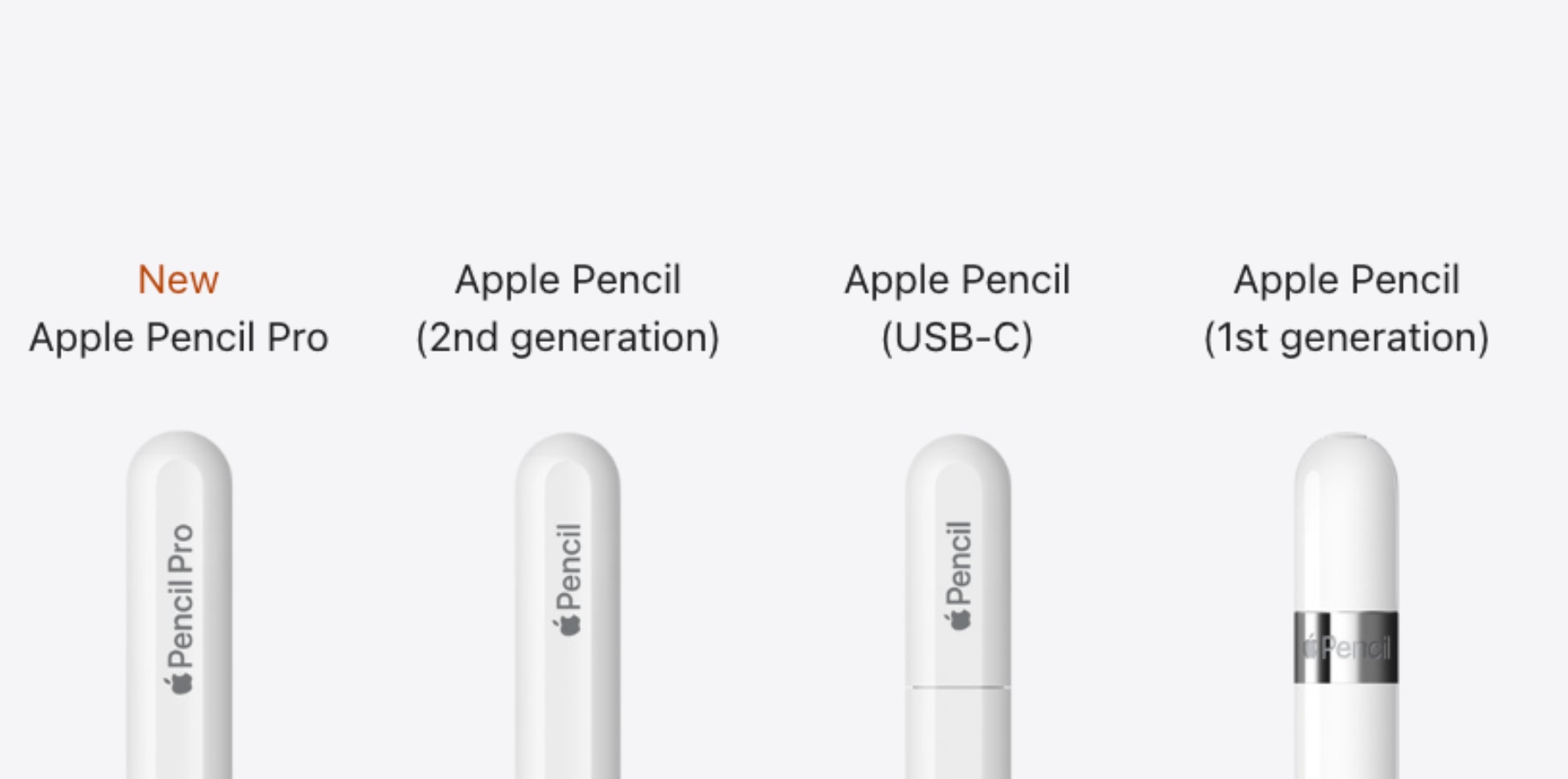
Start Here: Which Apple Pencil Won't Pair?
The model you own decides the entire troubleshooting path. That's been true since 2015, and it's still true as of 2026.
The one question that eliminates half the advice
Ask yourself which Pencil you're holding. That answer kills half the advice online before you even try it.
A 1st-generation Pencil pairs through the Lightning port at its top. A 2nd-generation Pencil or Pencil Pro pairs the moment it snaps onto the magnetic rail. The USB-C model skips Bluetooth pairing altogether.
Follow 2nd-generation instructions with a Lightning Pencil and nothing will ever happen. The magnet won't grab it, because there's no magnet inside it. Worth remembering before you spend an hour on the standard pairing steps.
Compatibility chart: 1st gen vs 2nd gen vs USB-C vs Pro
| Model | Pairing method | iPads it works with |
|---|---|---|
| 1st gen (A1603) | Lightning port | iPad 6th–10th gen, Air 3, mini 5, Pro 9.7/10.5/12.9 |
| 2nd gen (A2051) | Magnetic attach | iPad Pro 11-inch (1st–4th), Pro 12.9-inch (3rd–6th), Air 4/5, mini 6 |
| USB-C (A3085) | No pairing step | Most magnetic-compatible iPads plus iPad 10th gen |
| Pencil Pro (A2538) | Magnetic attach | iPad Pro M4, iPad Air M2 and newer |
If your model isn't in the right row, stop. It will never pair, no matter what you reset.
Before You Blame the Pencil: Four Things to Check First
Most pairing failures aren't hardware faults at all. They're simple state problems you can clear in five minutes.
Battery, Bluetooth, Airplane Mode, and iPadOS version
Run these four checks in order:
- Charge level. A flat Pencil won't pair. Give it 15 minutes before judging anything, and topping up the battery takes seconds on a magnetic rail.
- Bluetooth. It has to be on in Settings. If it's off, the pairing prompt never fires.
- Airplane Mode. This kills Bluetooth too. Check Control Center, not just Settings.
- iPadOS. Older builds carry known pairing bugs. Update before you reset anything else.
One more note on sleep states. A Pencil that looks dead may simply be idle, so waking it up properly is worth a minute of your time.
Build versus model number
The model number settles every argument. Look for small print near the top of the Pencil, tucked under the cap on the Lightning version.
- A1603: 1st generation
- A2051: 2nd generation
- A3085: USB-C
- A2538: Apple Pencil Pro
If that number doesn't match your iPad's supported list, stop troubleshooting. No reset will bridge an incompatible pair, and you'll just burn an afternoon.
Branch 1: Your 1st-Generation Apple Pencil Won't Pair
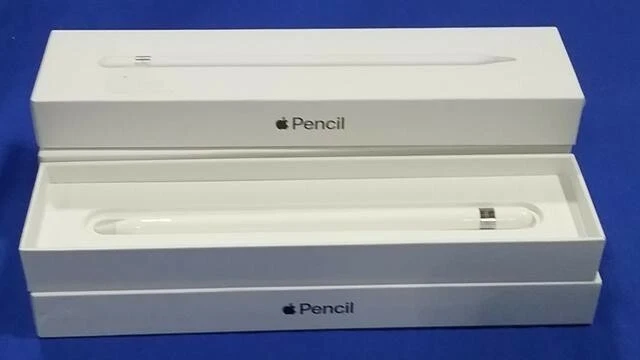
If it's a 1st-generation Pencil, pairing runs through the Lightning connector. Physical contact is everything here.
Plugging into the Lightning port the right way
Unplug the cap and push the connector straight into the iPad's Lightning port. A pairing prompt should appear within a few seconds. If it doesn't, pull it out and reseat it firmly.
What to do when no pairing prompt appears
Work through this exact sequence:
- Unplug, wait 10 seconds, then plug back in.
- Leave it connected for 30 minutes to charge.
- Restart the iPad while the Pencil stays plugged in.
- Forget the Pencil under Settings > Bluetooth, then repeat.
Cleaning the port and checking for a bent connector
Shine a flashlight into the iPad port. Lint, dust, and pocket grit block contact far more often than people expect. A dry soft brush or a wooden toothpick clears it out.
Inspect the Pencil's own connector next. A bent pin usually means the Pencil is finished, though a worn-down nib is a separate problem and an easy fix. Keep those two issues apart in your head.
Branch 2: Your 2nd-Generation Apple Pencil or Pencil Pro Won't Pair
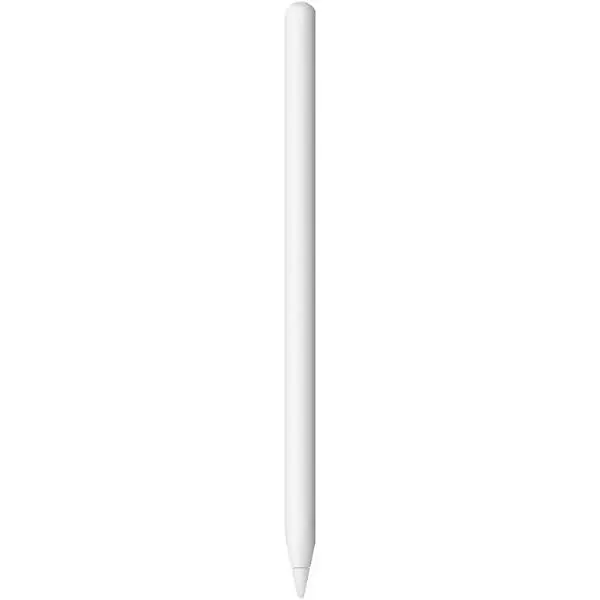
The magnetic models confuse people more than any others. They pair without ever appearing where you'd expect.
Why it never shows up in Bluetooth settings the normal way
A 2nd-generation Pencil or Pencil Pro pairs automatically when it touches the magnetic rail. It shows up under Settings > Apple Pencil, not as a new device waiting for a tap.
Hunting through Bluetooth for it wastes time. Attach it to the rail instead.
Magnetic alignment, third-party cases, and the sleep or wake trick
Snap the flat side of the Pencil against the iPad's right edge. Alignment matters more than people think. If a case sits between them, the magnet may not reach at all.
Third-party cases are the biggest culprit in our research. Thick or magnetically shielded covers block the connection completely. Pop the case off and try again before anything else.
Also, give it a beat. Charging can take 30 seconds to register before pairing actually kicks in.
Forgetting the old pairing and re-snapping
If it paired before and stopped, clear the stale record first. Open Settings > Bluetooth, find the Pencil, and tap Forget This Device.
Then attach it to the rail and wait. If it still refuses, connection failures elsewhere are worth ruling out before you write off the hardware.
Branch 3: Your USB-C Apple Pencil Won't Pair
The USB-C Apple Pencil is the odd one out. There's no Bluetooth pairing step at all, and that trips up nearly everyone.
Why there's no Bluetooth pairing step at all
Apple built this model to work without a pairing handshake. You won't find it listed in Bluetooth as a device you add manually. It connects through the magnetic rail purely for storage and charging.
Slide-to-pair, charging, and the iPadOS 17.1.1 requirement
Here's the flow:
- Slide the Pencil onto the magnetic rail.
- Wait for the on-screen acknowledgement.
- Keep it attached until the charge indicator appears.
If nothing happens, plug it into a USB-C cable for 15 minutes. It needs iPadOS 17.1.1 or later to function at all. Anything older and it simply won't respond.
One more thing worth checking. This model doesn't support pressure sensitivity, so drawing apps behave differently. That's not a pairing fault, it's a spec limit.
If your iPad is several years old, older iPads have quirks of their own worth reviewing too.
When It Pairs But Keeps Dropping, Lagging, or Dying
Pairing once and dropping later points to a stale connection record, not a dead Pencil. Intermittent drops follow a different pattern from a Pencil that never connects at all.
Stale pairings, Bluetooth conflicts, and resetting network settings
If the Pencil connects then flakes out, forget the pairing and start clean. Open Settings > Bluetooth, tap the small info icon beside the Pencil, and choose Forget This Device.
Then reattach it and let it pair fresh. That single step clears most intermittent drops, according to aggregate user reports.
Bluetooth conflicts come next. Nearby keyboards, mice, and AirPods can crowd the connection when something misbehaves. Switch the extras off and retest.
Reset Network Settings is the heavier option. It wipes saved Wi-Fi passwords, so save it for last before you contact support.
Testing in Notes, then trying a second iPad
Test the Pencil in the built-in Notes app first. Third-party drawing apps add variables you don't want while troubleshooting a failed connection.
Sketch a quick line and watch for lag. Smooth strokes mean the pairing is fine and the fault sits inside one specific app.
Borrow a second compatible iPad if you can. A Pencil that fails on both devices is almost certainly faulty. One that works elsewhere tells you the problem lives in your iPad.
Mistakes That Waste Twenty Minutes (Or Cost You a Return)
The wrong move costs time. The really wrong move costs money, so slow down before you force anything into a port.
Forcing connectors, third-party chargers, and the just update iPadOS trap
Never jam a Lightning connector into the port. Bent pins kill a Pencil permanently, and Apple won't cover impact damage.
Skip cheap third-party chargers too. Manufacturer specs confirm the magnetic rail needs precise alignment, and weak adapters can't hold it. A swollen battery is the other risk here, and that one is a real safety concern.
"Just update iPadOS" is the trap worth naming. Updates fix some pairing bugs, but no download can bridge an incompatible model pairing. Check your model number before you spend an evening on software.
When it's actually a hardware fault, and how to book a Genius Bar slot
Here's how to tell the difference:
- No prompt on any iPad after a full charge: hardware fault.
- Pairs then dies within minutes: battery failure.
- Bent connector or cracked casing: physical damage.
If you land on any of those, book a Genius Bar appointment or visit an Apple Authorized Service Provider. Bring the Pencil and the iPad together, plus your proof of purchase. AppleCare+ covers battery faults inside its term.
Before any of that, run through the official Apple support guidance for pairing and charging. It's the fastest way to confirm whether you have a fault or just a stubborn connection.
FAQ: Apple Pencil Pairing Questions People Actually Ask
Can I pair an Apple Pencil to a non-iPad device?
No. Apple Pencil hardware only pairs with compatible iPad models. It won't work with an iPhone, Mac, or Android tablet, even over Bluetooth.
If you want stylus input elsewhere, you'll need a third-party active stylus built for that platform instead.
Does a refurbished or second-hand Pencil pair differently?
Not in principle. The pairing process is identical, but second-hand units carry extra risk. A worn battery, a bent Lightning connector, or a previously locked pairing can all block the handshake.
Test it against your iPad before the return window closes.
Will updating iPadOS fix a Pencil that won't pair?
Sometimes. Updates have patched specific Bluetooth pairing bugs in the past, so an update is worth trying early. It won't help if the model is incompatible or the battery is flat.
Rule those out first, then update.
Why does my Pencil pair and then disconnect right away?
That usually points to a weak battery or a stale pairing record. Charge it for 30 minutes, then forget the device in Settings > Bluetooth and reconnect. If it still drops within minutes, the battery is likely failing.
Do I need to pair an Apple Pencil USB-C at all?
No. The USB-C model skips Bluetooth pairing entirely. It connects through the magnetic rail for storage and charging only.
If it isn't responding, check your iPadOS version and charge level rather than hunting through Bluetooth settings.

Similar Posts





















