How to Force Pair Apple Pencil When It Won’t Connect
If your Apple Pencil isn't pairing and the on-screen prompt never shows up, you're probably wondering how do I force pair my Apple Pencil? The honest answer is that there's no single "force pair" button. Apple doesn't build one, so the fix depends entirely on which Pencil generation you own and which iPad it's sitting next to.
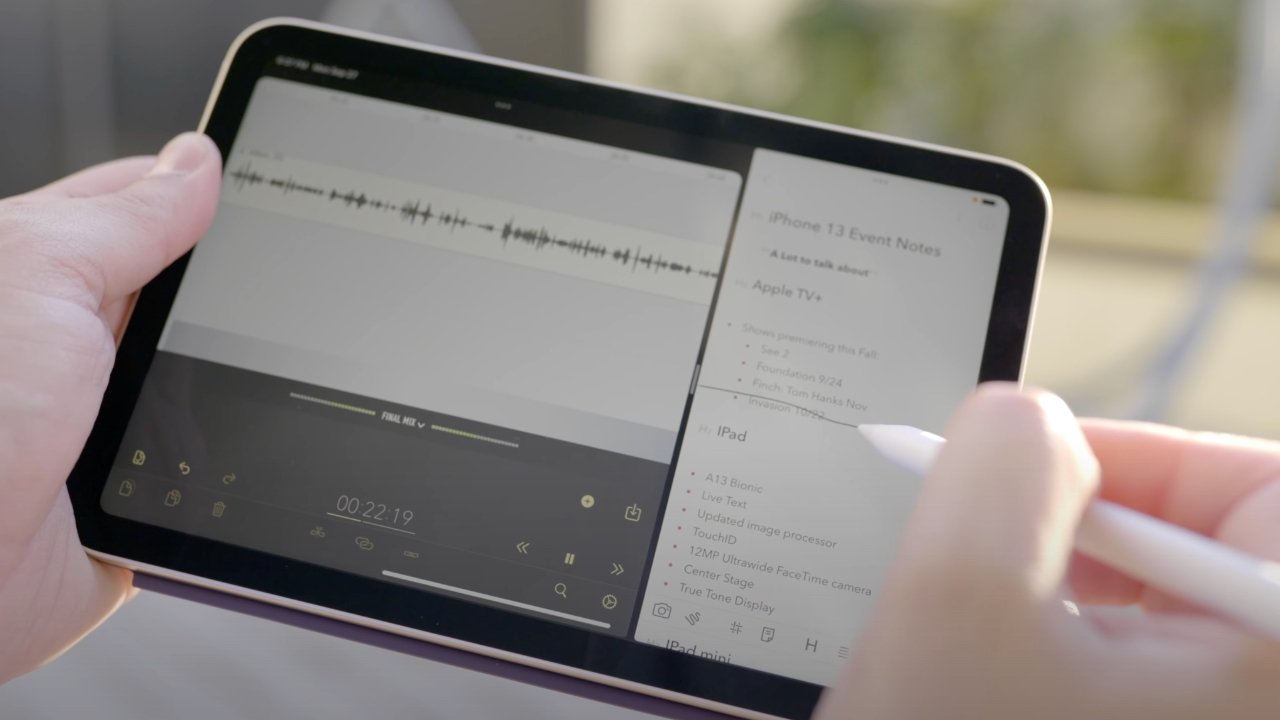
That's the part most guides skip. There are four current Apple Pencil models, and each one talks to the iPad differently. Some snap on magnetically, one plugs into Lightning, and one only pairs over a USB-C cable.
Per Apple's official Bluetooth pairing documentation, the Pencil must be charged and within roughly 10 meters to show up at all.
Quick Answer
Force pairing means removing the old Pencil record, then reconnecting properly. Forget the device in Bluetooth settings first. Charge the Pencil fully before you start.
Attach, plug in, or snap it on, depending on your model. Tap Pair when the prompt appears.
The Two Things You Must Check Before Pairing Anything
Get these two facts straight and the rest becomes easy. Skip them and you'll waste an hour fighting a pairing screen that was never going to work.
Your iPad Model Decides Everything
Not every Apple Pencil works with every iPad. The 1st-generation Pencil needs a Lightning port, so it fits older iPads like the 9th-gen and earlier. The 2nd-generation and Pro models need a magnetic side rail, which only newer iPads have.
The USB-C Pencil sits in its own lane, working with the iPad 10th-gen and most recent Air, mini, and Pro models.
Here's the quick compatibility map:
| Apple Pencil Model | Pairs Via | Works With |
|---|---|---|
| 1st generation | Lightning port | iPad 9th-gen and earlier |
| 2nd generation | Magnetic side | iPad Air 4th-gen and up, most Pro models |
| USB-C | USB-C cable | iPad 10th-gen, recent Air and mini |
| Pro | Magnetic side | iPad Pro M4, Air M2 and M3 |
If your Pencil isn't on the same row as your iPad, no amount of forcing will help. Check Apple's device compatibility list before you touch a setting. Our research shows this mismatch is the single most common reason people think their Pencil is broken.
How to Identify Your Apple Pencil in 10 Seconds
Look at the body. A glossy white barrel with a silver band near the tip is the 1st-gen. A flat, matte side that snaps to the iPad is the 2nd-gen or Pro.
A shorter, matte Pencil with a USB-C port under a sliding cap is the USB-C model.
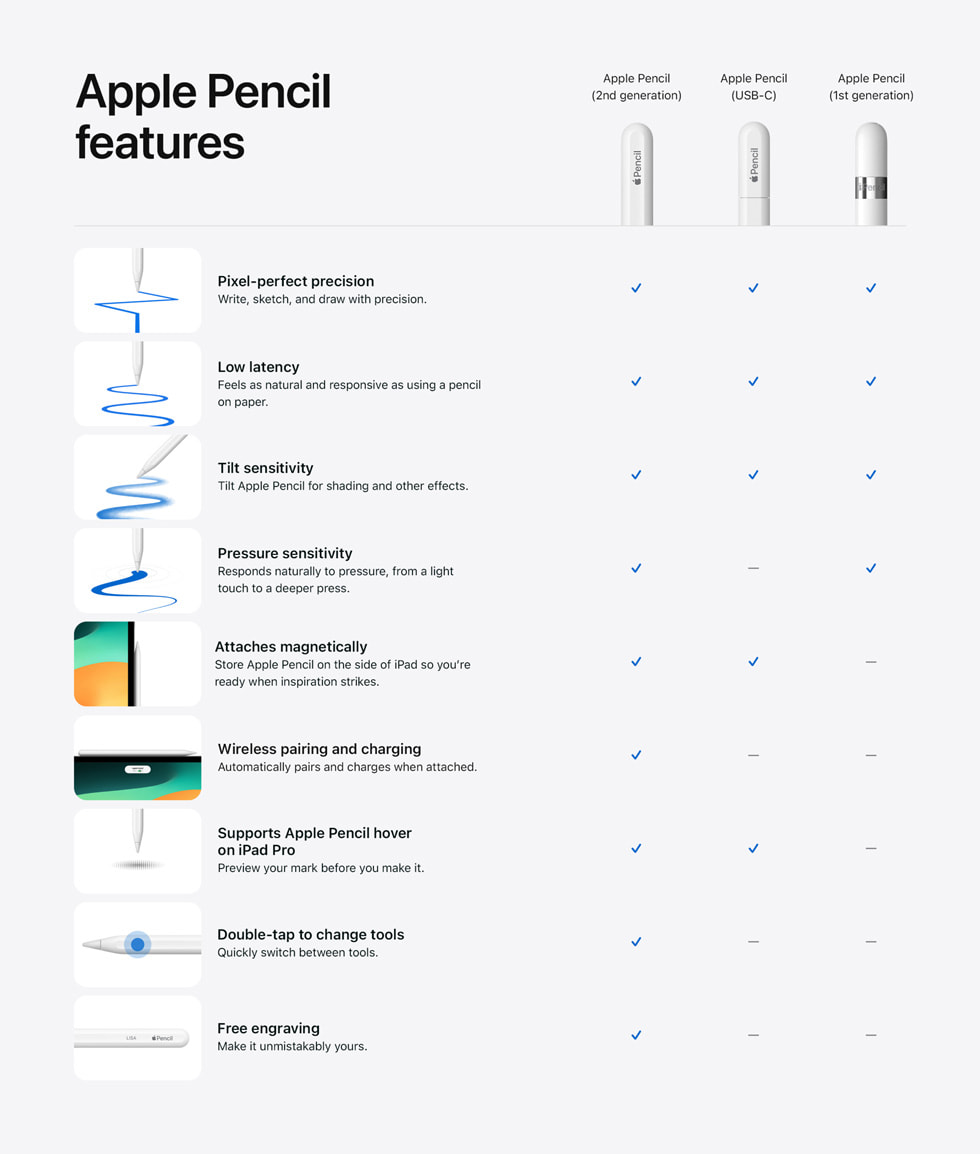
One giveaway: the Pro model has "Apple Pencil Pro" printed on the barrel. The 2nd-gen is completely blank. If you're still unsure, Apple's identify-your-Pencil page walks through every version.
If you've already tried pairing and hit a wall, our guide on fixing a stubborn pairing connection issue covers the software side in more detail.
Pairing Method by Apple Pencil Generation
Each generation has its own pairing ritual. Match your model to the right one and the prompt usually appears within seconds.
Apple Pencil (1st Generation): Lightning Plug-In Pairing
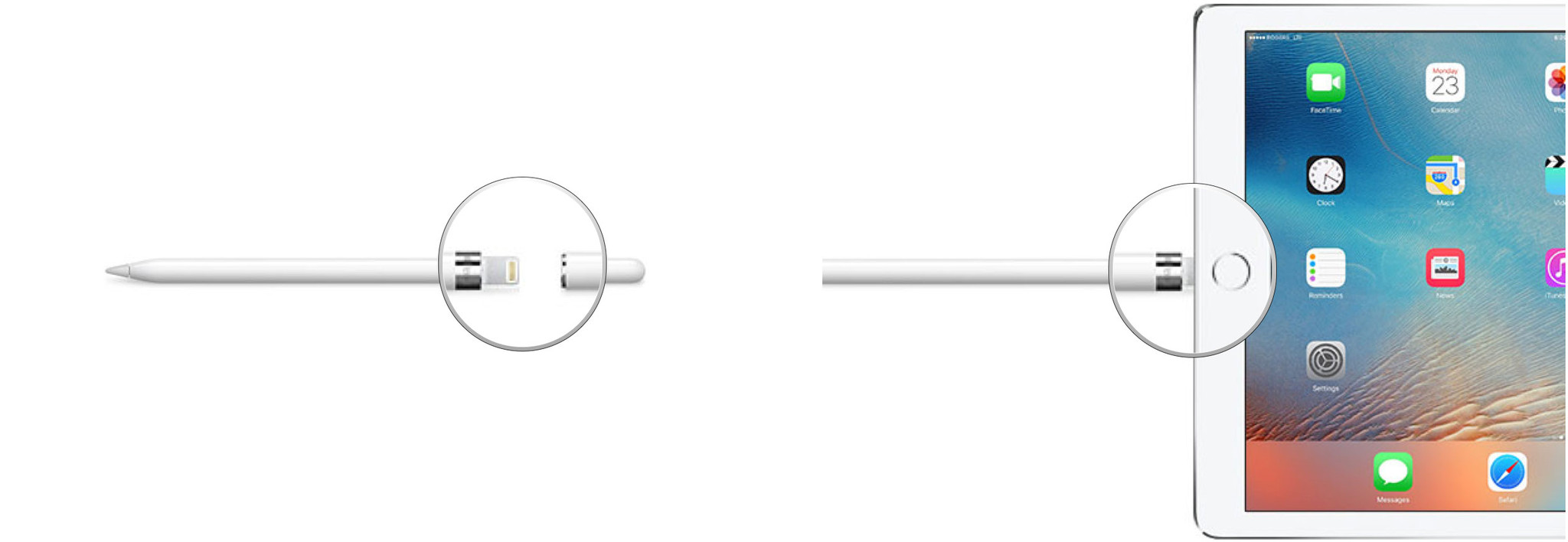
Remove the cap from the top of the Pencil. Plug the Lightning connector directly into your iPad's charging port. A Pair button pops up on screen.
Tap it, and you're done.
If nothing happens, flip the Pencil around in the port. The connector only fits one way. Also make sure the port is clean and the Pencil has some charge in it.
Apple Pencil (2nd Generation): Magnetic Snap Pairing
Attach the flat side of the Pencil to the magnetic rail on the right edge of your iPad. A pairing card should slide down from the top of the screen. Tap Pair to confirm.
If the card never appears, your Pencil may be too low on battery. Let it sit attached for a few minutes to draw charge, then try again. Also check that Bluetooth is switched on in Settings.
Apple Pencil (USB-C): Wired Pairing Through Settings
This model doesn't pair wirelessly. Connect it to your iPad with a USB-C cable first. Then open Settings, tap Apple Pencil, and follow the on-screen steps.
Some iPads also show a prompt the moment the cable connects.
If the Settings entry never appears, try a different cable. Plenty of cheap USB-C cables are charge-only and carry no data. Manufacturer specs confirm the Pencil needs a data-capable cable to pair.
Apple Pencil Pro: Magnetic Pairing With Find My
The Pro pairs the same way as the 2nd-gen: snap it to the magnetic side and tap Pair. What's different is Find My support. Once it's connected, you can track the Pencil in the Find My app.
You can also rename it and check its battery from the same menu. If pairing stalls, hold the Pencil in place for 10 seconds before lifting it off.
The Real "Force Pair" Workflow When Normal Pairing Fails
This is the sequence to run when the standard method refuses to work. Work through it top to bottom and stop when the Pencil connects. Skipping steps tends to create ghost pairings that cause more trouble later.
Step 1: Forget the Old Pencil First
Open Settings, go to Bluetooth, and find your Apple Pencil in the list. Tap the info icon next to it, then choose Forget This Device. This clears any half-finished pairing that's blocking a clean one.
Do this even if the Pencil says it's connected. A stale Bluetooth record is a surprisingly common culprit behind failed re-pairing.
If your Bluetooth list is empty and the Pencil still won't show, read our walkthrough on a Pencil that won't show as connected for deeper diagnosis.
Step 2: Charge Before You Pair
A dead Pencil will not pair. Period. Charge it fully before you try again, or at least give it 15 to 30 minutes on the magnetic rail or via a cable.
Check the battery level in the Batteries widget on your Today View. If it's below 5%, top it up first. This single step fixes a huge share of "won't pair" complaints.
Step 3: Restart, Toggle Bluetooth, Try Again
Restart your iPad. Hold the power button and slide to power off, then turn it back on. While it reboots, toggle Bluetooth off and on once more for good measure.
Now repeat the pairing method for your generation. Most of the time, the prompt appears here.
Step 4: The Settings Path That Actually Works
Sometimes the automatic prompt just won't fire. In that case, go straight to Settings > Bluetooth and look for the Pencil in the "Other Devices" list. Tap it to trigger pairing manually.
For the USB-C model, skip Bluetooth entirely and use Settings > Apple Pencil instead. That's the only path that model responds to.
Step 5: Reset Network Settings and Reset All Settings
These are last resorts. Reset Network Settings wipes saved Wi-Fi passwords but often clears Bluetooth gremlins. Go to Settings > General > Transfer or Reset iPad > Reset > Reset Network Settings.
If that fails, Reset All Settings returns the iPad to defaults without erasing your data. Then re-pair. If the Pencil still won't connect after this, the hardware may be faulty.
For anyone still on an older iPad, our note on connecting to legacy iPads explains the quirks those models have.
Mistakes That Stop Apple Pencil Pairing Cold
These are the missteps we see most often in user reports. Avoiding them saves you a lot of frustration.
- Using a charge-only USB-C cable on the USB-C Pencil. No data wire, no pairing.
- Trying to pair across generations. A 1st-gen Pencil will never pair to a magnetic-only iPad.
- Ignoring a low battery. The Pencil gives no clear "I'm too dead to pair" message.
- Leaving an old Pencil in Bluetooth. Ghost records block clean re-pairing.
- Forcing the Lightning connector. It fits one way. Push the wrong way and you'll damage the port.
- Skipping the iPad restart. It sounds basic, but it clears pairing glitches more often than anything else.
If you're also seeing odd battery behavior, our tips on keeping the battery healthy are worth a look. And if the tip is worn down and causing detection problems, a worn tip replacement can restore proper contact.
That covers the main workflow. From here, a quick look at compatibility, pricing, and when to call Apple Support will help you decide if it's worth fixing versus replacing.
Compatibility, Pricing, and Specs at a Glance
Prices hold steady at Apple's listed retail rates as of 2026. Refurbished stock through Apple's own store rotates often, so expect 15 to 20 percent off if you're patient.
| Model | Price (USD) | Charging | Key Extra |
|---|---|---|---|
| Apple Pencil (1st gen) | $99 | Lightning plug-in | Pressure and tilt |
| Apple Pencil (2nd gen) | $129 | Magnetic | Double-tap tool switch |
| Apple Pencil (USB-C) | $79 | USB-C cable | No pressure sensitivity |
| Apple Pencil Pro | $129 | Magnetic | Find My, squeeze, hover |
Each model is best for a specific type of buyer. The 1st-gen suits anyone still on an older iPad. The 2nd-gen fits most Air and Pro owners who want the classic magnetic flow.
The USB-C model is the budget pick, though it drops pressure sensitivity. The Pro earns its price if you sketch seriously.
Battery life runs up to 12 hours of active writing across models. Real-world numbers come in lower when you're using pressure-heavy apps like Procreate. Pairing itself takes one to five seconds when everything's working.
One compatibility trap worth noting: the 2nd-gen Pencil charges magnetically, but the USB-C Pencil does not. Attaching it to the side of an iPad just stores it. If you skip that detail, you'll wonder why the battery keeps dying.
When to Call Apple Support (and What Warranty Covers)
Every Apple Pencil ships with a one-year limited warranty. AppleCare+ extends coverage if you've added it to the iPad. Battery defects and pairing failures traced to hardware fall under standard warranty.
Here's when to stop troubleshooting and make the call:
- You've run the full force-pair workflow and the Pencil still won't appear.
- The Pencil charges fine but never connects to any iPad you try.
- The battery drains from 100 percent to zero within minutes.
- Physical damage is visible near the connector or tip.
Under the UK Consumer Rights Act and the EU two-year legal guarantee, faulty Pencils qualify for repair or replacement regardless of AppleCare. US buyers should check the FTC's warranty guidance for their statutory rights.
If you've tried a replacement tip and pairing still fails, the issue likely sits in the Pencil's Bluetooth chip, not the tip. That's a hardware repair, not a home fix.
Apple Authorized Service Providers can run diagnostics in-store, often within the same visit. Bring both the Pencil and the iPad so they can test the full pair.
Frequently Asked Questions
Can I force pair an Apple Pencil without the iPad's prompt?
No. Apple doesn't offer a manual force-pair command. You either let the prompt fire, or you trigger pairing through Settings > Bluetooth and tap the Pencil in the "Other Devices" list.
If neither works, the problem is charge, compatibility, or a stale Bluetooth record.
Why does my Apple Pencil pair but then disconnect?
A flaky Bluetooth connection usually points to a weak battery or interference. Charge the Pencil fully, restart the iPad, and unpair anything you're not using. If it keeps dropping, forget the Pencil in Bluetooth and run the full workflow again.
Does the USB-C Apple Pencil pair the same way as the 2nd-gen?
No. The USB-C model doesn't pair wirelessly. You need a data-capable USB-C cable, then you pair through Settings > Apple Pencil.
Snapping it magnetically to an iPad only stores it. It won't charge or pair that way.
How long should pairing take?
One to five seconds once you tap Pair. If the prompt takes longer than ten seconds to appear, something's off. Check charge, Bluetooth, and compatibility before trying again.
Will resetting my iPad erase my data?
Reset Network Settings keeps all your files. Reset All Settings keeps data but wipes preferences. A full Erase All Content and Settings will delete everything, so back up first.

Similar Posts





















