How to Fix Photos on iPhone iOS 18 (Easy Steps)
Your photos didn't vanish. Something between your iPhone's local library, iCloud Photos, and the iOS 18 Photos app has simply stopped talking to itself. Learning how to fix photos on iPhone iOS 18 starts with one rule: diagnose the symptom before you touch a setting.
The fix for missing pictures is not the fix for grey tiles, and it's definitely not the fix for a photo that only looks wrong.
iOS 18 runs on iPhone XR and later, so a huge spread of hardware is hitting the same redesigned Photos library. Storage ceilings matter too. Apple's iCloud+ plans start at 50GB for $0.99 a month, and plenty of libraries sail past that inside a year.
Here's how to work out which problem you've actually got.
Quick Answer
Most iOS 18 photo problems are sync or visibility issues, not real data loss. Check Recently Deleted inside the Photos app first. Then clear filters and the Hidden album.
If tiles look grey, free up iCloud storage. Restart the iPhone before you erase anything.
Why iOS 18 Breaks Your Photos, And How to Tell What's Really Wrong

Image source: Web (Bing) / idownloadblog.com (Web image (fair-use with source credit))
iOS 18 didn't delete your pictures. What it did was rebuild the Photos app around one scrolling library with auto-grouped Collections. Apple's documentation confirms the old tabbed layout is gone, replaced by Recent Days, People & Pets, Trips, and a Utilities folder.
A photo sitting safely on your iPhone can look missing simply because it's no longer where your thumb expects it.
Missing, hidden, or not yet downloaded
Three different states get described with the same four words. "My photos are gone."
- Missing. The file isn't on this iPhone and isn't in iCloud. That's a recovery job.
- Hidden. It exists, but a filter, the Hidden album, or a collapsed Collection is sorting it out of sight.
- Not yet downloaded. It lives in iCloud, but Optimize iPhone Storage hasn't pulled the full file down. The tile exists. The pixels don't.
Aggregate user reports suggest the third category causes most false alarms.
What changed in the iOS 18 Photos app
The library now opens as a single grid with Collections layered underneath. You can pin, hide, and reorder those Collections. Filters for Favorites, Edited, Videos, and Screenshots can quietly hide whole chunks of your library.
If yours looks emptier than it should, that filter button is the first place to look.
When it isn't an app problem at all
Sometimes the app is completely fine. A smeared lens adds haze. A full iCloud plan stalls uploads.
A metered connection pauses sync until you're back on Wi-Fi. Rule those out before you reset anything.
Start Here: Three Questions That Pick Your Fix
Before you tap a single setting, answer three questions. They narrow a long list of possible fixes down to one branch.
1. Are the photos gone everywhere, or just on this iPhone?
Open iCloud.com in any browser and sign in. If the photos are there, your library is intact and the problem is local sync. If they're missing there too, stop and go straight to recovery.
2. Did this start after an update, a restore, or a storage warning?
The trigger tells you plenty. Post-update problems are usually visual or indexing related. Post-restore problems mean downloads are still catching up.
Storage warnings mean uploads are queued and blocked.
3. Are the photos absent, stuck, or just ugly?
Absent points to Branch A. Stuck, grey, or endlessly syncing points to Branch B. Present but low quality points to Branch C.
How to read the symptoms
| What you see | Most likely cause | Where to go |
|---|---|---|
| Tiles grey, count still climbing | Download in progress | Branch B |
| Count lower than iCloud.com | Indexing or filter active | Branch A |
| Photo sharp, colours flat | Style or HDR setting | Branch C |
| Stuck on "Updating Library" | Storage or network block | Branch B |
If you've already had trouble with getting the newest build onto older hardware, that's a separate job worth sorting first.
Branch A: Photos Are Missing, Hidden, or Deleted
Work down this list in order. Most people find what they're looking for by step three.
Step 1: Check Recently Deleted
Deleted photos sit in Recently Deleted for 30 days. Apple's support documentation spells out that window clearly. Open Photos, scroll to Utilities, then Recently Deleted.
Tap Select and recover anything you want back. Do this before anything else, because a restore can overwrite this folder.
Step 2: Unhide the Hidden album
Hidden isn't deleted. It's locked behind Face ID or Touch ID and parked in Utilities. If you moved photos there and forgot, they'll reappear the moment you authenticate.
Nothing else in this branch matters until you've checked.
Step 3: Clear active filters
Tap the filter icon in the top corner. If Favorites or Edited is switched on, your grid is showing a slice, not the whole library. Reset to All and watch the count jump.
Step 4: Search instead of scrolling
iOS 18 search can find photos by person, place, object, or text inside an image. Type a landmark, a name, or "receipt" and see what surfaces. If search finds a photo the grid hides, the file exists and you have a display problem, not data loss.
Step 5: Confirm what iCloud actually holds
Sign in at iCloud.com and open Photos. That's your ground truth. If the photos show up there but not on your iPhone, you belong in Branch B.
If they're gone from both, restore from a backup you've verified.
Step 6: Restore, carefully
Connect to a Mac or PC and restore from an encrypted local backup. If the iOS 18 update itself left the phone unstable, there are known fixes worth running first.
Branch B: Photos Are Stuck, Grey, or Not Syncing
Image source: Web (Bing) / storables.com (Web image (fair-use with source credit))
Grey tiles mean the thumbnail is on your phone but the full-resolution file is still in iCloud. That's a download queue, not corruption. The fix is almost always storage, network, or power state.
Why uploads and downloads stall
Four blockers cause most of it:
- iCloud storage is full. Nothing moves until you free space or upgrade.
- Low Data Mode is on. It throttles background transfers on both Wi-Fi and cellular.
- A VPN or iCloud Private Relay is interfering. Switch both off and retest.
- The phone isn't charging. Large syncs often wait for power.
Toggling iCloud Photos the safe way
Go to Settings, tap your name, then iCloud, then Photos. Turn iCloud Photos off and choose Remove from iPhone only when prompted. Wait a minute, then switch it back on.
Never pick Delete from iPhone. That removes local originals and defeats the whole point.
Getting a big library to finish
Connect to Wi-Fi, plug in the charger, and leave Photos open on screen. Sync runs in the background and gets priority when the display is awake. For libraries over 10,000 items, expect hours rather than minutes.
Patience is genuinely part of the repair.
Shared Photo Library and Shared Albums
Shared libraries sync on their own schedule and can lag a day or more behind your personal library. Check that other members' devices are online and signed in. If someone left the shared library, items they contributed may drop out of your view.
And if you sign out of your Apple Account and a locked Apple Account is the result, that needs its own recovery path.
Branch C: The Photo Exists But Looks Wrong
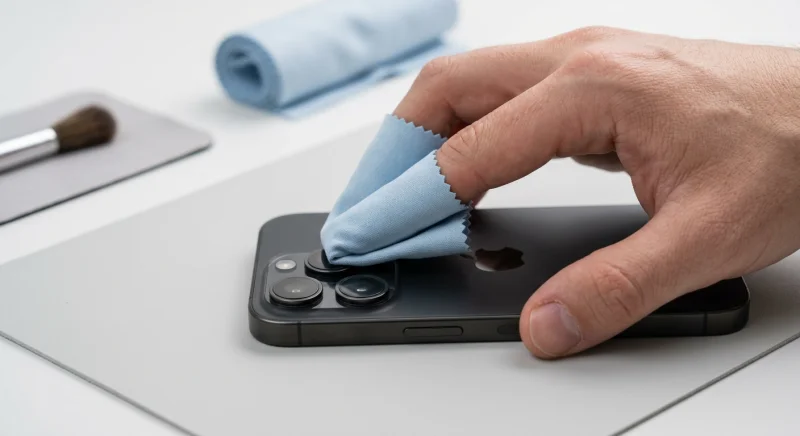
Image source: Web (Bing) / phonerepair.co.uk (Web image (fair-use with source credit))
The photo is there. It just looks bad. Nine times out of ten the camera app isn't broken, and neither is iOS 18.
Blurry, hazy, or flared
Clean the rear lens with a microfibre cloth. Finger oils and pocket lint scatter light and produce exactly the soft, glowing look people blame on software. Remove thick cases and cheap lens protectors too.
They add ghosting and cut contrast.
Washed-out colour and dull contrast
Check your Photographic Style first. On iPhone 16 models you can change it after the shot. On earlier phones it's baked in unless you revert.
Tap Edit, then Revert to Original to compare. Also check whether the auto-enhance wand is applied, since it pushes exposure and saturation in ways that don't suit every shot.
Edits that won't save or keep reverting
Photos uses non-destructive editing, so originals are always preserved. If edits vanish, you may be editing a photo that hasn't finished downloading from iCloud. Wait for the full-resolution file, then edit again.
Copy Edits and Paste Edits lets you apply one correction across a whole batch in seconds.
Clean Up is missing
Clean Up needs an Apple Intelligence capable device, a supported language, and a supported region. As of 2026, that means A17 Pro or A18 class chips with English set as your device language. If your region hasn't gone live yet, the button simply won't appear.
Sharing outside Apple
Windows and older apps often can't open HEIC files. Set Settings, Camera, Formats to Most Compatible, or export as JPEG when sharing. Apple's HEIC compression saves roughly half the file size of an equivalent JPEG, so converting does cost you storage.
Separately, backup integrity guidance from NIST recommends a verified restore, not just a completed backup, before you trust any copy of your library.
Mistakes That Make It Worse
The fastest way to turn a fixable sync problem into permanent data loss is panic. These are the moves our research keeps flagging as the ones people regret most.
Deleting the Photos app
This achieves nothing. The app is part of iOS and comes straight back, and your library was never stored inside it anyway. You've burned five minutes and learned nothing.
Emptying Recently Deleted too early
That 30-day window is your only built-in undo. Clearing it to free space removes the last copy of anything you deleted by accident. Free storage from large videos and duplicate shots instead.
Erasing or restoring before a verified backup
A backup that has never been test-restored isn't proof of anything. Restore to a spare device first, or at least confirm the backup exists and reports the right photo count.
Merging duplicates that weren't duplicates
The Duplicates album in iOS 18 is smart, but two shots taken a second apart can be separate keeps. Review each pair before you tap Merge.
Trusting third-party recovery apps
Apple's platform security documentation confirms that legitimate recovery never needs your Apple Account password. Any site or app asking for it is a phishing risk, full stop.
The safety net that actually works
Two things. An encrypted local backup made in Finder or the Apple Devices app, refreshed monthly. And Advanced Data Protection for iCloud, which switches on end-to-end encryption for Photos and device backups.
Know the trade-off before you enable it. With Advanced Data Protection on, losing your Recovery Key and Recovery Contact means Apple genuinely cannot restore your library for you. Keep that key somewhere offline and somewhere you'll find it again.
Symptom-to-Fix Decision Guide
Use this table when the branches above don't obviously match what you're seeing. Find your symptom, run the first fix, and escalate only if it fails.
| Symptom | First fix | If that fails |
|---|---|---|
| Photos missing on iPhone only | Check iCloud.com, then toggle iCloud Photos | Restore from encrypted backup |
| Grey tiles, count still climbing | Wi-Fi, charger, Photos left open | Free up iCloud storage |
| Stuck on Updating Library | Disable Low Data Mode, VPN, Private Relay | Sign out and back in |
| Blurry or hazy shots | Clean the lens, remove the case | Review Photographic Style |
| Edits won't stick | Wait for the full download, re-edit | Revert to Original, reapply |
Optimize iPhone Storage vs iCloud+ tiers
If storage is the recurring blocker, you have two levers. Optimize iPhone Storage keeps thumbnails local and pulls full-resolution files on demand. Upgrading iCloud+ simply gives the library more room in the cloud.
US list prices as of 2026 run from 50GB at $0.99 a month up to 12TB at $59.99. Most people with a few years of photos land comfortably in the 200GB tier at $2.99.
When to stop and get help
If iCloud.com and your iPhone still disagree on photo count after 48 hours of correct syncing, stop improvising. The same goes for a library that fails to rebuild twice. Apple Support can run server-side checks you can't do from the device.
One last thing about judging your own results. If you're reviewing edits on a bigger screen, remember that the colour accuracy of your display shapes what you see. An uncalibrated monitor will have you chasing problems that aren't there.
Frequently Asked Questions
Will updating to iOS 18.1 or later bring my photos back?
No. Point updates fix bugs, but they don't resurrect deleted files. If your photos are missing rather than hidden or unsynced, check Recently Deleted first, then restore from a backup.
Updates are still worth installing, since several iOS 18 sync bugs were patched in later releases.
Can I recover photos deleted more than 30 days ago?
Only from a backup. Once the Recently Deleted window closes, iOS removes the file locally and from iCloud. Your options are an encrypted local backup, an iCloud Backup taken before the deletion, or a third-party service if the data still sits on the storage chip.
Why does my iPhone show fewer photos than iCloud.com?
Usually indexing or an active filter. The iOS 18 Photos app recalculates your library after a major update, and that can take a full day on large libraries. Check the filter icon first, then Utilities, then leave the phone on Wi-Fi and charging overnight.
Does Advanced Data Protection affect photo recovery?
Yes, and it's a genuine trade-off. It gives iCloud Photos end-to-end encryption, so nobody else can read your library. It also means Apple cannot help you if you lose your Recovery Key or Recovery Contact.
Store that key offline before you switch it on.
Is it safe to sign out of my Apple Account to fix sync?
Rarely, and never as a first step. Signing out and back in can trigger a full re-download lasting hours. Worse, if you misremember the password or get locked out, recovering the account itself becomes a completely separate job.
Exhaust every other fix before you go there.

Similar Posts




















