How to Fix iPhone Error 10 Fast: Causes & Fixes
If your iPhone just failed a restore, you've probably seen the message "An unknown error occurred (10)." Learning how to fix iPhone error 10 starts with one fact most guides skip. The code alone tells you almost nothing. What matters is where the restore stopped.
Error 10 usually means your computer lost its data handshake with the iPhone mid-write. It can be a cheap cable, a worn USB port, a stale driver, or a failing NAND flash chip on the logic board. Apple groups error 10 with errors 9 and 4005 for that exact reason.
Here's how to narrow it down before you wipe anything.

Quick Answer
To fix iPhone error 10, start with a known-good MFi cable. Move to a direct USB port, not a hub. Update iTunes or the Apple Devices app.
Disable antivirus and VPN tools, then restore in Recovery Mode. If it fails twice, try DFU Mode or Apple Configurator 2.
Why iPhone Error 10 Is Three Problems in One
Every "unknown error" in Apple's restore system means the same broad thing. The iPhone and the host computer stopped agreeing on a data packet. Error 10 sits inside a family that also includes errors 9, 4005, 4013 and 4014.
What separates them is the stage where the handshake breaks. Error 9 tends to fail early, during the first contact. Error 10 shows up once the firmware transfer has already started.
| Error code | Where it fails | Likely cause |
|---|---|---|
| 9 | Early handshake | Cable, port, or driver |
| 10 | Mid firmware write | Unstable link or failing storage |
| 4005 | Restore startup | USB controller or third-party software |
| 4013 / 4014 | Late in the write | NAND flash or baseband fault |
That table matters more than it looks. A code that fails at 5% and one that fails at 95% are different diagnoses wearing the same label.
So error 10 is really three problems stacked together. It's a connection fault, a software fault, or a hardware fault. Your job is to rule out the cheap ones first, in order.
Most people do the opposite. They jump straight to a full wipe, or they pay for a repair tool that promises one-click fixes. Both routes risk turning a recoverable glitch into real data loss.
If your phone is stuck after recovering a failed update, that's a different starting point than a device that never booted at all. Diagnose the stage before you diagnose the cause.
Read the Failure Point First: Your Actual Diagnostic Clue
Watch the progress bar, not the error code. The percentage where the restore dies tells you which branch of the fix you need. Apple's own troubleshooting guidance starts here for a reason.
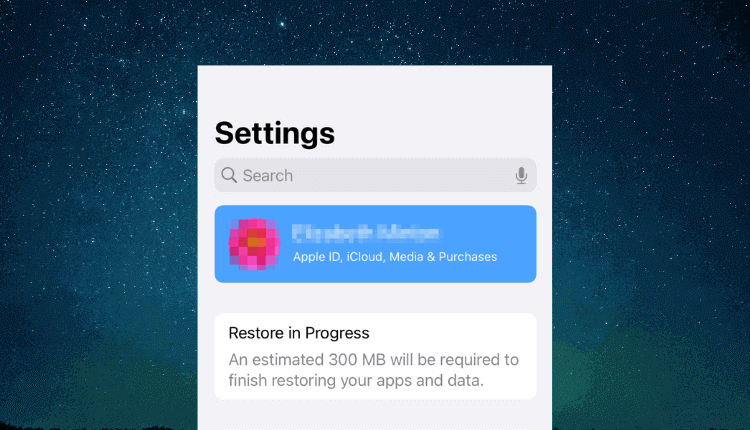
Three zones, three different problems:
- Nothing happens at all. The bar never appears. That's a handshake failure, so the cable, port, or USB driver is the suspect.
- It stalls between roughly 20% and 60%. The firmware is transferring and the link dropped. Cable quality and USB controller stability are the usual culprits.
- It dies late, past 80%, or during verification. The write reached storage or the baseband chip. Hardware becomes the strong probability.
There's a practical test for the middle zone. Swap the cable and the port, then run it again. If the failure point moves, the connection is unstable.
If it stops at the same percentage every single time, you're probably looking at storage.
Note the exact wording too. "Preparing iPhone for restore" is a pre-write stage. "Verifying iPhone restore" happens after the data has been written.
A crash at verification points at the NAND flash, not your cable.
Run the same restore three times with different cables and different ports. Same failure point each time means the fault lives inside the phone.
If you're weighing manual firmware installation anyway, this diagnosis tells you whether it's worth the effort.
Branch A: Software and Connection Fixes That Clear Error 10
This is the branch that actually fixes most error 10 cases. Work through it in order. Don't skip ahead to the hardware verdict.
- Swap the cable. Use an MFi-certified, data-capable cable. Charge-only cables physically cannot carry the firmware payload.
- Ditch the hub, dock, and dongle. Plug straight into a port on the computer. USB 3 hubs and monitor docks are a known trigger.
- Try a different port, ideally USB-A. On Windows, a USB 2.0 controller is often more stable than a USB 3.x one. If you've hit USB-C adapter oddities before, you know the drill.
- Update the host software. On macOS, run Software Update. On Windows, update the Apple Devices app or iTunes 12.12.x, whichever you use.
- Repair the driver. In Windows Device Manager, uninstall Apple Mobile Device USB Driver, then reconnect the phone. Windows reinstalls it automatically.
- Disable interference. Turn off antivirus, VPN clients, and any phone manager software. USB filter drivers are a common cause of dropped restores.
- Restore from a locally downloaded IPSW. Option-click on Mac or Shift-click on Windows, then pick the correct signed file.
Cable specs are not marketing fluff. The USB Implementers Forum publishes the data and power standards behind every certified cable. A cable that fails those specs has no business carrying a firmware write.
That's also why USB-C data capability varies so wildly between cheap and branded cables.
If all seven steps fail at the same point, stop. You've ruled out software. Move to the next branch.
Branch B: Recovery Mode or DFU Mode, Choosing Your Restore Path
Recovery Mode is the gentler option. DFU Mode is the deeper one. Pick based on how badly the phone is misbehaving.
| Recovery Mode | DFU Mode | |
|---|---|---|
| What it does | Loads a small recovery image | Talks to the bootrom directly |
| Screen state | Shows a cable icon | Stays black |
| Data loss | Usually wipes | Always wipes |
| Best for | Normal restore failures | Corrupted firmware, bootloops |
Reach for Recovery Mode first. Press volume up, volume down, then hold the side button until the recovery screen appears. That sequence works on iPhone 8 and later, including every model sold as of 2026.
DFU Mode is the fallback. The timing is fussy, and the screen stays completely black when you get it right. If the phone shows anything at all, you're in Recovery Mode, not DFU.
On a Mac, Apple Configurator 2 offers a third path. Its Revive function reinstalls firmware without erasing your data. That's worth trying before a full restore, especially if you don't have a backup.
Neither mode helps if the underlying problem is physical. Both simply hand the firmware to the same failing hardware. That's why Branch C exists.
If your device is bound to an Apple ID lockout after a restore, sort the account issue before you flash anything.
Branch C: When It's Actually Hardware
Two components inside an iPhone cause most hardware-driven error 10 failures. The NAND flash chip holds your data and the operating system. The baseband chip manages cellular communication.
When either starts to fail, restores die at the same point every time. No cable swap changes it. No fresh driver helps.
The write simply cannot complete.
Signs you're in hardware territory:
- The same error hits at the same percentage across three or more attempts
- Another computer and a certified cable produce an identical failure
- The liquid contact indicator shows water exposure
- The phone has been repaired before, particularly by a third-party shop
- It overheats during the restore attempt
Liquid damage is a slow killer. Corrosion spreads over weeks, and the phone may have worked fine for months before the restore exposed the fault.
Board-level repair is possible. Microsoldering shops replace NAND chips and reball baseband ICs. Costs vary widely by region and model, and success isn't guaranteed.
Whole-unit replacement is the safer bet if the phone is under AppleCare+ or still in warranty. Out-of-warranty service pricing for most iPhone models runs into the hundreds of dollars.
Per Apple's restore documentation, persistent errors that survive a clean DFU restore should go to an Authorized Service Provider. That's not a sales pitch. It's the point where DIY stops being worth the risk.
Mistakes That Turn a Fixable Error 10 Into a Bricked iPhone
Most error 10 horror stories aren't caused by the error itself. They're caused by what people do in the next ten minutes. Avoid these four and you keep every option open.
Restoring without a backup first
A restore wipes everything on the device. If the phone still boots, even briefly, pull an encrypted local backup before you touch anything. Encrypted backups in Finder or the Apple Devices app preserve Health data, saved Wi-Fi passwords, and Keychain entries that iCloud backups don't carry.
Repeating the same failed restore over and over
Running the identical restore ten times teaches you nothing and can deepen the fault. Change one variable per attempt: cable, then port, then host software, then restore mode. If the failure point never moves, stop and reassess.
Third-party one-click repair tools
Aggregate user reports on these utilities are mixed at best. Many flash unsigned firmware or write straight to the baseband chip. That can permanently kill cellular function, which is a far worse outcome than a failed restore.
Skipping the Apple ID sign-out
Turn off Activation Lock before restoring, or sign out of your Apple ID completely. A restored iPhone with an active lock is a paperweight without the original credentials.
If you're re-pairing accessories afterward and something won't connect, wireless stylus pairing quirks are usually a Bluetooth cache issue rather than a restore problem.
Decision Guide: What to Do Based on Your Exact Situation
Pick your situation from the table below, then run only that branch. Jumping around usually wastes an hour.
| Your situation | What to try first |
|---|---|
| First error 10, phone boots fine | Backup, then swap cable and port |
| Same failure point three times | Move to hardware diagnosis |
| Stuck on Apple logo, never boots | Recovery Mode, then DFU Mode |
| Mac available, no backup | Apple Configurator 2 Revive |
| Liquid damage or prior repair | Book service, don't restore |
When should you stop and book a repair?
Stop when a clean DFU restore on a second computer with a certified cable fails at the same percentage. That combination rules out everything you control at home.
Other stop signs: the phone overheats during the attempt, the liquid contact indicator is red, or the device has been opened before. Genuine Apple parts and microsoldering kit aren't things most people keep on a desk.
Apple Authorized Service Providers can run diagnostics that confirm a NAND or baseband fault in minutes. Independent shops may be cheaper, so verify they use quality parts. Right-to-repair rules in the UK and EU have made those options more viable than they were five years ago.
Costs vary by model and region. Out-of-warranty logic board work typically lands in the hundreds of dollars. AppleCare+ changes the maths entirely.
Frequently Asked Questions
Does iPhone error 10 always mean hardware failure?
No. Cable, port, and driver problems cause most cases. Hardware is the answer only when the same failure point repeats across three attempts with different cables, ports, and computers.
Can I fix error 10 without losing my data?
Sometimes. Apple Configurator 2's Revive option reinstalls firmware without erasing data on a Mac. Recovery Mode and DFU Mode restores both wipe the device.
If your phone still boots, take a backup first.
How long does a restore take?
Roughly 8 to 20 minutes on a USB 2.0 connection. USB 3.x is faster. If the progress bar stalls for more than 15 minutes at one point, the restore has already failed even if no error has appeared yet.
Is DFU Mode safe to use?
Yes, when you get the timing right. DFU bypasses iOS entirely and talks to the bootrom, so it can rescue firmware that Recovery Mode can't. It always erases your data, so back up first if you possibly can.
Should I update iTunes before restoring?
Yes. On Windows, update the Apple Devices app or iTunes 12.12.x first. Outdated Apple Mobile Device Support drivers are a frequent cause of error 10 and error 4005 on Windows machines.

Similar Posts





















