Apps Crashing on iOS 18? Here’s How to Fix Them
Few things are as maddening as tapping an app and watching it vanish. If you're searching for how to fix apps crashing in iOS 18, here's the honest starting point: most crashes have a fix, and it's usually simpler than you think. The catch is that the right fix depends on your crash pattern, not on one magic setting.
Apple's iOS 18 release notes confirm the update runs on hardware as old as the iPhone XR and XS. That means a wide spread of chips, memory, and app compatibility all sharing one OS. As of 2026, aggregate user reports point to two main culprits: apps that never rebuilt for the iOS 18 SDK, and settings conflicts introduced during the upgrade.
Telling those apart is where most people get stuck.
Quick Answer
The fastest way to fix apps crashing in iOS 18 is to update the app first. Restart your iPhone next. Check for free storage.
Offload and reinstall the crashing app. If many apps crash, update iOS itself. Reset All Settings only as a last resort.
Why Apps Crash on iOS 18 and Why One Fix Doesn't Cover Everyone
An app crash isn't one thing. On iOS 18, it usually falls into one of four buckets, and each one has a different cause.

| Crash type | What you see | Usual cause |
|---|---|---|
| Launch crash | App closes before the splash screen | Bad permission, broken update, corrupted cache |
| Mid-use freeze | App hangs, then vanishes | Memory pressure or a bug in one feature |
| Background termination | App dies while you're elsewhere | iOS reclaiming RAM or a watchdog kill |
| Crash loop | App reopens and dies instantly | Corrupted app data or a bad profile |
The iOS 18 update tightened several things under the hood. Local Network Privacy now asks for permission far more aggressively. Background task limits got stricter.
Apps built against older SDKs, especially anything last updated in 2023 or earlier, are the ones most likely to break.
That's why a blanket "just reinstall it" answer fails so often. A launch crash and a background termination need completely different fixes. One is a permissions or data problem.
The other is a memory or system-management problem.
If your whole device has been flaky since the update, that's a different issue entirely, closer to a rocky post-update experience than a corrupt app.
Triage First: The Four Questions That Narrow Down Every iOS 18 Crash
Ask these four questions before you touch anything. Each answer cuts the possible causes in half.
- How many apps crash? One app points to that app's data, permissions, or compatibility. Five or more points to iOS, a profile, or storage.
- When exactly does it crash? At launch means data or permissions. Mid-use means memory or a specific feature. In the background means resource management.
- Did it start after a specific change? A new iOS build, an app update, a new configuration profile, or a fresh permission prompt all leave fingerprints.
- Has a simple restart already failed? If yes, you're past the free wins and into data, settings, or a clean reinstall.
If you can't answer question two, open Settings > Privacy & Security > Analytics & Improvements > Analytics Data. Look for files named after the crashing app.
The same logic applies to other iOS 18 irritations you've probably bumped into, like a Control Center that refuses to respond. Crashes and interface glitches often share a root cause.
The Decision Tree: Match Your Crash Pattern to the Right Fix
Once you've triaged, the fix path is mostly mechanical. Find your pattern below and follow that branch.

Branch 1: One app crashes, everything else is fine
Update that app first. If the developer hasn't shipped an iOS 18-compatible build, nothing on your end will fix it. Then offload, reinstall, and check permissions.
Branch 2: Multiple apps crash after updating to iOS 18
Check free storage first. iOS 18 needs a few gigabytes of breathing room. Then move to the latest point release, since Apple has patched several stability bugs since 18.0. If crashes persist, inspect configuration profiles and MDM.
Branch 3: The app crashes only in specific situations
This points to a feature, permission, or network issue. Turn off VPN and Private Relay, then retry. If your phone keeps dropping to older network modes, that's stubborn network glitches worth fixing before you blame the app.
Branch 4: Nothing works, and you're ready to escalate
Report the crash to the developer with a log from Analytics Data. If crashes hit multiple apps even after a full restore, book a hardware diagnostic with Apple.
Step-by-Step Fixes, Ranked From Safest to Most Destructive
Work down this list. Stop when the crashing stops.
- Force quit and relaunch. Free, instant, fixes plenty of one-off hangs.
- Restart your iPhone. Clears memory pressure and stuck background processes.
- Update the app. Most crash waves end with a developer patch.
- Update iOS to the newest point release. Apple Support recommends this before anything drastic. Check their official guidance if you're unsure of your build.
- Free up storage. Aim for 5 GB or more of headroom.
- Offload the app. Keeps your data, replaces the binary with a clean copy.
- Delete and reinstall. Fixes corrupted app data. You lose anything not synced to iCloud.
- Reset All Settings. Wipes preferences and Wi-Fi passwords, keeps your files.
- Erase and restore from a known-good backup. Check our notes on restore-related errors first.
- DFU restore. Wipes the device completely. Set up as new afterward.
If the update itself is the problem, the steps for installing the update cleanly matter more than any crash fix. And remember, a misbehaving Photos library is usually a data problem, not a system one.
Mistakes That Make iOS 18 App Crashes Worse
- Restoring from the same backup that caused the problem. If the backup was made while the bug was active, you're reinstalling the bug.
- Deleting an app before checking its data. Some apps store everything locally. Offload first if you're not sure.
- Changing five settings at once. You won't know which change fixed it, or which one broke something else.
- Installing random beta profiles. Sideloaded configs can trip iOS 18's stricter security checks.
- Assuming hardware failure too early. Most crashes on iOS 18 are software. Rule that out before booking a repair.
- Ignoring storage alerts. A nearly full iPhone crashes apps constantly, and the fix is boring.
- Skipping the developer. If one app fails and it's up to date, that developer needs your crash log.
Sudden unusual battery drain often rides along with the same background processes that cause crashes. If both show up together, treat them as one problem rather than two.
Is It the App or iOS 18? How to Read Crash Logs and Escalate
Open Settings, then Privacy & Security, then Analytics & Improvements, then Analytics Data. That list is your evidence locker. Every crash iOS 18 catches shows up there as a file ending in .ips.
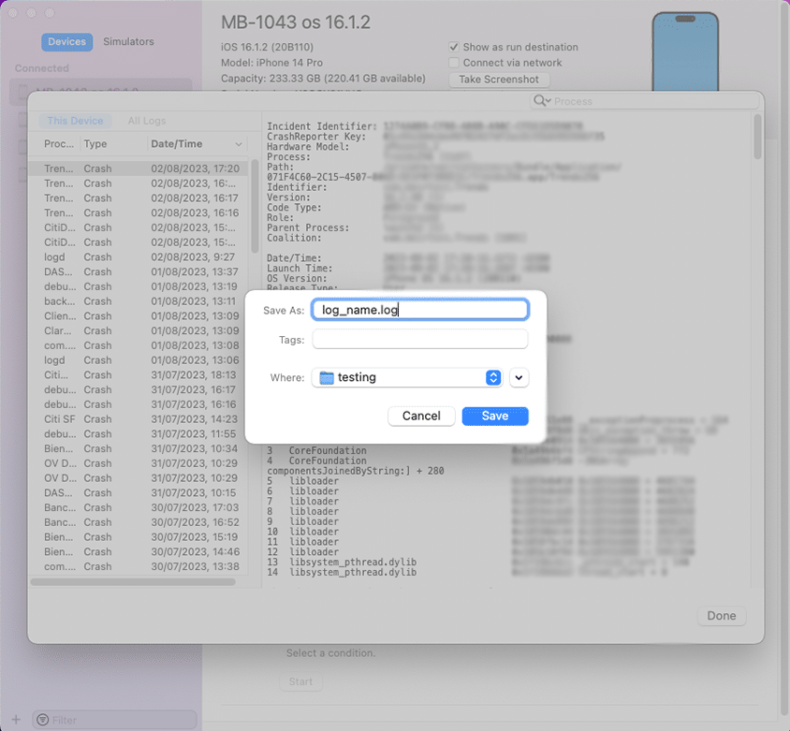
Most entries look like gibberish at first. Read the top three lines and you'll know who to blame. Exception Type tells you what killed the app, and Termination Reason tells you why.
- EXC_CRASH or SIGABRT: the app hit an error it couldn't handle. That's an app bug.
- EXC_BAD_ACCESS: it touched memory it doesn't own. Also an app bug.
- JetsamEvent: iOS killed it to free RAM. That's memory pressure, not bad code.
- Watchdog timeout: it froze too long during launch. Slow startup, often on older chips.
A pile of JetsamEvent entries on an older iPhone means you're hitting a hardware ceiling. Devices with 3 GB or 4 GB of RAM, like the iPhone XR and 11, get terminated far more often than a 16 with 8 GB. That fits the pattern of post-update complaints we keep seeing on older models.
Sharing a log is easy. Screenshot the top of the file, note your app version, then send it through the App Support link on the app's App Store page. TestFlight users can submit it directly as feedback.
Apple's developer documentation explains how symbolication turns those hex strings into readable function names.
Escalate to Apple Support when the logs show panic files, or when crashes hit five or more apps after a clean restore. A panic log points at hardware or firmware. A Genius Bar diagnostic can confirm that in one visit.
Keeping Crashes Away: Backups, Update Habits, and Beta Cautions
Prevention here is boring, and that's the point. A few habits keep crash season short.
| Habit | Why it helps |
|---|---|
| Automatic app updates on | Compatibility fixes land the day they ship |
| 5 GB or more free storage | iOS stops killing apps to reclaim space |
| A monthly local backup | Gives you a restore point older than the bug |
| No beta builds on your main phone | Keeps unstable code out of daily use |
Keep two backups, not one. iCloud handles the automatic copy, and a local backup through Finder or the Apple Devices app gives you a second option. Rotate them so you're never stuck restoring the snapshot that carried the bug.
Storage is the habit people ignore. Once you drop below about 5 GB free, iOS aggressively thins caches and terminates background apps. If your phone also runs hot and dies by mid-afternoon, fix the background drain before you chase the crash.
Let app updates install within a day or two. Most post-update crash waves end when the developer ships a rebuilt version. If you're stuck on an older device, the install process itself matters more than any settings tweak.
Beta software is the biggest self-inflicted risk. Beta profiles, sideloaded builds, and alternative marketplaces all raise your crash rate. Run them on a spare device and report bugs through Feedback Assistant.
And if one specific app keeps dying, like a library that misbehaves in Photos, treat it as a data problem first.
Frequently Asked Questions
Why do apps keep crashing after the iOS 18 update?
Most apps were built against older software development kits and never got rebuilt for iOS 18. Developers usually patch within a few weeks. Until they do, offload and reinstall the app, keep iOS on the newest point release, and check Analytics Data for the exact exception type before doing anything drastic.
Does deleting and reinstalling an app fix crashes on iOS 18?
Often, yes. Deleting wipes the app's local data and cache, which clears corrupted files that survive an update. Offload first if you're unsure, since it keeps your documents while replacing the binary.
If a clean install still crashes at launch, the problem sits with the developer, not your device.
Will Reset All Settings delete my photos or messages?
No. Reset All Settings clears preferences, Wi-Fi passwords, and Bluetooth pairings while leaving your files, photos, and messages untouched. It's one of the safest mid-level fixes on iOS 18.
Back up first anyway, because anything can go sideways, and a restore that throws error codes is a headache you don't need.
How do I know if an app is incompatible with iOS 18?
Check the app's App Store page for the last update date. Anything last touched in 2023 or earlier is a red flag. Read recent reviews, since incompatible apps collect crash complaints fast.
If the developer confirms no iOS 18 support, nothing on your end will fix it.
Should I restore my iPhone to fix crashing apps?
Only after cheaper fixes fail. Restore from a backup made before the crashes started, or the bug comes back with your data. If crashes continue after a restore and set up as new, that points to hardware.
Book a diagnostic with Apple rather than restoring a third time.

Similar Posts




















